
Handheld gaming PCs like the Xbox Ally and older ASUS ROG Ally pack impressive power into a small frame, but that performance can come with trade‑offs — especially when the CPU is constantly boosting to higher clock speeds.
For some games, that aggressive behavior leads to heat spikes, inconsistent frame times, and battery drain that tanks your play session. Turning off CPU boost is a simple tweak that can smooth out performance, reduce stutter, and keep your handheld running cooler.
Here’s how it works and why it can make certain games feel noticeably better.
Why would I want to turn off CPU Boost on my handheld?
When CPU Boost is active, the CPU draws more power. That reduces the amount of power available to the GPU, which is far more important for gaming in some instances. Most modern games are GPU-dependent rather than CPU-dependent, especially at common handheld resolutions like 720p and 1080p.
CPU Boost can also negatively affect efficiency. The increased power draw leads to faster battery drain and causes temperatures to rise more quickly, which can contribute to thermal throttling during longer gaming sessions.
How to disable CPU Boost
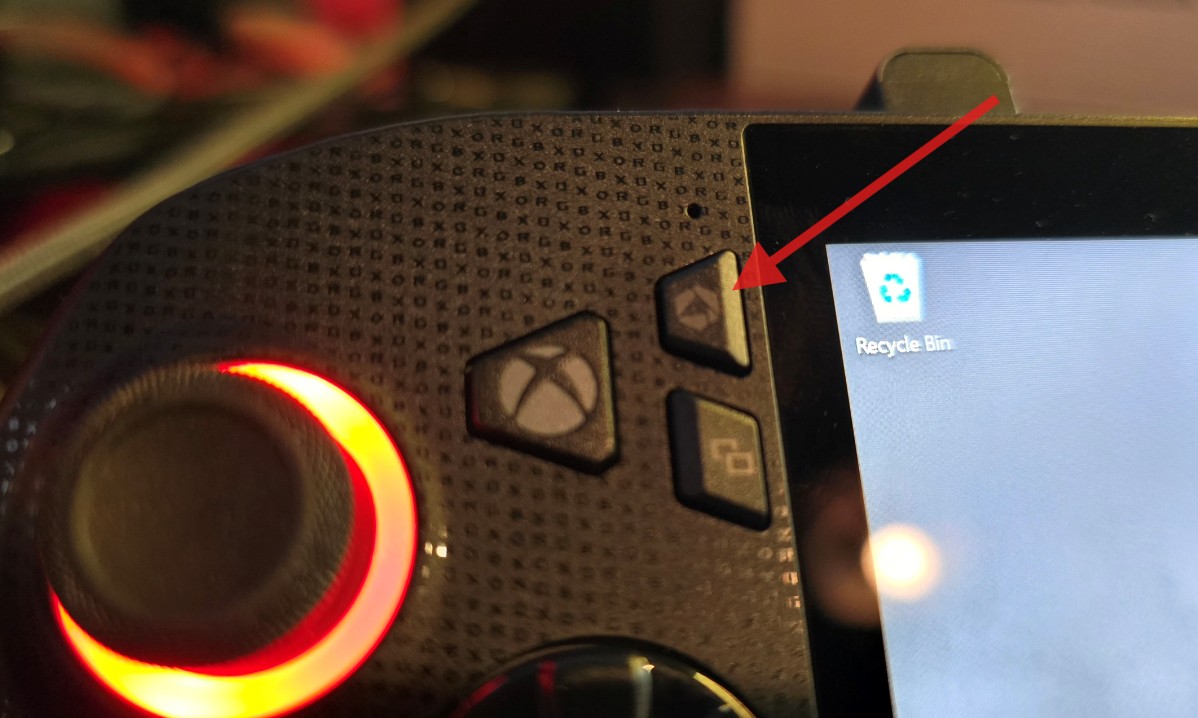
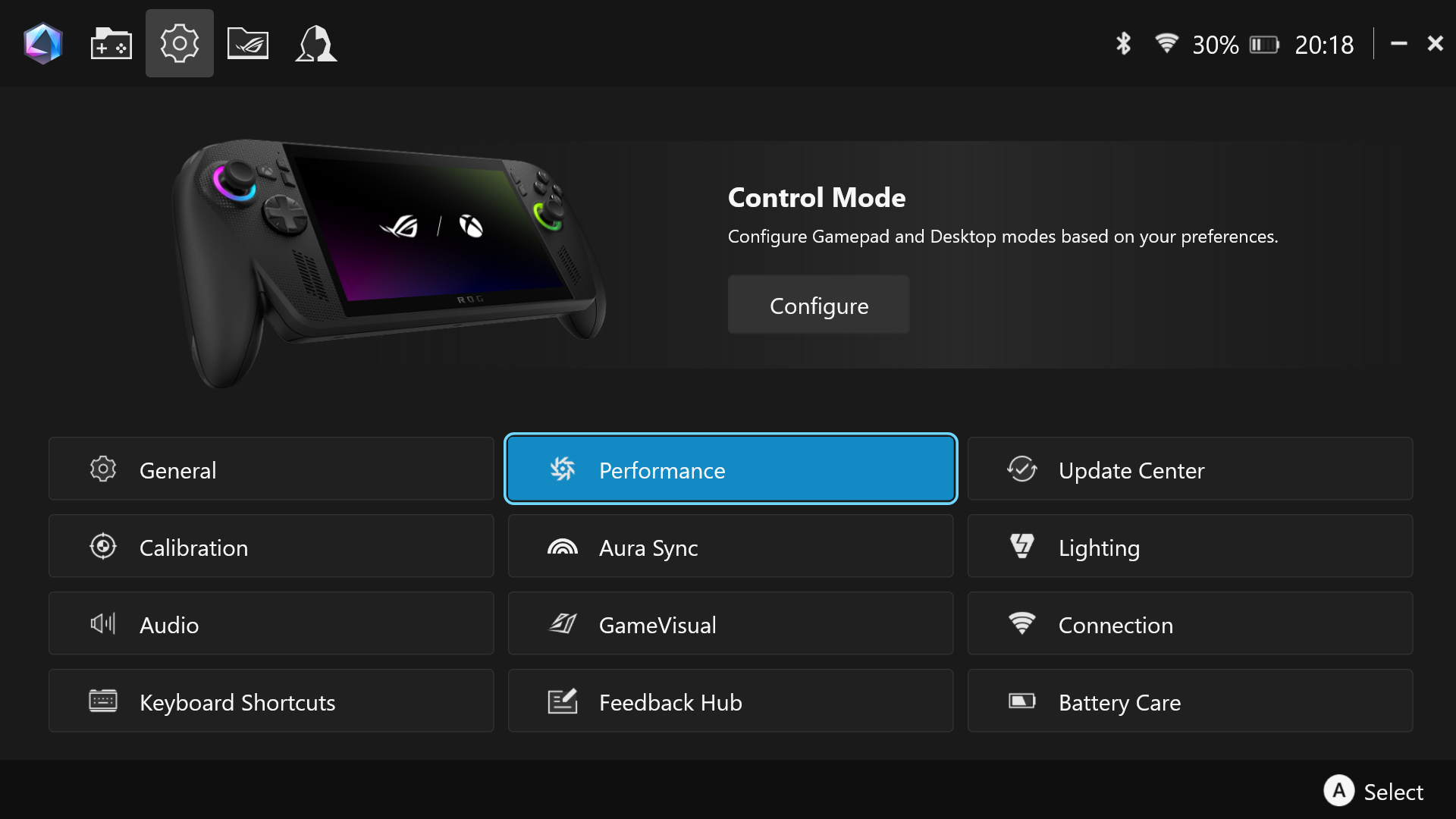
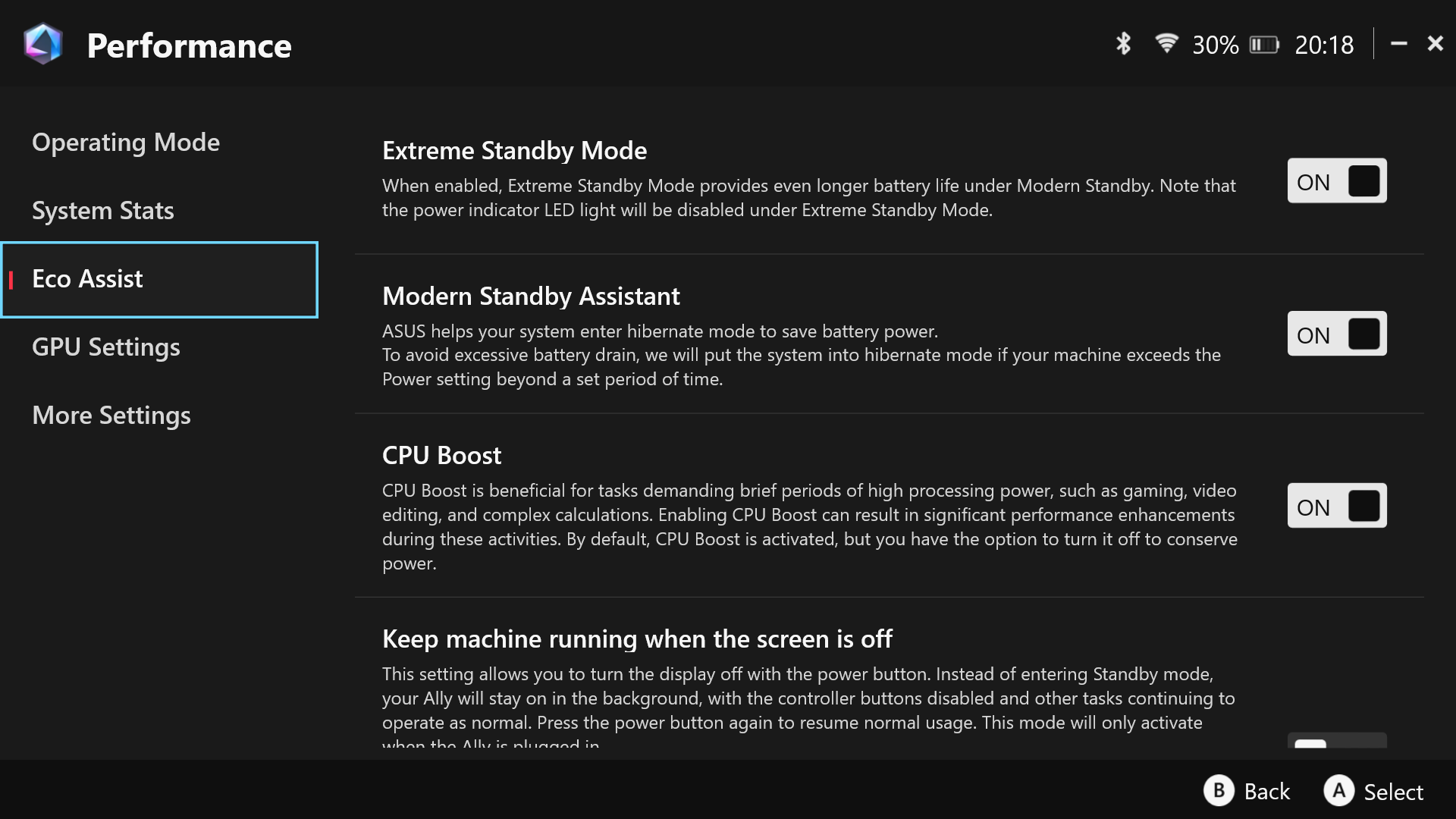
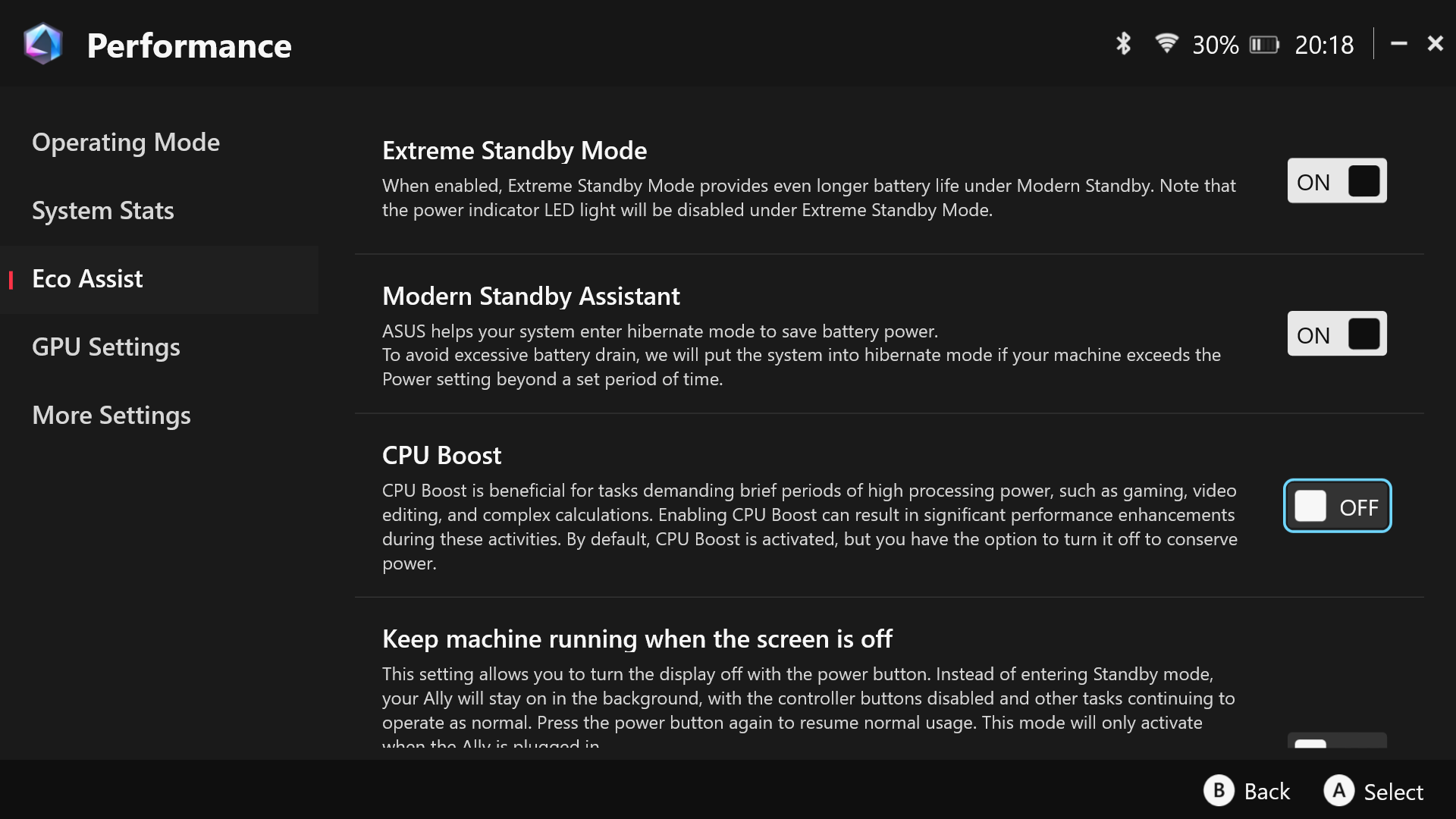
Disabling CPU Boost is extremely straightforward and very easy to do, just follow the images above or if you'd prefer follow this guide below:
- Open Armoury Crate SE either using the Armory Crate button or typing it in search.
- Once in Armoury Crate SE, navigate to the Settings menu.
- Within the Settings menu, select Performance.
- Within the Performance menu, choose the Eco Assist option.
- Turn off CPU Boost on the right-hand side.
When disabling CPU Boost makes sense
Hopefully, this has helped improve performance on your device. As with most tweaks like this, results can vary on a case-by-case basis.
This change is most likely to help in GPU-heavy games such as Black Myth: Wukong, Kingdom Come: Deliverance 2, Cyberpunk 2077, and similar titles, where smoother performance and better efficiency matter most.
Your experience may vary but re-enabling CPU Boost can be done by:
- Launch Armoury Crate SE using the dedicated Armory Crate button or by searching for it in Windows.
- From the main interface, open the Settings section.
- Select Performance from the available options.
- Open the Eco Assist menu within Performance.
- Toggle CPU Boost on from the right-hand side.
Disabling CPU boost won’t magically transform every game, but for titles that struggle with thermal limits or inconsistent frame pacing, it can be one of the easiest ways to get a more stable experience on the Ally.
The best part is that you can toggle it on or off whenever you need, letting you choose between raw speed and smoother, cooler gameplay.
As handheld gaming PCs continue to blur the line between portability and power, small optimizations like this can make a big difference in how your games actually feel in the moment.

If you use an Xbox Ally or ROG Ally, it is worth trying this setting for yourself. Results can vary depending on the games you play and your power profile, so let us know how CPU Boost behaves on your handheld by voting in the poll below.

Follow Windows Central on Google News to keep our latest news, insights, and features at the top of your feeds!