
Why not switch from Android to iPhone now that Apple has just released a new series? When making this decision, if you have thought of losing WhatsApp data, it's familiar and evident. However, it's 2025, and multiple ways exist that make transfer WhatsApp from Android to iPhone possible. To get to know a few of them, review this simple article with a detailed usage guide.
Part 1. Why WhatsApp Transfer Between Android and iPhone is Complicated
If you think moving WhatsApp from Android to iPhone is complicated, it might be. The official way, Move to iOS, offers limited transfer support as it only works on select software versions and requires a new or reset iPhone. Additionally, WhatsApp data, such as call logs, display names, and channel media, also stays behind and causes incomplete transfers.
The Core Reason – Different Backup Systems
Besides having the limitation of the official WhatsApp transfer tool, the main hurdle is the different backup systems. WhatsApp saves Android data on Google Drive and iPhone data on iCloud. Both use unique encryption and file formats that block direct transfer between them. No bridge exists between these platforms, so tools like Move to iOS or third-party software become necessary.
Part 2. How to Transfer WhatsApp from Android to iPhone - 5 Ways
After having the basic review, if you want to learn how to transfer WhatsApp from Android to iPhone in 5 simple ways, review this section:
Method 1: Official Move to iOS Option
Move to iOS is an official and free tool for WhatsApp transfer. It protects users' privacy with full encryption and no malware risk. Additionally, the app moves chats, media, account details, and profile data without needing a computer. The process is direct, safe, and just requires you to enter the same mobile number as you finish the WhatsApp sharing via the listed steps:
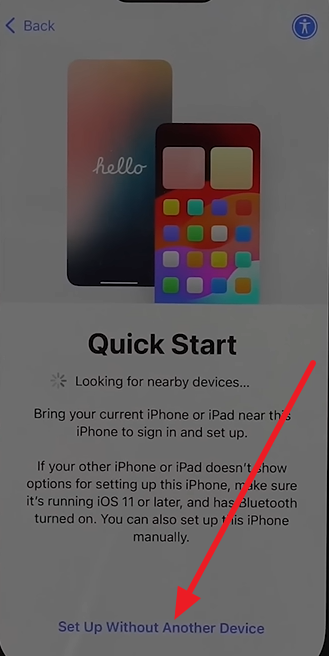
Step 1. Pick the “Set Up Without Another Device” option as you access the Move to iOS app on Android and start setup on iPhone.
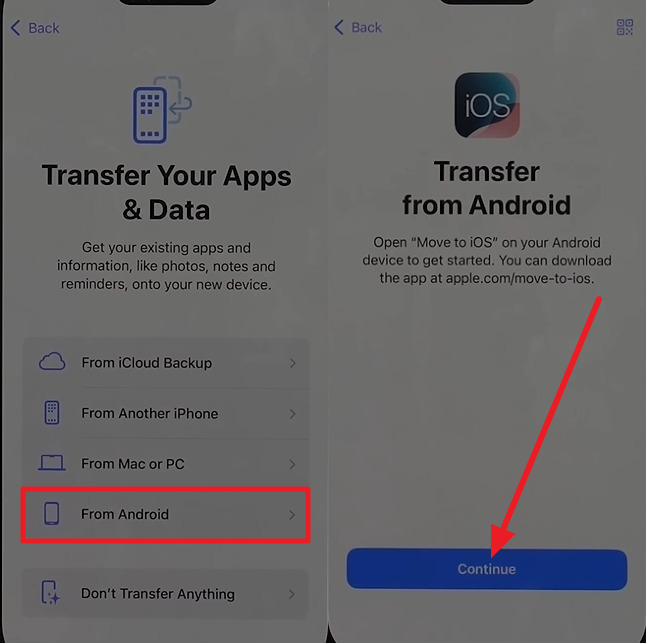
Step 2. Here, select the “From Android” option on the “Transfer Your Apps and Data” interface to get a one-time code.
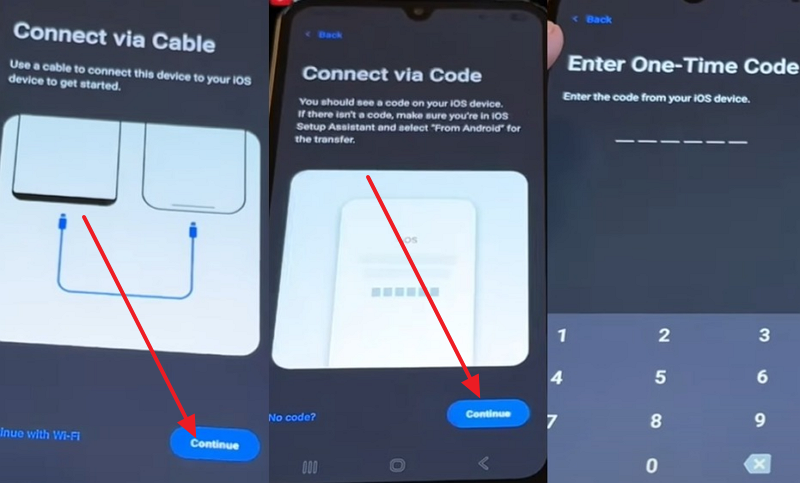
Step 3. On Android, press the “Continue” button when prompted to connect the device via cable, then enter the one-time code. Now, enter the code into iOS and fetch the data type screen on Android.
Step 4. Choose the “WhatsApp” option from the list and pick the “Start” button as you get the “Move Chats to iOS” screen. After confirmation, press the “Continue” button and complete the iOS setup, as the data is being moved.
Now, log in to WhatsApp on iOS using the same phone number as Android and enter the verification code. Then, press the “Start” button on the “Move Chats from Android” screen, and you will get all WhatsApp data.

Limitations
- Requires a new or factory-reset iPhone.
- Only transfers to one phone number.
Method 2: Use MobileTrans (Best All-in-One WhatsApp Transfer Tool)
For situations where you need to transfer WhatsApp from Android to iPhone without a factory reset, MobileTrans is all you need. With the support of over 6000 iOS and Android devices, the tool offers cross-platform support. This means that you can move any WhatsApp data, like photos, videos, or stickers, from Android to iPhone, iPhone to iPhone, or iPhone to Android.
Moreover, this robust WhatsApp transfer tool is secure and doesn’t require you to rest or delete the original data. Additionally, users can use it to move WhatsApp Business from Android to iOS or any other direction. You can also use it to share LINE, Kik, and Viber to new phones after you access MobileTrans on Windows 11/10/8/7/XP/Vista.
Key Features
- Selective Transfer: The best aspect is that users have complete control over the WhatsApp data types they seek to move.
- Manage Old and New Data: In addition to being a data-sharing solution, users can also use MobileTrans to merge old and new data.
- WhatsApp Version Support: As Move to iOS only supports WhatsApp versions 2.22.15.11 or later, MobileTrans supports all versions.
Guide to Move WhatsApp from Android to iOS with MobileTrans
To know how you can move WhatsApp from Android to iPhone with MobileTrans, follow this basic guide:
Step 1. Access the WhatsApp Tool and Connect the Devices
Select the “WhatsApp” module in the MobileTrans data transfer tool, then connect the devices via USB.
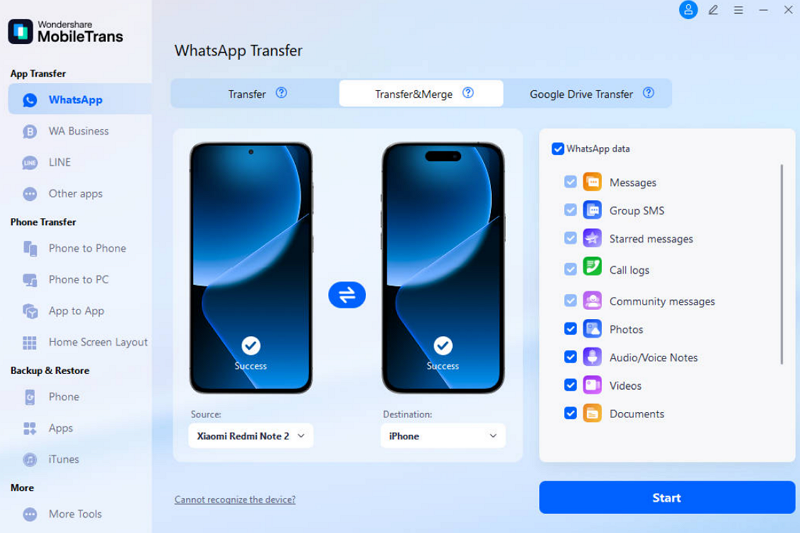
Step 2. Choose Source and Target Devices and Press Start
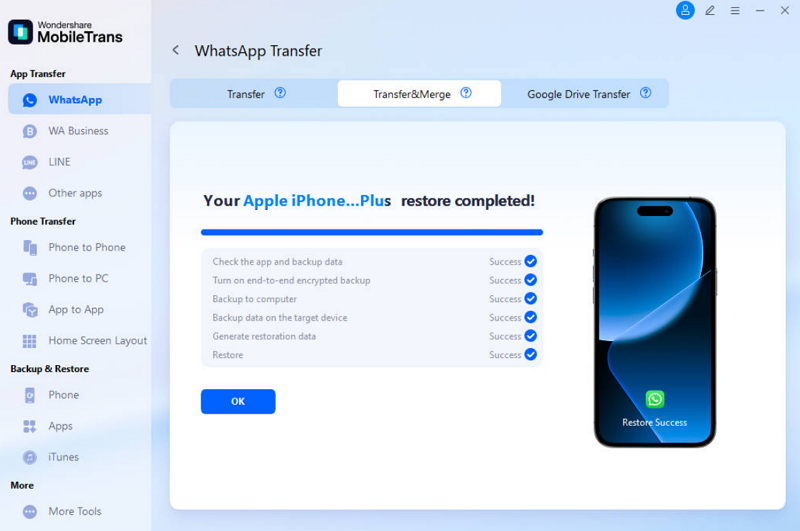
As you determine the mobile types with the “Flip” feature, select the WhatsApp data types that the tool has automatically displayed. After that, press the “Start” button and wait till the process ends.
Method 3: Mutsapper
To learn how to transfer WhatsApp from Android to iPhone without a factory reset, use the Mutsapper app. This app limits the need for a PC and requires a simple USB-based setup to move the app data. You can also use this application to merge WhatsApp data without erasing the old one, and move WhatsApp Business and GBWhatsApp data.
You can also use it to transfer WhatsApp from Google Drive to iPhone, and in terms of WhatsApp sharing, its usage is simple, as guided:
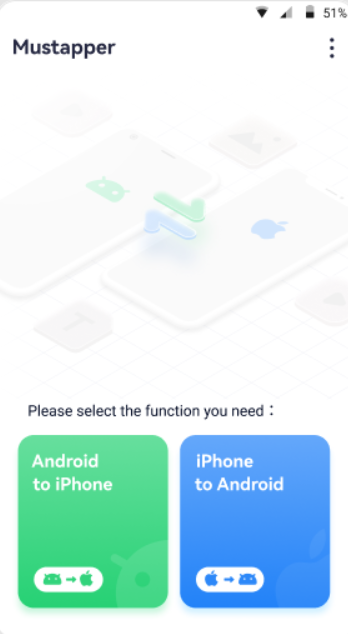
Step 1. Launch the App and Choose the Tool to Move WhatsApp
Pick the “Android to iPhone” tool, enter the phone number, and log in to WhatsApp.
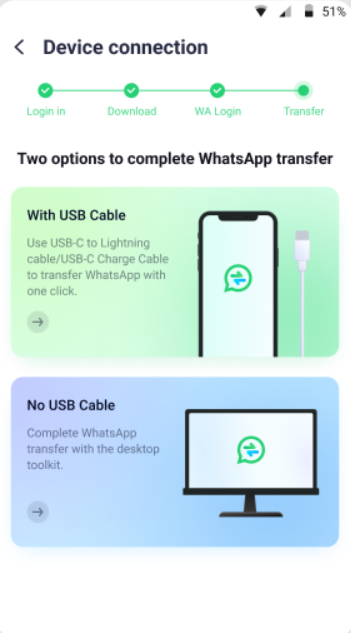
Step 2. Connect Devices and Wait for Parsing Completion
Choose the required method to move data and authorize it, and the app will parse your WhatsApp backup first. When it ends, select the “Start” button and wait for the process to complete.
Limitation
- Older or unsupported devices cannot use the app.
- You cannot transfer WhatsApp between the same OS.
Method 4: Try Email Chat Export (Manual Method)
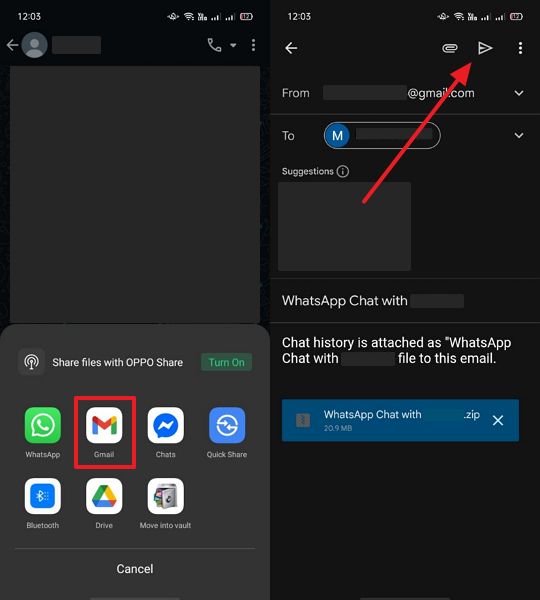
When using any WhatsApp transfer tool, if you seek to move chats, there is an Export Chat and email option you can try. It allows users to send selected chats directly from Android to iPhone without resetting or using software. The exported chats arrive as text files with or without media and stay readable on any device, as illustrated:
Step 1. On Android, open a certain chat and press the “Three Dots” icon to choose the “More” option. Then select the “Export Chat” option, and pick “Include Media” or “Without Media.”

Step 2. From the sharing option, opt for “Gmail” and press the “Send” icon as you enter your iOS email ID. Later, download the chat.txt file or forward it to any other device.
Limitations
- Chats cannot be imported to the WhatsApp app.
- You have to manually export each chat.
Method 5: With Google Drive Backup
Since WhatsApp lacks a direct way to move WhatsApp from Android to iPhone, try to restore the data from Google Drive to the iPhone. For that, you can use the already-shared solution, MobileTrans, which includes the Drive/Cloud Transfer option. It can parse the backup and transfer the files directly to your Android/iPhone. After restoring the data via the given guide, you can also merge old and new data with it:
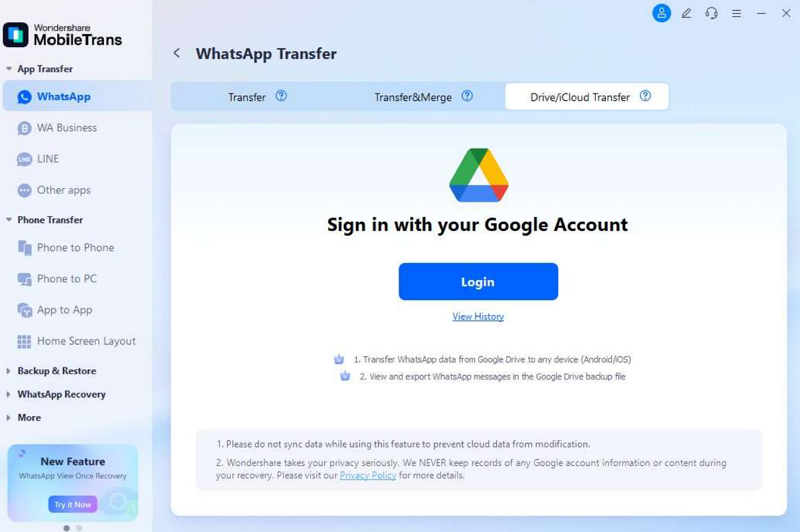
Step 1. Log in to Drive to Fetch Backup
Log in to your Google Account as you choose the “Drive/Cloud Transfer” tool within the “WhatsApp” module.
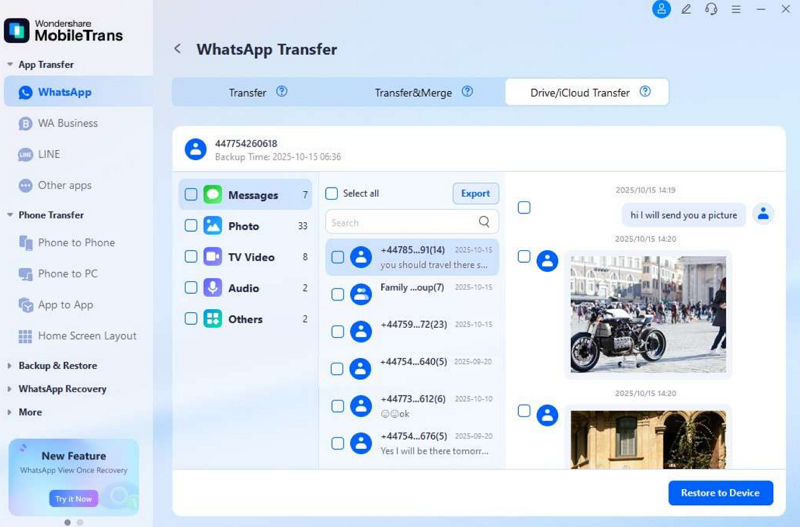
Step 2. Pick Data Types and Restore Them to iPhone
When you access your WhatsApp backup, select the chats or data types, then tap “Restore to Device” to restore them to your iPhone.
Pros
- Offer selective backup data restoration.
- Dedicated sections make tool navigation and usage seamless for beginners.
Part 3. Comparison Table: MobileTrans vs Other WhatsApp Transfer Methods
If you wonder what solution to pick to learn how to transfer WhatsApp from Android to iPhone, review the given comparison table:
|
Method |
Device Reset Needed |
Merge Old & New Chats |
Transfers Media |
GBWhatsApp/Business Support |
Ease of Use |
|
Move to iOS (Official) |
Yes (new/reset iPhone) |
No |
Yes |
No |
Moderate |
|
MobileTrans |
No |
Yes |
Yes |
Yes |
Very Easy |
|
Mutsapper |
No |
Yes |
Yes |
Yes |
Easy |
|
Email Chat Export |
No |
Manual Only |
Optional, limited |
Yes |
Moderate |
|
Google Drive Backup (MobileTrans) |
No |
Yes |
Yes |
Yes |
Very Easy |
Among all options, MobileTrans stands out as the most flexible and complete solution. It supports both Android and iPhone, transfers all chat types, and even works on already-set-up iPhones without data loss or reset.
Conclusion
To wrap up, this guide has offered you simple and effective solutions to transfer WhatsApp from Android to iPhone. Since Move to iOS has certain limitations, use MobileTrans because it's versatile. Moreover, its innovative App Transfer tool allows you to move data to phones and restore the Google Drive backup.