
Since many people replace their phones, restoring old WhatsApp chats becomes difficult. Most users keep backups on Google Drive, while others depend on iCloud services instead. This difference usually confuses users who want to move their chats safely. The process needs the right tool and care to avoid data loss. Therefore, this guide will help you learn how to restore WhatsApp backup from Google Drive to iPhoneeffortlessly.
Part 1. Why Can't You Restore WhatsApp Backup from Google Drive to an iPhone Directly
Transferring WhatsApp data between Android and iPhone is not as simple as it seems. Many users get confused about why backups on Google Drive cannot move directly to iPhones. Below, you will find some reasons why you can’t restore the backup:
- Backup Format: Google Drive uses a unique file format that the iPhone cannot read directly. This means backups stored there stay locked until converted through another tool.
- System Limitation: Google Drive is designed to restore backups only to another Android phone. This restriction blocks the ability to move saved data directly to iPhone storage.
- Encryption Method: The app encrypts data differently on Android and iPhone devices for privacy reasons. Thus, the new device cannot read or access backups stored in Google Drive.
- Transfer Limitation: When you try to transfer WhatsApp messages from Android to iPhone using Google Drive, it fails. The iPhone setup does not support direct Drive file access during restoration.
- Storage Difference: One system saves backups on Google Drive, while the other relies on iCloud storage. These two cloud platforms work differently and cannot synchronize or exchange backup data.
Part 2. Things to Consider Before Restoring WhatsApp Backup
Before starting the restoration process, it is essential to check some key factors. These points help prevent errors and ensure your chat data moves safely and fully:
- Stable Internet: You need a strong and stable internet connection for downloading backup data. A weak connection may interrupt the process and cause incomplete or missing files.
- Latest Version: Make sure both devices use the latest version of WhatsApp before transfer. Outdated apps can cause errors or fail to recognize the backup during setup.
- Enough Storage: Check that your iPhone has enough space to handle the restored data. Lack of free storage can stop the restoration or skip specific media files.
- App Permissions: Allow necessary permissions for WhatsApp and connected apps involved in data transfer. Without them, the app cannot access the required files or perform the restore correctly.
Part 3. How to Restore WhatsApp Backup from Google Drive to iPhone Using MobileTrans
MobileTrans is a simple yet powerful tool that helps users move WhatsApp data easily. It supports iPhone 17 and over 6000 iOS and Android devices worldwide. You can transfer almost every type of WhatsApp data, including messages and even stickers, all at once effortlessly. The tool ensures no important chats or media are left behind during transfer. Also, users can choose to move selected data or restore everything as per preference.
It also supports the transfer of shared WhatsApp locations to your new phone securely. With MobileTrans, you can restore WhatsApp backup from Google Drive to an iPhone without losing previous messages. It even merges your backup with existing chats for a complete view. Additionally, this innovative tool keeps your privacy secure while ensuring smooth and safe data transfers.
Key Features
- WhatsApp Business: It supports transferring and restoring WhatsApp Business data without data loss.
- Preview Backup: The tool allows viewing WhatsApp backup details before starting the restoration process.
- Multi-App Support: Apart from that, MobileTrans also transfers chats from other apps like LINE and Kik easily.
Guide to Restore WhatsApp Backup from Google Drive to iPhone Using MobileTrans
After exploring the top features, many users are confused about how to use this dedicated tool. So, take guidance from the following steps to learn how to restore WhatsApp backup from Google Drive to iPhone:
Step 1. Access the Tool’s Google Drive Transfer
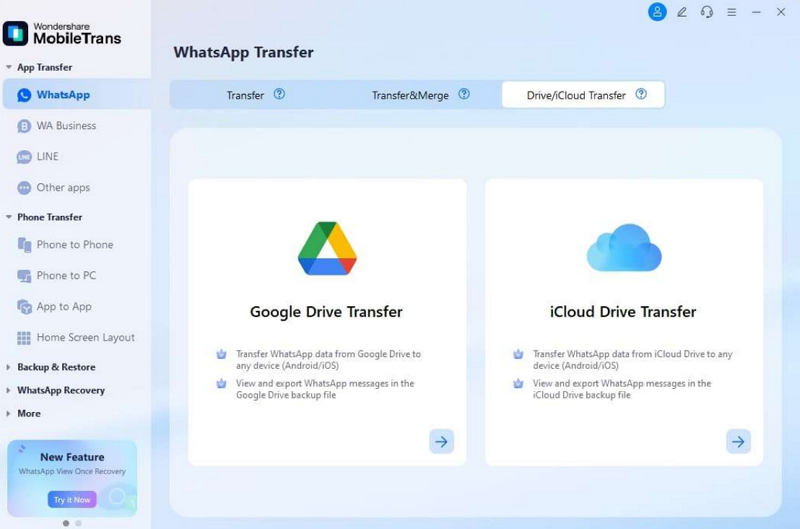
When you access the tool’s main screen, head to the “WhatsApp” tab and access the “Drive/iCloud Transfer” section. Afterward, opt for the “Google Drive Transfer” feature and press “Login” to access your account.
Step 2. Access the Latest WhatsApp Backup File
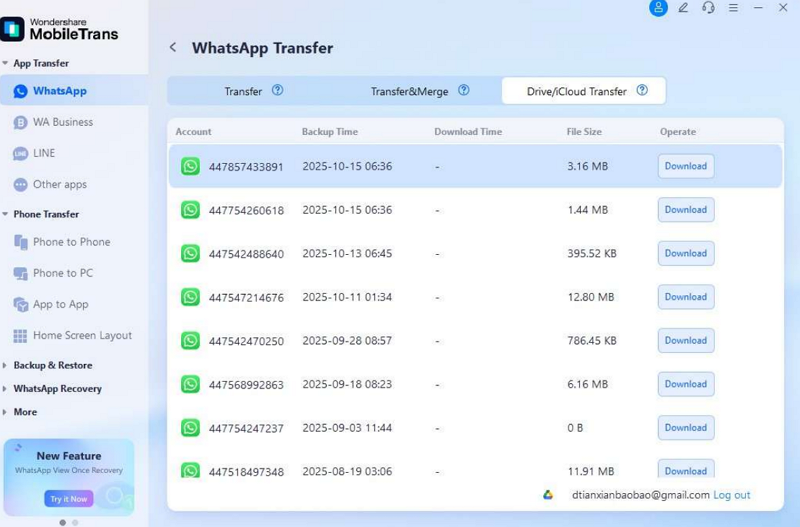
Upon seeing the backup files, press the “Download” button next to the latest one and follow the prompts to verify your identity.
Step 3. Preview the WhatsApp Backup File
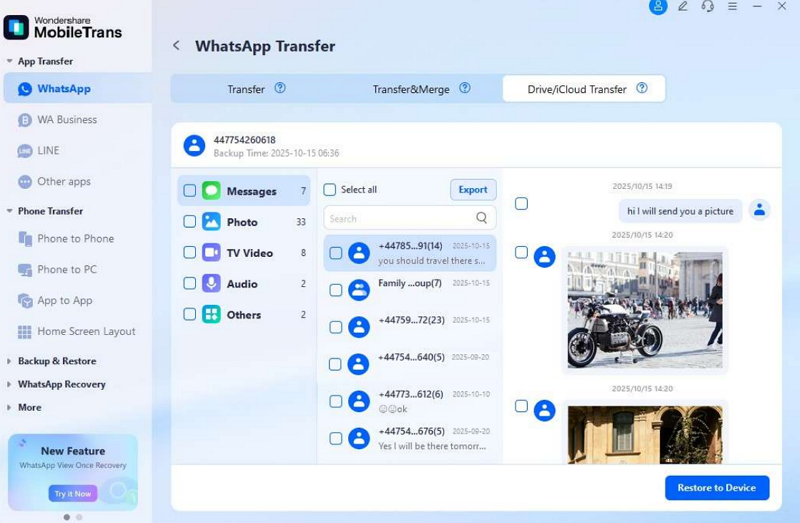
When the tool parsed your backup file, press the “View” button to access the content. You can then preview all the data available in your WhatsApp backup before hitting the “Restore to Device” button.
Step 4. Retrieve WhatsApp Backup Data to Your Phone
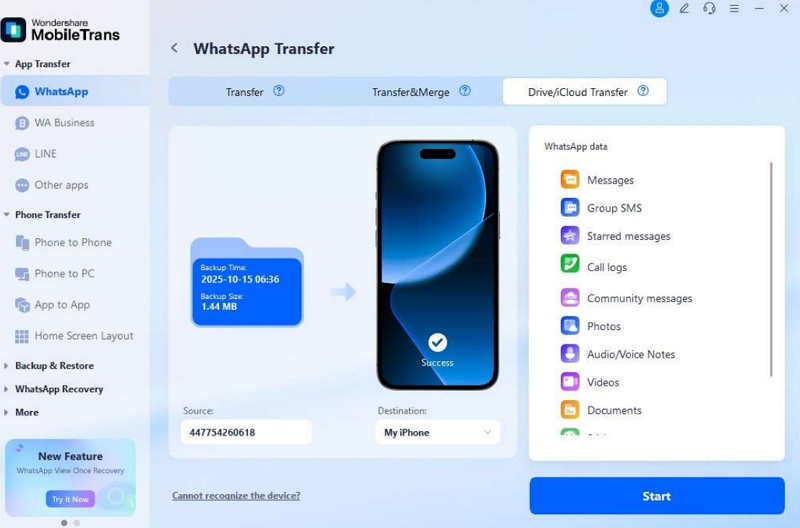
Subsequently, connect your iOS smartphone to your computer and select the data to be moved. After that, press the “Start” button and let the tool migrate your selected WhatsApp data from a backup file.
Use Cases of MobileTrans
MobileTrans is not only helpful for restoring WhatsApp data but also very versatile. It supports several use cases that simplify switching between devices securely:
- Phone Upgrade: When switching to a new phone, MobileTrans helps move all chat data easily. It ensures that no selected data is lost during the setup transition.
- Platform Migration: You can shift chats between Android and iPhone without worrying about compatibility issues. The process keeps your entire chat history organized across both operating systems safely.
- PC Storage: Users can back up WhatsApp chats to a PC for long-term storage security. This prevents data loss when devices fail or accounts face unexpected errors.
- Video Transfer: Along with messages, MobileTrans supports video transfer between devices without losing quality. It ensures the effortless sharing of large media files during phone switching processes.
Conclusion
In summary, restoring WhatsApp data from Android to iPhone may seem confusing at first. The backup formats and platforms differ, making direct transfer nearly impossible. Yet, with the right tool, the process becomes simple and safe.
Dedicated software helps keep all chats and media files safe during the transfer. Thus, when you want to learn how to restore WhatsApp backup from Google Drive to an iPhone, MobileTrans is the most effortless solution.