Traditionally, address bars have been at the top of browsers on smartphones but over time, app designers have realised that this isn’t always convenient.
If you’re using a browser with one hand, it can be really difficult to reach the top of the screen, particularly if you have small fingers. It is much more convenient to put the address bar at the bottom of the screen.
In Chrome, you can now do just that, putting the browser in line with rivals such as Edge, Firefox and Safari. This works on both Android and iOS devices.
It's important to note that if your browser’s address bar is set to the bottom, switching to landscape mode will move it back to the top. Let’s check out how to make the change.
How to move Chrome’s address bar to the bottom on Android
Make sure you have updated the Chrome browser in the Play Store.
1. Open Chrome
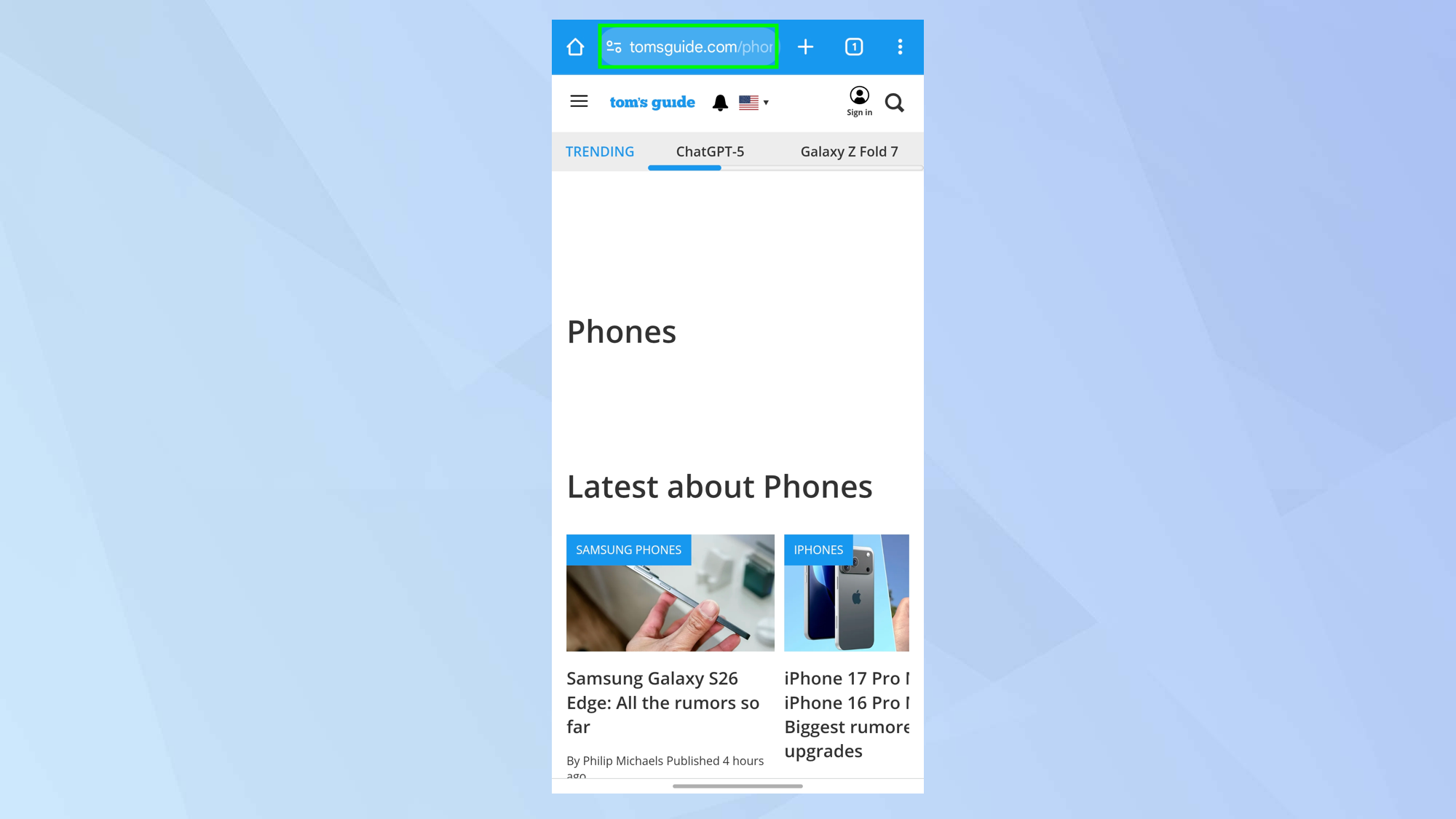
First, launch the Chrome browser and you’ll see the address bar is at the top of the screen. This is the default position and the one you’ll be used to.
2. Long press the bar
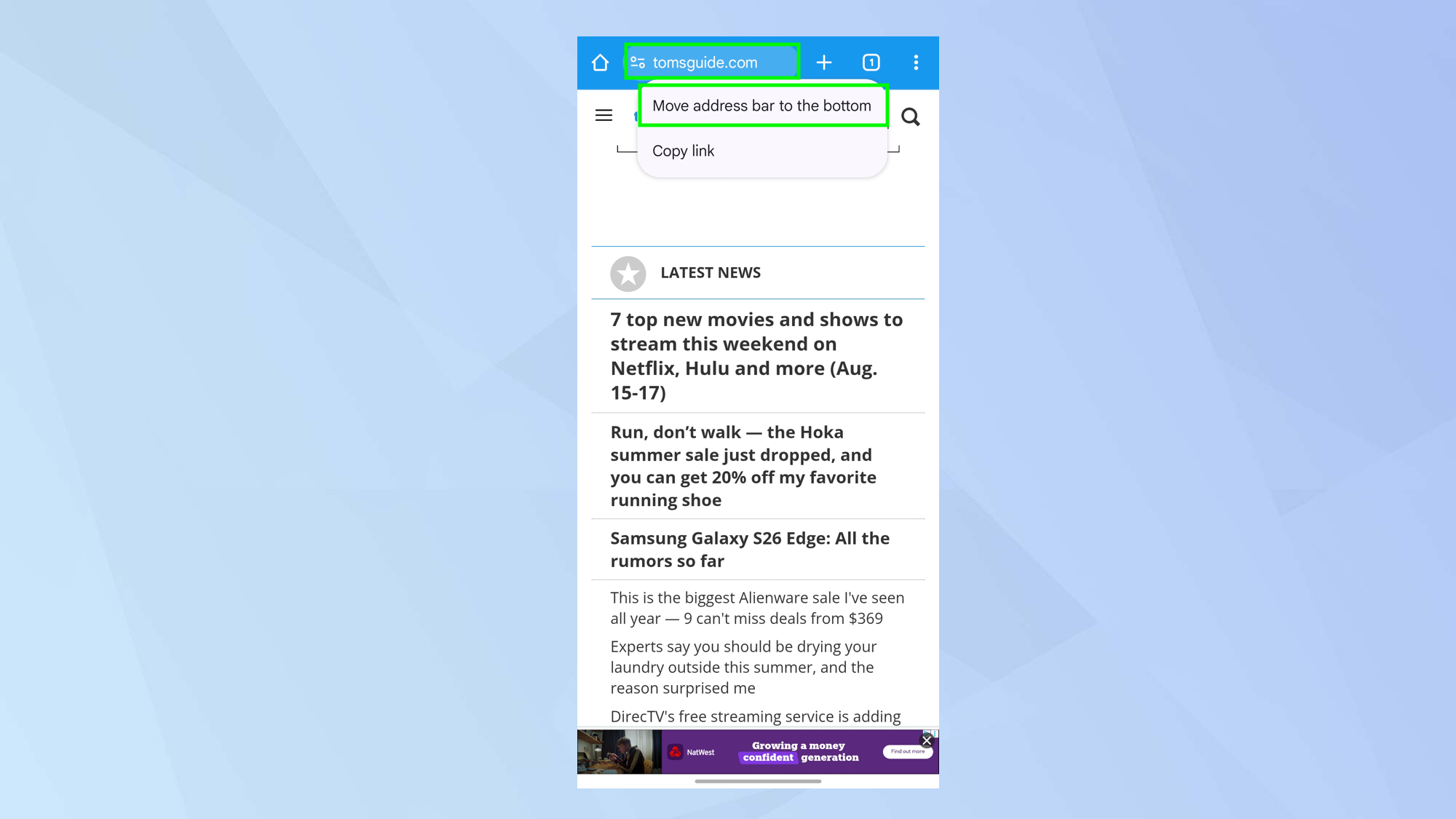
Now long-press the address bar and you will see a menu. Simply select Move address bar to the bottom.
3. Use the Settings (alternative method)
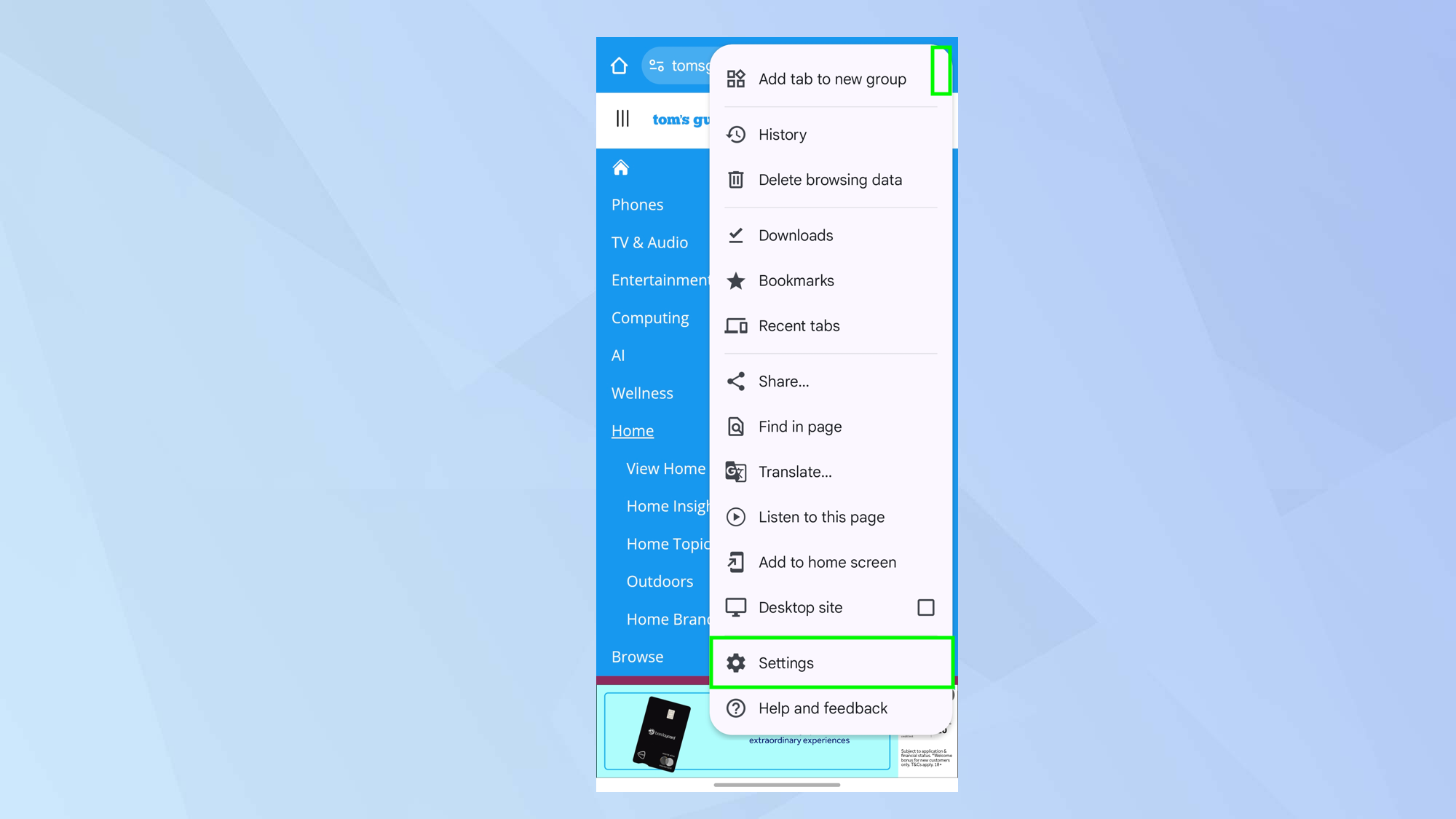
You can also, if you wish, select the three-dot icon next to the address bar then choose Settings.
4. Select Address bar
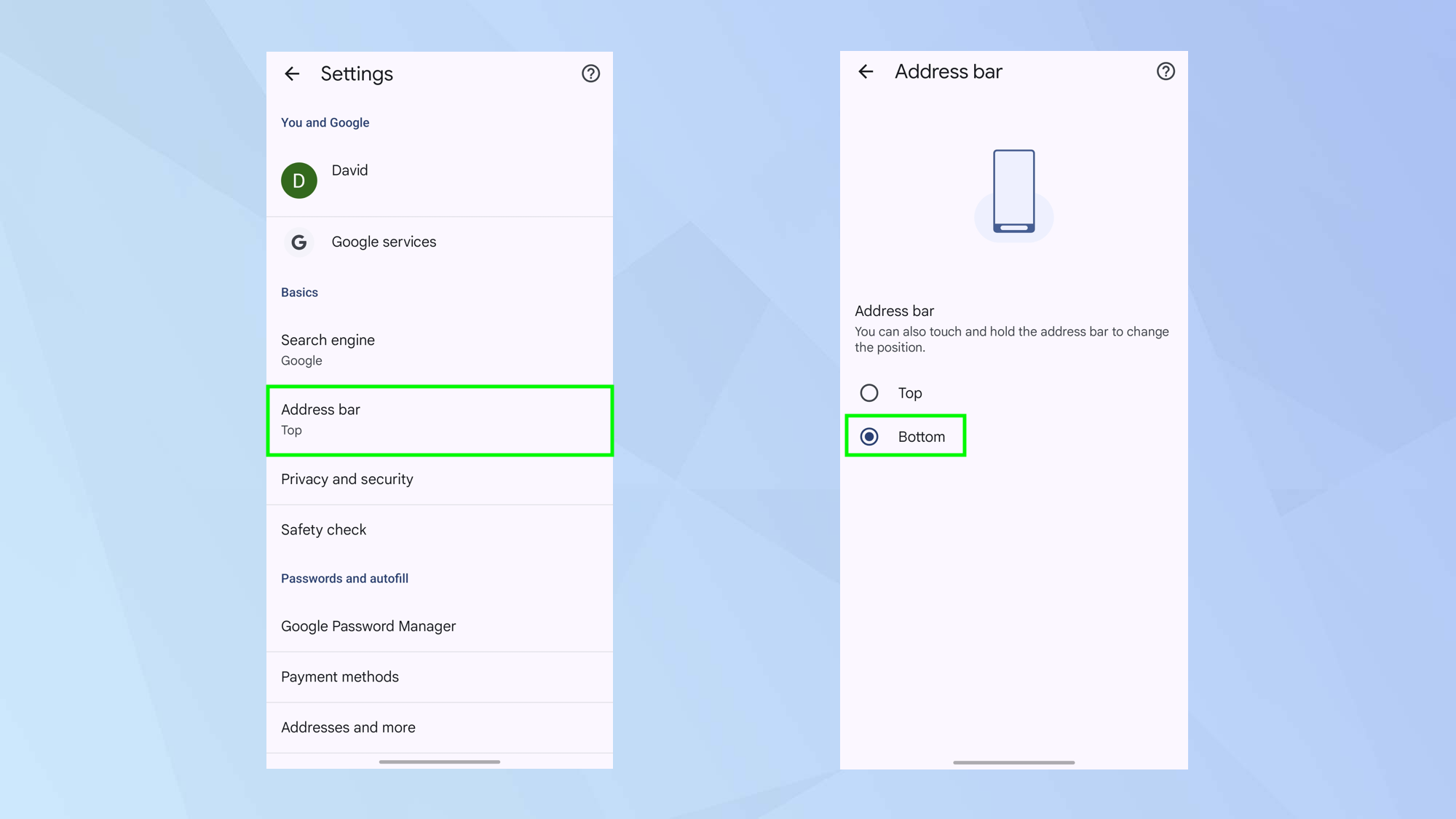
Next, select Address bar from the options and select Bottom.
How to move Chrome’s address bar to the bottom on iPhone
Make sure you have updated the Chrome browser in the App Store.
1. Open Chrome
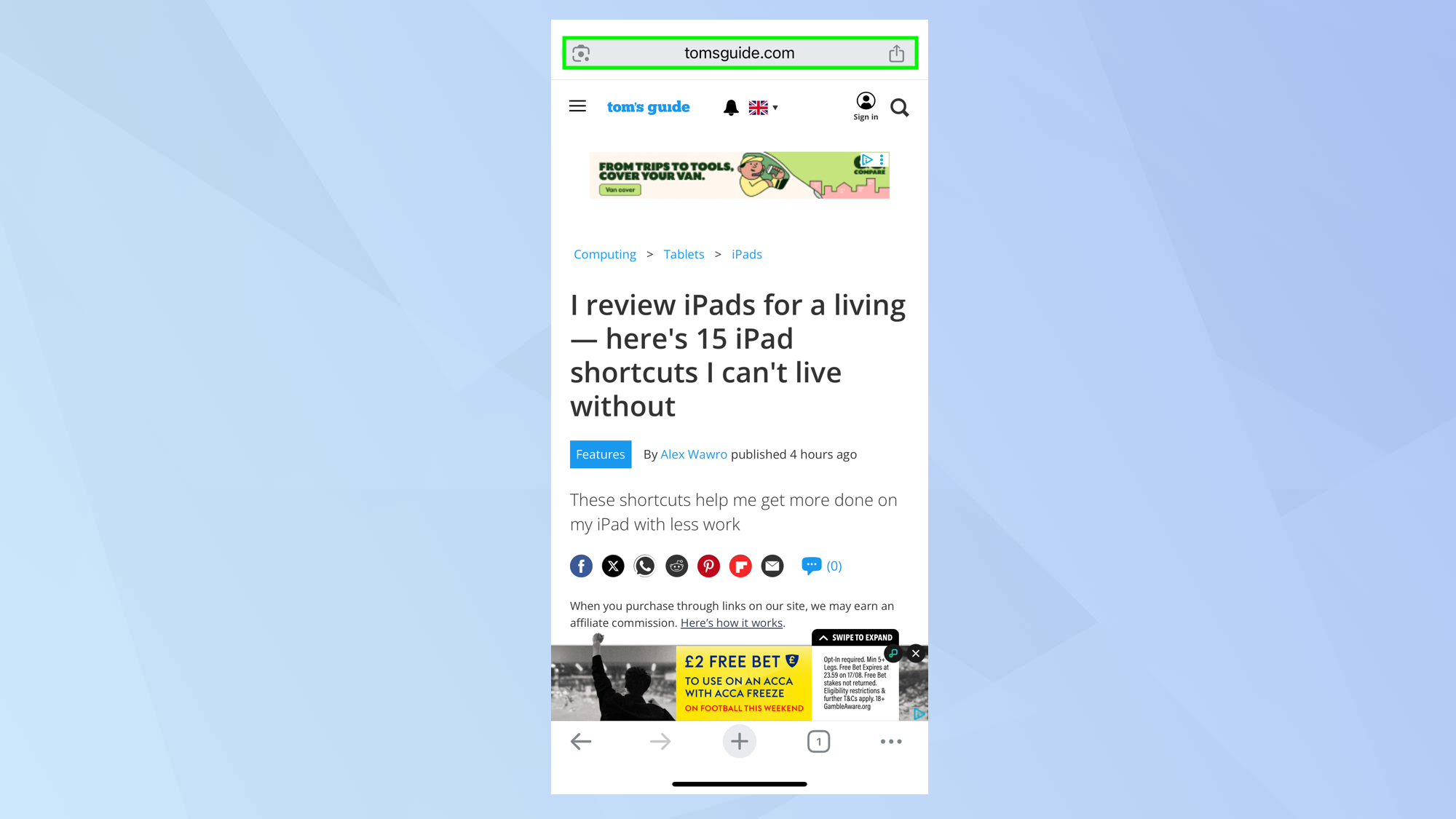
First, launch the Chrome browser and you’ll see the address bar is at the top of the screen. This is the default position and the one you’ll be used to.
2. Long press the bar
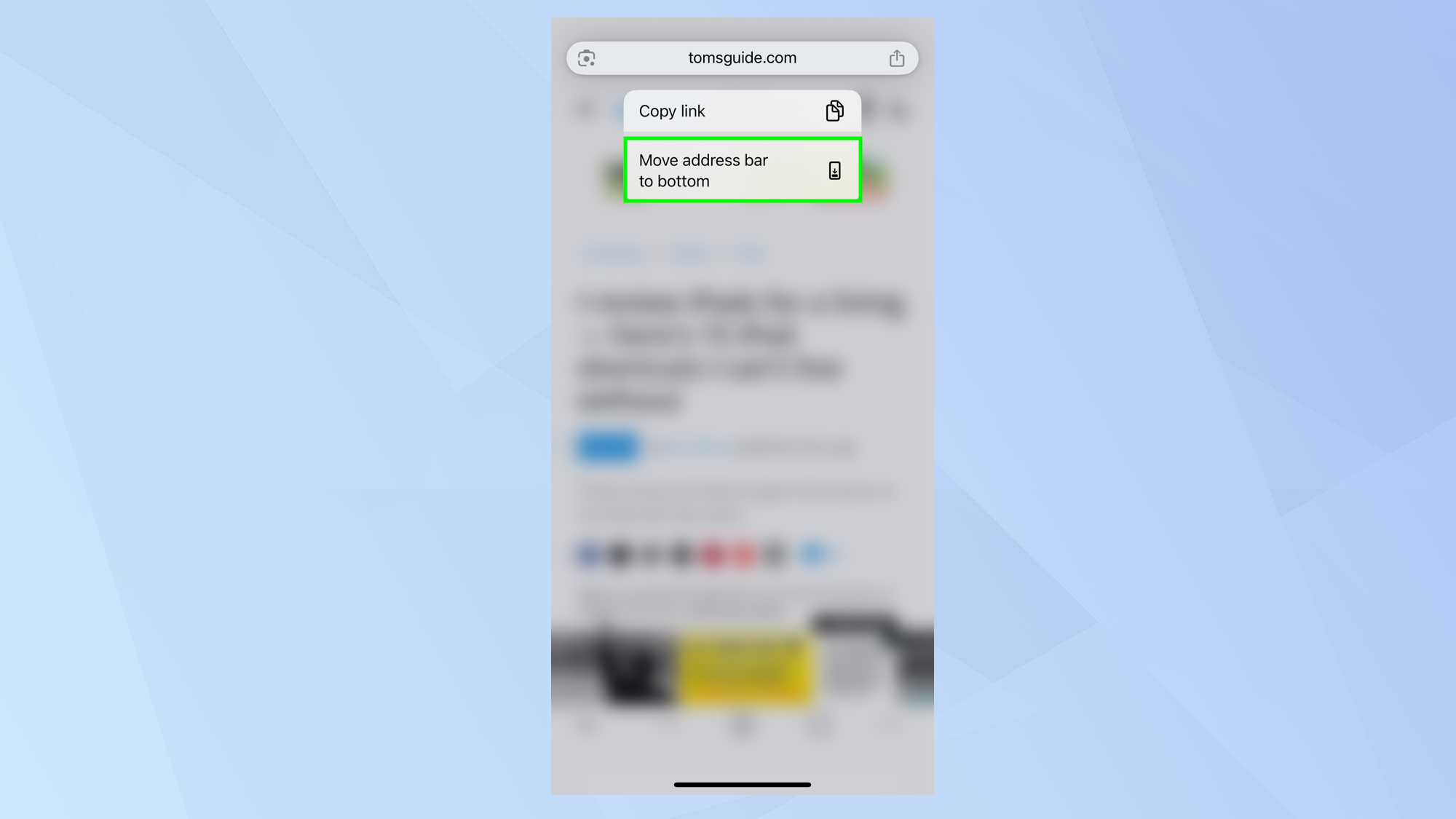
Now long-press the address bar and you will see a menu. Simply select Move address bar to the bottom.
3. Select the More icon
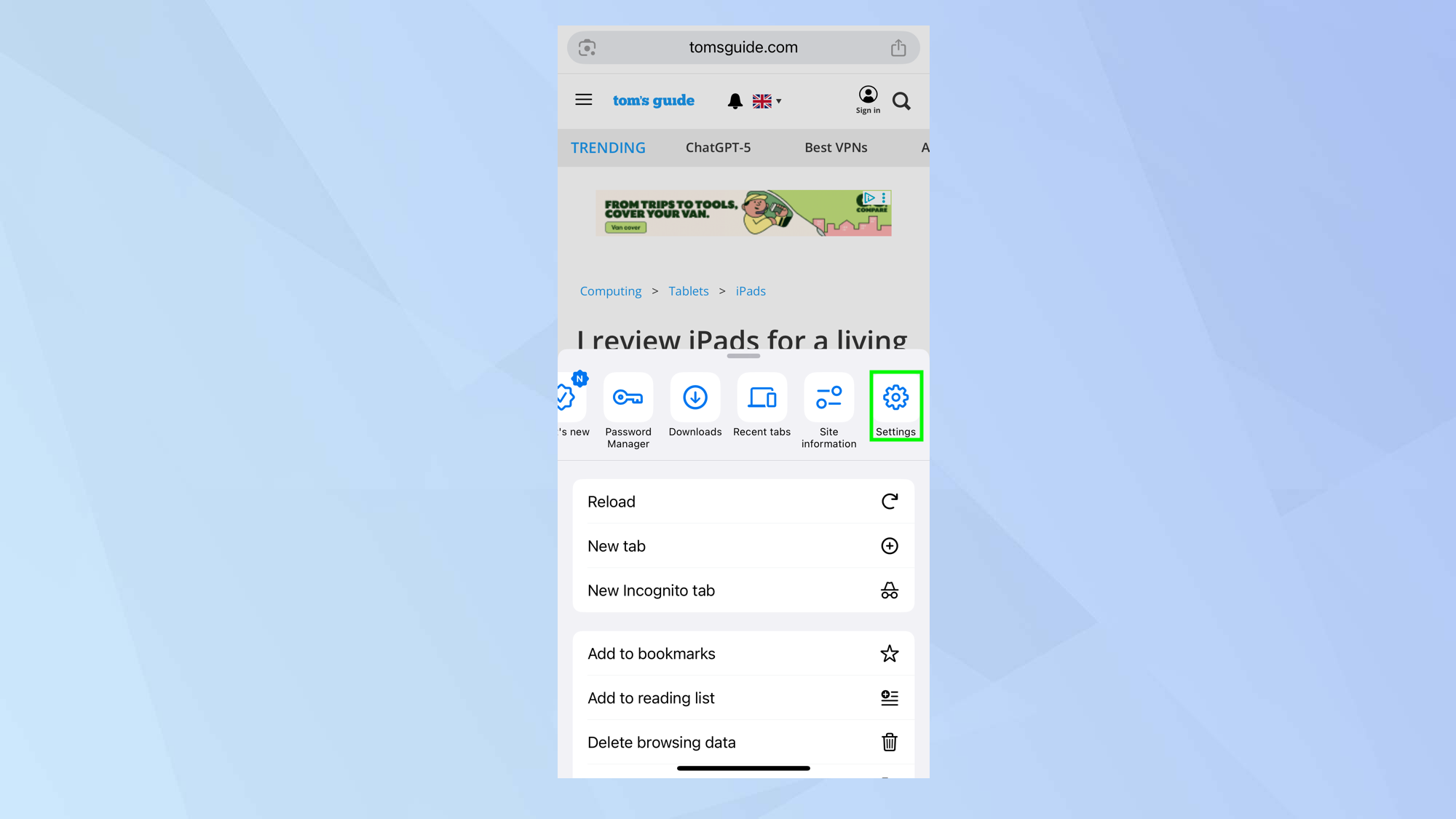
Now select the three-dot icon next to the address bar then choose Settings. You may need to swipe left along the icons to scroll to the Settings icon.
4. Tap Address bar option
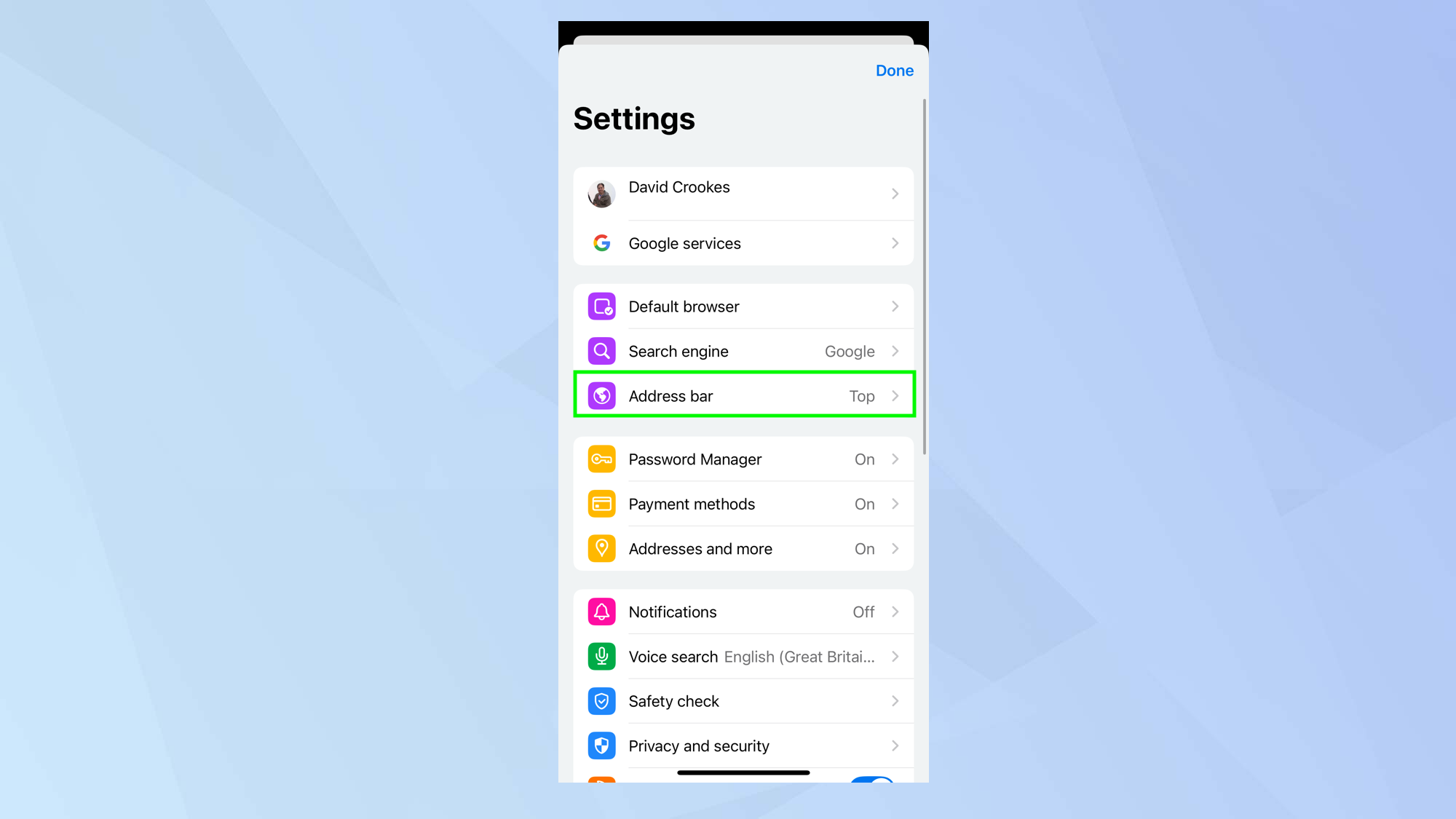
Tap the option called Address bar which should show that the current setting is Top.
5. Change to bottom
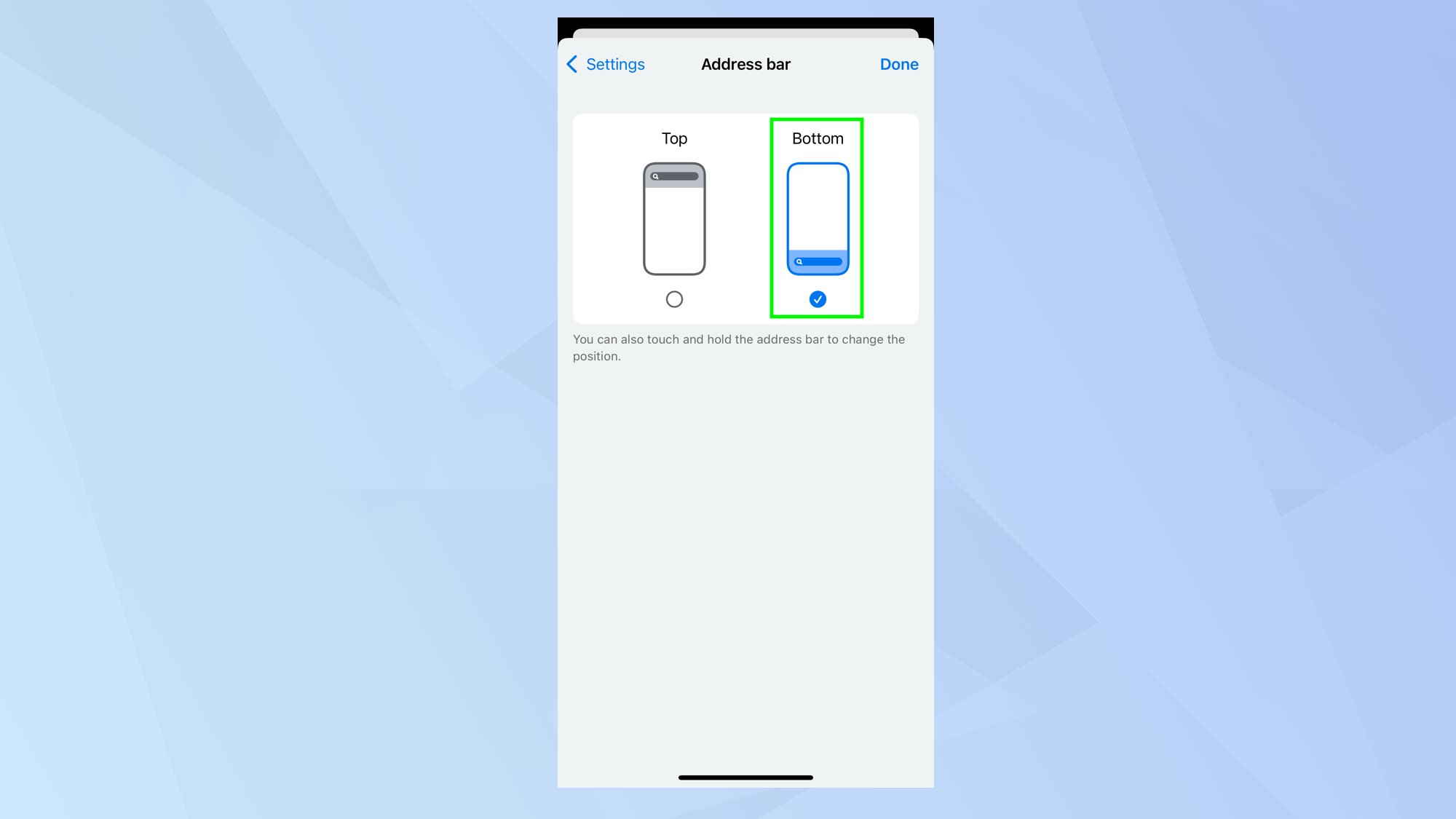
Next select Bottom and the address bar will move to the required position.
Follow Tom's Guide on Google News to get our up-to-date news, how-tos, and reviews in your feeds. Make sure to click the Follow button.