
Your phone can do a surprising amount of things, and not just the stuff that gets mentioned in the marketing. There are countless features hidden behind layers of settings menus, to the point where it's pretty difficult to stumble upon them by accident. But this doesn't mean that they're any less useful than the features that are constantly in your face.
One of those features is the Accessibility Button, which activates a menu containing a bunch of key phone features. We're talking about things like controlling volume and brightness, taking screenshots, checking notifications, and so on. The idea is that, if you have accessibility issues that prevent you accessing those core features the "normal" way, you can instead utilize a dedicated on-screen menu.
The best part is that the accessibility button isn't just for a select group of people. It's available to everyone, and it could prove useful in certain cases — like driving, when you can't afford to be messing about with your phone for more than half a second.
1. Open Accessibility settings
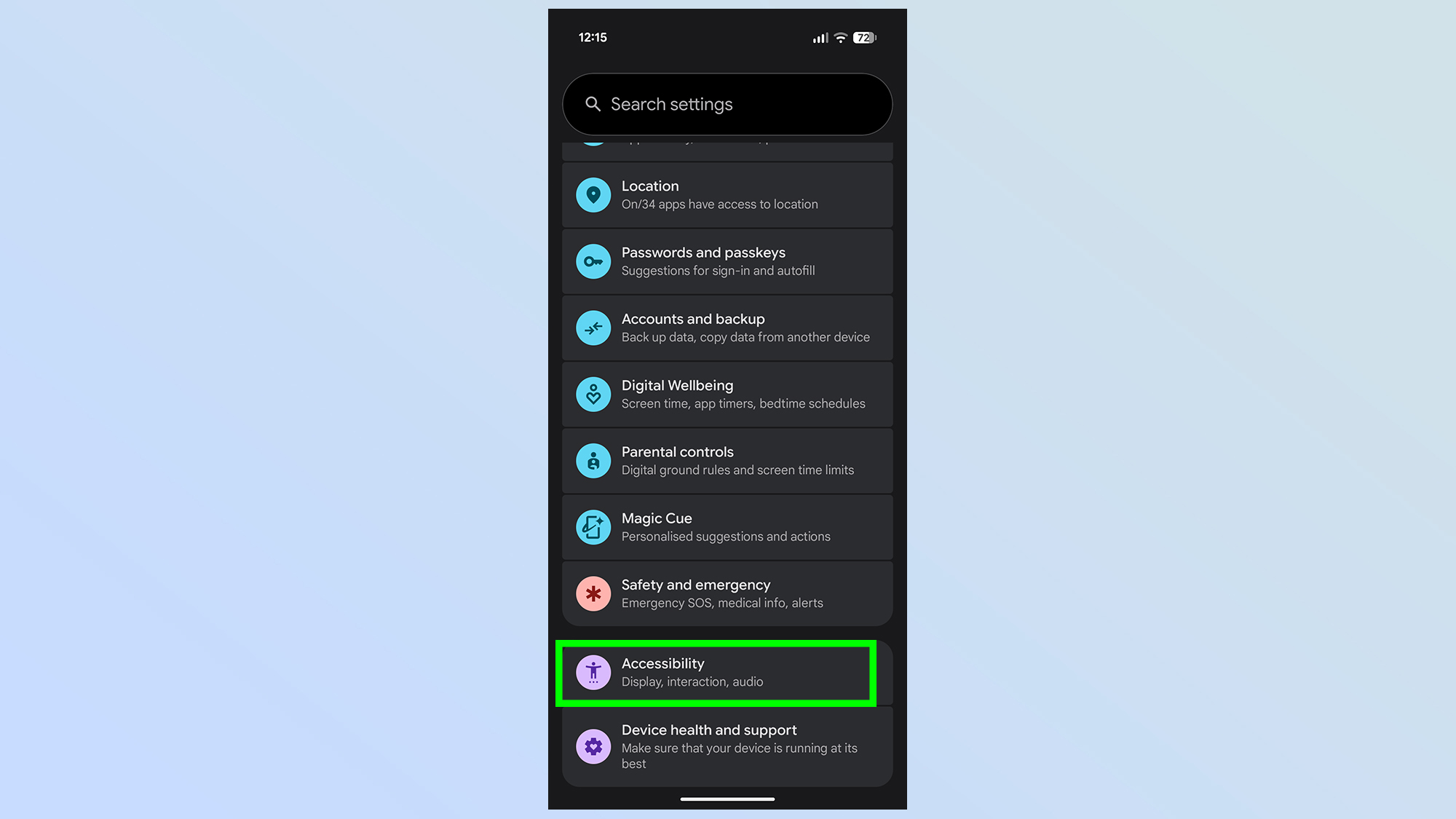
The first thing you'll need to do is open up Accessibility settings, which can be found by heading to Settings and scrolling down and tapping Accessibility.
2. Open the Accessibility menu
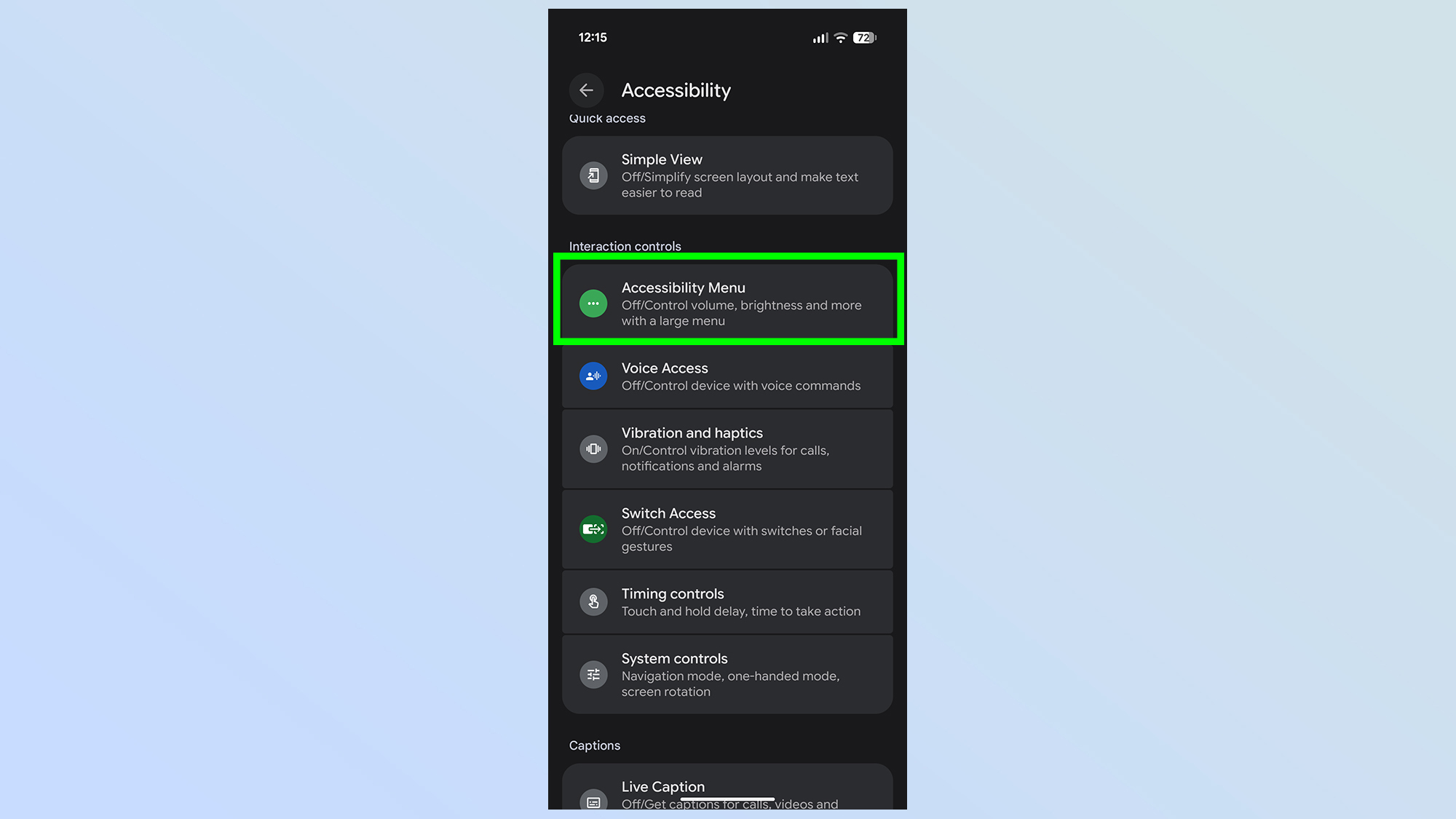
Despite their similar names, the Accessibility settings and Accessibility Menu are two distinct things. Once you've opened up the Accessibility option from Settings, scroll down until you find Accessibility Menu under the Interaction controls subhead.
3. Toggle on the Accessibility Menu shortcut
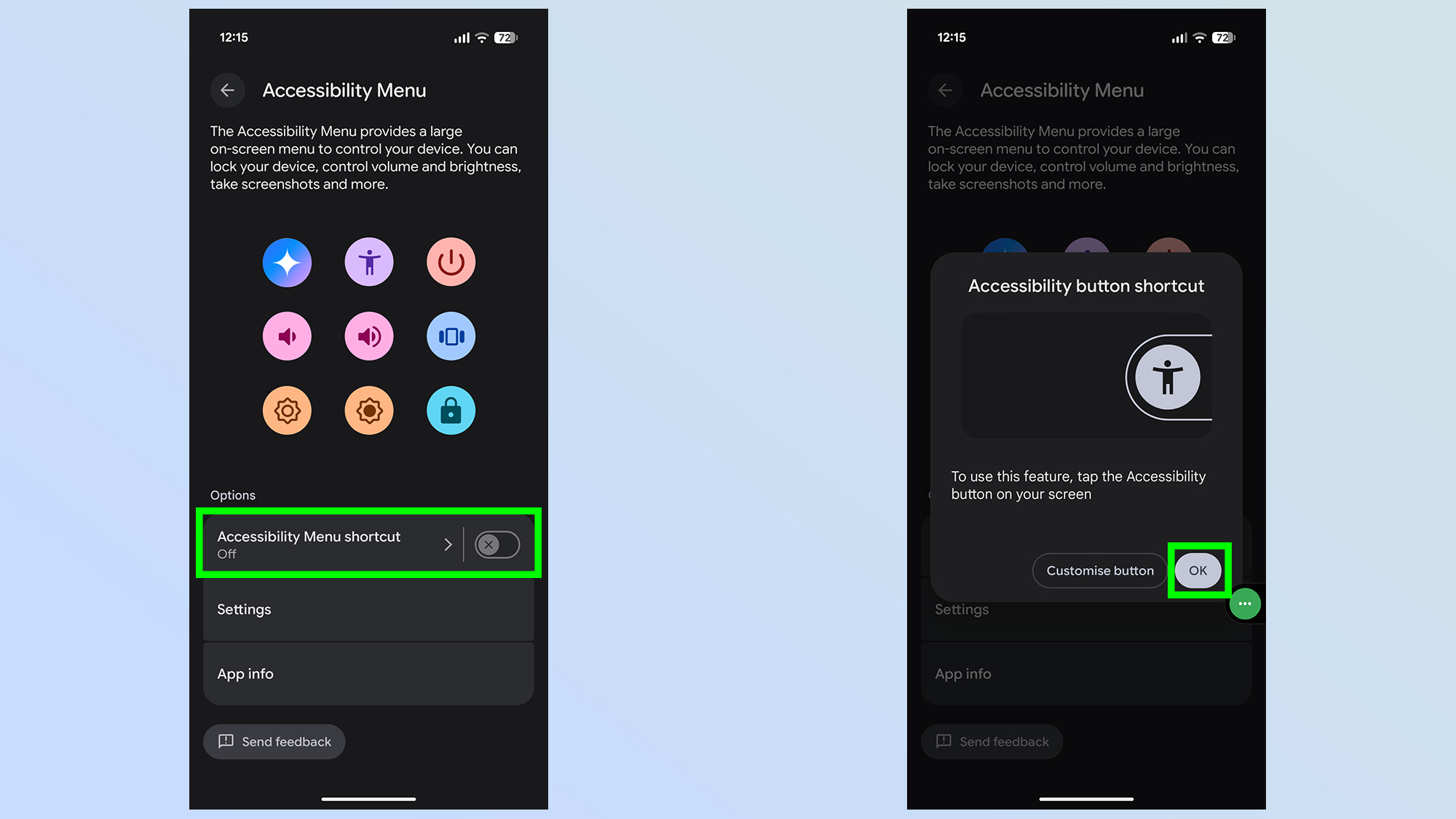
Towards the bottom of the page you'll see the Accessibility Menu Shortcut toggle. Make sure this is switched on, and press OK when the pop-up window appears.
4. (Optional) Customize the Accessibility button
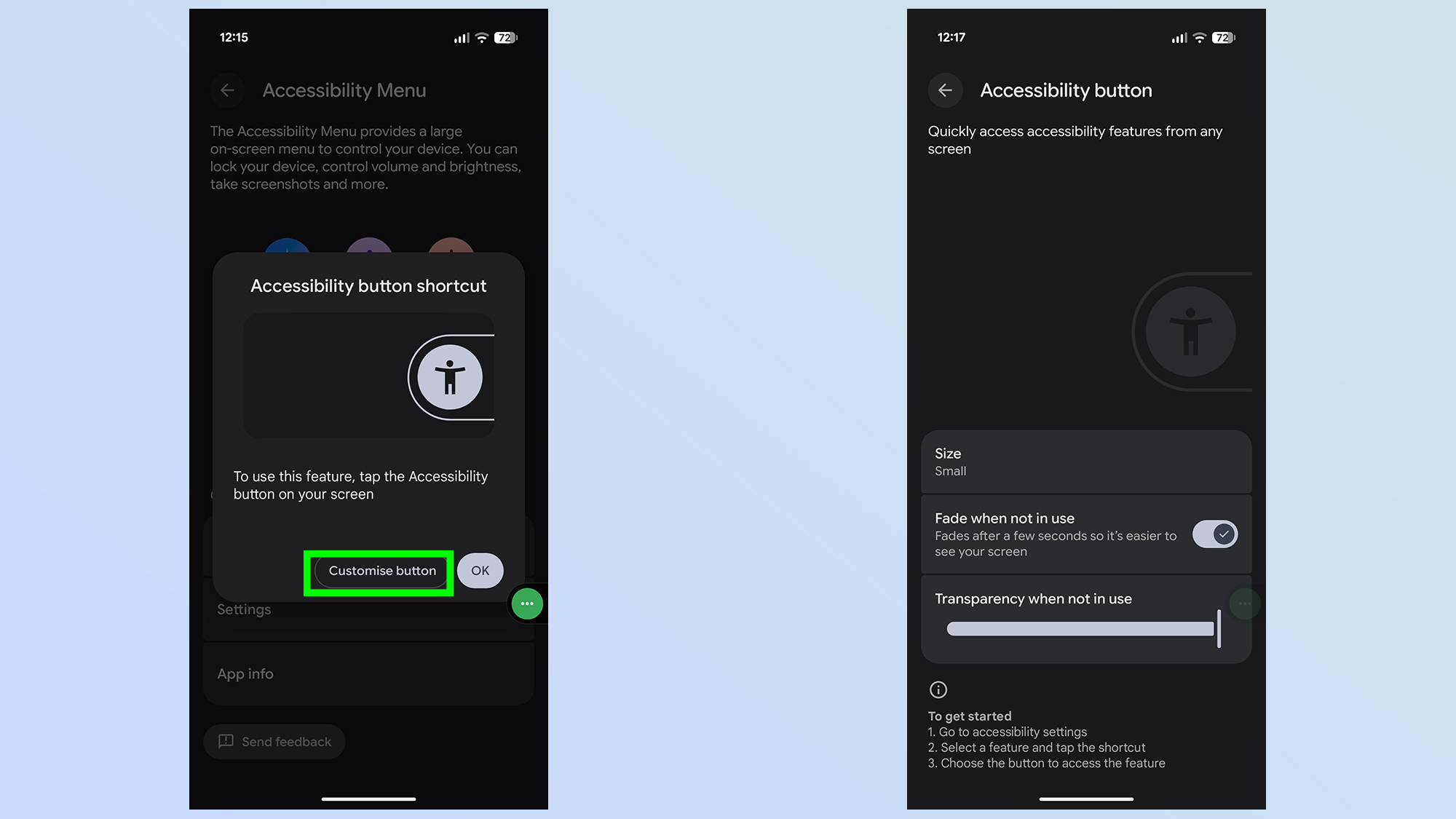
If you press the Customize Button option before switching on the shortcut, you'll get a few new options to alter the look of the floating button. That includes changing the size from Small to Large, letting the button fade away when you're not using it and customizing the level of transparency when it does fade away.
5. (Optional) Choose different shortcuts
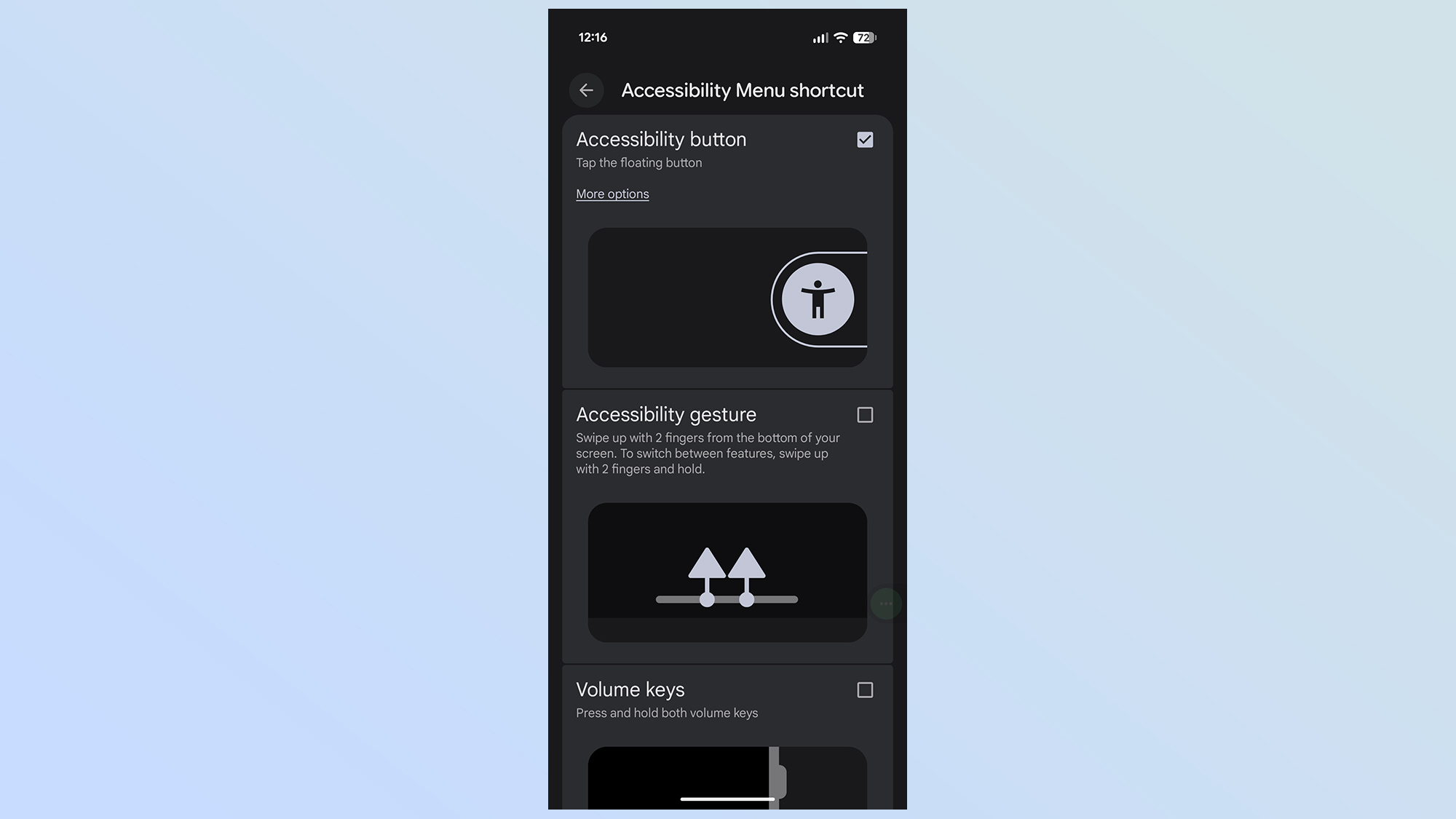
The default Accessibility button is a floating icon on the right side of your screen, but you can adjust the way you access the Accessibility menu. If you press the Accessibility Menu shortcut box for a second time, you'll be offered the option to use up to three ways of accessing it.
Alongside the floating button is the Accessibility Gesture, which lets you open the menu by swiping two fingers up from the bottom of the screen. Meanwhile Volume keys lets you access the menu by pressing and holding both volume keys together.
You can have all three of these active at once, or just one if you prefer, giving you the freedom to pick which one is most suitable for your needs.
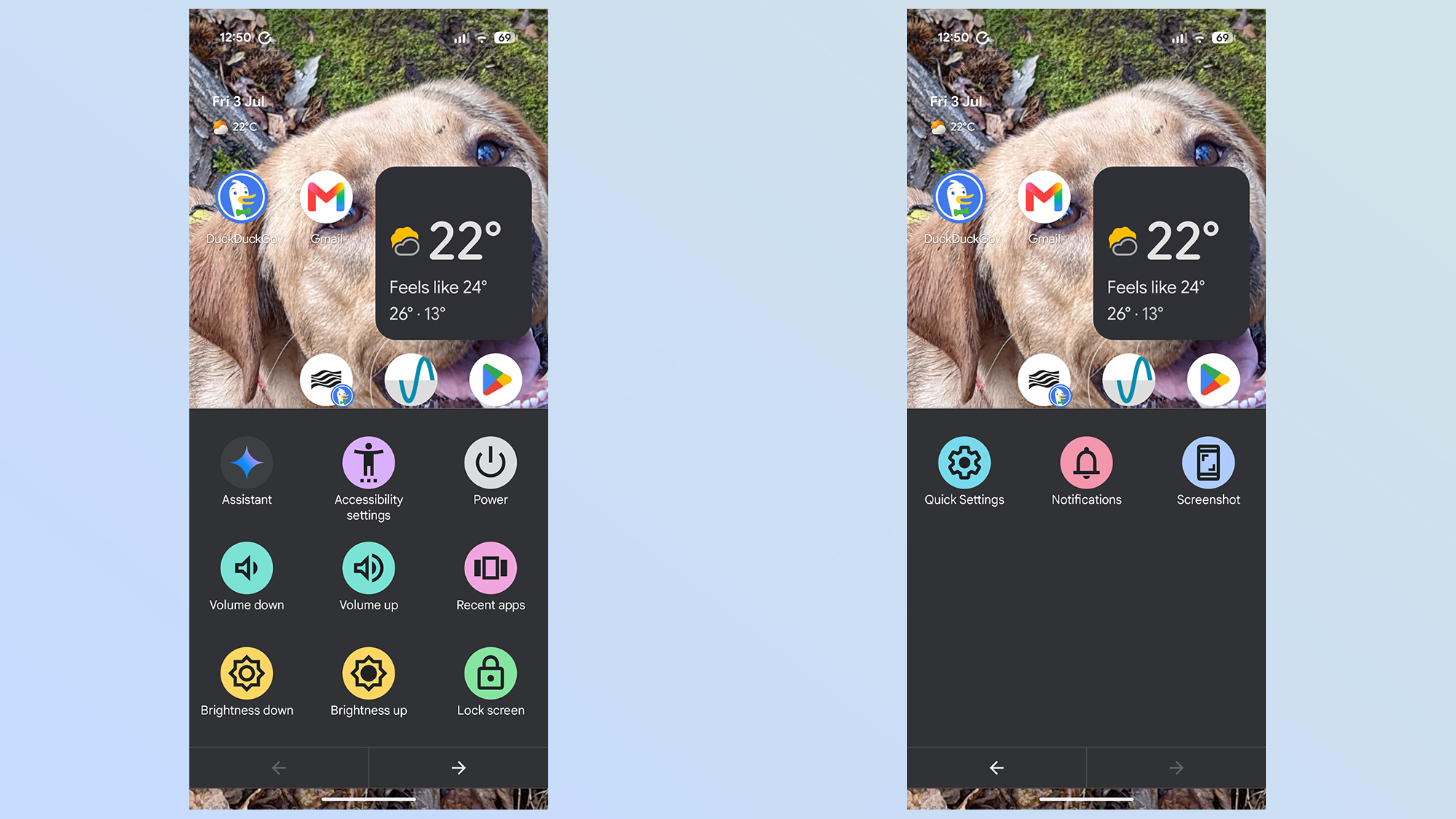
There you have it, the accessibility menu is all set up for you to use as you like. There's no option to customize the features on offer, but if you ever find yourself needing to access any of these settings quickly, and without using both of your hands, this button could be invaluable.