
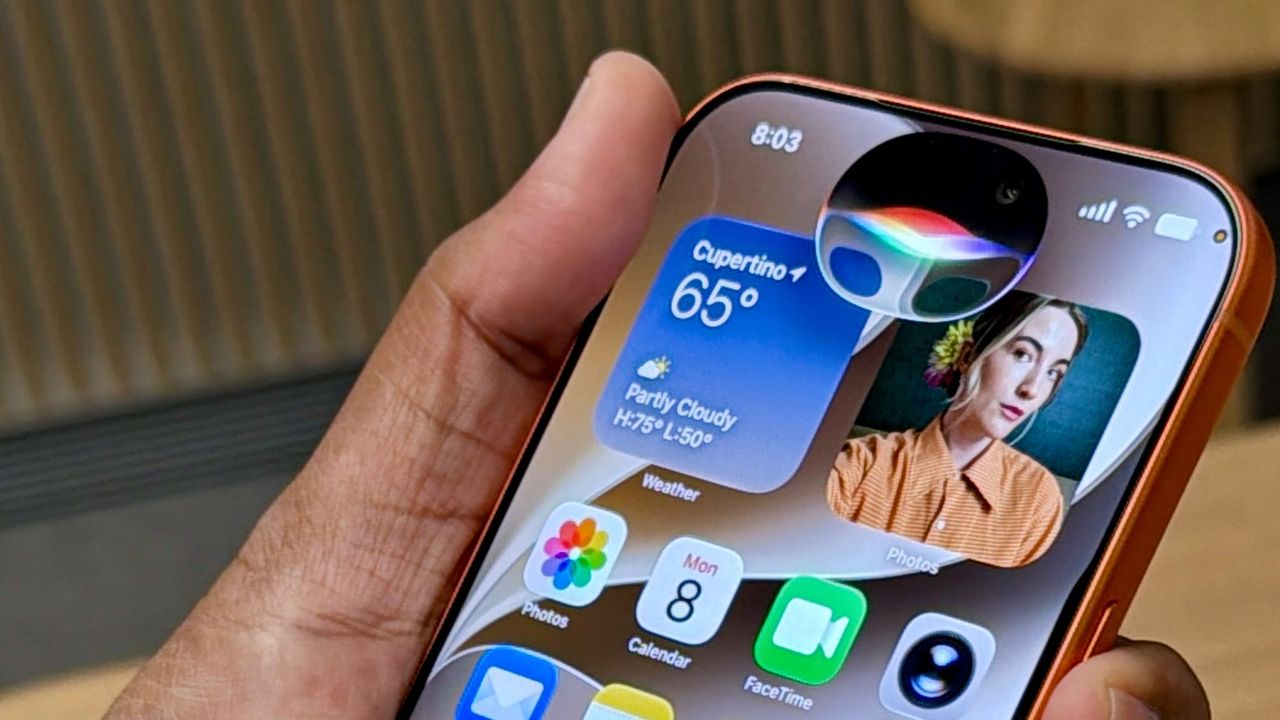
In iOS 27, Apple has rebuilt its virtual assistant around cutting-edge generative audio models designed to replicate the natural rhythms of human speech.
If you own an iPhone 17 Pro, iPhone 17 Pro Max, or iPhone Air, your everyday exchanges with Siri are about to feel less like issuing commands and more like a genuine back-and-forth. The result is a warmer, more lifelike voice every time your assistant responds.
Here's how to switch on the new Siri and make it your own.
Make sure your iPhone's running iOS 27 Beta 2
If you haven't updated your iPhone yet, you'll need to do that before you can try out the new Siri. Before you download anything, back up your iPhone first by going to Settings, Your Name, iCloud, iCloud Backup and tapping Back Up Now.
If you’ve never used an Apple beta before, you will need to register for a free developer account to get started. Once you’re signed up and off the Apple Intelligence waitlist, you can update your phone.
However, if you’ve used any Apple beta in the past, you can skip the registration entirely and download the software. Just open Settings, go to General, Software Update, Beta Updates, and select the iOS 27 Developer Beta to begin the installation.
How to customize your Siri voice in iOS 27
1. Enable the new iOS 27 Siri
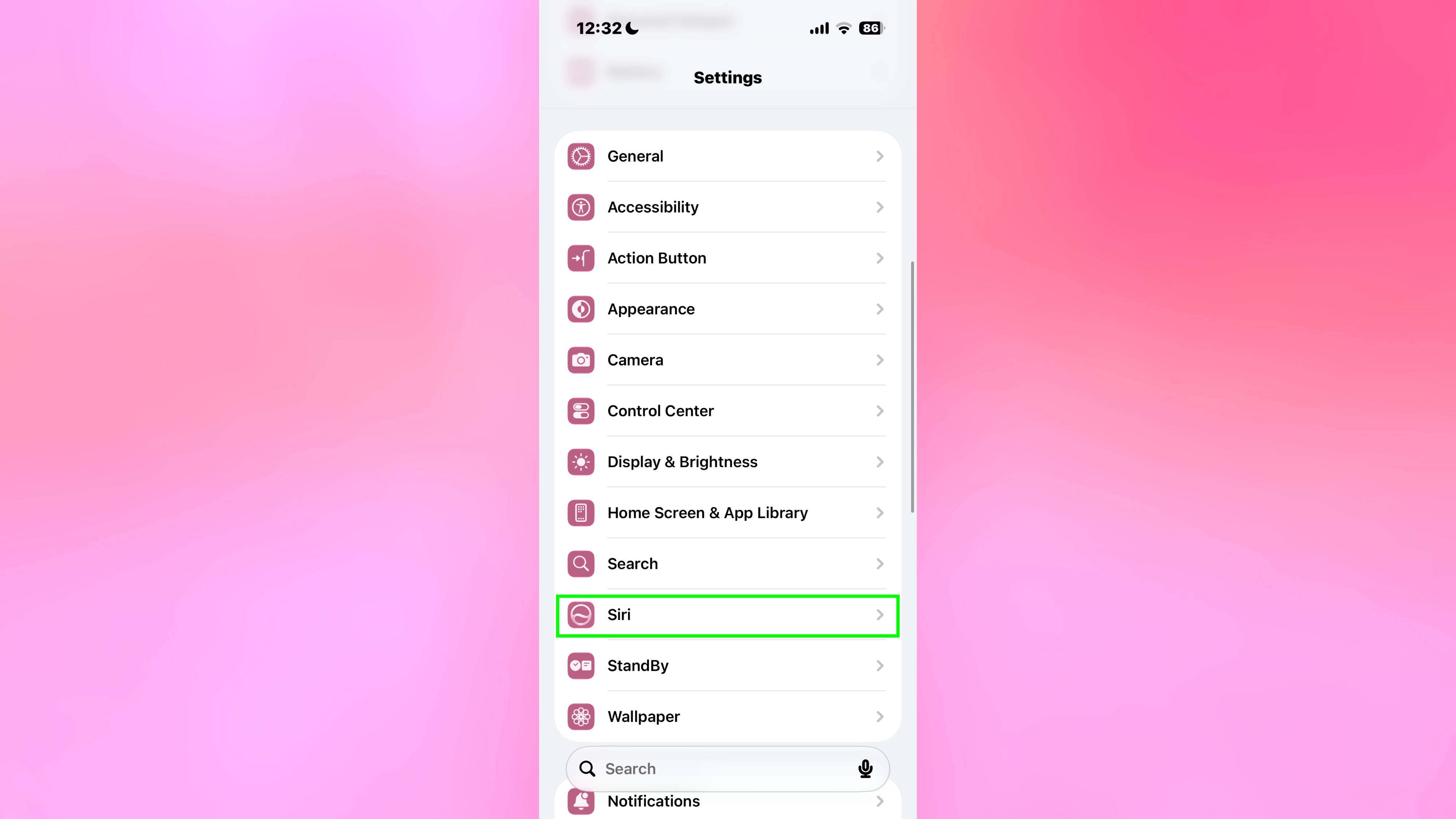
Open the Settings app on your iPhone, then scroll down, and tap Siri. If this is your first time opening these settings since updating to iOS 27, you will need to switch on the upgraded version of the assistant.
Tap Turn on Siri and select Try the New Siri from the prompt rather than "Use Previous Version."
2. Toggle on Expressive Voices
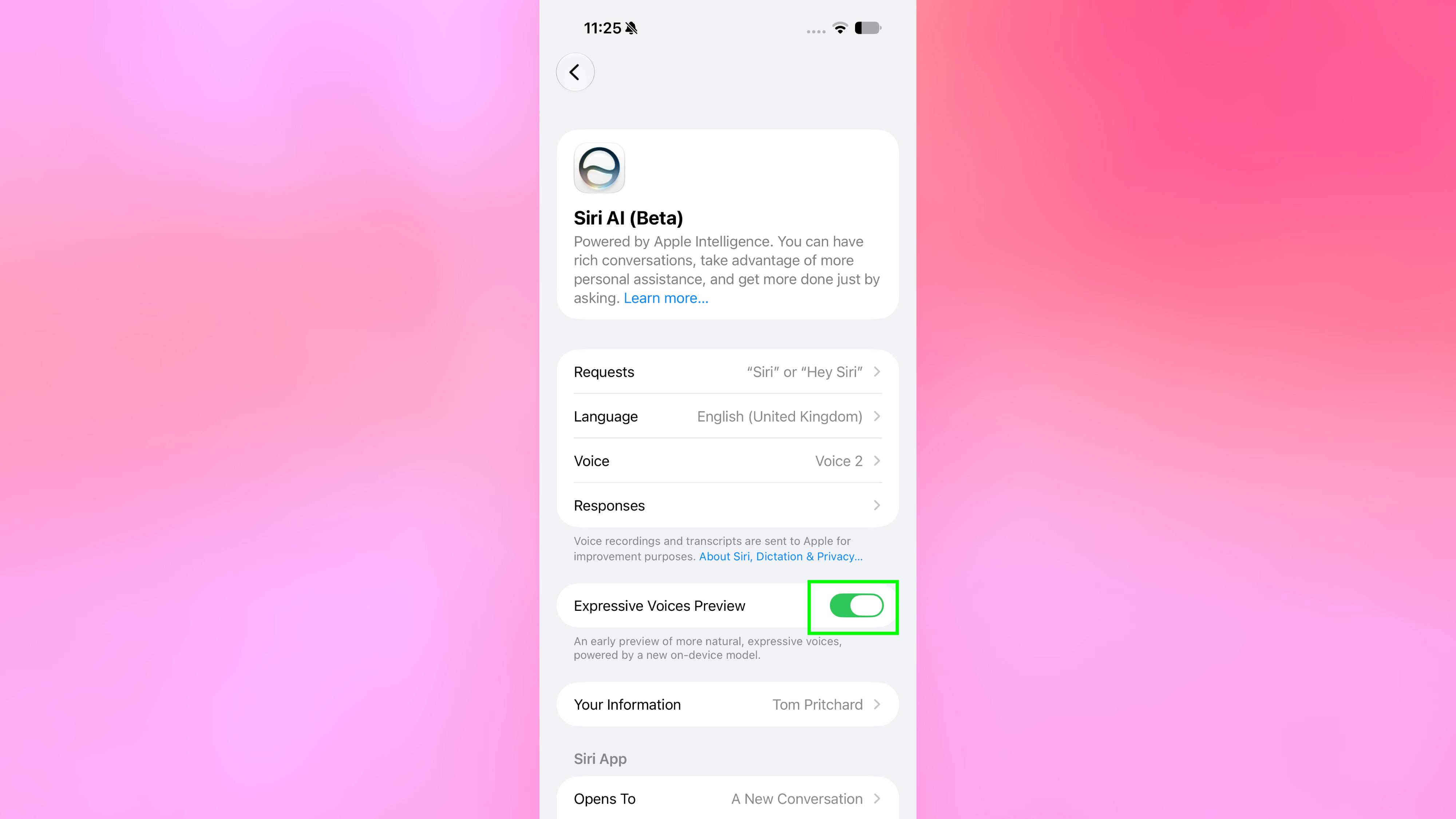
While Siri has offered different accents and genders for a while, the options here sound noticeably more natural. Tap through the various regional dialects and male or female voice options to hear how they sound and choose your favorite.
Next, switch the Expressive Voices Preview toggle to the on position. A new Siri voice customization screen will appear, featuring options to adjust the assistant's pace and expressivity.
3. Preview the personalization settings
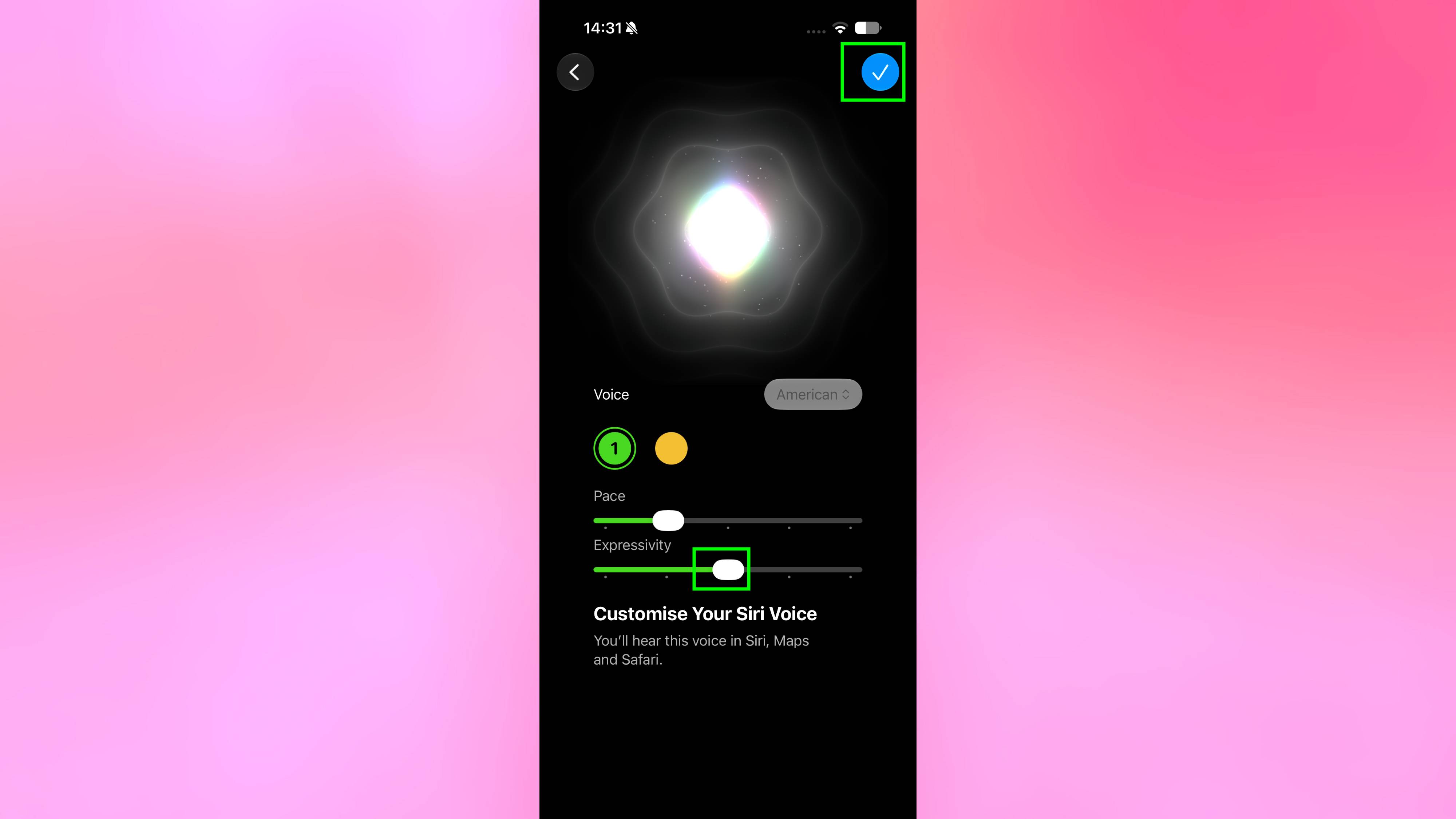
Enabling the preview brings up a brand-new Siri voice customization screen featuring two distinct adjustment sliders: Pace and Expressivity.
Sliding the Pace bar allows you to speed up or slow down how fast Siri talks, while the Expressivity bar changes the assistant's overall vocal emotion and inflection. Once you have made your choices, you can tap the blue check mark in the top right corner to save your settings.