
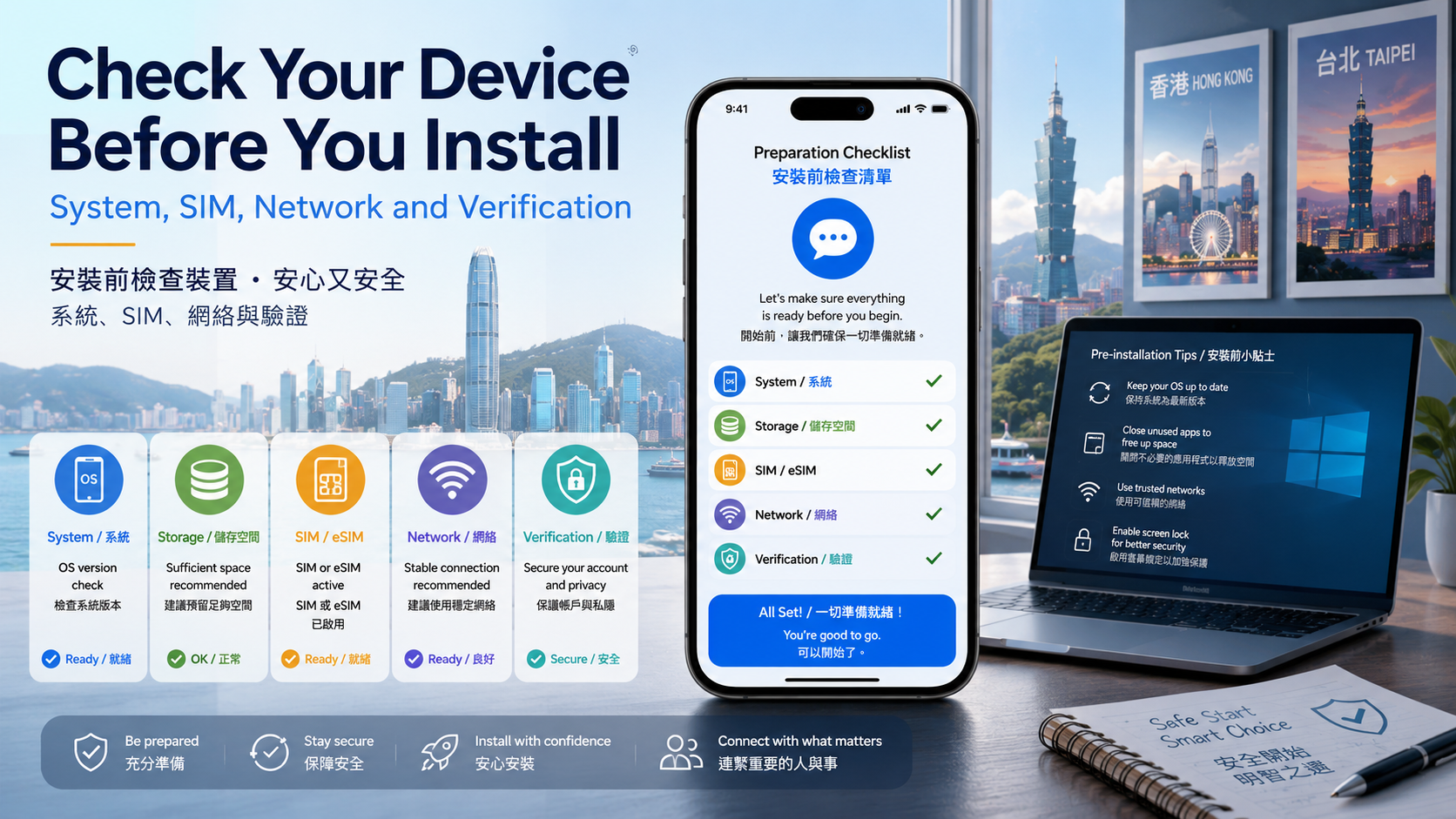
Installing a messaging app may take only a few minutes, but successful registration depends on much more than locating a download button. An outdated operating system, insufficient storage, inactive SIM card, incorrectly transferred eSIM or unstable network can interrupt the setup process before the first conversation begins.
These problems are especially common when users change phones, travel with multiple SIM cards, register an account with an overseas number or connect a desktop computer for the first time. Hong Kong and Taiwan users may also switch between local mobile plans, roaming numbers and travel eSIMs, making it important to confirm which number is active before requesting a verification code.
A reliable installation process therefore starts before the application is downloaded. Checking the device, phone number, network and security environment in advance can prevent repeated verification requests, failed installations and unnecessary account-access problems.
Why Installation Problems Often Begin Before the Download
Many people assume that downloading an application and successfully using it are the same task. In practice, setting up a messaging account involves several separate stages:
|
Choose the correct version → Download → Install → Verify a phone number → Configure privacy → Connect additional devices |
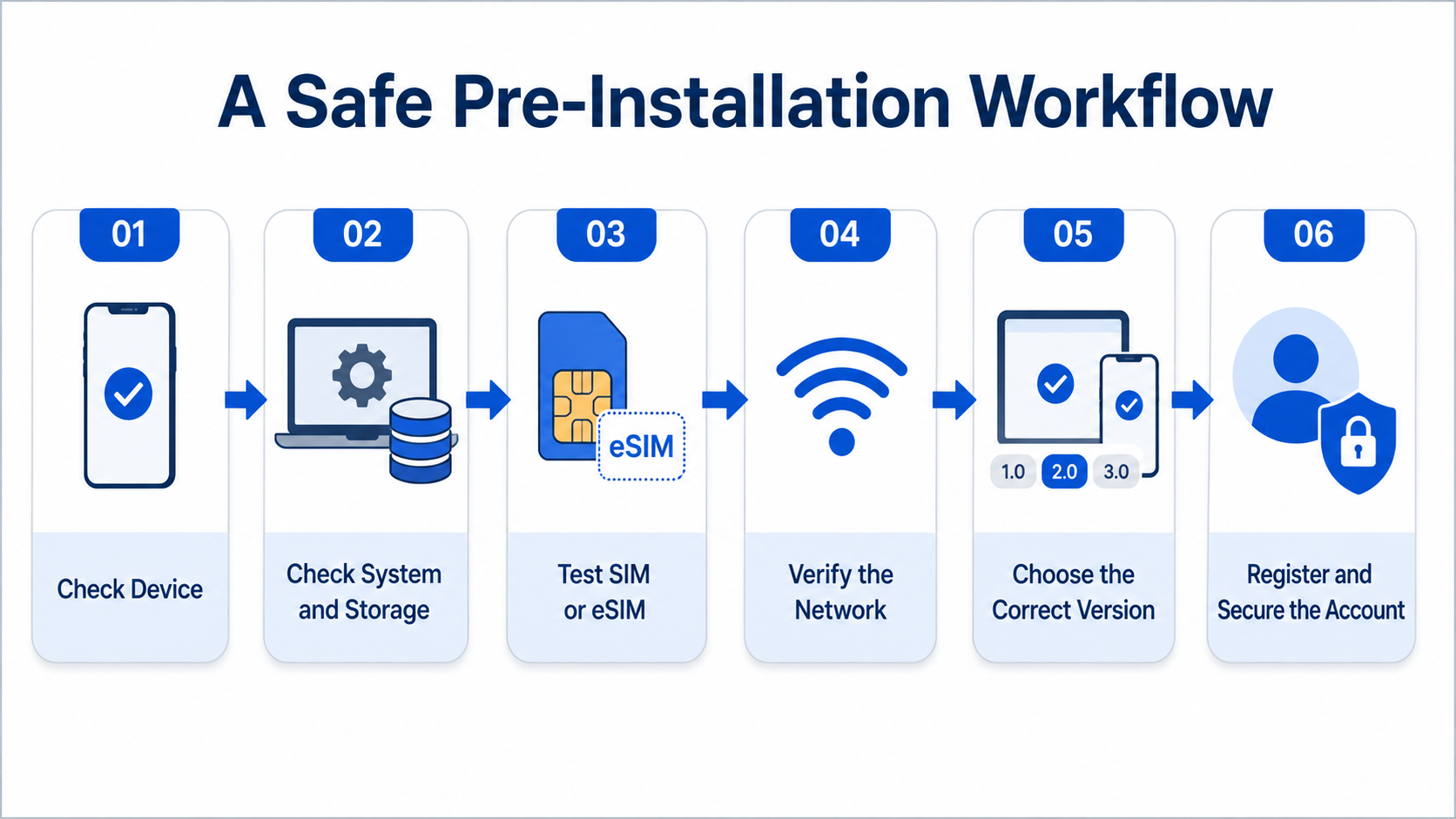
A safe pre-installation workflow from device checks to account security.
A failure at any stage may be incorrectly described as a download problem.
For example, the installation file may download successfully but fail to open because the device does not support the required operating-system version. The application may install but close immediately because storage is critically low. It may open normally but fail to complete registration because the SIM or eSIM cannot receive verification messages.
Users may also encounter situations where a login code is delivered to an existing logged-in device instead of by SMS. Someone who repeatedly requests a new code without checking an old phone, tablet or computer may create additional delays or trigger temporary restrictions.
Before changing download sources or reinstalling the application, users should identify the exact stage at which the process has stopped.
Check the Operating System and Available Storage
The first step is to confirm that the device can run the current version of the application.
An older phone may still work for calls, web browsing and basic applications while no longer supporting recently updated messaging software. Even when an application can be installed, an unsupported system may cause crashes, missing features, notification failures or unusual permission behaviour.
Checks for iPhone and iPad
On an Apple device, review:
- Settings → General → About
- Settings → General → Software Update
- Settings → General → iPhone Storage
Confirm the current iOS or iPadOS version, the amount of available storage and whether a system update is waiting to be installed.
A nearly full device may not have enough temporary space to download, unpack and install an application. Additional storage is also needed later for cached images, videos, voice messages and documents.
Checks for Android Devices
The exact menu names vary by manufacturer, but Android users can usually review:
- Settings → About Phone
- Settings → Software Information
- Settings → System Update
- Settings → Storage
Users should also check whether Google Play or the manufacturer’s application store opens normally. A store that cannot load, update or authenticate may indicate a broader account or network problem rather than an issue with the messaging application itself.
Additional Device Checks
Before installation, confirm that:
- The device date and time are set automatically.
- The phone can still receive security updates.
- No unusual device-management profile is controlling installations.
- The operating system has not been modified in a way that affects security checks.
- There is enough free storage for the application and future media files.
- The device can restart and complete pending system updates normally.
Incorrect date and time settings can interfere with secure connections and verification processes. Restarting the phone after a system update may also resolve temporary application-store or network issues.
Confirm That the SIM or eSIM Is Ready
A messaging application may use the internet for conversations, but registration usually depends on access to a valid phone number. Users should therefore test the SIM or eSIM before beginning installation.
Physical SIM Checklist
Confirm that:
- The SIM card is inserted correctly.
- The number is still active.
- The account is not suspended because of an unpaid bill or expired prepaid balance.
- The phone displays a mobile signal.
- Normal calls can be received.
- Standard SMS messages can be received.
- International or automated messages are not being filtered.
- Spam-protection settings are not blocking unknown senders.
A phone that can access Wi-Fi but has no active mobile service may still download an application while being unable to receive the required registration code.
eSIM Checklist
When using an eSIM, verify that:
- The eSIM profile is activated on the current phone.
- The correct mobile line is enabled.
- The number was transferred successfully after changing devices.
- The old device is no longer the only device receiving service.
- SMS and calls work on the new phone.
- The correct number is selected on a dual-SIM device.
An eSIM does not always move automatically when a user replaces a phone. The transfer process may require approval from the mobile carrier or activation through a carrier application, QR code or account portal.
Dual-SIM Situations in Hong Kong and Taiwan
Users in Hong Kong and Taiwan may combine a local SIM with a roaming line, business number or travel eSIM. Before registration, identify exactly which number will be used for the account.
The selected number should remain accessible in the future. A temporary travel number may be convenient during a trip, but losing access to it can complicate account recovery later.
Do not assume that the number shown as the default mobile-data line is also the number selected for SMS. On dual-SIM phones, calls, data and messages may each use different default lines.
Test the Verification Environment Before Registration
Verification problems should be investigated before the user repeatedly requests new codes.
Start with a simple test:
- Ask another person to send a normal SMS to the registration number.
- Confirm that an incoming phone call can be received.
- Check blocked-message and spam folders.
- Review SMS-filtering or call-filtering applications.
- Confirm the correct country or regional calling code.
- Keep any previously logged-in device nearby.
- Avoid requesting multiple codes within a short period.
The country code is particularly important when a number is entered outside its home market. Users should not add an unnecessary leading zero after selecting the international country code.
For example, a local phone number may be displayed differently in a domestic contact list than it should be entered during international registration. The application’s number-entry screen should be reviewed carefully before continuing.
Users who already have an account logged in on another phone, tablet or computer should check those devices first. A verification message may be delivered inside the application rather than immediately by SMS.
Repeatedly pressing “resend” can make troubleshooting more difficult. It may produce several delayed codes, invalidate earlier codes or activate temporary anti-abuse limits.
Choose the Correct Version for the Device
Once the device, storage and phone number have been checked, the user can select the appropriate application version.
|
Device |
What to Check |
|---|---|
|
Android |
Android version, Google Play access, file source and installation permissions |
|
iPhone or iPad |
iOS version, App Store region, Apple ID status and available storage |
|
Windows |
Windows version, processor architecture, administrator permissions and security warnings |
|
macOS |
macOS compatibility, application permissions and security settings |
|
Shared computer |
Login sessions, saved credentials, automatic startup and logout procedures |
After confirming device compatibility, users can consult a Telegram download guide to compare the available mobile and desktop options.
Mobile and desktop versions may serve different purposes. A mobile application is normally the most practical starting point for account registration because the phone is directly associated with the number used for verification. A desktop application is better treated as an additional connected device after the account is active.
Android users should distinguish between an application-store installation and a manually downloaded installation package. Manual installation may require additional permissions and should only be considered when the source and file can be verified.
Windows and macOS users should also confirm whether they are downloading a desktop application, opening a web version or installing an unrelated third-party client.
Verify the Download Source Before Opening the Installer
Users should verify the source before opening any downloaded file or granting installation permissions.
Review the following information:
- Domain spelling
- Application name
- Developer or publisher name
- Application-store listing
- File extension
- Digital signature or operating-system warning
- Requested permissions
- Presence of misleading download buttons
- Attempts to install an additional downloader or browser extension
A page may contain several advertisements designed to resemble download buttons. Users should not assume that the largest or brightest button is the correct one.
Extra caution is required when a website promotes versions described as:
- Modified
- Cracked
- Unrestricted
- Premium unlocked
- No verification required
- Enhanced edition
- Unofficial Chinese build
These descriptions may indicate that the application has been altered by an unknown party. A modified client could request unnecessary permissions, expose account credentials, display unwanted advertising or interfere with updates.
Language support does not normally require a specially modified installer. Many messaging applications provide interface-language settings within the standard application. Users should not install an unknown package solely because it is promoted as a Chinese-language version.
Before opening a file, confirm that the filename and extension are appropriate for the operating system. An Android installation package should not be used on Windows, and an executable file should not be opened merely because a webpage describes it as a mobile application.
Use a Stable and Trusted Network
Downloading and registering an account should be completed through a stable, trusted connection.
A home network or reliable mobile-data connection is generally preferable to public Wi-Fi. Public networks may use login portals, block certain services, interrupt large downloads or expose users to misleading connection pages.
Before registration:
- Confirm that other secure websites load normally.
- Check whether the network requires browser authentication.
- Allow the device to set its date and time automatically.
- Review VPN, proxy, DNS and content-filter settings.
- Restart an interrupted download instead of opening a partial file.
- Avoid entering verification codes on unfamiliar webpages.
- Never provide a two-step verification password to a download website.
A verification code should only be entered inside the legitimate application or authorised login interface. A third-party download page does not need the user’s SMS code, account password or recovery email credentials.
Users should also be cautious when a network problem appears only after enabling a VPN or custom proxy. Temporarily testing a standard mobile or home connection can help determine whether the application is unavailable or the network configuration is interfering with access.
Complete Mobile Registration Before Adding a Desktop Device
For a new account or a newly prepared device, the most reliable sequence is:
|
Prepare the phone → Install the mobile application → Verify the phone number → Configure account security → Add the desktop device |
Starting on the phone offers several advantages.
The phone already contains the SIM or eSIM associated with the number. It can receive SMS messages, calls or application-based verification prompts. It can also approve QR-code login attempts and display warnings about newly connected devices.
After mobile registration is complete, a desktop computer can normally be connected using a QR code or a confirmation code.
Desktop Security Checks
When connecting a desktop device:
- Keep the registered phone nearby.
- Check existing devices for the login code.
- Scan QR codes only from the intended desktop application or authorised webpage.
- Confirm that the computer is private and trusted.
- Avoid enabling automatic login on a shared computer.
- Log out after using a temporary or public device.
- Review the active-session list after connection.
A desktop computer should not be treated as a replacement for access to the registered phone number. The user should continue to maintain control of the number and at least one trusted logged-in device.
Use the Pre-Installation Checklist Before Retrying
When installation or verification fails, changing websites immediately is rarely the best first response. The problem may come from the device, number or network rather than the installer.
Users who continue to experience installation or verification problems can follow a Telegram pre-installation checklist before requesting another login code or changing download sources.
Use the following order:
- Confirm that the operating system is supported.
- Install any pending system updates.
- Free sufficient storage space.
- Confirm that the SIM or eSIM is active.
- Test incoming SMS messages and calls.
- Verify the country code and phone number.
- Check old logged-in devices for an in-app code.
- Test a stable mobile or home network.
- Verify the application source and publisher.
- Install the version intended for the current device.
- Request the verification code once.
- Wait for the stated delivery period before retrying.
- Review privacy and device settings after login.
This structured process helps users avoid repeating the same failed action. It also makes it easier to identify whether the issue is related to installation, registration, network access or account security.
Configure Security Immediately After Installation
Successful login is not the final step. The user should review the application’s privacy and security settings before joining groups, sharing files or connecting additional devices.
Important settings may include:
- Phone-number visibility
- Last-seen or online-status visibility
- Profile-photo visibility
- Group and channel invitation permissions
- Two-step verification
- Recovery email
- Active device sessions
- Application lock
- Notification previews
- Automatic media downloads
- File-storage and cache limits
Two-step verification can provide additional protection beyond the one-time login code. The password should be unique and stored securely. A recovery email should also be accessible and protected with its own strong password.
The active-session list should be reviewed after adding a desktop computer. Unknown or unused devices should be removed immediately.
Notification previews may expose private messages on a locked screen, while automatic media downloads can consume storage and mobile data. Users should adjust these settings according to the privacy of their environment and the capacity of their device.
A Final Pre-Installation Checklist
Complete this checklist before beginning registration:
|
Check |
Completed |
|---|---|
|
Operating system is supported |
□ |
|
Pending system updates are installed |
□ |
|
Sufficient storage is available |
□ |
|
SIM or eSIM is active |
□ |
|
SMS reception works |
□ |
|
Incoming calls work |
□ |
|
Country code is correct |
□ |
|
Network connection is stable |
□ |
|
Download source is verified |
□ |
|
Old logged-in devices are accessible |
□ |
|
Important device data is backed up |
□ |
|
Two-step verification is planned |
□ |
Conclusion
A messaging application may be easy to download, but successful registration depends on the condition of the entire setup environment. The operating system must be compatible, sufficient storage must be available, the SIM or eSIM must remain active and the network must support secure and stable communication.
Users should complete mobile registration before adding a desktop device, check existing logged-in devices before repeatedly requesting codes and avoid modified clients that promise unrestricted access or verification bypasses.
After login, privacy settings, two-step verification and active sessions should be reviewed immediately. A few minutes of preparation before installation can prevent failed registrations, unsafe downloads and long-term account-access problems.