
Today, the World Cup 2026 tournament gets underway in North America. As with any big sporting event, it usually falls to one person to organize the required sweepstake. After all, it's always nice to have a team to root for — whether you're putting money on the table or not.
For the Tom's Guide U.K. team, that person was me. And I decided that rather than use someone else's tool to divide up the 48 teams among my 17 staff members, I'd build my own. In this case, Google Gemini helped me come up with a suitable framework in minutes. Then it was just a case of tweaking the odd thing here and there.
And since it cost me nothing to make, I'm going to pass it on to you for free — in case it helps set up your own office or family sweepstake. No accounts, no adverts and no extra apps — it runs entirely on your device in your own browser. And since I tested it on the Tom's Guide team here at the office, you can be sure it works.
Here's what it does and how to get it going.
World Cup 2026 Sweepstake Generator
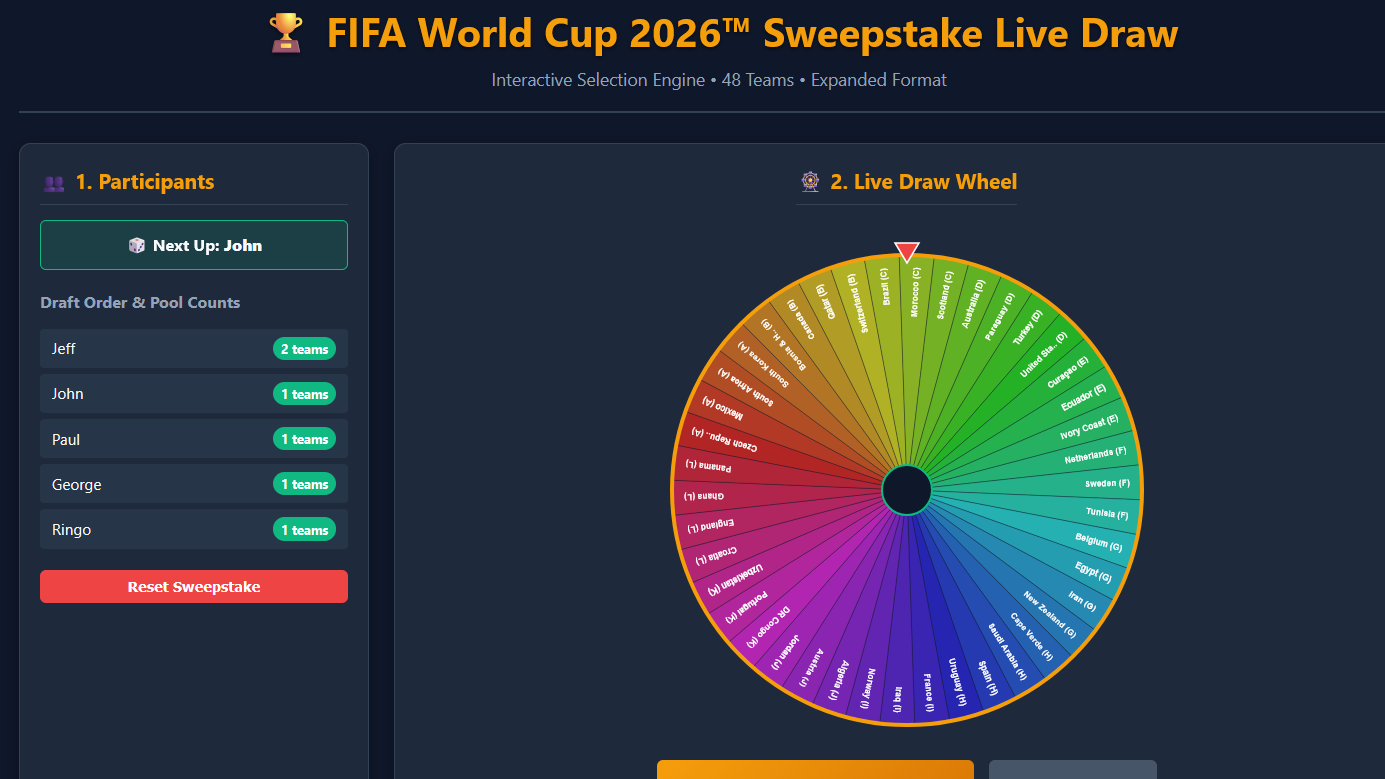
There's nothing to download and nothing to install. Yes, it's genuinely that easy.
Open The "World Cup Sweepstake" App I Built HereTap that link and the app loads right in your browser — on a phone, tablet or computer, it doesn't matter.
To keep it within easy reach for the rest of the tournament, bookmark the page. Better yet, on a phone you can use your browser's "Add to Home Screen" option, and it'll sit on your screen like a regular app, one tap away so you can double-check who got which team in the draw when we're a few weeks into the tournament.
What it actually is

The idea behind the app is that beyond randomly assigning the 48 teams in this year's tournament out to participants in the blink of an eye, you can make it into an event.
In my case, I invited the Tom's Guide team members taking part onto a video call and we all went through the draw together on the call, watching the rainbow wheel spin waiting to see who would receive which team.
How to use it
All you have to do to get started is write the names of everyone taking part in the "Participants" box on the left. Make sure you separate each person by a line. When everyone is entered, click the Lock Roster & Ready Draw green button right underneath it.
You then have two options. The fastest way is just to click the "Auto-Complete" button to instantly have all teams assigned. But the method I used for the Tom's Guide team was to click the "Spin Draw" button and have the colored circle spin around to build a little bit of anticipation.
It takes three seconds to make each draw, and after each play, the resulting draw will be noted down on the Assignment Board section below.
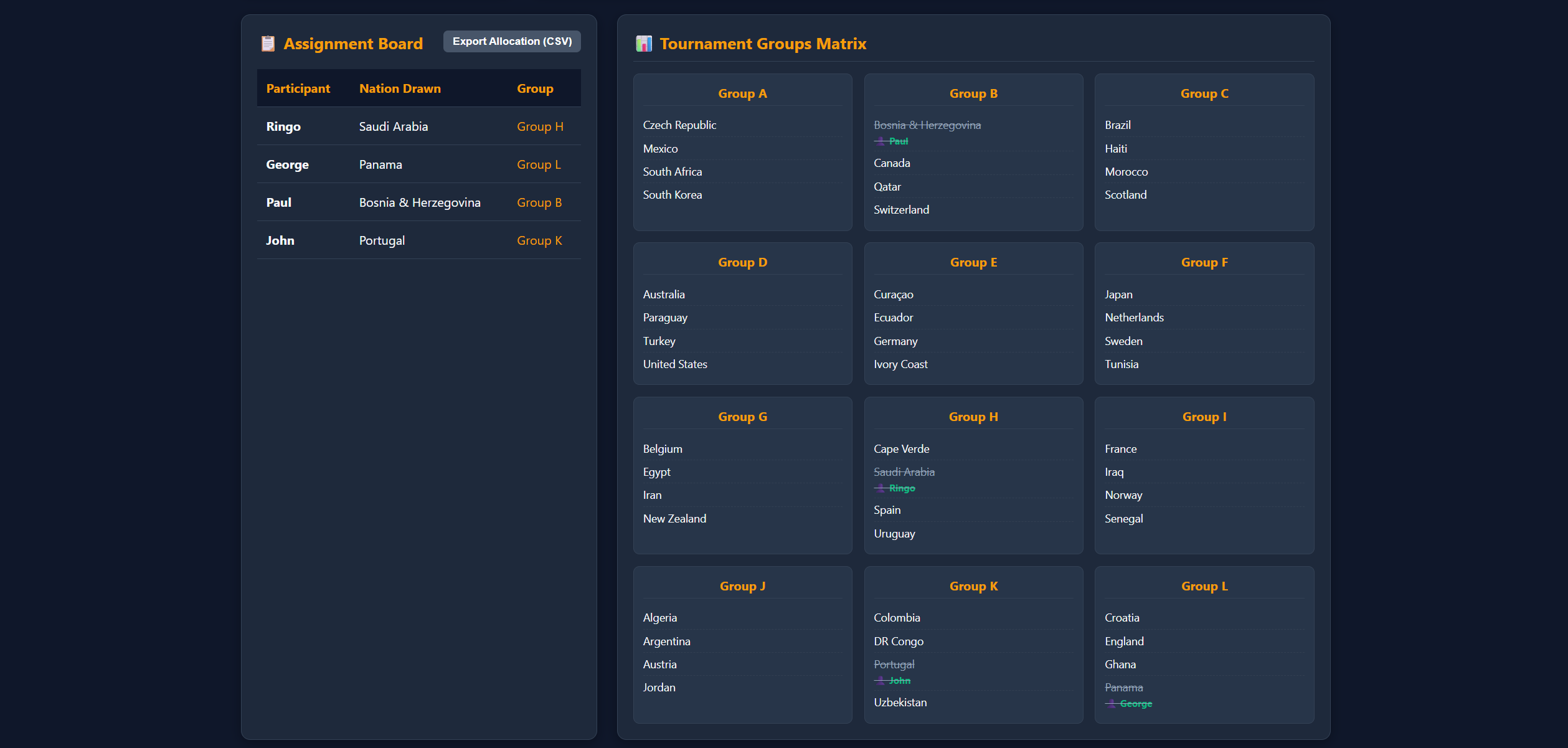
Finally, you can see at any time which teams are left to draw and their corresponding groups in the Tournament Groups Matrix section below the spin wheel.
And that's it! Keep going until all the teams have been drawn and, when you're ready, you can export the final results to a CSV file by clicking the button next to the Assignment Board.
Good luck!
Want to build your own? You can vibe code an app, too

Besides a very rudimentary understanding of the basics like HTML, CSS and JavaScript, I am not a programmer. All of this code was written for me by Google Gemini after I explained what I wanted in plain English. You've probably heard it, but this is exactly what "vibe coding" is: I had the idea, knew what I wanted and let the AI do the hard work.
It didn't get it right the first time. Initially, locking in names would break the tool. Then, once that was fixed, it took far too long for the spin wheel to draw a team. Both of those problems were solved with follow-up prompts from me and the AI re-writing the code.
If you want to try to make something similar for yourself, all you need is an AI chatbot that can write and show code, like Claude, ChatGPT or Gemini. Then explain to it what tool you'd like to build and how you think it should behave. Be prepared to make a few refinements, but that's part of the fun!
One thing to keep in mind, however, is that vibe coding tools like this are great for small, single-use products. Don't think you're suddenly going to have AI create the next big social network or online retailer for you. In this case, I needed a single tool to do just the one job for me. Although, I might repurpose it in four years for the next tournament.
If you've got feedback or have used AI to make your own tools, let me know in the comments below. Also, if you're a parent wondering how to keep the kids entertained this summer, my colleague Amanda has also used AI to build a free app called The Summer Box that you can use for inspiration.