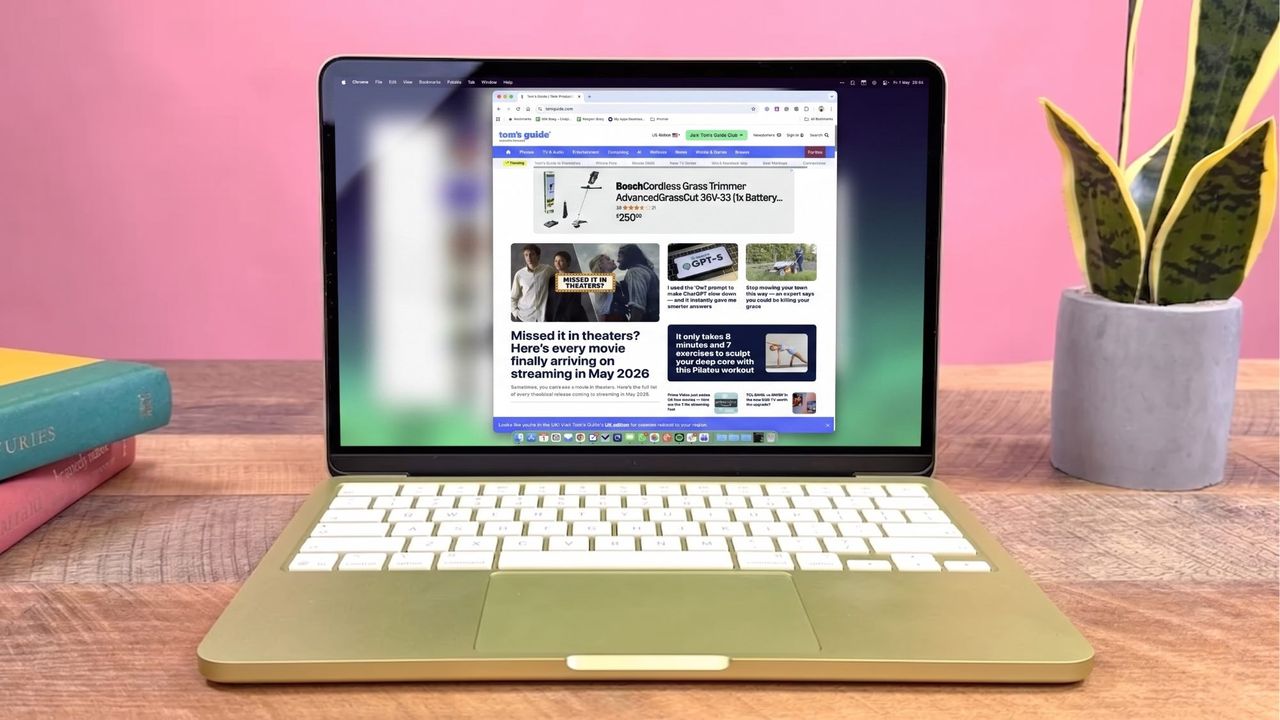
All things considered, the Mac does a pretty great job of keeping you focused on any given task. Stage Manager isn’t for everyone, but there are a multitude of window management options, Spaces, and those wonderful Focus Modes to help keep you on target.
Still, it’s not always enough, and that’s where Monocle comes in. The app was built with AI, but don’t let that put you off. It essentially locks down your Mac to your specific window of choice, but does so in a way that doesn’t feel overbearing. In fact, it’s so tastefully done that it feels less like you’re being blinkered and more like you’re approaching something close to a flow state.
“What if your screen could stop shouting?”
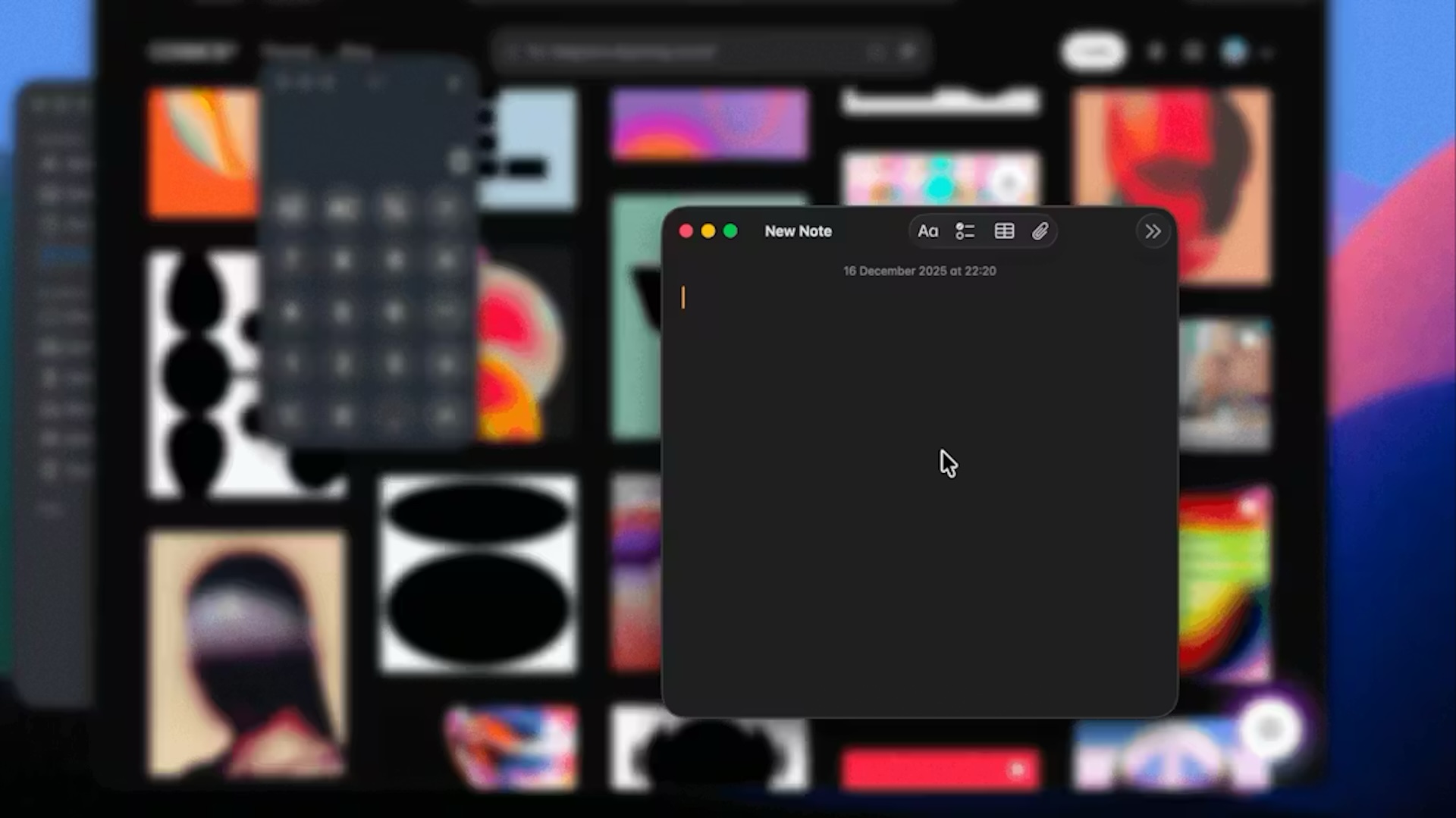
That’s the question posed by Monocle, and actually, it’s not something I’d necessarily considered before. In my day job, I’m bouncing between Microsoft 365 apps, almost always finding something else to add to my to-do list.
As you flit between windows, it’s so easy to get caught up in the ones in the gaps between what you’re working on. Maybe it’s a notification from your messaging platform of choice, or a tab open with social media. Maybe it’s something as simple as the Spotify window drawing your attention to more playlists to check out.
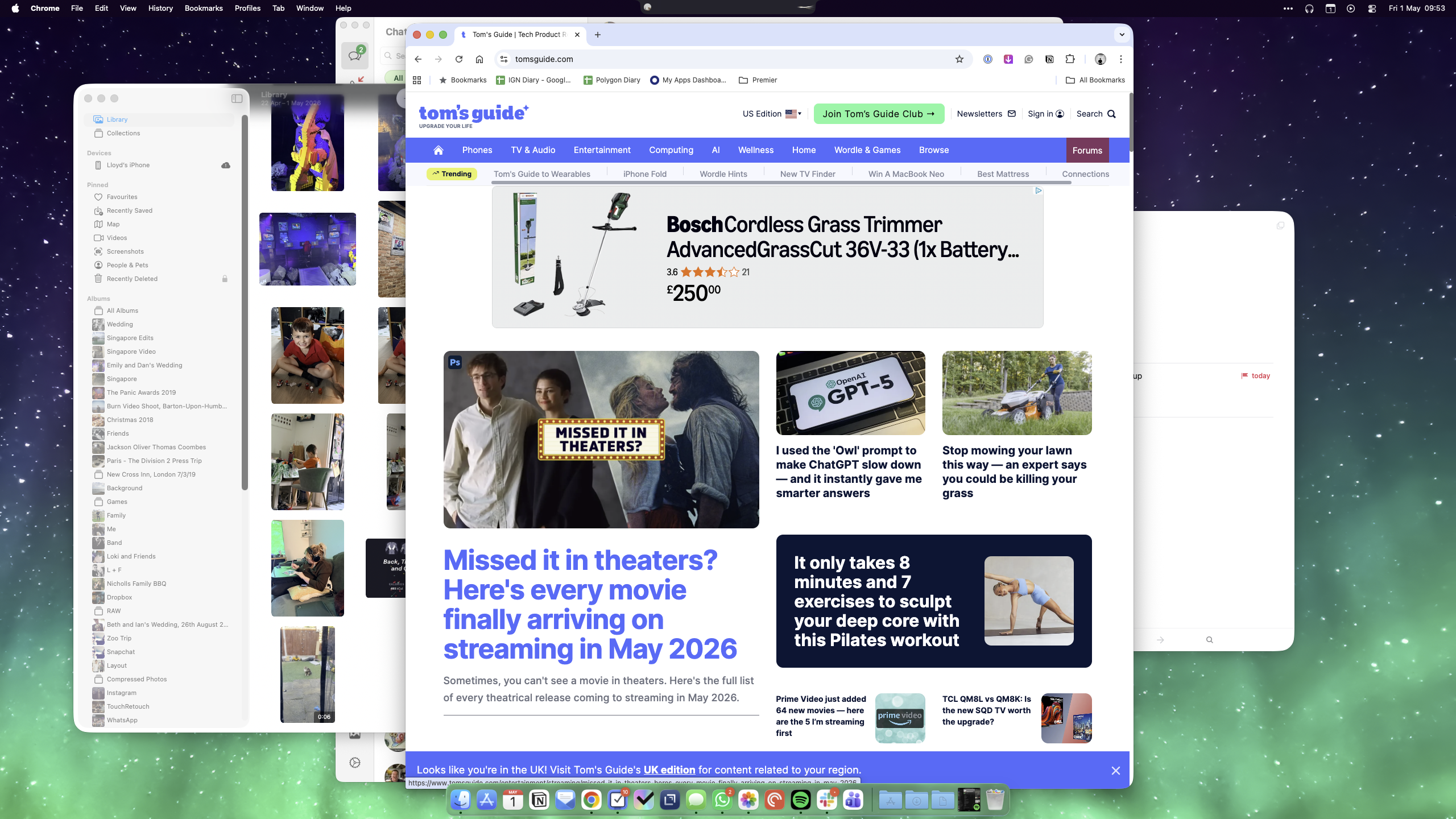
Monocle essentially blurs out a chunk of your screen behind your active app, letting you focus on what it is you’re actually doing. I’m working on a book right now, and having Drafts open and my research material on the side of it is doing a great job of making me stick to the task at hand.
Stop the world
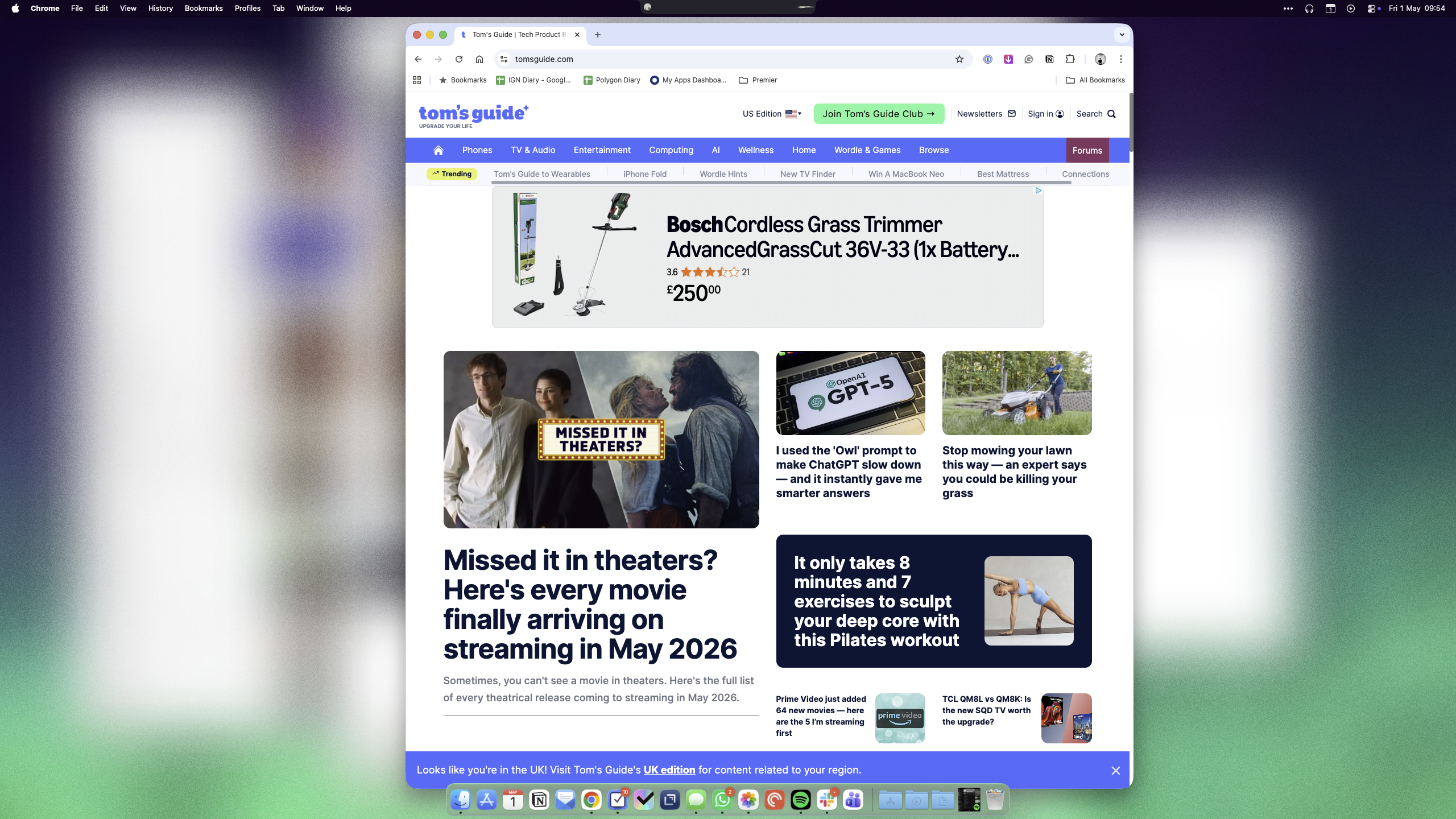
You can adjust how your background windows are blurred, but the one thing that remains true whether you blur, tint, or even add grain to them, is that it looks great.
Maybe that’s an unexpected byproduct of Apple’s Liquid Glass interface bringing more of its own ‘frosted glass’ ideals to macOS Tahoe, but it feels almost native as a result – as if Apple baked it right into the latest operating system. Even the menu looks like a sort of mini Control Center interface.
Naturally, you can opt to ignore certain apps to keep them visible, but this isn’t a replacement for Focus Modes. In fact, this will, in many ways, be perfect to work in tandem with setting up your notification settings, depending on how you’re working.
I also have my Mac’s dock on the bottom of my screen, and I definitely feel I get more joy out of Monocle when that’s hidden by default. Maybe it’s the kind of thing where I’d prefer it on the side of the screen, but that’s some deep programming I can’t quite unravel just yet. Thankfully, Monocle has an option to hide both the dock and the menu bar.
For now, though, I’m getting a lot more done with Monocle in my corner. The app is free to try for a week, and then it’s $9. If you need it on more than one machine, you can buy three seats for $20.