
PowerPoint files can hold a lot of work. An office worker may lose a quarterly report deck before a meeting. A student may delete a class presentation by mistake. A teacher may lose lecture slides, lesson materials, or training content right before class.
When a PPT file disappears, the first step is to protect the place where it was stored. Deleted PowerPoint files are not always erased immediately. In many cases, the file data stays on the drive until new data overwrites it.
Stop using the drive where the PPT was lost
If the PowerPoint file was stored on a computer hard drive, external drive, USB drive, SD card, CF card, or shared storage, avoid saving anything new to that location.
New downloads, copied folders, and saved documents can overwrite deleted data and make PPT file recovery from your hard drive more difficult. If the presentation is important, pause normal work on that drive and use another storage location while you check recovery options.
Check the Recycle Bin first
If the file was deleted recently, open the Recycle Bin on Windows or Trash on Mac. Search by file name, file type, or date. Look for PowerPoint formats such as PPT, PPTX, PPTM, POTX, or POTM.
If you find the file, restore it from the Recycle Bin and open it right away. Check the slides, images, charts, animations, and speaker notes before you continue working. This is the simplest recovery path, but it only works if the file has not been permanently removed.
Search your computer carefully
Sometimes a PowerPoint file is not deleted. It may have been saved to the wrong folder, moved during cleanup, or renamed by mistake.
Search for `.ppt`, `.pptx`, or a keyword from the file name. Check Desktop, Downloads, Documents, recent folders, project folders, and cloud-synced folders. Office workers should also check shared team folders. Students and teachers should check course folders, email attachments, and learning platforms.
A careful search can save time before moving to deeper recovery.
Try PowerPoint's built-in recovery options
If PowerPoint closed unexpectedly or the computer shut down while you were editing, reopen PowerPoint first. The app may show recovered versions of recent files. You can also check recent documents and AutoRecover locations in PowerPoint settings.
If a recovered version appears, open it and use Save As to store a new copy in a safe folder. Do not keep working only from a temporary recovery file.
This method is useful for unsaved presentations, but it depends on whether PowerPoint created a recovery copy before the crash.
Where Wondershare Recoverit fits
If the presentation is not in the Recycle Bin, cannot be found through search, and no built-in recovery copy is available, recovery software may help.
Wondershare Recoverit supports PowerPoint recovery for formats such as PPT, PPTX, PPTM, POTX, and POTM. It can scan storage devices including computer hard drives, external drives, USB drives, SD cards, CF cards, and other storage media.
Users who need to recover deleted ppt files can select the affected drive, scan for lost PowerPoint documents, review recoverable results, and save the recovered files to another safe location.
This workflow is useful for office workers recovering business decks, students restoring class presentations, and teachers retrieving lesson slides or training materials.
How to recover PowerPoint files with Recoverit
- Connect the affected drive or storage device.
If the PPT was lost from an external drive, USB drive, SD card, or CF card, connect it to the computer. If it was deleted from the internal hard drive, avoid saving new data to that drive.
- Open Wondershare Recoverit.
Go to the Hard Drives and Locations section.
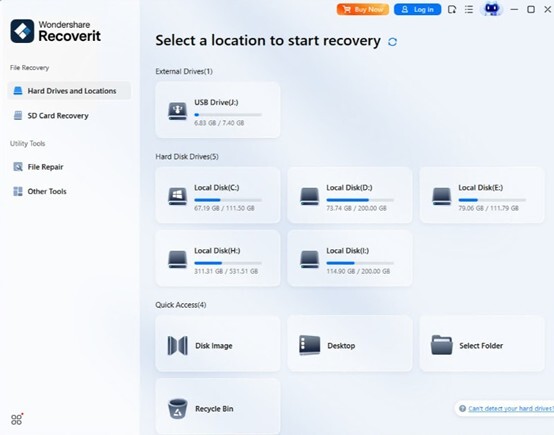
- Select the lost-file location.
Choose the drive, folder, Desktop, Documents folder, or storage device where the PowerPoint file was stored.
- Run a scan.
Let Recoverit search for deleted, lost, or missing files. For larger drives, allow the scan to finish before checking the results.
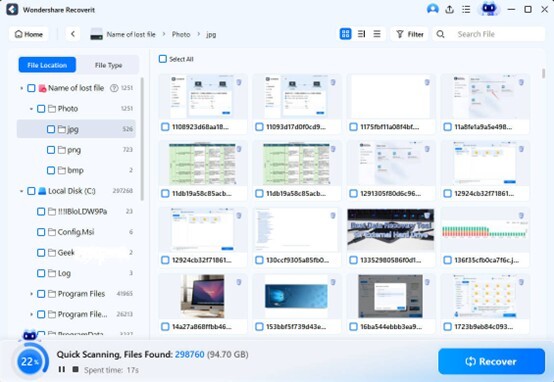
- Filter or search for PowerPoint files.
Look for PPT, PPTX, PPTM, POTX, or POTM files. You can also search by file name, size, date, or folder path.
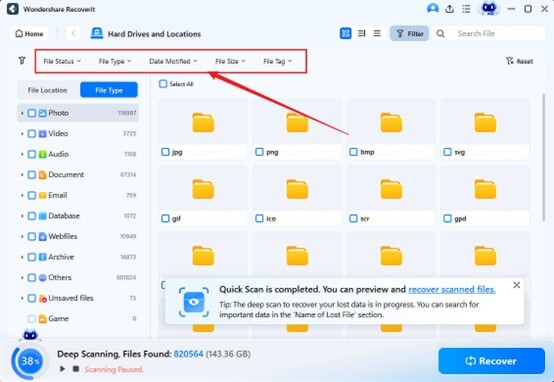
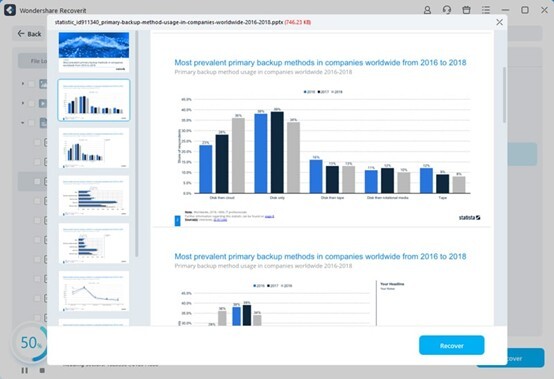
- Preview or check file details when available.
Review the file name, size, modified date, and preview information if available. A recovered file may have a generic name, so check results carefully.
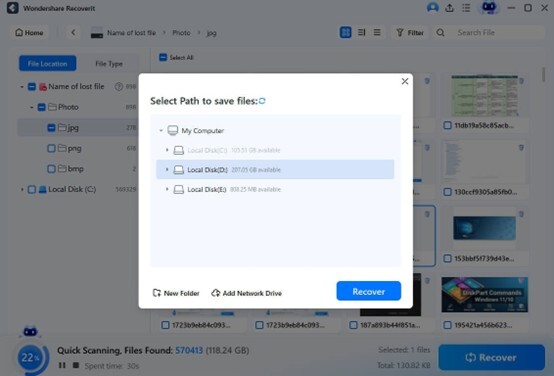
- Save the recovered presentation somewhere else.
Recover the PPT file to another drive or safe folder. Do not save it back to the original location during recovery, because that can overwrite other recoverable files.
- Open and verify the presentation.
Check slides, images, charts, fonts, animations, and speaker notes. Save the correct version with a clear file name.
What if the PPT file is corrupted?
Sometimes the PowerPoint file is still visible but will not open. In that case, make a copy before trying repair steps. Avoid editing the only copy of the damaged file.
Check whether an earlier version exists in your backup system, cloud storage, or shared drive. If the file came from email or a collaboration platform, download another copy if available. If the file was damaged because of a hard drive issue, recover it to another location before attempting repairs.
Tips to improve PPT recovery results
PPT recovery is more likely to work when you act quickly. Stop using the affected drive, avoid repeated saving attempts, and scan the original storage device before making major changes.
Check file names, modified dates, and file sizes carefully. A recovered PowerPoint file may not keep its original name if the folder structure was damaged. Open recovered copies one by one and keep the correct version in a clearly labeled folder.
Prevent future PowerPoint file loss
After you recover PowerPoint files, improve your backup routine. Save important presentations early and often. Keep copies on a reliable backup drive or cloud folder. For work decks, store final versions separately from drafts. For school or teaching materials, organize slides by subject, class, and date.
PowerPoint file loss is stressful, but a careful process helps. Start with simple checks, use built-in recovery options when available, and scan the original drive if the file was deleted or lost.