The much-awaited Minecraft-like Hytale has launched in early access, but not without its share of problems. One of the most infuriating things to encounter in any early access or multiplayer title is the login failure pop-up on the screen, and Hytale is no different in this regard.
More specifically, Hytale’s “failed to connect to server” error has plagued many players’ login screens, and sadly, if you’re one of them, you have come to the right place. Before we dive into the issue, please note that Hypixel Studios has yet to address this error, so any fixes we suggest are purely subjective and may or may not work for you.
With that said, here’s how to potentially fix Hytale’s server connection error.
All potential Hytale server connection error fixes
Most likely, Hytale’s server connection error is occurring due to network access restrictions. Since the game’s still far from finished, Windows may identify it as malicious (which, on a lighter note, it could be for you depending on your Minecraft addiction), though objectively, it isn’t.
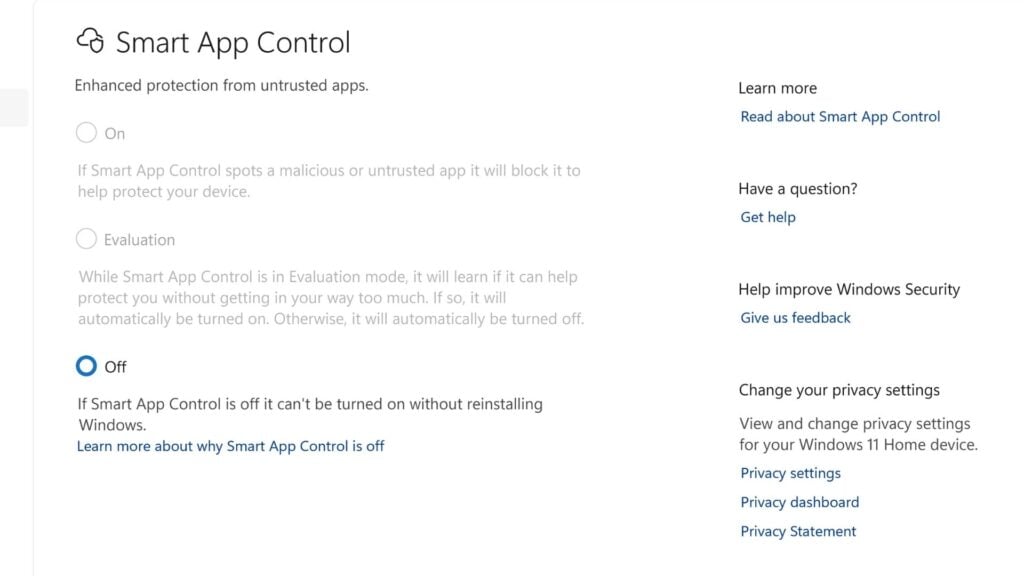
There are two ways to go around it. You can disable Smart App Control on Windows, whose job is to spot and block malicious or untrusted apps. For this, look for Smart App Control in the Windows Security settings. It’s worth noting that if you disable it, you won’t be able to turn it on without reinstalling Windows.
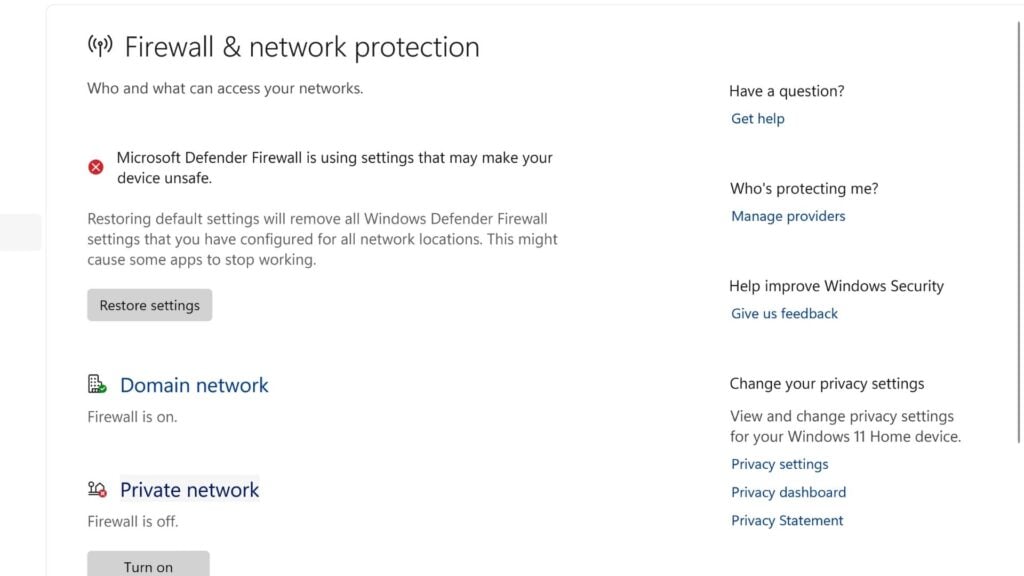
The other, less consequential way to fix Hytale’s server connection is to disable the Windows Defender Firewall. You can find it in the Windows Security settings, which, in itself, can be found within the Advanced network settings of Network & Internet. You will find three options here. Simply disable the firewall on the Private Network.
Sometimes, in situations like this, the issue could arise due to your system’s time not being in sync with your local time. For this, head to Time & language settings and enable automatic time set up.
Lastly, and this is a more skeptical one, tweaking your Windows variable might do the job. Reddit user LackOfContext101 suggests trying the following:
Windows Button > Search for “Edit the system environment variables” and click it > Environment Variables > on the upper bottom “System variables” JAVA_OPTIONS variable > press it and click Delete.
Doing so could fix Hytale’s server error. We haven’t tested this ourselves, but several users in the comment sections of the game’s server issue thread have confirmed that this resolved the issue for them. That said, we recommend not tweaking your system’s variables as it could have other, notably fatal, consequences on your Windows.
These are some of the potential ways to fix Hytale‘s “failed to connect to server” error.