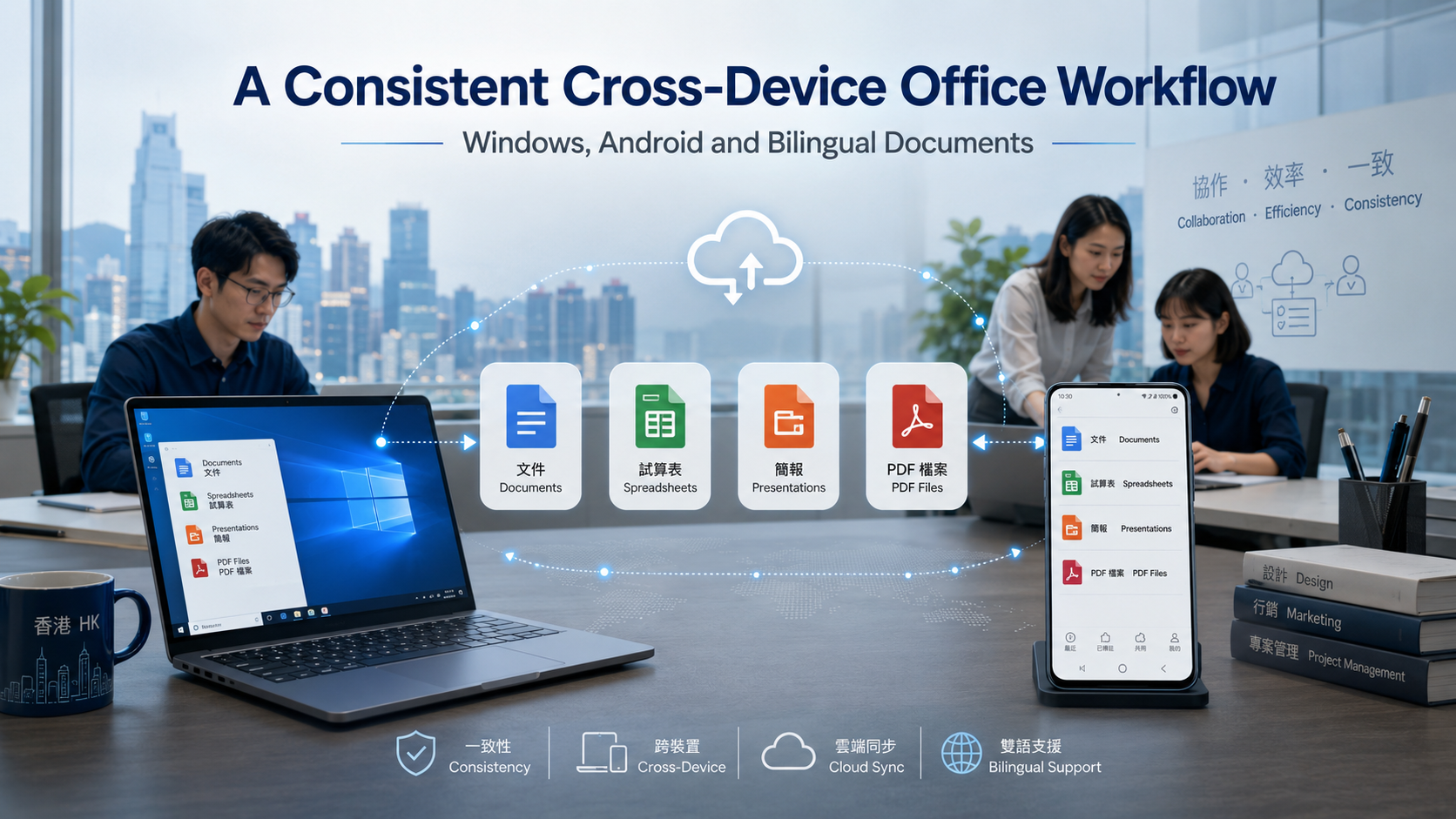
Switching between a Windows computer and an Android phone should make work more flexible. In practice, inconsistent fonts, formatting changes, duplicate files, and unclear version histories can quickly disrupt a bilingual document workflow.
A report that looks correct on a desktop may display differently on a phone. Traditional Chinese characters may be replaced by another font, spreadsheet columns may move, and presentation elements may no longer align as intended. Team members may also edit separate copies of the same file after receiving attachments through email or messaging applications.
These problems are especially common among teams working in English and Traditional Chinese across Hong Kong, Taiwan, and other markets. A reliable cross-device workflow therefore requires more than installing office software. Teams need consistent file formats, approved fonts, clear device roles, controlled cloud access, and a practical version-management system.
Why Cross-Device Documents Become Inconsistent
Documents may change when they are opened on another device because Windows and Android do not always use the same fonts, rendering engines, screen sizes, or application settings.
A Windows computer may have a locally installed Traditional Chinese font that is unavailable on an Android phone. When the mobile device opens the file, the application may replace that font with the closest available option. This substitution can change line breaks, paragraph length, table height, and page count.
Spreadsheets can develop similar problems. Column widths may appear different on a smaller screen, formulas may rely on unsupported features, and charts may be resized to fit the mobile interface.
In presentation files, images, text boxes, animations, and custom fonts may not behave consistently across applications. A slide that appears balanced on a large monitor may become crowded or misaligned on a phone.
File duplication creates another source of inconsistency. The same report may exist as:
- a local Windows copy;
- an attachment downloaded from a group chat;
- a cloud-synchronized version;
- an edited Android copy;
- a PDF exported for a client;
- a revised file sent by email.
Without a clear system, team members may continue editing different versions without realizing it.
Choose One Primary Format for Each Type of Work
Teams should define one primary format for each category of work. This reduces unnecessary conversion and makes it easier to identify which files remain editable and which have been approved for external distribution.
|
Type of work |
Recommended primary format |
|---|---|
|
Editable reports and proposals |
DOCX |
|
Budgets and structured data |
XLSX |
|
Presentations and training materials |
PPTX |
|
Approved external documents |
|
|
Temporary scans and receipts |
PDF or image |
|
Collaborative working drafts |
Cloud document |
Editable files and final documents should be treated differently.
A DOCX file may remain open for comments and revisions, while an approved PDF should represent the fixed version sent to a client. Teams should not use a PDF as the main collaborative format when extensive editing is still required.
File conversions should also be limited. Repeatedly moving content between document formats can introduce layout and compatibility problems.
Before sending a document externally, the team should export it through an agreed process and verify the result on both a Windows computer and an Android device. The final PDF should then be stored separately from the editable source file.
Standardize Traditional Chinese and English Fonts
Font consistency is essential in bilingual documents because a single report may contain English headings, Traditional Chinese paragraphs, numbers, tables, and branded design elements.
Teams should select fonts that are commonly available or reliably embedded across their working environment. Special fonts installed on only one employee’s computer should not be used for essential text unless the final document will always be distributed as a verified PDF.
A practical internal font policy can define:
- one approved font for Traditional Chinese body text;
- one approved font for English body text;
- one or two heading styles;
- standard font sizes;
- acceptable alternatives when a font is unavailable;
- PDF export requirements for external files.
Terminology should also be standardized. Hong Kong and Taiwan both use Traditional Chinese, but some business and technology terms differ.
|
English |
Common Hong Kong usage |
Common Taiwan usage |
|---|---|---|
|
File |
檔案 |
檔案 |
|
Software |
軟件 |
軟體 |
|
Settings |
設定 |
設定 |
|
Online |
網上 |
線上 |
|
Information |
資料 |
資訊 |
A bilingual team does not need to eliminate every regional variation. It should choose one primary terminology system for internal documents and explain important alternatives when communicating with another market.
Use an Integrated Office Workspace Instead of Separate Tools
Using a different application for documents, spreadsheets, presentations, PDFs, scanning, and online collaboration can make cross-device compatibility harder to manage.
An integrated office workspace can reduce this fragmentation by keeping related file types, recent documents, cloud access, and collaboration tools in one environment. This can help teams move from drafting to review, approval, PDF export, and archiving without repeatedly converting files between unrelated applications.
A unified workspace may support:
- document editing;
- spreadsheet analysis;
- presentation creation;
- PDF viewing and editing;
- online documents;
- cloud synchronization;
- shared comments;
- mobile scanning;
- cross-device file access.
Teams evaluating a unified workspace can review the capabilities of the WPS Office productivity suite, including document editing, spreadsheets, presentations, PDF tools, and cross-device collaboration.
Software alone cannot guarantee consistency, however. Teams still need shared rules for file names, fonts, version status, access permissions, and final approval.
The main advantage of an integrated workspace is that it can support those rules through a more consistent environment rather than requiring employees to reconstruct the workflow across several unrelated tools.
Assign Different Tasks to Windows and Android
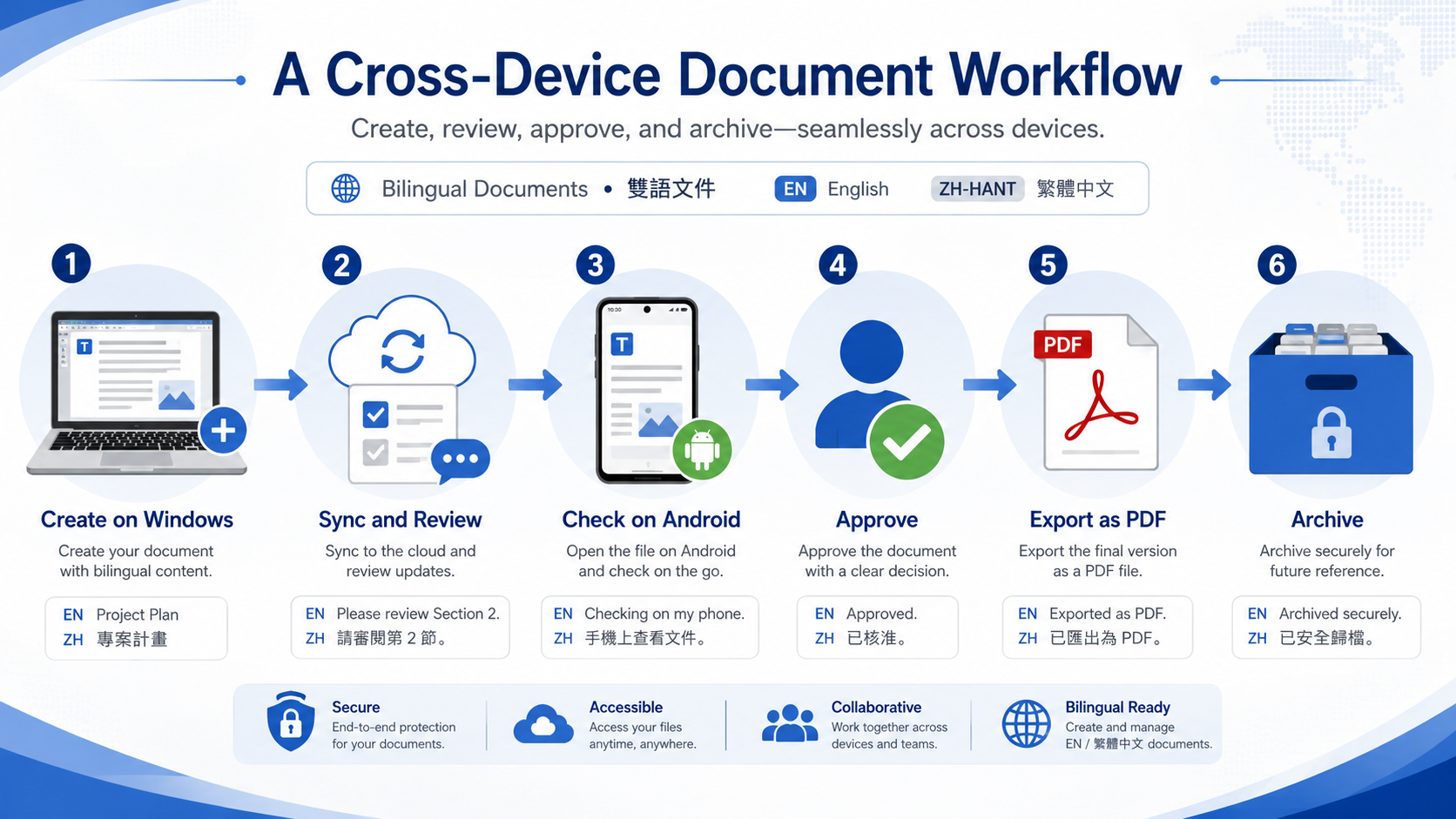
A Windows computer and an Android phone should not be expected to perform identical roles.
Windows is generally better suited to complex production work, including:
- drafting long reports;
- creating detailed spreadsheets;
- editing formulas and charts;
- adjusting presentation layouts;
- organizing large numbers of files;
- reviewing fonts and page formatting;
- comparing document versions;
- exporting final PDFs.
A larger screen, physical keyboard, and desktop file system make these tasks easier to complete accurately.
Android is more useful for mobile review and time-sensitive actions, including:
- opening documents while travelling;
- checking comments;
- making short corrections;
- scanning paper documents;
- photographing receipts or reference material;
- approving content;
- signing a PDF;
- confirming that a file opens correctly on mobile.
Teams should avoid using a phone for extensive formatting unless no alternative is available. A document can appear acceptable on a small screen while still containing layout problems that become visible when printed or opened on a desktop.
The most reliable workflow assigns complex creation and final formatting to Windows, while Android supports review, capture, confirmation, and limited editing.
Check Compatibility Before Installing Office Software
Before introducing new office software, teams should review both technical requirements and workflow requirements.
The installation checklist should include:
- Operating-system version
- Available device storage
- Existing office applications
- Default file associations
- Cloud-account access
- Required Traditional Chinese and English fonts
- Backups of important documents
- Update and permission settings
Existing software should not be removed before compatibility testing is complete. The team should first open several real working files in the proposed application.
The test set should include:
- a DOCX report with Traditional Chinese and English text;
- an XLSX workbook containing formulas and charts;
- a PPTX presentation with images and text boxes;
- an existing PDF;
- a document containing comments or tracked revisions.
Review whether fonts, tables, formulas, pagination, images, and presentation layouts remain intact.
Testing with real documents is more useful than opening a blank file because most compatibility problems appear only in complex working content.
Select the Correct Windows or Android Version
Before installation, users should compare the available WPS Office versions for Windows and Android and confirm the relevant system requirements for each device.
The selected installer or mobile package should match the operating system actually used by the employee. Teams should avoid clicking unrelated download buttons or assuming that one package can be installed on both desktop and mobile devices.
Before deployment, administrators should verify:
- the supported Windows version;
- the minimum Android version;
- available storage space;
- whether administrator permission is required;
- how automatic updates are handled;
- which file types will open by default;
- whether cloud sign-in is necessary;
- whether existing documents have been backed up.
After installation, the application should be tested without immediately changing every default file association. This allows users to compare the new environment with their existing workflow.
A small pilot group should complete the first deployment. The team can then identify formatting, sign-in, synchronization, or permission problems before installing the software across every device.
Create a Clear File-Naming and Version-Control System
A consistent file name can prevent many version-control problems.
A practical structure is:
Project-Document-Language-Date-Version
Examples include:
ClientProposal-ZH-TW-2026-07-28-v03.docx
ClientProposal-EN-2026-07-28-FINAL.pdf
Teams can use standard status labels:
- `DRAFT` for an incomplete working file;
- `REVIEW` for a file awaiting feedback;
- `APPROVED` for content that has passed internal approval;
- `FINAL` for the external or archived version.
Names such as final-new-latest-2 should be avoided because they do not explain which file was approved or when it was created.
The team should maintain one primary editable file. Members should not download separate copies, make untracked changes, and return them through different communication channels.
When possible, comments and revisions should be made in the shared working file. After approval, the document can be exported as a PDF and moved to an archive location with restricted editing access.
Protect Documents During Cloud Synchronization
Cloud synchronization allows a file to move between Windows and Android devices, but it also creates access and privacy risks.
Teams should avoid synchronizing an employee’s entire personal folder when only a specific work directory is required. Personal accounts and company accounts should remain separate.
Shared-link permissions should be checked before a document is distributed. A link intended for one client should not automatically give access to other folders or future files.
Administrators should regularly review:
- who can open each shared document;
- who can edit or download it;
- whether former employees retain access;
- whether public links are still active;
- which devices are signed in;
- whether sensitive files are stored in approved locations.
Employees should not remain signed in on public or unmanaged Android devices. Lost or replaced devices should be removed from the account’s active sessions.
Cloud synchronization should not be treated as a complete backup. An accidental deletion, damaged file, or unauthorized change may also synchronize across devices. Important files should therefore have an independent backup and a documented recovery process.
A Practical Cross-Device Office Checklist
A bilingual team can establish a more reliable workflow by completing the following steps:
- Choose standard formats for editable and final documents.
- Define approved Traditional Chinese and English fonts.
- Assign complex editing and final formatting to Windows.
- Use Android for review, scanning, signatures, and short updates.
- Test real documents before full software deployment.
- Establish one file-naming and version-control system.
- Configure cloud access and sharing permissions.
- Export approved external documents as PDF.
- Review active devices and former-member access regularly.
- Keep an independent backup of important files.
The checklist should be documented and included in employee onboarding rather than being passed informally between team members.
Conclusion
A reliable cross-device office workflow does not depend on installing more applications. It depends on keeping file formats, fonts, versions, permissions, and approval processes consistent.
Windows and Android devices should perform complementary roles. Desktop computers can handle complex editing, formatting, and final export, while mobile devices support review, scanning, signatures, and rapid confirmation.
Bilingual teams should also establish clear Traditional Chinese and English font and terminology standards. Every important document should be tested across devices before external distribution, and final files should be archived separately from working drafts.
Cloud synchronization improves accessibility, but it does not replace controlled permissions, version management, or independent backups. With these practices in place, teams can work across devices without losing control of document quality.