
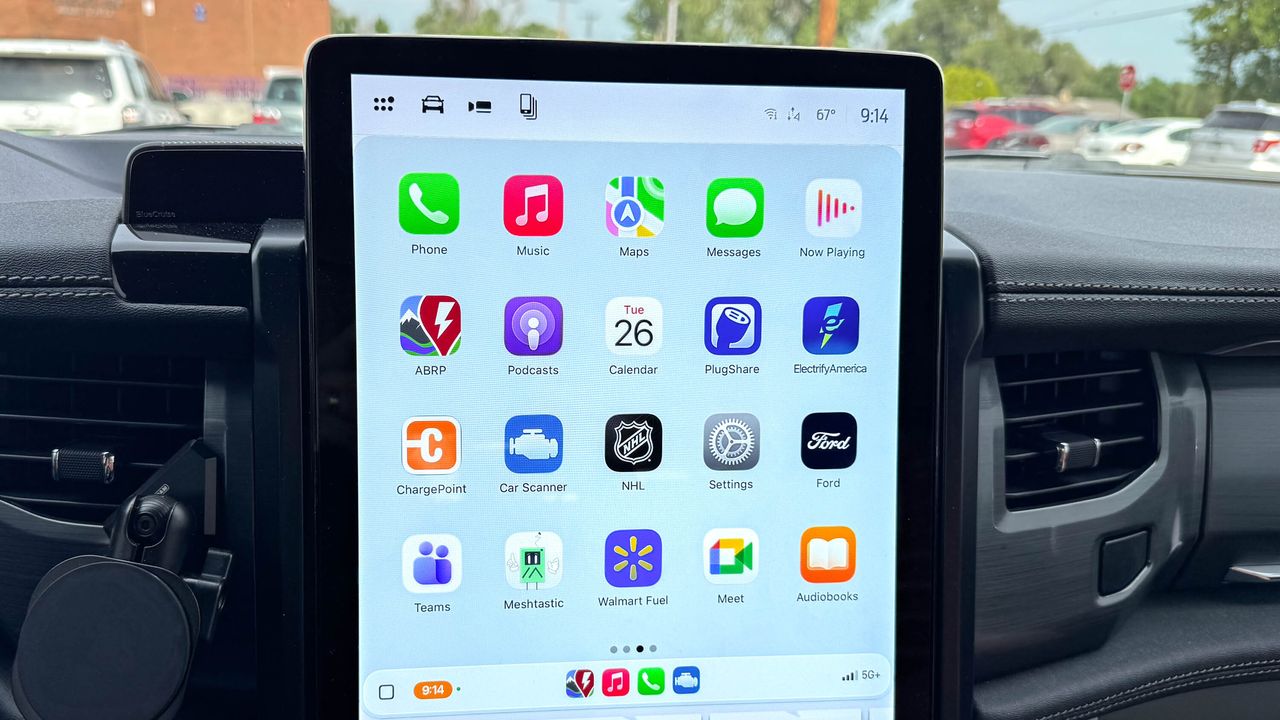
One of the more annoying aspects of CarPlay is how any and all compatible apps are automatically displayed on your vehicle’s screen — whether you like it or not. For example, ChatGPT recently added CarPlay support to its iPhone app, and now I have the AI giant’s icon on my screen. I’ll never want to talk to AI while driving down the road, especially when I barely like talking to Siri to send a text message.
Adding to the frustration, there’s really no rhyme or reason to the order the apps are put in. It's annoying. If you're like me and despise the unorganized look of your CarPlay dashboard, I’ll guide you through on how to add, remove, and rearrange apps in Apple CarPlay.
How to rearrange CarPlay apps
1. Go to your iPhone Settings
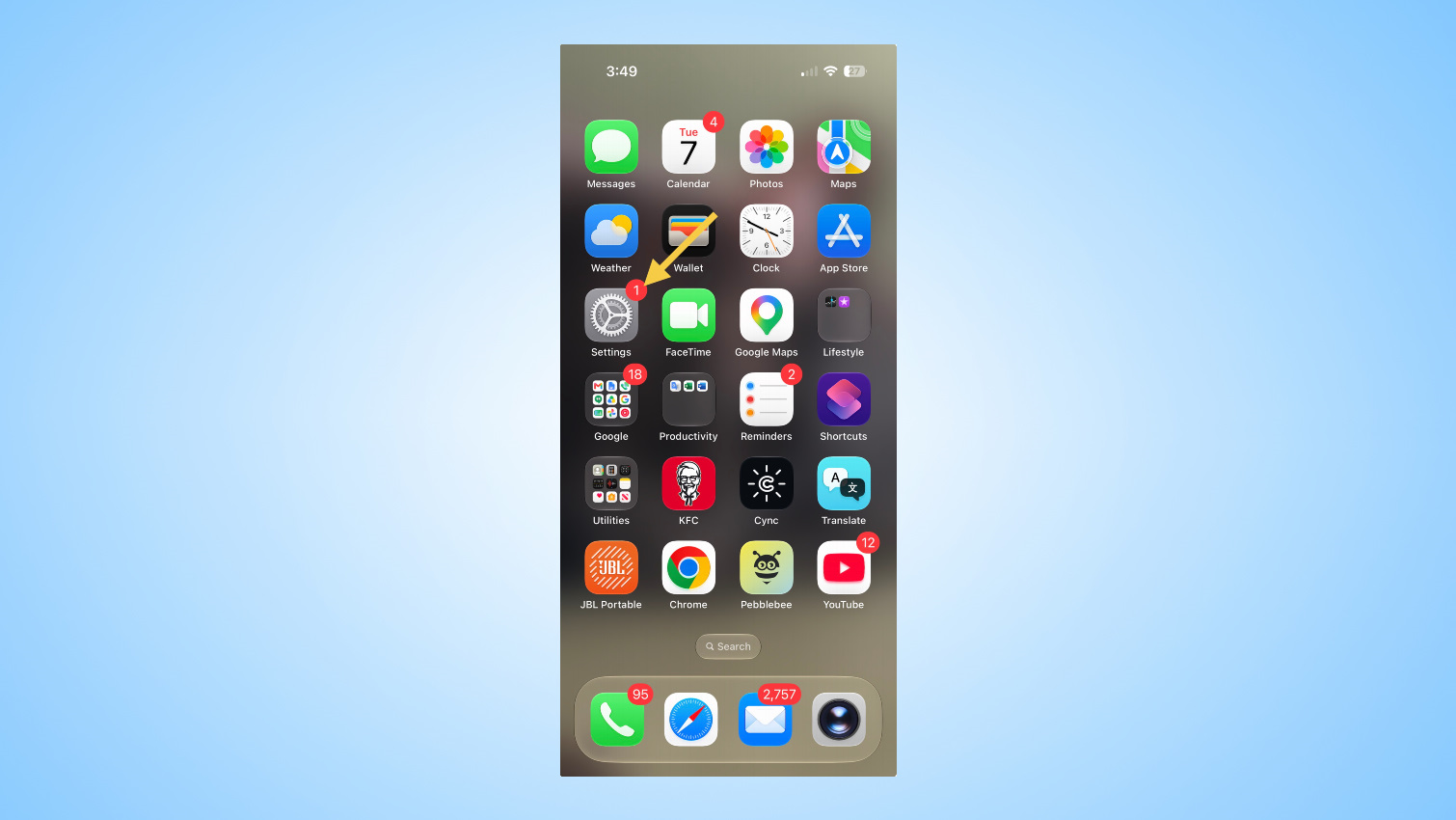
You don’t need to follow these steps while using CarPlay in your vehicle. You can do it right now, without your car anywhere nearby. To start, open the Settings app on your iPhone.
2. Select General in Settings
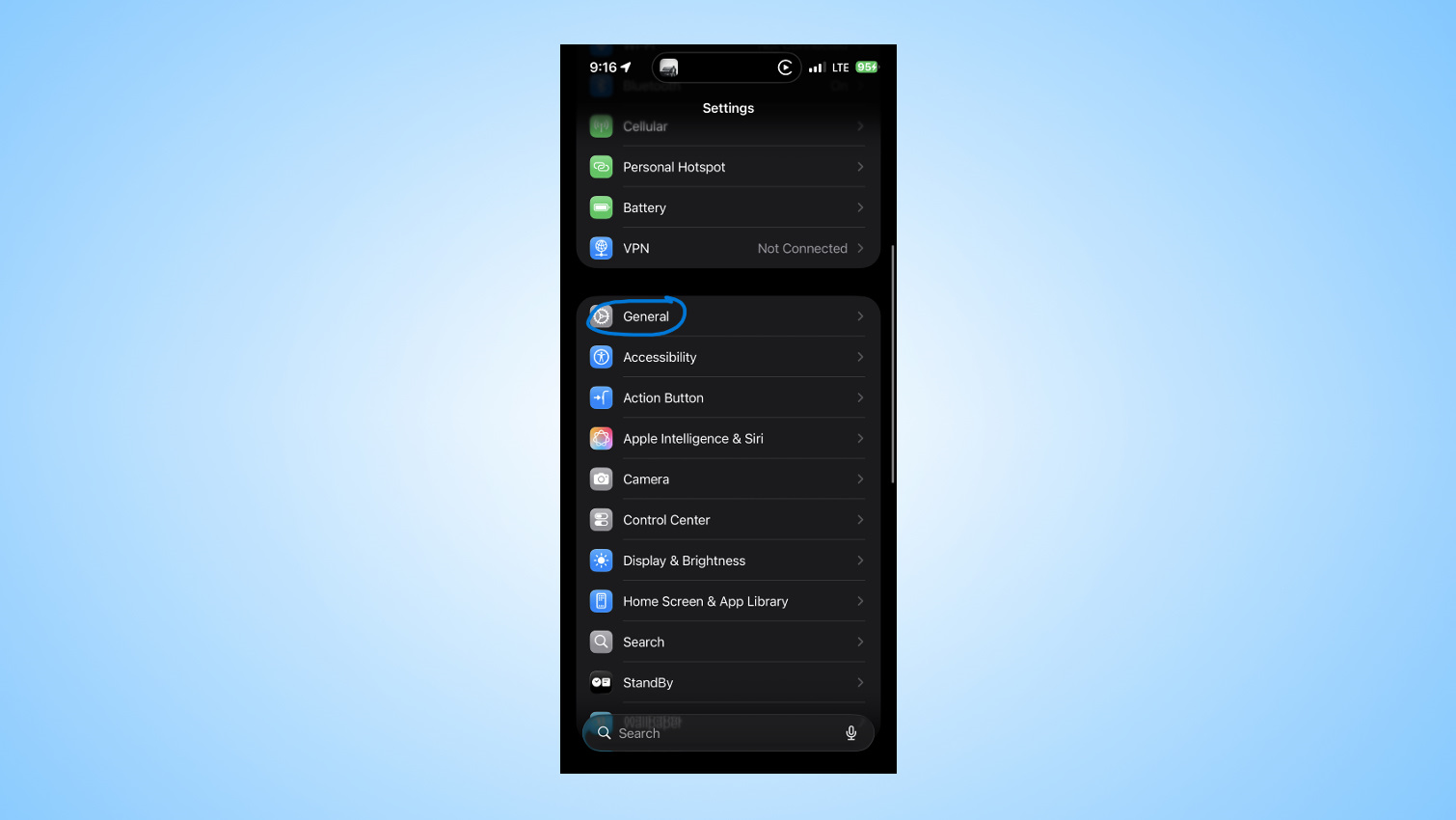
From the main Settings page, find and select General.
3. Open CarPlay Settings, select your vehicle
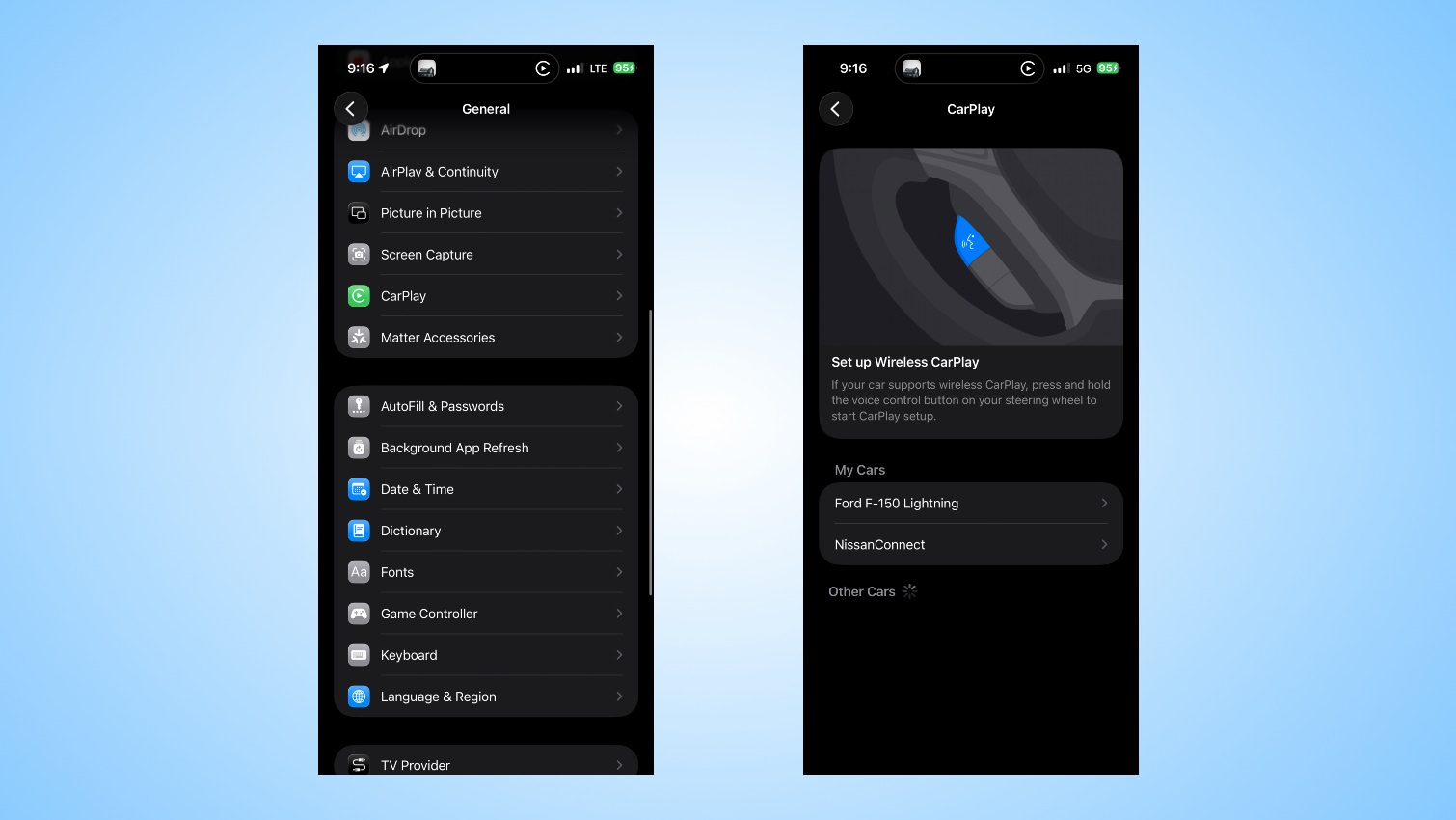
From the General settings page, scroll down until find and select CarPlay. Next you’ll see a list of all vehicles you’ve set up CarPlay with on your iPhone, tap on your car.
4. Open the Apps page
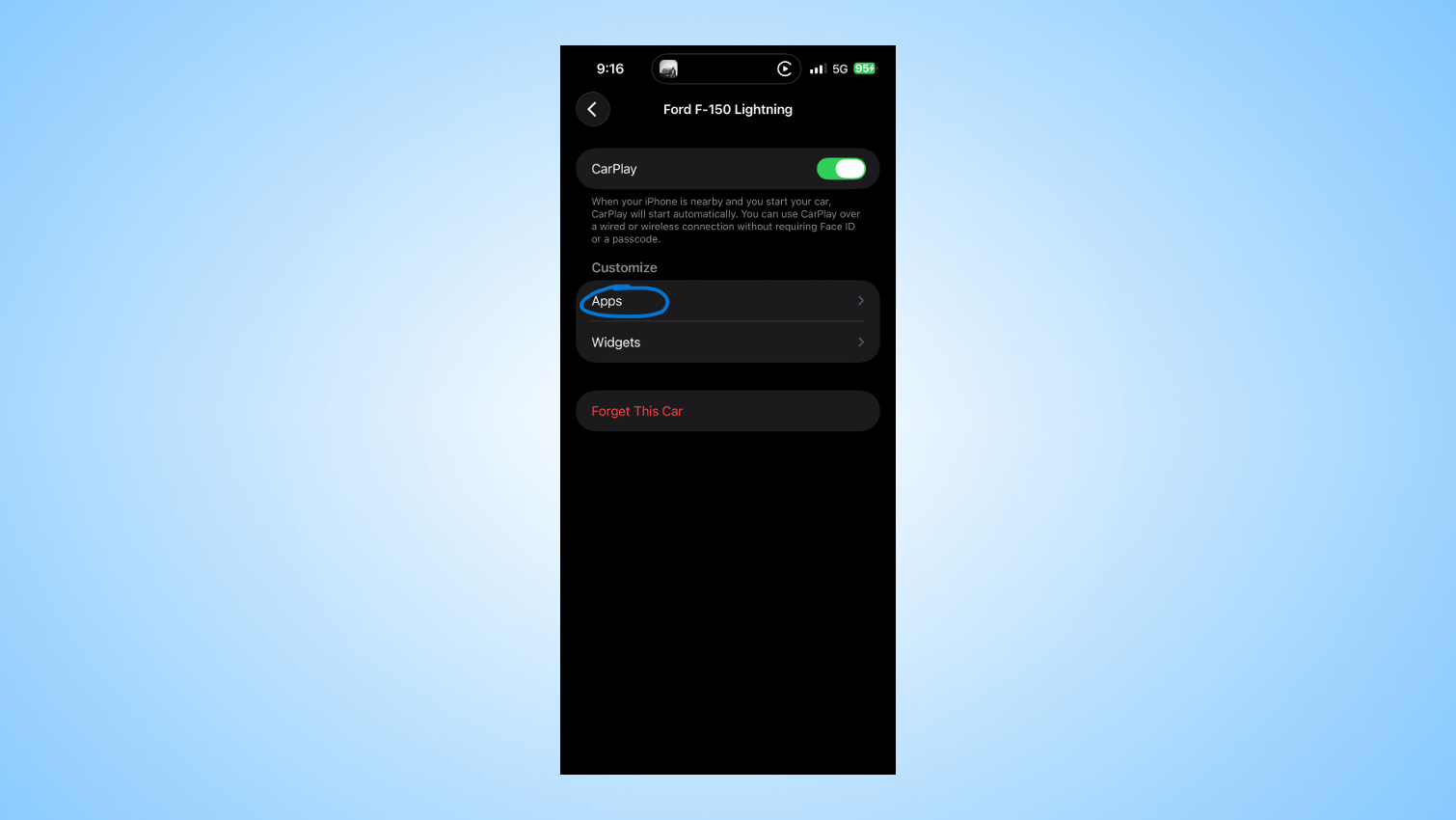
The next screen will allow you to turn off CarPlay for that specific car altogether, forget the car, and view widgets and apps. Since we’re focused on editing available apps right now, select Apps from the list.
5. Begin adding, removing and rearranging apps
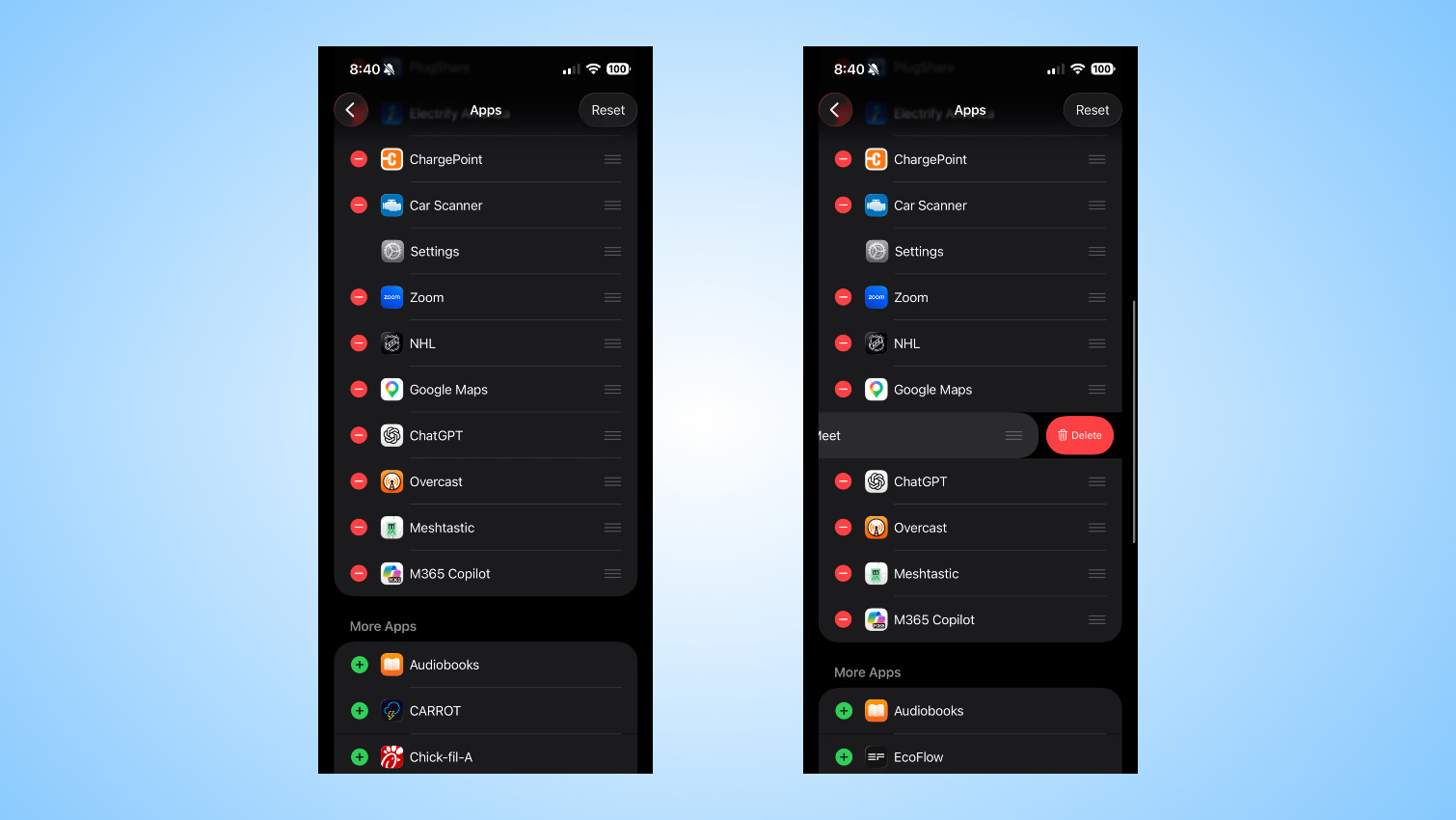
Every app that’s installed on your iPhone with CarPlay support will be displayed on this screen. Notice that Phone, Music, Maps, Messages, Settings and Now Playing can’t be removed from the list, but all other apps on this screen can be added or removed from the Included Apps section.
Select the red button next to the app’s name followed by delete to remove it from being shown while using CarPlay in your car.
Tap the green button next to an app’s name to add it to the included apps section.
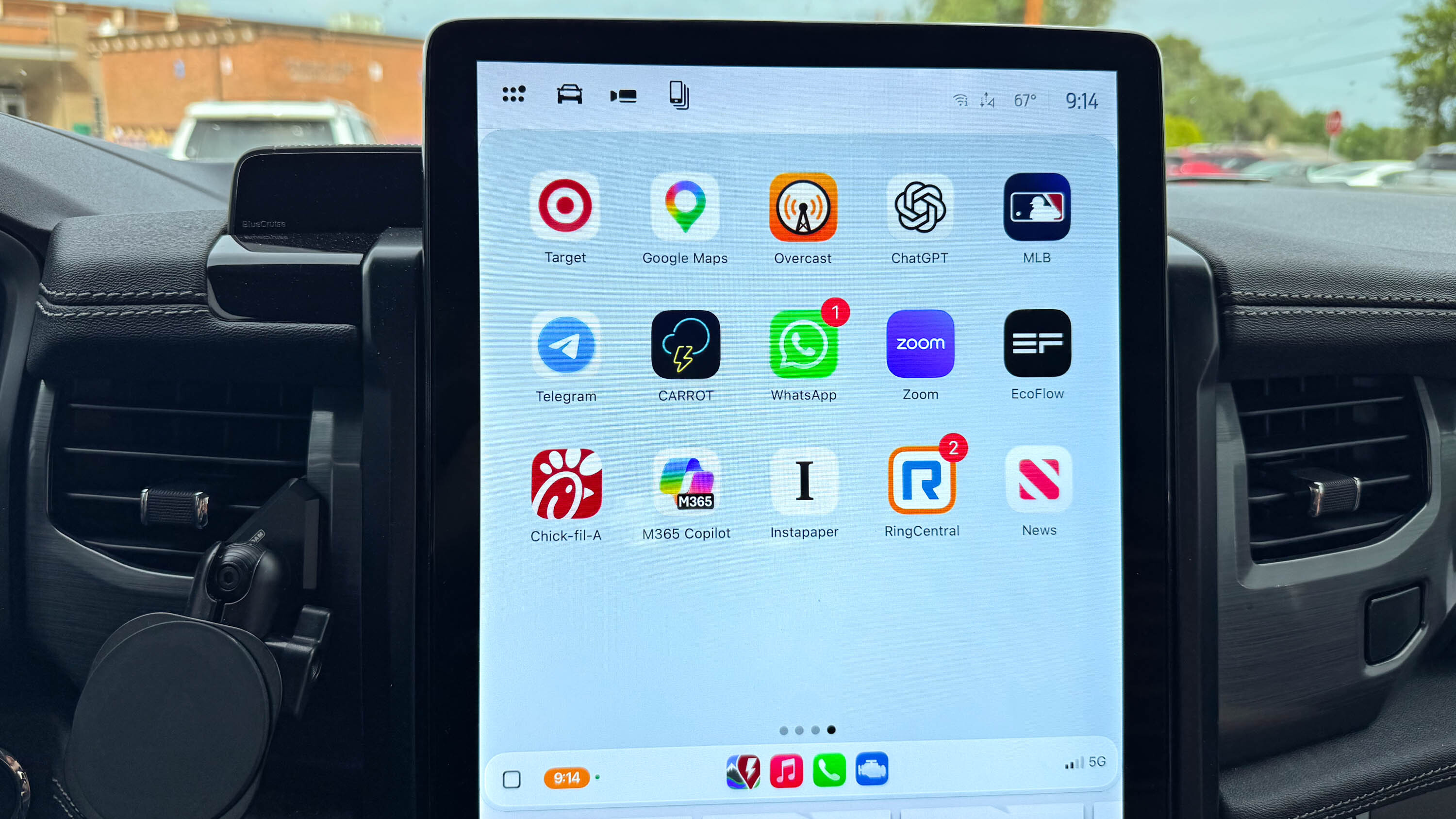
Once you have all of the apps you want or don’t want in the right spot, take an extra moment to rearrange the order of how the apps are displayed in CarPlay by using the three-line handle to drag-and-drop them to the right spot.
If you edited apps while sitting in your car and you could watch them disappear in real time, but if you made the changes on your iPhone before your next drive, you’ll instantly see the apps arranged on your new home screen the next time you connect your phone to your car.