
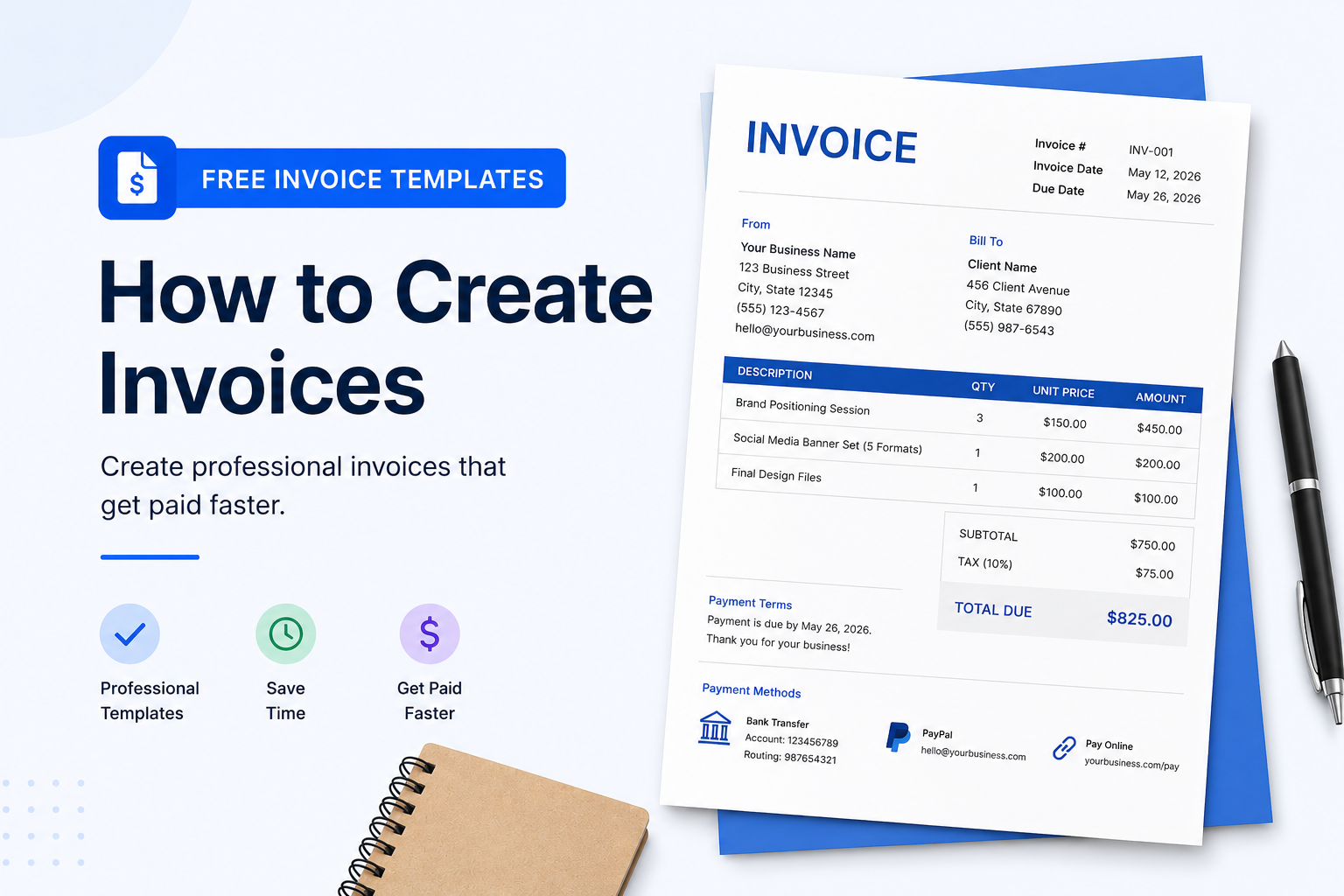
Chasing a late payment is one of the more frustrating parts of running any kind of business. And nine times out of ten, the problem did not start with a difficult client. It started with the invoice itself. A missing due date, a line item that said "services rendered" and nothing else, or a document that went to the wrong email three weeks after the work wrapped up.
Most of this is fixable. A solid free invoice template and a consistent process handle most billing problems before they actually show up. Here's what this guide covers: what goes on an invoice, how to put one together, and the small habits that end up pushing your payment date further back than it needs to be.
What is an invoice template and do you actually need one?
A good free invoice template already includes all the standard fields. The layout is done, the sections are labeled—you just drop in the job-specific details and send it off. No blank page, no building tables from scratch every time.
The format matters more than people give it credit for. Miss either one and the invoice bounces back. That's two weeks added to your wait before you even start counting. And when you're working from the same template every time, you stop leaving fields out. That alone saves more back-and-forth than most people expect.
What fields does every invoice template need?
Freelancer, contractor, small business owner — doesn't matter. The fields are basically the same across the board:
- Your business name, address, and contact details
- Client's full name and billing address
- A unique invoice number, one per invoice, no exceptions
- Invoice date and an actual due date (more on this later)
- Line-by-line breakdown of what you delivered, with quantities and prices
- Subtotal, taxes (if applicable), and total owed.
- Payment terms that you prefer, and how you want to be paid
The two that get dropped most often are the invoice number and the due date. Skip them and you'll feel it when the invoice comes back for corrections. Without one, their accounts team can't track it, can't approve it, and honestly might just lose it. No due date, and 'I will get to it' becomes a legitimate response.
What's the step by step process for creating an invoice?
Straightforward process. No complicated software required.
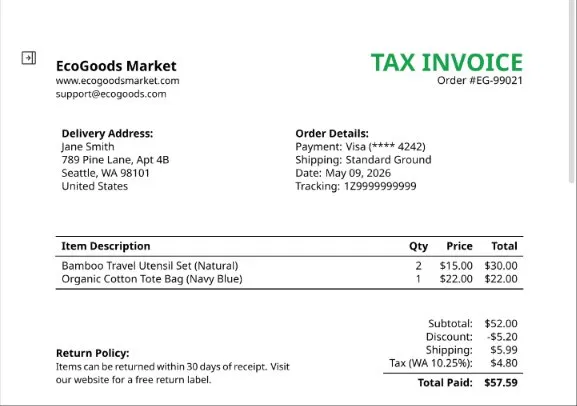
Step 1: Pull your information together before you start. Before you open anything, have your business details and the client's billing info where you can actually see them. Not somewhere you'll spend five minutes tracking down. Right there in front of you. Small thing, bigger headache if you skip it.
Step 2: Number it and put a real date on it (e.g., INV-001, INV-002)—pick a system and don’t change it. Then the date. Not 'net 30' or 'upon receipt'—those terms mean different things to different people. Write an actual date: June 15, 2026. Specific deadlines get met. Vague terms get stretched.
Step 3: Break down what you actually did. One line per product or service. Description, quantity, unit price, line total. "Consulting" tells nobody anything. "Brand positioning session, 3 hours at $150/hr" is clear, specific, and hard to dispute. That's what you want.
Step 4: Total it up. Add everything up, apply whatever taxes or discounts apply, and stick the final number somewhere it's impossible to miss. Sounds simple, but you'd be surprised how many invoices have the total buried at the bottom of a long page where nobody's looking.
Step 5: Tell them exactly how to pay you. Bank transfer? Include account details. PayPal? Include the address. Payment link? Drop it in. Every method you accept should have all the details right there on the document. People pay faster when you remove the steps between "I want to pay" and "payment sent."
Step 6: PDF it and send it the same day. Convert to PDF before it leaves your inbox, regardless of what you built it in. The formatting stays put, nothing gets accidentally edited, and it opens the same way on every device. And send it the day the work is done. Not tomorrow. Same day.
Free invoice template: Word, Excel, Google Docs, or PDF?
Worth covering properly because this trips people up more than it should.
|
Format |
Best For |
Main Advantage |
Watch Out For |
|
Word |
Service businesses, freelancers |
Layout is easy to customize and brand |
No auto-calculations |
|
Excel |
Product sellers, hourly billing |
Totals update automatically |
Can look less polished |
|
Google Docs |
Remote teams, shared access |
Works from any device, easy to share |
Needs a Google account |
|
|
Sending to clients |
Layout is locked and consistent on every device |
Not editable once exported |
Most people put their invoice together in Word or Excel and convert it to PDF before sending. Google Docs is a decent option if you're working across devices or collaborating with someone else on the billing side.
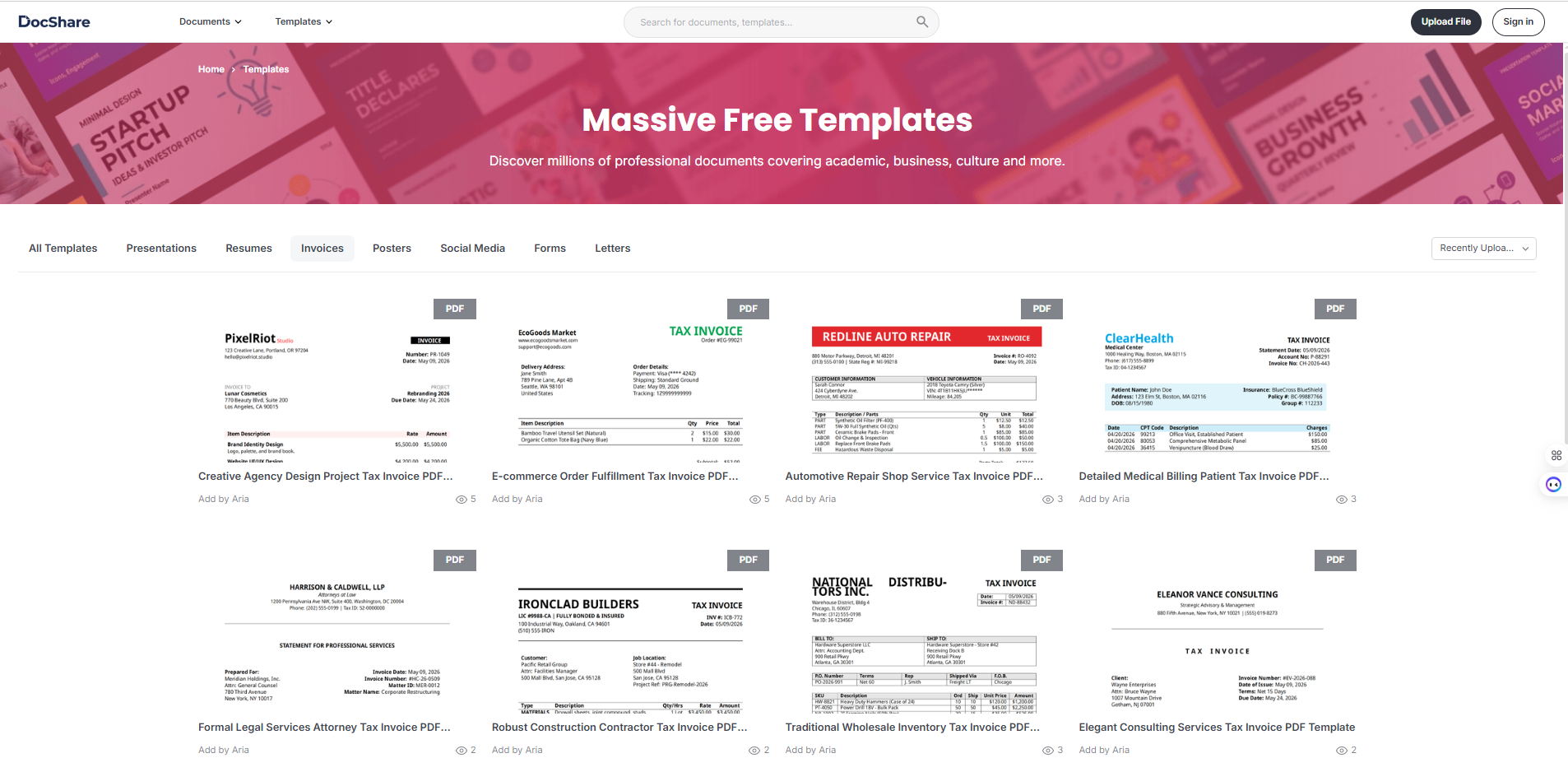
DocShare by WPS Office covers all four formats with a free invoice template library. There are layouts for everyone. E.g., freelancers, contractors, construction businesses, SaaS companies, medical billing, and more.
How to use a free invoice template on DocShare
Honestly, this is where most people save the most time. You skip the part where you're dragging table borders around in Word for twenty minutes.
Go to the professional invoice templates section and browse by category until something fits. There are layouts for most business types, so you won't be starting from scratch.
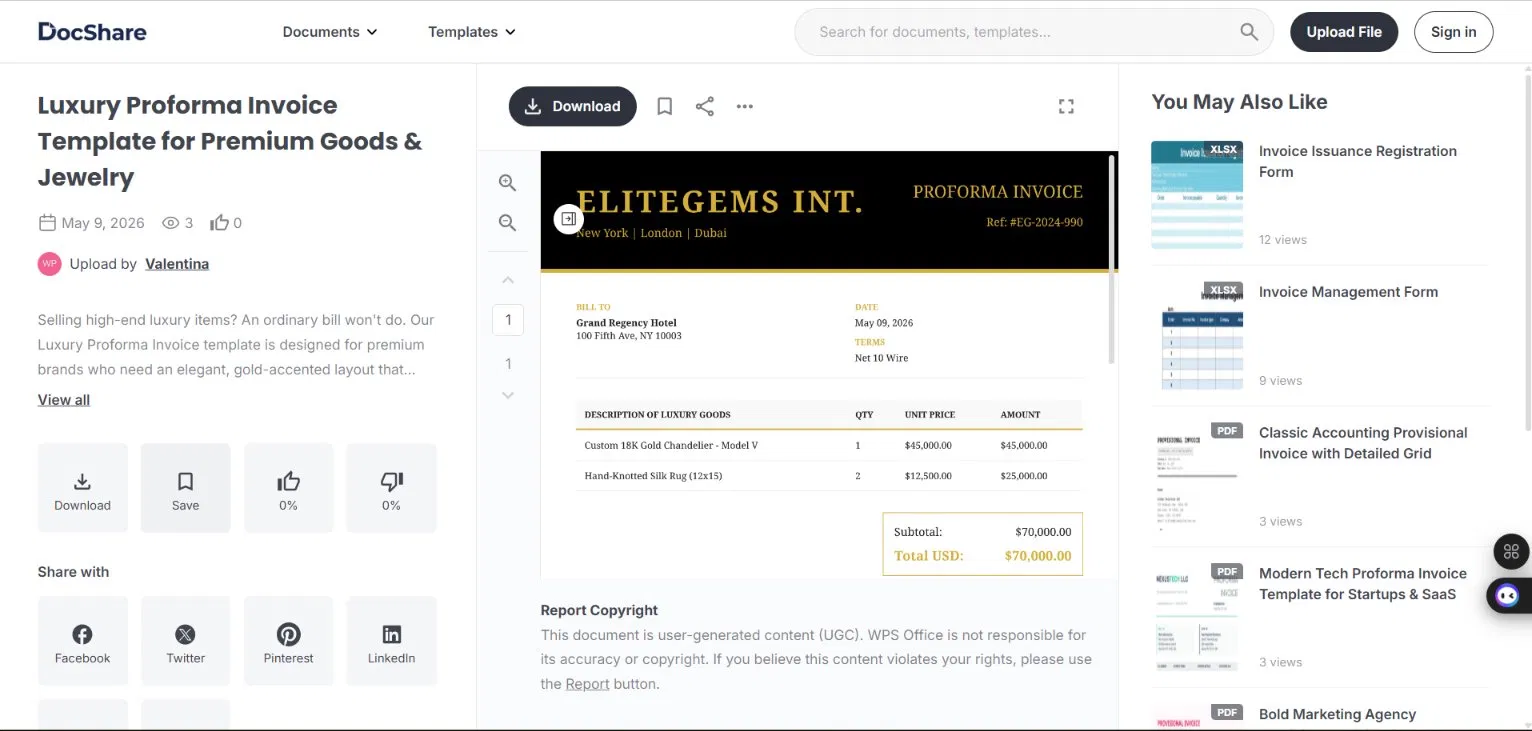
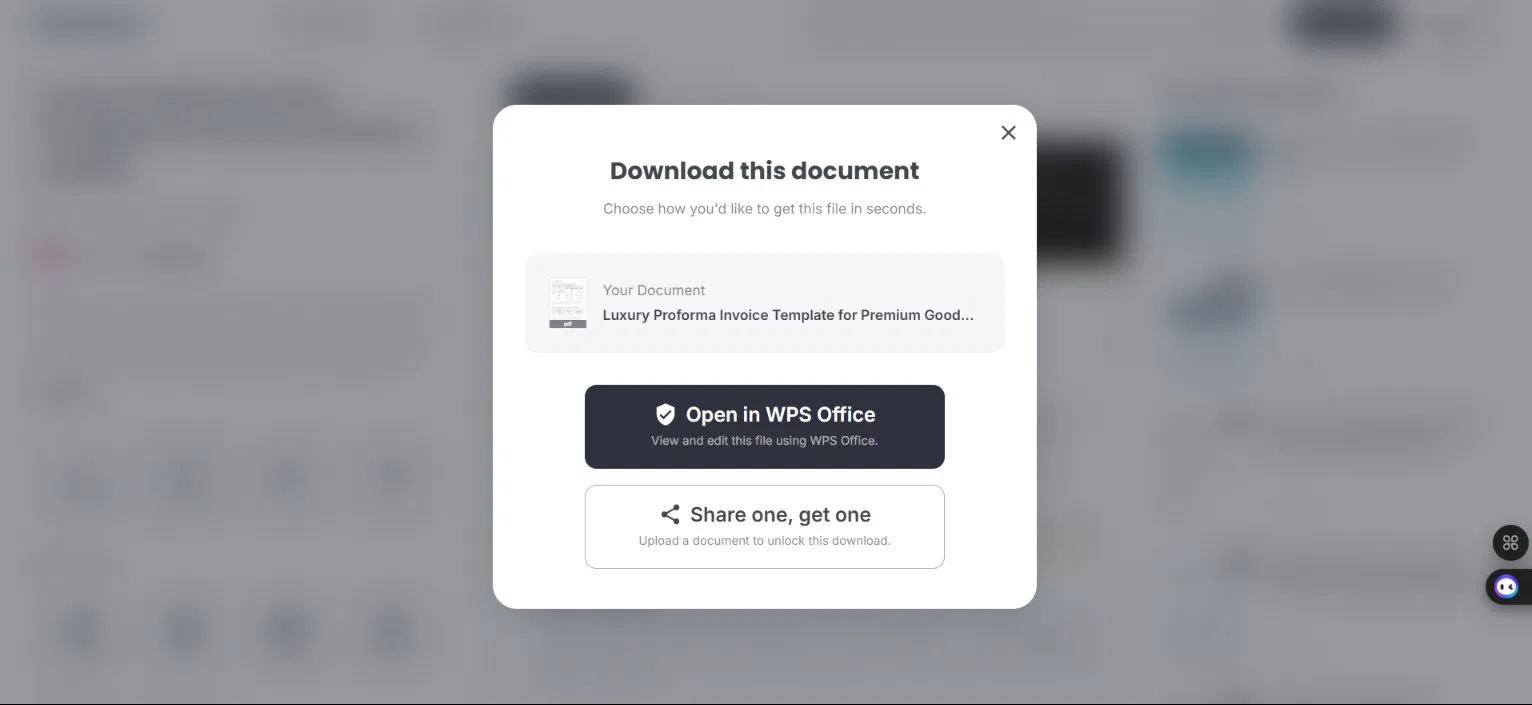
Hit download, and a prompt comes up asking how you want to open it. Pick WPS Office, and it loads straight in.
From there, it's just swapping things like your business name, logo, client details, and line items. Ten minutes the first time and less after that.
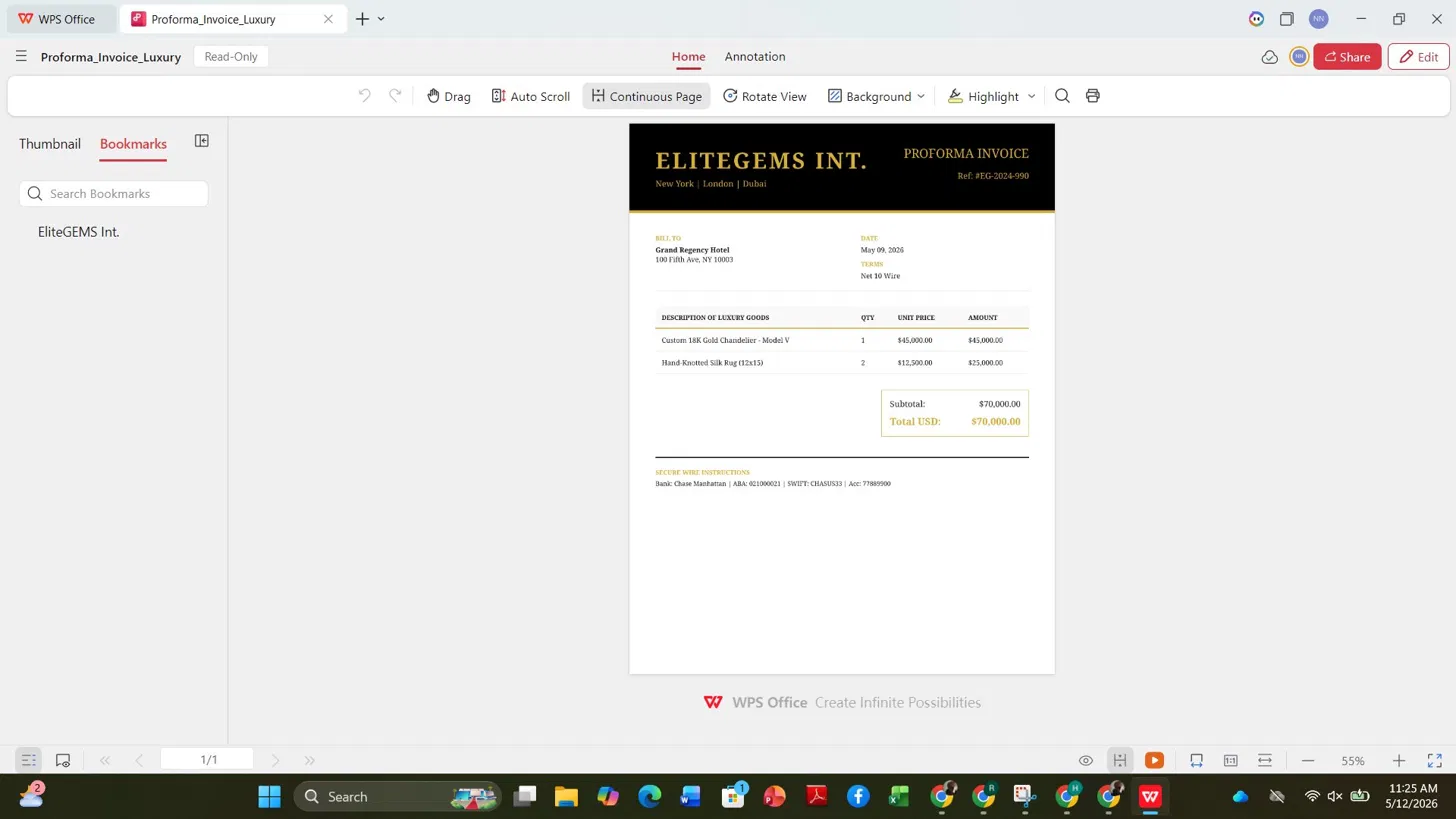
Export to PDF and send it the same day. First time takes maybe ten minutes, including the browsing. After that, you've got your customized master file saved. Each time you update a new invoice, you update the number, the date, and the line items. That's it. For anyone billing the same clients on a regular cycle, the whole thing becomes genuinely quick.
Why WPS Office works well for invoice templates
Most people default to Word or Google Docs. Both are fine. WPS Office is worth considering, though, particularly if you're switching between file types a lot.
It handles Word, Excel, and PDF files without the conversion quirks you sometimes get when moving between different software. Open a Word file; it opens like a Word file. Same with Excel, same with PDF. No reformatting, no layout breaking apart. Works on Windows, Mac, Linux, Android, and iOS, so whatever device you're finishing the invoice on, it looks the way it's supposed to. The free invoice templates on DocShare are built for WPS specifically, which means they open the way they're supposed to without any layout shifting.
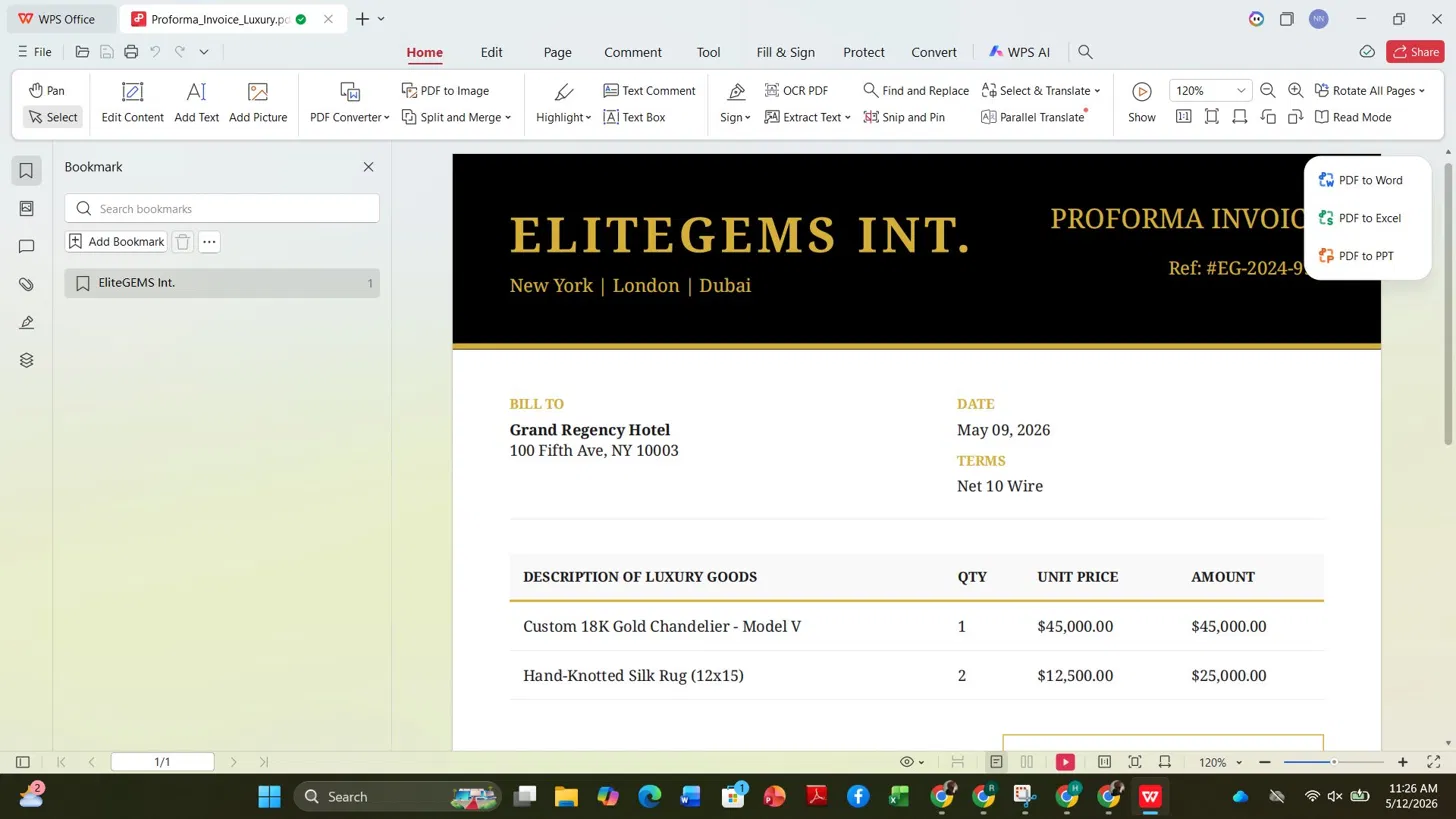
For freelancers and small businesses that aren't ready to commit to a full accounting platform yet, it covers what you need without the monthly fee.
Mistakes that push your payment date back
None of these is dramatic. They're small things that add friction.
Descriptions that give nobody any information. "Design work, $500" will get questioned. "Social media banner set, 5 formats, final files delivered March 10, $500" leaves nothing to argue about.
"Due on receipt" is written in the payment terms field. Half your clients read that as "whenever." Put a date on it.
Payment details are missing from the document. If someone has to email you to find out how to pay, some of them just won't bother that day. Include every method and every detail directly on the invoice.
Invoice numbers with no logic to them. Gaps or random numbers are flagged in accounting systems. Start at 001 and go up from there.
Waiting a few days to send it. Billing cycles are real. If your invoice lands after a client's monthly cutoff, you're waiting an extra month. Send it the same day the work is done.
Conclusion
Billing doesn't need to be complicated. Same template, same fields, sent on time. Build that habit, and most of the payment friction goes away. A good free invoice template is the starting point — get one that fits your work, customize it once, and use it every time.
FAQs
What is a free invoice template?
It is a billing document you can download and use without paying for software. All the standard fields are already there—business details, client info, line items, taxes, totals, and payment terms. You fill in your specifics and send it.
How do I make an invoice template in Google Docs?
Open Google Docs, click Template Gallery at the top, and look under Business for invoice options. Pick one that fits, save a copy to your Drive, and fill in your details. That copy is your base file from there on. For every new invoice, you duplicate it and update what needs updating.
What's the best format for an invoice template?
Depends on what you're doing. Word and Google Docs give you more room to write longer, varied descriptions without fighting the layout. Excel is better when you're billing lots of line items and want the totals to calculate themselves. PDF is always the right format for actually sending—build it in whatever you like and convert it before it goes out.
How often does an invoice template need updating?
Once or twice a year, just run through it quickly. Contact details are still current, payment info is still right, and branding is still looking the way you want. Number, date, client, line items — those are the only things that should be different from one invoice to the next.
Can I use one invoice template across different clients?
Yes, that's the point of having one. The structure stays the same. You're just changing the client details, the line items, and the amounts. Business info, payment instructions, layout — all of that stays put.