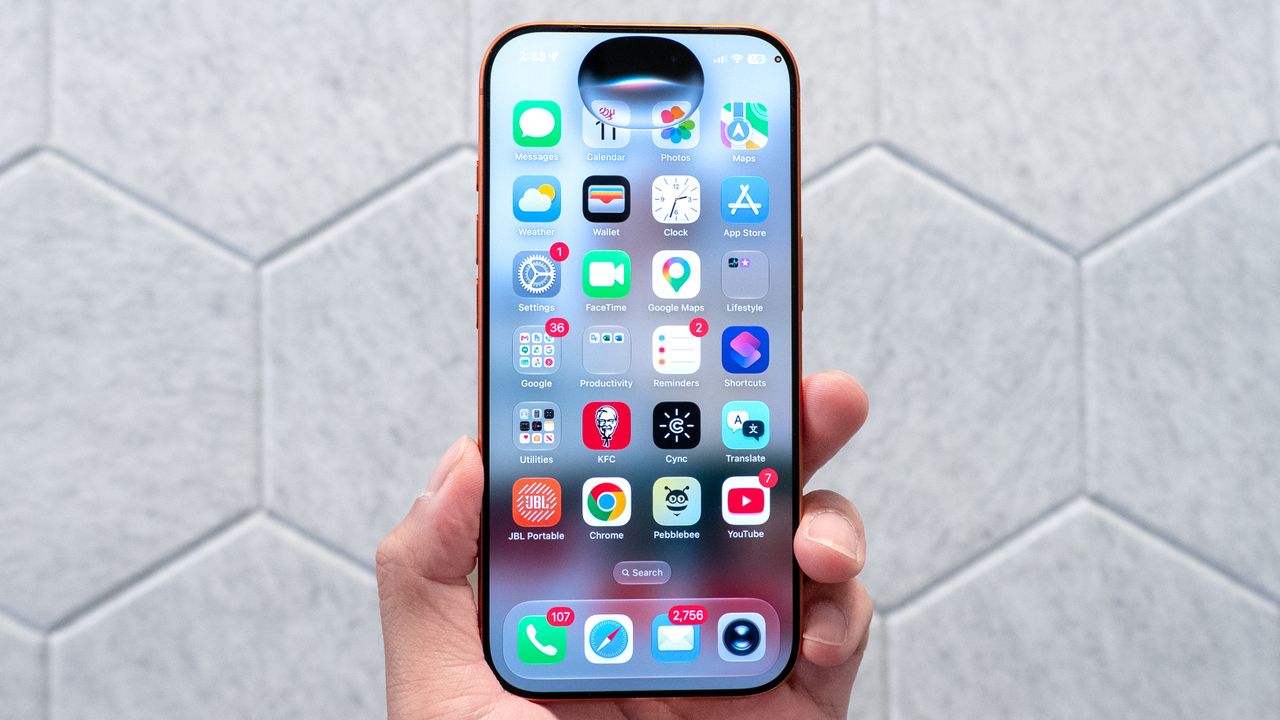
Emojis and standard text are fine, but sometimes a conversation calls for a personal touch. With iOS 27, Apple is turning your text threads into a digital canvas.
The Messages app now features built-in drawing tools that let you sketch, scribble, and send handwritten notes directly inside your chats. Whether you're sending a quick, goofy doodle to a friend or using an iPad and Apple Pencil to sketch a mini-masterpiece, the process is seamless.
Ready to ditch the keyboard? Here’s exactly how to use it.
Download iOS 27 beta to access the drawing feature
Since iOS 27 is currently in its early beta phase, you’ll need to be on the developer track to test this out. If you haven't joined yet, you can enroll for free through the official Apple Developer Program website.
If you're already a beta veteran, you should be able to jump into your iPhone's Settings: followed by General, Software Update, tap Beta Updates, and toggle on the iOS 27 Developer Beta to get drawing.
If you're running into issues with it not showing up even though you've updated to a beta before, make sure you're running the latest Beta available.
How to draw and send messages
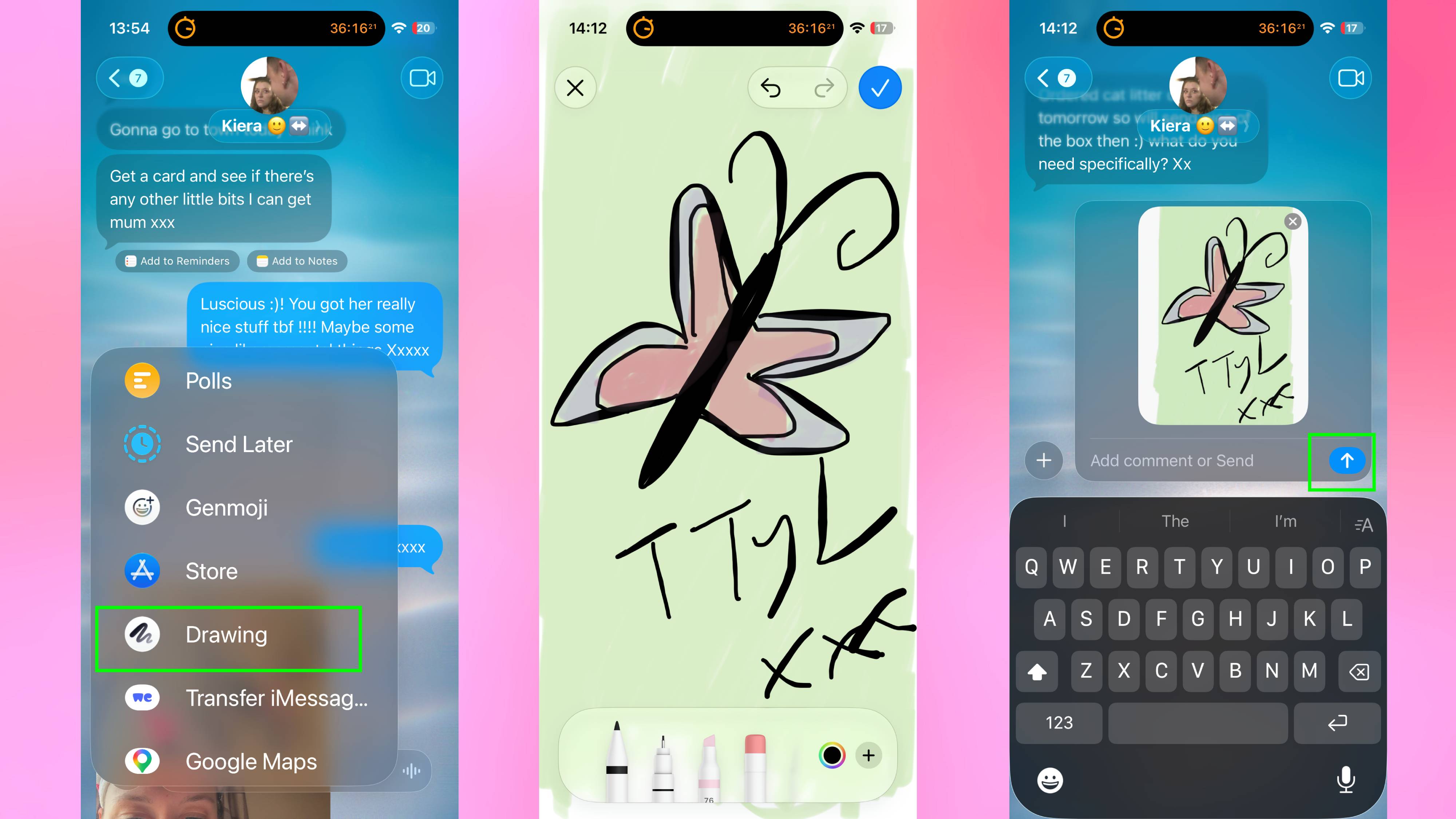
Open Messages and select a conversation. Tap the plus icon (+) at the bottom left of the message field. From the menu that appears, select Drawing. A blank canvas opens where you can create your message.
Use your finger on iPhone or your Apple Pencil on iPad to draw directly on the canvas. The drawing tool responds naturally to pressure and movement, making sketches feel smooth and precise.
iPad users especially benefit from Apple Pencil support, which provides accuracy that finger-drawing can't match. You can draw simple sketches, write handwritten notes, or create detailed artwork depending on what you want to send.
Once you're finished drawing, review your message. If you're happy with it, tap the check mark button to send. The drawing delivers instantly as an image in the conversation.
If you want to start over, close the drawing canvas and tap the plus icon again to begin a new sketch.