When Microsoft first implemented its Secure Boot feature on Windows PCs in 2011, the potential issues surrounding the expiry of associated certificates seemed like a far-off problem.
Well, the future is here 15 years later, and there are countless Secure Boot certificates set to expire in June 2026.
This is the first time that the certificates have come up against a cutoff date, and the effort on the part of Microsoft and its OEMs to smooth the transition to new certificates is enormous.
In most cases, you as a user won't have to do anything when the deadline rolls over. However, for a minority of users, it's going to require a bit of manual action on your part in order to keep your PC as secure as possible. Here's how it all works.
What is Secure Boot and why is it on my Windows PC?
Secure Boot is a major Windows security feature that protects your PC against vulnerabilities targeting the boot phase.
Secure Boot is a prerequisite for installing Windows 11, but that doesn't necessarily mean your PC will stop working without it.
👉 How to enable Secure Boot on PC to install Windows 11
A lack of Secure Boot, however, means that your PC won't have as much protection as it should. Beyond that, a lack of Secure Boot can interfere with other security measures, like TPM 2.0.
Secure Boot has been around since 2011, and the vast majority of PCs sold since then (including those with Windows 10) have the feature and associated certificates.
Microsoft updated Secure Boot with new UEFI CA 2023 certificates in 2023, but that only means most PCs sold after then will already have the updated version.
Everything else, well, that's where issues could arise when the original certificates expire in June 2026.
TL;DR: Secure Boot protects your PC against vulnerabilities during the boot process. It requires specific certificates to operate properly.
How is Microsoft and its OEM partners handling expiring Secure Boot certificates?
Microsoft understands that it has a potentially massive problem on its hands, but it is taking proactive steps to ensure as smooth a transition as possible.
The company officially says that most modern PCs running Windows 11 will automatically receive the new certificates through Windows Update, just like you'd normally update your system.
However, there will be some standout PCs that require a firmware update issued by the OEM. These will, in most cases, be found at specific OEM support sites.
How far back a specific OEM decides to go remains to be seen. PC brands don't generally offer meaningful support for systems they sold a decade or more ago; in many cases, support falls off after five years.
TL;DR: In some cases, OEMs may need to deliver specific firmware updates in order for systems to receive the new Secure Boot certificates.
Unsupported Windows versions will not receive new Secure Boot certificates
Microsoft has clearly stated that it will not issue updated Secure Boot certificates for unsupported versions of Windows. Your PC will not suddenly stop working, but it will not be as secure as it should be.
Here's the official statement from Microsoft:
It’s important to note that devices running unsupported versions (Windows 10 and older, excluding those who have enrolled in Extended Security Updates) do not receive Windows updates and will not receive the new certificates. We continue to encourage customers to always use a supported version of Windows for best performance and protection.
Microsoft
Degraded security isn't the only risk associated with a lack of Secure Boot certificates.
Because of how intrinsic this feature is to Windows, the expiry could also lead to some associated driver and software failures over time. Basically, if you don't have a PC that can run Windows 11, you're out of luck.
👉 Best Windows laptops in 2026
TL;DR: If your PC is no longer officially supported by Microsoft (including Windows 10 without ESU), it will not receive new Secure Boot certificates.
No Windows 10 Extended Security Update (ESU) enrollment? No new Secure Boot certificates.
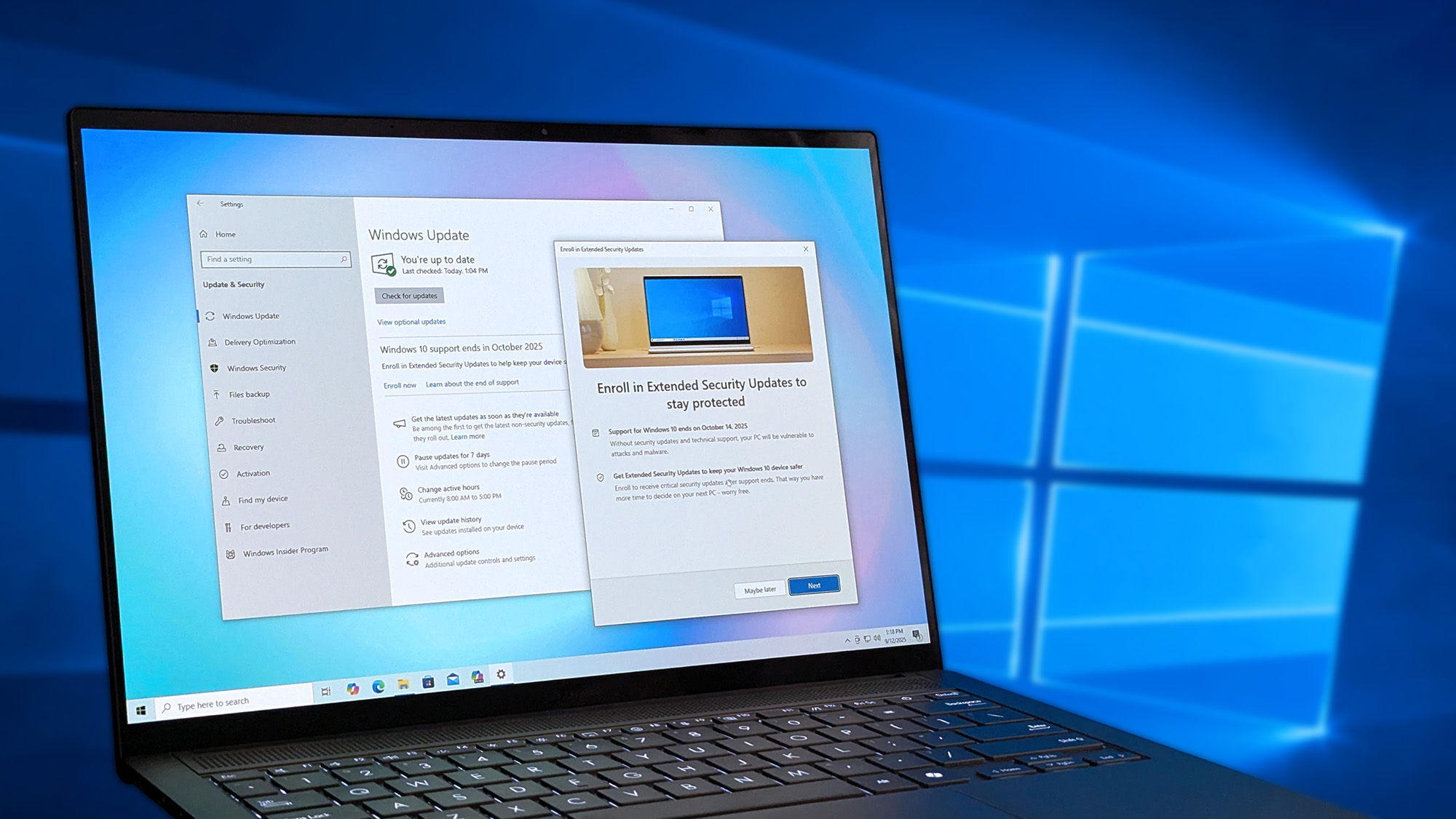
When Microsoft sent Windows 10 to the graveyard in October 2024, it did so with one caveat: you could sign up for the Extended Security Update (ESU) program in order to get one extra year of support.
That's an important differentiator in the Secure Boot certificate dilemma, because Windows 10 PCs enrolled in the ESU program should receive updated certificates through Windows Update.
Windows 10 PCs that didn't enroll in ESU are not expected to receive the new certificates.
The good news? You can still enroll your Windows 10 PC in the ESU program, right up until a day before the October 14 cutoff date.
👉 How to use Windows 10 ESU to keep getting updates after October 2025
To ensure a PC enrolled in the program receives an updated Secure Boot certificate, I recommend enrolling now (or at least as soon as possible).
How to check if your Windows PC is using the updated Secure Boot certificate
There's a fairly simple way to check if your PC is currently using the new Secure Boot certificates (credit to BrenTech on YouTube for the easy method).
- Type PowerShell into the Windows search bar.
- Click Run as administrator.
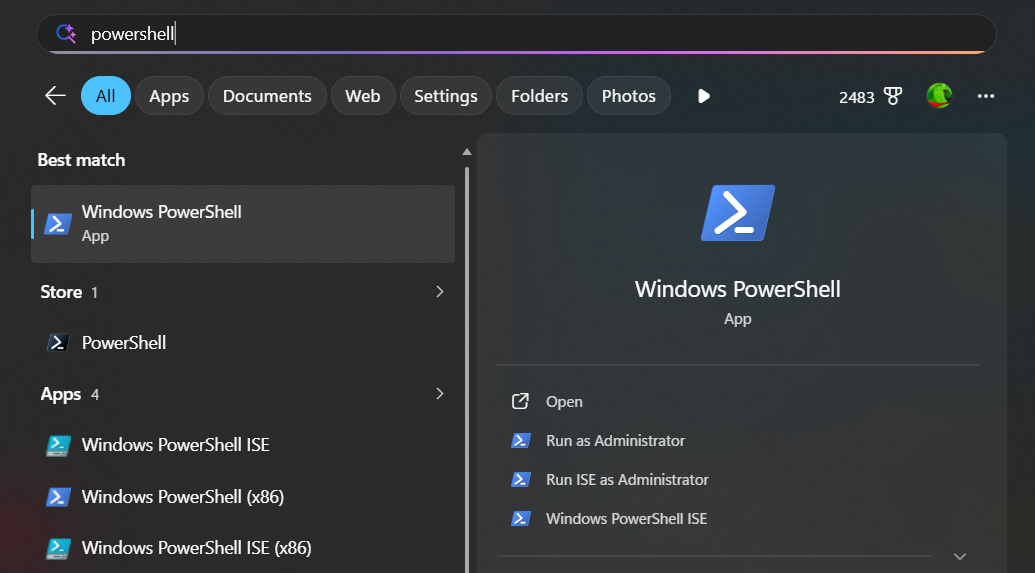
- Copy and paste the following command exactly as shown:
([System.Text.Encoding]::ASCII.GetString((Get-SecureBootUEFI db).bytes) -match ‘Windows UEFI CA 2023’)
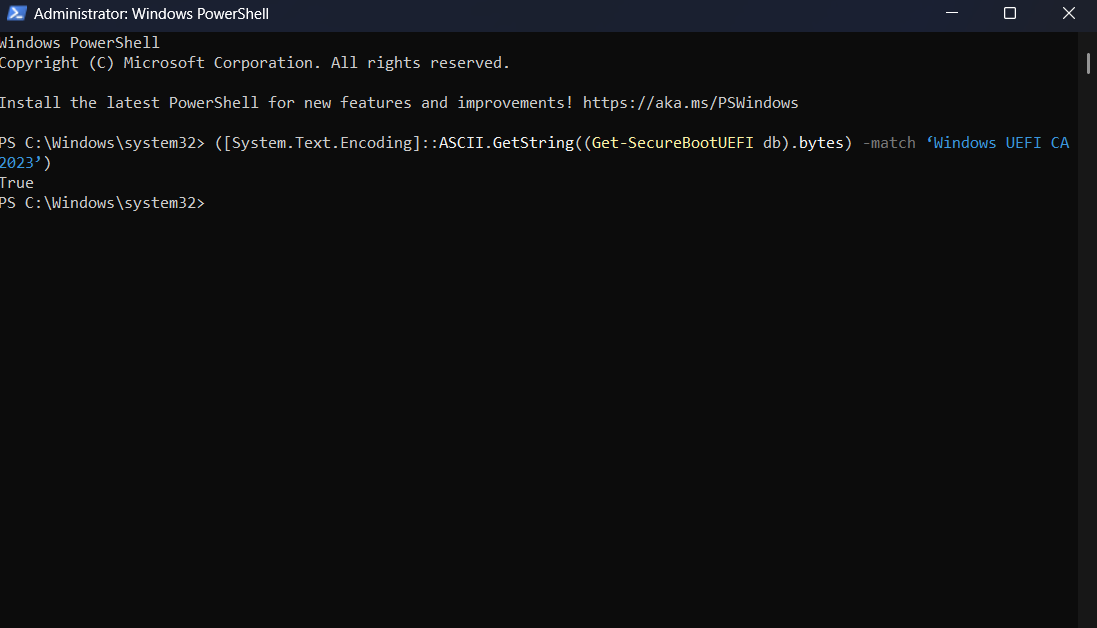
Hit Enter to deploy the command, and you will see either a True or False value appear below it.
If it reads True, your PC already has the new Secure Boot certificates. If it reads False, your PC is still using the old Secure Boot certificates set to expire in June.
Should your Windows 11 or Windows 10 (ESU) PC not have the latest Secure Boot certificates, I recommend checking for any pending Windows Updates. If it's an older system, you might want to begin searching out OEM firmware solutions.
Once again, I'll remind you that your PC isn't going to stop working suddenly if it doesn't have the latest certificates. It will, however, have degraded security and may begin to behave in unexpected ways.
Forcing the new Secure Boot certificates in Windows 11 without a firmware update
At Microsoft's Learn Center, there's an interesting procedure that apparently lets you work around firmware issues without manually touching the BIOS.
Even if the existing Secure Boot certificates are expired or not yet applied, the cumulative updates that contain the new 2023 Secure Boot certificates can still be installed, and Windows can write the updated certificates into firmware by following the published deployment guidance. This applies to devices that can boot Windows and install updates.
Microsoft
It's an AI-generated help response, but one reply does say it worked as advertised.
To give it a shot, you first need to have a version of Windows 11 with Secure Boot changes included. The example of the July 2025 servicing update is given.
With that confirmed, follow these steps:
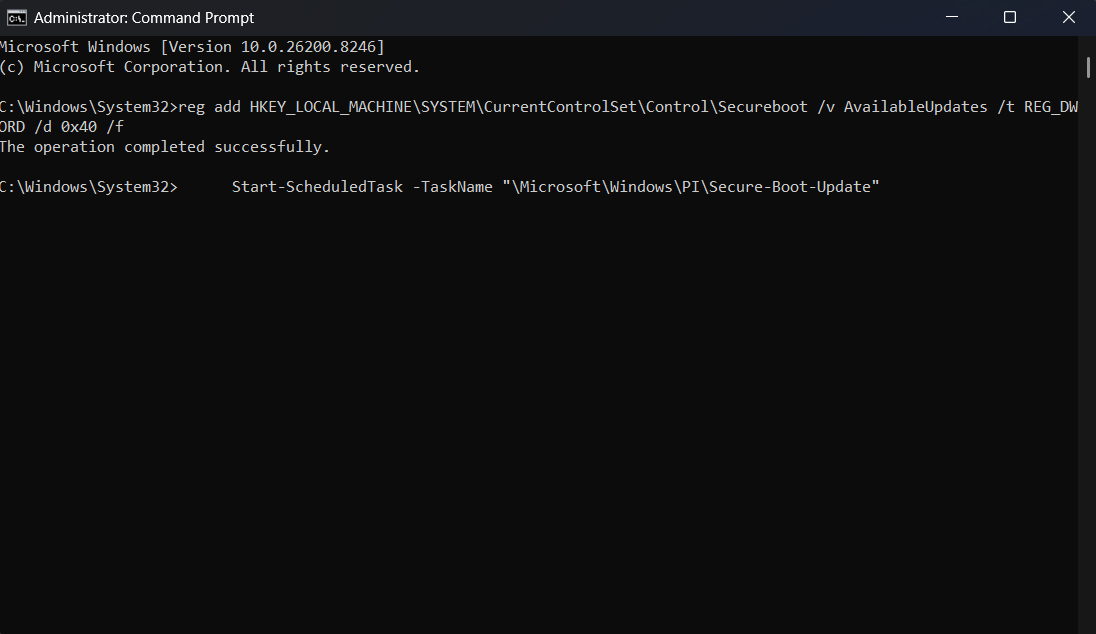
- Launch Command Prompt as an Administrator.
-
Copy and paste this code into the Command Prompt and hit Enter:
reg add HKEY_LOCAL_MACHINE\SYSTEM\CurrentControlSet\Control\Secureboot /v AvailableUpdates /t REG_DWORD /d 0x40 /f Start-ScheduledTask -TaskName "\Microsoft\Windows\PI\Secure-Boot-Update"
You'll need to restart your PC a couple of times after the task runs. You can then verify whether or not the new Secure Boot certificates are installed properly with my previous PowerShell guidance above.
Microsoft's previous e-waste fiasco is still unraveling as Windows 10 declines

Many Windows users are still dealing with the fallout of Windows 10's End-of-Life (EOL) process that began on October 14, 2025.
By some estimates, it left some 400 million PCs that couldn't upgrade to Windows 11 behind, with only a stopgap ESU update for who knows how many others.
Now, as Secure Boot certificates are set to expire, there's another guillotine hanging over the screens of old PCs that faithful users have kept running much longer than normal.
Are you worried about the Secure Boot certificate expiring on your PC? How old is the system, and have you been considering upgrading to something new? Will you keep using your older PC without the proper Secure Boot certificate? Let me know in the comments section below!

Join us on Reddit at r/WindowsCentral to share your insights and discuss our latest news, reviews, and more.