Some photos need to stay private. Maybe they're personal, embarrassing, or just not meant for anyone else to see. Whatever the reason, your iPhone has a built-in way to hide them completely. The Hidden album makes photos and videos invisible everywhere except in one Face ID-protected folder.
Here's how to hide photos on your iPhone and access them when you need them.
What happens when you hide photos on iPhone
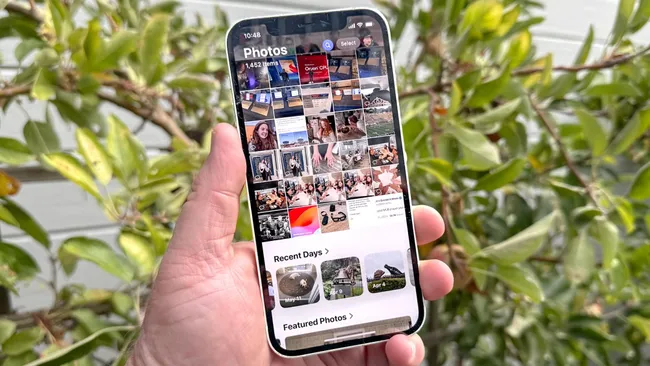
When you hide a photo or video on your iPhone, it disappears from everywhere except the Hidden album. It won't appear in your camera roll, photo library, albums, Memories, search results, or any other location where photos typically show up.
The Hidden album itself is protected by Face ID, Touch ID, or your device passcode. Anyone scrolling through your Photos app won't see hidden items, and they can't access the Hidden album without authenticating as you.
This makes it significantly more secure than just creating a regular album and hoping nobody clicks on it.
1. How to hide a single photo or video
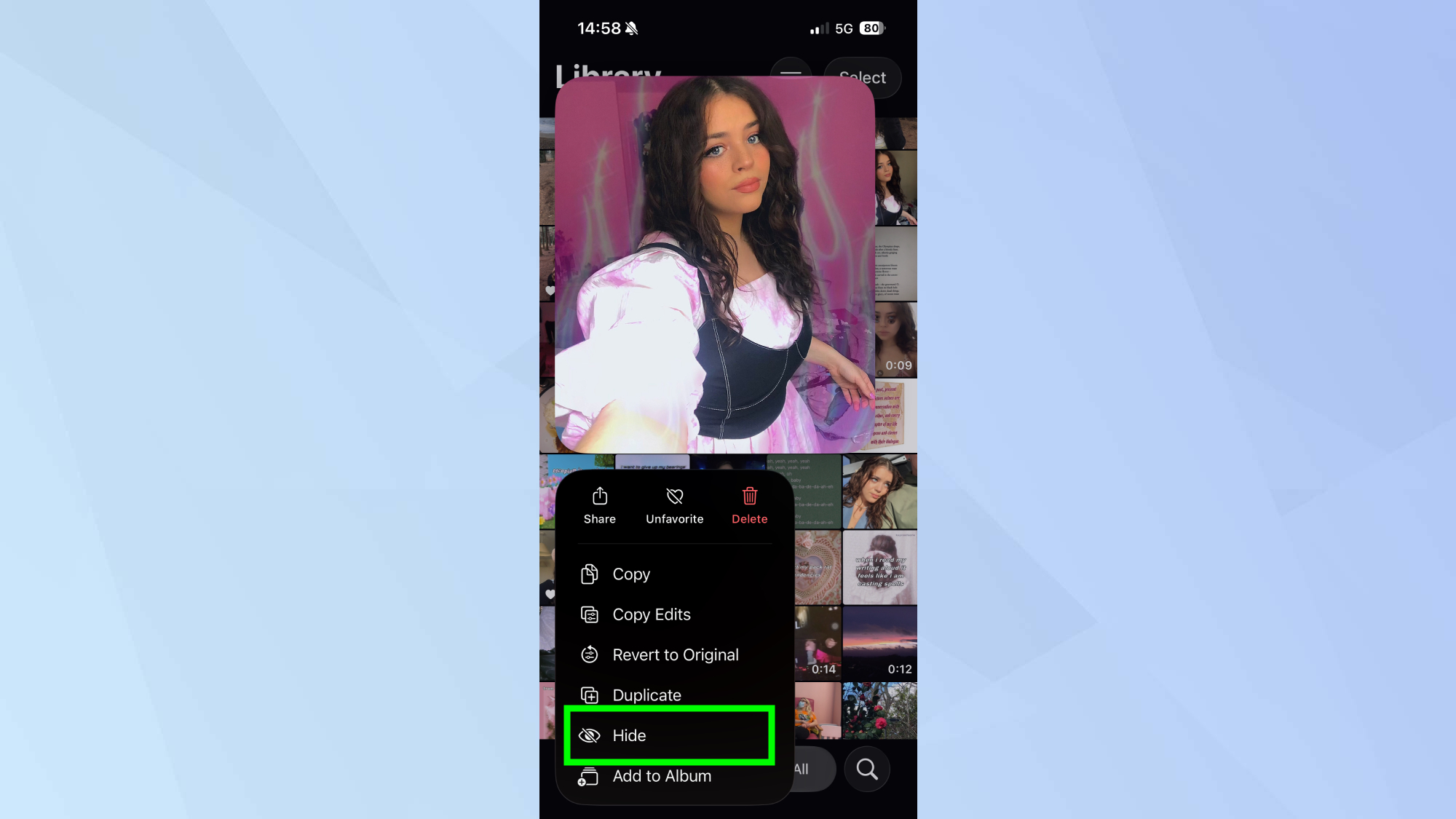
Open the Photos app and find the photo or video you want to hide. Tap on it to open it fully, then tap the More (⋯) button in the upper right corner. Select Hide from the menu.
You can also hide an item without opening it first. Tap and hold on the photo or video thumbnail, then tap Hide from the context menu that appears.
The item disappears from your library immediately and moves to the Hidden album. You'll see a confirmation message letting you know where it went.
2. How to hide multiple photos or videos at once
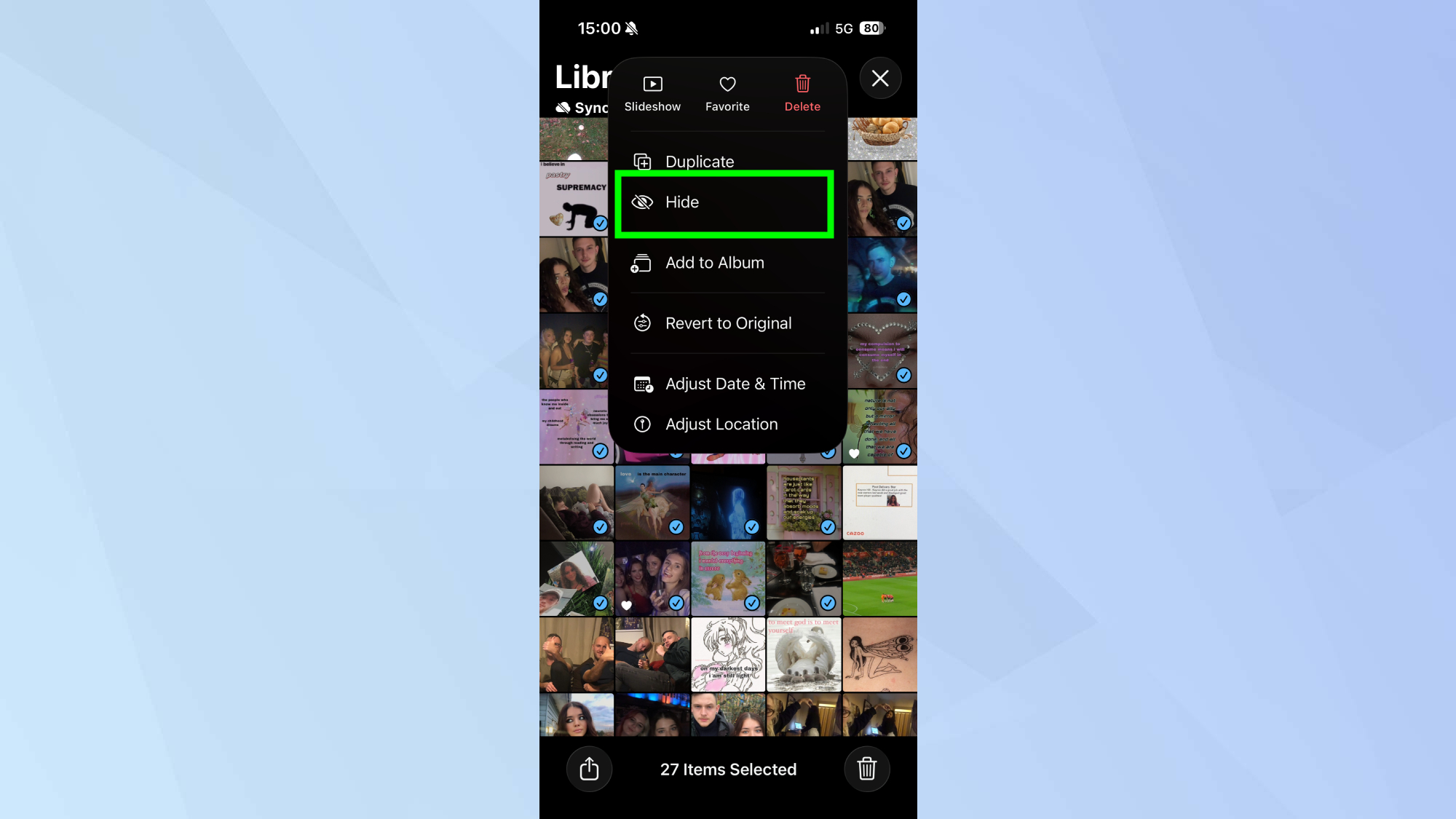
If you have several photos or videos to hide, you can select and hide them all at once instead of doing them one by one.
Tap Select in the upper right corner of the Photos app. Tap on each photo or video you want to hide. For faster selection, swipe left or right across multiple items to start selecting, then drag your finger up and down to select dozens at a time.
Once you've selected everything you want to hide, tap the More (⋯) button and select Hide. All selected items will move to the Hidden album simultaneously.
3. How to unhide photos
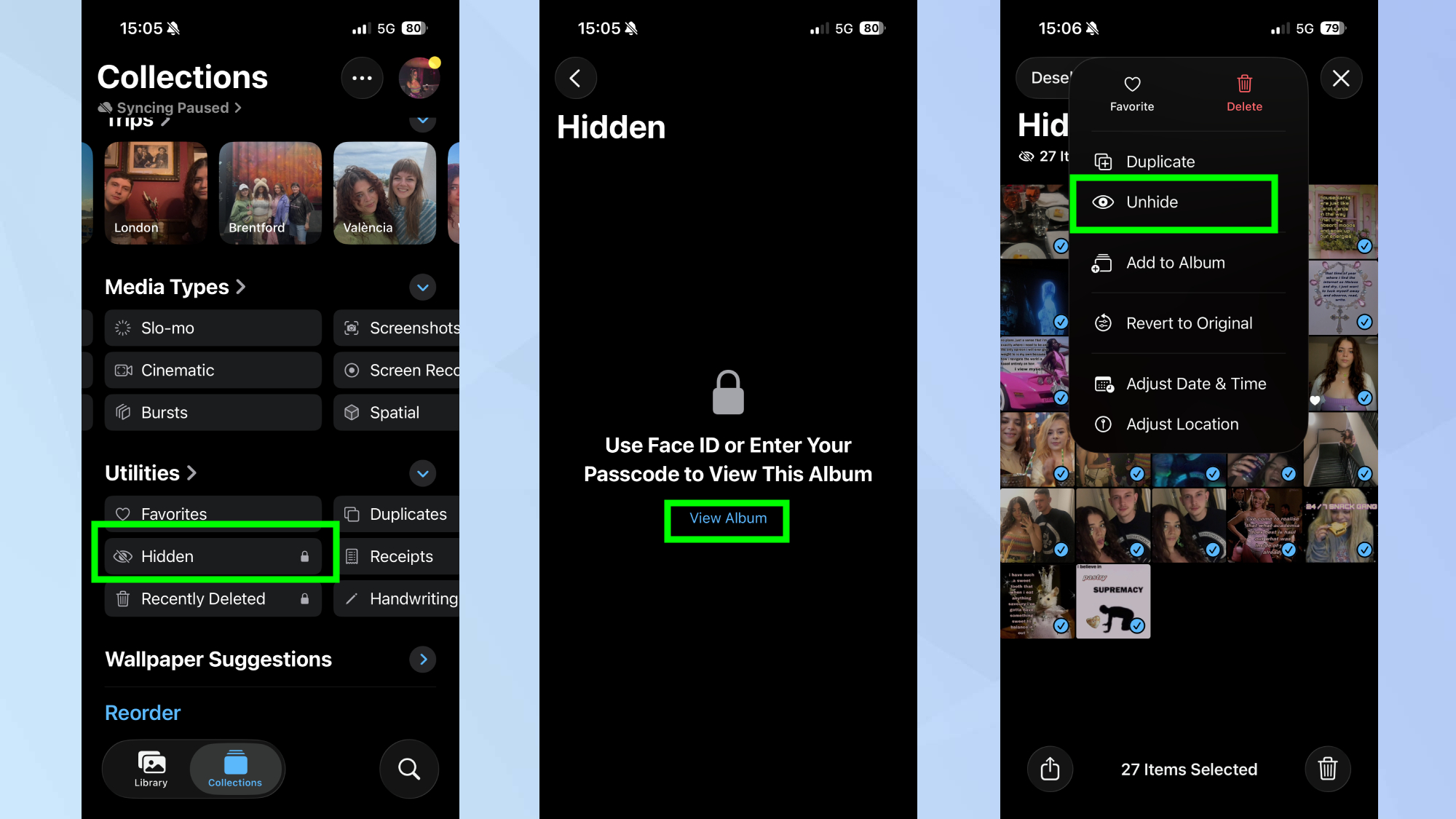
When you want to make hidden photos visible in your library again, open the Hidden album by scrolling down to Utilities and tap Hidden, and authenticating. Then use the same process you used to hide them, but in reverse.
Tap and hold on an item and select Unhide from the pop-up menu. Or tap on an item to open it, tap the More (⋯) button in the upper right corner, and select Unhide.
To unhide multiple items at once, tap Select in the upper right corner, select all the photos or videos you want to unhide, tap the More (⋯) button in the lower right corner, and select Unhide. The items will return to their original locations in your photo library.

Follow Tom's Guide on Google News and add us as a preferred source to get our up-to-date news, analysis, and reviews in your feeds. Make sure to click the Follow button!