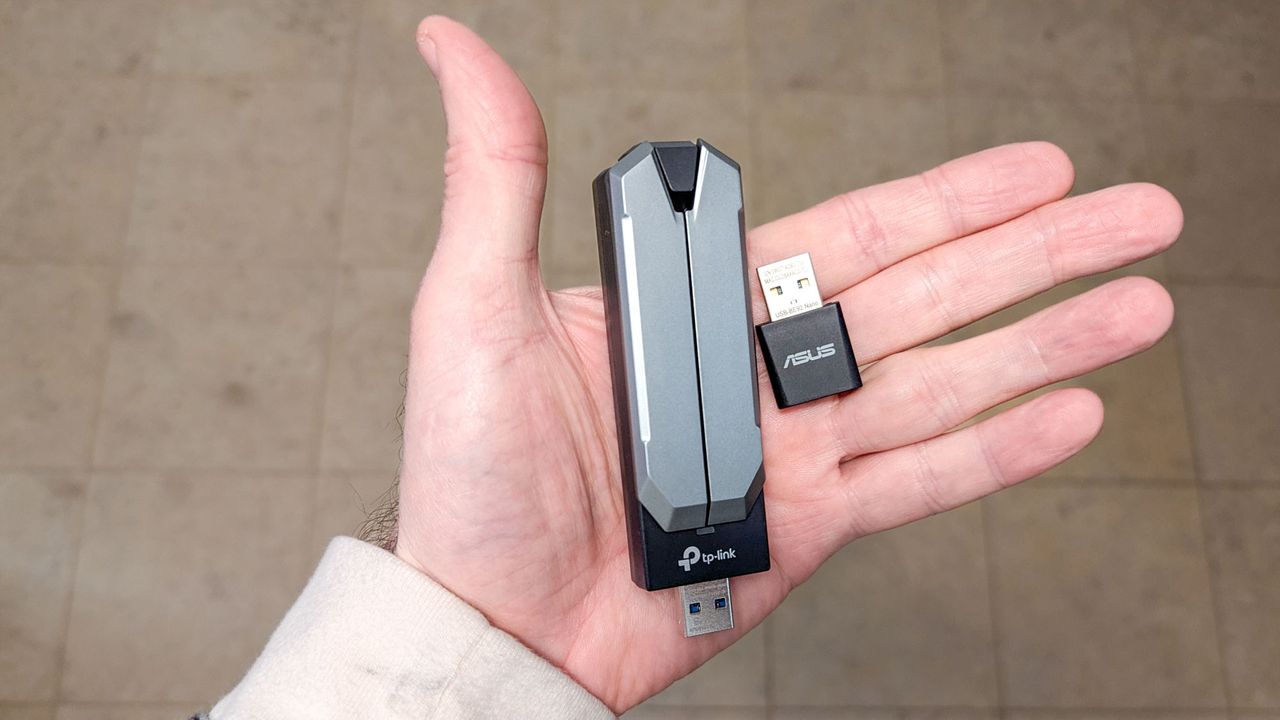
If your computer doesn't have built-in Wi-Fi or an ethernet port, or if those connections aren't working properly, you're not stuck without internet. USB ports offer multiple ways to get online, whether you need a wired connection, wireless access, or want to use your phone's data in a pinch.
USB adapters can add ethernet or Wi-Fi capabilities to any computer with an available USB port, and most modern computers can also share internet directly from your smartphone through USB tethering. These solutions work for both desktop and laptop computers, and setup is straightforward.
Here's how to get internet access through your USB ports.
1. Use a USB to Ethernet adapter
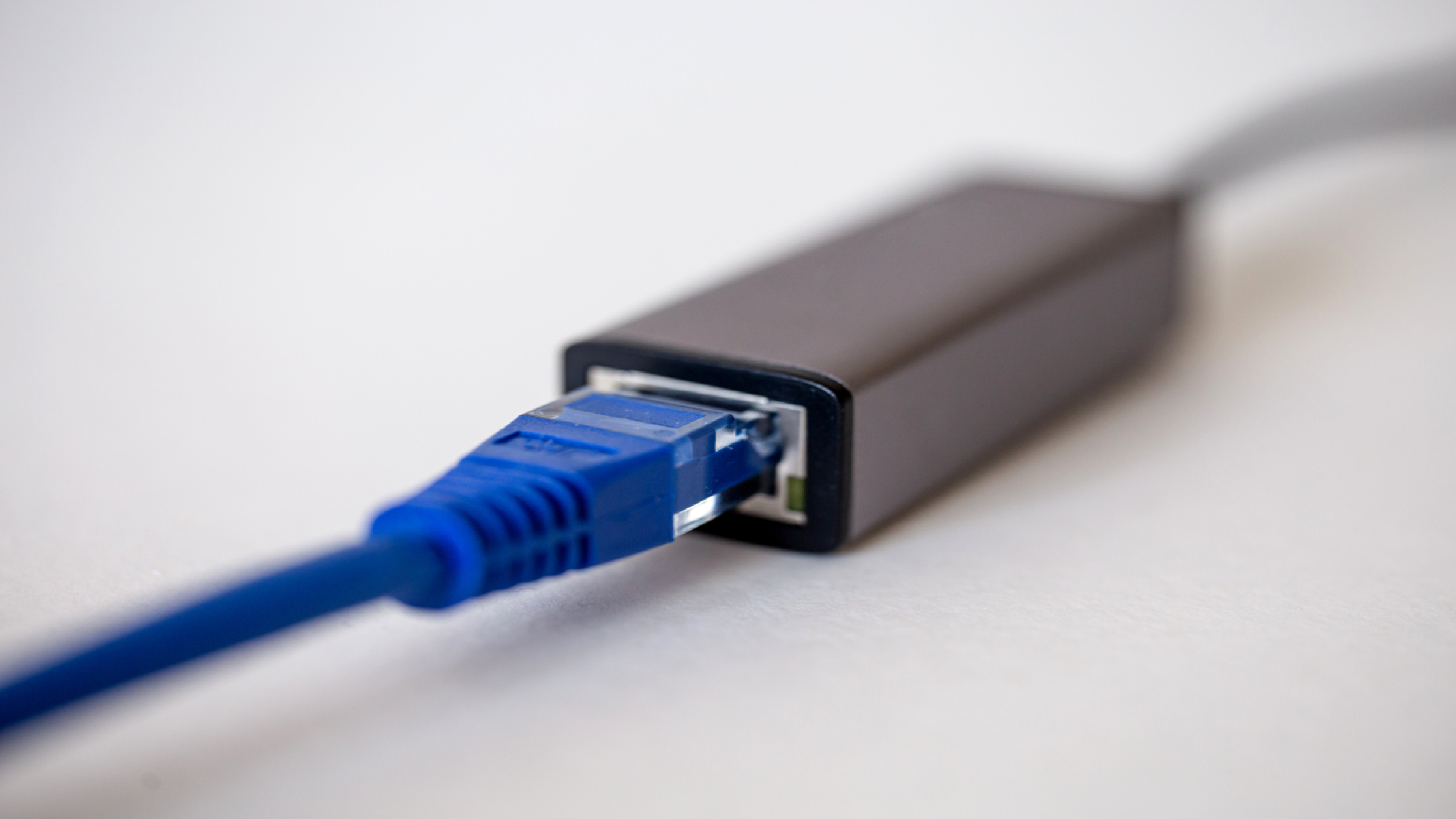
A USB to Ethernet adapter plugs into any USB port and gives you a standard ethernet jack for connecting an ethernet cable. This is ideal if your computer doesn't have an ethernet port (like many modern laptops) or if the built-in port stopped working.
Most USB to Ethernet adapters are plug-and-play on both Windows and Mac — just connect the adapter to your USB port, plug an ethernet cable from your router or modem into the adapter, and your computer should automatically detect the connection and install any necessary drivers.
For the best performance, look for USB 3.0 or USB-C adapters with Gigabit Ethernet support, which can handle speeds up to 1000 Mbps. These provide the most stable internet connection possible, which is useful for gaming, video calls, or large downloads where reliability matters more than mobility.
2. Add Wi-Fi with a USB wireless adapter
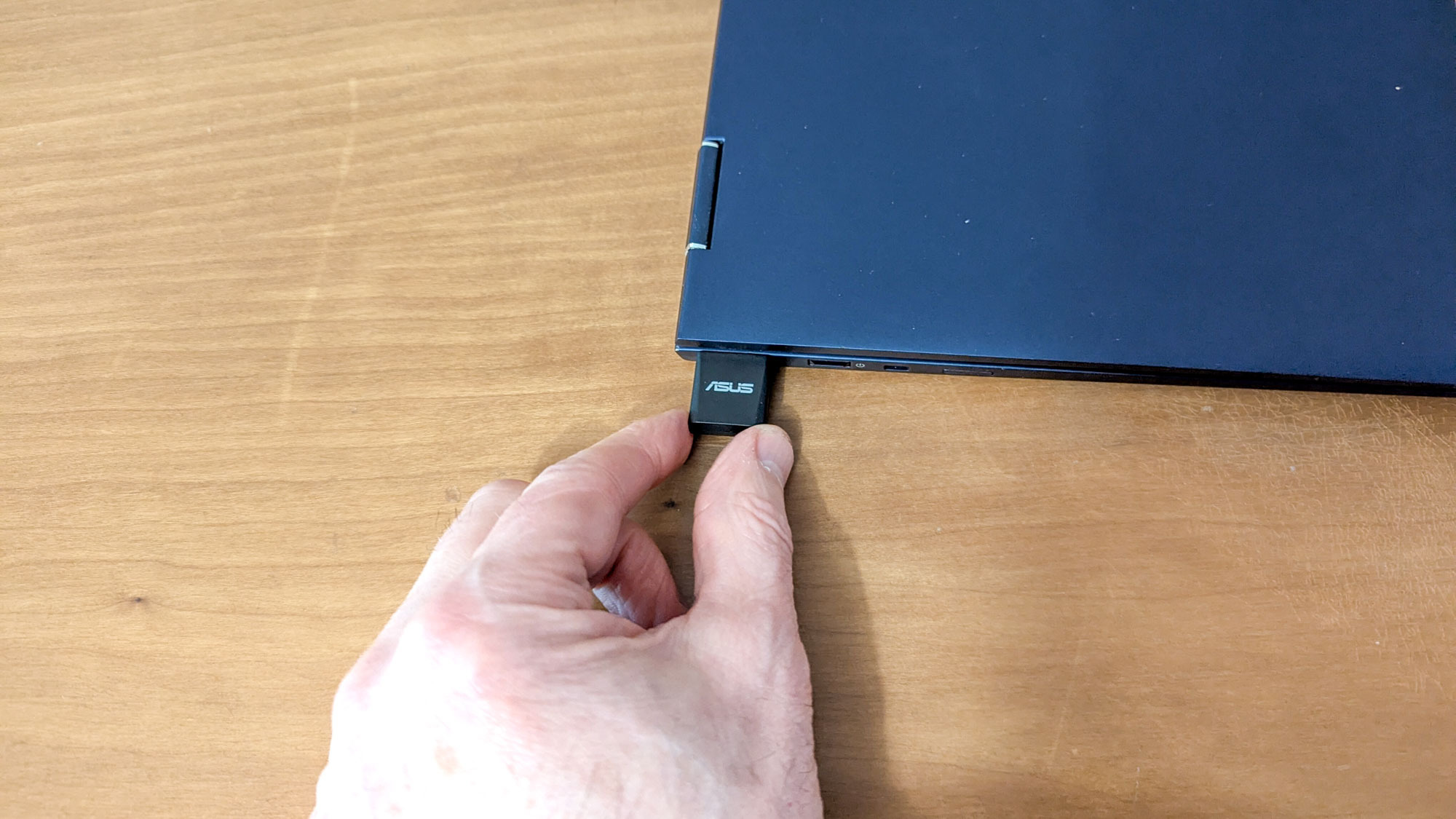
If your computer doesn't have built-in Wi-Fi or the Wi-Fi card has failed, a USB wireless adapter (also called a Wi-Fi dongle) adds wireless connectivity through a USB port. These small devices plug into your computer and allow it to detect and connect to Wi-Fi networks just like a laptop with built-in wireless.
On Windows, most USB Wi-Fi adapters install drivers automatically when you plug them in, though you may need to download drivers from the manufacturer's website for older adapters.
For Mac users, verify the adapter explicitly supports macOS before buying — many USB Wi-Fi adapters out there are Windows-only. If you install a dongle that works for Mac, it will show up in your network settings where you can select your Wi-Fi network and enter the password
USB Wi-Fi adapters are perfect for desktop computers that need wireless capability without opening the case to install an internal Wi-Fi card.
3. Tether your phone's internet connection
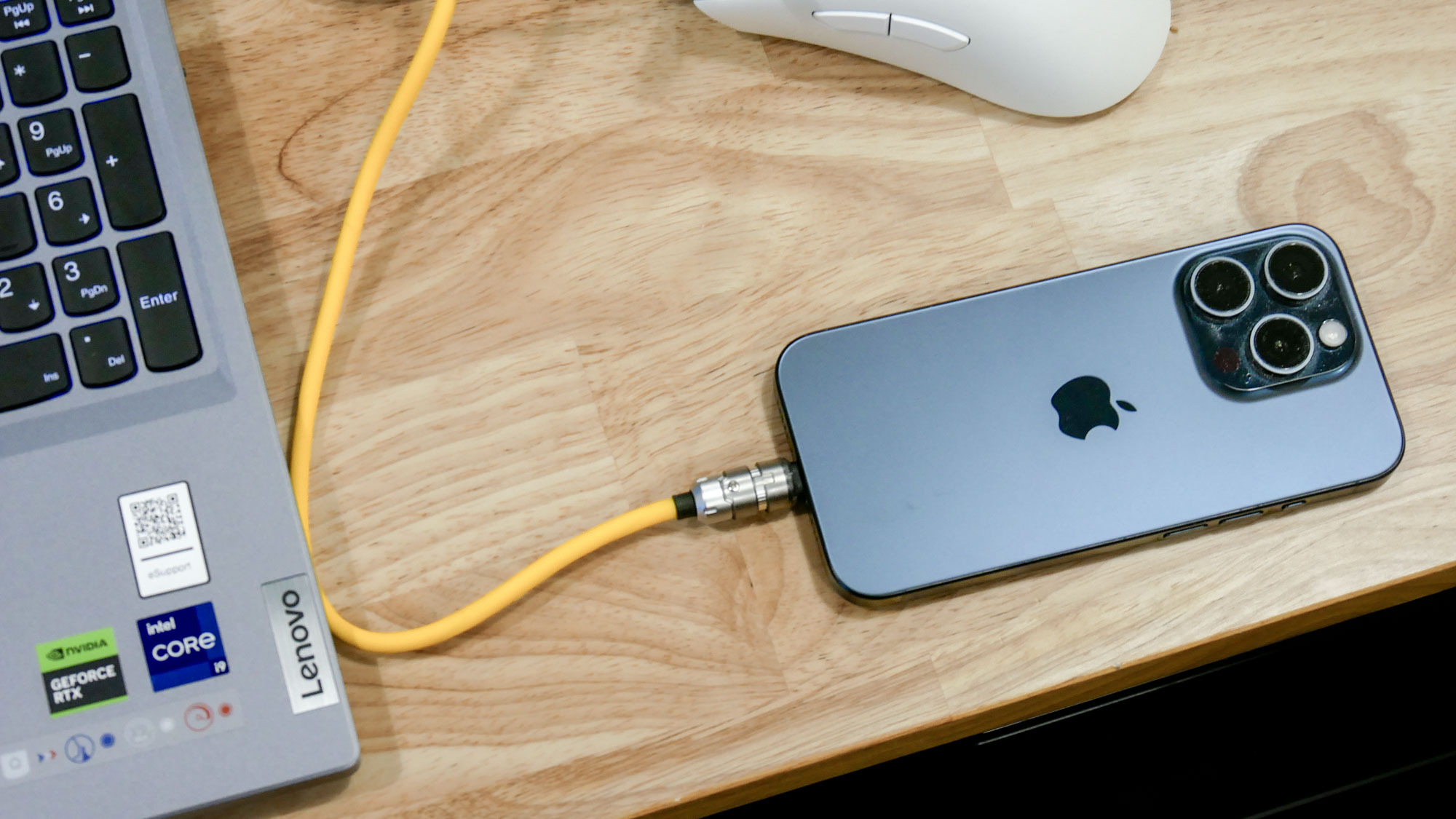
If you don't have access to Wi-Fi or ethernet but have a smartphone with a data plan, you can share that internet connection with your computer through USB tethering. This method uses your phone's cellular data, so be aware of your data limits to avoid overage charges.
On iPhone, connect your phone to your computer with a USB cable, then go to Settings, Personal Hotspot and toggle on Allow Others to Join. Your computer should automatically detect the connection. On Android, connect via USB, then go to Settings, Network & Internet, Hotspot & Tethering and enable USB tethering.
USB tethering is faster and more battery-efficient than Wi-Fi hotspot mode because the USB cable provides power while transferring data. This method is ideal for temporary internet access when traveling, during internet outages, or if you're somewhere without available Wi-Fi networks.

Follow Tom's Guide on Google News and add us as a preferred source to get our up-to-date news, analysis, and reviews in your feeds. Make sure to click the Follow button!