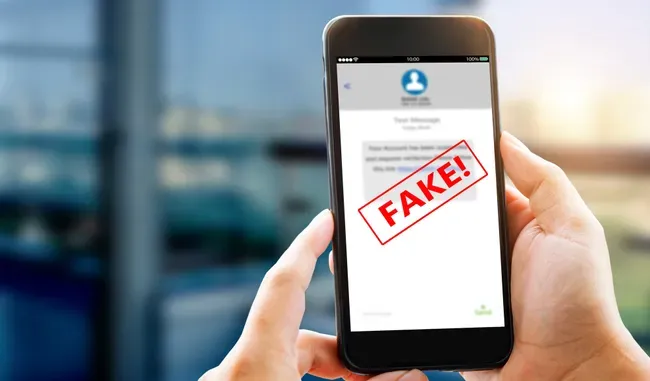
Fraudsters and malicious actors are hell bent on getting your personal details. Barely a week goes by without some attempt to scam you — in fact, if you take a look at your email junk folder, you’ll see stark evidence of that.
Text messages are a popular way for scammers to get in touch. They typically inform you of a "problem" (usually with an account you have to log into or something related to finance). The idea is that you’ll click a link, enter your information and give scammers all they need to con you.
Now, there are ways to spot a fake and learn how to protect yourself but scammers are getting more sophisticated. Sometimes you can’t tell whether something is legitimate until it’s too late, but help is at hand thanks to Google’s Circle to Search feature.
Here's how to use Circle to Search to identify scam texts on Android, plus how Google Lens can help if Circle to Search isn't available on your device.
Use Circle to Search to detect scams in Android
Google has updated Circle to Search for Android so that you can quickly identify scam messages.
1. Call upon Circle to Search
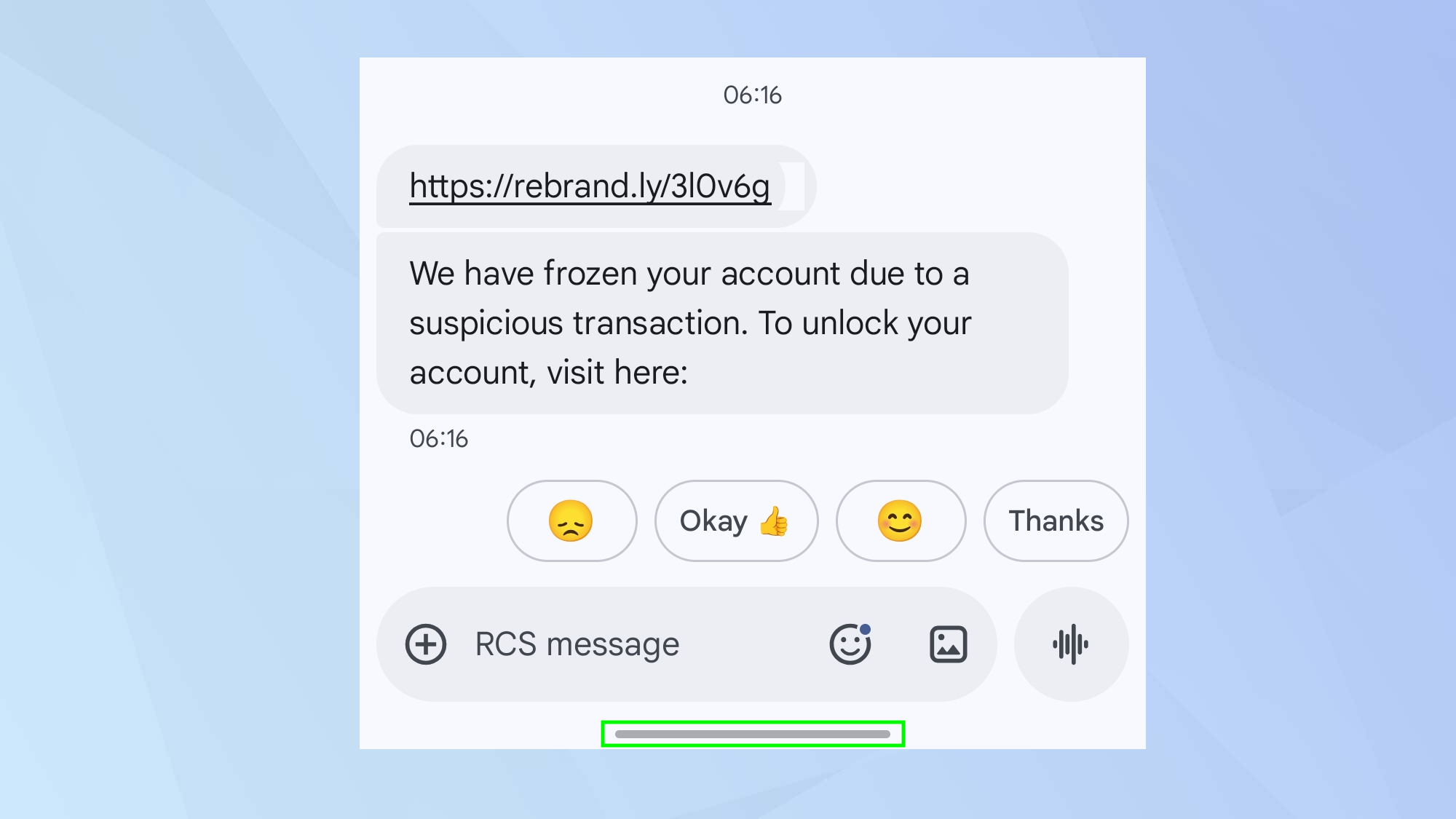
When you receive an unexpected, suspicious text message, don’t click any links or take any direct action — at least until you can be sure it’s safe. Instead, long press the home button or the navigation bar on your Android device. This will allow you to use the Circle to Search function.
2. Circle the text
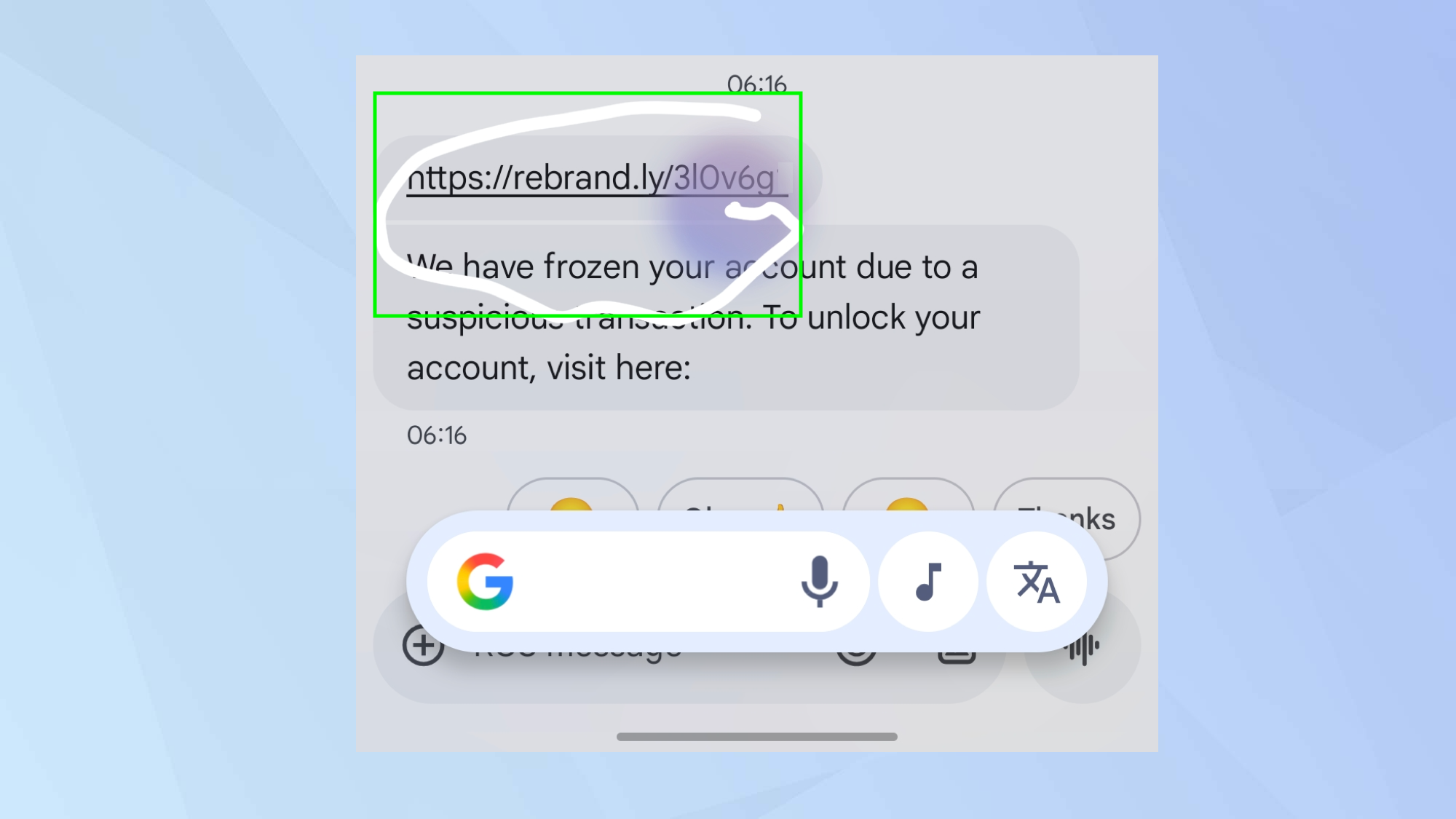
Simply draw a circle around the suspicious text message and Circle to Search will get to work.
3. See the results
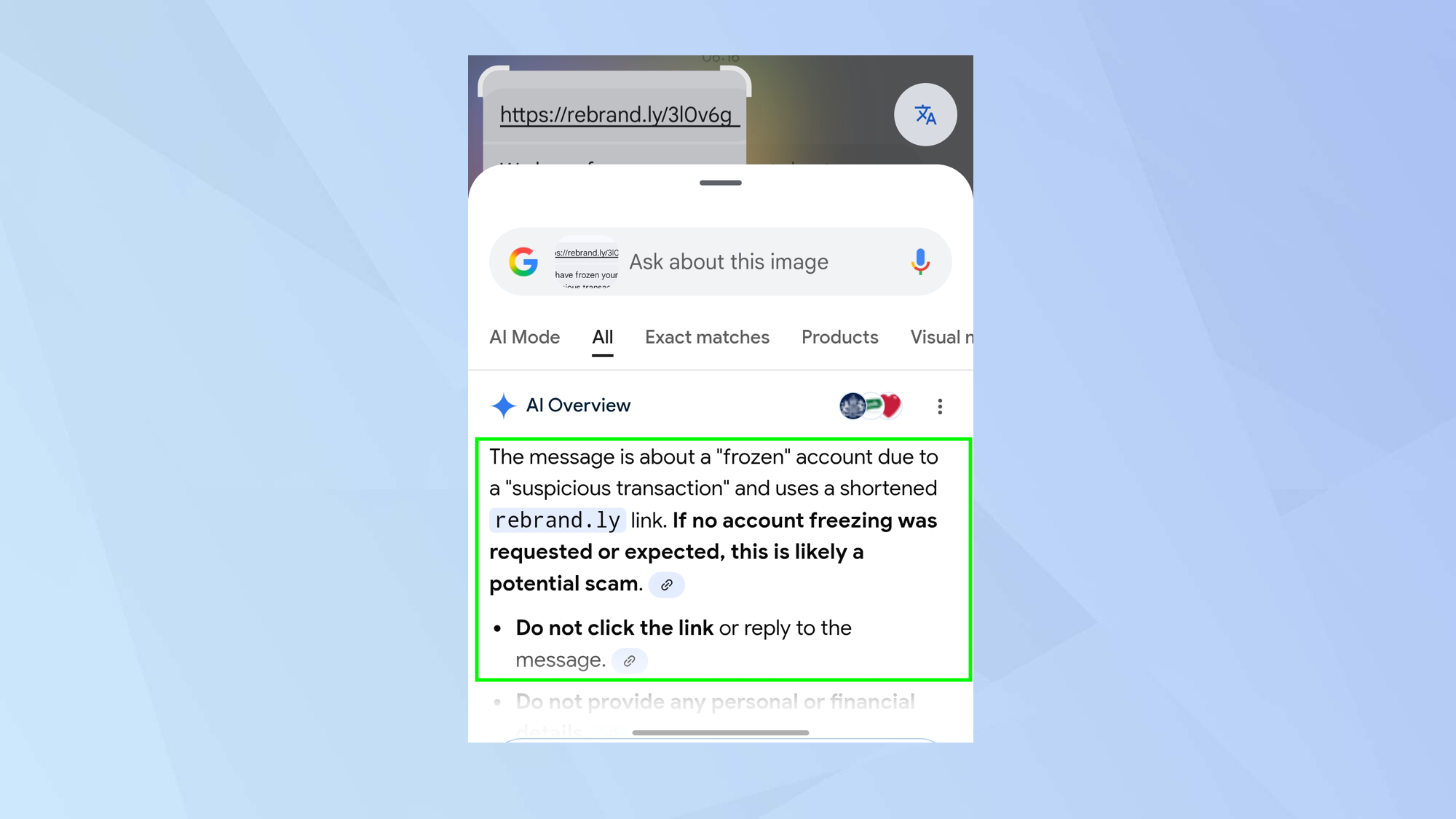
Using a combination of AI and information gleaned from the web, you will be able to read an assessment of the text message. It will tell you if it believes it to be a scam and explain why it has come to this conclusion. Reading this will also help you to spot telltale signs in the future.
Use Google Lens to detect scams
Although iOS 26 has its own scam-detection function which automatically flags up suspicious texts, if you are using an iPhone, you can also detect scams using Google Lens. This works on Android too.
1. Take a screenshot
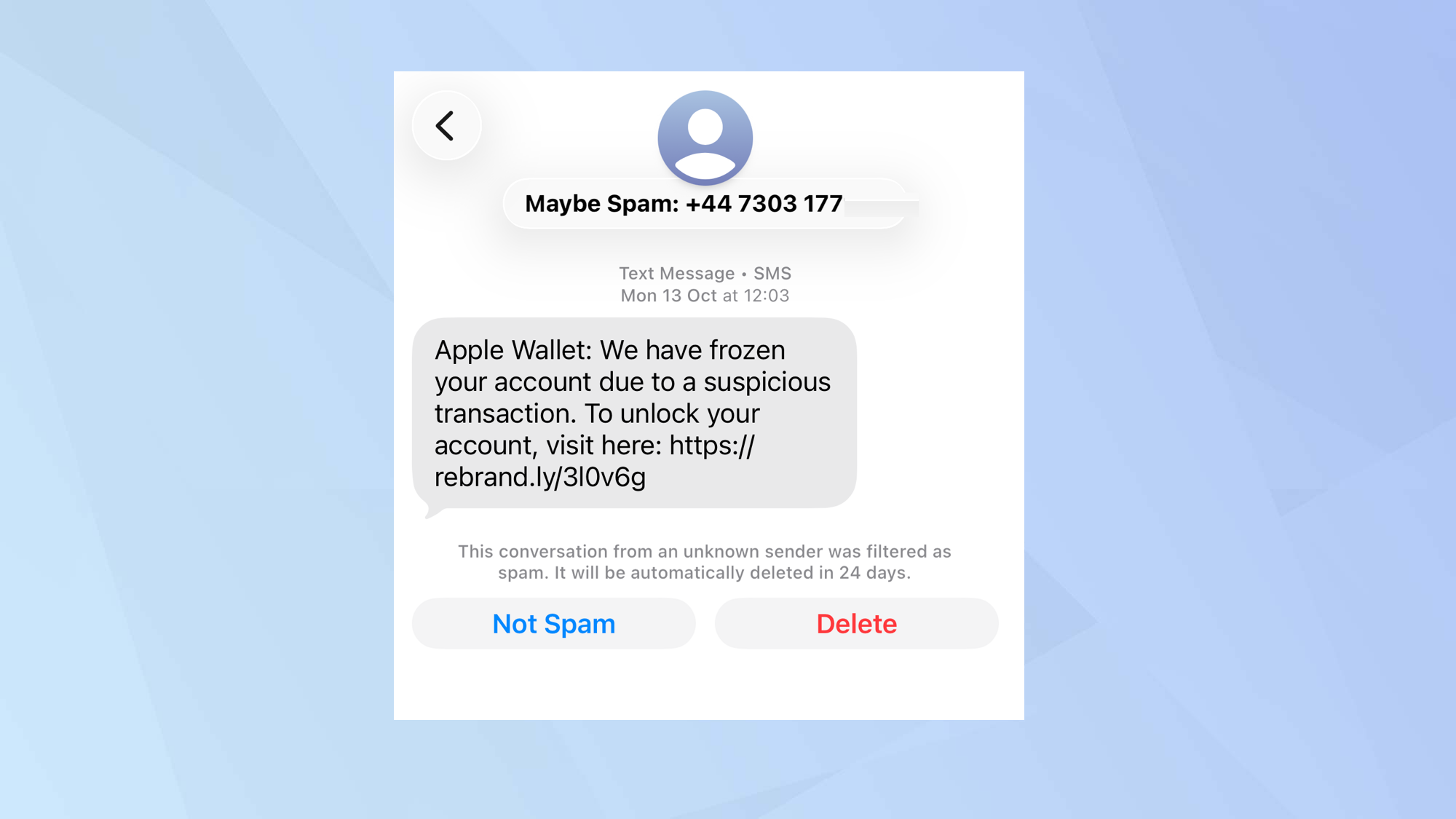
If you receive a suspicious text message, don’t interact directly with it. Simply take a screenshot of the message (you may want to crop the image so that it’s clear which message you’re unsure of).
2. Open the Google app
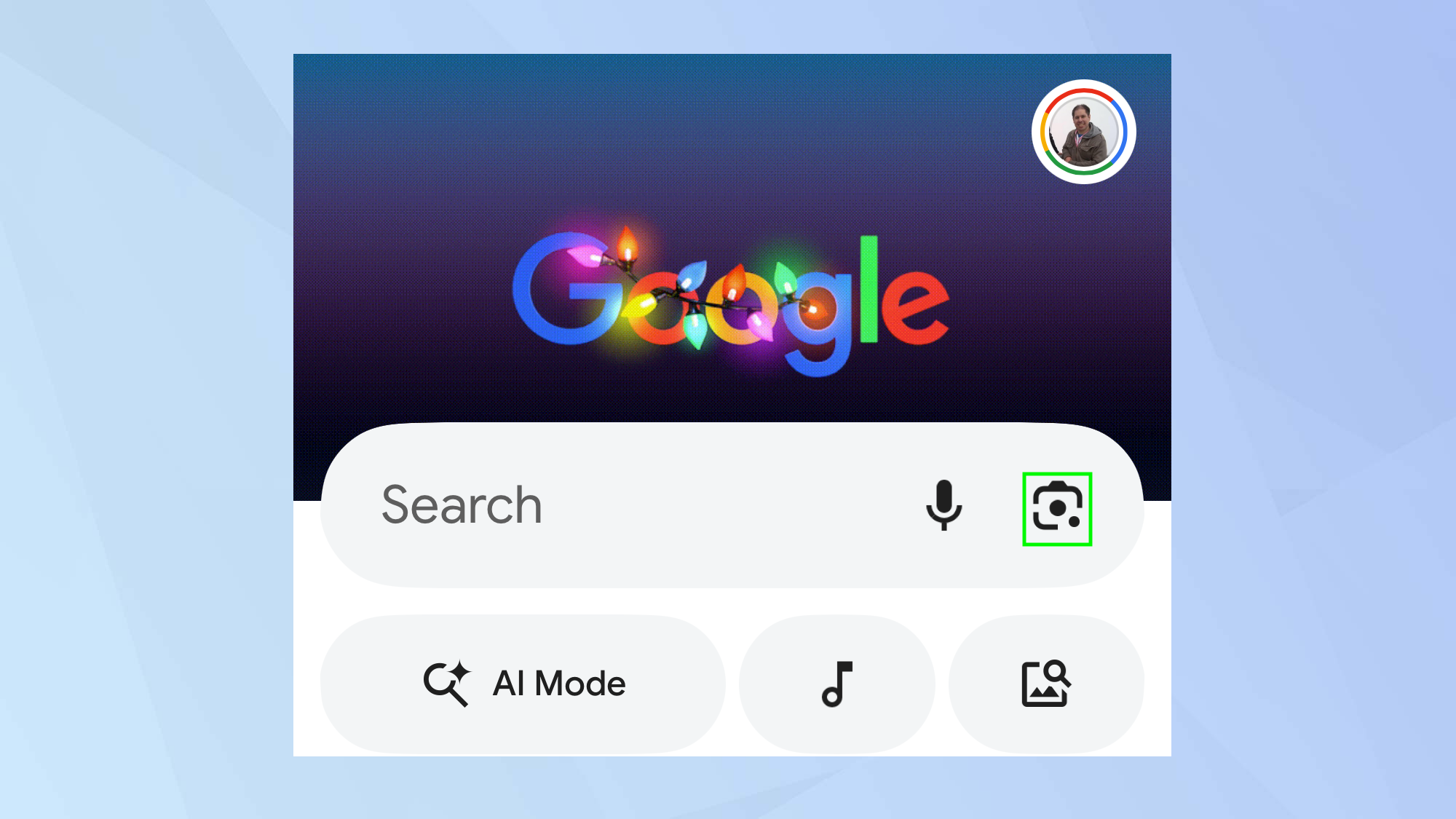
Next, open the Google app and select the Lens icon (the one that looks like a camera in the search field).
3. Select the screenshot
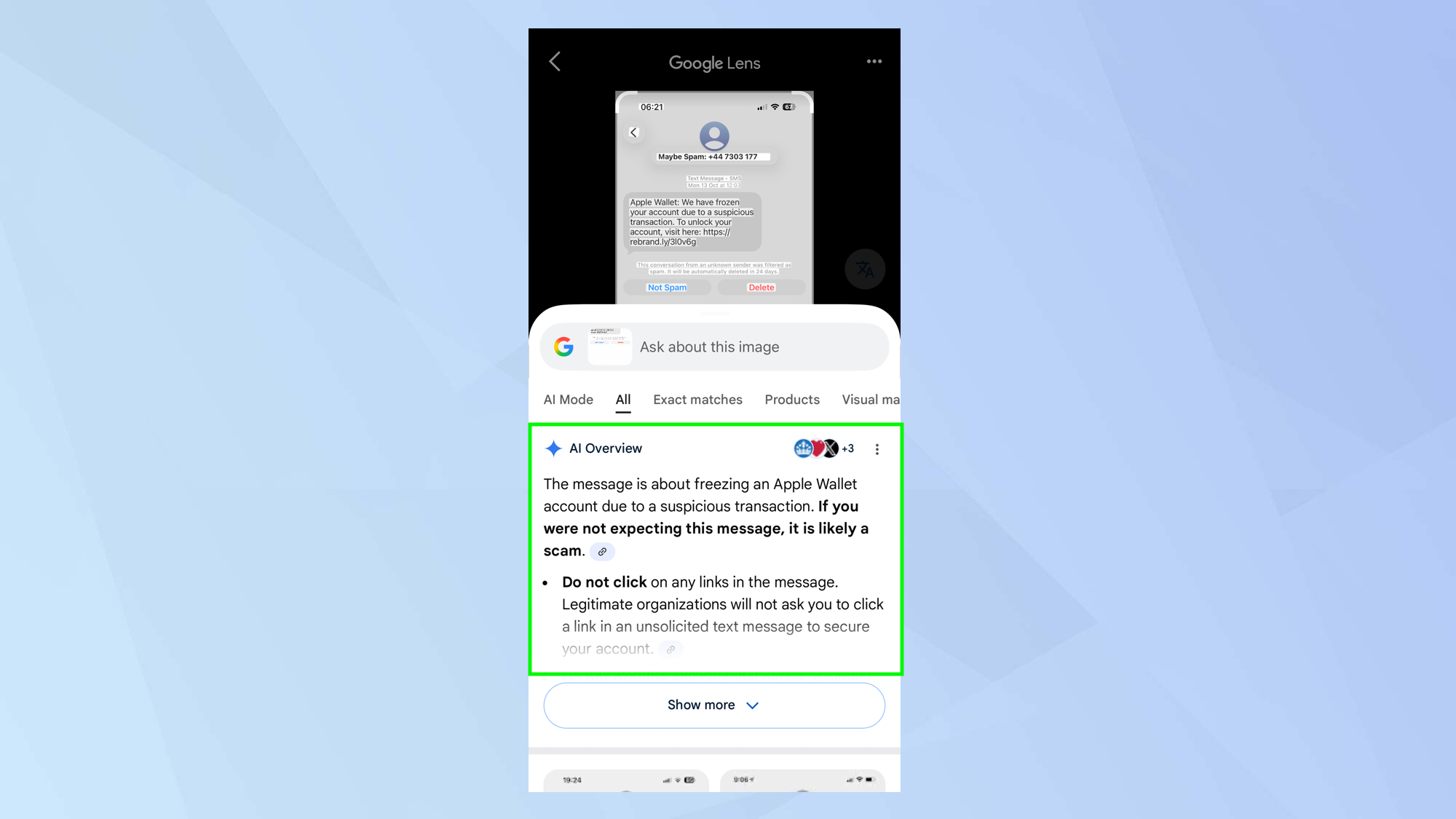
Now select the screenshot and Lens will work its magic, using AI and information on the web to assess the message and inform you of any potential problems.

Follow Tom's Guide on Google News and add us as a preferred source to get our up-to-date news, analysis, and reviews in your feeds. Make sure to click the Follow button!