

World Cup 2026 is the biggest-ever international football tournament by far, with 48 teams playing in 104 matches across the vast continent of North and Central America in June and July.
World Cup 2026 will obviously be an organisational behemoth for the officials and committees tasked with making it happen, but fans planning to take in as much of it as possible face a significant task of their own.
With World Cup fixtures taking place between June 11 and July 19 across no fewer than 13 different kick-off times, knowing what's happening and when will be anything but straightforward.
Your FREE World Cup 2026 calendar
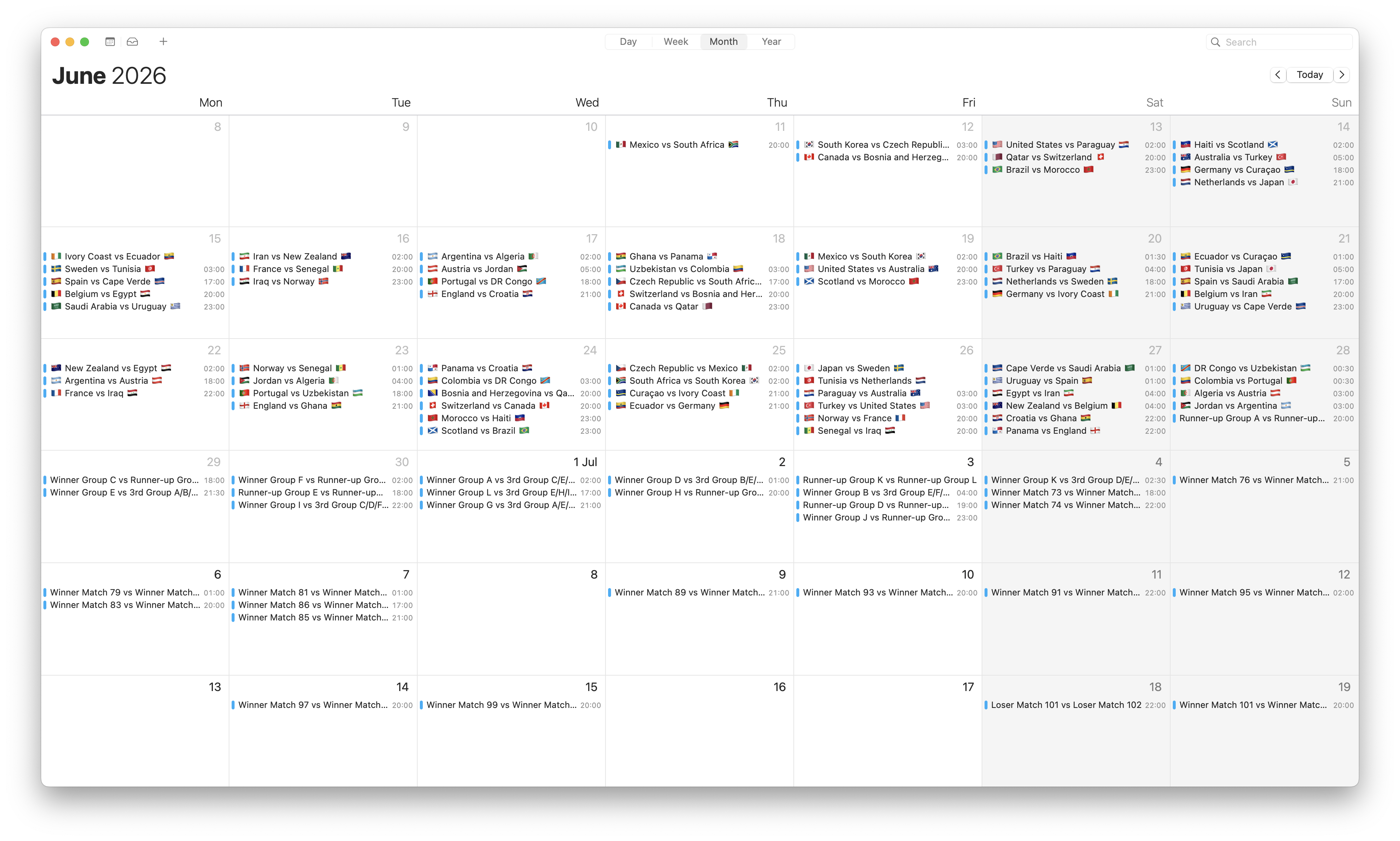
Our World Cup 2026 calendar includes every fixture in the knockout rounds this summer and syncs right to your digital calendar of choice – and in your local time zone.
Simply download, unzip and import.
Download your calendar for FREE now!
How to unzip the World Cup calendar files
The key step between downloading and importing your World Cup calendar is unzipping the downloaded files to grab the file format you need to import to Google Calendar or iCal.
Here's how to unzip files on Windows:
-
Locate the zipped folder – it has a
.zip
filename
-
Right-click
and select
Extract All...
- Choose a destination and click Extract
Here's how to unzip files on Mac:
-
Double-click the downloaded
.zip
file
- The file will extract automatically into a new folder right next to it
Here's how to unzip files on Android:
-
Open the
Files by Google
app
-
Navigate to the downloaded
.zip
file
-
Tap the file icon
and a pop-up will appear
- Touch Extract
Here's how to unzip files on iPhone/iPad:
-
Open the
Files
app (blue folder icon).
-
Navigate to the
location of your zipped file
(e.g., "Downloads" or "On My iPhone").
-
Tap the
zip file
once.
-
A new folder containing the unzipped files will be created automatically.
- If tapping doesn't work, long-press the file and select Uncompress .
How to import to Google Calendar
-
Open
Google Calendar
in your web browser
- Click the Settings gear icon in the top right and select Settings
-
In the menu on the left, click
Import & Export
-
Click
Select file from your computer
and choose your .ics or .csv file
-
Under
Add to calendar
select the calendar of your choice – this is the calendar to which the World Cup fixtures will be added
- Click Import
How to import to iCal
-
Open the
Calendar
app on your Mac or Apple device
-
Click
File
and then
Import
-
Select your .ics or .ical file
from your computer
- Choose the calendar to which you want to add the fixtures, or select a new one, and click Import