As the year comes to an end, Microsoft is slowing Windows 11 development, but in the first half of December, the company released several preview builds with improvements through the Windows Insider Program.
In addition to the changes rolled out during the last half of November, the software giant has made previews of versions 25H2 and 26H1 available in the previous two weeks.
In the Canary Channel, devices received two previews, including builds 28000.1340 and 28020.1362, which introduced a wide range of changes to bring version 26H1 closer to the feature level as version 25H2 in the Dev and Beta Channels.
Additionally, the Dev and Beta Channels didn't make many changes during the first half of December, but the company managed to release build 26220.7344 with several interesting improvements, and build 26220.7523 brought more AI integration.
In this recap, I'll highlight the biggest changes available through the Windows Insider Program.
Biggest improvements from the Windows Insider Program in December 2025
These are the improvements Microsoft has rolled out since my last roundup of changes.
Model Context Protocol (MCP)
As part of Microsoft's strategy to keep pushing AI on Windows 11, starting with build 26220.7344 in the Dev and Beta Channels, Windows 11 received support for the Model Context Protocol, an open standard that enables universal communication between AI agents, apps, tools, and services.
According to the company, AI agents can discover and connect with other tools and agents on a secure and manageable on-device registry (ODR).
In addition, Microsoft has released two AI connectors, including File Explorer and Windows Settings.
The File Explorer Connector allows agents to connect to File Explorer to manage and manipulate local files with the user's consent.
On Copilot+ PCs, this feature can perform searches using natural language to find the exact file based on description, metadata, and content, and it can even search for images using image classification.
The Windows Settings Connector allows users to find and change settings as well as navigate directly to a specific settings page on Copilot+ PCs.
Update Orchestration Platform (UOP)
The preview build 26220.7344 also introduced the Unified Update Orchestration Platform, which allows developers to build a more consistent and predictable update experience through the Settings app.
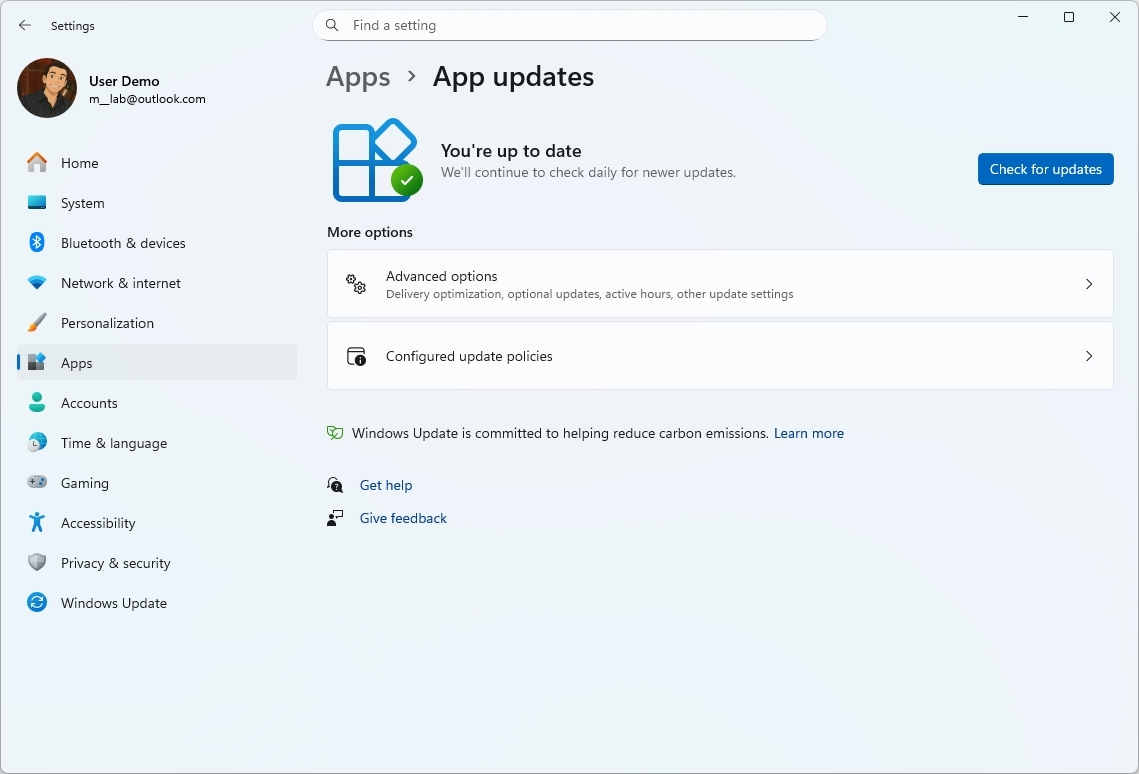
If a developer decides to implement this new orchestration, you'll be able to check for and download updates for the application on the "App Updates" page in Settings > Apps. However, the application will continue to download updates from the developer's server, not from Windows Update, but it will automatically check for updates based on the user's activity.
Windows MIDI Services
In the Beta and Dev Channels, during the month of December, devices also received the new Windows MIDI Services, a new MIDI API, Service, and SDK for the operating system.
As part of this new experience, Windows 11 gets full support for WinMM MIDI 1.0 and WinRT MIDI 1.0, in-service translation, enabling any API to use any MIDI 1.0 or MIDI 2.0 device.
Furthermore, there's a new loopback and app-to-app MIDI support, and Microsoft is pushing improvements and bug fixes.
The company also notes that the App SDK and Tools are separate downloads.
Xbox Full Screen Experience for PCs
Windows 11 build 28020.1362 expands the Xbox Full Screen Experience (FSE) to more handheld gaming devices in the Canary Channel.
The feature has been designed to make the gaming experience more like a console experience.
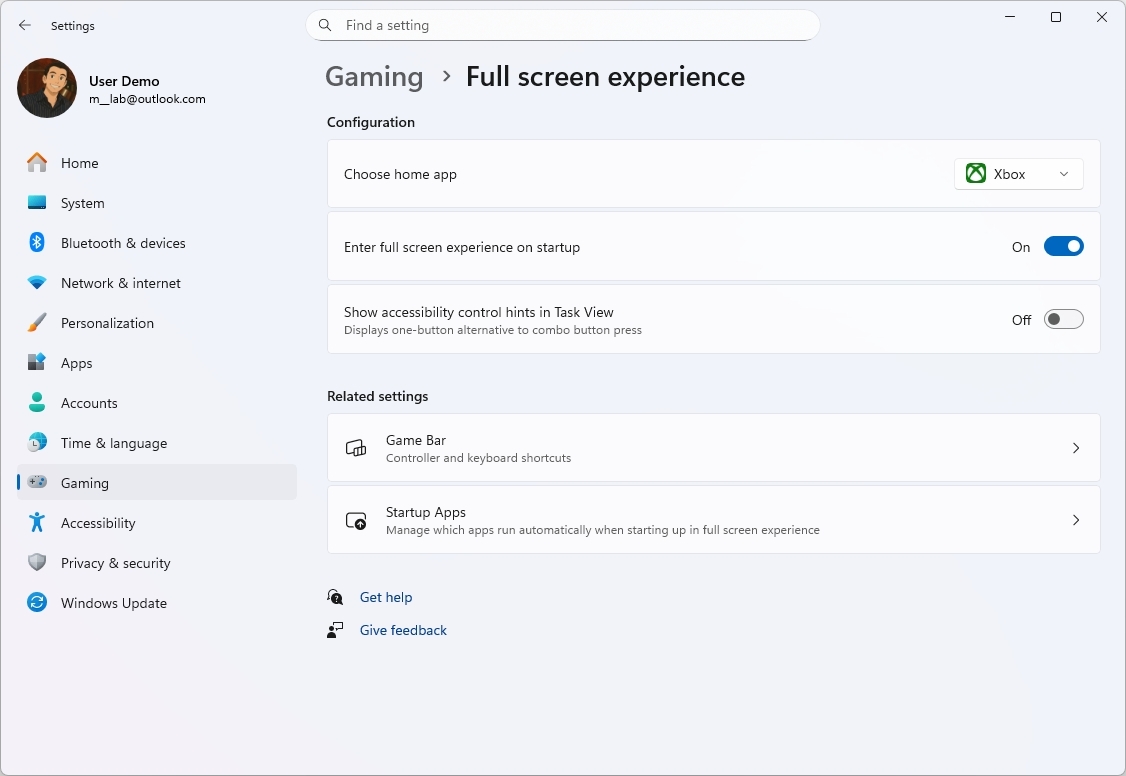
On your handheld device, you can enable the feature in Settings > Gaming > Full screen experience and turn on the "Enable full screen experience on startup" toggle switch.
Settings app with AI agent
As part of the latest preview build in the Canary Channel, the Settings app is getting the same AI agent already available on Copilot+ PCs to help users find and change settings.
In addition, on the Home page, the "Recommended settings" card will now show inline agent actions for the most recently modified settings.

Furthermore, in the latest release of Windows 11, the AI agent isn't getting any new features, but the company is expanding the feature to more languages, including German, Portuguese, Spanish, Korean, Japanese, Hindi, Italian, and Simplified Chinese.
File Explorer new dark mode improvements
Devices in the Canary Channel have received dark mode enhancements for File Explorer, meaning that now you'll find more elements using the dark color scheme.
For example, the dark mode experience now expands to dialogs for copy, move, delete, progress bars, charts, confirmations (such as skip, override, and file selection), and error messages.
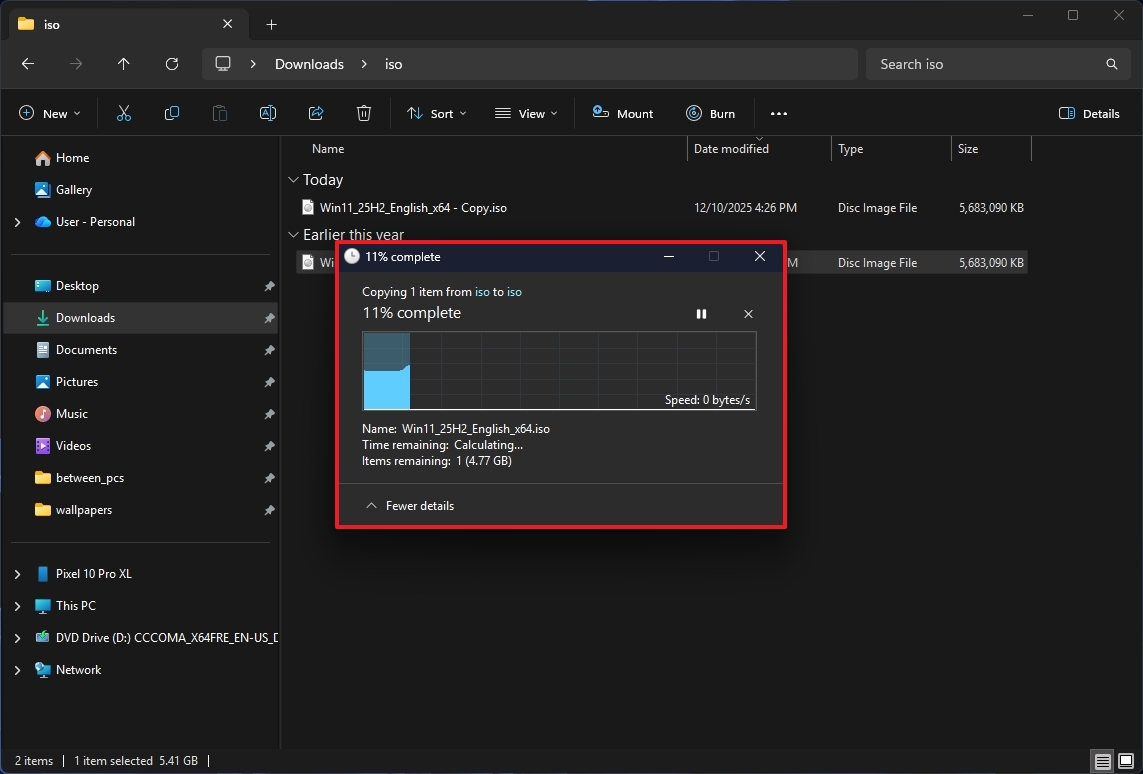
If you're installing the latest preview in a Copilot+ PC, you'll also notice that the placeholder in the search box now makes it clear that search now uses AI, and you can use natural language to search for files and folders.
On the Home page, when you hover over a file, the app displays a new inline menu with options such as "Open file location" and "Ask Copilot."
We have already seen these changes in other channels, but it's not until build 28020.1362 that Microsoft is bringing these changes to the Canary Channel.
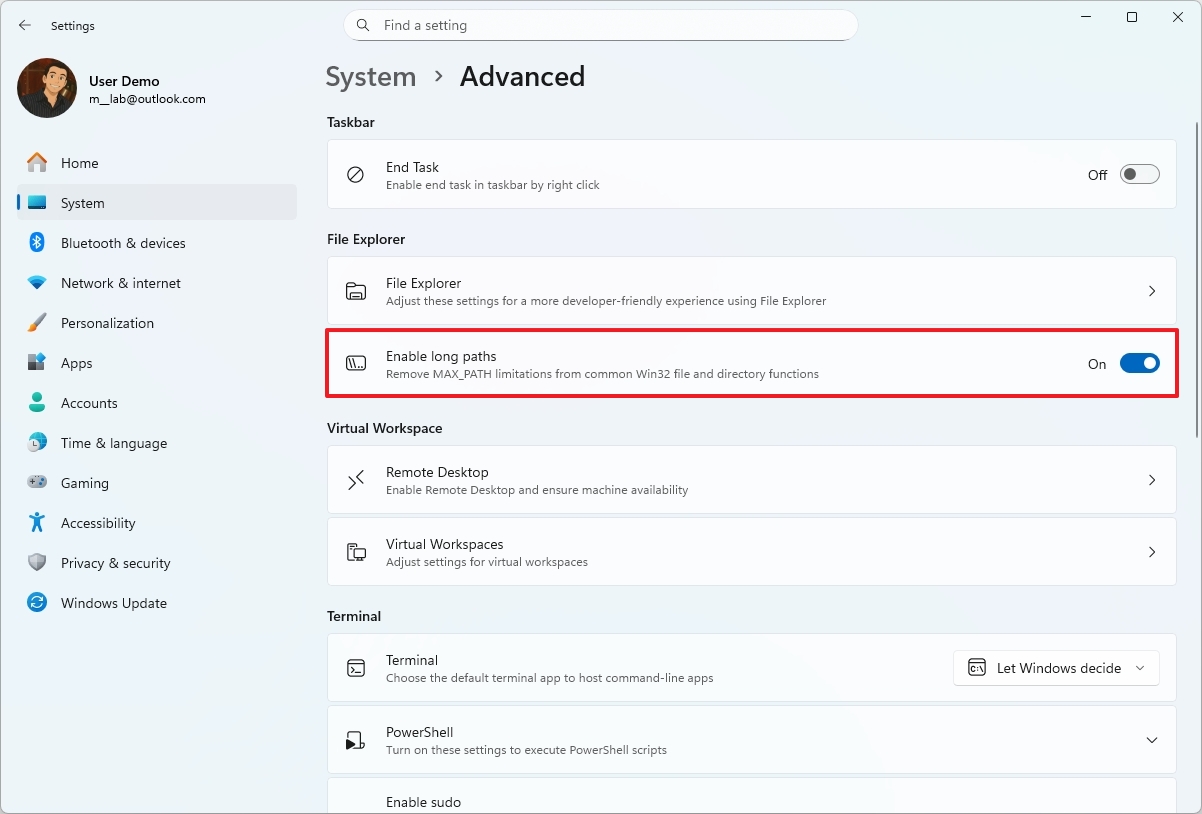
Although the company didn't mention it, you can now enable the "MAX_PATH" option in the "Advanced" settings page to remove the path limitations for traditional file and folder functions.
Finally, Windows 11 build 26220.7523 rolled out with an updated version of File Explorer that includes support for Windows People Card (WPC), which adds the ability to display people icons with their information in the Activity column of Home, Recommended, Favorites, and Recent.
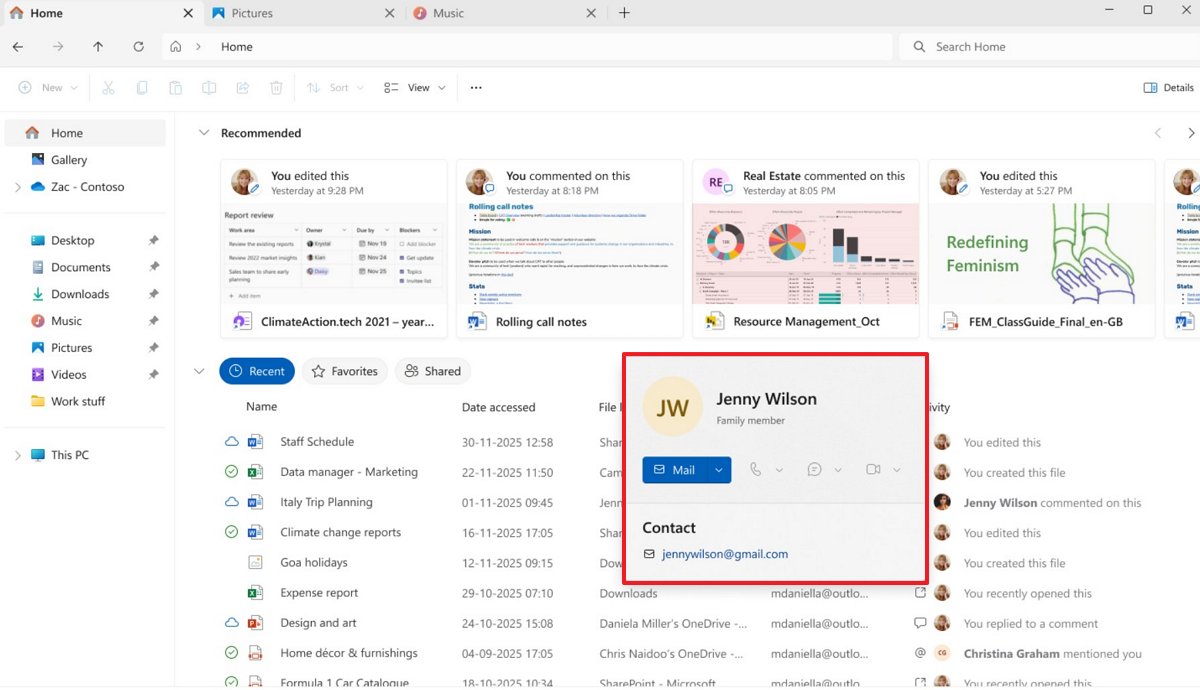
This feature has been available before, but it was limited to commercial customers. Now, Microsoft is bringing it to users with a Microsoft account configuration.
Drag Tray disable option
The Drag Tray, the feature that lets you drag a file to the top of the screen to share it with other apps, isn't new, but in the latest operating system preview, you can now disable it.
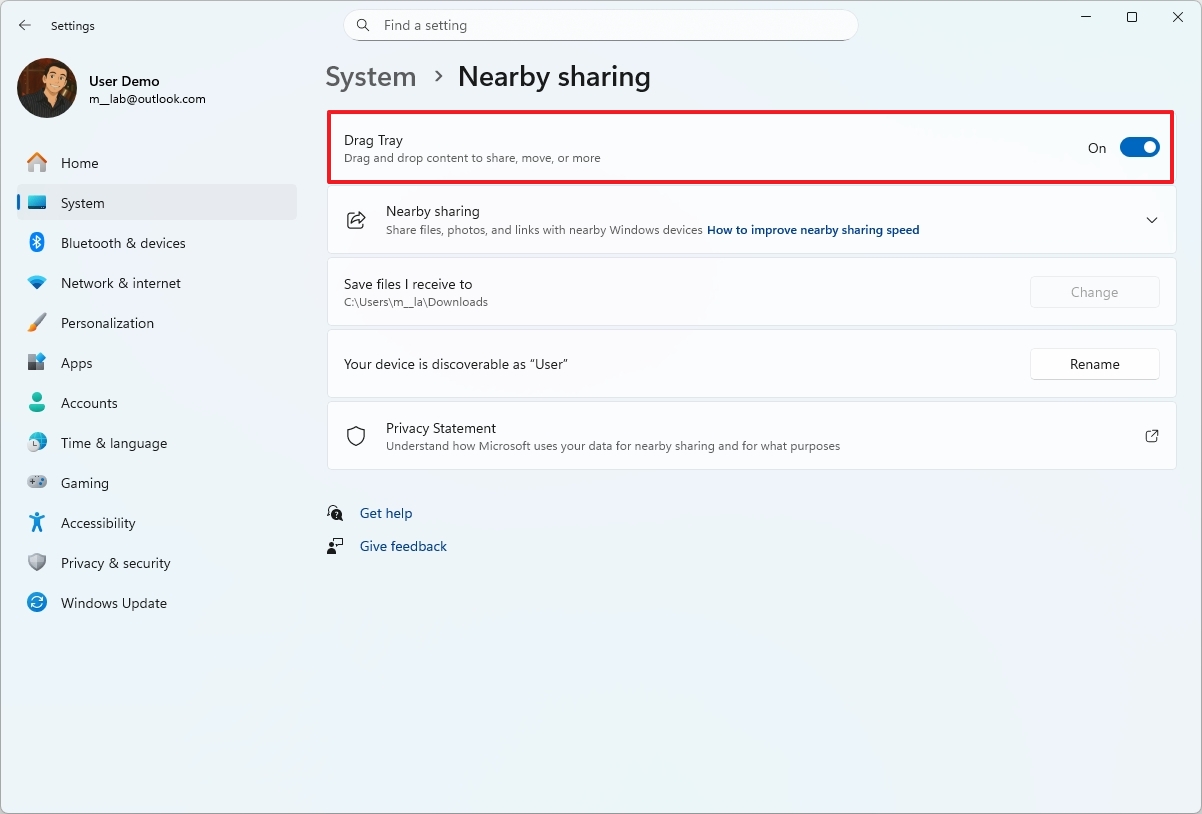
If this feature isn't for you, in Settings > System > Nearby Sharing, you can now use the "Drag Tray" toggle to enable or disable it.
Mobile Devices settings integration
In the "Bluetooth & devices" section, Microsoft is finally integrating the features to manage mobile devices into the Settings app.
In the past, from the "Mobile devices" page, you had to open an external page to access the features once your phone was linked to your computer, but now, that's no longer the case.
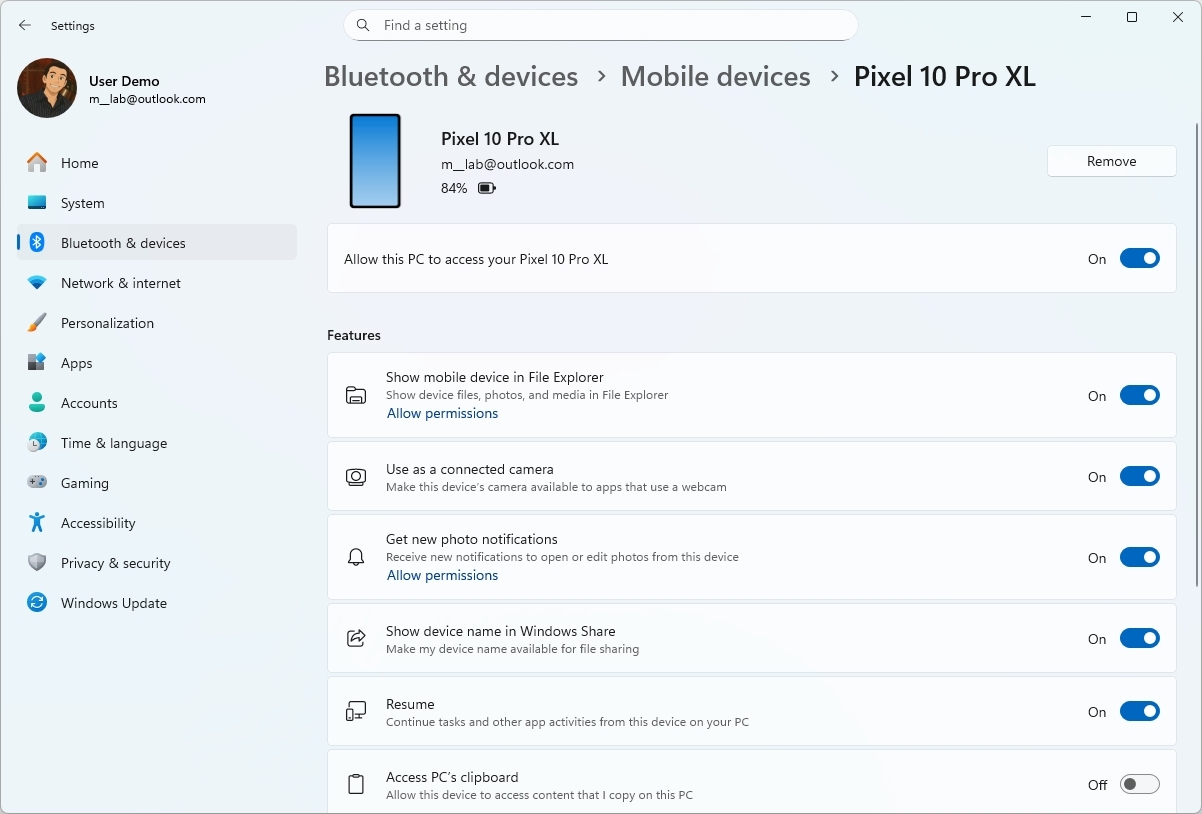
On the page, you'll find another page (usually with your phone brand and model) that lists all the available features, including the ability to remove the mobile device from your account.
Virtual Workspaces in Advanced settings
In the "Advanced" section, there's a new entry to access the "Virtual Workspaces" page that allows you to manage virtually every virtualization feature in the operating system. For example, you can enable or disable Hyper-V, Virtual Machine Platform, Windows Sandbox, and more.

This integration means that you no longer have to manage these features from the legacy "Windows Features" page.
Keyboard and text cursor from Control Panel
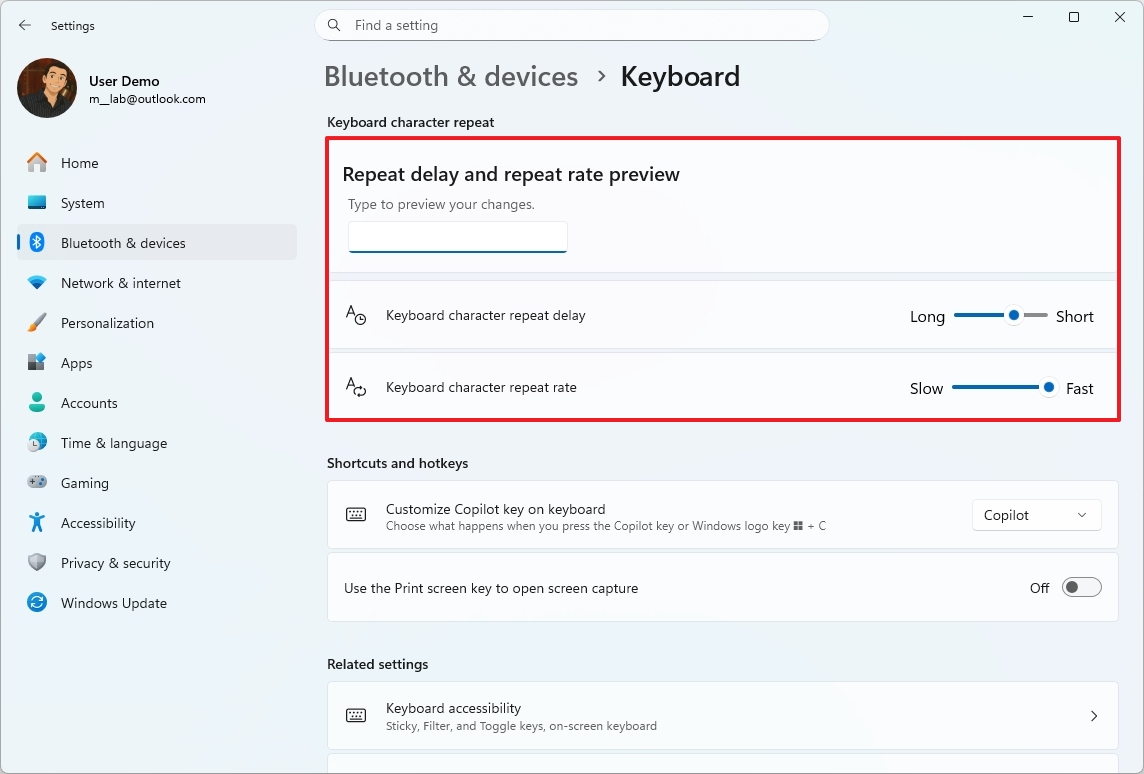
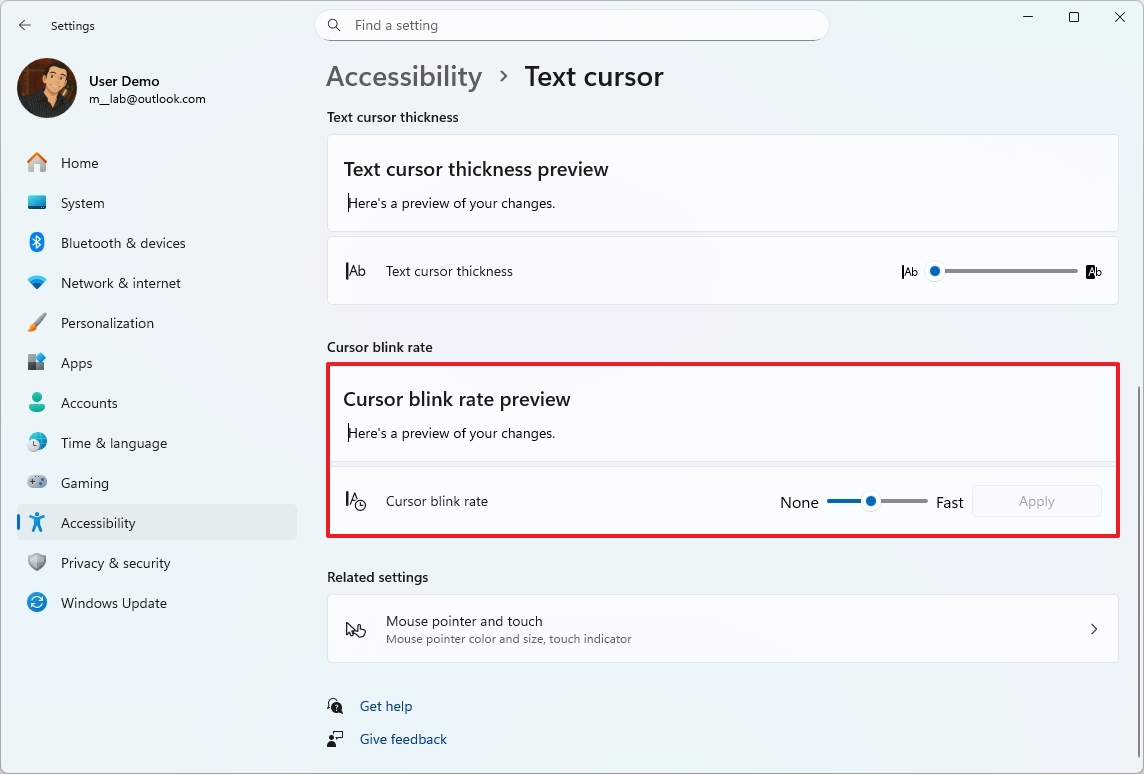
Microsoft continues its quest to port Control Panel features to the Settings app, and with the release of build 28020.1362, the company added two new settings: "Keyboard character repeat" and "Cursor blink rate."
The Keyboard character repeat feature is available on Settings > Bluetooth & devices > Keyboard, and the options include character repeat delay and rate, and there's an option to preview the changes.
On Settings > Accessibility> Text cursor, you'll find the Cursor blink rate setting with a slider to control the blink rate and a preview to test the changes.
Quick Machine Recovery improvements
The Quick Machine Recovery feature has been available for computers enrolled in the Canary Channel, but in the latest update, the company is changing the behavior.
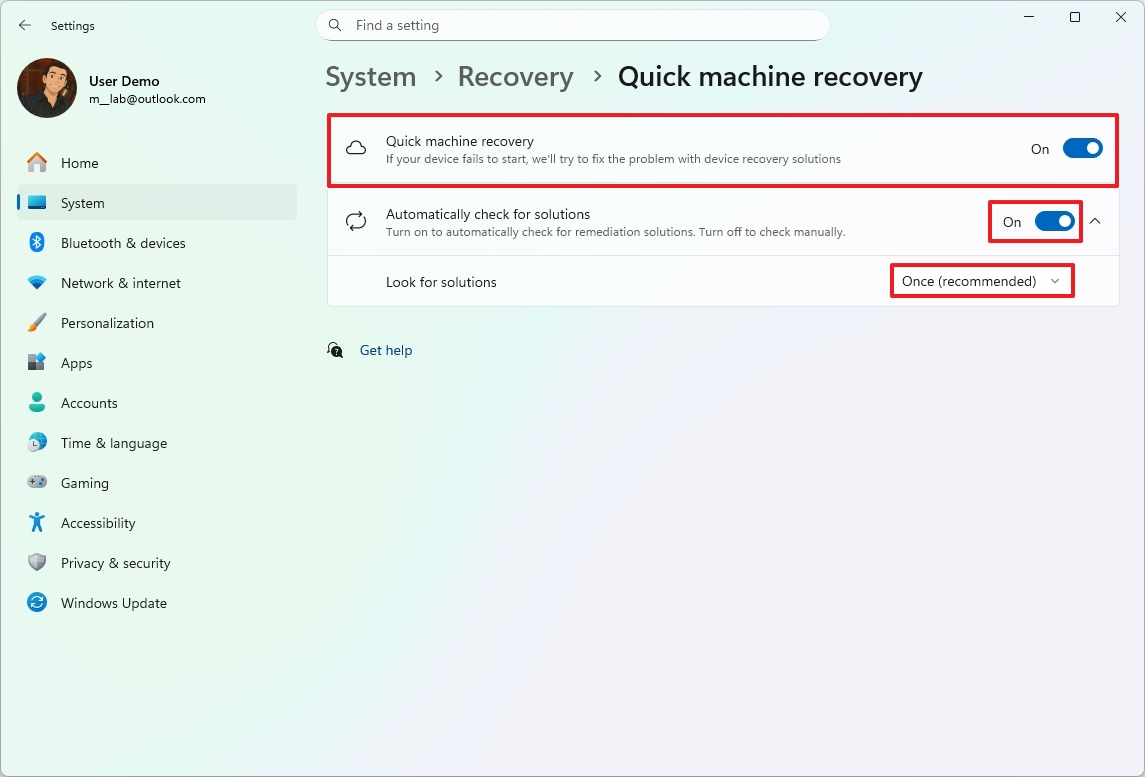
Starting with this release, the feature will be enabled by default on Windows 11 Home and Windows 11 Pro (unless the device is managed). Also, the feature will run only once. If the solution isn't found during the first scan, the user will be directed to the Windows Recovery Environment to select additional troubleshooting steps.
As a result of the changes, the settings page has been updated. After enabling the feature, you only need to turn on the "Automatic check for solutions" option.
The default configuration of the feature is to run the scan once, but you can decide how often the computer should reboot to look for solutions.
Windows Studio Effects for more cameras
Windows Studio Effects is no longer limited to your built‑in camera. Microsoft is extending support to more camera hardware, giving you the same polished, professional look across more setups.
On Copilot+ PCs, you can now use Studio Effects with a second camera, such as a USB webcam or your device's rear camera.
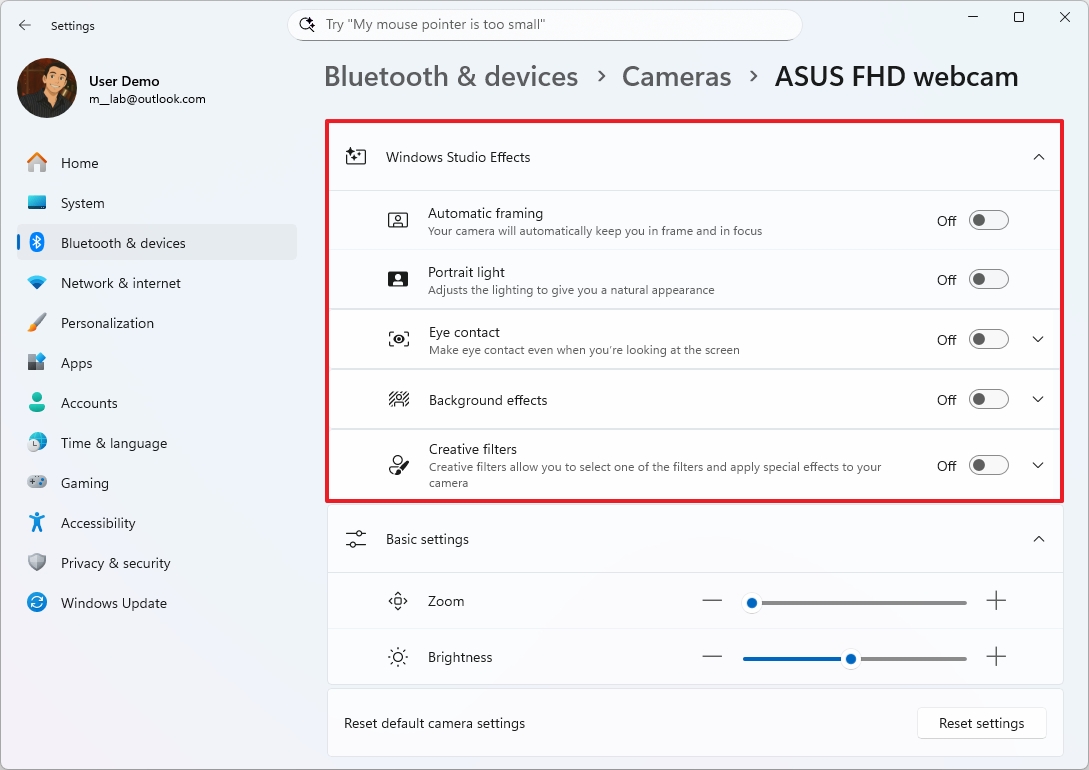
These features can be enabled on Settings > Bluetooth & devices > Cameras, select the webcam, and then click the "Edit" button for the "Advanced camera options" setting.
Windows Spotlight for desktop changes
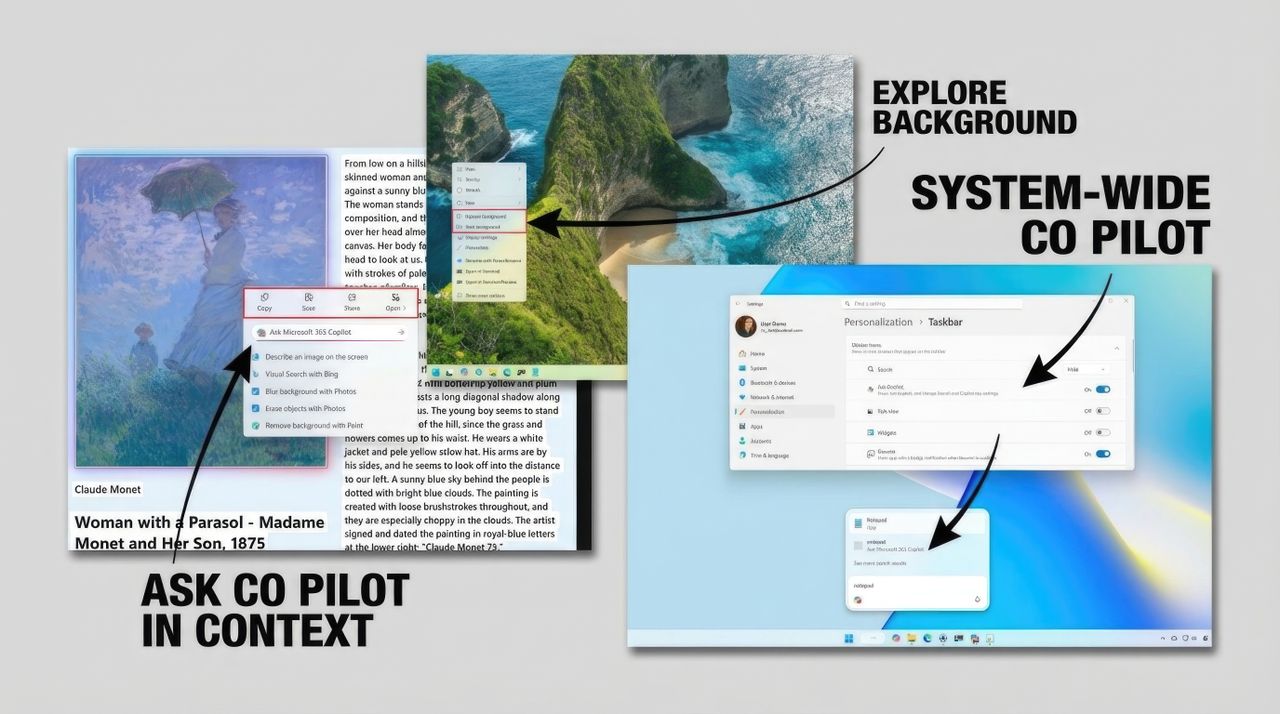
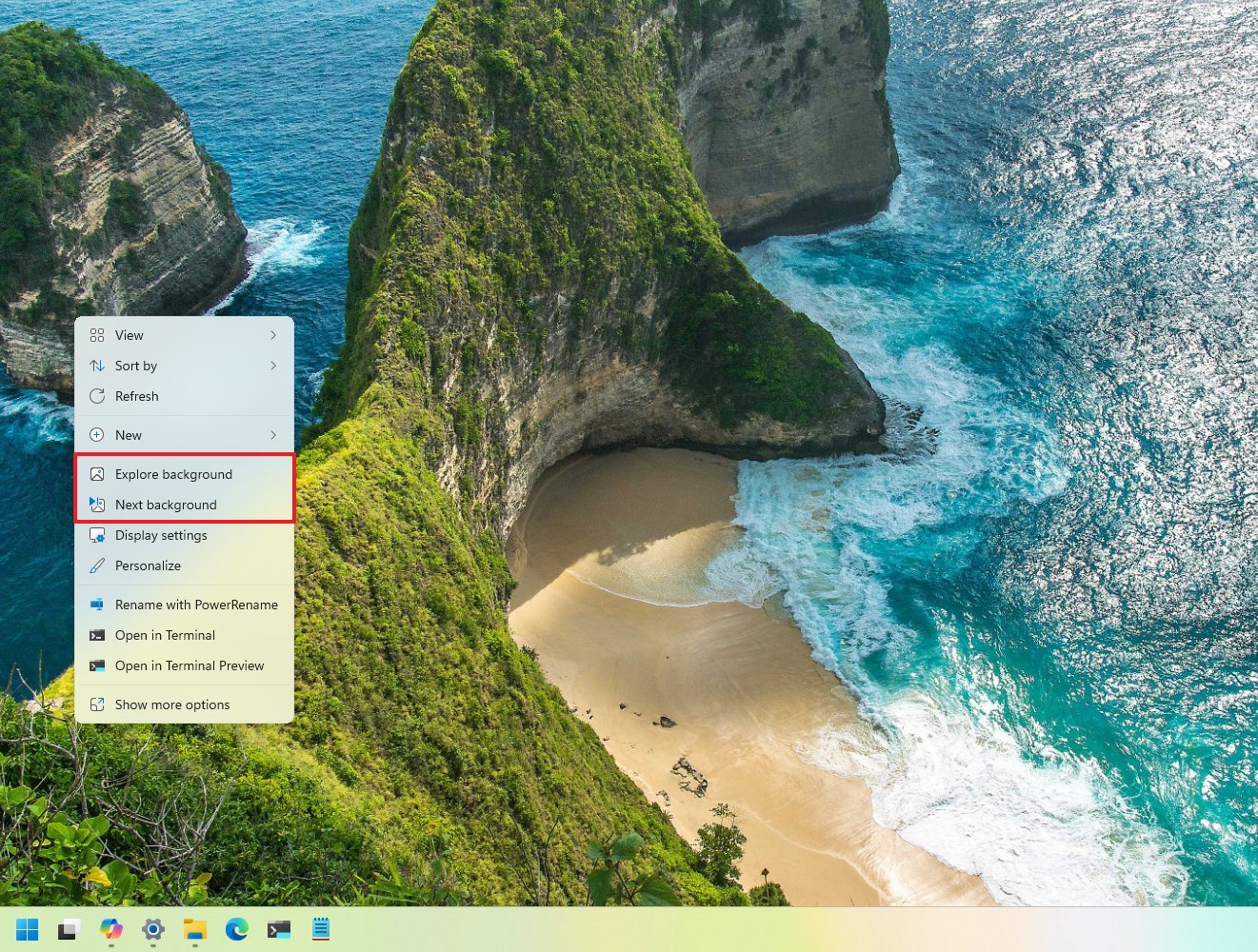
If the Spotlight feature is enabled on the desktop, you'll now be able to change to the next wallpaper from the context menu, and there's even a new option to get more details about the active background.
Click to Do new actions menu
On Copilot+ PCs, those enrolled in the Canary Channel are now getting an updated version of the Click to Do context menu with inline options for Copy, Save, Share, and Open.
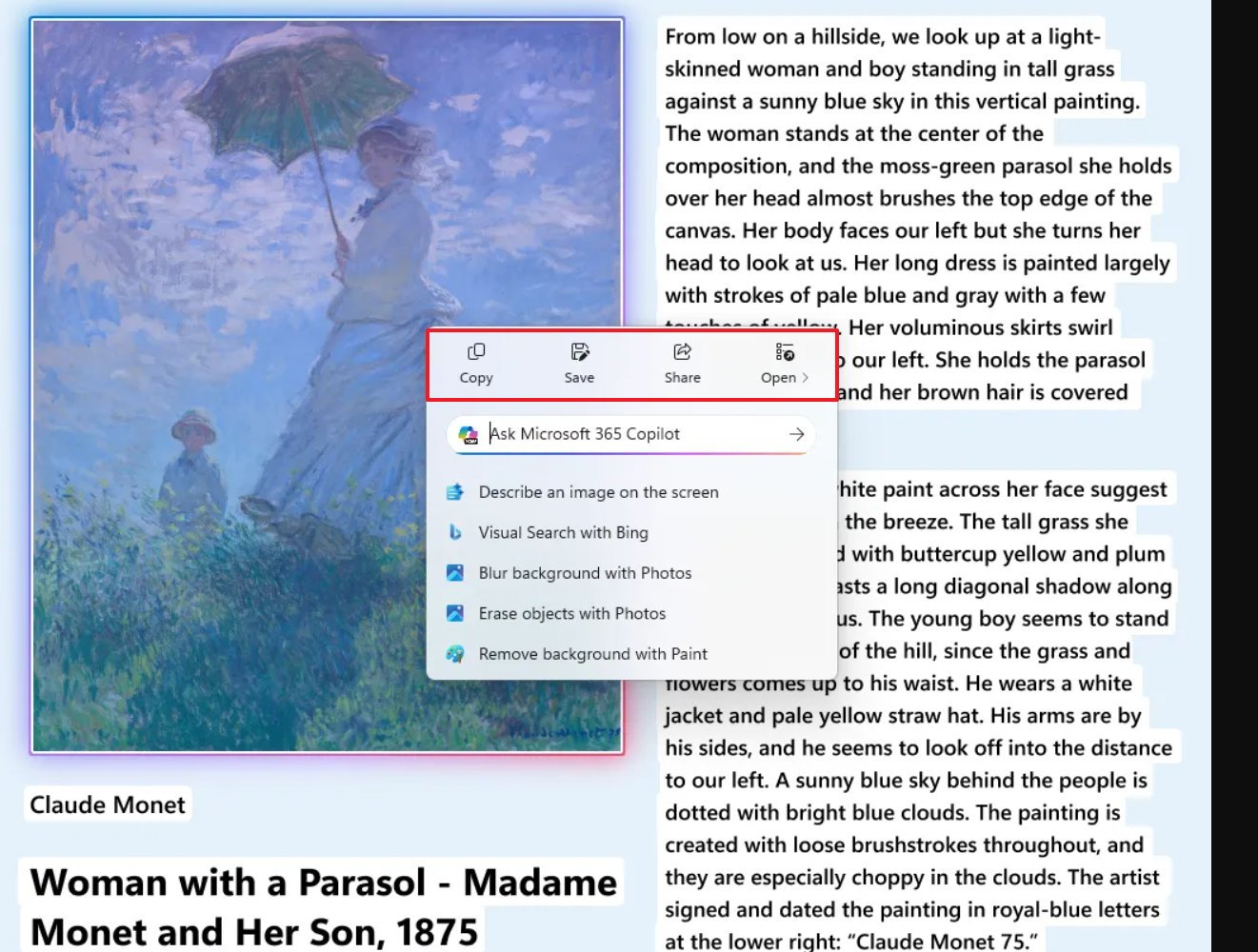
Additionally, if a large image or table appears in the snapshot, the context menu of Click to Do will now open automatically.
Furthermore, on build 26220.7523, Click to Do introduces support for Microsoft 365 Copilot.
Taskbar with Ask Copilot
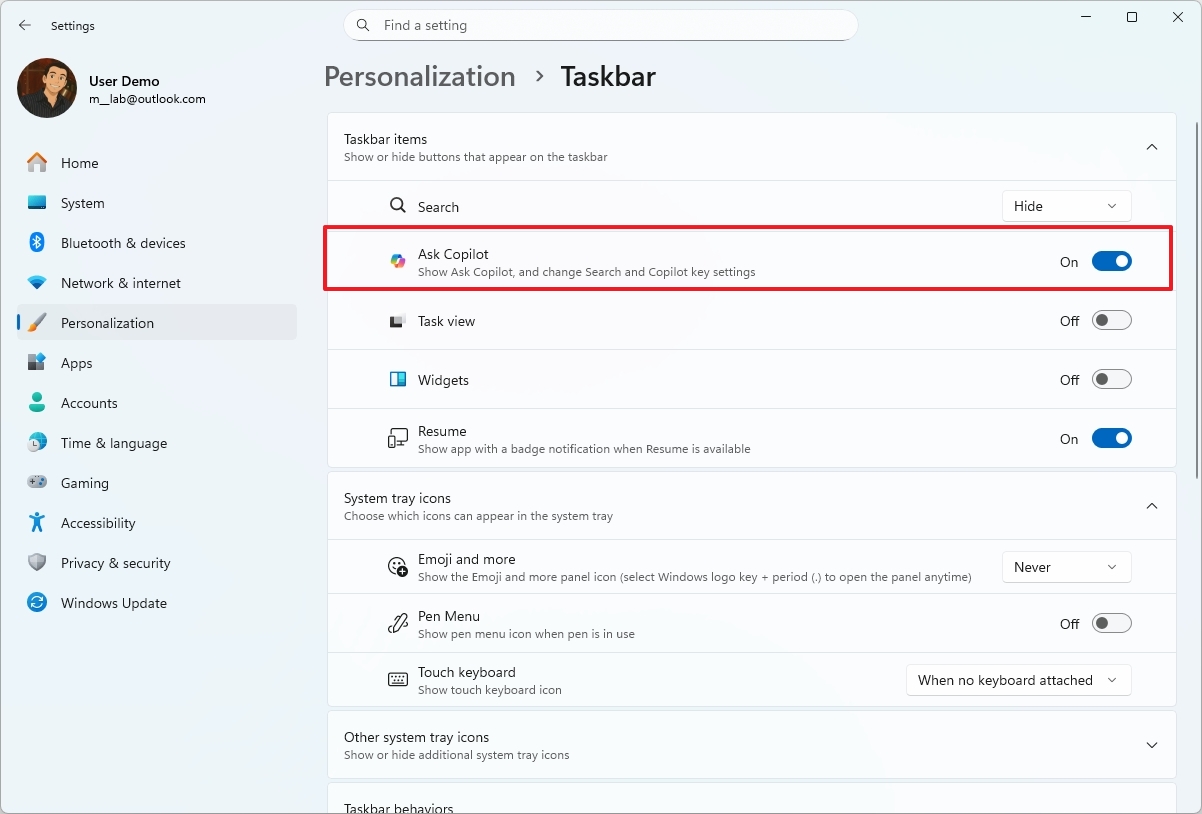
Starting with build 26220.7523 in the Dev and Beta Channels, Windows 11 adds a new "Ask Copilot" toggle switch on the "Taskbar" settings page that lets you replace the Windows Search experience with Copilot in the Taskbar.
If you opt in to the feature, you can enhance your search experience with AI for searching files, settings, and apps. You can also access other AI tools like Copilot Vision and Voice, and through this experience, you can also invoke other AI agents, something that's not possible with the traditional search feature.
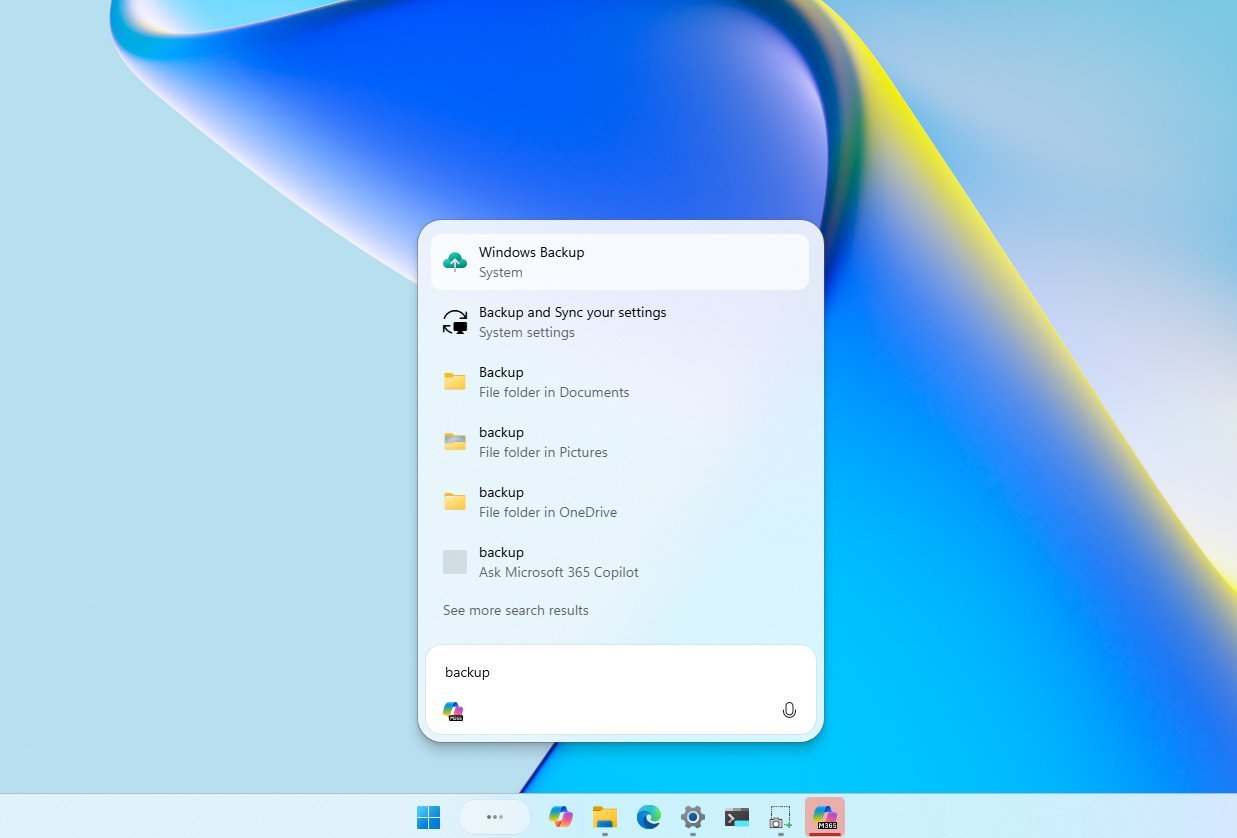
Microsoft notes that Ask Copilot can search and present results, but it doesn't have access to your data.
Taskbar with AI agents
In the Dev and Beta Channels, the preview build 26220.7523 rolls out a preview of AI agents for the Taskbar, which is one of the features part of Agentic OS vision for Windows 11.
The feature allows agents to show as apps in the Taskbar, providing live updates of tasks in progress while they run in a secure environment.
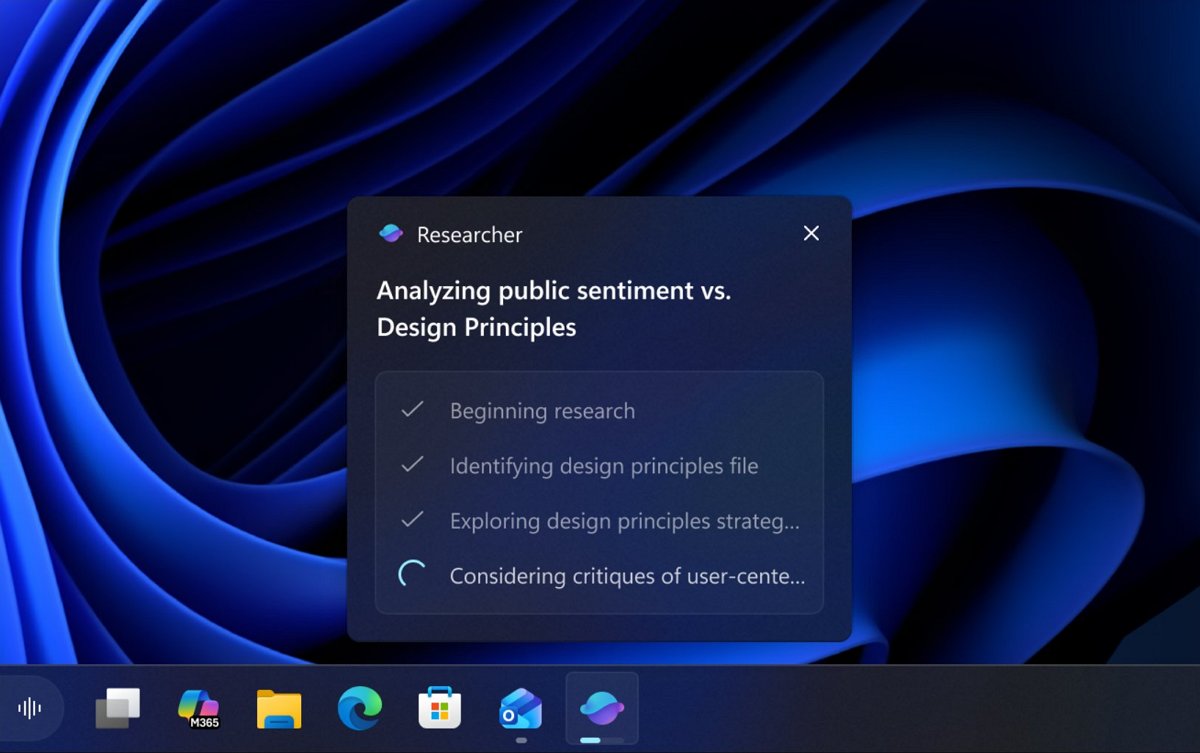
The company is also preparing to release the Researcher in Microsoft 365 Copilot, an agent that can conduct research and generate reports.
The company says the agent will gradually roll out to commercial customers in the coming weeks.
Windows 11 Agent Launchers
Microsoft is also introducing Agent Launchers, a new framework designed to register AI agents in the operating system once and make them discoverable and launchable from compatible experiences.
When you invoke an agent, it opens its dedicated chat interface, enabling an interactive, context-aware workflow in which the agent can ask clarifying questions, retain context, and take actions to complete tasks.
Also, registered agents can surface in supported entry points such as Ask Copilot on the Taskbar, Microsoft 365 Copilot, and other compatible applications.
Microsoft 365 Copilot already uses this framework to expose built-in agents such as Analyst, focused on data insights, and Researcher, designed to create structured, in-depth reports.
For developers, the framework offers flexibility and control. Agents can be registered statically during app installation or dynamically at runtime.
Narrator with new customization
Narrator has a new personalization feature that lets you decide exactly how interface elements are announced as you navigate apps. Instead of relying on a fixed speaking order, you can now choose which properties Narrator reads aloud for each control type, such as buttons, checkboxes, links, sliders, and text fields, and reorder or omit details to better match your preferences.
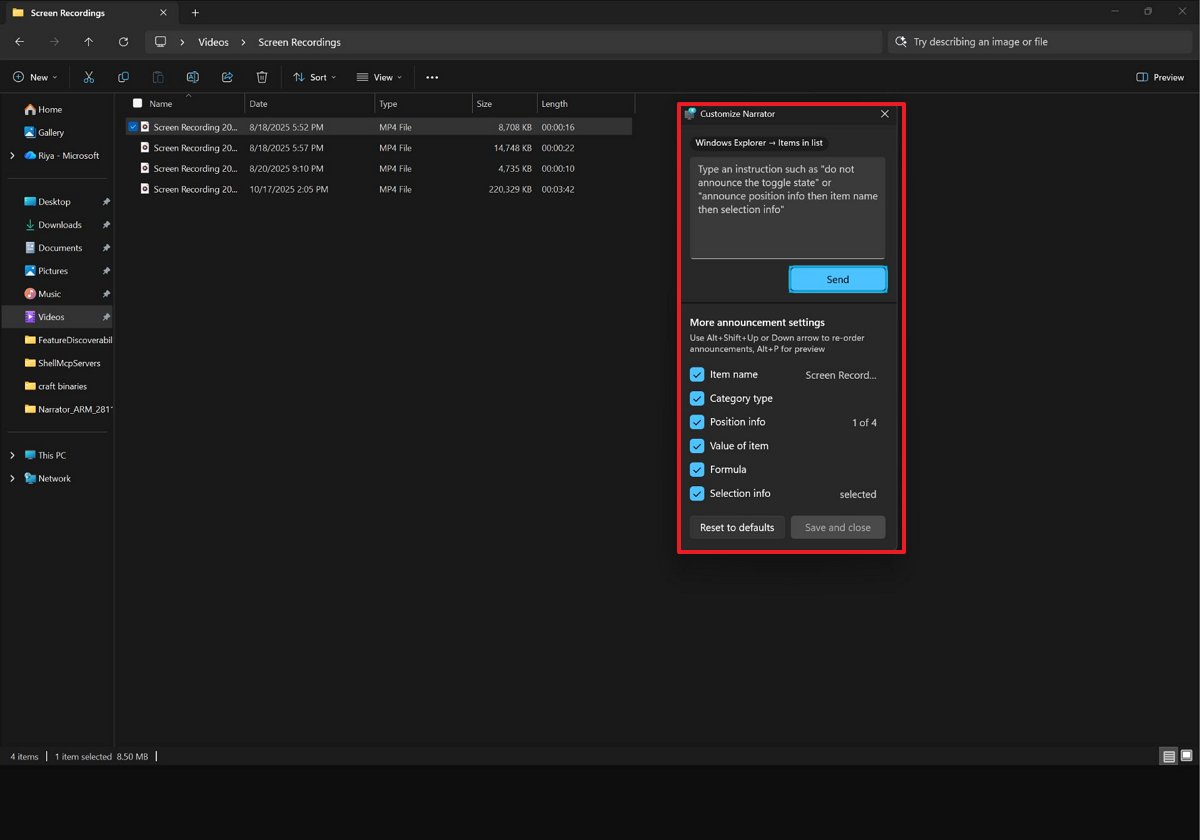
Customization is available through "Narrator key + Ctrl + P," where you can select, deselect, and reorder spoken properties per control type.
On Copilot+ PCs, Microsoft adds a natural language input box that lets you describe changes in plain language, such as asking Narrator not to announce selection or position information. Changes apply consistently to that control type within the current app, and you can preview how announcements will sound before saving. A reset option is also available to restore default behavior at any time.
Voice Typing with new animation in Touch Keyboard
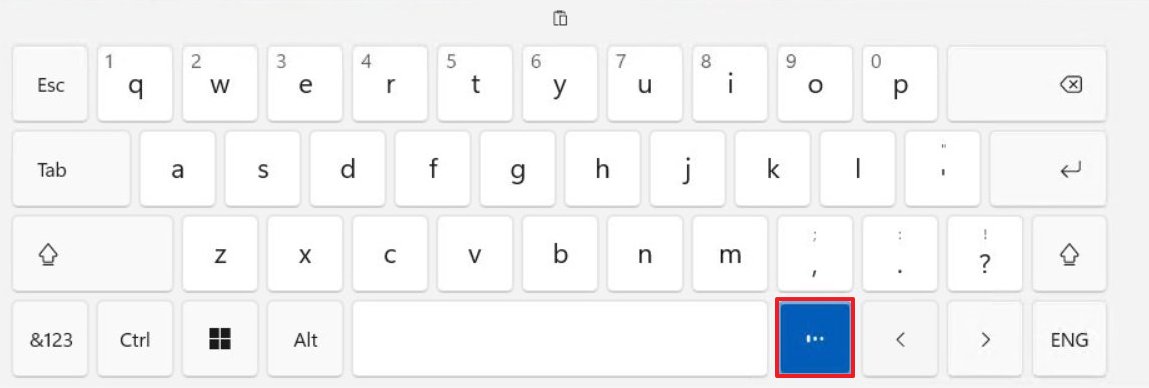
Starting with build 26220.7523, Microsoft is rolling out an updated version of the Touch Keyboard that introduces a new animation that appears directly on the dictation key rather than a full-screen overlay.
Discover Windows widget
In the "Widgets" board, Microsoft is also adding a new "Discover Windows" widget that provides tips to help you get the most out of your device.
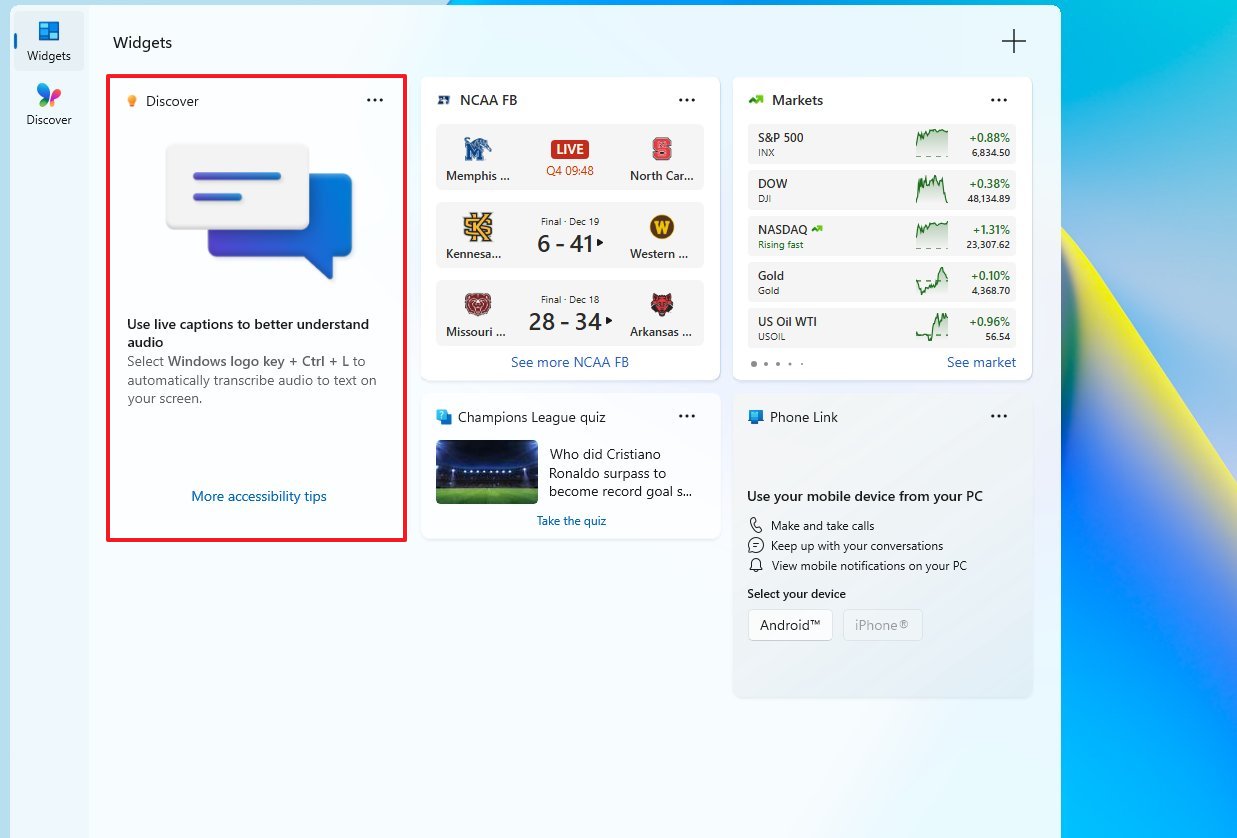
You can add the widget to the Widgets board or Lock Screen.
Voice Access streamlined setup
Starting with the latest preview in the Dev and Beta Channels, the operating system introduces a new and easier setup process to get started with Voice Access.
The new wizard guides you through downloading the correct speech model, selecting the preferred microphone, and providing an overview of how to use the feature.
According to the company, the Windows Insider Program will no longer receive any more builds until January of next year.
What are your thoughts on the latest improvements coming to Windows 11? Let me know in the comments.
More resources
Explore more in-depth how-to guides, troubleshooting advice, and essential tips to get the most out of Windows 11 and 10. Start browsing here: