
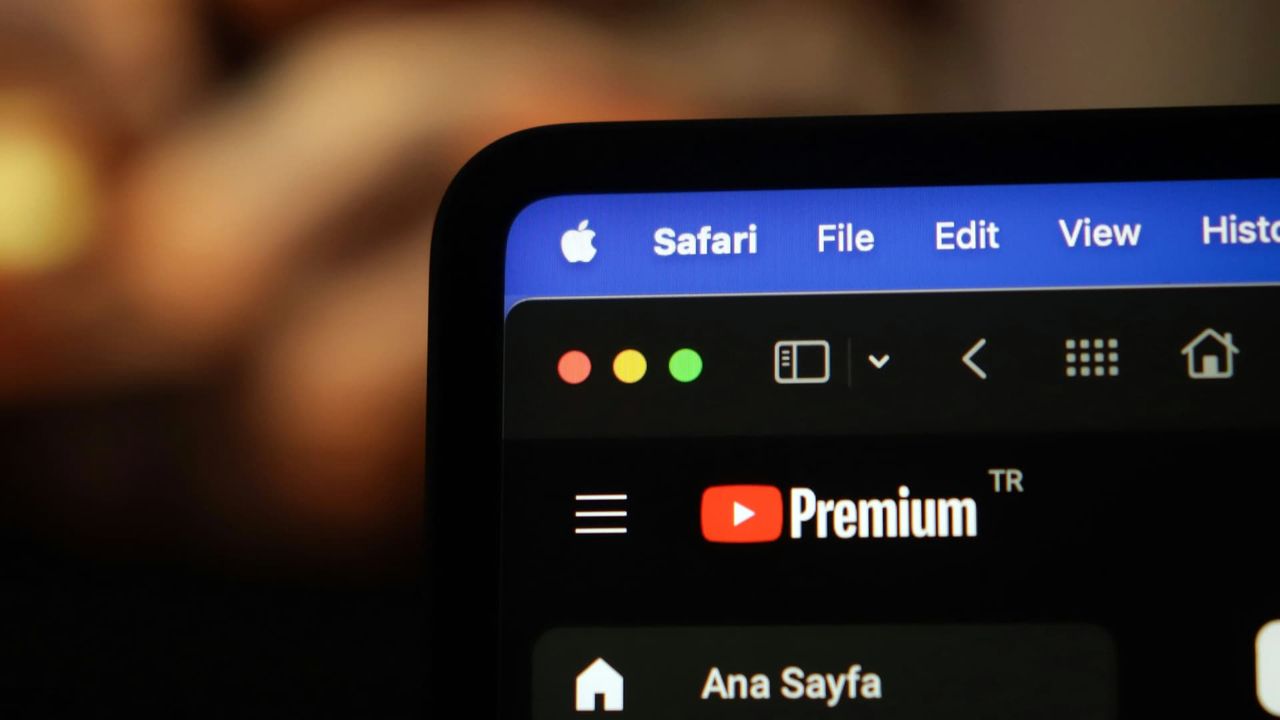
While macOS and Windows have plenty of similarities, the menu bar is one area where anyone who has switched from Windows to macOS – perhaps in light of the new MacBook Neo – might feel a little lost. That’s because it takes a slightly different approach to what Windows fans might be used to, combining app controls with features commonly found in the Windows taskbar.
But don’t worry, because like most features in macOS, the menu bar is very easy to adapt to. With our helpful guide by your side, you’ll be acclimatized in next to no time. Read on to see what the macOS menu bar is, how it works, and how you can adjust it however you like.
What is the menu bar?
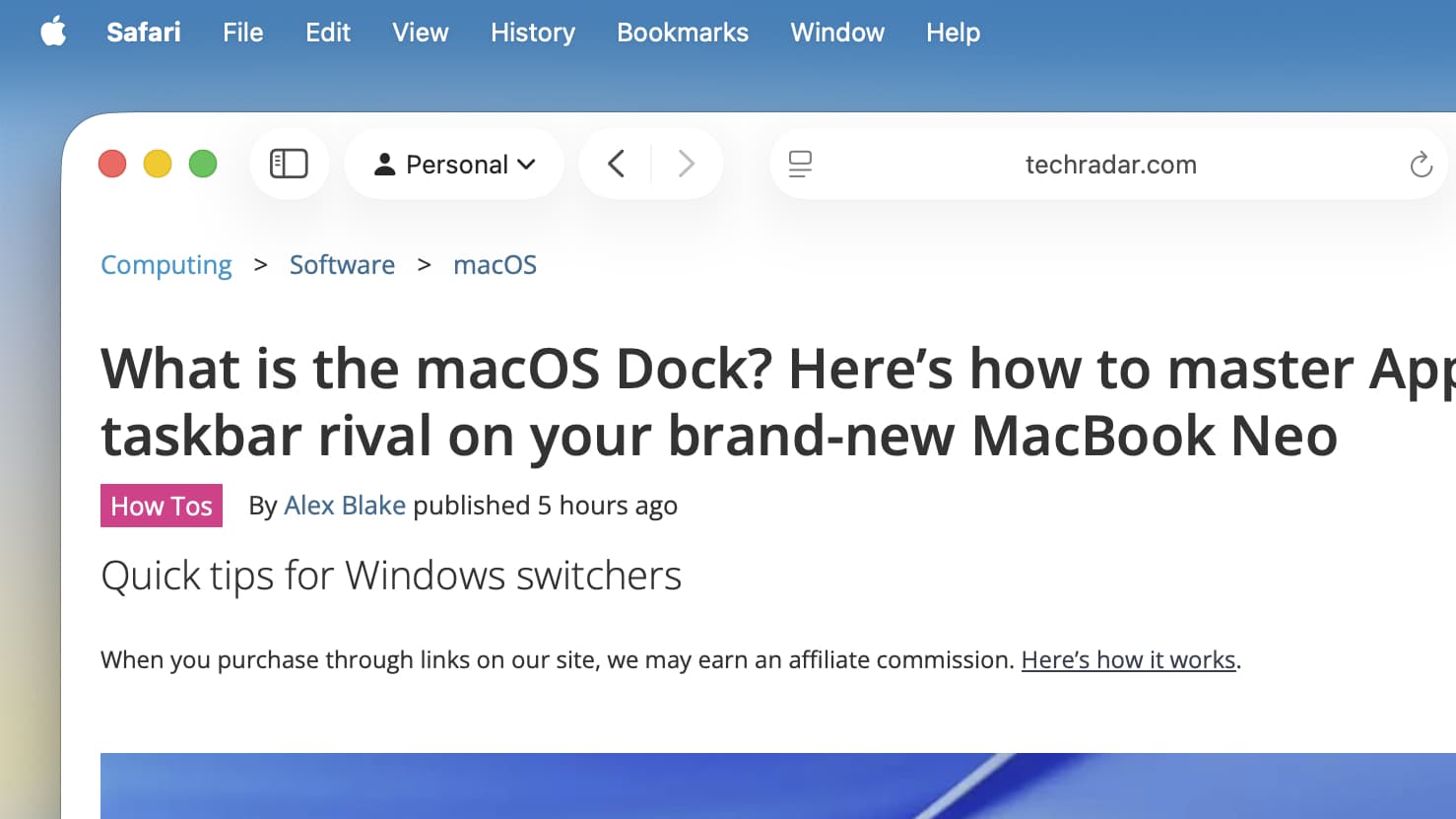
Simply put, the menu bar is a control strip located at the top of your Mac’s display. It’s divided into two sections: on the left are app menus, whereas the right-hand side houses status icons.
Starting with the left-hand menus, these are relevant for your currently open app. For example, you’ll find common menus like File, Edit and View here, alongside app-specific menus (that includes Format when using Pages or the Song menu in Apple Music). You can use the menu bar to change app settings, perform tasks and more. If you need assistance with your app, click the Help menu at the far right-hand side.
You always know which app the menus apply to because the currently active app’s name is shown on the left next to the Apple logo. For instance, if you’re using Safari, you’ll see “Safari” in the menu bar. All the menus to the right of the app name are used to control that app. The app name is itself a menu – click it to see options like closing the app, accessing its settings, and more.
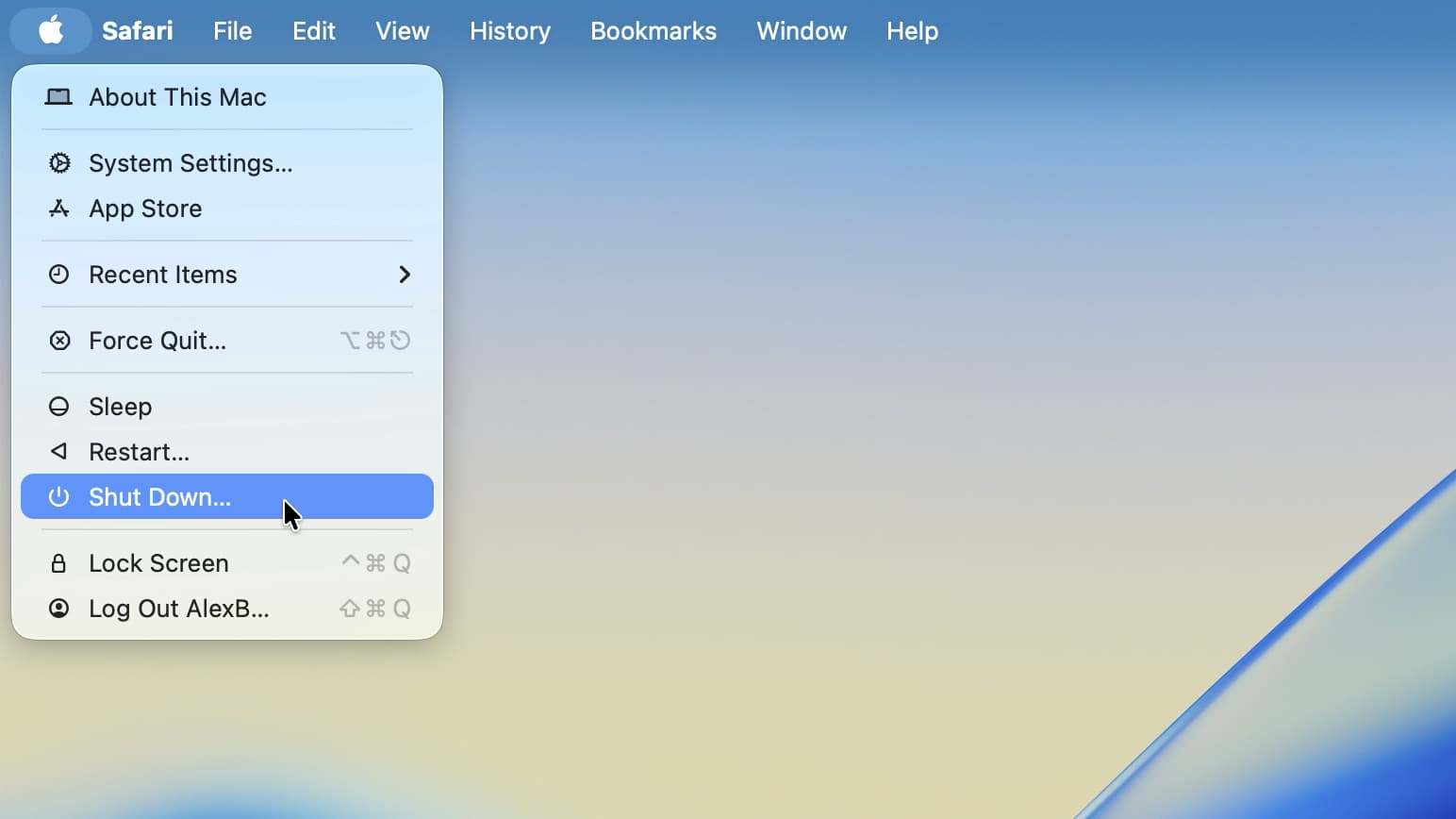
Now, about that Apple logo on the left-hand side of the menu bar. This contains controls for your Mac rather than for the app you have in the foreground. That means you can use the Apple logo for tasks like restarting or shutting down your Mac. It also provides a shortcut to the System Settings app.
On the right-hand side of the menu bar are your Mac’s status icons, such as the date and time, the Spotlight search icon, your battery level (if you’re using a MacBook), and more. Think of this area like the Windows taskbar. You can add or remove icons from this section by opening the System Settings app and clicking Menu Bar (in macOS 26 Tahoe or later) or Control Center (in macOS 15 Sequoia or earlier) in the left-hand sidebar. Click the date and time to open the Notification Center, which houses widgets and recently displayed alerts.
Among the status icons is the Control Center. Its icon looks like two toggles, one on top of the other. The Control Center provides quick access to common macOS functions, including Wi-Fi, Bluetooth, AirDrop and Focus modes. It can show your currently playing music, adjust display brightness and system volume, and more.
Finally, the menu bar also lets you know when potentially sensitive Mac features – like your webcam or microphone – are being used. It does this by showing colored dots on the right-hand side of the menu bar.
An orange dot indicates that your microphone is in use. A green dot means an app is using your webcam. And if you see a purple dot, it means that system audio is being recorded. Most of the time, these dots will probably relate to expected app usage, such as when you’re on a video call with a friend. But if you see these dots appear for no good reason, it might mean your webcam or microphone is being used without your knowledge. In that case, you might want to run a virus scan to ensure your Mac has not been hacked, just in case.
How does the menu bar compare to Windows 11?
In Windows 11, app control menus are stored at the top of each app window. Each app window has its own control bar, letting you adjust settings for that app on the fly.
In macOS, things are a little different. App controls (menus like File, Edit and View) are stored in a bar that permanently sits at the top of your screen. That means these controls are not attached to app windows but instead exist separately. There’s only one menu bar (as opposed to the multiple control bars in Windows) and its contents change when you switch apps.
When you click the X button to close an app window in Microsoft’s operating system, in most cases the app is fully closed. In macOS, clicking the red X button in an app only closes that particular window – the app itself is still open. You can see this by the fact that the menu bar will still say the name of the app, even after its window has been closed. If you want to close the app completely, you should either press the Command + Q keyboard shortcut or click the app’s name in the menu bar, then click Quit [App Name].
Aside from that, though, the menu bar should be fairly familiar to Windows users. Both it and the Windows control bar house important app controls and settings, so the learning curve should not be particularly steep.
While Microsoft is apparently experimenting with a feature much like the macOS menu bar (found in the Command Palette section of Microsoft PowerToys), it’s not a mainline feature of Windows 11 just yet.
How do you customize the menu bar?
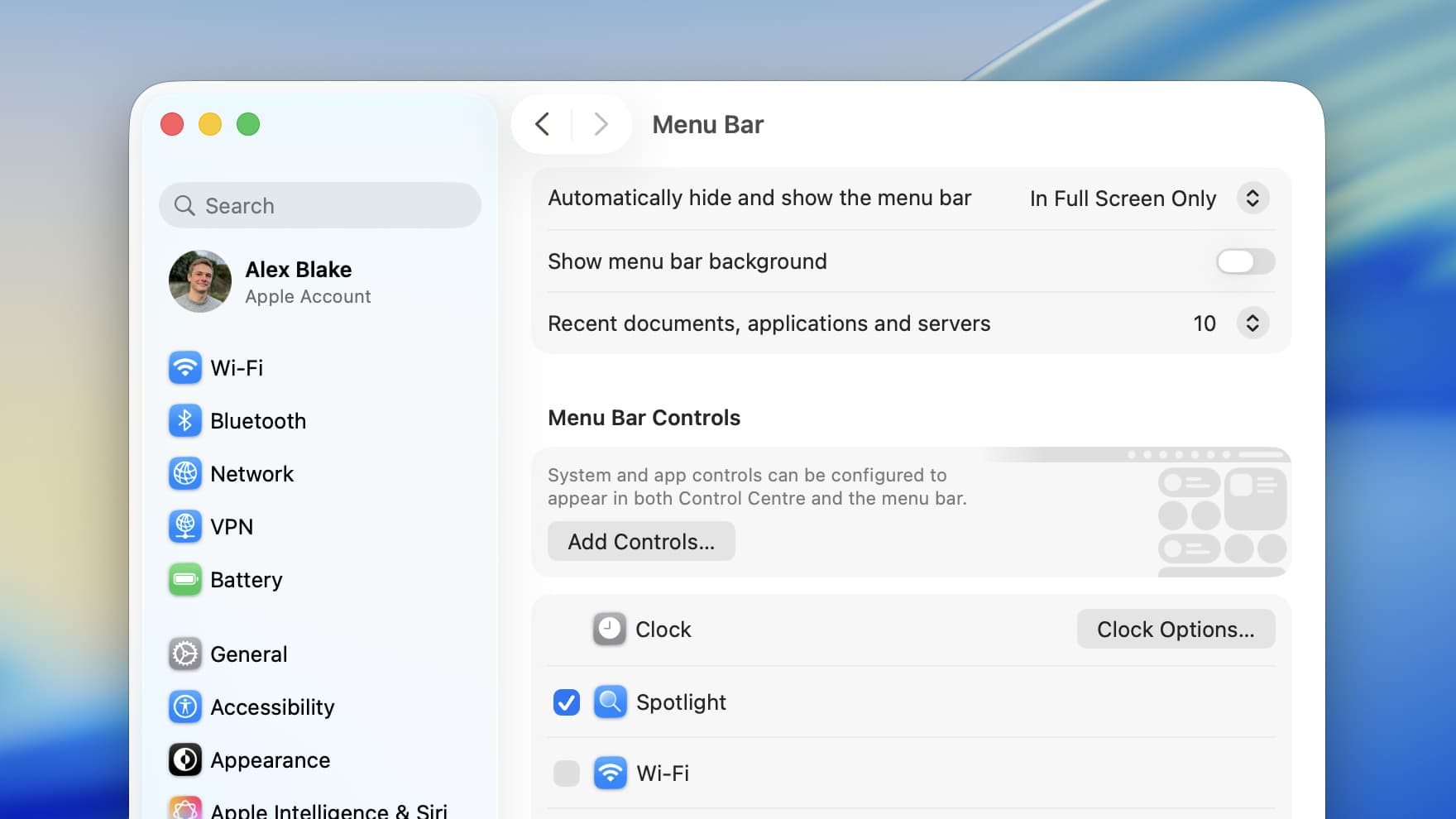
As we noted earlier, you can add or remove status icons from the menu bar by opening the System Settings app and going to either Menu Bar or Control Center (depending on your macOS version). You’ll find System Settings by clicking the cog icon in the macOS Dock at the bottom of your screen or by clicking the Apple logo in the menu bar and selecting System Settings.
In macOS 26 Tahoe, the Menu Bar section has a few options at the top. Here, you can automatically hide and show the menu bar (it will disappear by default and reappear when your mouse moves to the top of the screen). You can also show or hide the menu bar’s background and limit the number of recent documents and servers that can be displayed there.
Under Menu Bar Controls, you’ll see a list of status icons that can appear on the right of the menu bar. These relate to Apple’s own features and functions (like Wi-Fi status or the Weather app), not those of third-party apps. Tick or untick whichever icons you want to see. Some icons have further options, such as always appearing in the menu bar or only when they are active.
At the bottom is a section called Allow in the Menu Bar. This is where you can decide which third-party apps can show controls in the menu bar.

If you want to change the order of the menu bar status icons, just hold the Command key on your keyboard and click and drag them around. Let go to drop an icon into a new position. Similarly, you can quickly remove a status icon from the menu bar by holding Command and dragging it out of the menu bar. When you see the word “Remove” appear above the icon, let go of your mouse button and it’ll disappear from the menu bar.
That’s how you customize the menu bar, but to adjust the Control Center in macOS 26 Tahoe, you’ll first need to open it and click Edit Controls at the bottom. Drag an item out of the Control Center or click the minus button (-) to remove it. Alternatively, drag a control from the main Control Center window (called the Controls Gallery) to add it. You’ll find various categories of controls that can be added in the left-hand sidebar.
In macOS 15 Sequoia, Control Center settings are found by opening System Settings and navigating to Control Center in the sidebar.
To reset the Control Center back to factory settings, open System Settings > Menu Bar and click Reset Control Center at the bottom of the screen, then click Reset.
With that, you’ll have everything you need to master the menu bar on your brand-new Mac. As with a lot of things in macOS, it’s intuitively designed and straightforward to learn. Once you’ve got the hang of it, it’ll feel like second nature.