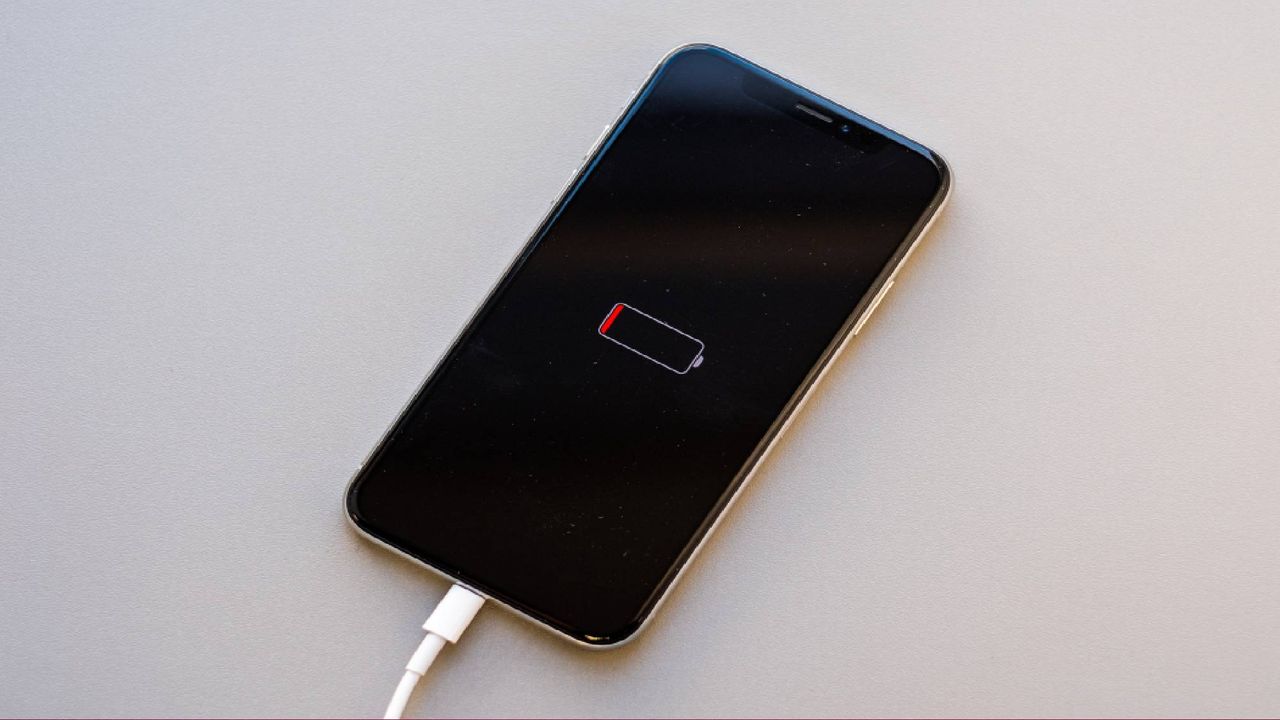
AI features are showing up everywhere on our phones. They summarize notifications, edit photos, transcribe conversations, generate images and power increasingly sophisticated voice assistants. The promise is a smarter phone that does more for you.
But there's a trade-off that only gets noticed when a charger or outlet is nowhere to be found. The problem with on-device AI is that these features require significant processing power, whether they're running directly on your device or constantly communicating with cloud-based AI models. That translates to more battery drain, more background activity and for some users, noticeably shorter battery life.
If you've found yourself wondering why your phone doesn't seem to last as long as it used to, AI could be part of the answer.
Why AI uses so much power
Unlike classic apps that wait for you to do something before they spring into action, AI is different. The latest AI features are designed to be proactive. They're constantly scanning photos, indexing information, listening for wake words, analyzing notifications or preparing contextual suggestions before you even ask for them.
Everything your phone may be doing in the background right now — voice assistant, summarizing notifications, smart search indexes, AI writing tools and photo apps — might not seem significant, but together they create a steady workload that can quietly chip away at battery life throughout the day.
The newest smartphones are increasingly built around dedicated AI hardware, but even specialized chips still consume power.
The hidden cost of 'always available' AI
One reason AI can be such a battery drain is that many features are designed to feel instantaneous. When you tap an AI assistant or ask a question, you expect an answer immediately. To make that possible, your phone is often doing prep work behind the scenes.
This is especially true for voice assistants and AI search features that continuously update information, monitor activity or prepare personalized responses. The more personalized the experience becomes, the more background processing is often required. Ironically, some of the smartest features on your phone may also be some of the most power-hungry.
iPhone settings worth checking
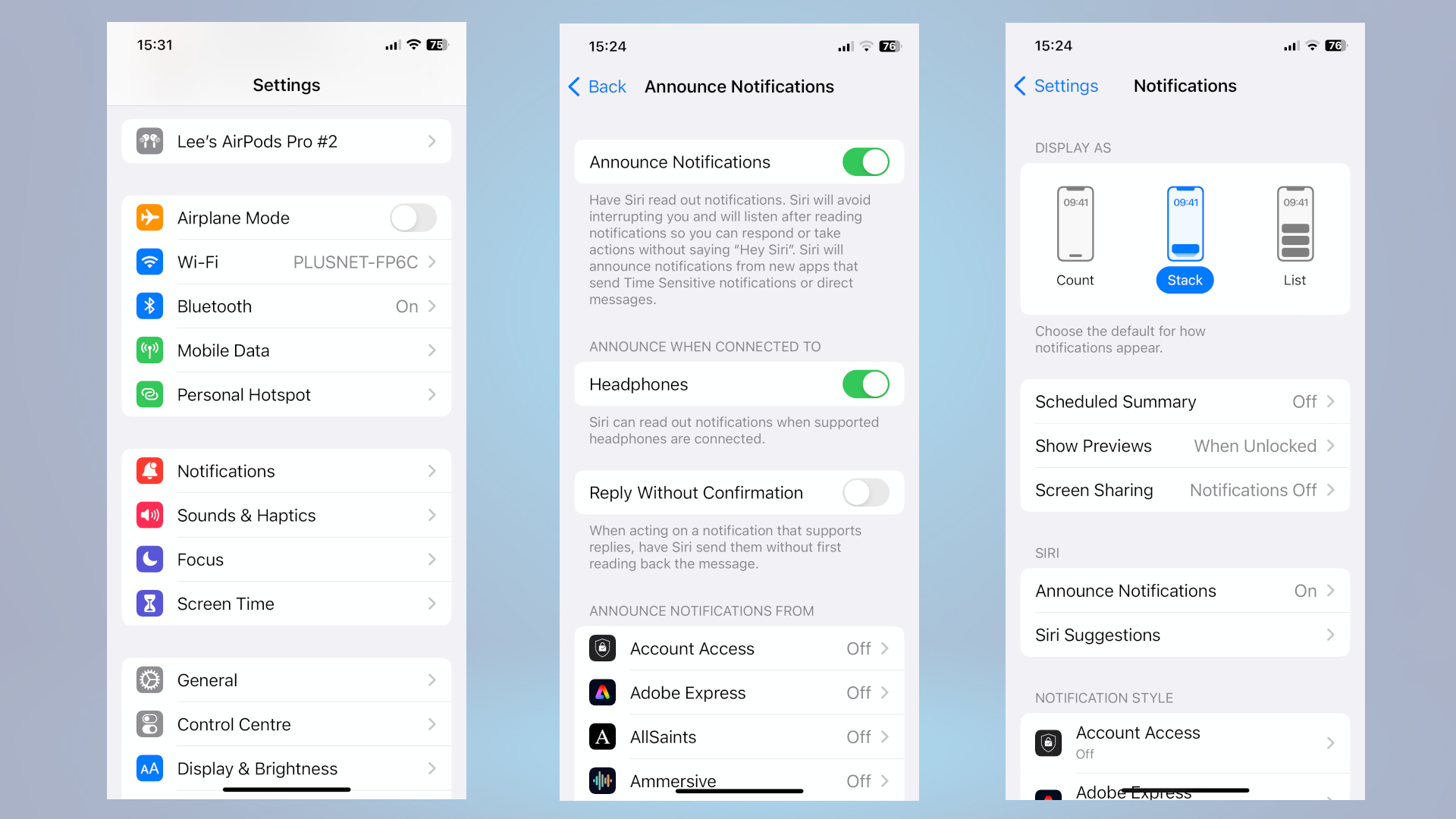
If you're using an iPhone, there are several areas worth reviewing if battery life has taken a hit.
Apple Intelligence features: Apple Intelligence brings AI-powered writing tools, summaries, image generation and other features to supported devices. If you rarely use these tools, consider disabling specific features rather than leaving everything enabled by default.
Siri Suggestions: Siri continuously learns from your habits to provide recommendations across apps and search results. It's worth looking into these by opening Settings, tapping Siri and reviewing Suggestions options. Disabling suggestions you don't use can reduce unnecessary background activity.
Background app refresh: AI-powered apps often rely heavily on background updates. To check what is enabled, open Settings, tap General, select Background App Refresh. Disabling refresh for apps you rarely use can produce meaningful battery savings.
Live transcription features: Real-time transcription and accessibility tools can consume additional power when used frequently. Review which features are enabled and disable those that aren't part of your daily workflow.
Android settings worth checking
Android devices now include AI features from Google's Gemini assistant. If you don't actively use Gemini, review which permissions and background activities are enabled.
Voice activation settings: These are features that continuously listen for commands like "Hey Google" can contribute to battery usage over time. To review: Open Settings, navigate to Google. Select Search, Assistant & Voice. Review voice activation settings
AI photo processing: Many Android phones automatically analyze and organize photos using AI. Review photo app settings to determine whether features such as automatic categorization, cloud syncing and advanced image processing are necessary for your workflow.
Battery optimization controls: Most Android devices include battery optimization settings that can limit background activity from power-hungry apps. Look for battery usage, app battery optimization and background restrictions. These tools can help identify which apps are consuming the most power.
How to tell if AI is actually the problem
Before blaming AI entirely, it's worth checking your battery usage statistics. Both iPhone and Android provide detailed battery reports showing which apps and services are consuming the most energy.
On iPhone: Settings > Battery
On Android: Settings > Battery > Battery Usage
You may discover that an AI assistant, photo app or productivity tool is using significantly more power than expected. In many cases, the culprit isn't a single feature but the accumulation of several AI-powered services running simultaneously.
Bottom line
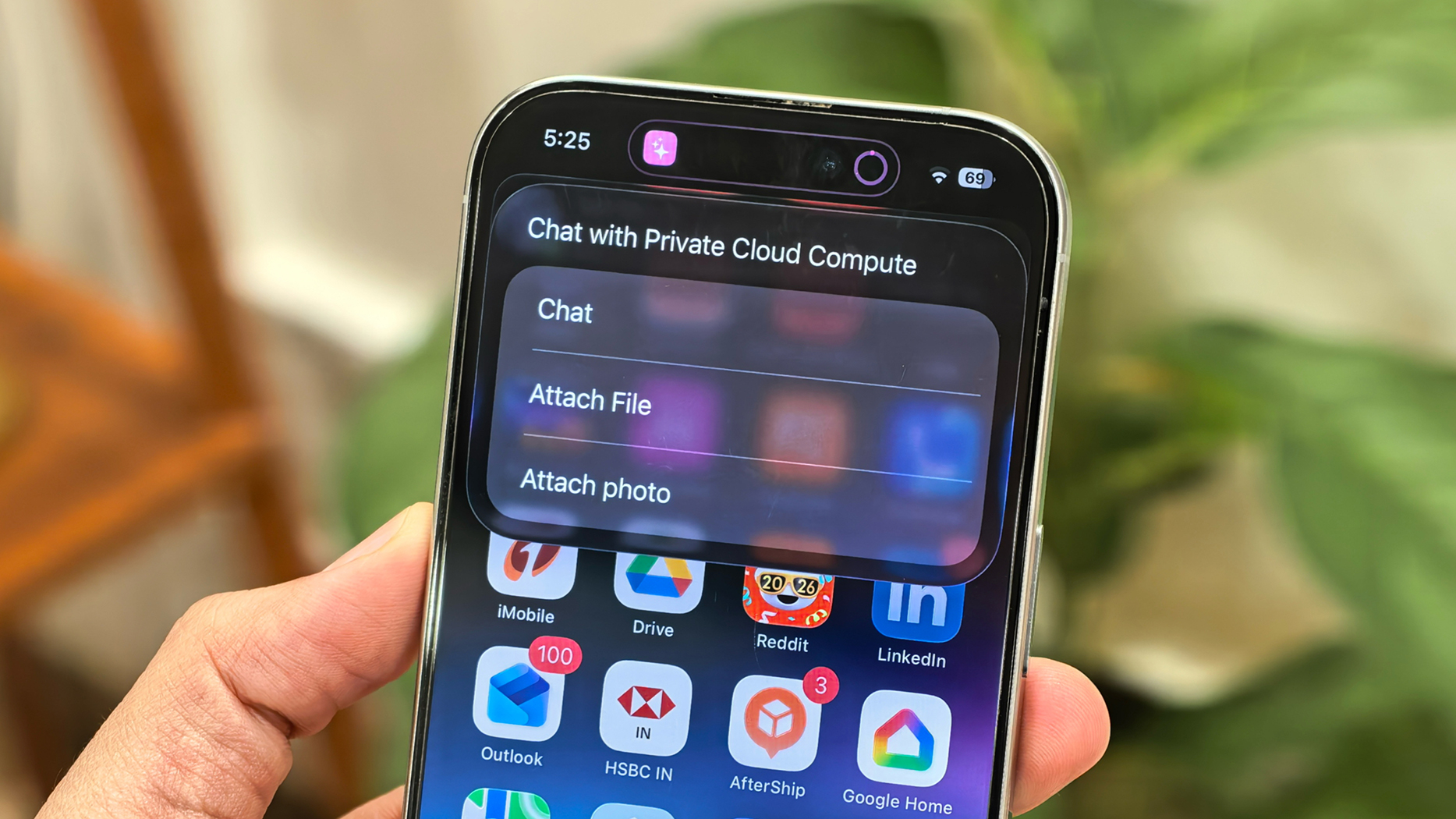
AI is quickly becoming integrated into our daily lives and defining the features of our smartphones. And while many of these tools are genuinely useful, they also can cause unwanted battery strain.
The irony is that AI is supposed to make our devices more efficient. Yet for many users, the biggest impact may be a battery percentage that seems to disappear faster than ever.
If your phone's battery life isn't what it used to be, you may not need a new device, but to simply check your settings and decide which AI features are worth the power they're consuming. And if you've got any personal advice on this issue to share, let me know about it in the comments.
Follow Amanda Caswell and stay ahead of the AI curve