
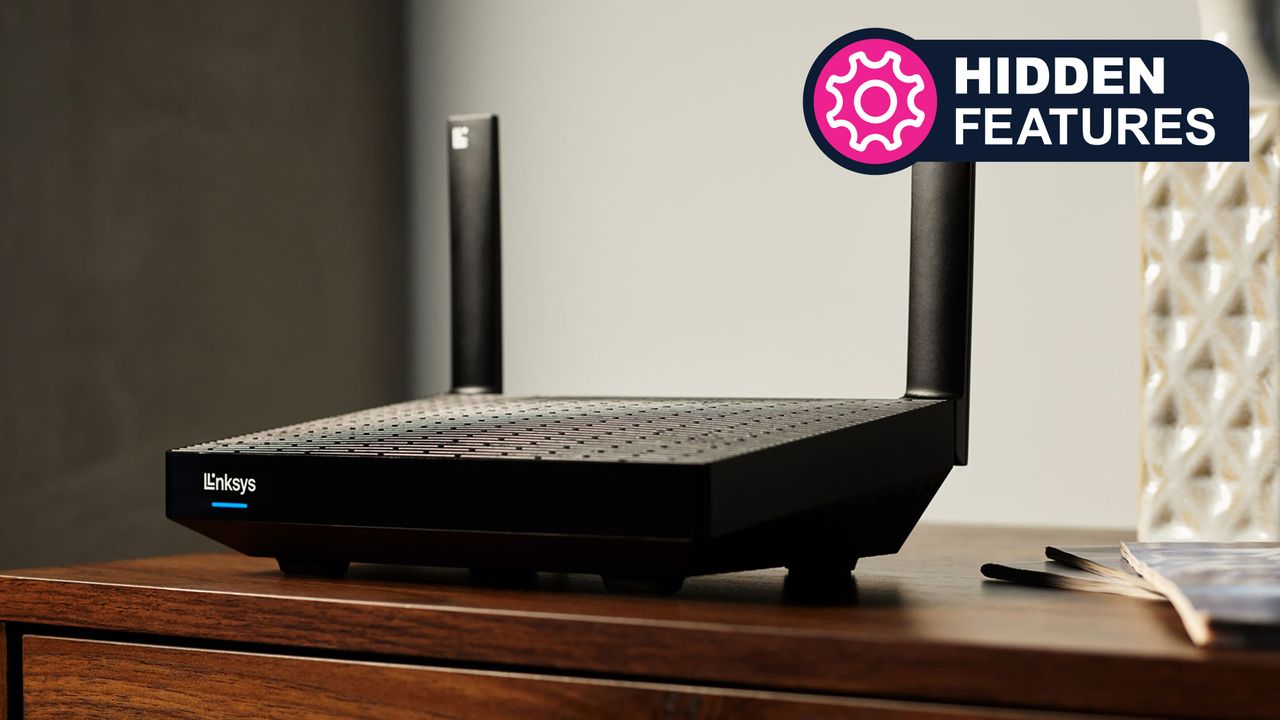
A huge chunk of our lives are spent online now — working, gaming, watching, reading, and communicating — and at the center of that is the router (or even mesh Wi-Fi system) that pipes the internet into your home.
While most of us are likely to forget about the router once it's set up, and get on with the business of getting online, there are numerous useful settings on these devices that are worth knowing about. And one of those is the guest network.
You'll find it on most modern routers and mesh systems, and its primary purpose is for guests, as the name suggests: you can give visitors to your home access to the web without letting them snoop around any other devices you've got hooked up to the Wi-Fi.
However, you can use this extra network for much more than just guests — it's suitable for any kind of device that requires internet access but is best kept away from your most important gadgets (like phones and laptops).
What to use your guest network for
When you go to look up available Wi-Fi networks on something you're using, a guest network shows up as a separate entry to your regular Wi-Fi network, though it's run through the same router or mesh Wi-Fi system (which handles the job of keeping the separate network running independently).
If guests connect to this additional network, they can get online, but they can't do anything else network-related: they can't look at your connected computers, tablets, or phones, they can't access networked printers or storage connected to the network, or start logging into and controlling your various smart home devices (from security cameras to smart speakers).
That kind of siloing is useful for other devices too, not just visitors. For example, you can put your kids on it: You can toggle the guest network off at bedtime, without interrupting your own access to the web. It's not the most advanced parental control feature, but it works (and it could be helpful if parental controls on your router are a paid extra).
Then there are TVs. These devices need internet access these days, but they also tend to do a lot of data collection for their manufacturers — including, perhaps, what other devices are on your network. Putting a TV on a guest network means it can't find out quite as much about you and your home.
It's also a good idea to put some smart home devices on your guest network too — the ones that it doesn't matter too much if your guests 'see' them connected (maybe a Wi-Fi plug or a smart coffee maker). The security protections on these devices can sometimes be less well put together than on other gadgets, and if they are compromised remotely, the potential threat is not as serious if they aren't connected to your main Wi-Fi network.
How to enable the guest network
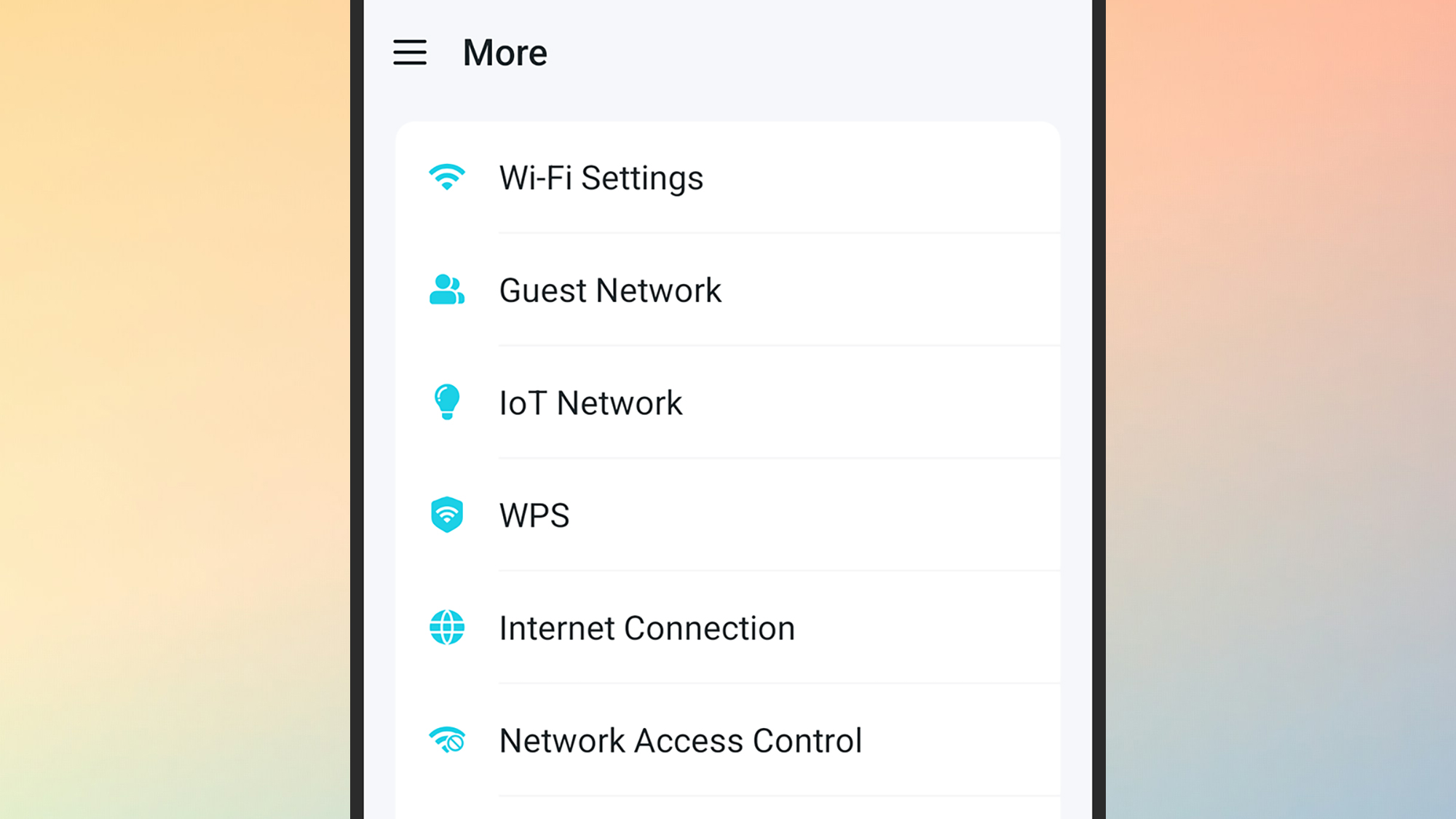
There are a multitude of routers and mesh Wi-Fi systems out there on the market, so obviously we can't give you precise instructions for enabling the guest network on all of them. However, it shouldn't be difficult to find: most manufacturers put the feature somewhere pretty prominently in the settings.
Whatever is managing the Wi-Fi around your home will most probably come with an app that runs on your phone, and if that's the case, the guest network option should be somewhere in that app. You might also be able to enable the guest network through a web interface for your router or mesh Wi-Fi system, accessed through your browser.
If you get stuck, refer to the documentation that came with your hardware, or run a quick web search that includes the manufacturer and model name of your router. If you're unsure about this, a quick glance at the device itself should tell you — look for a brand name, and a sticker with a barcode and serial number on it.
We'll give you one specific set of instructions, for Amazon's Eero mesh Wi-Fi systems. If you're using the Eero app on your phone, open the Settings tab, then tap Guest wifi network. Turn on the Enable guest network toggle switch, then tap Save (top right). You can enable and disable the extra network as needed.
Configuring the guest network shouldn't be an involved process, whatever type of internet access device you've got installed. You'll typically have to specify a name for the network (which pops up as an option when someone tries to connect to it), and then set a password which is required to connect to it.