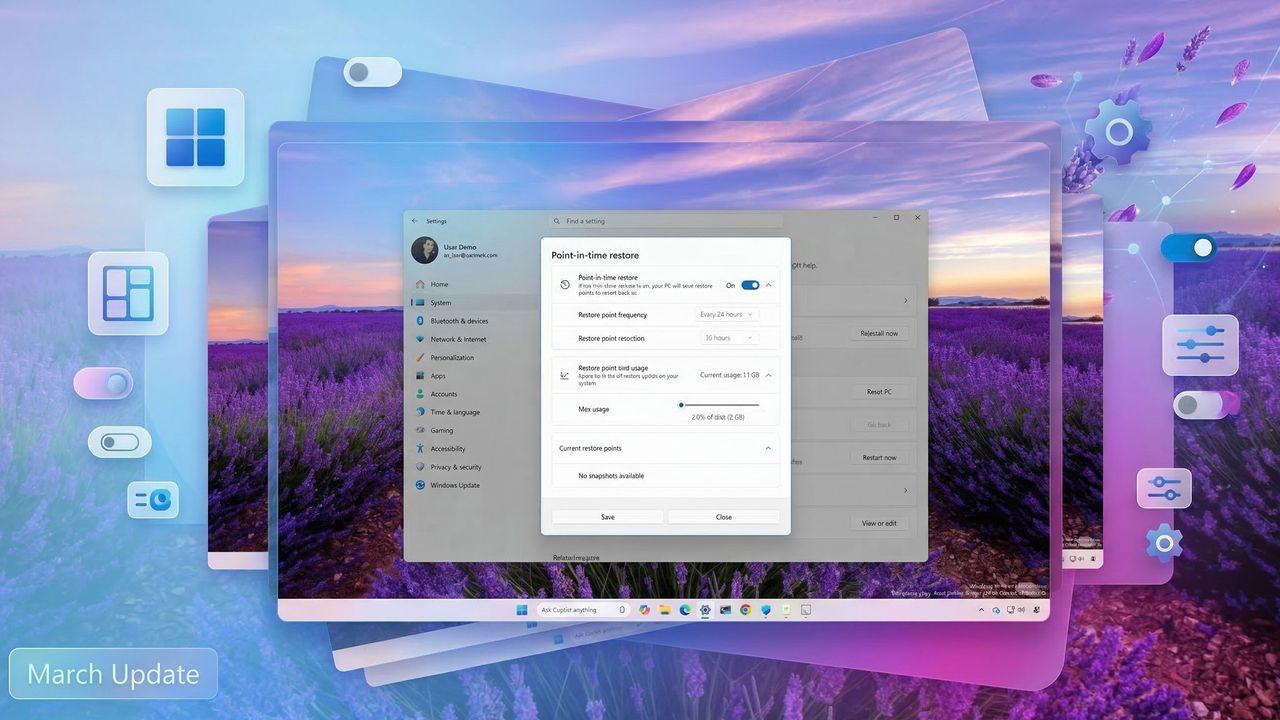
We have already crossed the first half of the month of March, and it's now a good time to highlight the first wave of changes that Microsoft has made available on Windows 11 through the Windows Insider Program in the last two weeks.
So far in March 2026, the software giant has rolled out multiple visual refinements, performance improvements, platform changes, and some new features. For example, during the setup experience, it's now possible to customize the profile folder name. Microsoft added refinements to the policy to natively debloat the system. The Drag Tray feature has been renamed to Drop Tray, and much more.
In the Dev and Beta Channels, the company released builds 26300.8068, 26220.8062, 26300.7965, and 26220.7961, and in the Canary Channel, Insiders received builds 28020.1737 and 28020.1685, as well as build 29550 in the secondary path of the Canary Channel.
In this recap, I'll highlight the biggest changes available through the Windows Insider Program.
Biggest improvements from the Windows Insider Program in March 2026
These are the improvements that the software giant has rolled out since my last roundup of changes.
Initial setup with folder name option
Starting with builds 26300.8068 and 26220.8062, Microsoft began testing an updated version of the Out-of-box Experience (OOBE) that changes the "Name your device" page to allow you to set a custom name for the user folder.
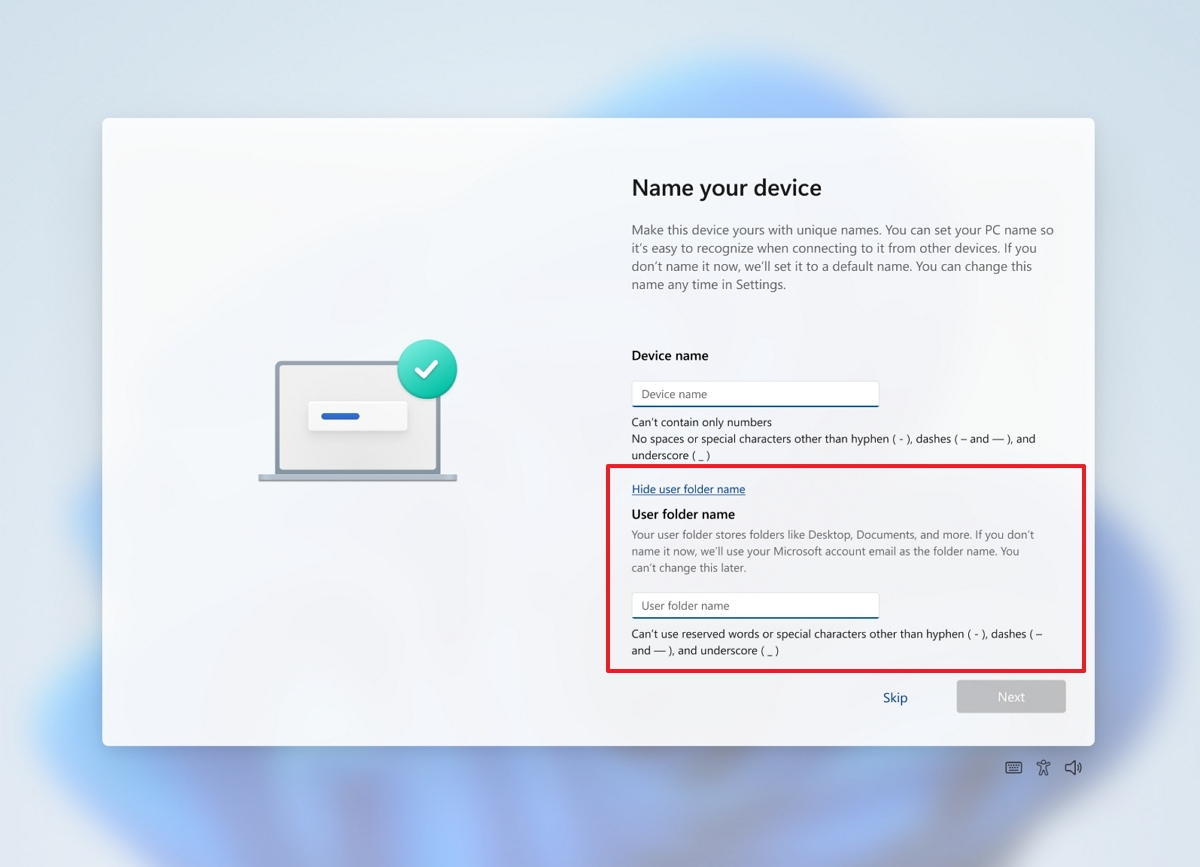
This support isn't new, but now there's a setting to complete this process without having to resort to opening the Command Prompt shell.
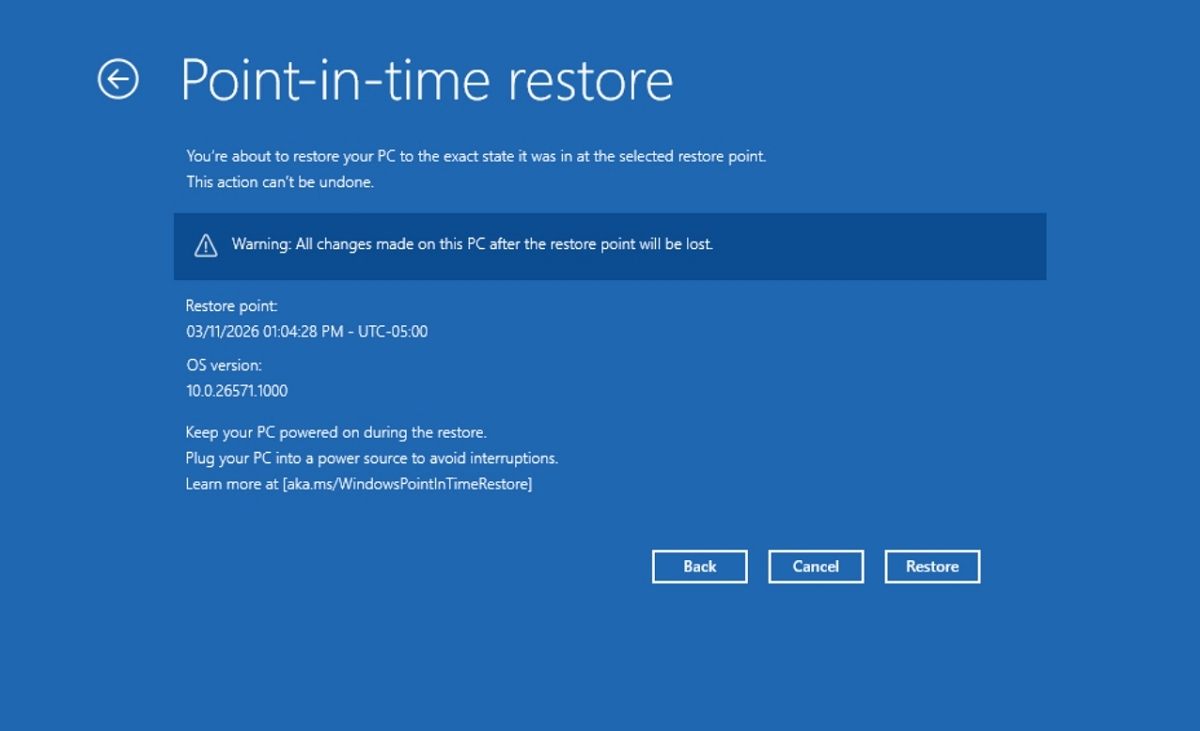
Finally, the company also has been making changes to the feature within the Windows Recovery Environment. For example, the recovery page now includes recommendations to plug the computer before starting a restore process.
Improved debloat policy
For the Enterprise and Education editions of the operating system, Microsoft is now rolling out improvements to the "Remove Default Microsoft Store packages" policy, which lets you specify other apps using MSIX and APPX packages by adding their Package Family Names (PFNs).
The policy is available in the "App Package Deployment" section under "Windows Components."
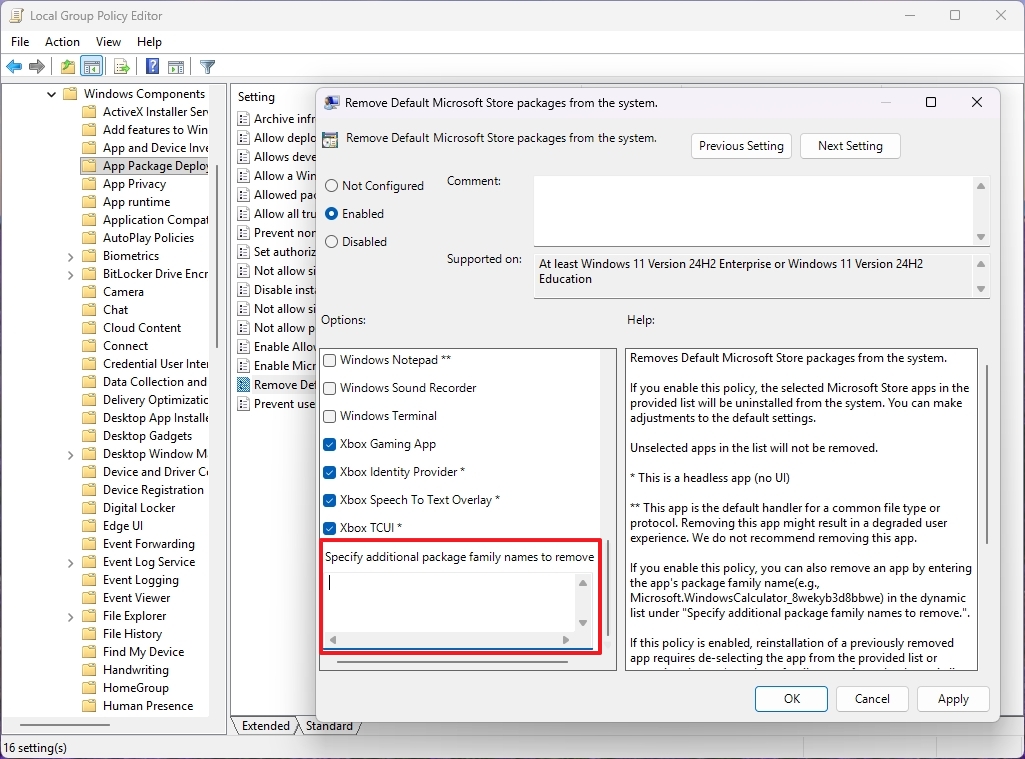
In the "Remove Default Microsoft Store packages" policy, you have to use the "Specify additional package family names to remove" multi-text field setting.
Microsoft also notes that you'll have to use the Get-AppxPackage *Notepad* | Select-Object PackageFamilyName command to retrieve the Package Family Names to uninstall specific applications.
Point-in-time restore new settings
As part of builds 26300.8068 and 26220.8062, the Point-in-time restore feature has been updated, and the "Recovery" page now includes a new "Point-in-time restore" entry that lets you view and edit it.
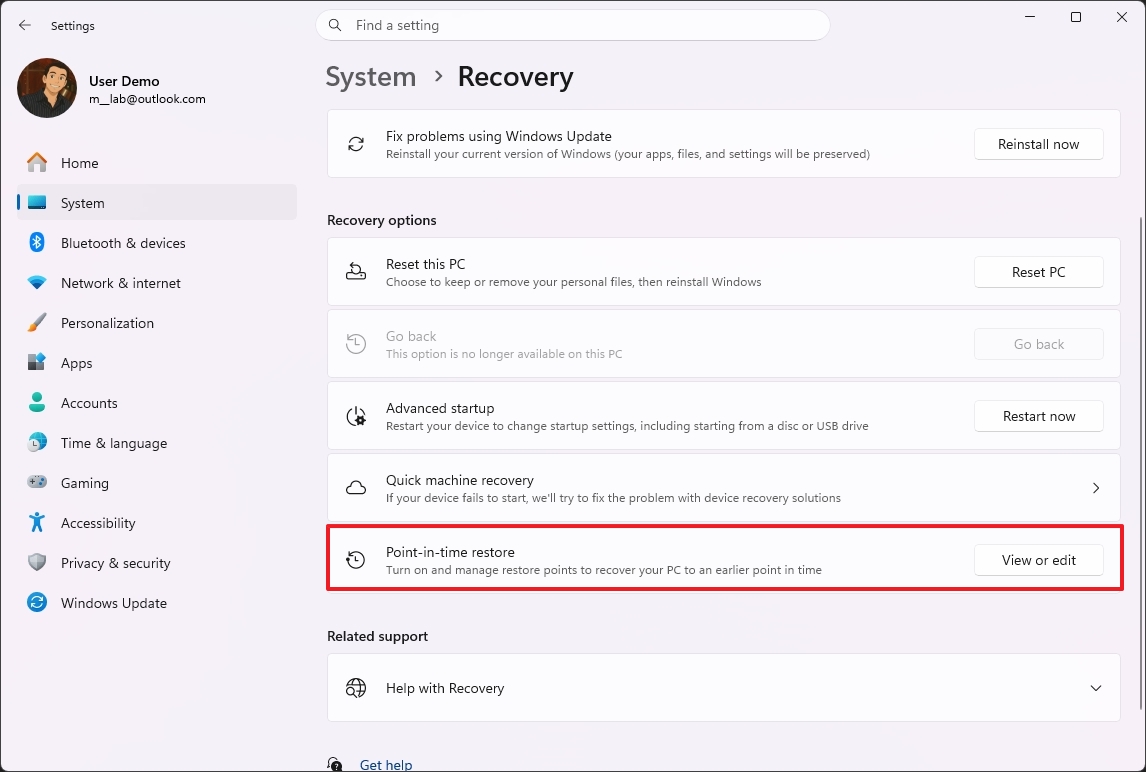
Similar to the System Restore settings, the new entry allows you to change the frequency and retention settings for restore points.
You can also specify the reserved storage to store restore points, and you can even view the available restore points.
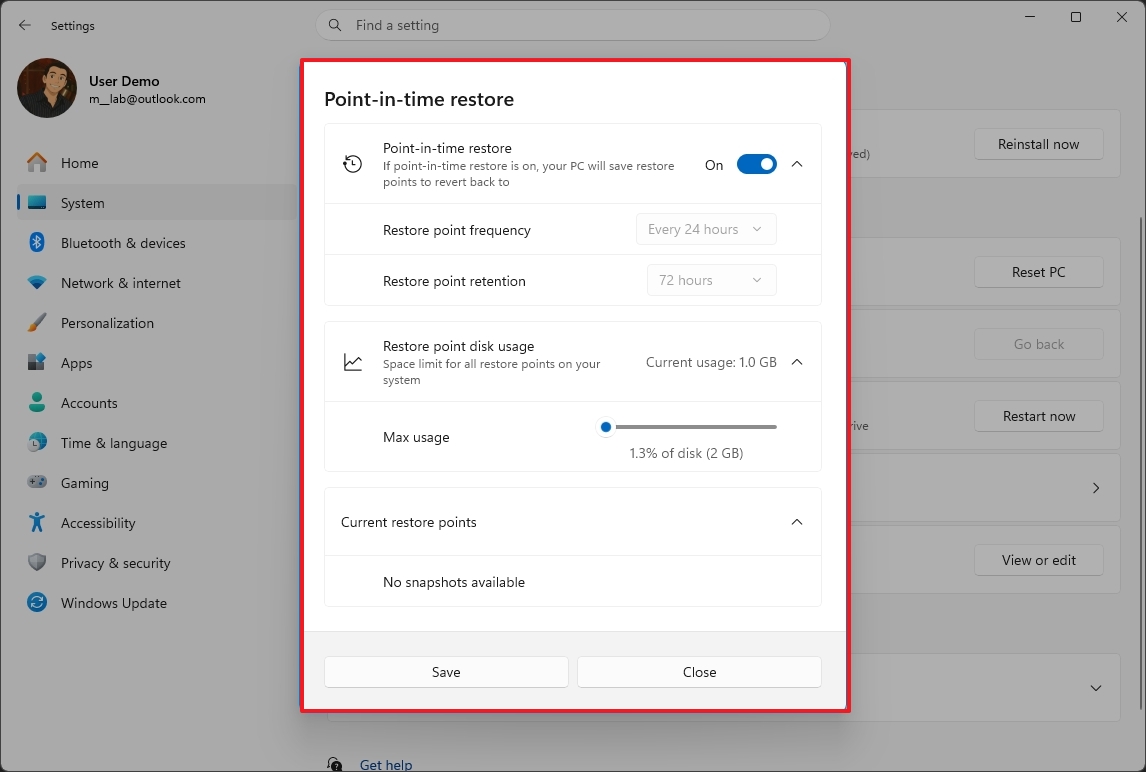
Furthermore, Microsoft has improved the messaging when using the "Point-in-time restore" feature in the Windows Recovery Environment.
Driver Policy changes
Also, since builds 26300.8068 and 26220.8062, the kernel introduces a new enforcement policy that removes the default trust for cross-signed drives.
Using this new process, third-party drivers from the Windows Hardware Compatibility Program (WHCP) will continue to be trusted by default, while a limited allow list of verified publishers and drivers from the legacy cross-signing program will remain allowed.
At the beginning, the feature will monitor the system for at least 100 hours and three system restarts. During this stage, Windows 11 will evaluate the system's drivers to determine whether they comply with the new policy.
If the drivers are compatible, Windows 11 will enable the enforcement automatically. If not, the operating system will continue in monitoring mode.
Accounts settings with Microsoft 365 upgrade option
On the Accounts page, if you're a Microsoft 365 Family subscriber, you'll now see an option to upgrade to another plan.
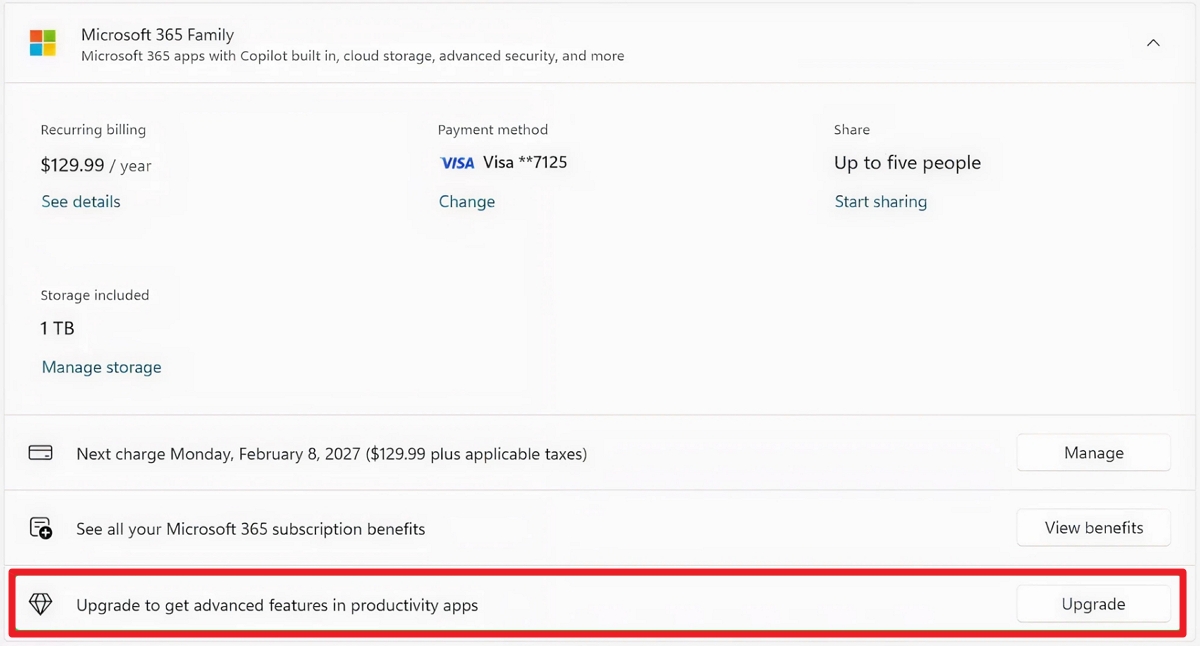
The company has noted that you can turn off the suggested content setting to prevent seeing this new option.
Drop Tray improvements
The Drag Tray feature has now been renamed to "Drop Tray" since the release of builds 26300.8068 and 26220.8062, and it's been relocated to the "Multitasking" settings page.
Furthermore, with the release of build 26300.7965, the feature received an update to make the peek view smaller, minimizing intrusive triggering of the flyout.
Pen settings changes
On the Pen settings, the page has been updated to include changes to the options for the pen tail button.
In addition, you'll now find a new "Same as Copilot key" option that enables the pen tail button to launch the same app as the "Copilot" key.
These are now available in the Canary, Dev, and Beta Channels.
Administrator Protection new feature
Starting with build 26300.7965, Microsoft began re-enabling the Administrator Protection feature, which improves the security of accounts with admin rights.
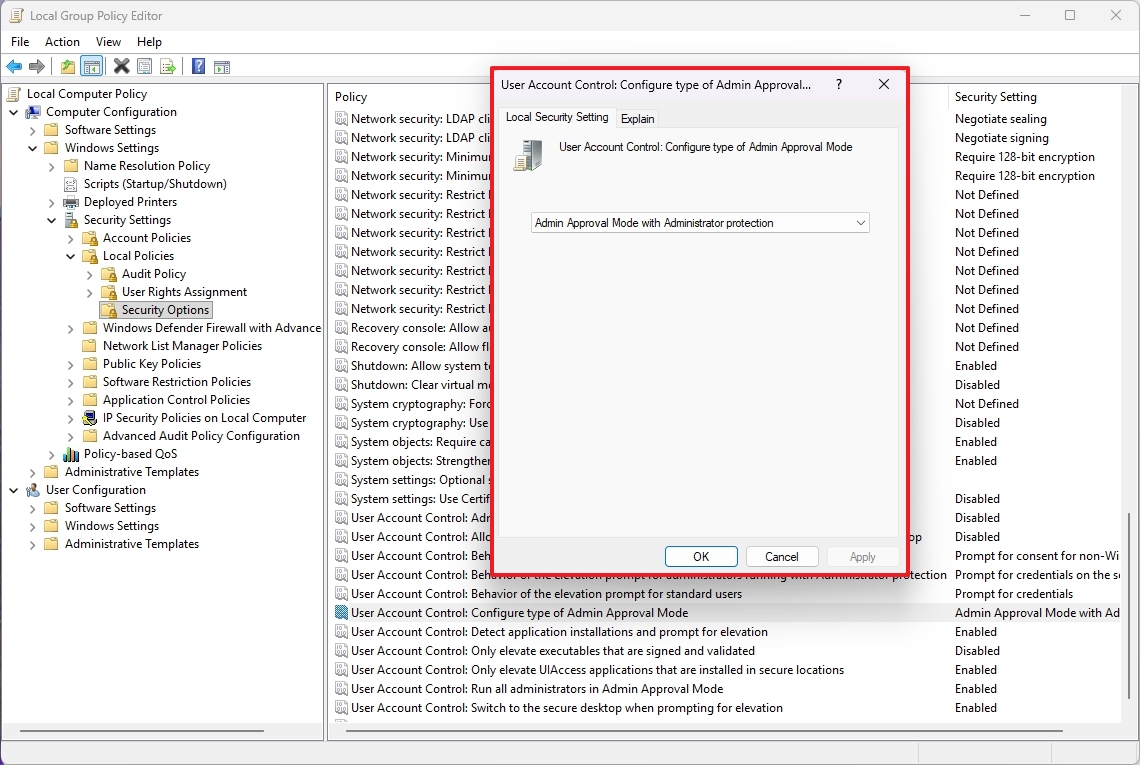
The feature sounds similar to User Account Control (UAC), but it works differently. The account control feature is designed to prevent unwanted system changes by showing a consent dialog whenever an action requires elevation.
During this process, the UAC feature creates two tokens at sign-in, including a standard user token and an administrator token. When an elevated action is required, the system uses the administrator token. However, since both tokens share access to the user profile, this design can be exploited as a potential security vulnerability.
In contrast, Administrator Protection addresses this limitation by creating an isolated, hidden system-managed account to handle elevation requests. During the prompt request, the system creates this temporary account on demand, uses it to perform the elevated action, and then deletes it once the task is complete.
You can manage this feature using Intune or Group Policy.
File Explorer with Voice Typing
In March, builds 26300.7965 and 26220.7961 introduced an updated version of File Explorer that lets you use Voice Typing to rename files.
This improvement is now available in the Canary, Dev, and Beta Channels.
Camera new settings
As part of the secondary path in the Canary Channel, build 29550 updated the "Cameras" settings to include new controls for pan and tilt under the "Basic settings."
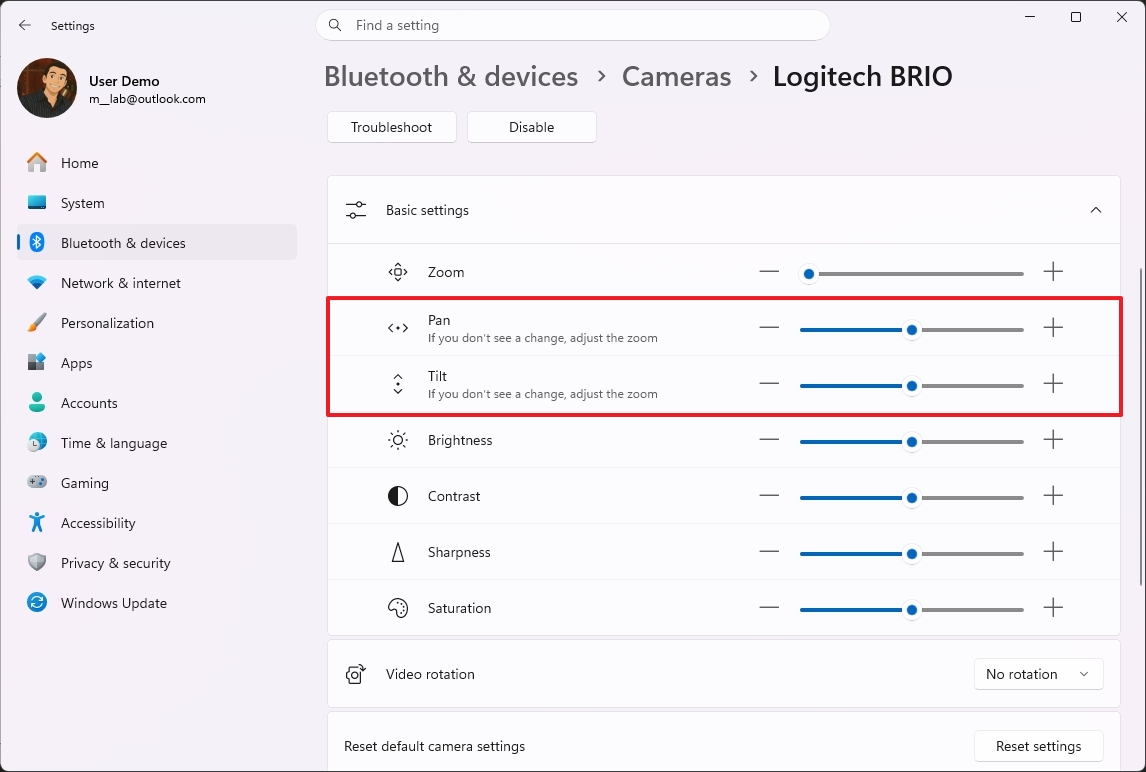
Although these are not significant changes, Windows 11 build 29550 also updated other parts of the Settings app. For example, this update improved performance when loading the "Home" page and reliability when accessing the "Privacy & Security," "File Explorer," and "Wheel" pages.
Finally, the Canary Channel now also comes with Emoji version 16, which introduces a few new emojis.
🖥️ Which Windows 11 changes stand out to you this month?
Microsoft pushed a surprisingly varied batch of updates through the Insider Program in early March, touching everything from UI polish to system behavior to small quality‑of‑life tweaks that make Windows feel smoother in everyday use. Some changes are subtle, some are genuinely impactful, and together they paint a clear picture of where Windows 11 is heading next.
We’ve highlighted the top 10 improvements worth knowing about, and now we want to hear from you. Which changes actually move the needle for your workflow, and which ones feel like background noise? Tell us what you think Microsoft should prioritize as these features move toward a full release.
More resources
For more helpful articles, coverage, and answers to common questions about Windows 10 and Windows 11, visit the following resources:
- Windows 11 on Windows Central — All you need to know
- Windows 10 on Windows Central — All you need to know

Join us on Reddit at r/WindowsCentral to share your insights and discuss our latest news, reviews, and more.