.png)
A couple of weeks ago, I was on a call with a client who runs an e-commerce website.
In the middle of the conversation, she shared her screen to show me a product mockup, and I could immediately see why her product page was struggling to drive sales.
The background remover (not Remove.bg) she’d used had left this strange, cloudy outline around the entire product.
It looked almost melted. She laughed it off and said, “If the tool I use isn’t behaving, I have no idea what else to try.”
I’ve relied on random background removal tools for years, and like her, I’ve seen how unpredictable they can be. Some handle simple portraits fine, but fall apart the moment you give them anything with fine edges. Others are pretty fast but produce cutouts that look like they’ve been run through a blur filter.
So, I decided to do my own test.
This time, instead of using a clean studio photo, I wanted something that would really show me the limits. I went through my camera roll and picked an image of my father’s dog.
This is by no means an easy cutout task. Granular details like cutting out the dog’s hair will challenge even the most capable background removal tools.
Perfect stress test material!
Now, I should say this before I share my results…
In my opinion, most background removers fall short in a few common areas:
- Weird artificial smoothing that makes the subject look plastic.
- A faint glow or outline that wasn’t in the original image.
- Edges that get chewed up or overly cropped.
These problems show up everywhere once you start comparing tools side by side.
Since most people have already used Remove.bg, because it is usually the first tool that appears on Google, I’ll review six alternatives.
What Happened When I Stress-Tested 6 Remove.bg Alternatives
1 - Background Remover
To kick things off, I tested Background Remover using a photo of my father’s dog on the beach. The upload was quick, and within a moment, the background was gone. No lag or unnecessary steps!
The free version gives you a basic image at up to 500 pixels, which is ideal for personal use. If you need something more polished, the premium version lets you download a higher-resolution cutout that’s licensed for commercial use.
It doubles the resolution, delivers a noticeably sharper output, and costs $3 to upgrade, which gives you up to 50 high-res cutouts each month. For bulk professional work, I think that’s a steal, frankly.
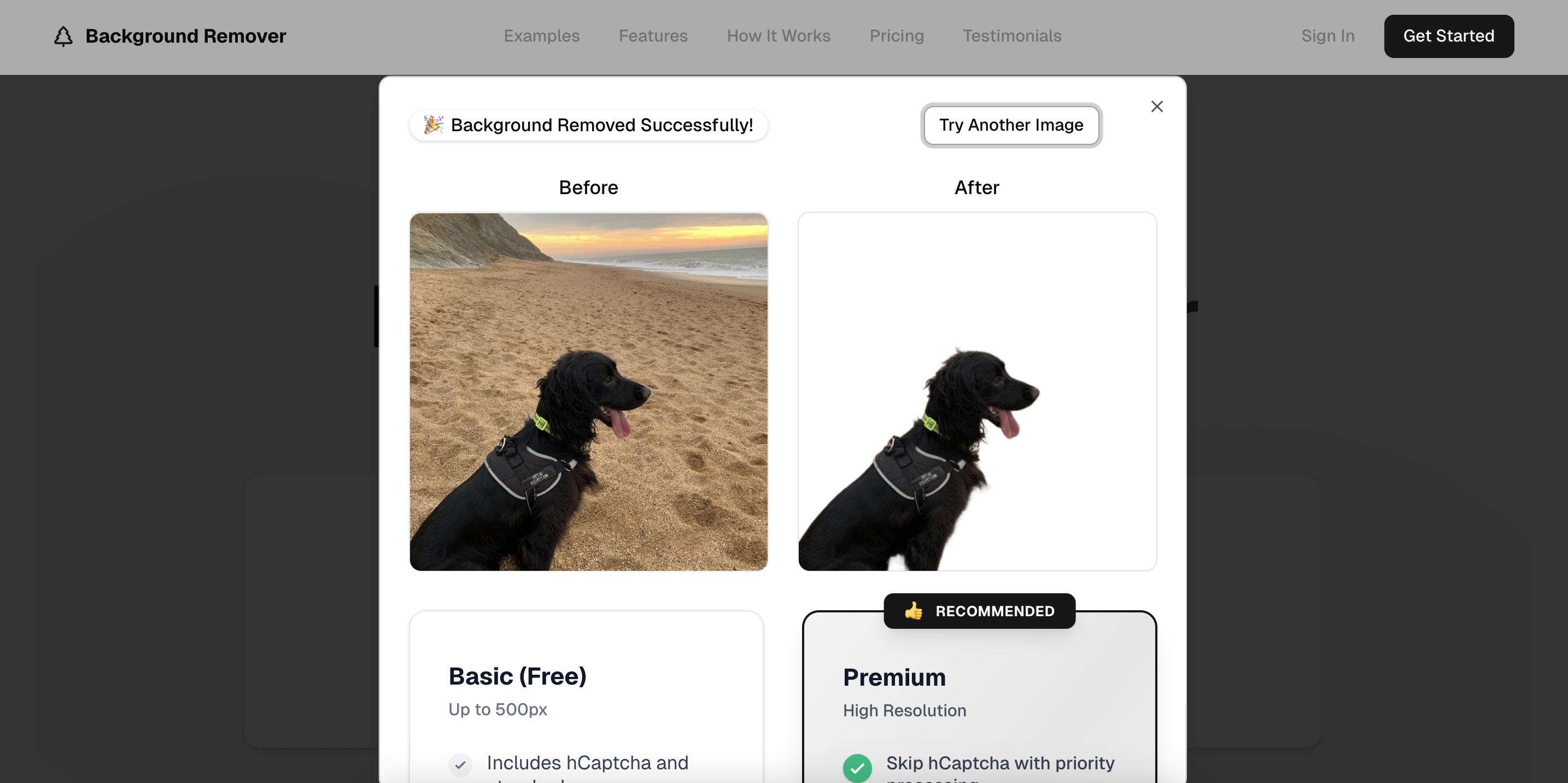
What stood out to me was how it handled the dog’s fur. I’ve found that a lot of tools either blur fur into one soft outline or chop it up too aggressively. Here, it felt surprisingly balanced.
Some areas were slightly smoothed, but the tool still kept a natural edge in the places where it mattered. It didn’t fall into that artificial “sticker cutout” look that so many background removers struggle with.
Background Remover supports JPEG, PNG, and WebP files up to 10 megabytes, and according to the site, it’s used by over 2,847 people, which makes sense based on how well it performed for me.
This is a quick, clean tool that seems to have a good feel for what should stay sharp and what shouldn’t.
2 - Slazzer
I tried Slazzer, and this one leaned heavily into the kind of artificial smoothing that I personally try to avoid.
It softened all of the dog’s fur to the point where it looked more like a painted outline than a natural edge.
To be fair, some people might actually prefer that aesthetic depending on the style they’re going for, but for my purposes, it didn’t really work.
I also noticed an issue near the bottom of the image where part of the dog’s paw had been cropped out.
As you can see, it’s immediately noticeable and stands out when comparing the cutout to the original photo.
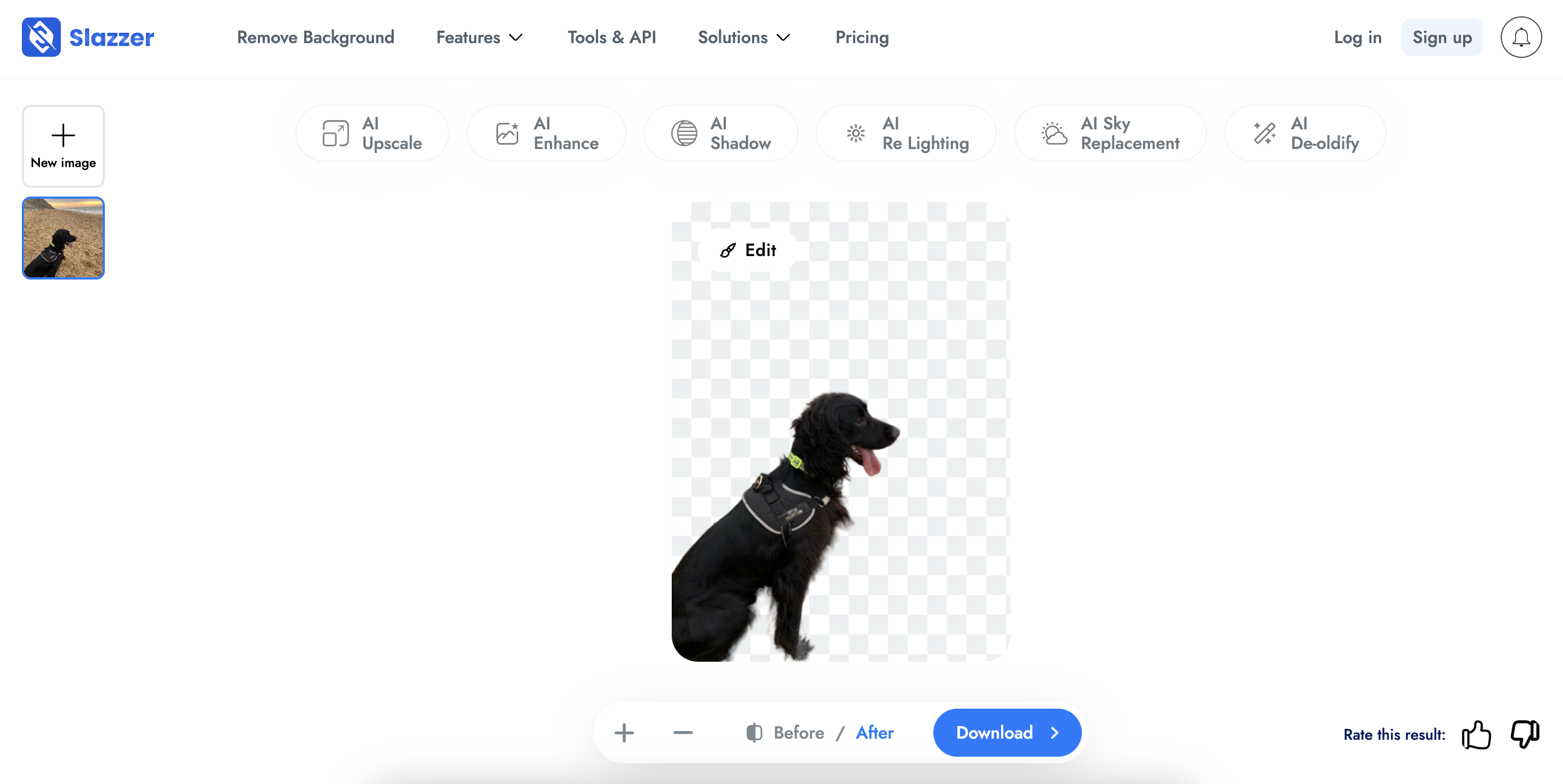
Slazzer does offer a few extra editing features, including AI upscaling, AI relighting, AI sky replacement, and AI shadow options. They’re nice additions, but I found myself wishing I had more control over how the cutout itself was handled.
Even something as simple as choosing between a softer edge or a more precise one would have made a big difference.
The free download gave me a 429 by 582 resolution image. The higher quality version for this photo would have been 1,510 by 2,048, but you need to create an account to access that.
3 - Removal.AI
I’ve used Removal.AI a few times in the past, and I’ve always thought of it as a pretty middle-of-the-road option. But with this particular dog photo, I was actually surprised by the results.
What stood out immediately was how it handled different textures. Around the dog’s fur, the AI kept things slightly softer, which gave the cutout a more natural, fluffy look instead of flattening everything into hard edges.
Areas like the nose, tongue, and parts of the face were cut out with a noticeably sharper line. It almost feels like the tool understands which parts of the image should stay crisp and which parts should feel softer. I’ve found that this type of nuance is rare with background removers.
Credit where it’s due, the AI behind this tool has clearly been trained well enough to pick up those subtle differences.
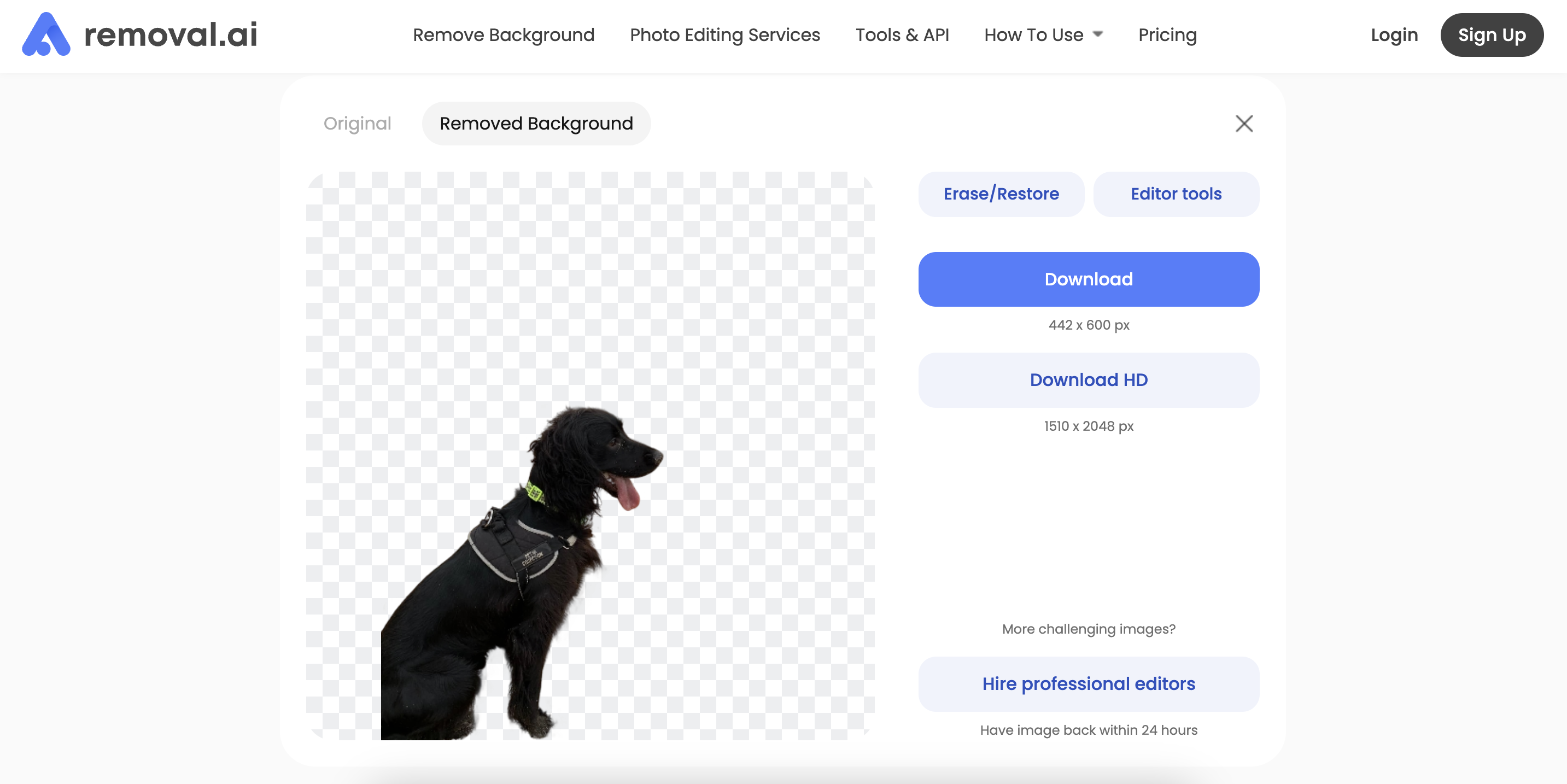
Like several other tools I’ve tested, Removal.AI also offers built-in editing features. For this example, the standard download comes in at 442 by 600 pixels, while the HD version is 1,510 by 2,048 if you want something higher quality.
Something unique here is the upsell option to hire a professional editor for more complex images. There’s a button right there in the interface where you can send the photo off and get a manually edited version within 24 hours.
If you’re dealing with difficult product shots or you need precise, human-level refinement, that could actually be helpful.
This tool managed to capture more subtle detail than I expected, and the human-editor fallback is a nice touch if I ever need help with a particularly tricky image.
4 - EzRemove
Next up is EzRemove, and the first thing that jumps out is the interface. It looks like a tool that was built several years ago, maybe more. It just looks a little dated.
So, I went into this one with pretty modest expectations.
The result was a mixed bag.
On the positive side, it handled the dog’s nose and tongue really well. Those sharper details came through cleanly, and there’s some nice nuance in the way it treats the fur. Certain sections are intentionally softer, which helps avoid that cardboard cutout look.
But then there’s the issue you really can’t ignore.
It cropped out one of the dog’s legs!
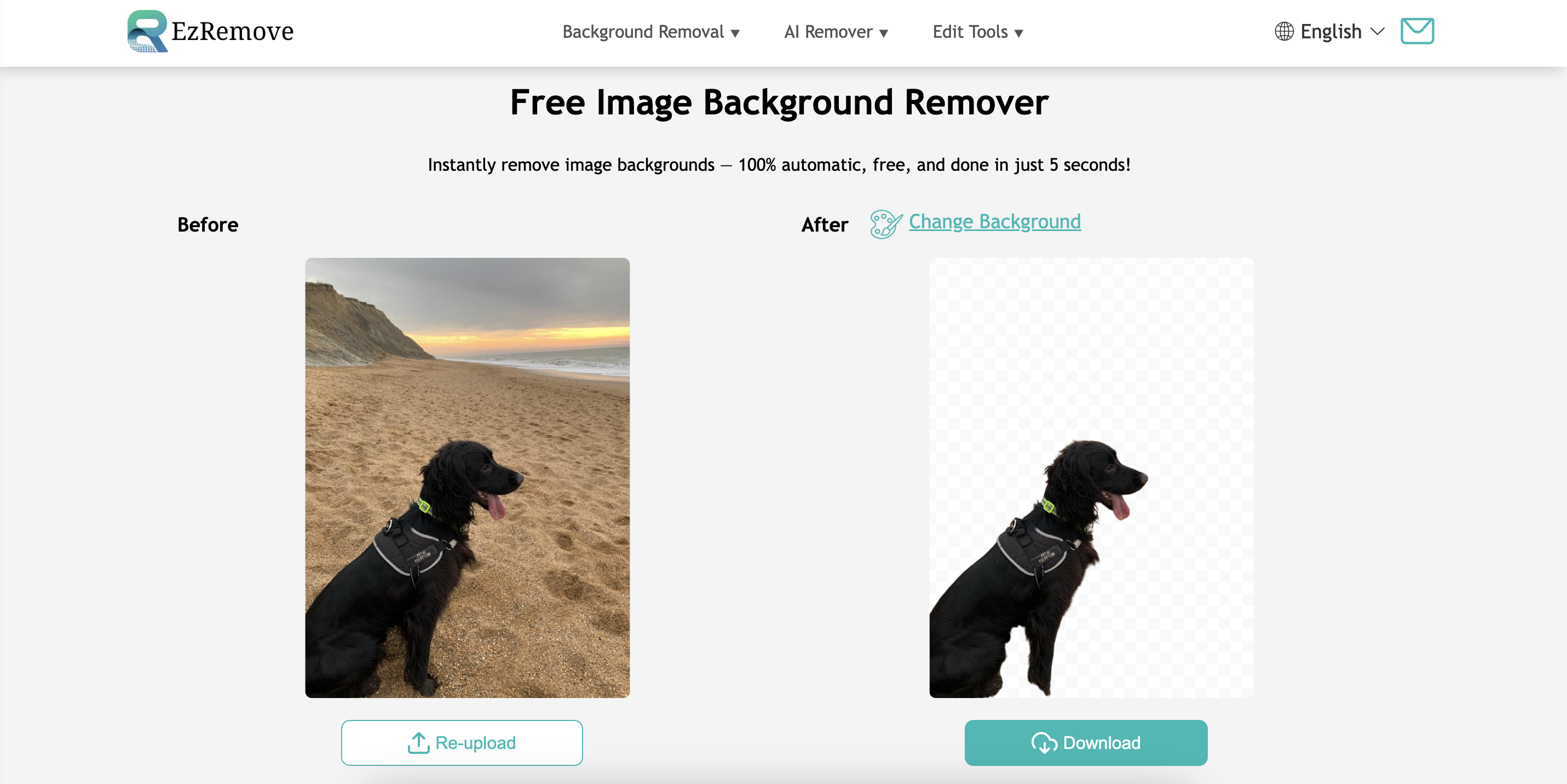
There are no extra editing tools, no filters, no effects, nothing beyond the basic cutout. EzRemove is very much a no-frills option, but the missing leg makes it hard to recommend for anything where accuracy matters.
Some nice details, but the overall result falls short.
5 - Photoroom
The next tool I tested was Photoroom. The speed is great, but what I appreciate even more is the overall interface. Everything is laid out neatly, the workflow makes immediate sense, and even though I didn’t test it on mobile, I get the feeling it would be just as easy to use on a smaller screen.
In terms of the cutout itself, Photoroom does a solid job with the dog photo. It picks up most of the subtle fur details instead of flattening everything into one hard outline.
If I’m being picky, it almost made the dog’s neck hair look slightly scruffier than it originally was, but that could just be how I’m perceiving the blend. Either way, it’s handled the tricky textures reasonably well.
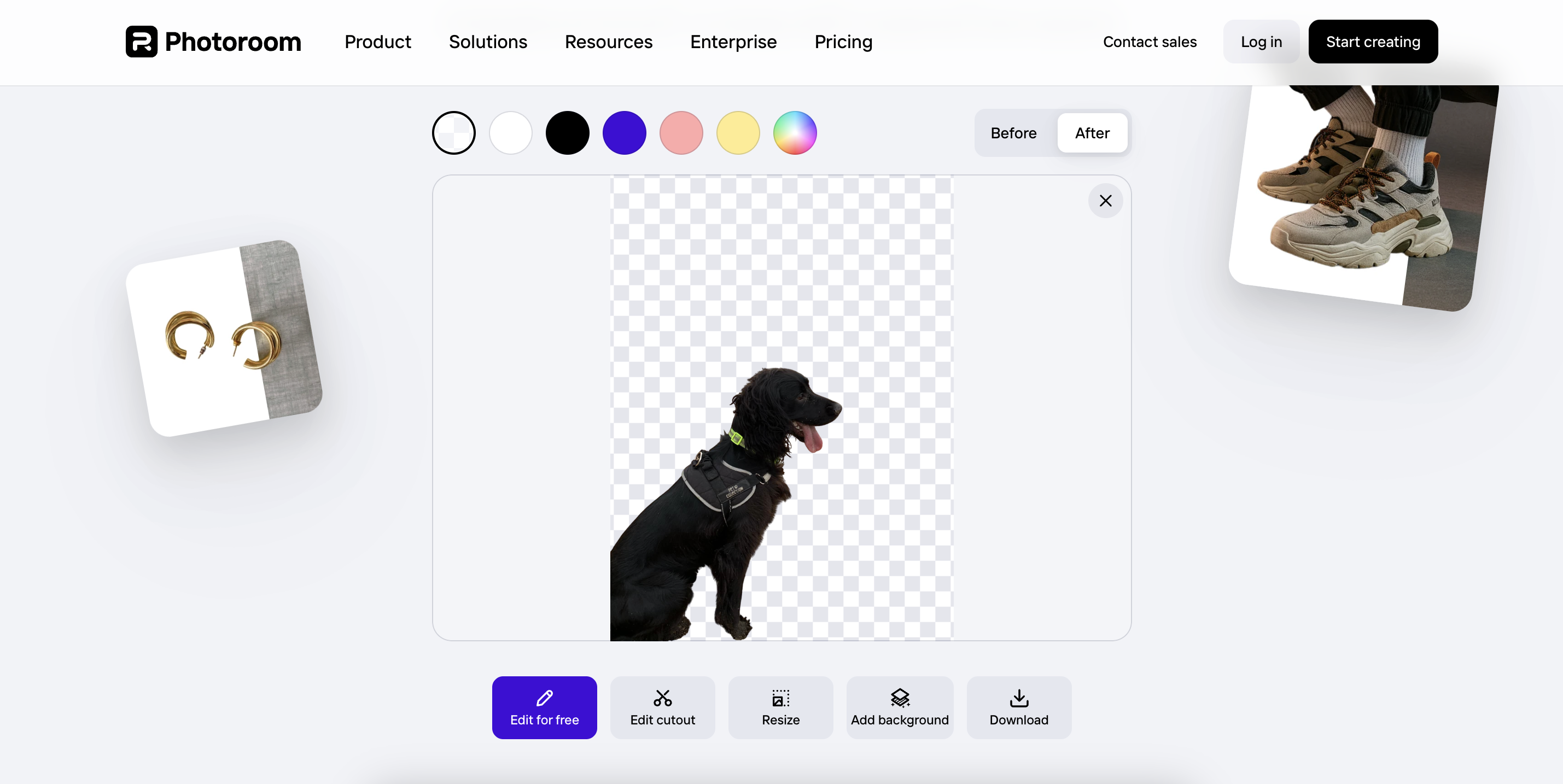
The free download gives you a very generous 1,280 by 1,280 resolution.
The “Pro” version takes it all the way up to 2,400 by 2,400, which is a big jump in quality if you need the extra sharpness.
There are a few added features too. You can resize the image, adjust the background colour, and make basic tweaks without needing another app.
6 - Cloudinary
The final tool I tested was Cloudinary, and this one is about as simple as it gets. The interface is extremely minimal, and it’s pretty clear that the background remover is more of a lead magnet for their platform than a full standalone product.
But to their credit, you can still remove a background without creating an account, which is handy if you just need something quick.
That said…
It made the same mistake that a couple of the other tools made.
Again, this is another tool that cropped out the dog’s leg!
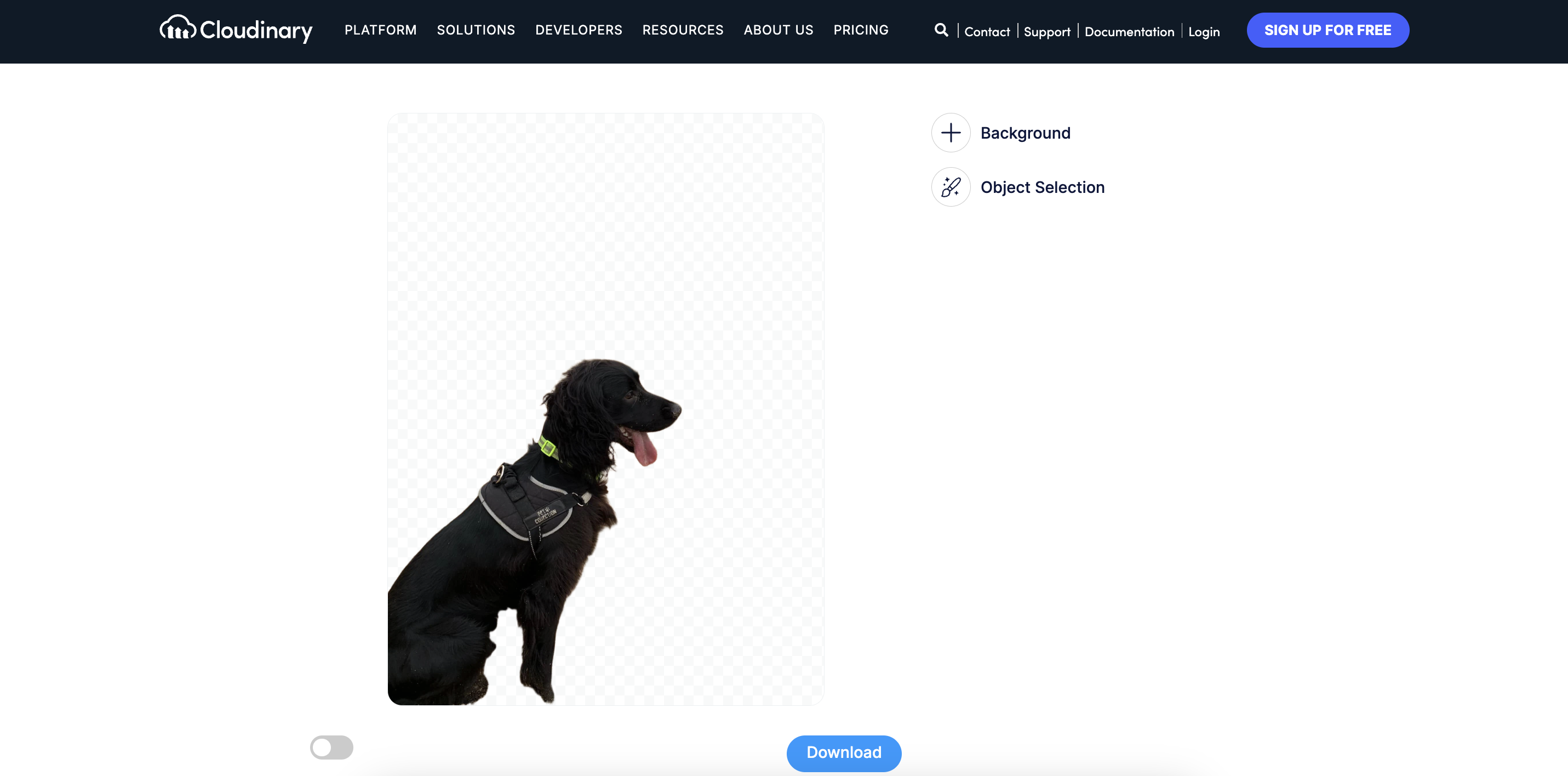
Once a tool does something like that, it’s hard to look past it.
Even if the rest of the cutout is decent, losing a limb automatically puts it in the “not ideal” category.
To be fair, it did handle some parts of the image fine.
It captured the nose and facial features cleanly, and a few sections of the fur were treated well.
But in other places, it went too neat, smoothing the fur into sharp lines that don’t really match the original texture.
The only real perk is that when you press download, the file saves instantly with no hoops, no ads, no extra screens. That part is refreshingly straightforward.
But as always, the basics matter most, and if a background remover can’t keep the subject intact, it’s not something I can recommend.
Simple tool, quick download, but the cutout accuracy needs work.
The Remove.bg Alternative I’ll Bookmark In My Browser
As I’ve said to my friend, a lot of this comes down to aesthetics and what you’re going for.
I need to see some definition in my cutouts.
I was pleasantly surprised to see how many of these tools captured the nuances of the dog's outline, which helped preserve the dog's overall texture in many cases.
At the same time, I was genuinely shocked by some of the strange choices a few tools made when interpreting the dog's leg.
For me, Background Remover is the clear winner among Remove.bg alternatives.
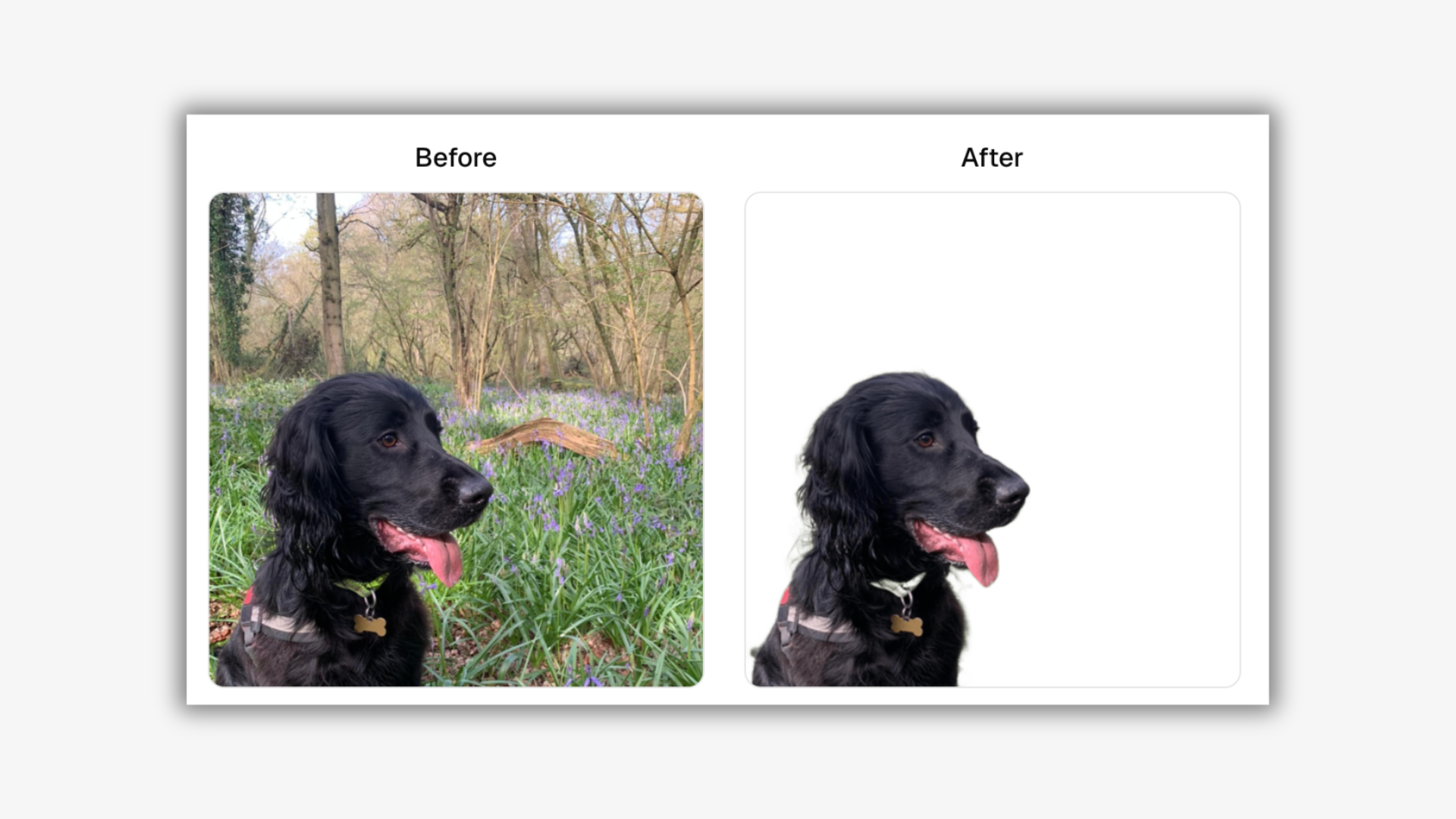
As you can see from my example above, the clean edge detection is really impressive.
The tool has once again made intelligent decisions regarding the handling of the dog’s outline.
You can see this in the difference between how the tool has cut out the dog’s tongue relative to how it's handled the hair on the dog’s ear.
I can upload images as large as 10 megabytes (in multiple formats) and not worry about the tool slowing down.
It still works at the same pace!
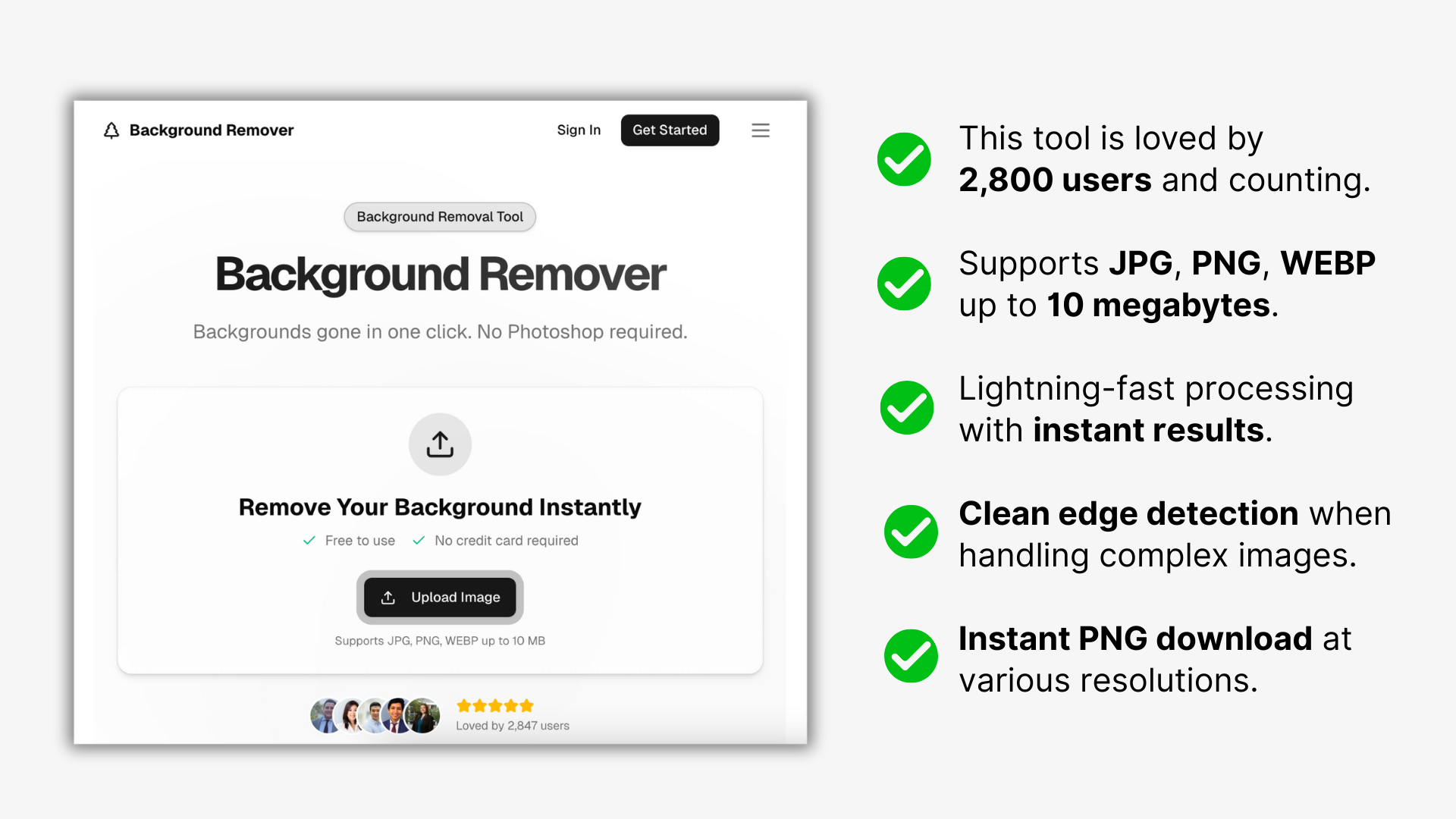
For my friend’s use case, I think Background Remover ticks all the right boxes.
I recommend taking these six alternatives to Remove.bg for a spin to see which achieves the aesthetic you’re looking for in a cutout. You can start with Background Remover, of course!