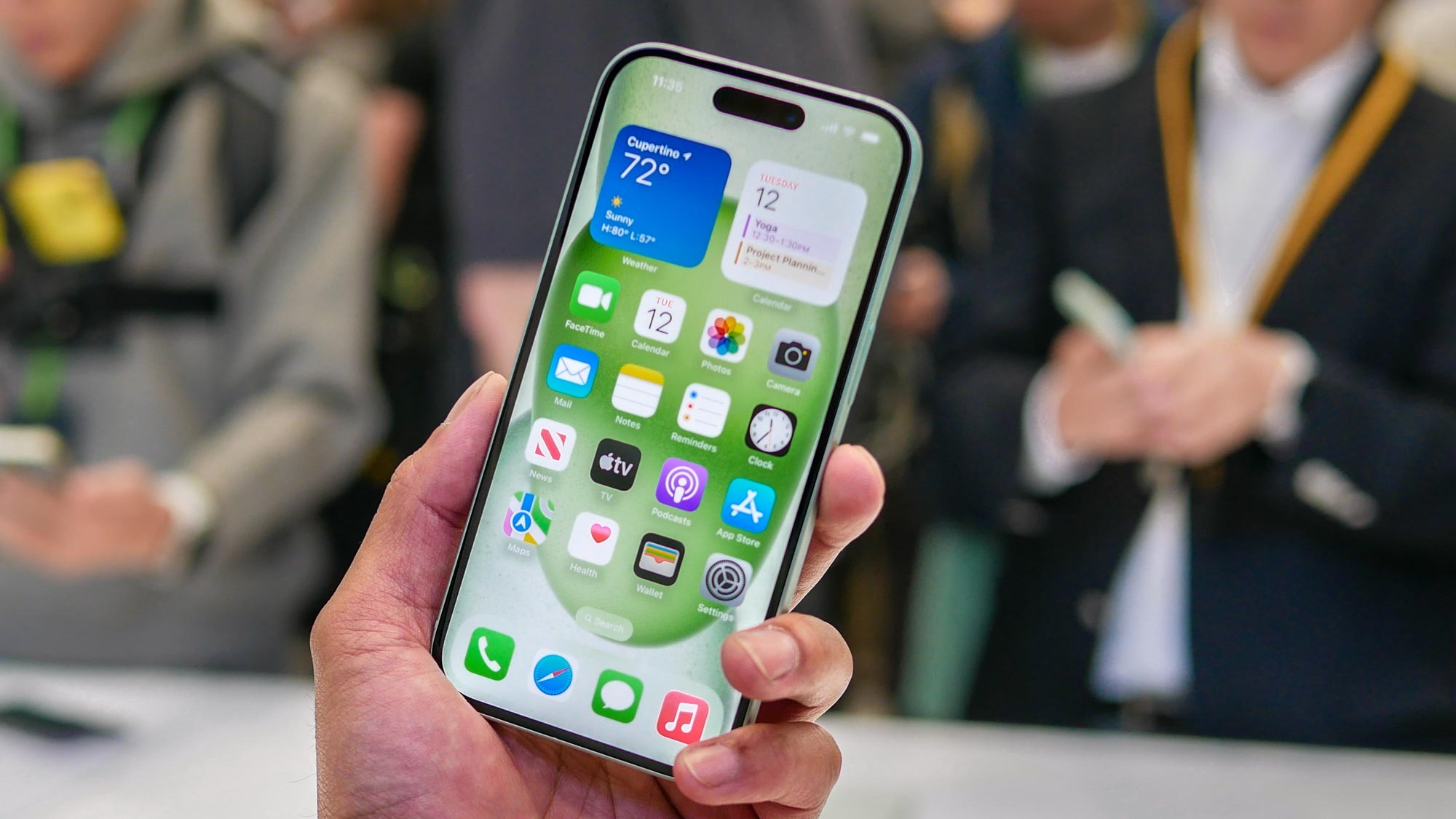
iOS 17's NameDrop feature has become the subject of mild panic after statements made by certain news and law enforcement organizations incorrectly suggested it could be used to steal private data without the owner's knowledge.
NameDrop is a feature added in Apple’s iOS 17 and WatchOS 10.1 updates that allows users to share contact details and more by having the devices next to each other. But this has been incorrectly described by several sources as only requiring proximity to the device in order to share data.
If you take these accounts at face value, NameDrop seems concerningly vulnerable, especially for children or users who don't know the feature was on the phone. However, this isn't entirely the case and it is less of a concern than these posts make out.
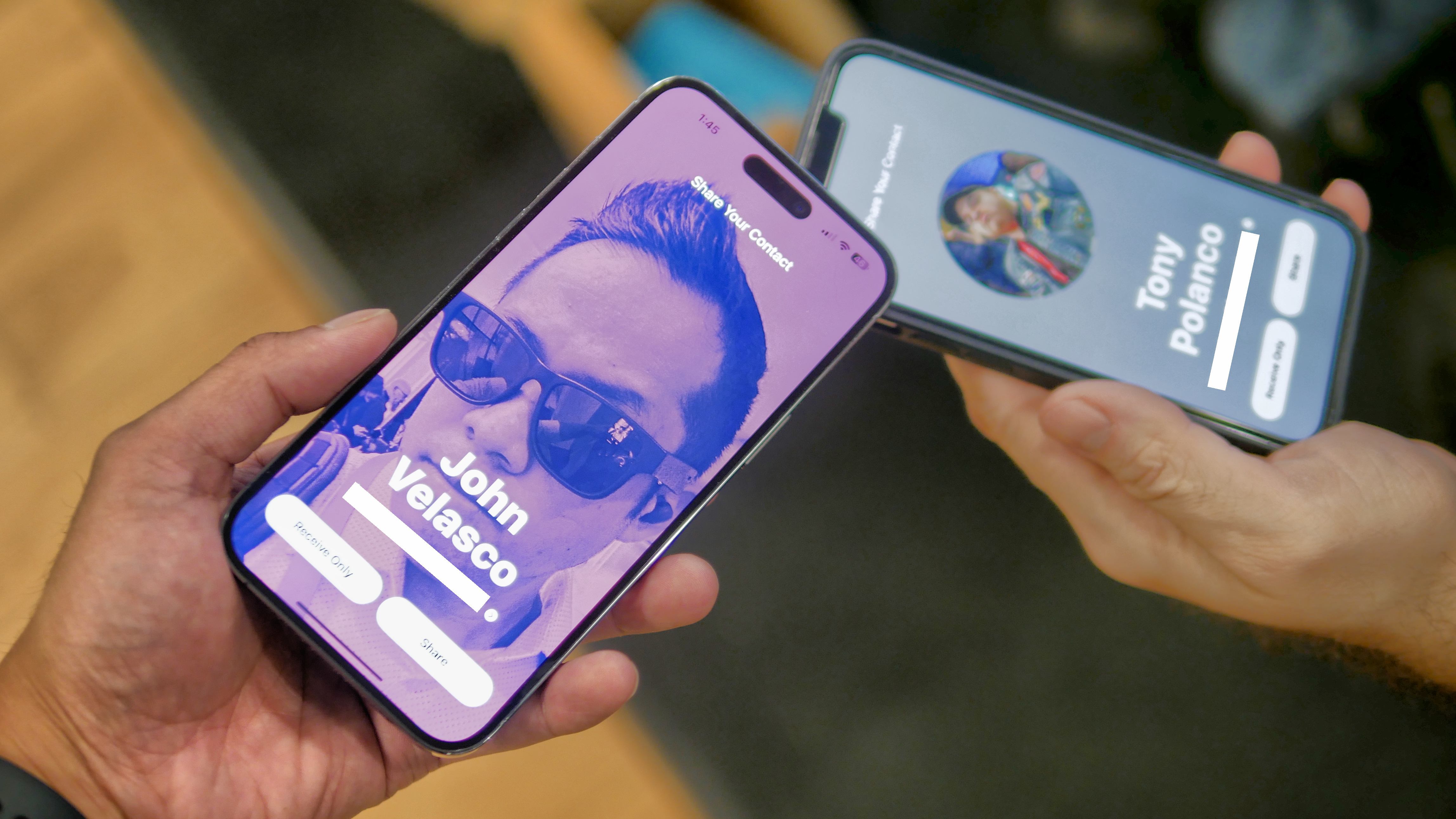
The main thing to note is that while it's true that NameDrop is turned on by default, several conditions need to be met for it to work.
Firstly, the feature will only run on phones and watches with the correct update. Assuming that both devices do have NameDrop available, the information can then only be transferred after confirmation by both parties. If there is no confirmation then the transfer will not occur.
It would appear that Apple foresaw the potential threat and took measures to avoid it prior to introducing NameDrop. Therefore the chance of data sharing happening by accident or without one user's knowledge is minimal, if non-existent.
If the NameDrop feature still makes you uncomfortable, it is easy to turn off. Just follow the steps below.
How to turn off NameDrop on iOS 17
1. Go to Settings
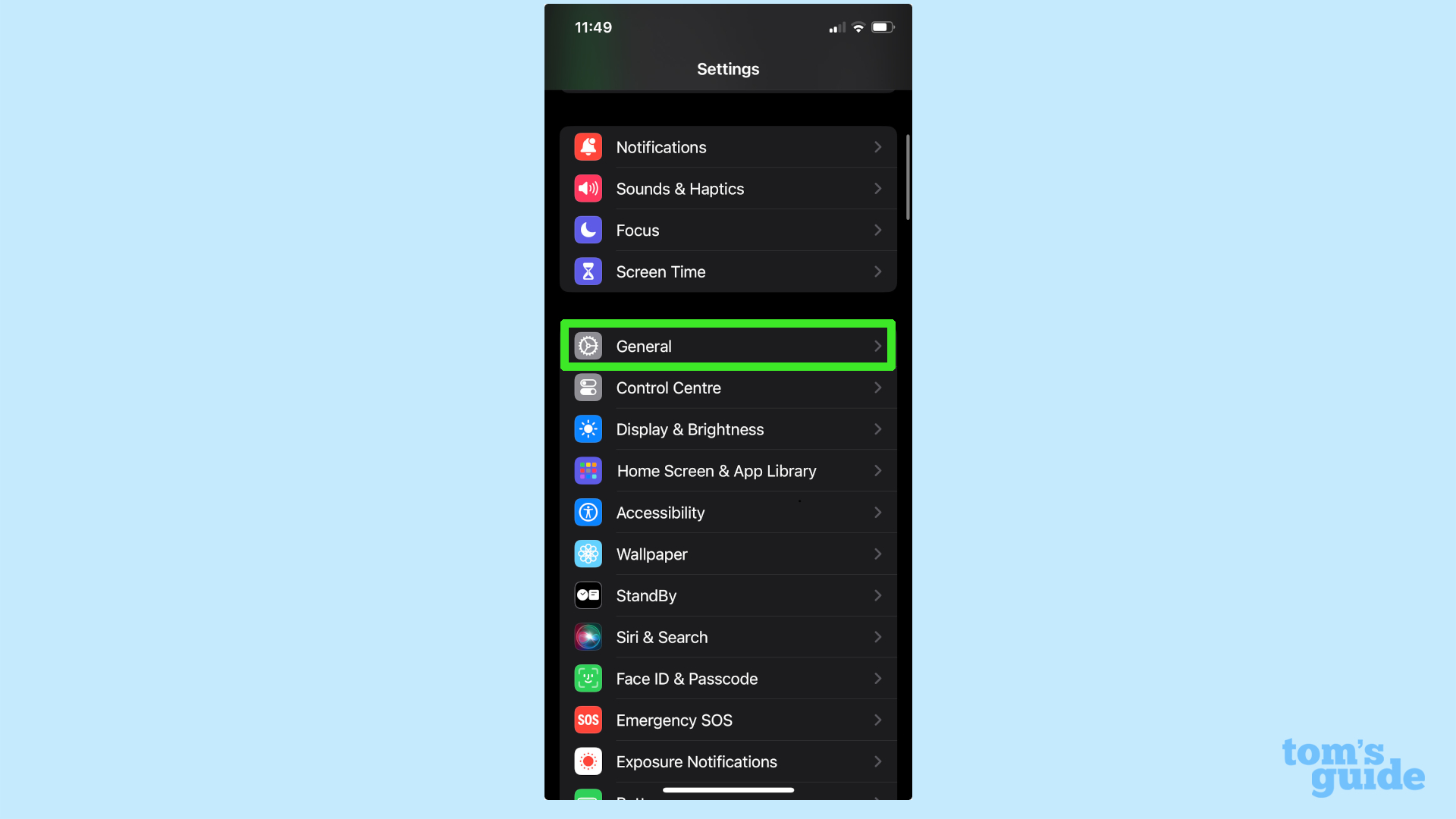
The first step is to go into the Settings menu by selecting the gear icon. Once there you will need to select the General heading.
2. Select AirDrop
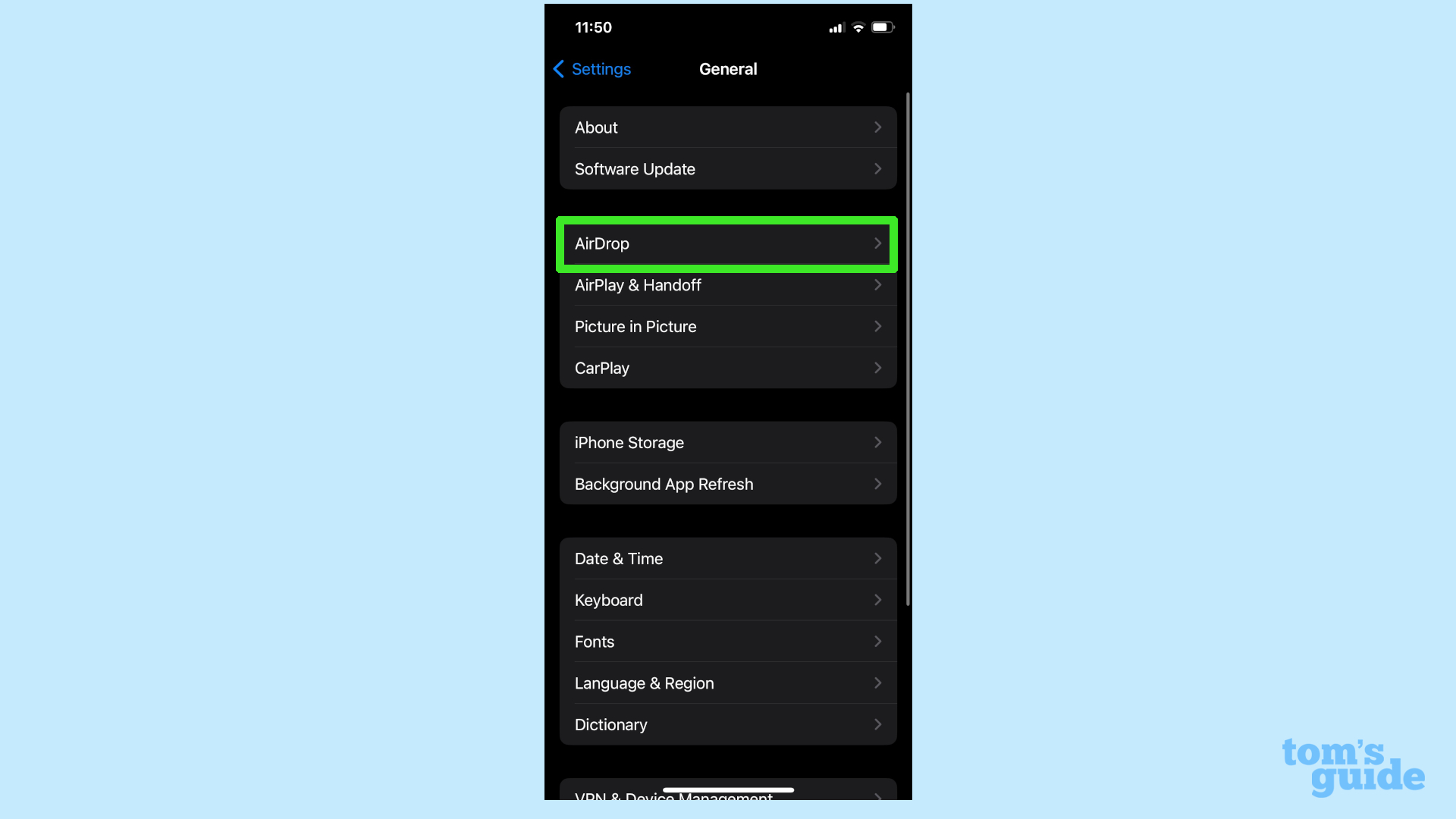
Once inside the General menu, select the AirDrop menu.
3. Turn off Bringing devices together
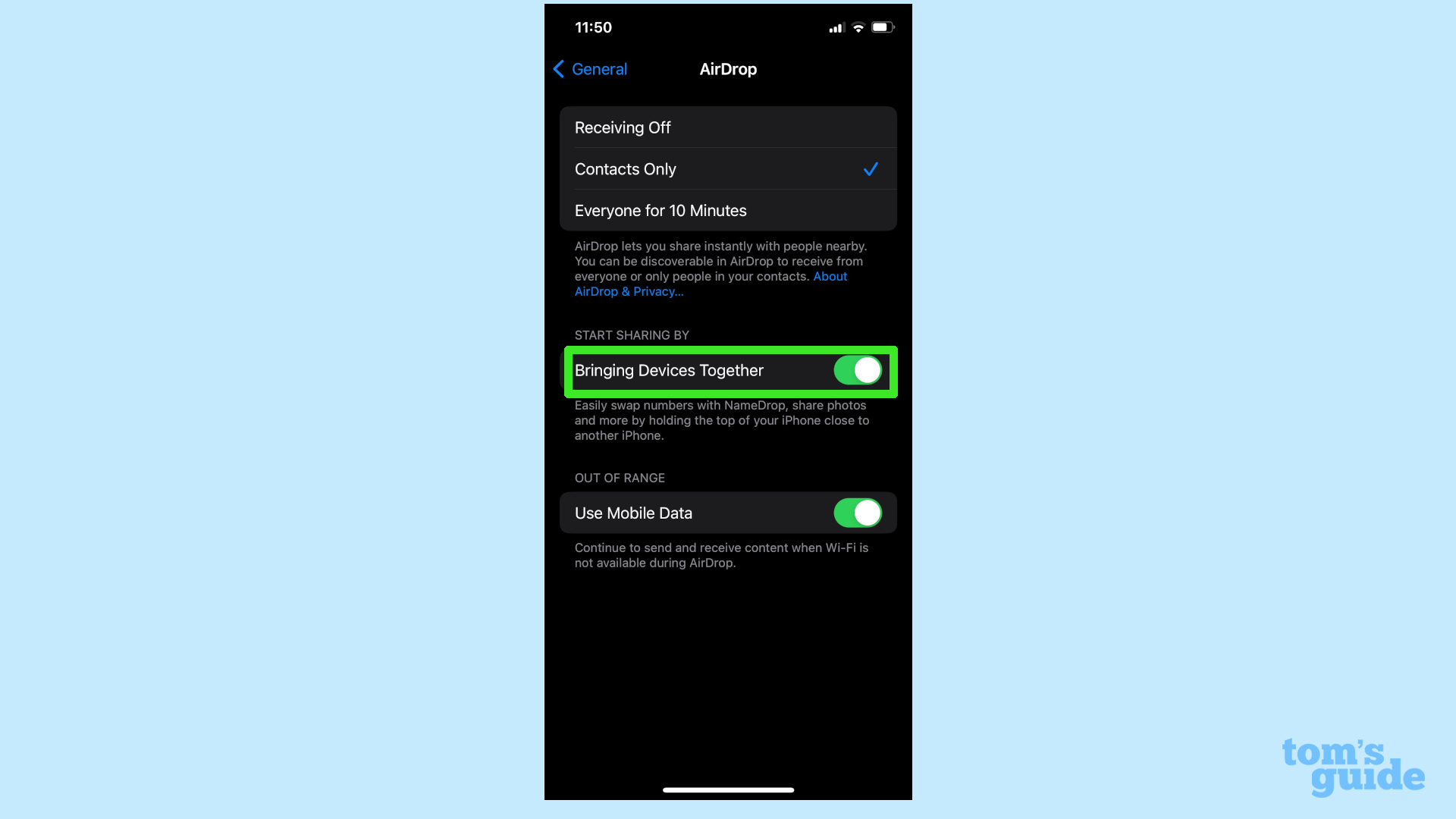
NameDrop is covered under the Bringing Devices Together toggle. If you turn that off then the feature will no longer work. This applies to sharing contact details, photos and other files.