
The always-on AI agent OpenClaw now has an official companion app for iOS and Android, making it easier than ever to stay connected when you’re away from your computer.
One of OpenClaw’s biggest strengths has always been its integration with messaging platforms like Discord, Slack, and Telegram. However, the official mobile apps provide a more direct route, letting you chat with your agent without passing the conversation through a third-party messaging service.
The app also has several phone-specific features. You can dictate prompts, record voice notes, send photos, and grant your agent access to your contacts, calendar, and location. Android users can even forward phone notifications to their agent.
Before diving in, there is one crucial detail to keep in mind: the mobile app does not run your OpenClaw gateway on its own. Instead, it pairs with a gateway running on another device, such as your computer or a server which needs to stay powered on and reachable.
If you’re completely new to OpenClaw, you’ll want to set up your agent on a desktop or server first. Once that's ready, here's how to get the OpenClaw companion app running on your smartphone.
1. Download the app
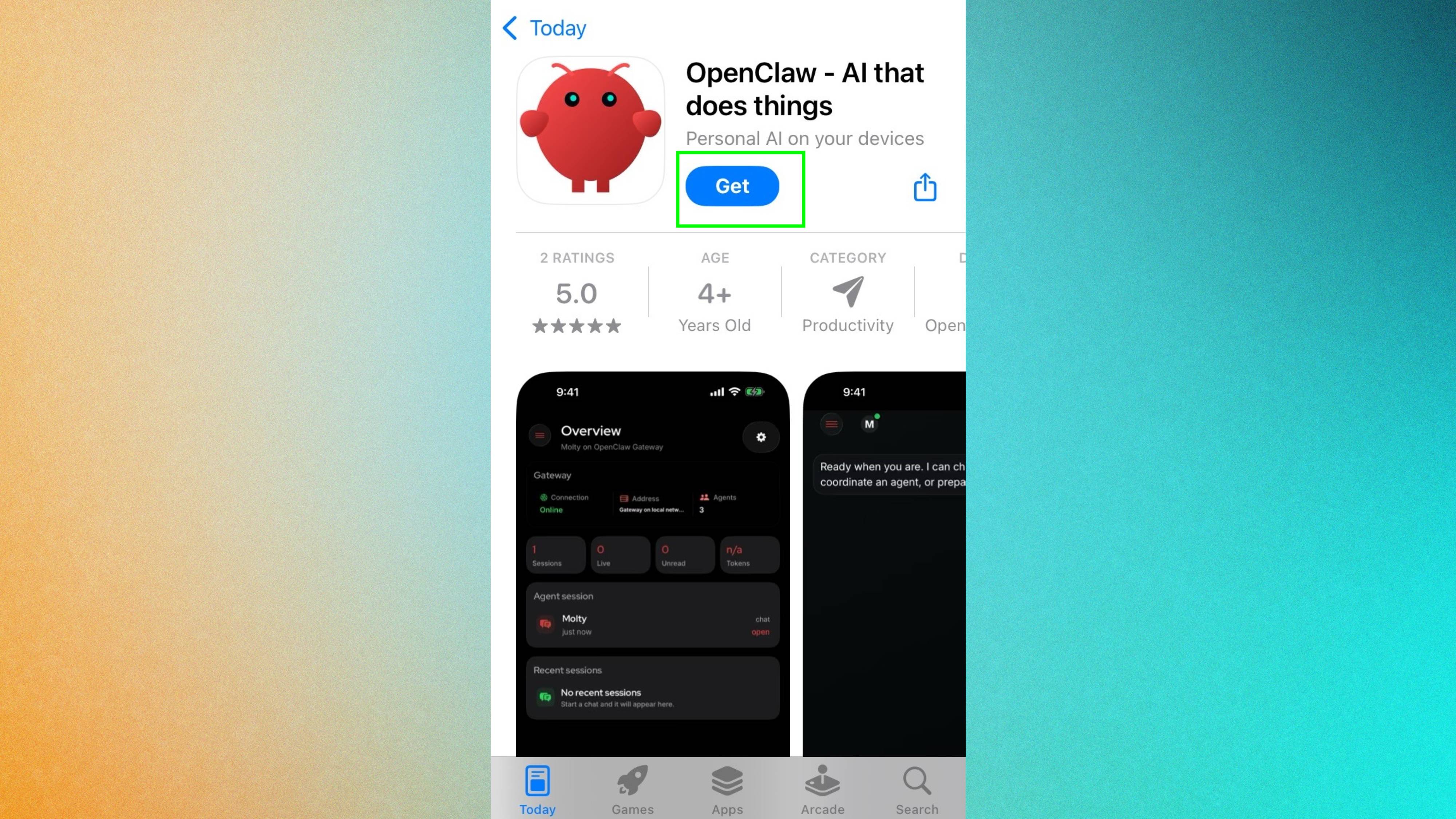
Download the correct app for iPhone or Android, depending on what phone you’re using.
2. Open the app
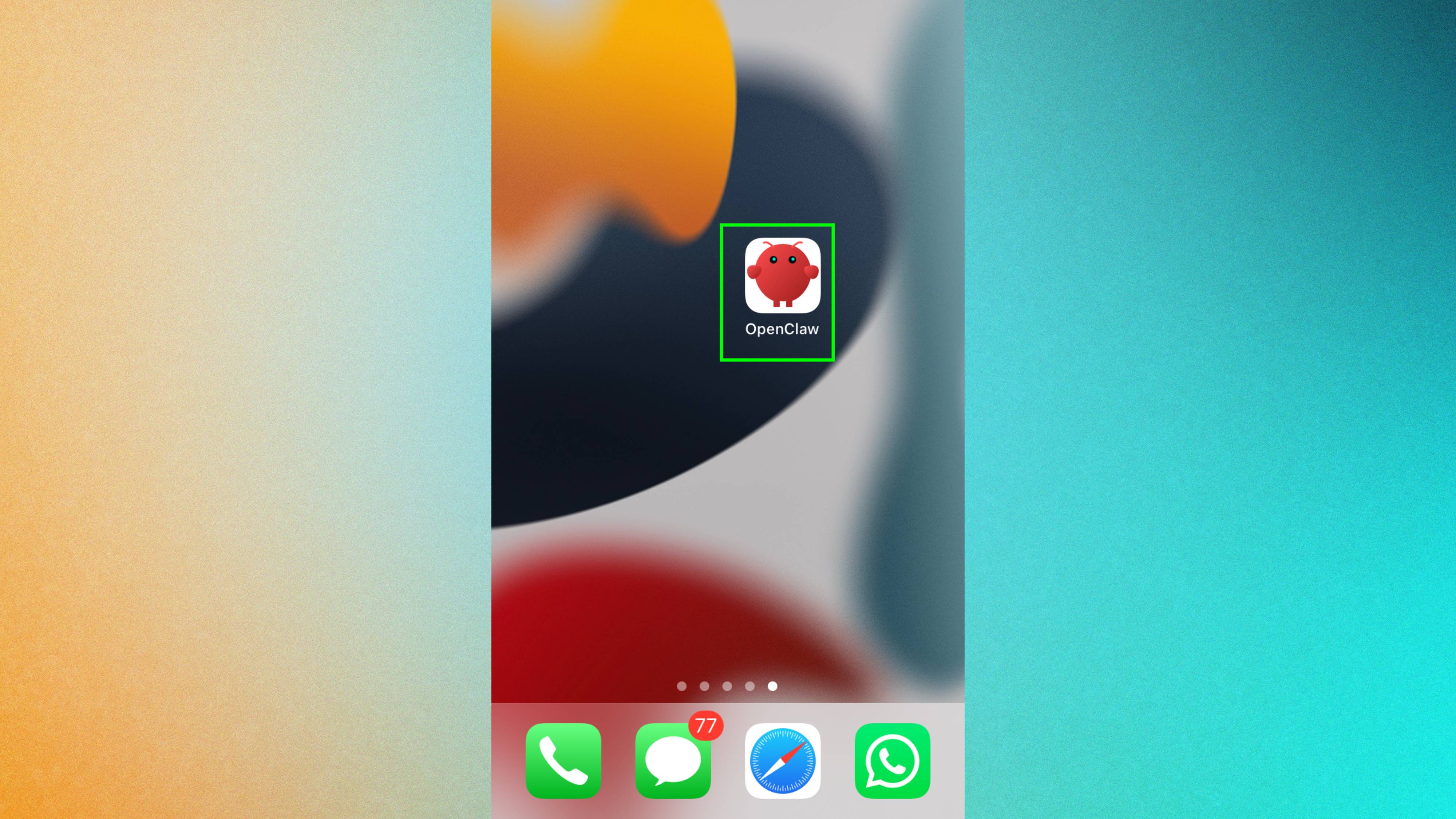
Once it’s installed, tap on the app to open it.
3. Connect your agent
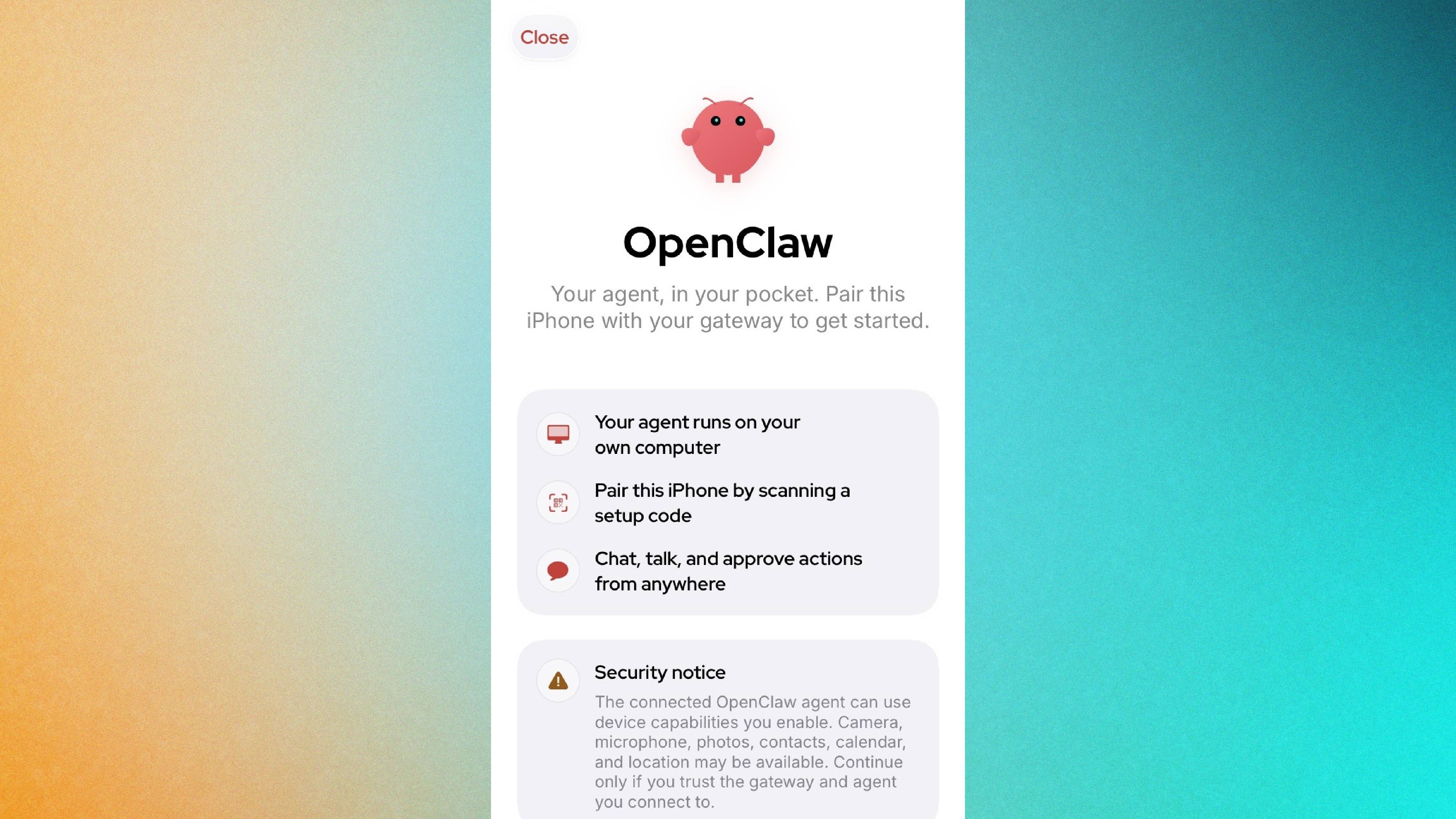
Next, you’ll want to pair your phone with your AI agent, Follow the on-screen instructions and confirm your credentials. The easiest way to do this is to scan a QR code generated by your agent. It helps if you also have your gateway token handy.
In case you’ve forgotten your secret token, open your OpenClaw CLI and type openclaw dashboard --no-open.
4. Confirm access permissions
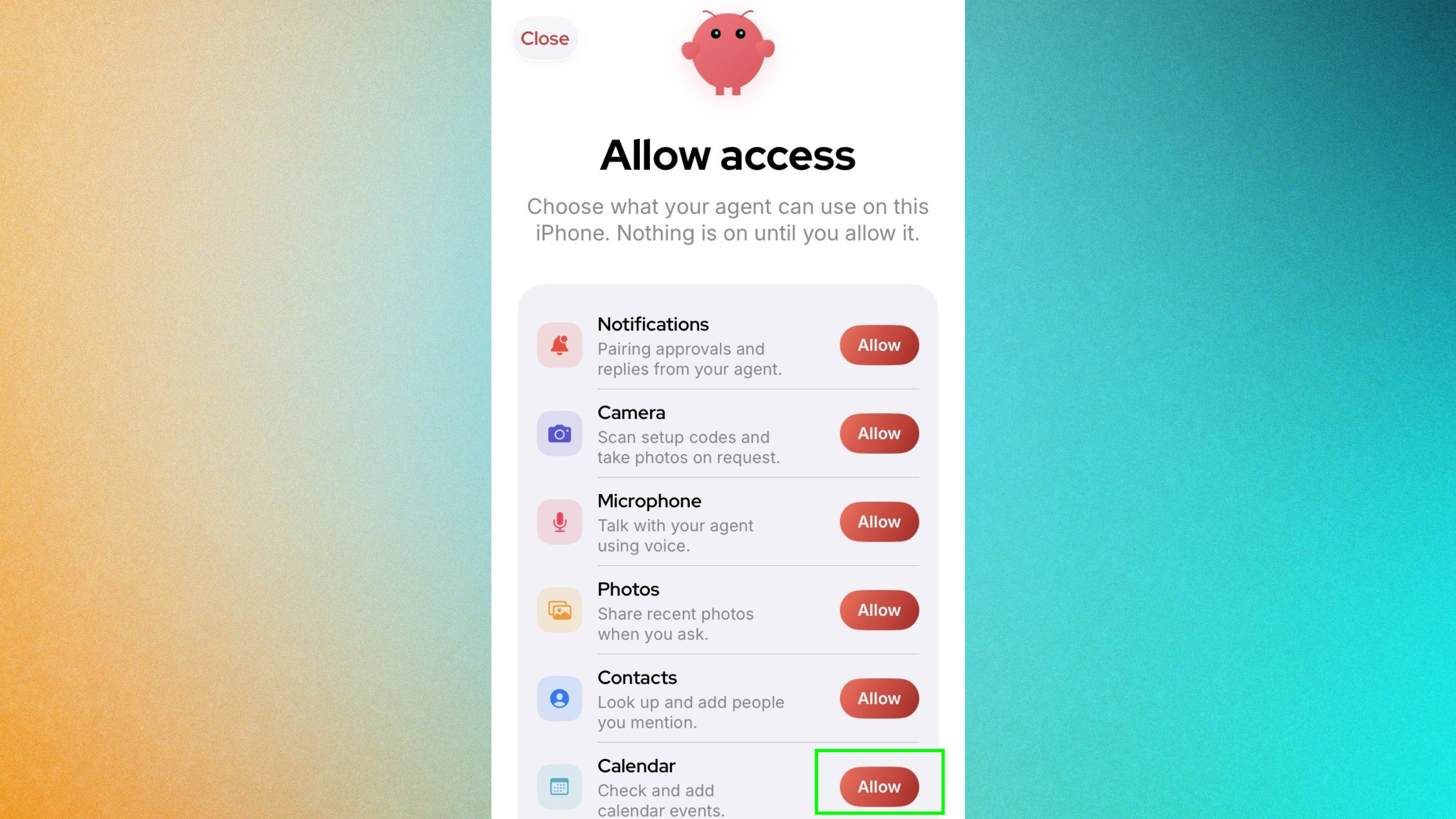
After you’ve successfully paired your phone and OpenClaw agent, you’ll be shown a screen to determine the access levels. The more permissions you approve, the more tasks your agent will be able to complete, but consider what you’re comfortable sharing and what you’d rather keep private.
Tap allow to approve the relevant access permissions.
5. Start chatting
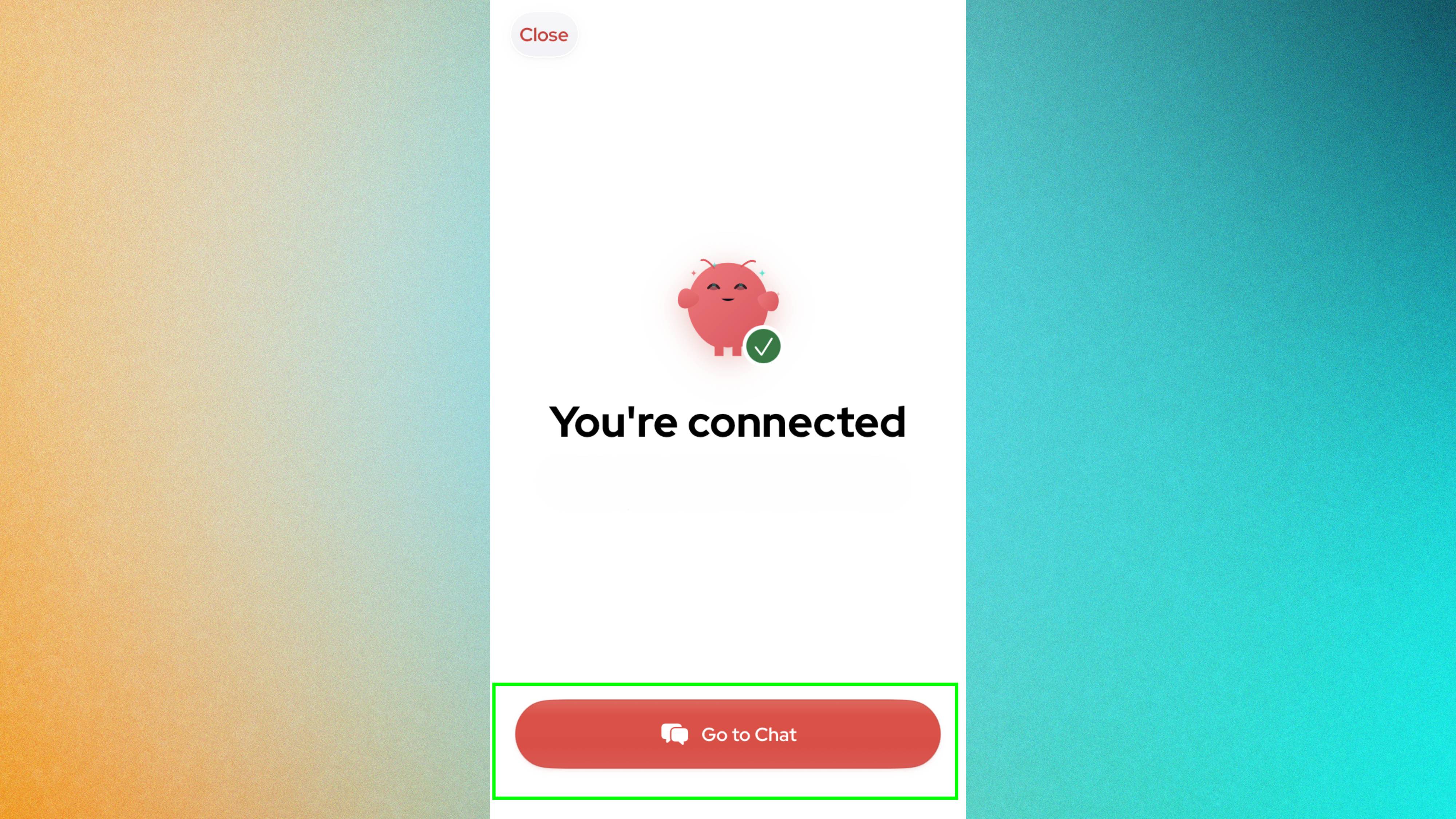
If you’ve set everything up correctly, the OpenClaw app will display a confirmation message. Tap on go to chat to get started.
If your messages receive a response, the basic setup is complete. The next steps are where the mobile app becomes more interesting.
6. Using your camera and microphone
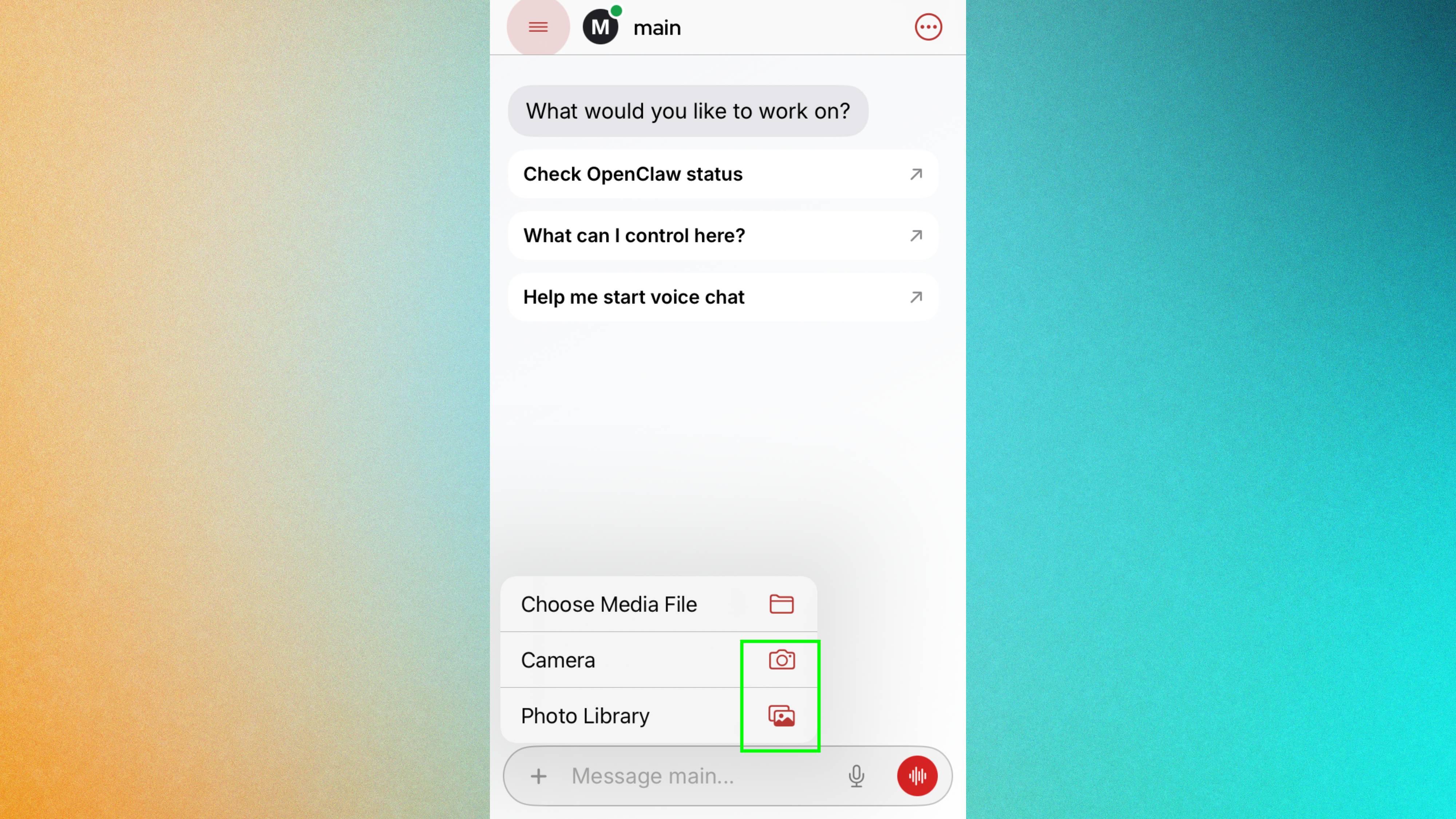
A considerable advantage of having your phone connected to your AI agent is you can spontaneously whip it out of your pocket and send your agent a quick voice note or picture. That way you’ll never have to worry about forgetting your killer business idea that pop in your head when you’re on the go.
To send a voice note, click on the microphone button. To add a picture, click on the plus sign.
The iPhone app also includes an experimental voice-wake feature, which is supposed to let OpenClaw respond to a chosen wake phrase. Unfortunately, I could not get this to work during my testing.
7. Sync your calendar and contacts
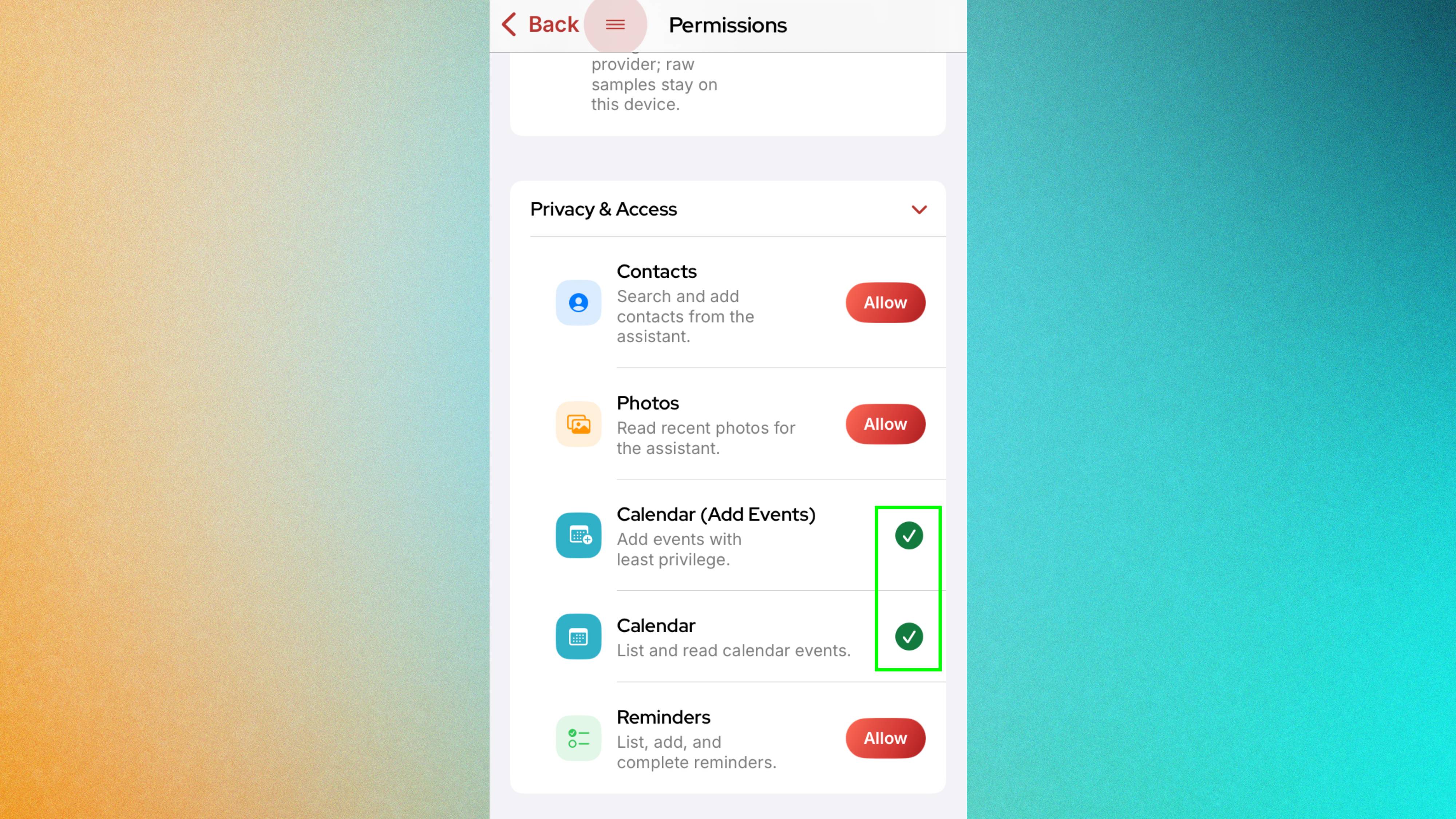
You can also ask your AI agent questions related to your phone’s calendar and contacts. To do this, click on OpenClaw’s settings and tap on permissions.
Then scroll down to the privacy and access tab, open the dropdown menu and tap on allow for the features you want to give your agent access to.
OpenClaw’s mobile calendar capability reads calendar information available on the phone rather than separately signing into your Google or Microsoft account.
Android users also have their own perks. You can enable notification forwarding to have your phone give live updates to your AI agent of what’s happening on your phone.