Enjoy our content? Make sure to set Windows Central as a preferred source in Google Search, and find out why you should so that you can stay up-to-date on the latest news, reviews, features, and more.
I have had my Xbox Ally X for nearly a week now, and from the moment I took it out of the box, the Wi-Fi has been a problem. It refused to stay connected and needed to be manually reconnected every time I powered it on. My other devices had no issues at all, and this was something I also experienced on my old ROG Ally.
After some digging online and joining the official Xbox Ally Discord server for help, I finally managed to fix it thanks to one Reddit post that was difficult to find. It solved the issue instantly for me.
I will also include a few general troubleshooting steps in case the same fix does not work for you. With a bit of luck, your ROG Ally or Xbox Ally will stop dropping your internet connection and work as expected.
This how-to guide should work for Xbox Ally, Xbox Ally X, ROG Ally, and ROG Ally X, as well as other devices with the same Wi-Fi chip.
Updating the WLAN Driver
- When within the Xbox Full Screen Experience, go to Windows Desktop by using your finger to drag up from the bottom of the screen and selecting Windows Desktop
- On the Windows Desktop, use a browser to go to Microsoft Update Catalog.
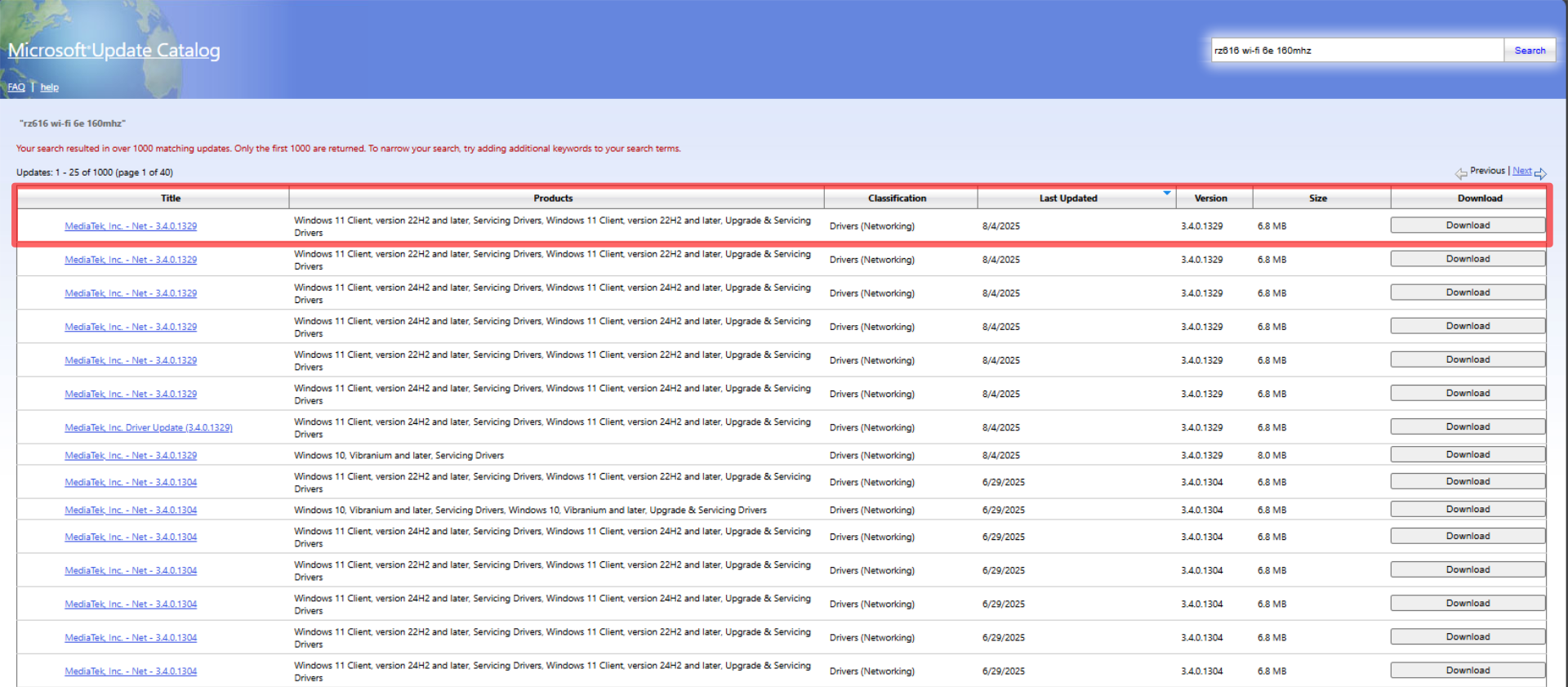
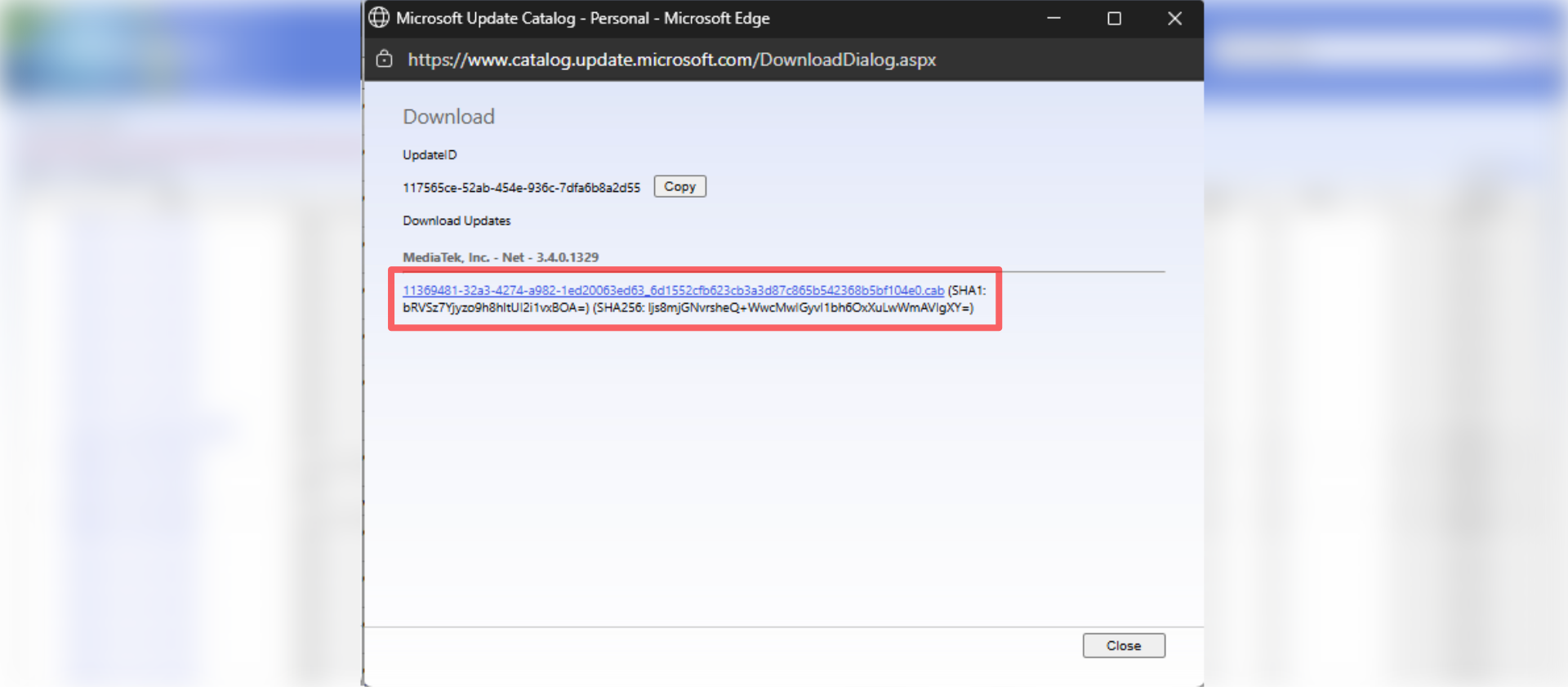
- Download the latest driver at the top, this will popup a new windows, so make sure you don't have popups disabled.
- You want to click the blue link and download it somewhere you can easily find.
- Once downloaded, open the Start Menu.
- Search for Device Manager and open it.
- Open up the Network adapters menu.
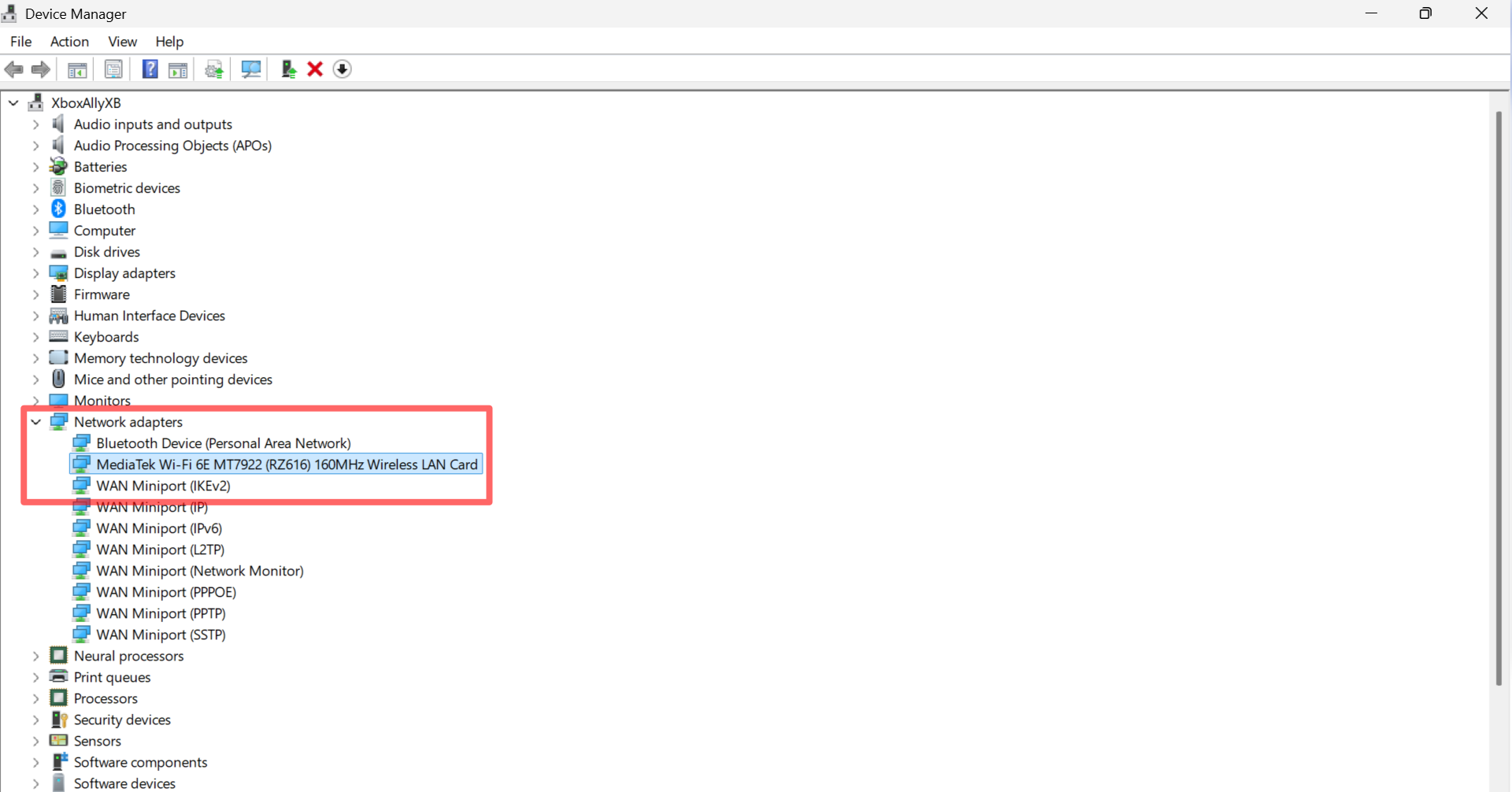
- Right-click (hold your finger down on the screen) on the MediaTek Wi-Fi 6E MT7922 (RZ616) 160Hz Wireless LAN Card.
- Select Update driver.
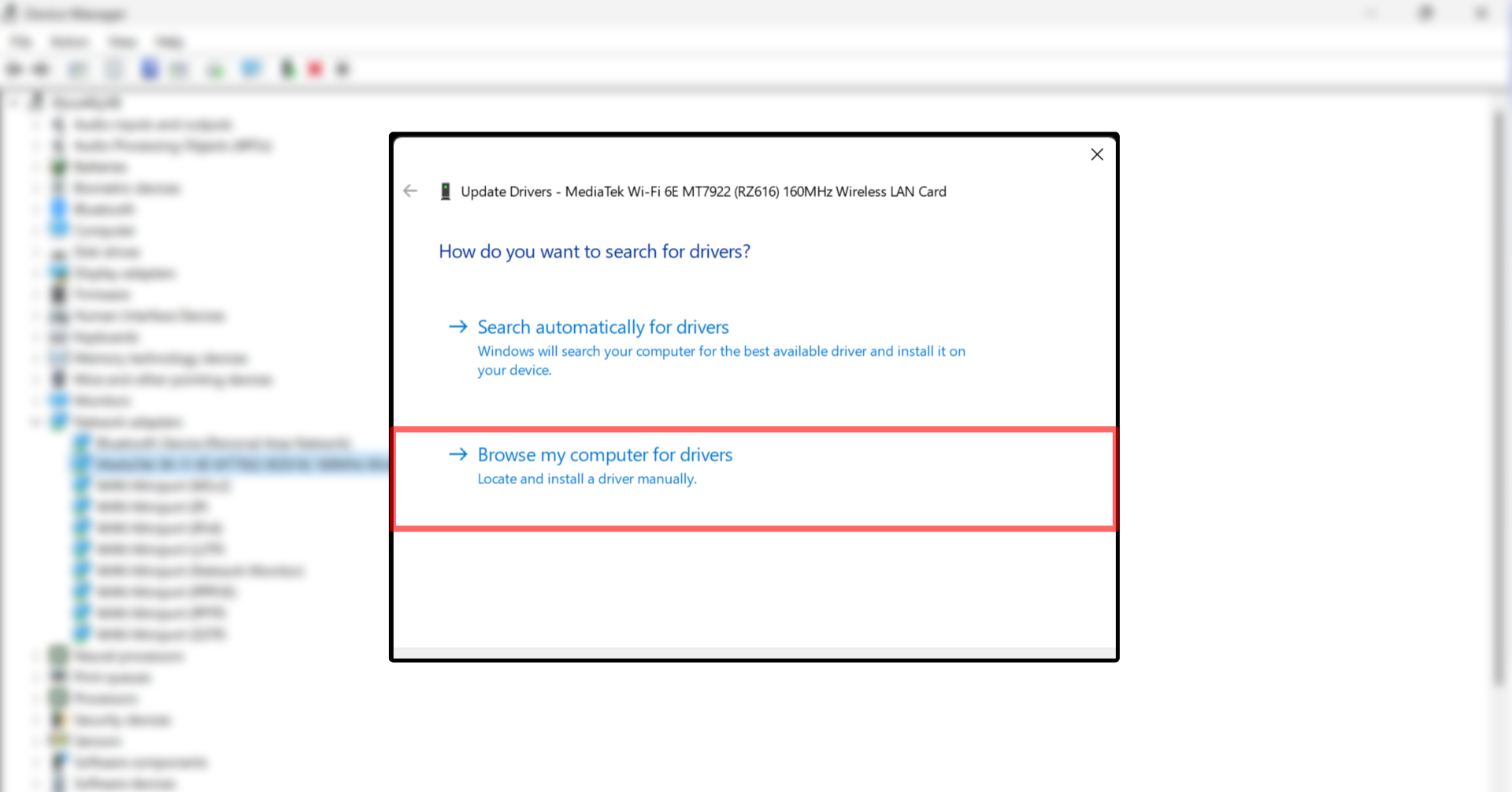
- Select Browse my computer for drivers.
- Select "Browse...".
- Navigate to where you saved the driver you downloaded earlier and select Ok
- Then select "Let me pick from a list of available drivers on my computer". You will then be shown the driver we downloaded earlier
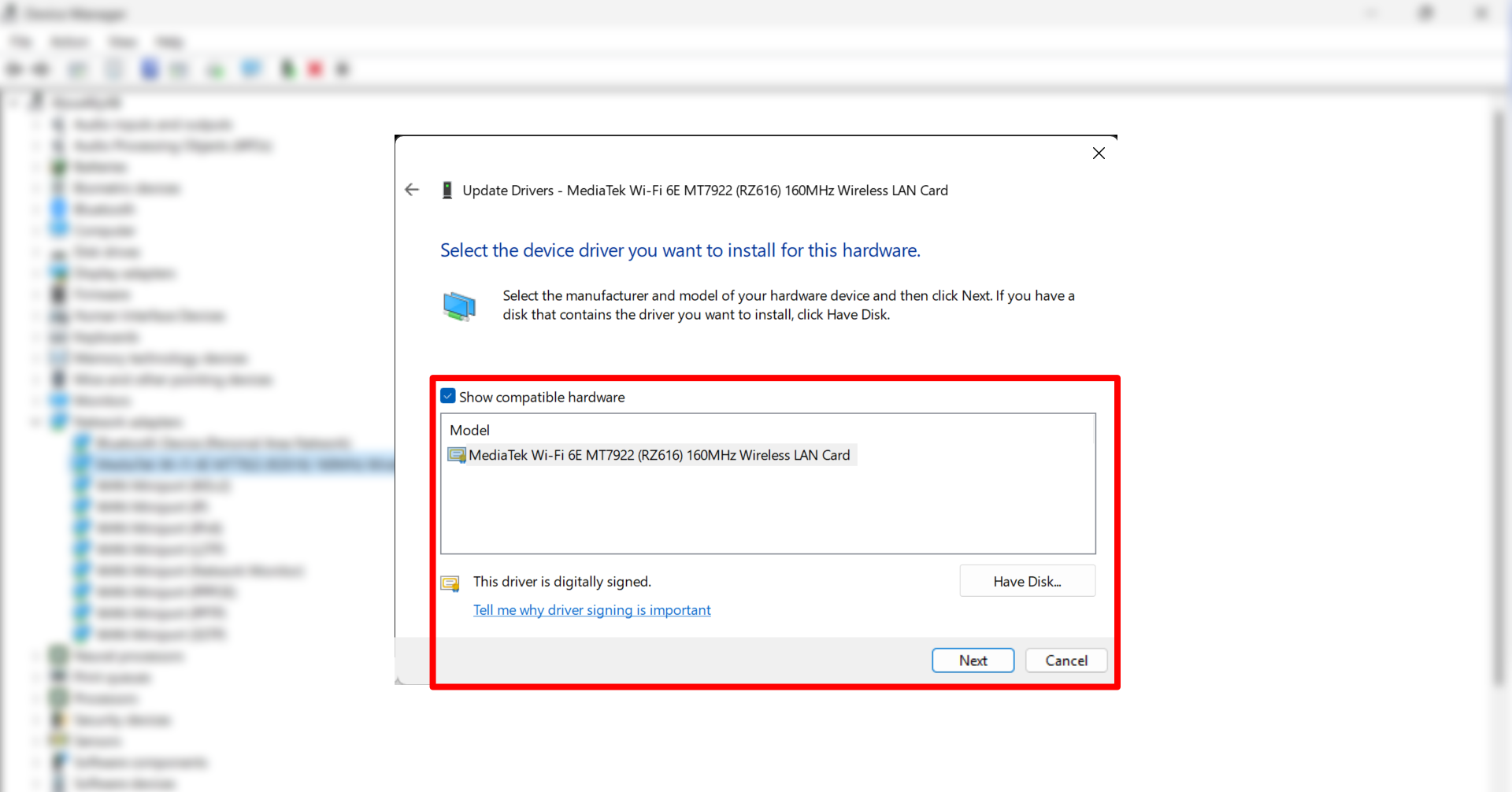
- You want to select "Next".
- After the new driver installs, restart the device to make sure everything works.
This is the fix that worked best for me after digging around for far too long. Your experience might be slightly different, and that is completely normal.
If it does not solve the problem for you, do not worry, because I have included the other steps I tried as well. They did not work on my unit, but they might just work on yours.
Toggle Wi-Fi and try airplane mode
Start by opening the network panel in the bottom right corner of Windows. You can tap the Wi-Fi, volume, or battery icons to bring them up.
Tap the Wi-Fi button to turn it off and back on. If nothing changes, switch on airplane mode for a few seconds and then turn it off again. This refreshes the wireless connection and often clears quick glitches.
- Start by opening the network panel in the bottom right corner of Windows. You can tap the Wi-Fi, volume, or battery icons to bring this up.
- Tap the Wi-Fi button to turn it off and back on.
- If nothing changes, switch on airplane mode for a few seconds and then turn it off again.
Restart the device
If the Ally still refuses to stay connected, restart it through the Start menu. A simple reboot reloads all the background services and can bring the Wi-Fi back without any extra work.
Reset your network settings and reconnect
- Open the Network Panel in the bottom right corner of Windows. Tapping the Wi-Fi, battery, or volume icons in the bottom right corner of the Windows Desktop will bring this up.
- Hold your finger down or right-click on the Wi-Fi toggle.
- When the prompt appears, select Go to Settings.

- Go to network & internet, then advanced network settings.
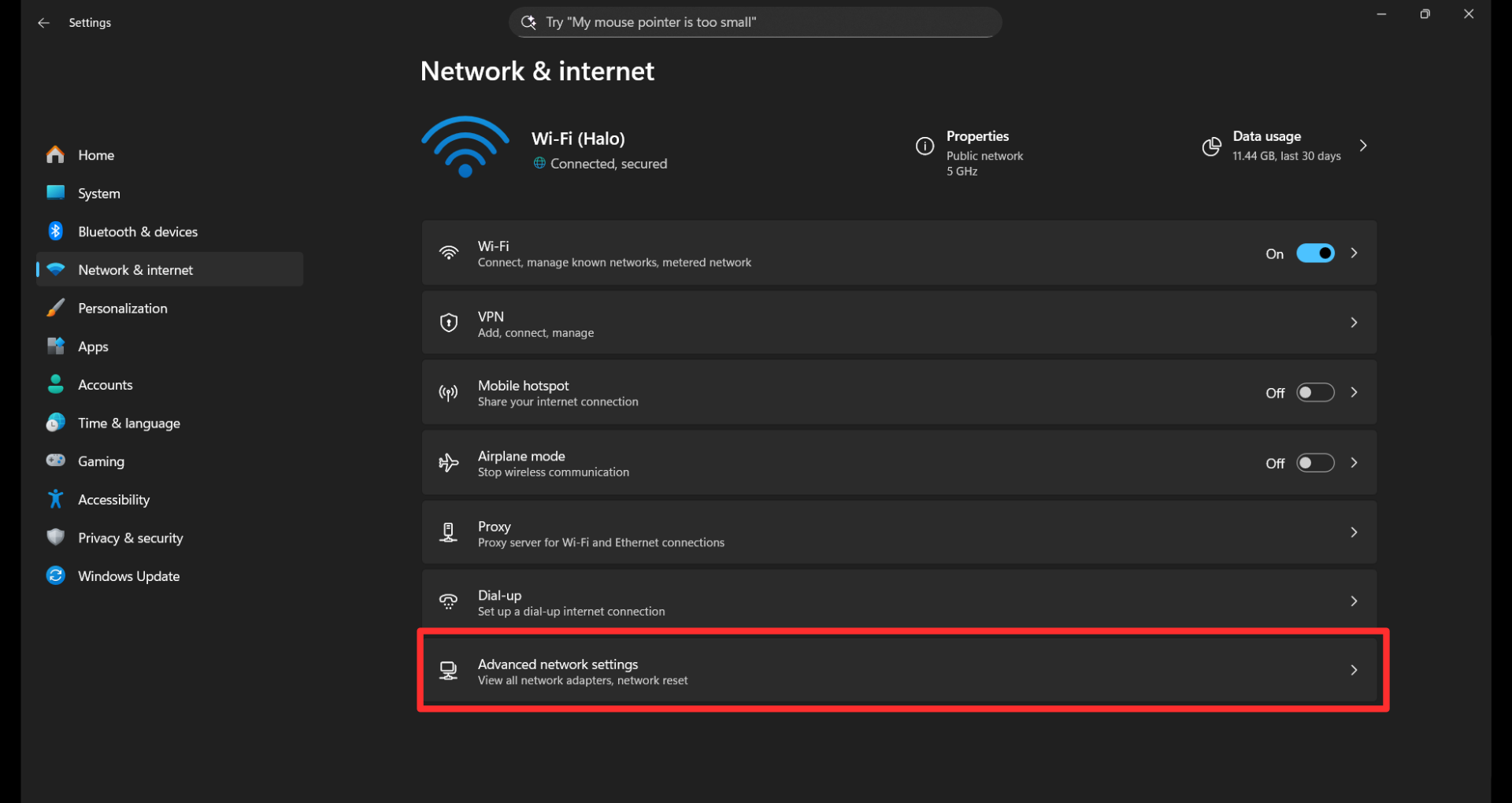
- Choose network reset.
- Confirm the reset, wait for it to complete, and restart your Ally device.

- When it turns back on, open the Network Panel and reconnect to your Wi-Fi by selecting it and entering your password.
MyASUS app settings and troubleshooting
- When on Windows Desktop again, open the MyASUS App by searching for it in the Start Menu.
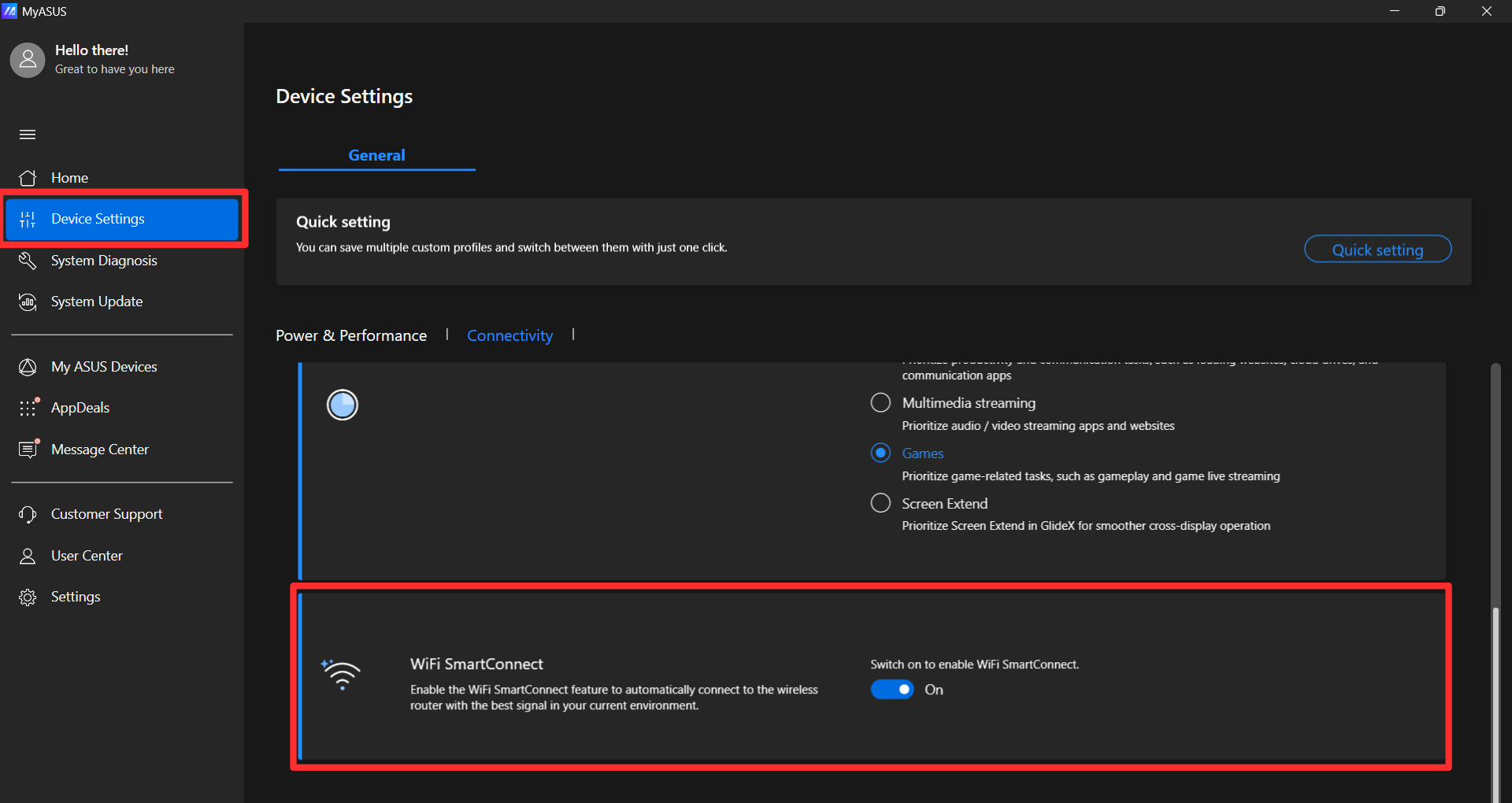
- When within the MyAsus App, select Device settings.
- Scroll to the bottom and turn on Wi-Fi Smartcheck.
Now if none of this has worked, there is one more thing you can try within the MyASUS App, here's what you can do.
- Within the MyASUS App, go to System Diagnosis.
- Tick the Wi-Fi box.
- Run the Checkup.
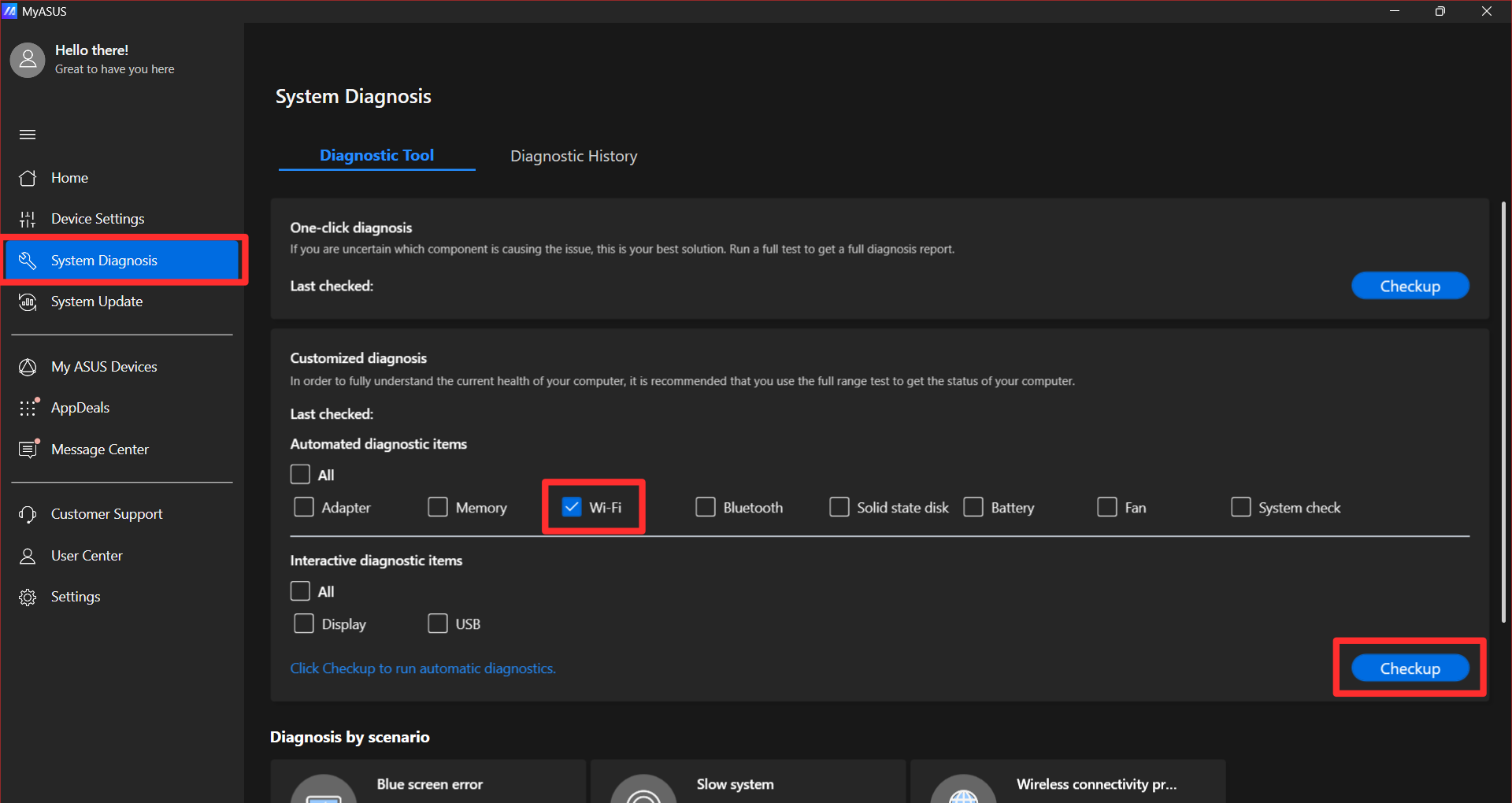
- MyASUS will highlight anything unusual and apply any necessary fixes.
Fix your handheld's Wi-Fi connection
Hopefully, something in this guide has helped you get your Wi-Fi working again. Updating my WLAN driver was the fix that finally solved it on my unit, and since doing that, my Xbox Ally X has connected to Wi-Fi without any issues.

Follow Windows Central on Google News to keep our latest news, insights, and features at the top of your feeds!