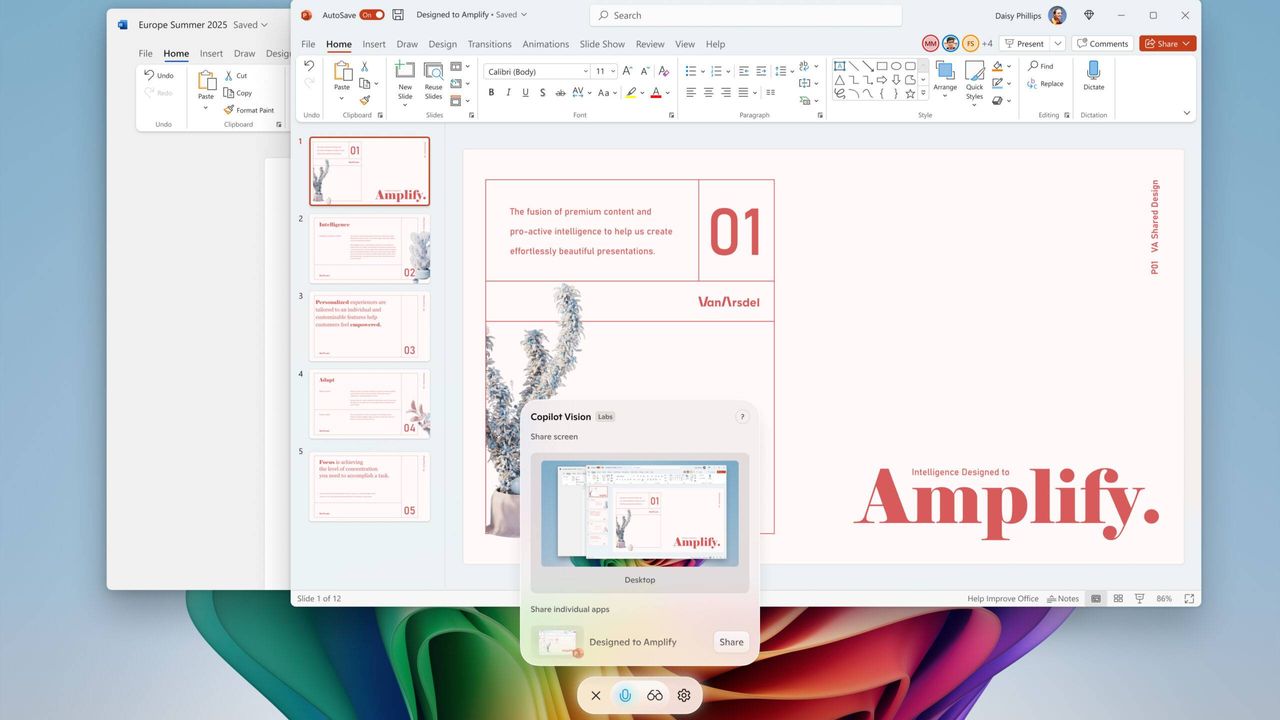
Microsoft first introduced Copilot Vision in late 2024, but as of May 2026, it has officially transitioned from a "preview experiment" to a standard feature in the latest Windows 11 builds.
After years of user skepticism, the feature is finding its footing. Interest in "contextual AI," a phrase for AI tools that understand what you're doing without you having to explain it, is exploding.
Whether you’re troubleshooting a broken Excel macro or summarizing a restricted PDF, Copilot Vision is Microsoft’s answer to making your PC feel "aware."
However, with awareness comes concern. Not everyone is on board with this feature. Luckily, as of the April 2026 Patch Tuesday updates, Microsoft has actually made it easier to disable these features entirely. Here is the reality of Copilot Vision today: what it can do, how it differs from the infamous Microsoft Recall and how to pull the plug if you value privacy over productivity
What exactly is Copilot Vision?
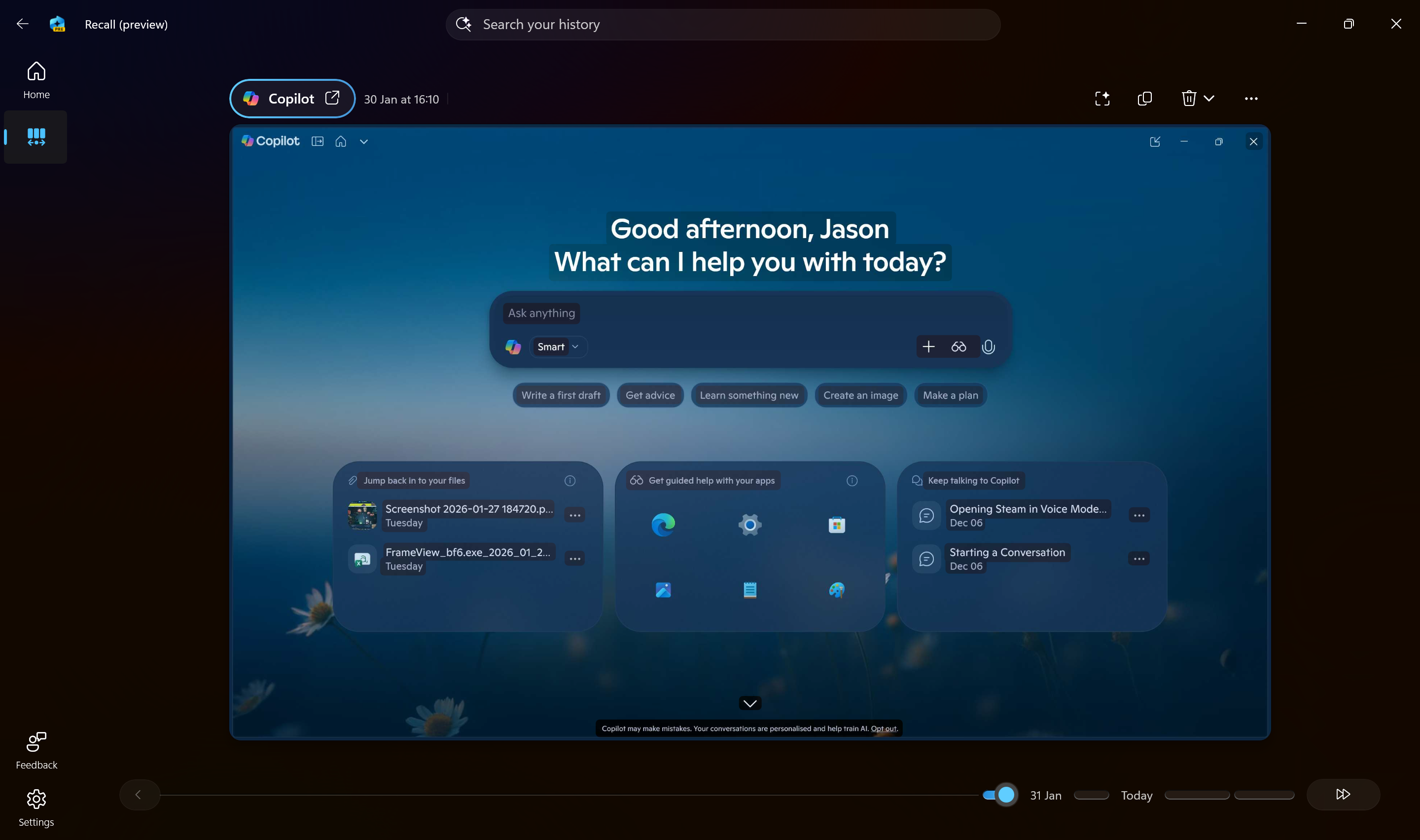
The biggest misconception in 2026 is that Copilot Vision is "Recall 2.0." It isn't. For those familiar, Recall constantly takes snapshots of your screen and stores them in a local database (mostly on Copilot+ PCs).
However, Copilot Vision is an explicitly opt-in tool. It only "sees" what you are looking at when you click the "Share with Copilot" button.
When active, an orange glowing outline appears around the specific app window or tab you are sharing. It acts as an over-the-shoulder digital assistant that can interpret code, explain complex UI buttons or summarize visual data in real-time.
If you've ever shared your screen with Gemini, it's very similar to that experience.
3 ways to use Copilot Vision
Like most AI tools, I always have questions like, how easy it is to use and why should I even use it. Copilot Vision is useful if you want to speed up your workflow. I've found it supports my own workflow better now when stacked against other AI tools like Claude or Gemini. Here's how:
- It's a visual troubleshooter: If you're stuck on a "File System Error" again, once you've asked ChatGPT or Gemini for answers, you can trigger Vision to show how to make adjustments. It reads the error message directly and provides the fix without you typing a word. It's kind of like when someone from IT asks you to "share your screen." Tech help is on the way faster with Copilot Vision.
- The 'where is that button?' guide: In complex apps like Adobe Premiere or 3ds Max, you can ask, "How do I mask this layer?" Copilot will display a highlighting cursor on your actual screen to point out the menu item you need. This is a game changer for me because I can ask a "stupid" question and Copilot Vision never judges. I literally used it to help me find out how to "unblur" my background while in a video call.
- Cross-app summarization: Have a dense spreadsheet open alongside a research paper? Vision can "read" both visible windows to synthesize a summary, saving you from the "upload to AI" dance.
Standard Copilot vs. Copilot Vision
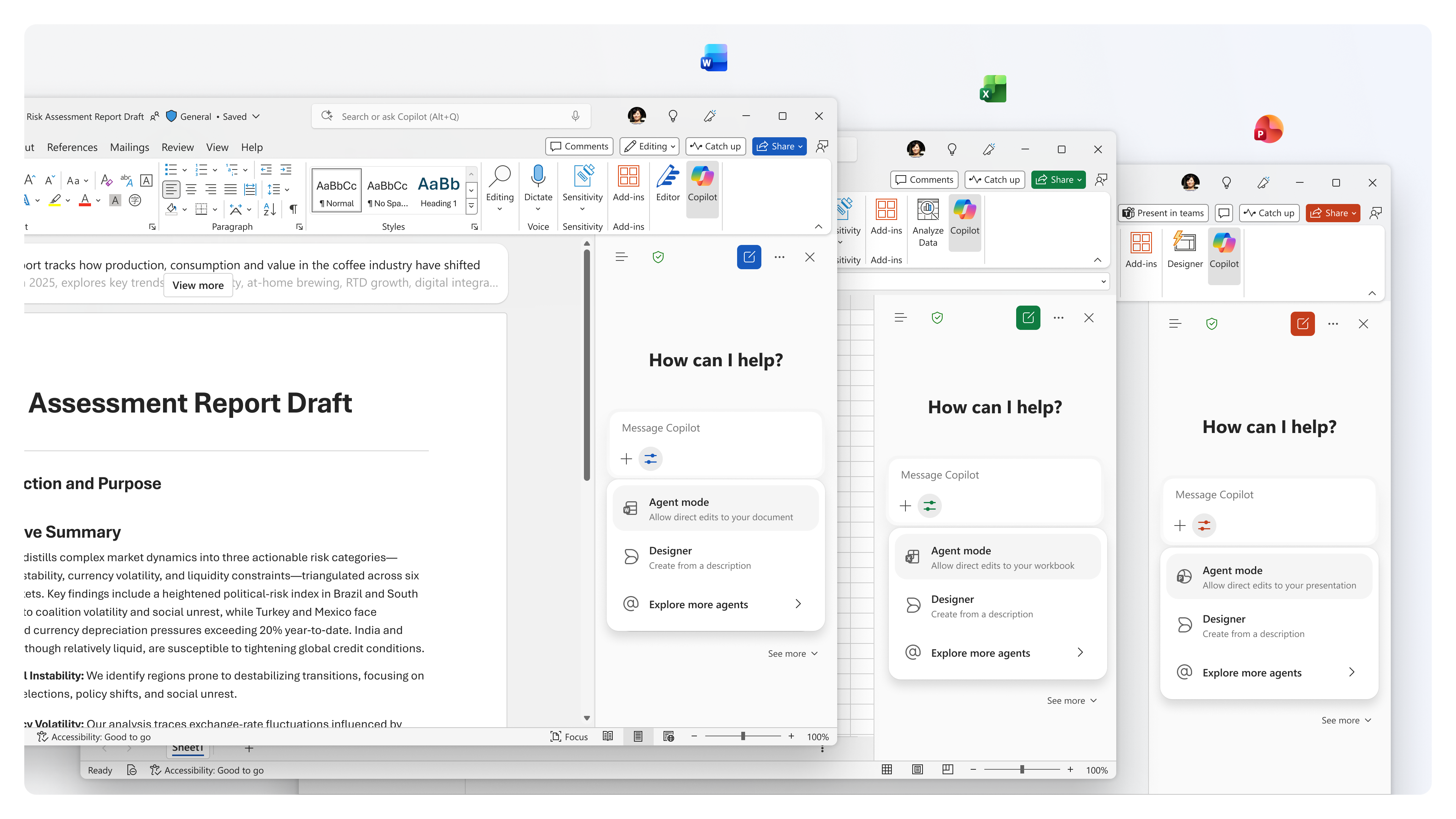
While the standard version of Copilot relies on you manually providing information, whether through typed text, voice commands, or explicitly uploading files, Copilot Vision operates through live screen sharing. The primary difference is in context awareness. The standard tool only knows what you tell it, but Vision understands everything currently visible within your active app window or browser tab.
This change also transforms the output you receive. Instead of just getting a text response or a generated image, Copilot Vision can provide visual on-screen highlights and pointers, essentially acting as a digital guide that interacts with your UI in real-time.
And while standard Copilot works across most modern hardware, Vision is heavily optimized for NPUs (Neural Processing Units), allowing it to process your visual data more efficiently on newer "Copilot+" PCs.
Privacy first: How to turn off Copilot Vision

In the 2026 version of Windows 11, Microsoft has moved several "kill switches" to make them easier to find. If you don't want AI eyes on your work, use these methods:
- The "quick kill": If you see the orange border, click the Stop button in the floating toolbar. In the latest updates, you can also hit Win + Esc to instantly kill any active Vision or Recall session.
- Permanent taskbar removal: Microsoft now places a "Share with Copilot" button in the taskbar by default. To remove it completely, just right-click the taskbar and select Taskbar settings. From there, toggle Copilot (preview features) to Off.
Microsoft claims that Vision data is processed and then discarded the moment the session ends. However, we still recommend turning Vision OFF when working with banking portals, health records, or proprietary corporate data.
The takeaway
While the arrival of Copilot Vision isn't new, there are now more uses for it than ever. Whether you need help writing code or simply don't have an IT manager to call, Copilot Vision can help you navigate just about anything on your computer. As long as you willing to show the AI your screen, you can immediately get support with a complex spreadsheet or decipher an unknown error code.
And since Micorsoft has made it strictly opt-in, respecting the boundry between helpful and invasive is a toggle away. Have you tried it yet? Let me know what you think in the comments. I've officially embraced the "eyes" and find that I appreciate Copilot even more now.