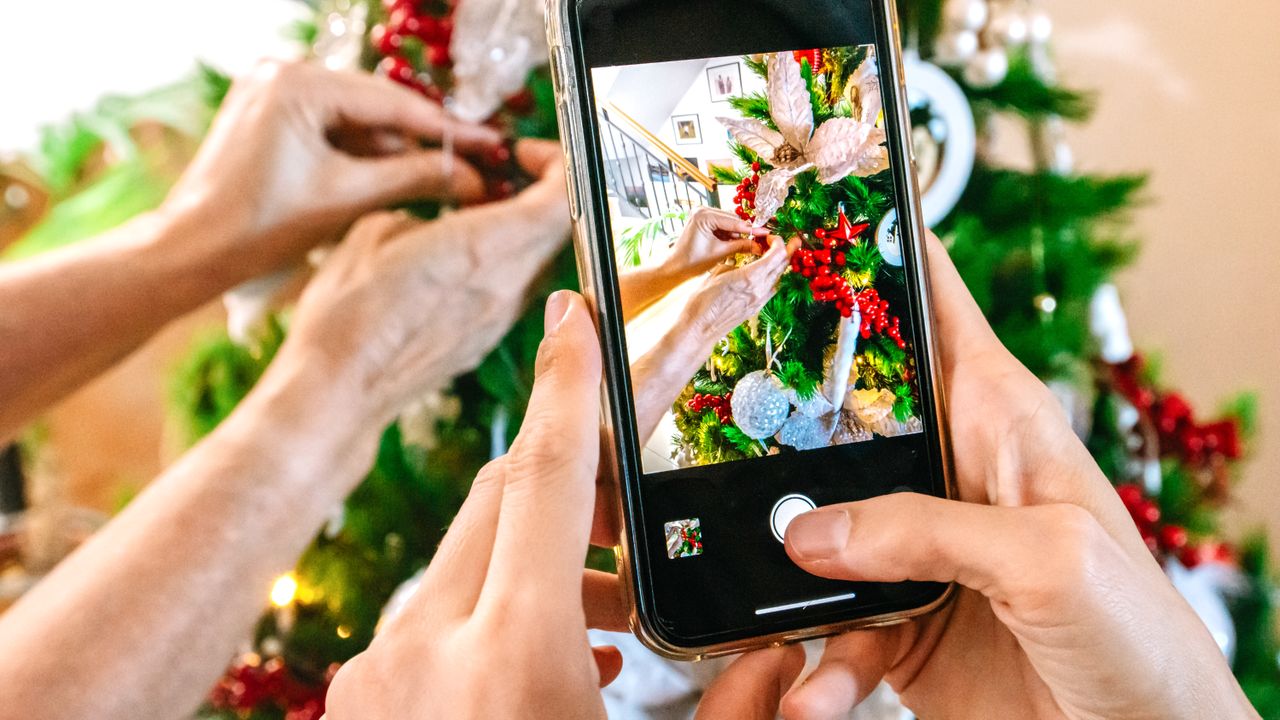
It’s a great time of year to be capturing moments and memories. With the best camera phones capable of taking better pictures than ever, you can be sure to get some good shots. However, if you want to elevate your holiday images from good to great, there are a few simple steps you can follow.
Many of the top smartphones have native camera apps that take most of the guesswork of getting tricky things like exposures and other settings right. Still, there are some simple things you can do in the form of straightforward steps that should help you get even better shots during the festive period and beyond.
Step 1: Think about lighting
When it comes to family photos on big occasions, try to get into the habit of taking the pictures earlier in the day to make the most of natural daylight. Photograph in the brightest part of the house, and do your best to avoid harsh, unnatural overhead lighting, too.

Don’t be tempted to use flash, which will likely wash out colors and create a harsh-looking atmosphere, a far cry from the cosy-warm look you’ll probably want to achieve.

While we’re on the subject of family photos, what about if you want to be in a group picture yourself? The obvious answer is to use the selfie camera — but in lower light situations you’ll often end up with lower-quality shots. Instead, to work with the better main camera, use the phone’s in-built timer and place it on a stable surface (a tripod if you’ve got one, but a table will do). Just be sure to line everyone up before dashing into the shot yourself.
Anyone with a Pixel 9 or later can take advantage of the AI-powered Add Me feature. With Add Me, you can take a group photo followed by a second shot that uses AR guides on the Pixel screen to show you where to stand. Software then stitches those photos together into one seamless group shot.
If you’re photographing a scene with Christmas lights and you can’t quite get exposures right, try tapping around on your phone’s screen – you should find that the exposure changes depending on the light source directly underneath where you’ve tapped. You can also try adding or removing exposure compensation —usually achieved by tapping, then swiping up and down on your phone screen; you also may find exposure compensation hidden in settings on some camera phones.
Step 2: Consider your angles and backgrounds
Paying proper attention to the composition of your photo is the best way to improve it, no matter the quality of your device.

Try to shoot food “face on” for an appetizing angle, or try a classic “flat lay” (overhead) shot if you’ve got lots of details that look good from above, such as a spread of Christmas cookies.
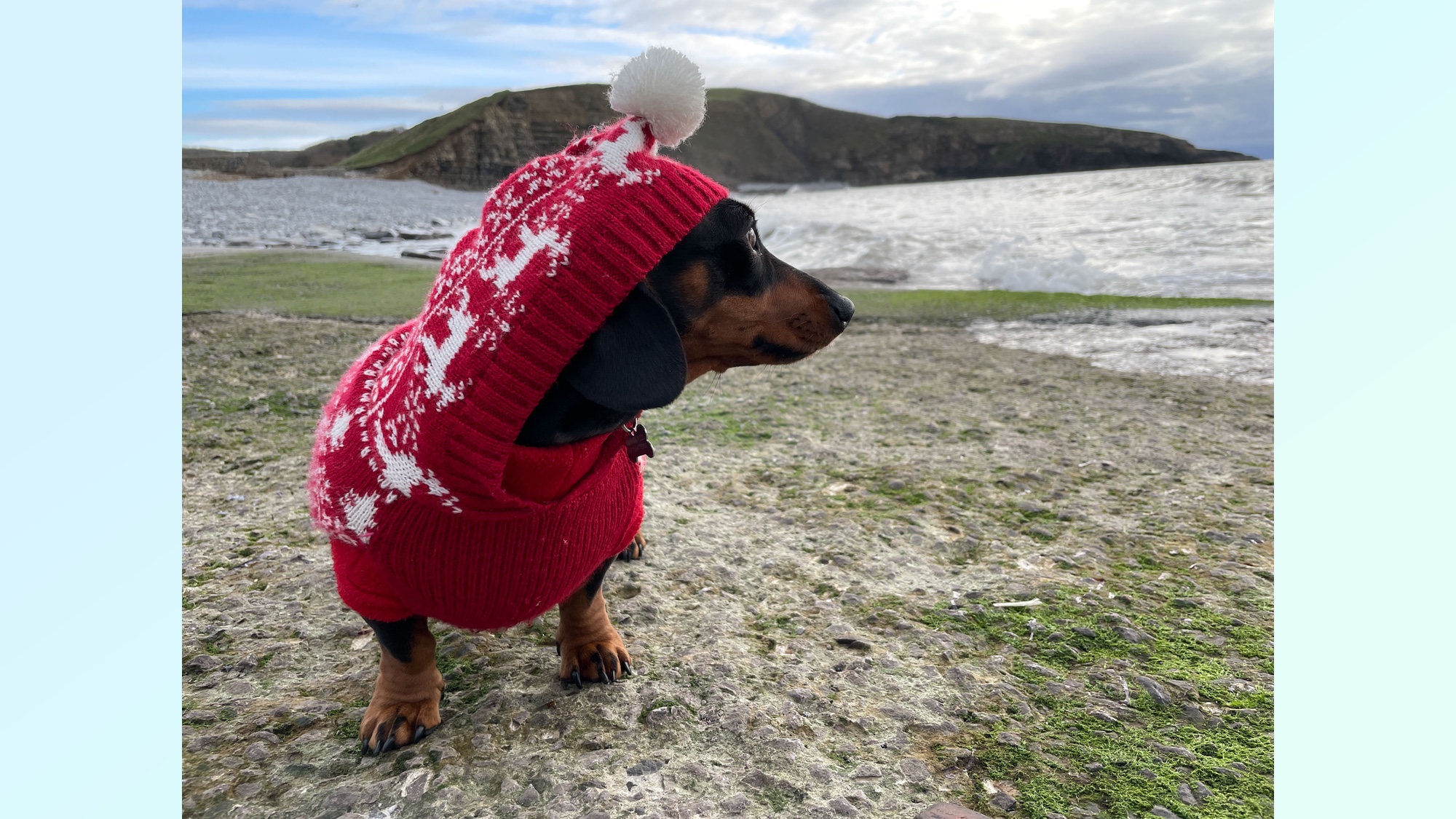
Photographing children or pets? A quick and easy tip here is to simply get down to their level. You’ll create a far more engaging portrait of both people or animals if you don’t dwarf them by shooting from above.
For those once-a-year family group shots, try to get everybody at a different/staggered height for a dynamic look. Don’t just place everybody in an awkward line-up — have some sitting, some standing, use sofa arms and so on.

The background of your shot can also make or break your image. Spend an extra second sweeping your eye around the frame to make sure there’s nothing sticking out of anybody’s head or a messy room beyond the subject.
Bonus points, too, if you can contextualize your pic — twinkly lights in the background, a Christmas tree, some wrapped presents. So long as they’re purposefully included, rather than random clutter, you’ll be on to a winner.
Step 3: Know your modes and use them
It can really pay to spend a bit of time familiarizing yourself with all of your smartphone’s different shooting modes to get the most from it over the holidays.
Want to capture lots of detail shots, perhaps of decorations, or food? See if your smartphone has a macro mode which can come in handy for getting super close. Or, alternatively, make use of additional lenses or zoom options your phone offers to pick out details, too.
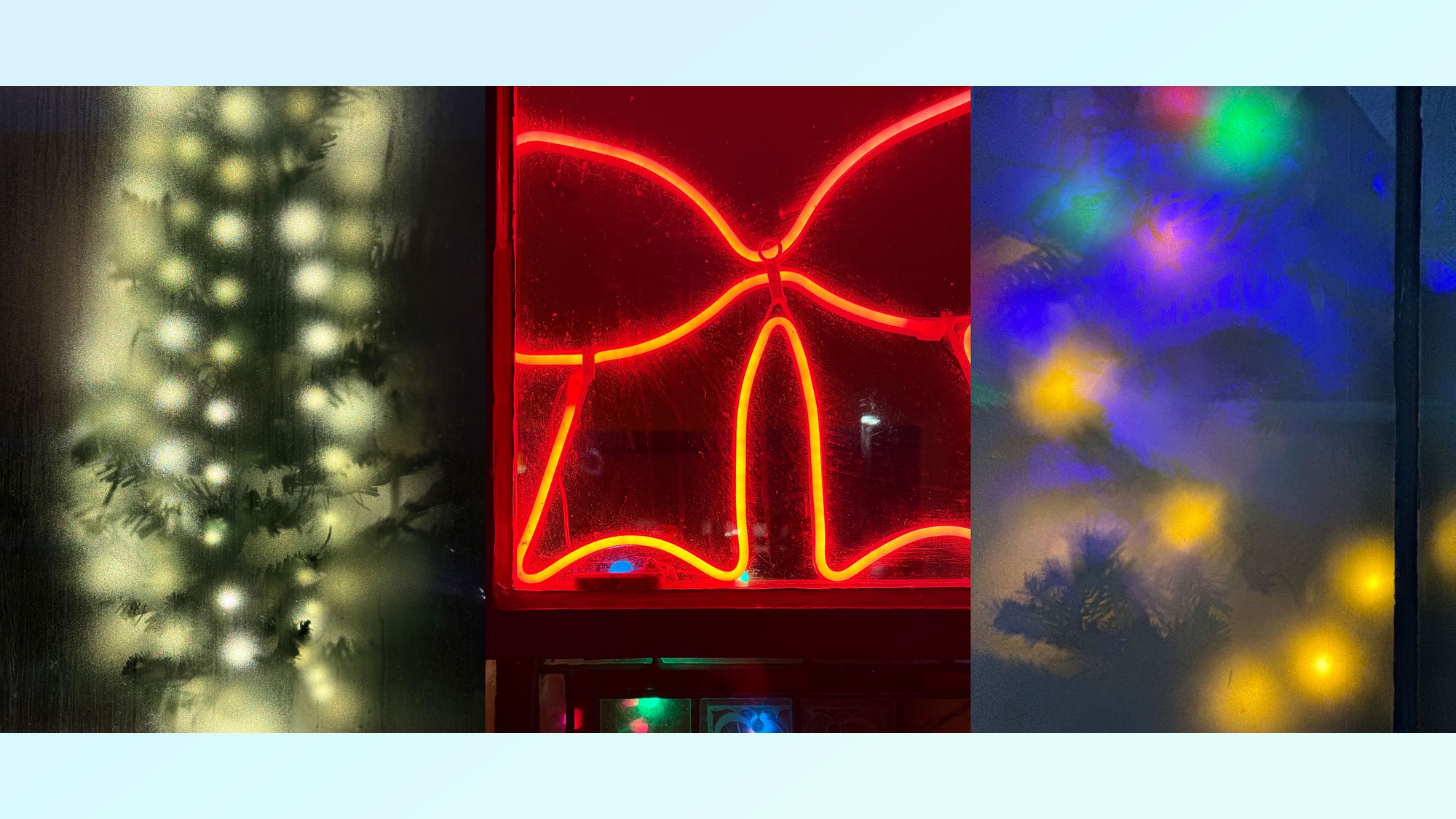
There’s Portrait mode which as the name suggests is useful for people shots, but it can also come in handy for creating a blurry background for your still life, and pet photos, too.
Night mode is really useful for photographing outdoor scenes after dark. It can help capture extra detail and really bring out the sparkle in illuminations.
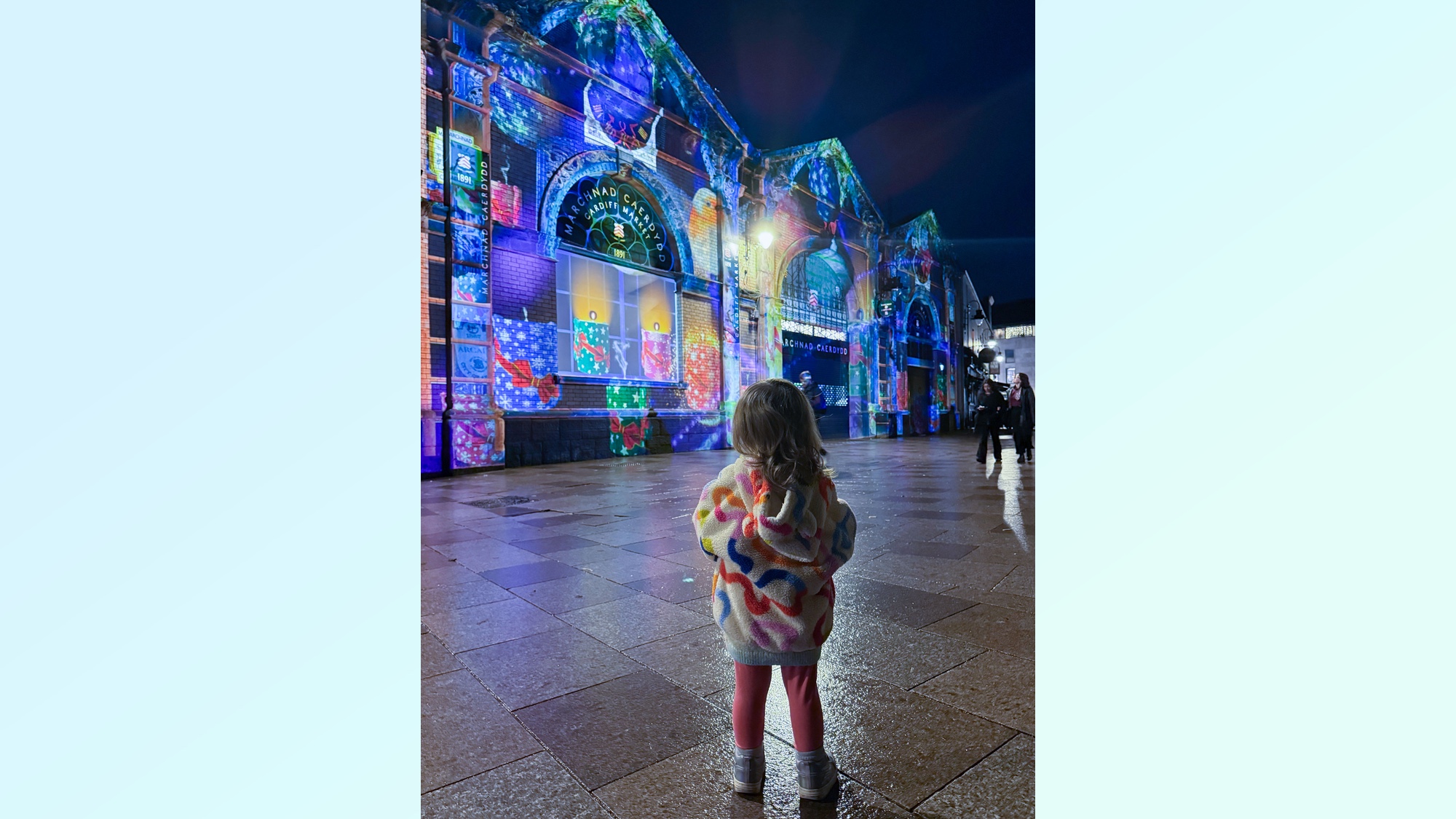
A lot of phones have “HDR” (high dynamic range) options which can be switched on or off. When photographing lots of holiday scenes, particularly lights, it can be useful to make sure this is switched on (on some phones it’s automatic). Enabling HDR will ensure you have detail in both bright and dark areas, and it can make the colors nice and vibrant.
Lastly, if you want to get a bit more creative —for example, using slower shutter speeds to purposely blur lights — look for any settings in your camera app that will allow you to manually control certain settings. Have a play around and see what you can do!

Follow Tom's Guide on Google News and add us as a preferred source to get our up-to-date news, analysis, and reviews in your feeds.