
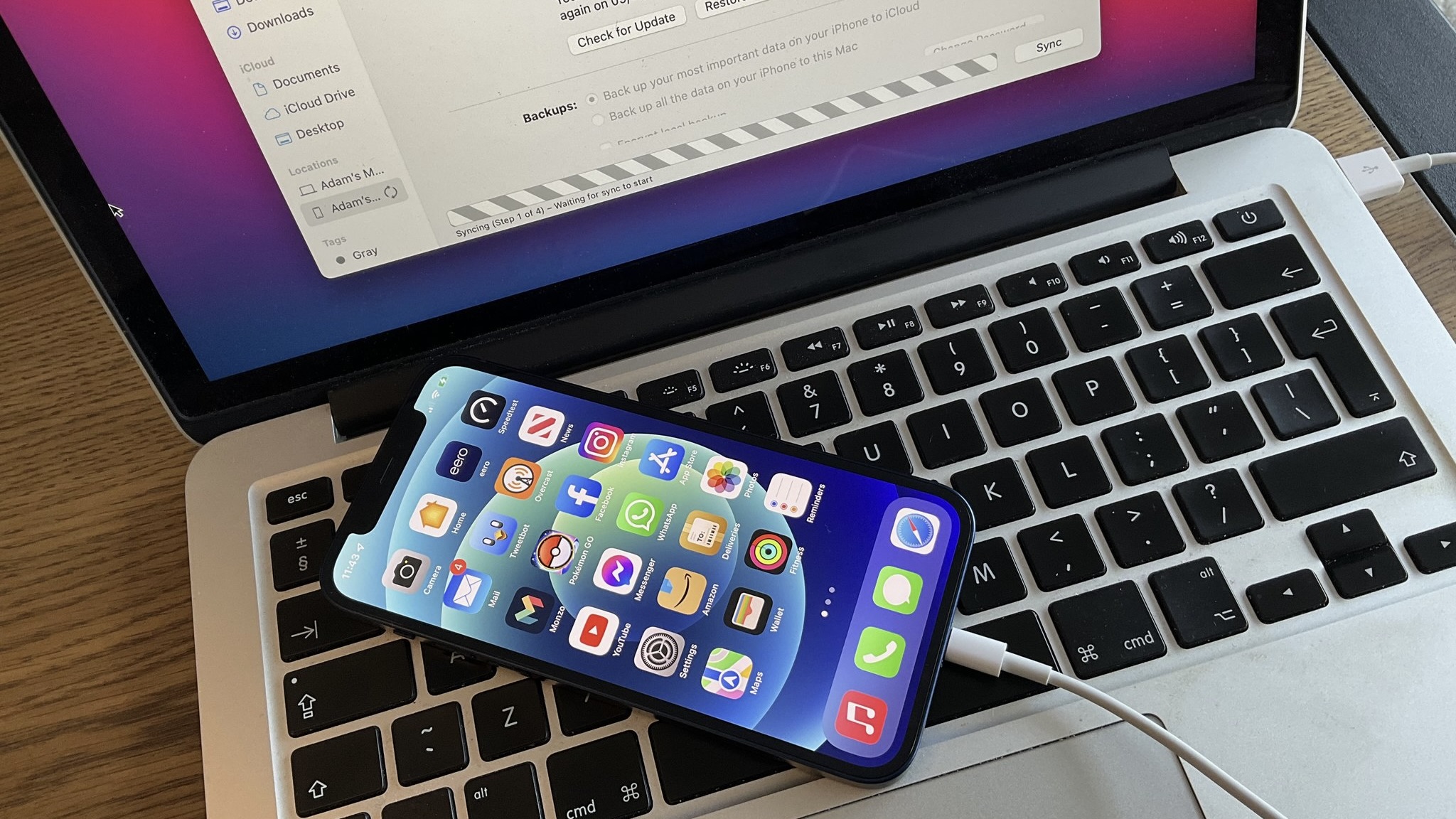
Connecting your iPhone to your Mac via Finder is a super handy way of transferring files and getting information out of your device. Though it has only gotten easier to navigate with time, some users have reported their iPhone not showing up in Finder.
Years ago, users used to have to download extra software just to move things across without using iTunes. Luckily, with macOS Catalina launching in 2019, it became much easier. Unfortunately, with how easy it is to connect, it can be quite frustrating when it doesn't just work.
This frustration can be even worse when you plug in one of the best iPhones, like the iPhone 15 Pro, and can't get all those wonderful pictures off the device. If your iPhone isn't showing up in Finder, here's the solution
How to troubleshoot your Mac not recognizing your iPhone or iPad
The first thing you'll want to check if your Mac isn't recognizing your iPhone is to make sure that its USB ports are still working properly. Unplug everything except your device from your Mac then test every port with the cable plugged into your iPhone.
While the problem could relate to a hardware failure, it's more likely that you're experiencing a software issue. If you've tried all of your USB ports and your iPhone or iPad still isn't showing up, you can check to see if your iPhone shows up in the System Information rundown. Here's how:
- Plug your iPhone or iPad into your Mac
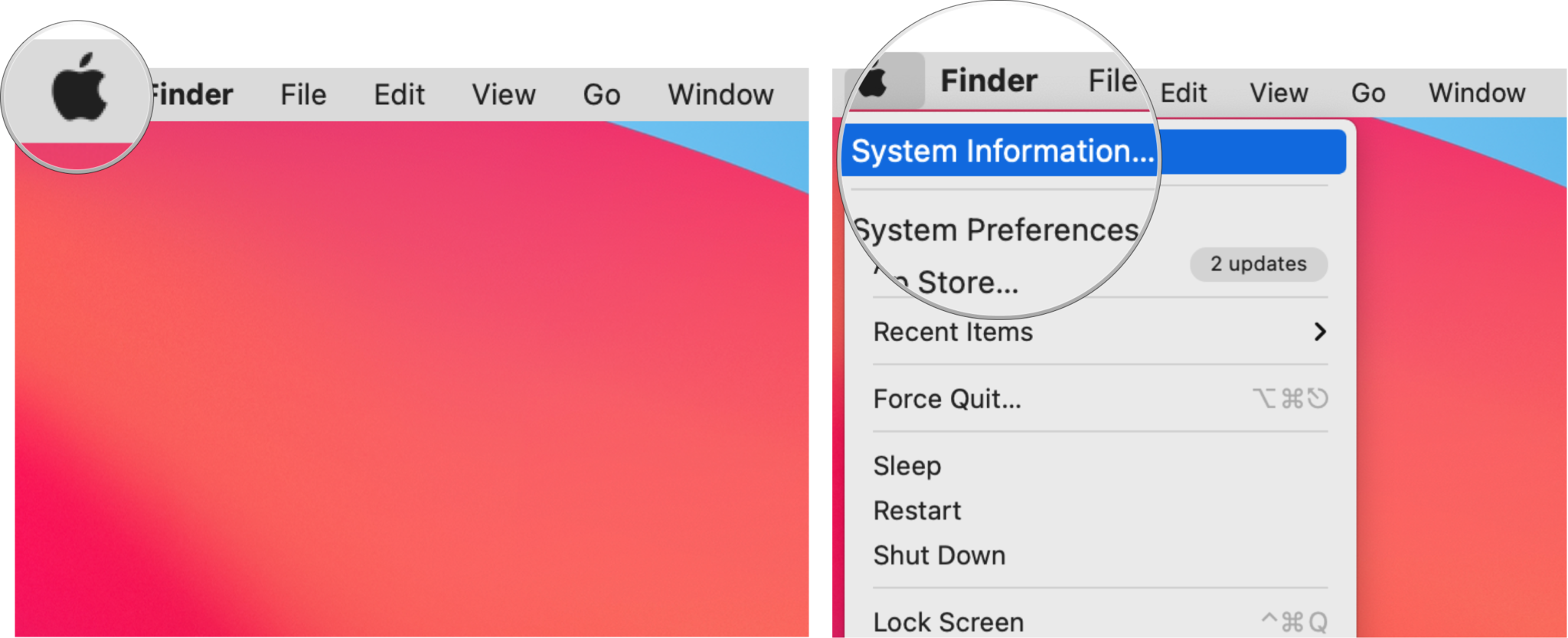
- Click the Apple logo on your Mac
- While holding down the Option key (Alt on some keyboards), click System Information
- Click USB in the sidebar
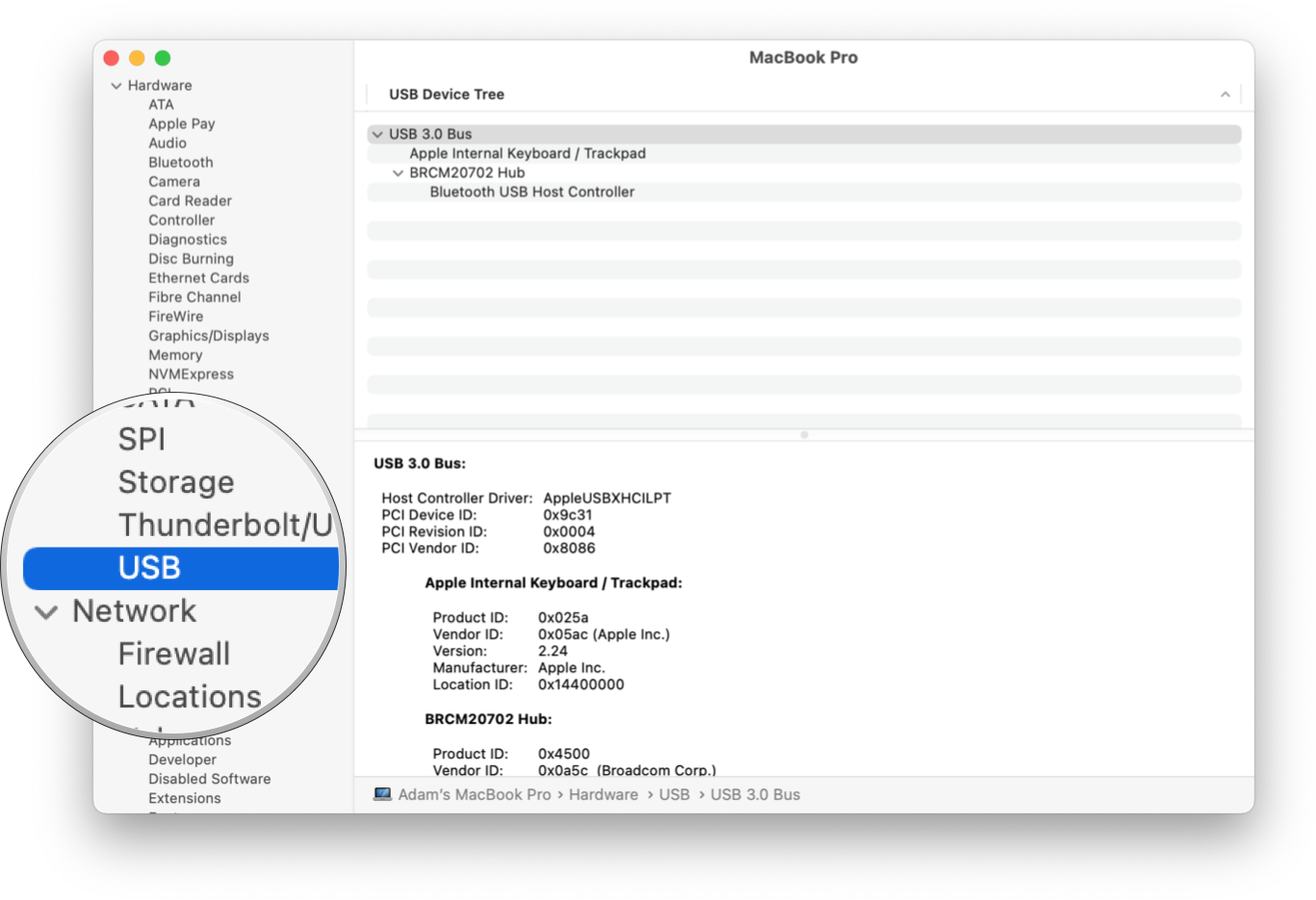
If your iPhone shows up under the USB menu, that means that your Mac is registering the iPhone as connected, but macOS is not. To rectify this, your best bet is to update macOS to its latest version.
How to get your iPhone or iPad to show in Finder
If you've gone through the troubleshooting steps and your device still isn't showing in the Finder sidebar, here's what you can do to sort things out.
- Plug your iPhone or iPad into your Mac
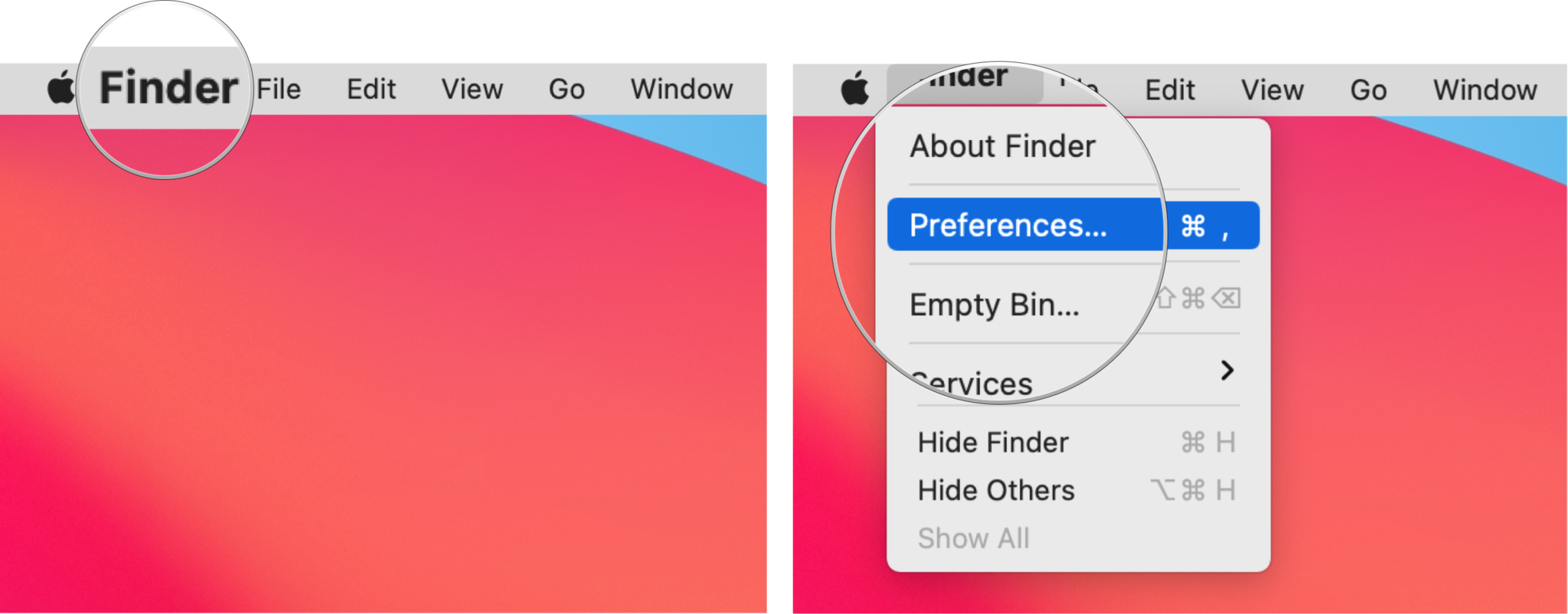
- Click Finder in the Menu bar
- Click Preferences
- Click the Sidebar tab
- Click the checkbox next to CDs, DVDs, and iOS Devices to check it if the box is empty. If the box is already checked, still click it to uncheck it and wait a few seconds
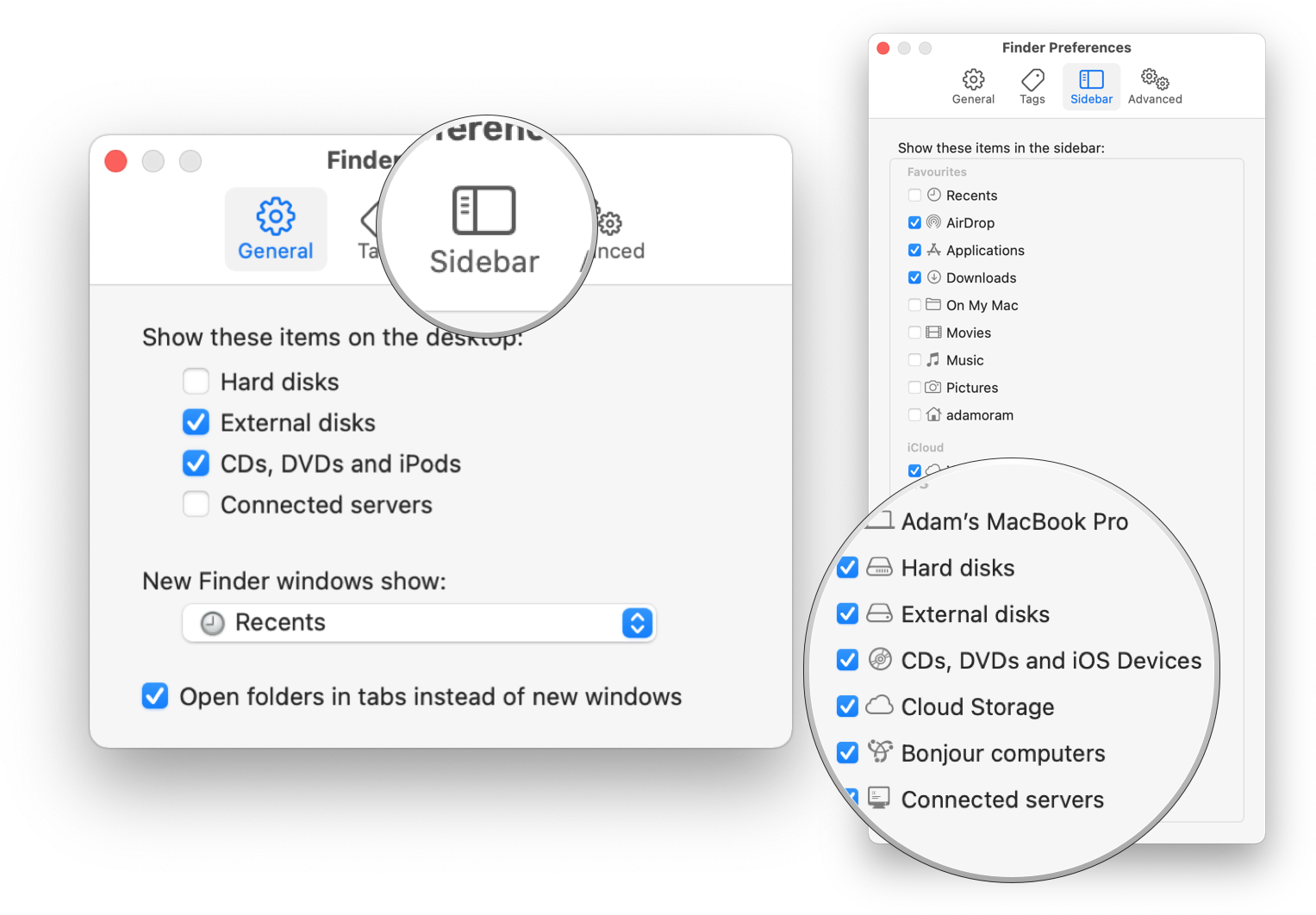
- Click the checkbox next to CDs, DVDs, and iOS Devices again to check it off and wait a few minutes
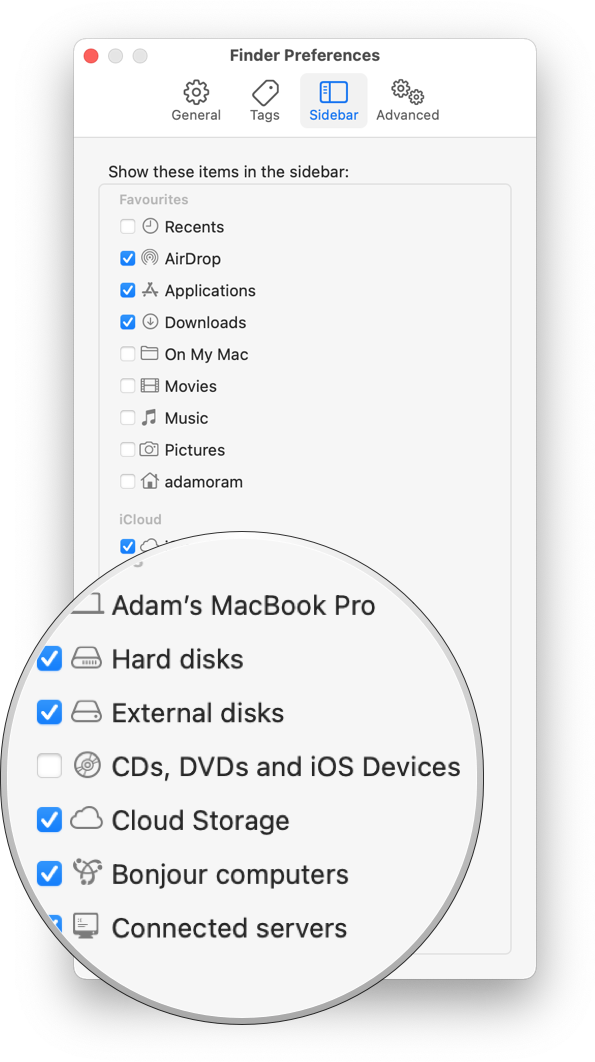
After a few minutes, your iPhone or iPad should appear in the sidebar of the Finder under Locations.
One more thing... lost and found
Backing up your iPhone or iPad via Finder on macOS Sonoma is incredibly simple, allowing you to manage your iPhone and iPad backups easily. While it's super easy to use, the tips above will help solve any niggles in the backup process.
I use iCloud as it's the easiest way to ensure all of my Photos and precious data are consistently backed up without worrying about plugging into my Mac. If you want to learn more about iCloud, we have loads of information in our iCloud Ultimate Guide.