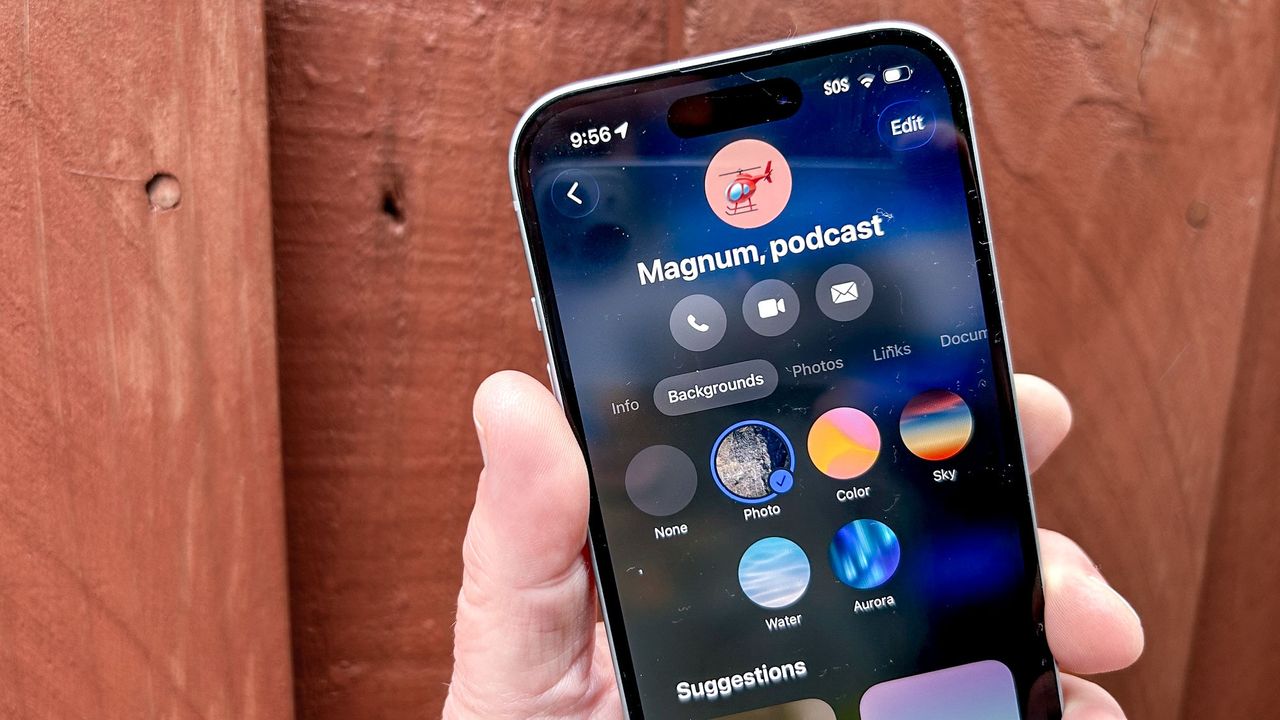
Apple has slowly been ramping up the number of ways you can personalize the look of your iPhone, and in iOS 26 that customization treatment makes its way into the Messages app. Once you download the iOS 26 update, you're able to change the background of any Messages conversation to match the topic of discussion or personality of the participants.
Is this an earth-shattering iOS 26 addition? Not really, but it does add a bit of playfulness to what has been a pretty static background. And since anyone running iOS 26 can change the background of a conversation in Messages, it's a way to make people feel more engaged while also putting their own stamp on the proceedings.
Changing your Messages background in iOS 26 works in both group chats and one-on-one conversations. Here's how to put the feature to work.
1. Edit the background of your chat
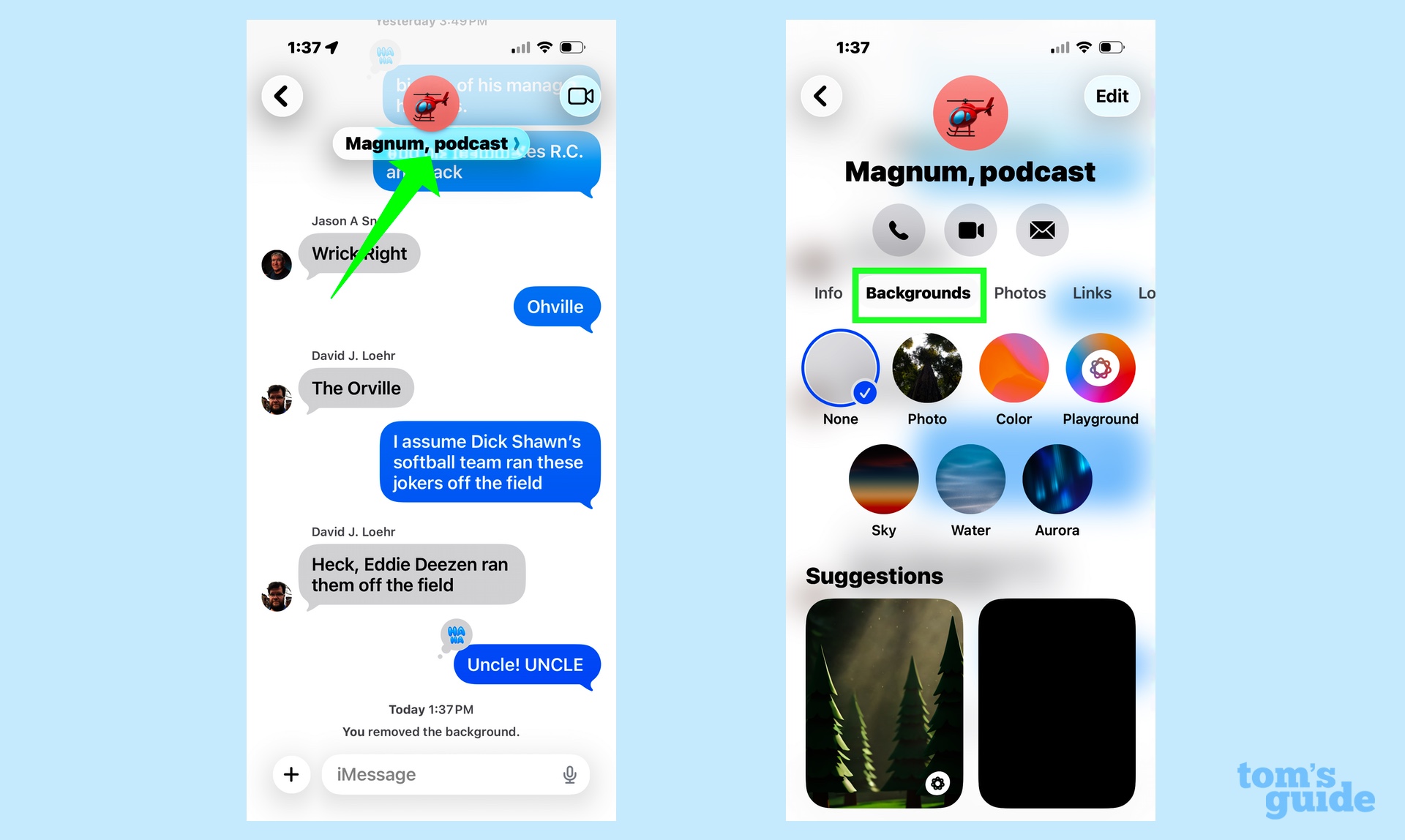
Tap on the name of your group chat, which will take you the screen that lets you edit details about the chat (like the name) or see photos, links and locations shared within the chat. In this case, you'll tap on the Backgrounds menu item added in iOS 26.
2. Pick your new background
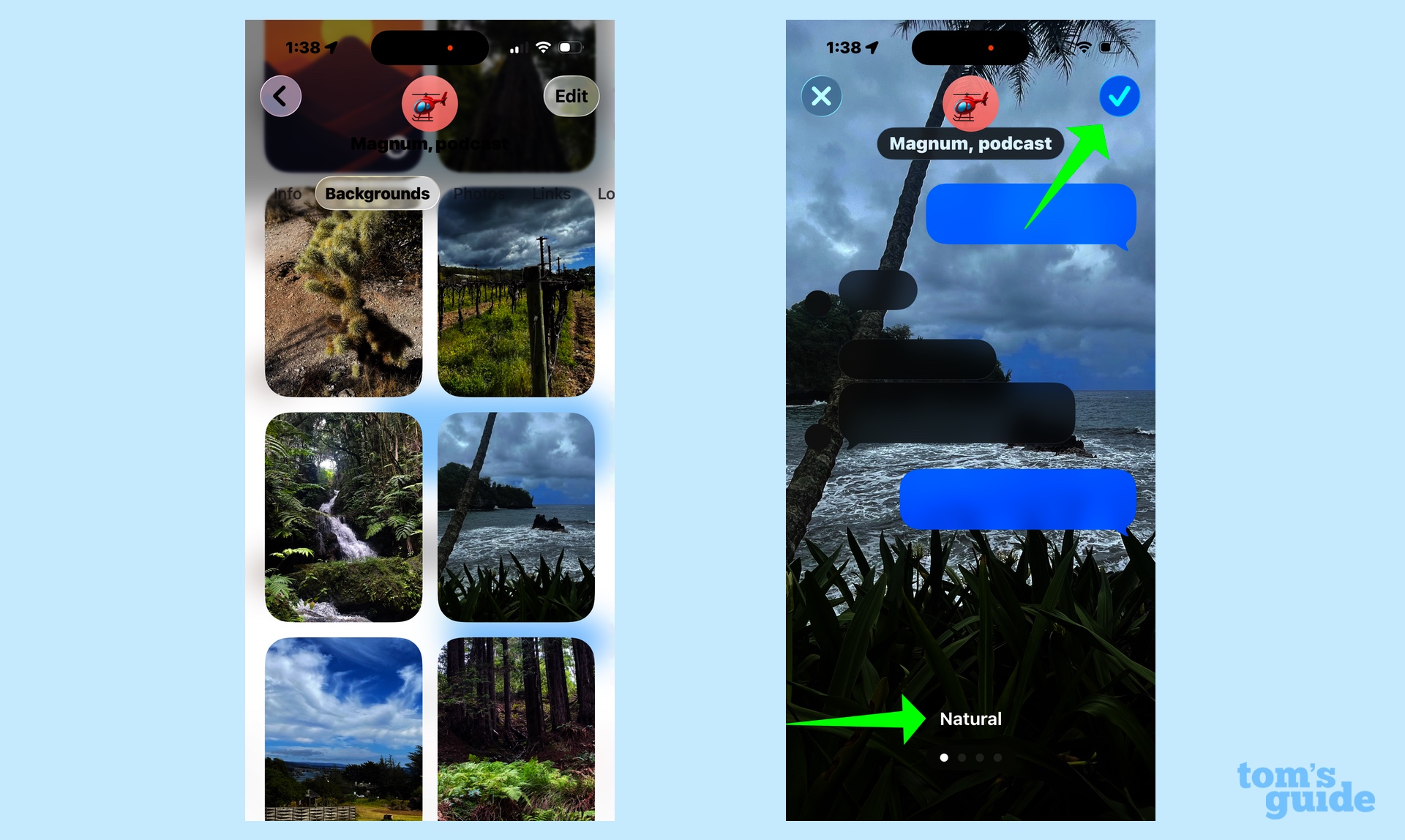
The backgrounds tab features a variety of background option types — more on those below — as well as block of suggested images, both from your photo library and from Apple-supplied backgrounds. For this chat about "Magnum PI," I've picked a photo from one of my trips to Hawaii. Once that photo is selected, you'll see a preview of how it looks, and you can adjust the filter by scrolling between different options. ("Natural" is the default setting.)
Once you're satisfied with your pick, tap the blue check mark in the right corner. Tapping X discards the choice.
3. Set your background
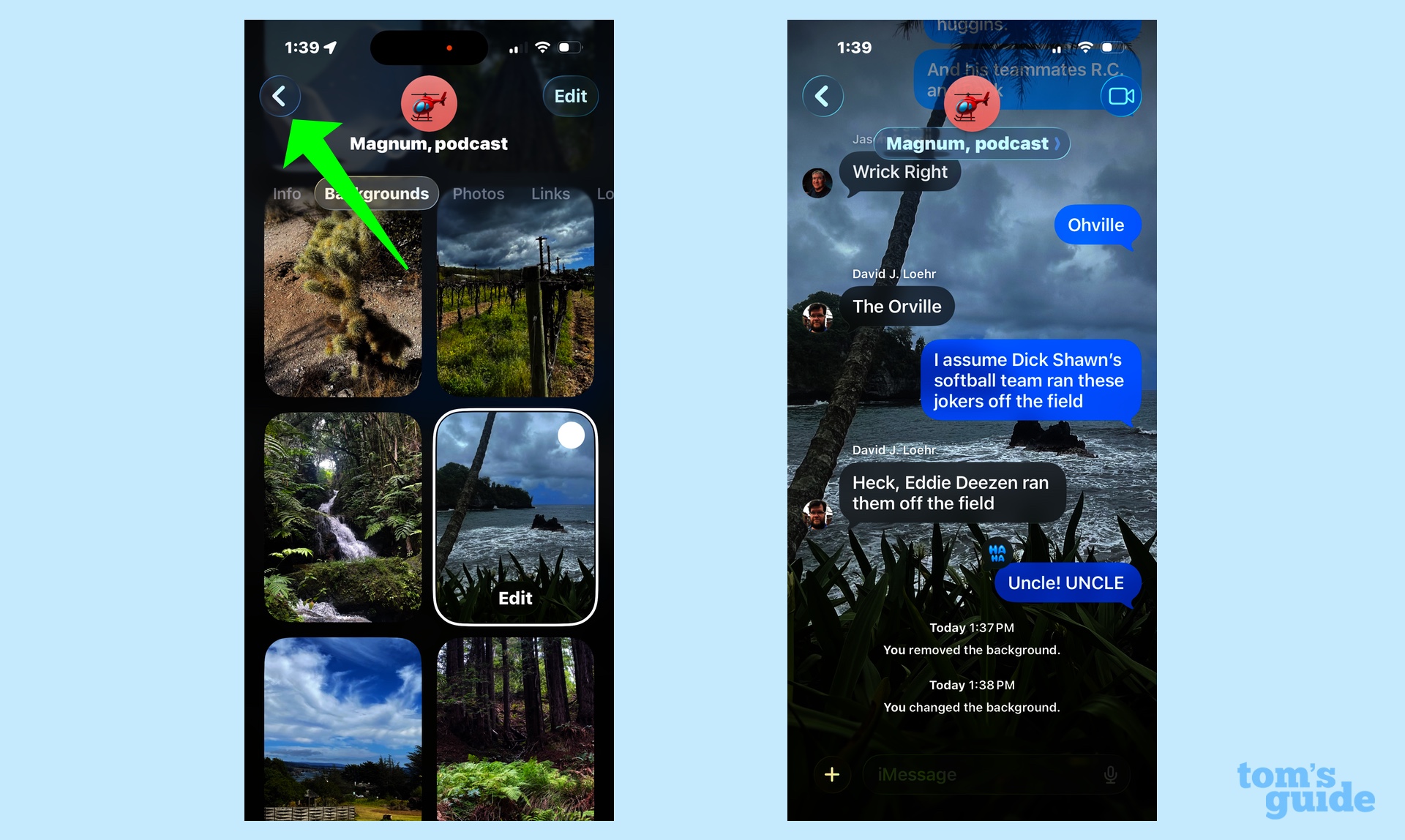
Once you're done making changes, tap the back arrow in the upper left corner. Your new background will now be in place, with a notation in the chat that you've changed the background.
I mentioned the different background options available in Messages. Let's explore those a little further.
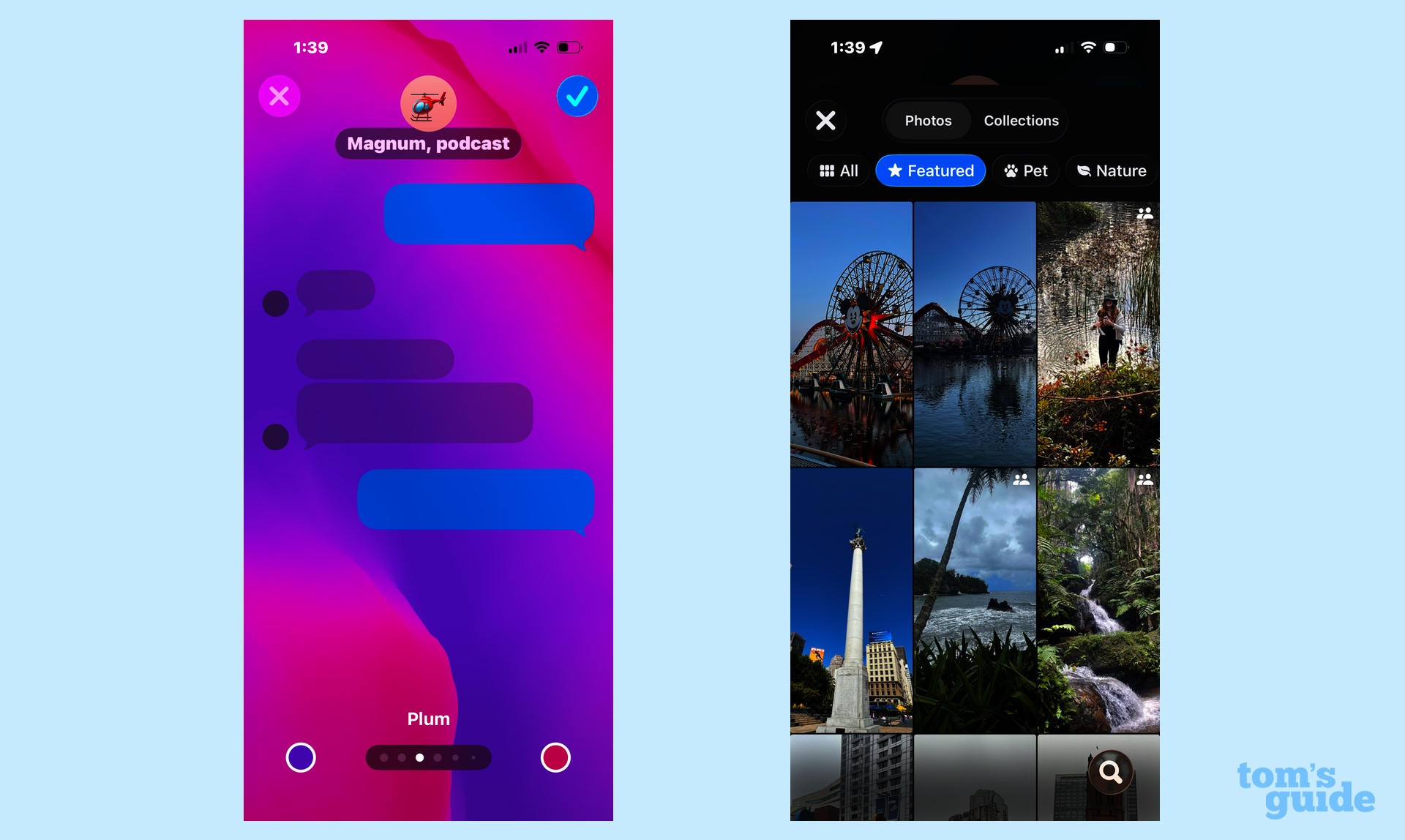
Colors and Photos are exactly what you'd imagine them to be. Colors shows a series of background color waves that flow dynamically across the screen. You can swipe at the bottom of your screen to pick different color options or customize the colors by tapping on either colored dot.
Photos takes you to your photo library, with a list of featured images. You can also see images sorted by pets, nature and cities, as well as your full library of photos.
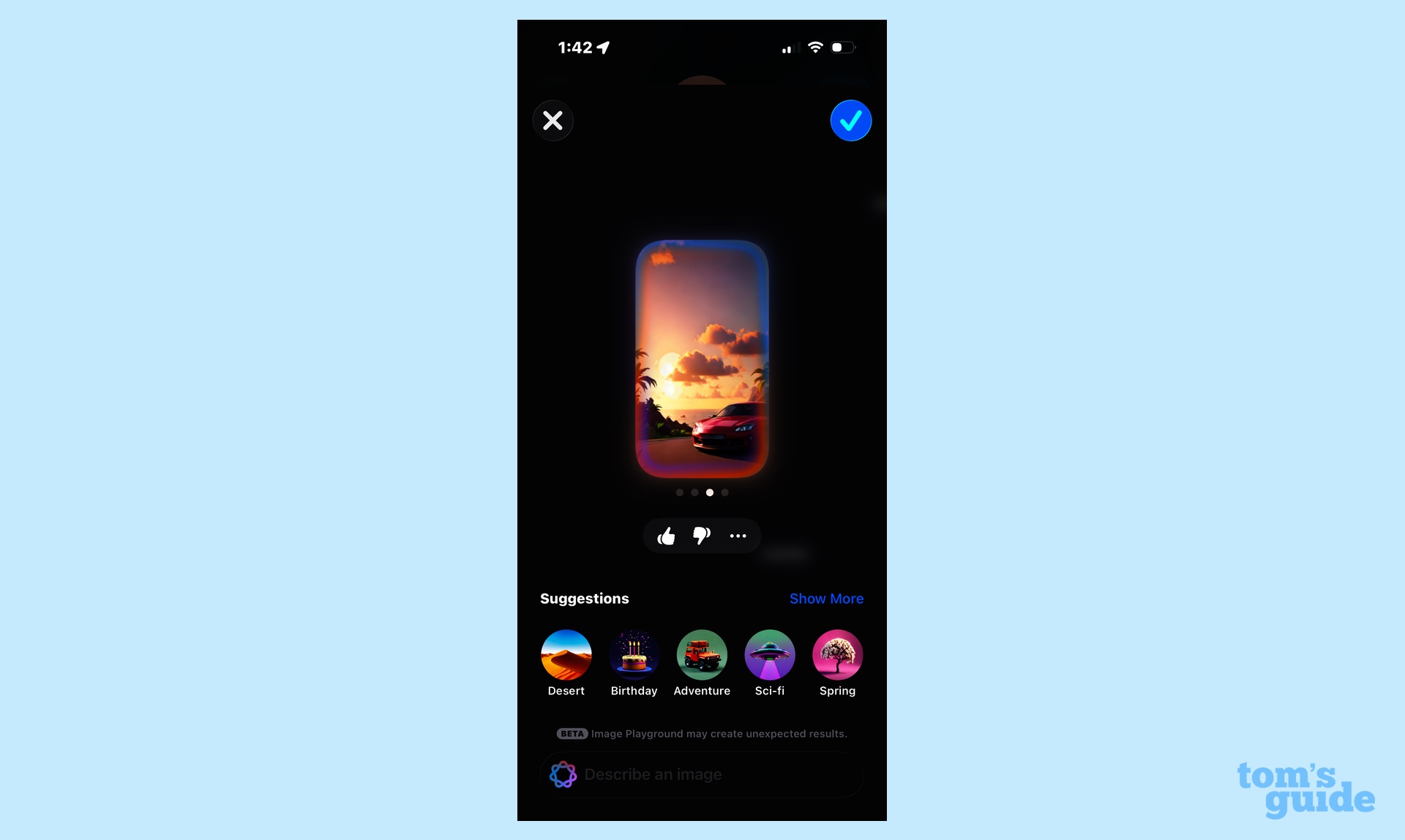
On iPhones that support Apple Intelligence, there's an Image Playground option where you can use that AI-powered image editor to generate a background image — say, a red sports car in Hawaii at sunset.
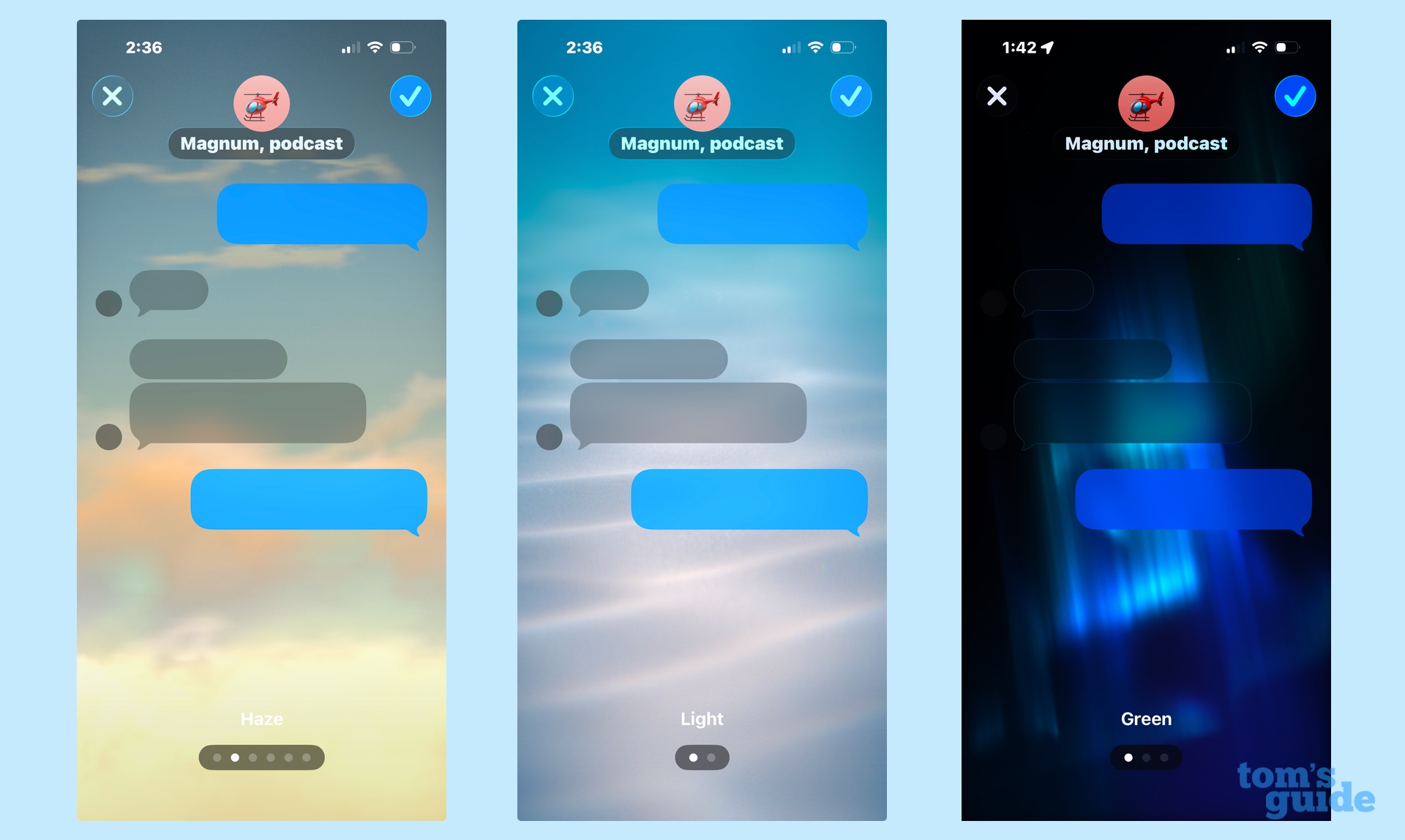
Finally, there are the natural options — sky, water and aurora — that mimic those elements. You can adjust different filters and views with a sideways swipe.
And that's a look at one of the biggest changes in iOS 26 Messages. For a look at one of the other new features, see our guide on how to create polls in Messages. We can also show you how to use the snooze duration feature in the iOS 26 Clock app as well as how to incorporate Apple Intelligence features into Shortcuts.