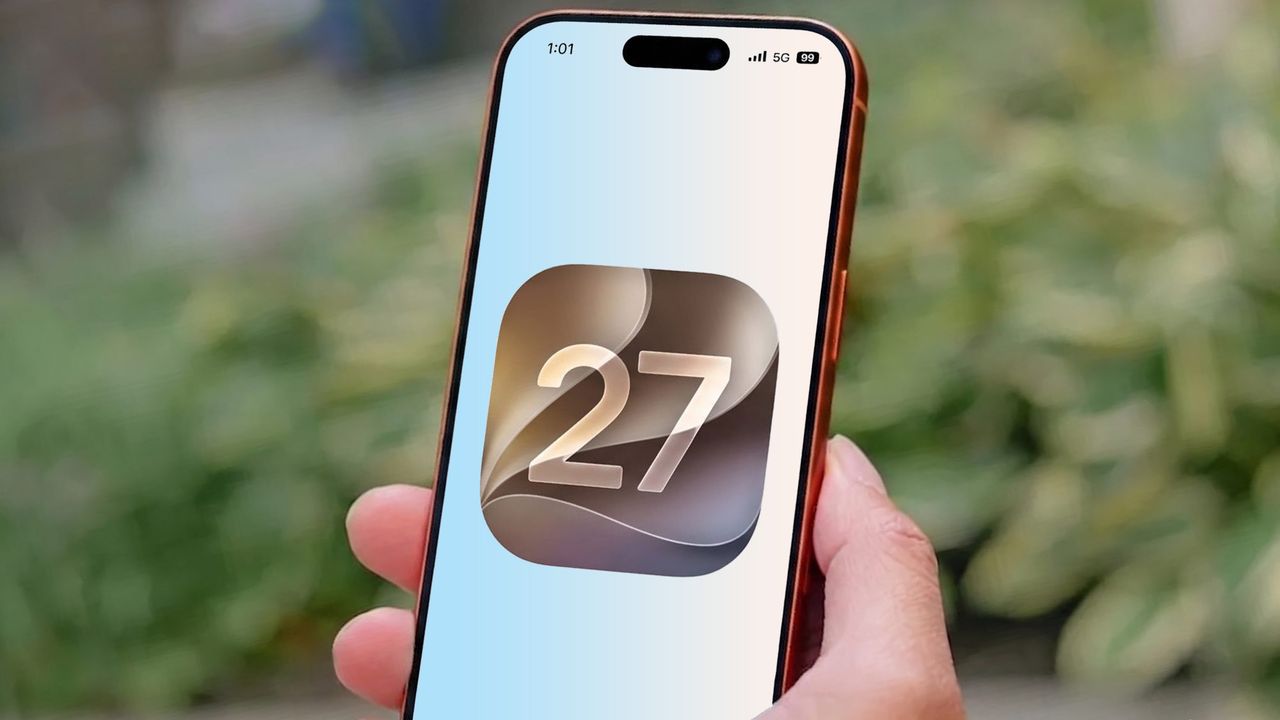
For a long time, my iPhone's Shortcuts app sat completely untouched. Every time I opened it, I was staring down an overwhelming maze of workflows, actions, and conditional logic — concepts that felt way too close to coding for my liking. So, I did what a lot of us do: I gave up on it entirely.
But iOS 27 completely changed how I use my phone, thanks to a new Apple Intelligence feature called Describe a Shortcut. Instead of forcing you to manually construct complex workflows, the AI lets you prompt exactly what you want your iPhone to do, and it builds the shortcut for you in seconds.
If you want to try it out yourself, you'll just need the iOS 27 beta running on an iPhone 15 Pro or newer to get started.
Download iOS 27 beta to access Apple Intelligence shortcuts
First, back up your iPhone by going to Settings, Your Name, iCloud, iCloud Backup and tapping Back Up Now.
If you’ve never used an Apple beta before, you'll need to register for a free developer account to get started. Once you’ve done that and are off the Apple Intelligence waitlist, you can update your phone.
If you’ve used any Apple beta in the past, you can skip the registration entirely and download iOS 27 straight away. Just open Settings, go to General, Software Update, Beta Updates, and select the iOS 27 Developer Beta.
How to create shortcuts with Apple Intelligence
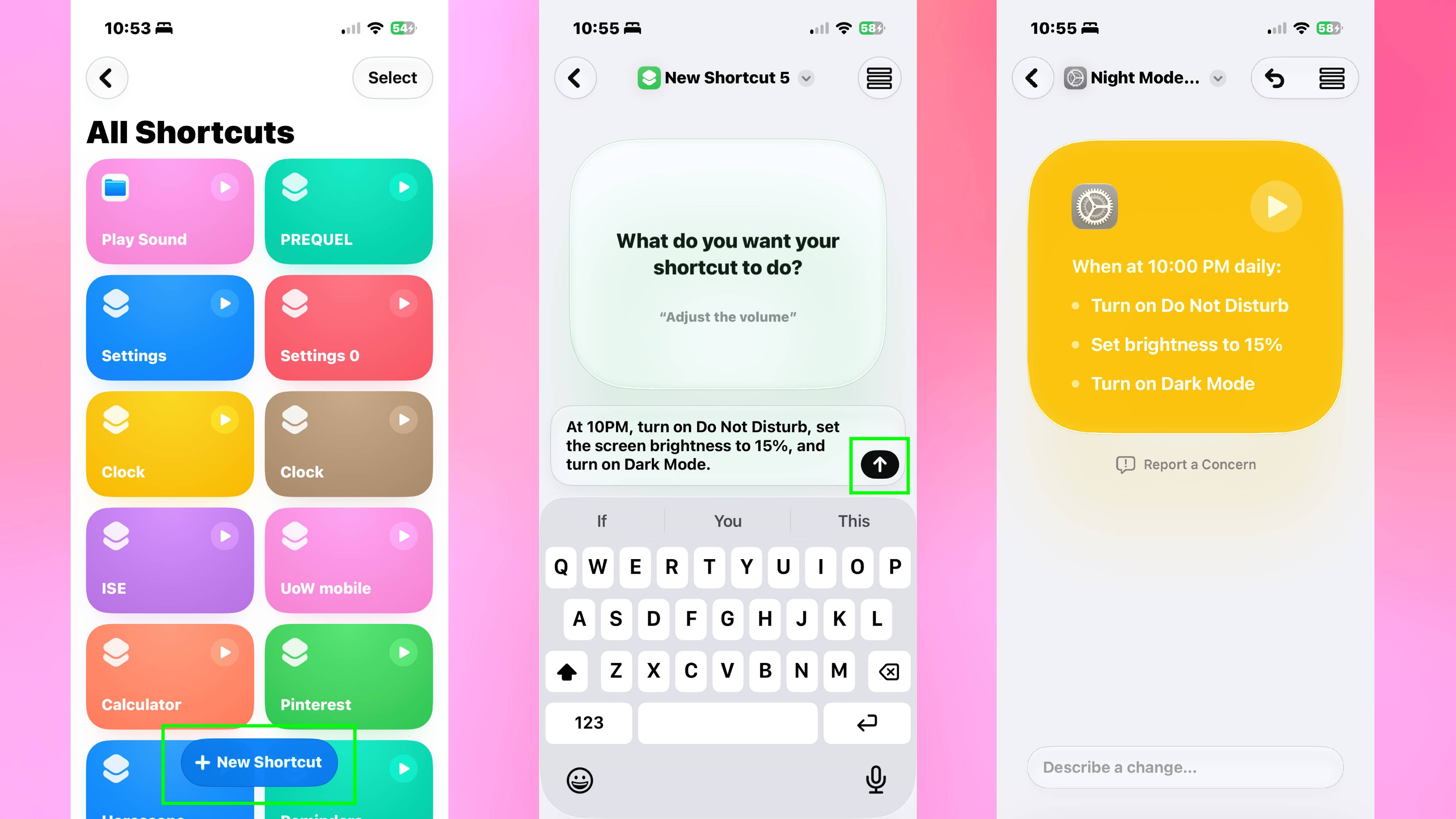
Open the Shortcuts app and tap the New Shortcut button at the bottom. Instead of the traditional workflow builder with manual actions, you'll see a text field asking what you want the shortcut to do.
Type a natural description of the action. I, for example, used: "At 10:00 PM, turn on 'Do Not Disturb', set the screen brightness to 15%, and turn on Dark Mode." Once you've done this, press the arrow. Apple Intelligence analyzes your prompt, then constructs the entire shortcut with all the necessary actions.
The beauty of describing shortcuts is that you can be as specific as your situation requires. You could build a morning workflow that opens your calendar, plays a specific playlist, and sends a text. You could create a work mode that silences notifications, closes distracting apps, and locks your phone until you toggle it off.
The more detailed your description, the more precisely Apple Intelligence understands what you need. Keep in mind that because this is still a beta, you may experience a little trial and error, but so far, so good.