The Artemis II crew has just completed one of the most daring portions of their moon mission: a translunar burn to finally jettison the Orion spacecraft from the Earth's gravitational pull and put it on a trajectory to fly around the far side of the moon.
It was a risky maneuver and prompted some deep reflection, perhaps no better embodied than in the stunning image of Earth captured by NASA astronaut and Artemis II Commander Reid Wiseman.
Shared by NASA on Friday, the image shows the Earth in full with a pair of auroras created as our globe eclipses the sun.
No one knows at this moment how Wiseman captured the image, whether it was done with a NASA-issued digital camera or one of the smartphones the crew was allowed to bring along for the Artemis II mission.
Perhaps, though, that doesn't matter. It's the kind of photo that's instantly iconic. Some might compare it to the Earthrise photo taken during Apollo 8's 1968 lunar orbit by astronaut William Anders. The new image certainly stirs some emotions.
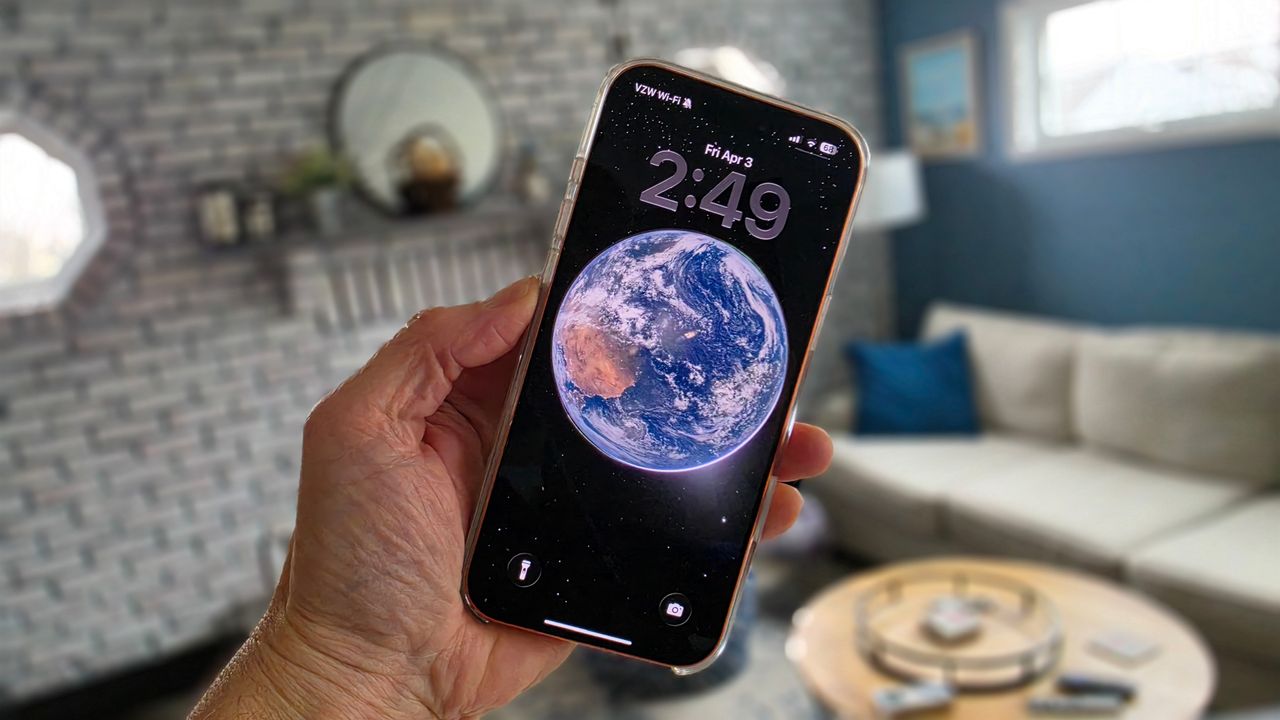
I was so taken with the photo that I decided I wanted it on my iPhone 17 Pro Max — all the time. Turning it into my wallpaper and background was the obvious answer, but there were some hurdles.
Usage is not a problem: Virtually all NASA images are in the public domain. The issue was the size and aspect ratio.
As shot by Wideman, the image is 5568x3712 pixels, which, by the way, does not exactly match the iPhone's 24MP resolution in 16x9, 4:3, or 1:1. The iPhone 17 Pro Max's optical wallpaper image size is 1320x2868. You can see the problem.
Making the Artemis II Earth photo into iPhone wallpaper
Here are my steps:
- Download the image off NASA's website
- Open it in Adobe Photoshop 2026
- Create a new 1320x2868 image in Photoshop
- Select the entire NASA image and copy it
- Paste into the new image
- Use Command/T to resize the image until the Earth fits in the window
- Drag it to center it vertically and horizontally in the frame
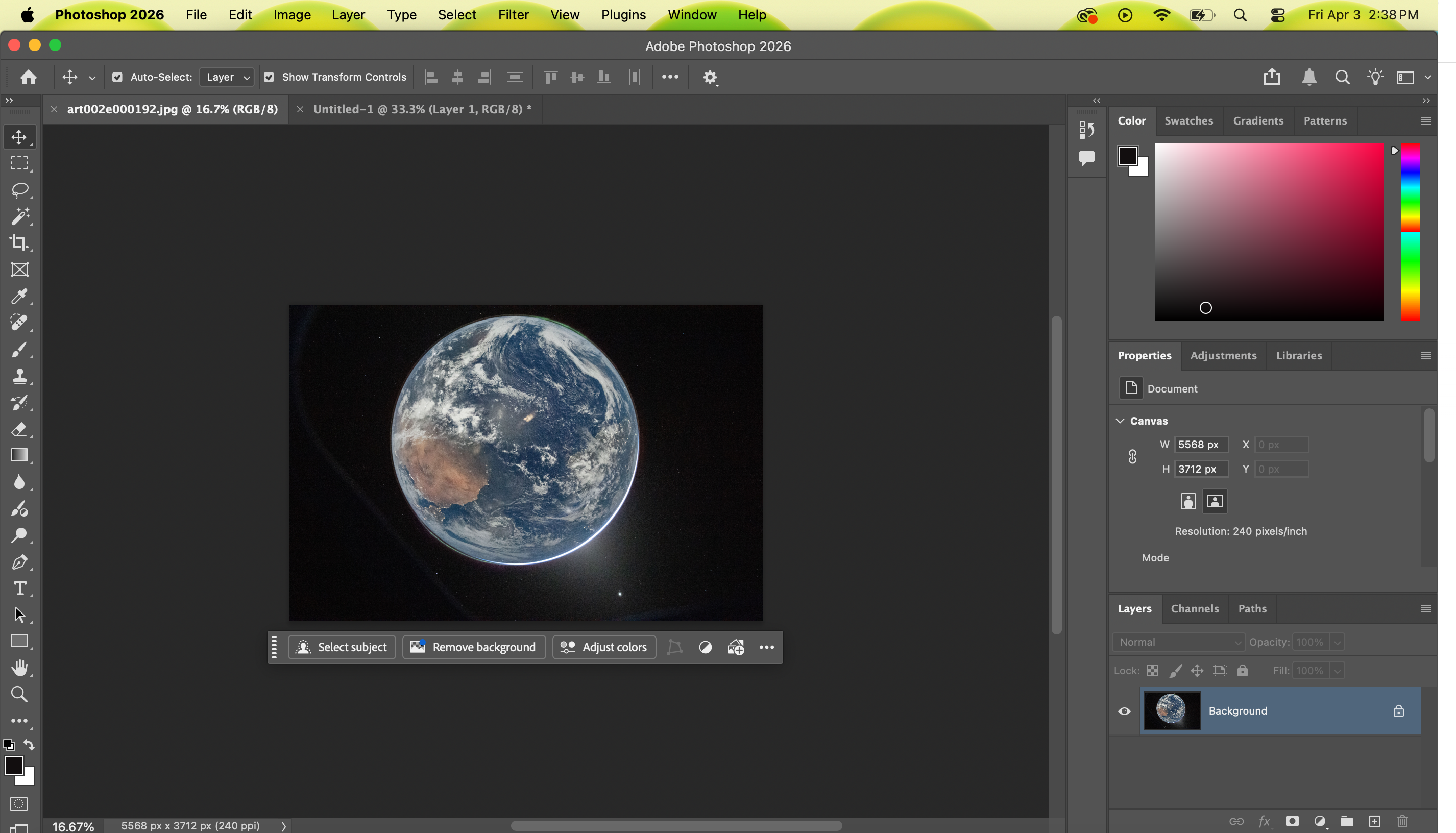
At this point, you'll see that the Earth looks great there, but it also has two white spaces at the top and bottom. Here's where AI comes in.
I used the magic wand to select both spaces. That automatically triggers Adobe Firefly, Adobe's built-in AI tool, which can be useful for generative fills.
I didn't want AI to touch the original image, but I wanted a complete wallpaper. In my prompt, I told Firelfy to add space and stars that matched the look of the rest of the photo and to make the transition between what it added and the original "seamless.'
The process took less than a minute, and then I had my complete image.
Next, I exported it as 100% quality JPG and saved it to my iCloud drive. After that, I opened the drive on my iPhone, selected the image, and downloaded it to Photos. The next step was the easiest, choosing the photo and setting it as my wallpaper. I had to pinch the image to make sure it filled the whole Earth on the screen.
Now the image is with me all the time, and when I look at it, I think of what Artemis II Orion pilot, Astronaut Victor Glover, told the AP during an interview from inside the spacecraft: "Trust us, you look amazing. You look beautiful, and from up here, you also look like one thing: homesapiens, as all of us, no matter where you're from or what you look like, we're all one people."