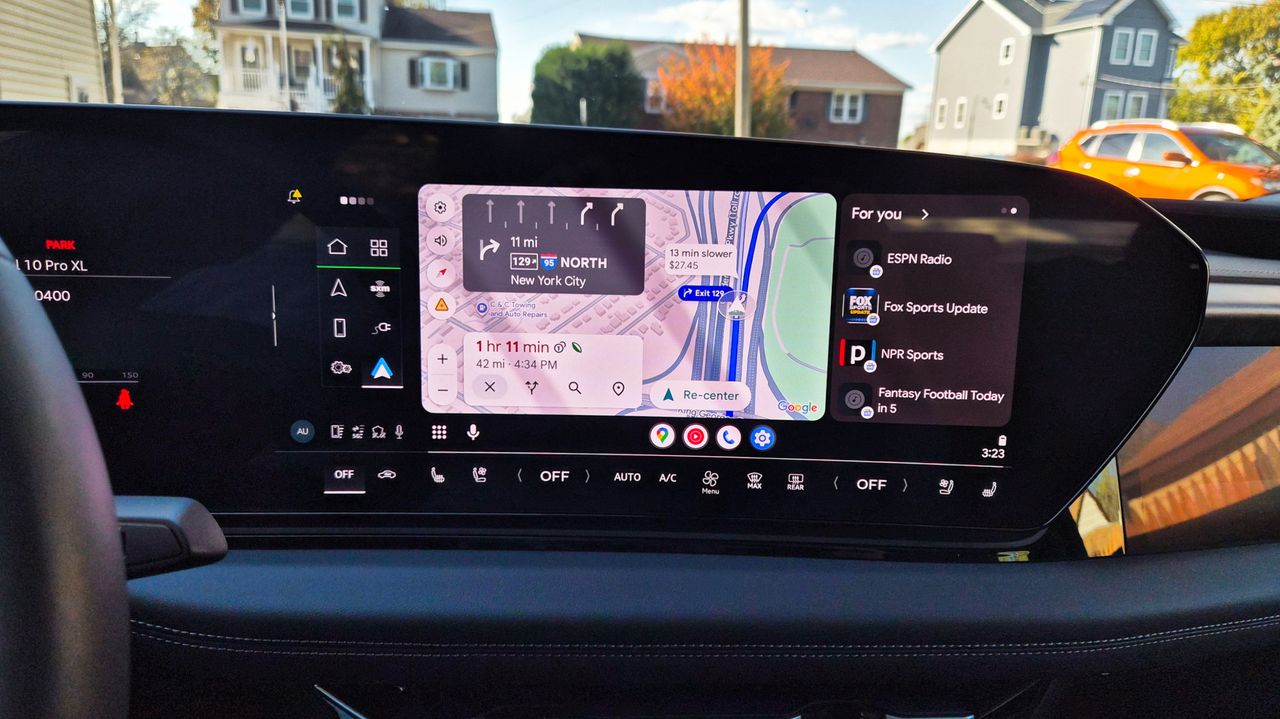
There’s an inherent advantage to using a vehicle's stock navigation app, as it often provides more accurate battery data than Google Maps running via your phone. However, Google Maps is a core feature of Android Auto that makes any road trip a breeze — and thanks to a recent update, it’s making travel even easier for EV owners with new AI-powered features.
After adding your EV to the app, you can use Google Maps to plan your next drive, complete with battery stats and planned charging stops. The key improvement here is that the app combines the data you supply regarding your specific vehicle's energy consumption with real-time traffic, weather, and elevation changes.
There is some initial setup required, but once it's done, you can instantly start planning EV-optimized routes. Here’s how to enable Google Maps to deliver accurate battery predictions for your electric vehicle.
1. Go to Google Maps Settings
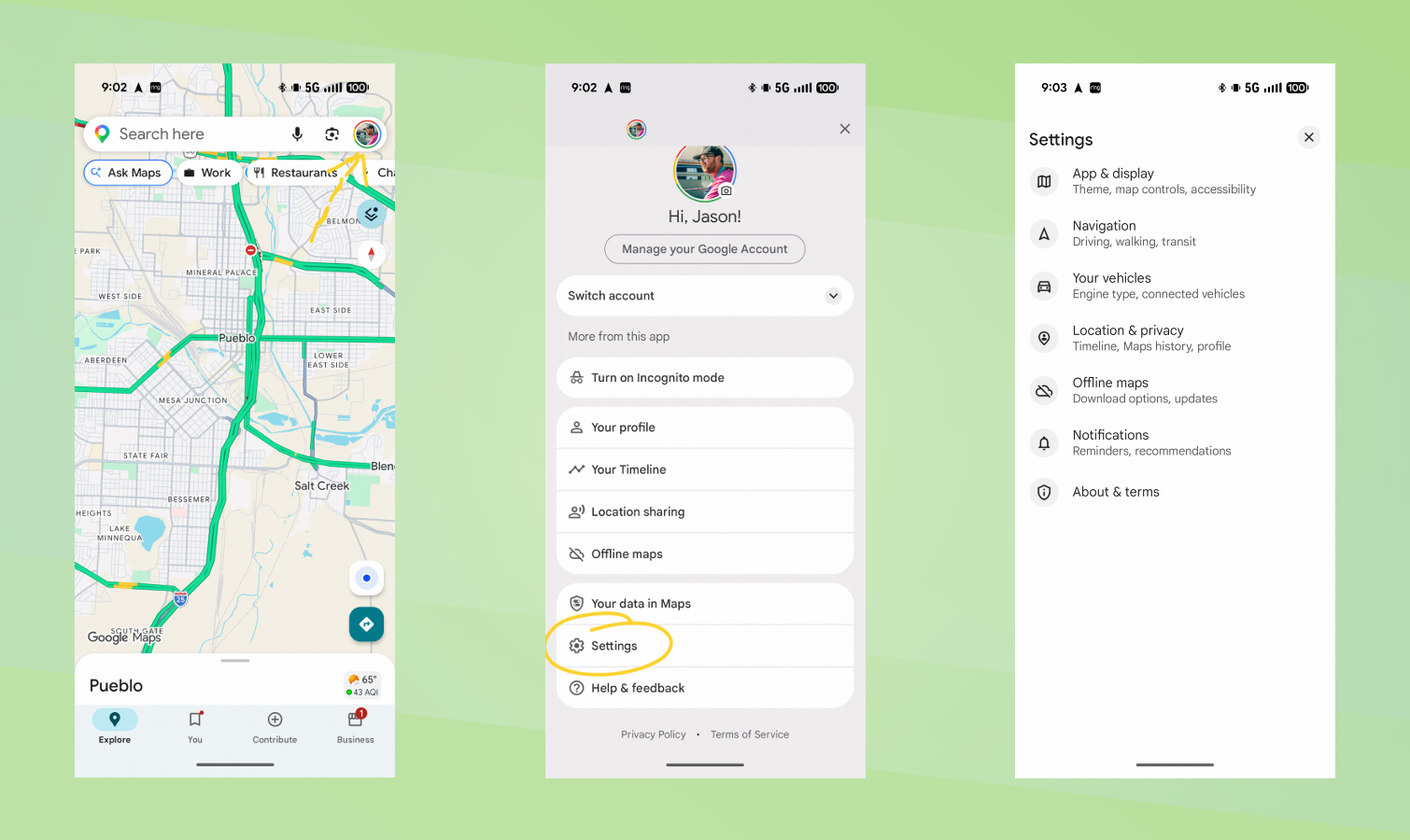
Before you can start using Google Maps to plan your EV routes, you'll need to add your vehicle to Google Maps. To do that, open Google Maps, tap your profile icon, Settings on your Android phone. (You can follow the same steps on an iPhone.)
2. Select your EV
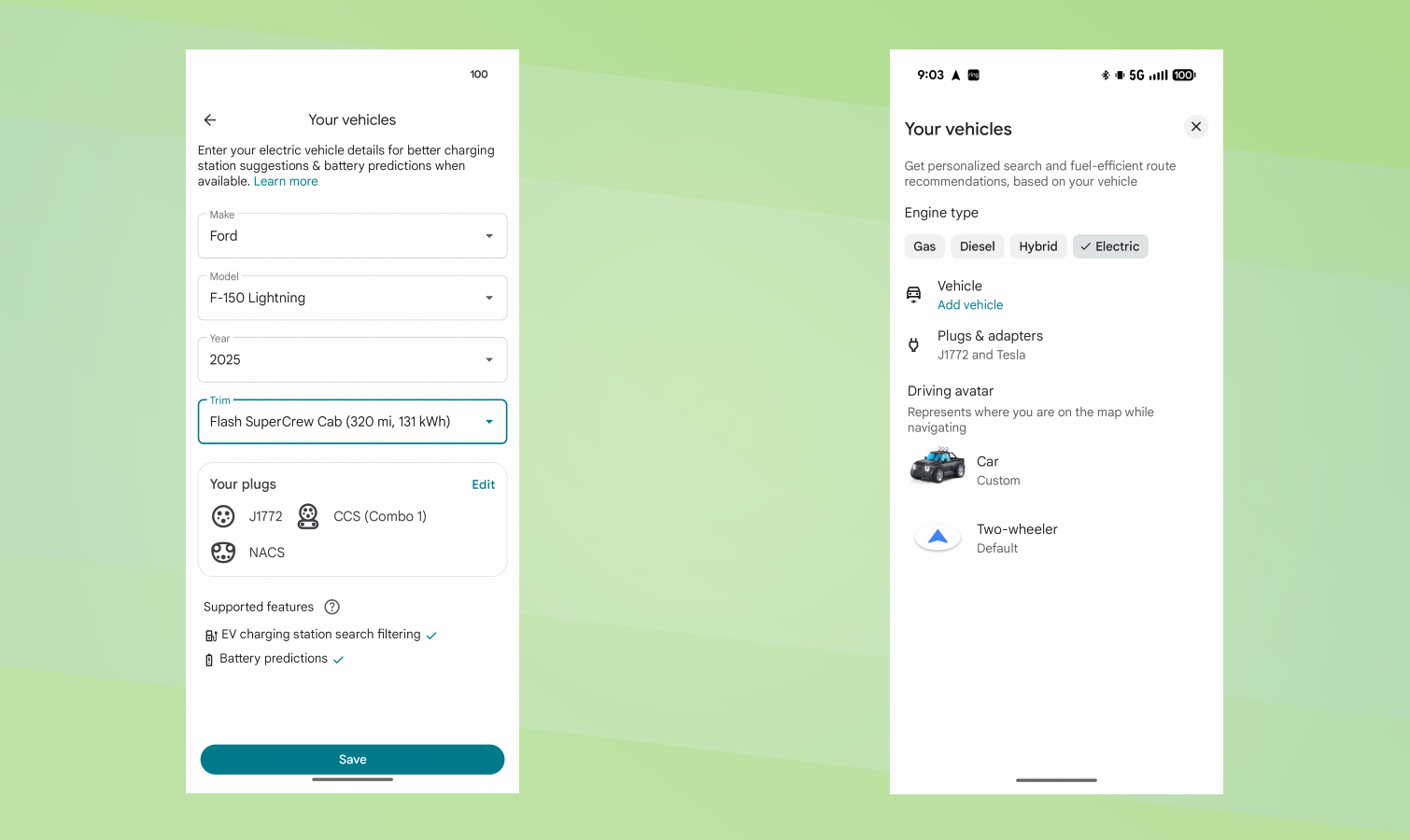
From the Google Maps Settings page, select Your Vehicles, Add vehicle, then pick your Make, Model, Year and Trim from the dropdown.
Google says the new feature will work with over 350 EV models, all of which are listed on this settings page.
3. Add your compatible plug types
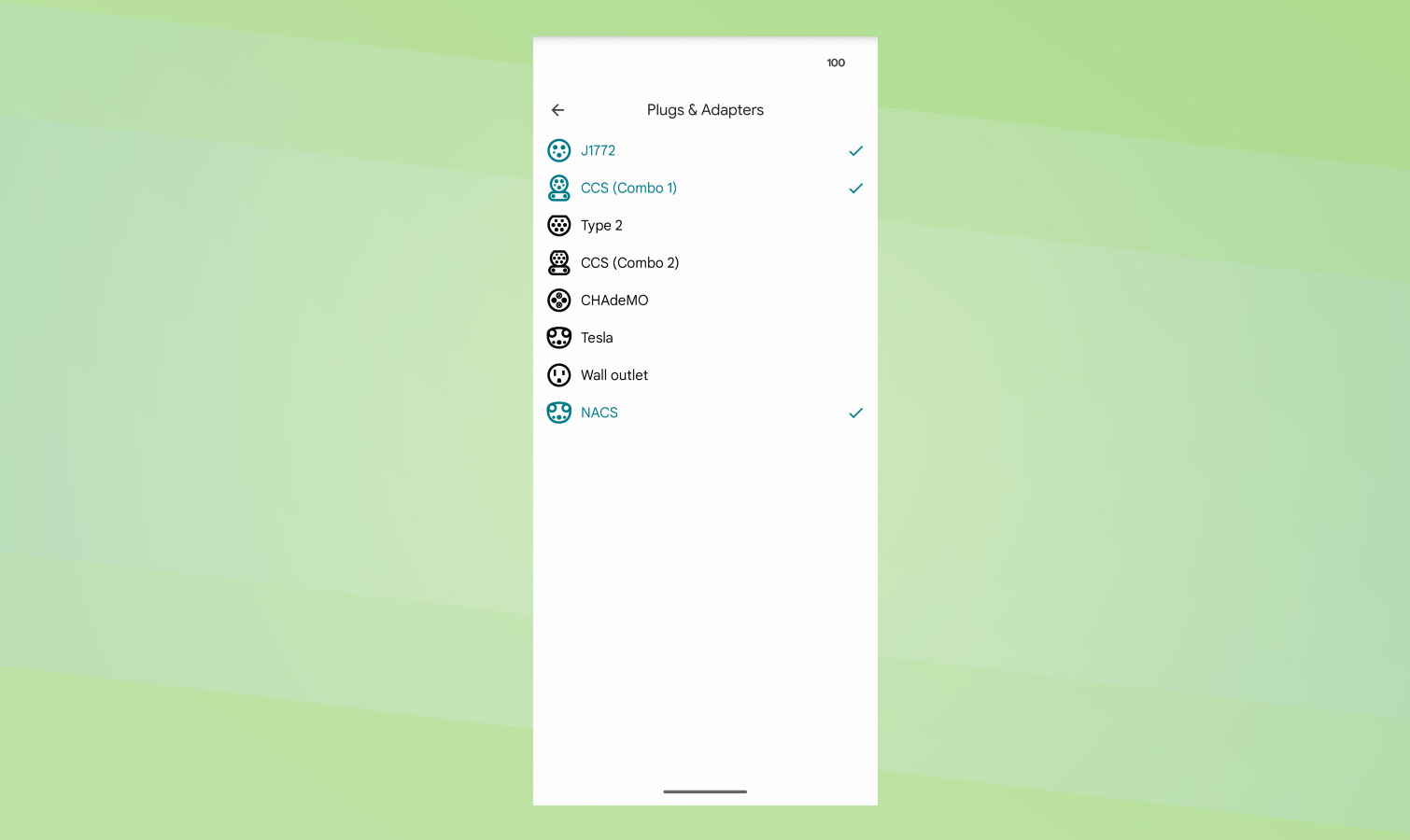
Before tapping the Save button, but sure to add the plugs your EV is compatible with to help Google Maps plan your route. Tap Save when you're EV and plugs are added to Google Maps.
4. Plan a drive like you normally do
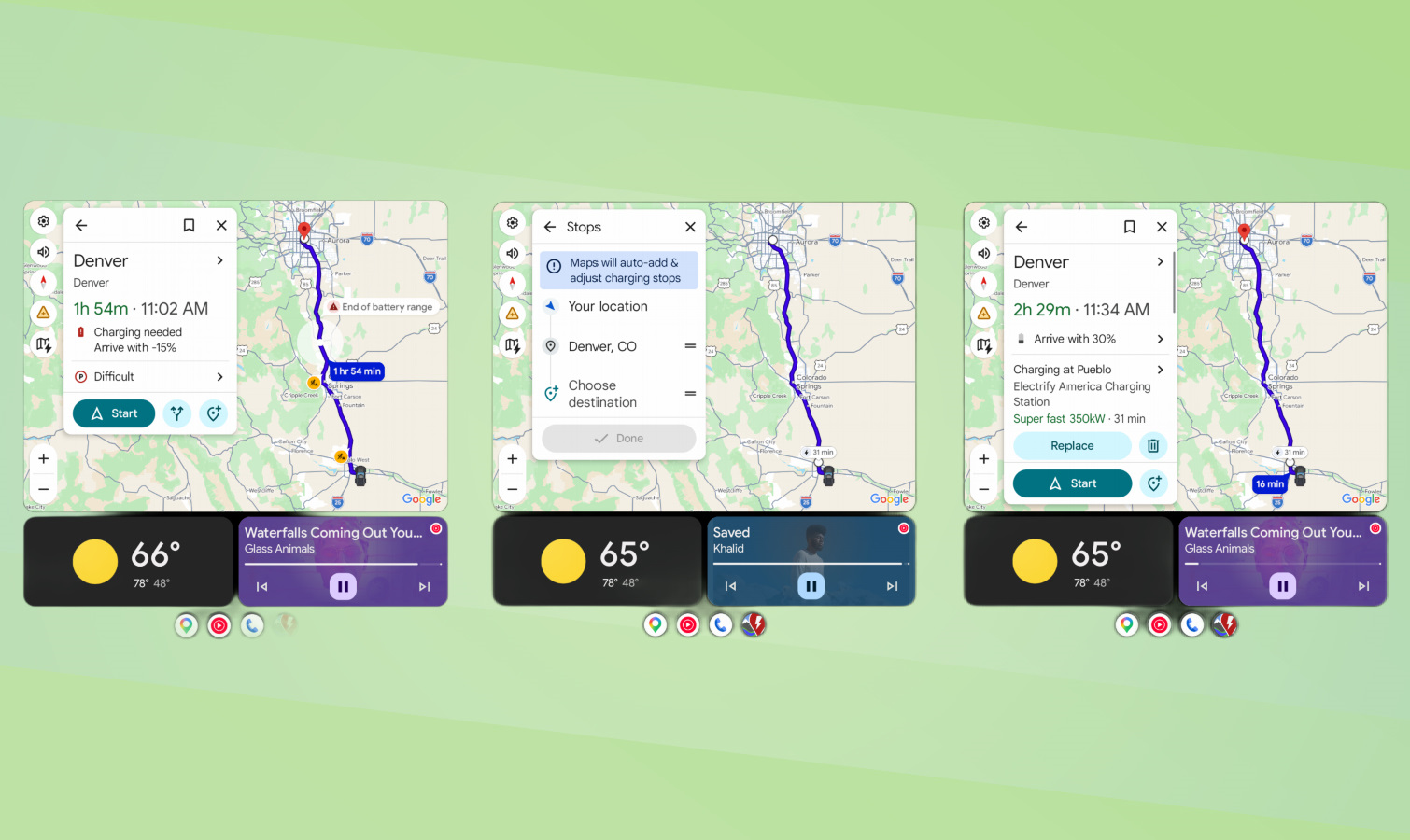
With your vehicle setup in Google Maps, all you need to do now is plan a drive like you normally would in Google Maps using Android Auto.
5. View your route, with charging sessions
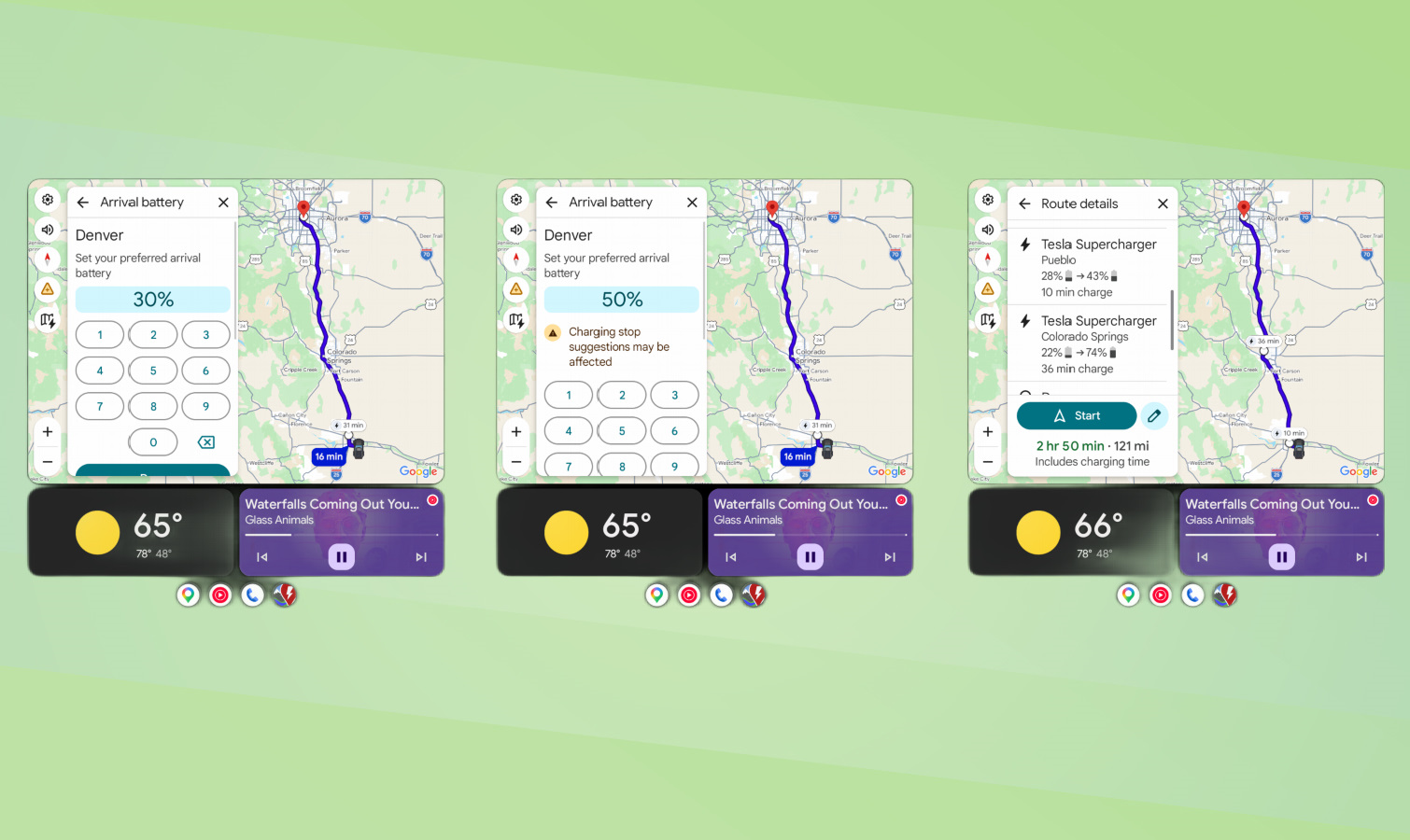
Google Maps will show you an overview of your route, complete with any necessary charging sessions and give you the option to remove all charging stops, or change the amount of charge you want to arrive with.
Google's announcement states that you need to manually enter your EV's current charge level. However, when I planned a trip in my Ford F-150 Lightning, Maps already knew my truck's battery status. Your experience may vary.
When viewing the route, you'll see your charging stops along the way, including the estimated time you'll spend at each. There's also an option to remove specific stops or all of them from the route — if you do, Maps will show you the exact spot where your car is projected to run out of juice.