
For anyone who uses an Apple device powered by iOS 26, iPadOS 26 and macOS Tahoe 26, I’m sure you’ve been exposed to the many ways Apple Intelligence can help you in your everyday life.
When iOS 27 was announced at WWDC, it brought a wealth of new features that iPhone users have long been waiting for. Among the prominent are “Smart Reply” responses in Mail and Messages apps, the ability to produce a sentimental memory movie with a collection of your favorite photos, and even act as a “Workout Buddy” when it’s time to hit the gym.
With a wide range of tools that utilize “Writing Tools” to proofread your written notes, batch up your notifications into easy-to-digest summaries and integrate ChatGPT across the board, it can become easy to just use Apple Intelligence’s most basic attributes and ignore the rest.
With so many new Apple Intelligence features, you’re likely to overlook some. I’ve been using the iOS 27 beta on my iPhone for the last week and have found five underrated Apple Intelligence features that you may not have heard about. Here’s what they are and how they can put your iPhone to better use.
“Describe Your Change”
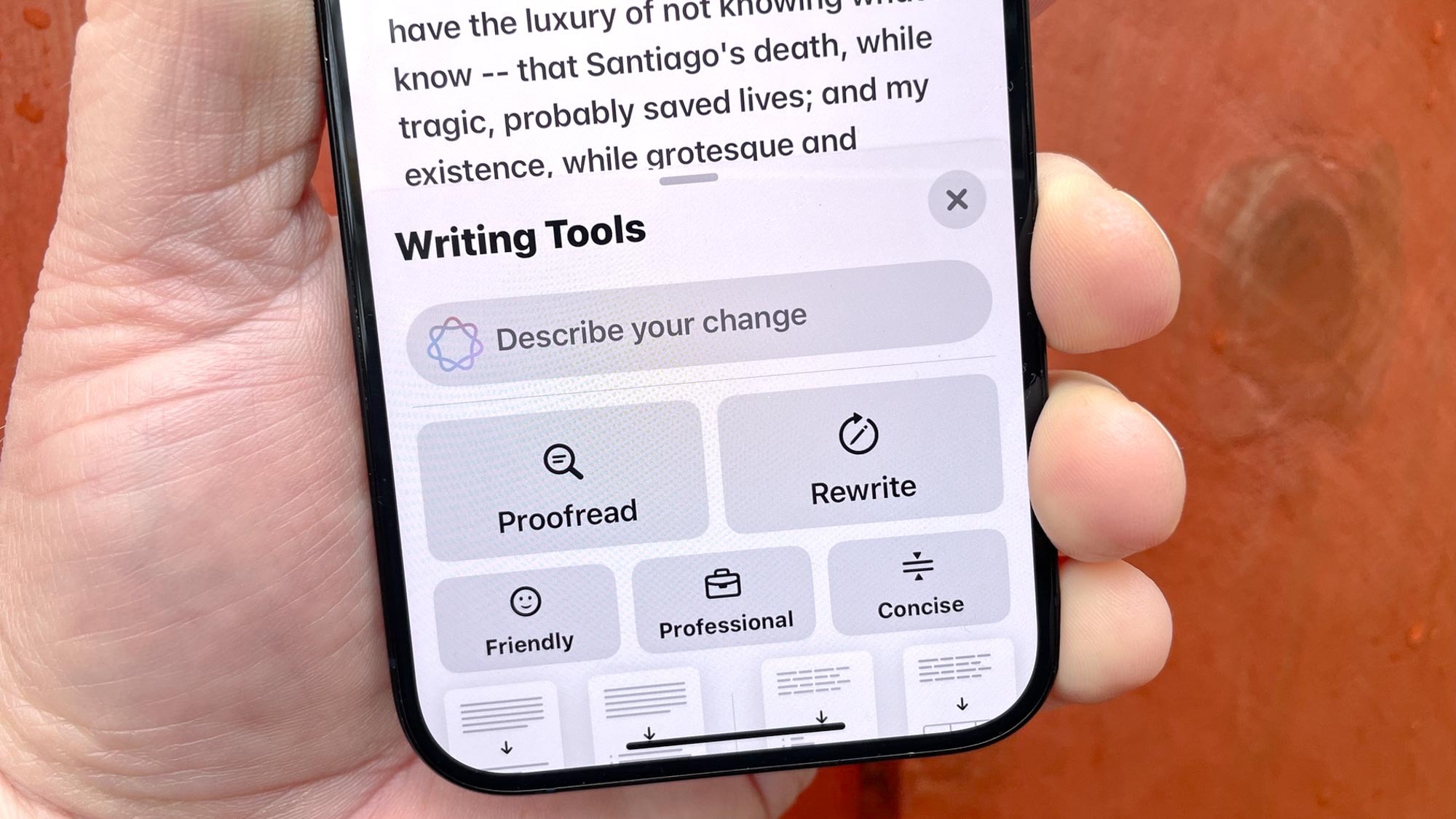
One of the clearest examples of an Apple Intelligence feature you probably don’t use as much as you should is the “Describe Your Change” option.
This option is connected to the “Writing Tools” option that pops up whenever you’re handling some text editing duties.
For instance, you can begin jotting down a new e-mail response or a formal speech in the “Notes” app and click on the Apple Intelligence icon in the formatting bar that’s placed above the keyboard (the sixth icon is the one you’ll be using). The “Proofread,” “Rewrite,” and other options work well enough, but the “Describe your change” feature is pretty strong in its own right. It avoids going with a preset tone and follows exactly the sort of major change you require over Writing Tools’ default rewrite options.
Tapping the Describe your change bar and giving it specified prompts does an even better job of improving your message. These four prompts should be a good starting point:
- Make this sound more confident.
- Turn this into a LinkedIn post.
- Shorten this by 50%.
- Make this sound like a friendly text.
Visual Intelligence

The Visual Intelligence component is one of the best features that owners of the iPhone 16 and later models should tap into more.
It taps into your mobile device’s camera to scan the environment, identify objects, translate text, and get real-time information (such as looking up details about a restaurant or business). Another one of the best ways to use Visual Intelligence is by commanding it to analyze what’s already on your screen, such as images, event flyers and webpages.
Activating Visual Intelligence is simple: Pull up an image in your “Photos” library, then take a screenshot.
After doing that, several Visual Intelligence options will pop up. You can use the “Ask” option to present ChatGPT with questions about the picture you’ve highlighted, use the “? Look Up” feature to identify the sources of different objects in your screenshots, or use the “Search” tool to look up similar images or the image itself in comparison to your chosen picture via Google.
The Image Wand in Notes
Generating your own emojis with the “Genmoji” feature in the Notes app is cool and all, but the “Image Wand” is also an equally great feature. The Image Wand can handle two creative tasks in the Notes app: It can transform rough sketches or blank spaces into polished AI-generated artwork and create images from a black space.
Here’s how:
Transform rough sketches or blank spaces into polished AI-generated artwork: Open the Notes app, start a new note and tap the fifth pen/pencil “Markup” icon at the bottom of the screen to open the drawing tools. Create your drawing, then scroll to the Image Wand (the sixth icon among the drawing tools at the bottom of the screen) and use your finger or Apple Pencil to draw a circle completely around your sketch.
Then, follow the on-screen directions to describe your image. Tap the checkmark button on the bottom right to submit your description. Look at all the AI-generated variations of your drawing, choose from the three style options (Animation, Illustration or Sketch) and tap “Done” to add the finalized image to your note.
Create images from a black space: Open the Notes app, start a new note, tap the Markup icon, and select the Image Wand tool. Draw a circle in a blank part of the note with your finger or Apple Pencil — this will help Apple Intelligence read the surrounding handwritten or typed text in your note, then suggest image ideas in floating bubbles. Then you can use the “Describe the image” option to add specific details to refine your final image.
Intelligent Shortcuts

If you’ve been ignoring the “Shortcuts” app, then you’re doing yourself a disservice. You can activate “Automations” that make specified shortcuts run automatically once you’ve set them up. Your automations run without manual input thanks to a "trigger" action (such as your alarm going off or arriving at the gym).
For instance, you can set up an automation for every time your Mom sends you a certain message that you specify (such as a gift/event reminder) and set it to your “Reminders” to make it part of your lists for future reference. Tapping on “Automation” at the bottom of the screen while you’re using the Shortcuts app and tapping “New Automation” will help you begin the process.
Auto-Categorization Reminders

The “Reminders” app also works with Apple Intelligence. The feature is the auto-categorization of your reminders. Simply open up a list of reminders, tap the “More” button (the three dots) at the top right of your screen and choose “Auto-Categorize.” Apple Intelligence will then split up your reminders into easy-to-follow sections. You can tap on the three dots again to remove those sections and auto-categorize them again into a different section layout if need be.
In my case, I wrote out a list of Saturday tasks, which included picking up my suit from the dry cleaner, dropping off a package at the post office, going food shopping for everything I need for the coming week, remembering to defrost the steak I was planning to cook the following Sunday and rearranging my graphic novel collection.
Those chores got the auto-categorization reminder treatment by being grouped under the simple title of “Personal Tasks.”
Apple Intelligence is a game-changer for first-time users like me
Tinkering around with my iPhone 17 and getting exposed to all the ways Apple Intelligence can assist anyone with their everyday tasks has been a game-changer for me.
It’s not only a major iOS tool that keeps you on top of your to-do list—it also makes for a great text/photo editor and a research tool that helps you find the sources behind the visuals you’ve saved to your device.
There’s always room for improvement, but at the moment, the five Apple Intelligence features I’ve explained here are great and deserve far more usage from anyone who has access to them.