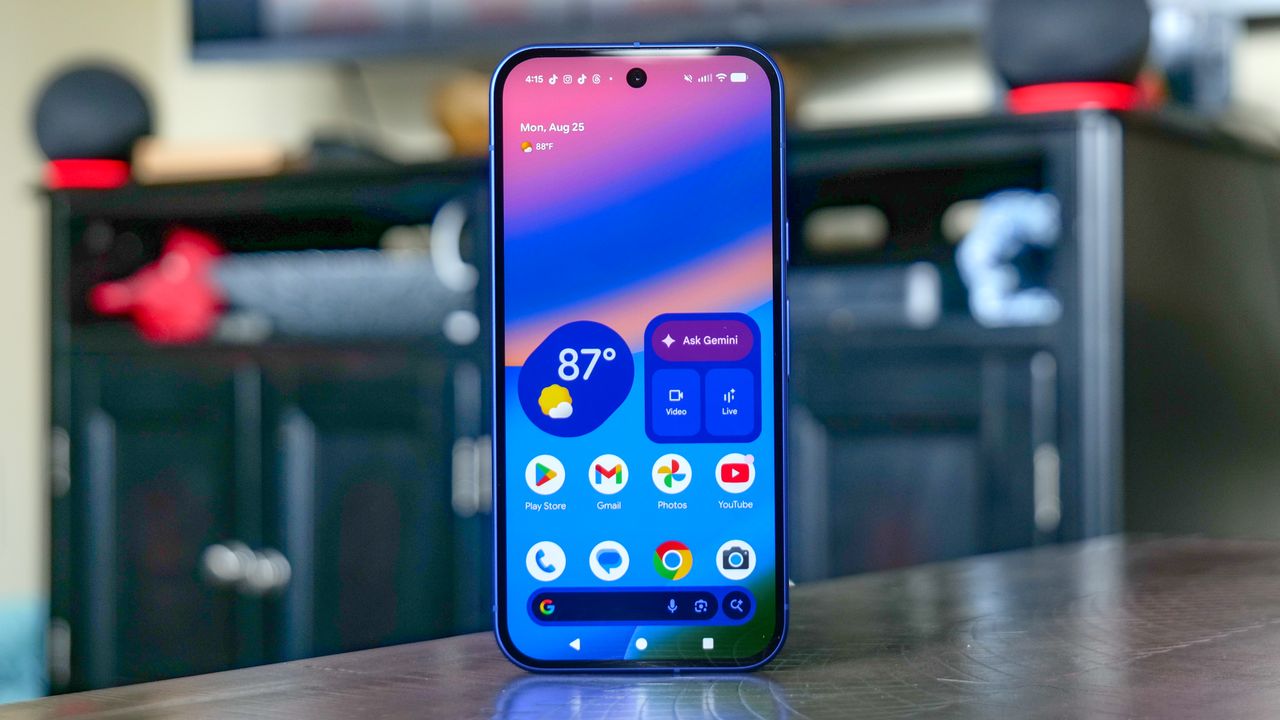
I discovered my Android phone was constantly sharing my location, microphone, camera, and contacts with apps running in the background. Most requests are legitimate — Maps needs location, your camera app needs camera access. But many apps hold permissions I'd completely forgotten granting months ago.
Google's Privacy Dashboard on Pixel phones shows exactly which apps accessed what data and when. If you're using a Samsung device, the feature is called "Permission Manager" and works similarly.
When I launched the dashboard, it was eye-opening — and not a little bit scary. Here's how to access the Privacy Dashboard on Pixel/Google Android, and take back control of your data.
1. Open Settings and find Privacy Dashboard
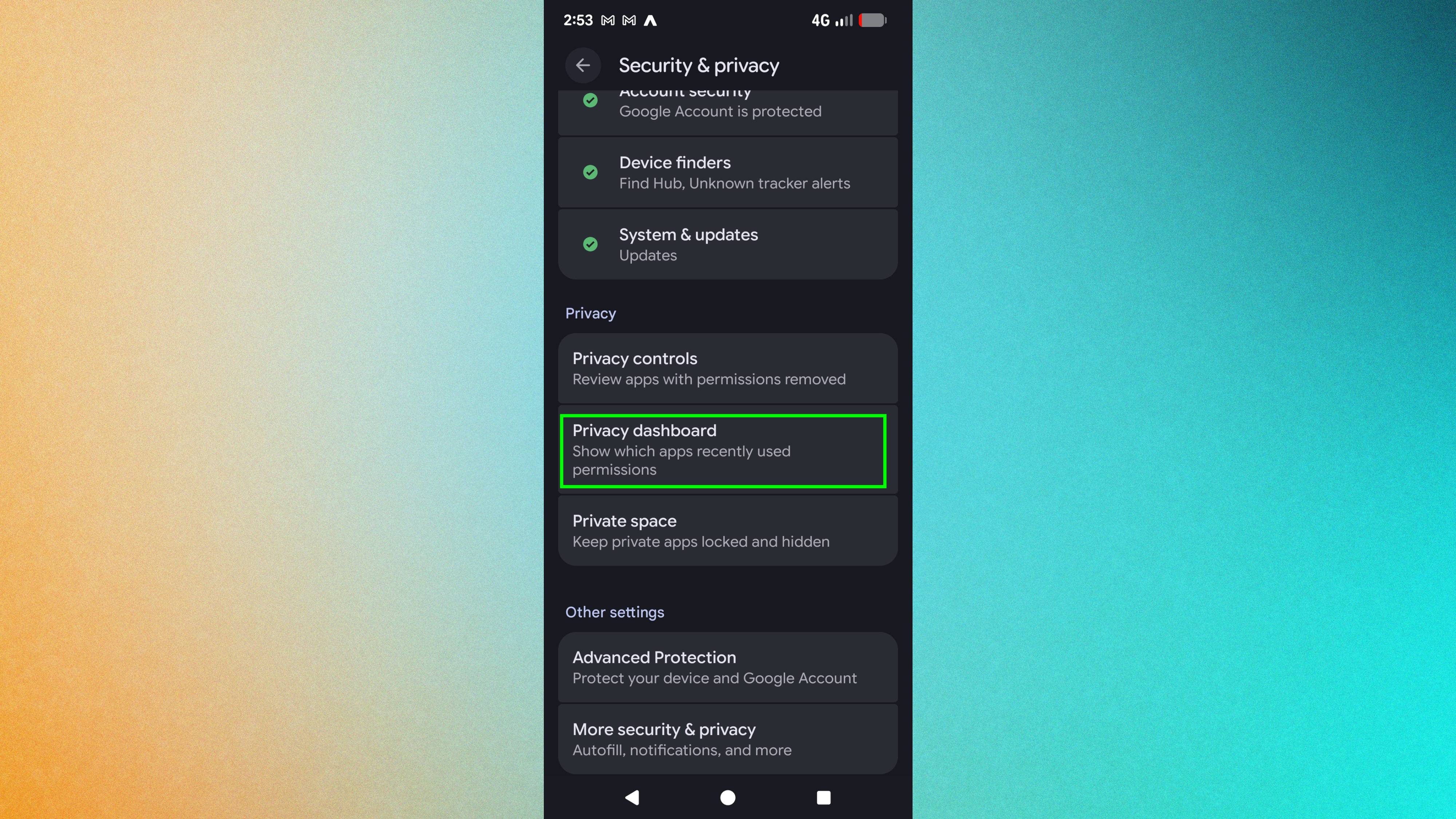
Open the Settings app on your Android phone. Scroll down and tap "Security and privacy." Under the Privacy section, tap "Privacy Dashboard."
If you can't find this exact path, open Settings and search for "Privacy Dashboard" directly. The menu structure will vary slightly between phone brands and Android versions, but search is usually fastest.
2. Review what apps are accessing
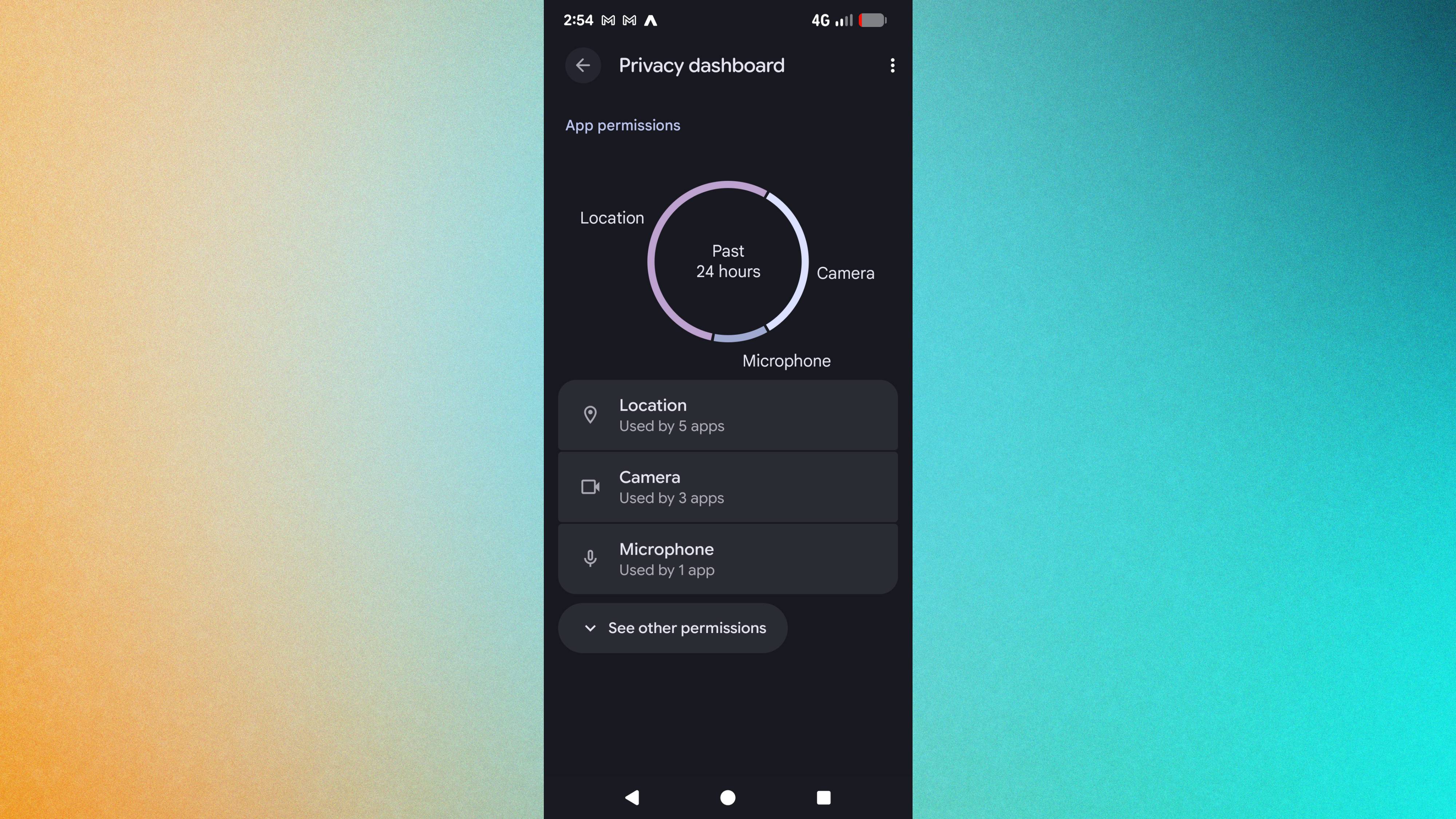
You'll see an overview showing how many apps accessed your location, camera, microphone, and other sensitive data in the last 24 hours.
Tap into each category to see the full timeline. You'll see exactly which app accessed what and at what specific time. This is where things get interesting, as you might notice apps accessing permissions at times you never opened them.
3. Check for suspicious or unnecessary access
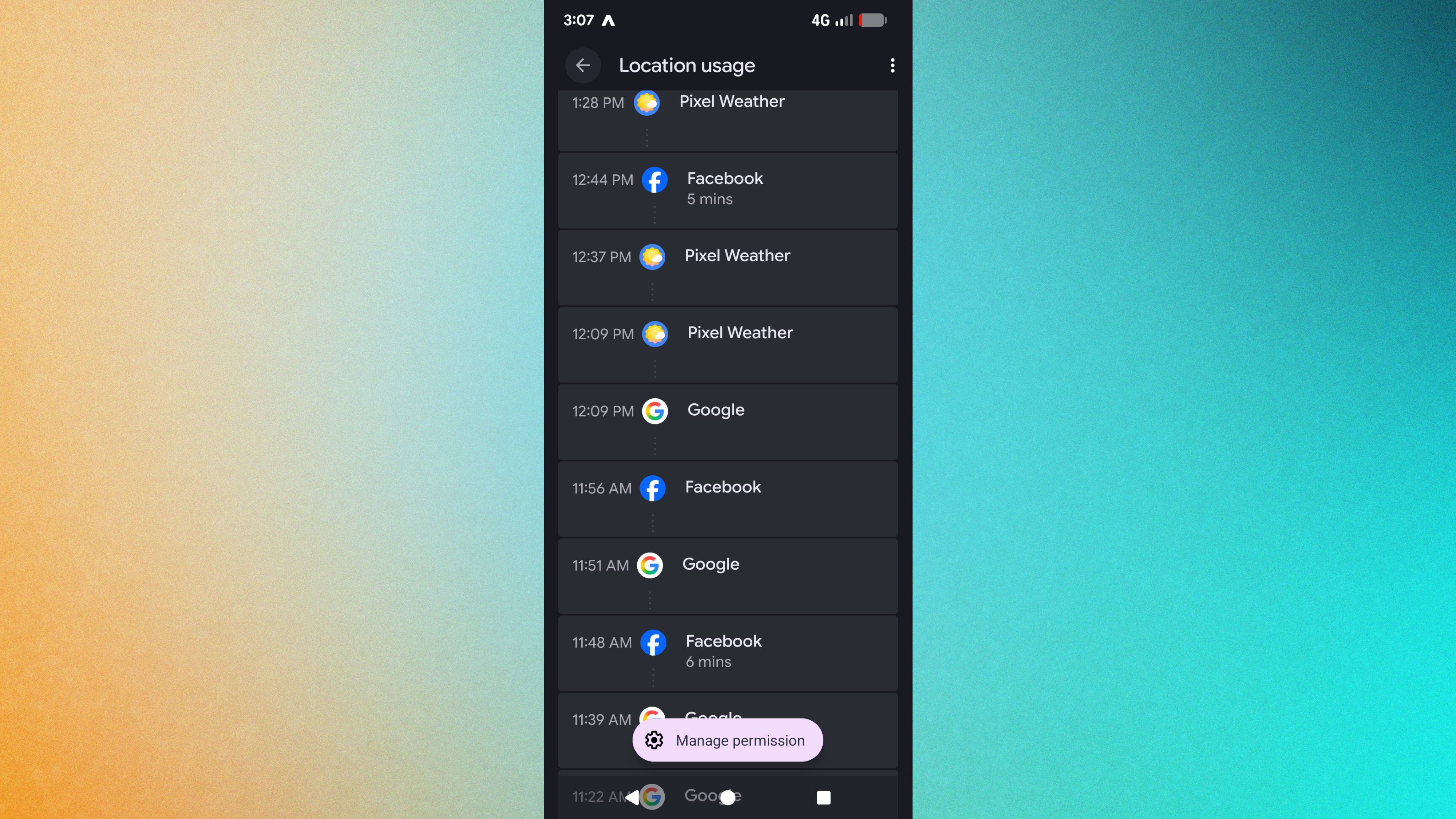
Scroll through the timeline and look for apps that shouldn't have access to certain data.
Pay special attention to permissions set to "Allow only while using the app" but that you haven't opened in days. These apps are sitting with active permissions you completely forgot about.
Don't just focus on location and camera, as apps can collect data through multiple channels. Throughly check the other apps you might otherwise neglect.
When you find an app with unnecessary access, tap it directly from the Privacy Dashboard. This opens the app's permission settings. if an app doesn't need a particular permission to function, remove it. You can always re-enable permissions later if the app stops working properly.