I use AI every single day, but for a long time, I kept running into the same frustrating wall.
No matter how advanced the models got, I was stuck in a loop of "re-explaining" myself. Sure, enabling memory mode helped significantly, but not everything "clicked" with the AI every time. My tone, my specific style, the exact formatting I needed — it felt like I was re-teaching Gemini every time I opened a new chat.
And while it wasn't exactly hard to type everything over, it was repetitive and frankly, a waste of time. I like using Gemini for its speed, reasoning and multimodal capabilities and often gravitate to it over ChatGPT for those very reasons. But, I've noticed its memory pales in comparison to OpenAI's. That is, until I tried something different. Instead of starting fresh with a blank chat every time, I built my own AI Expert using Google Gemini Gems.
It didn’t just save me time; it completely changed how I work. Here's how it can do the same thing for you.
How I built my first Gem in under 5 minutes
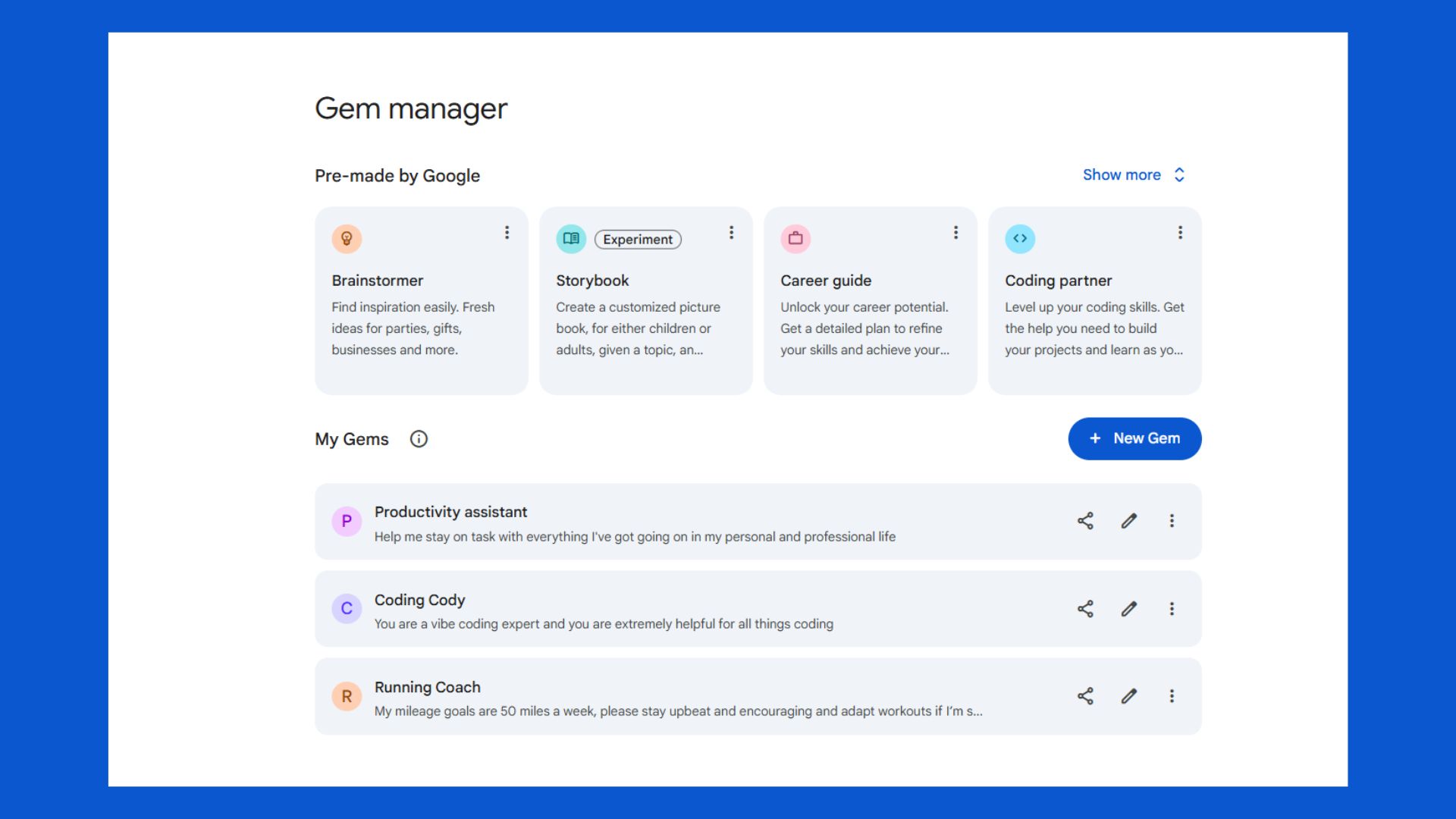
If you haven’t tried Gems yet, they are essentially custom versions of Gemini that you "train" for a specific role. Think of them as saved personalities or automated workflows. Instead of typing the same 3-paragraph set of instructions every morning, you set the rules once — and the AI follows them forever (or until you update them with new information).
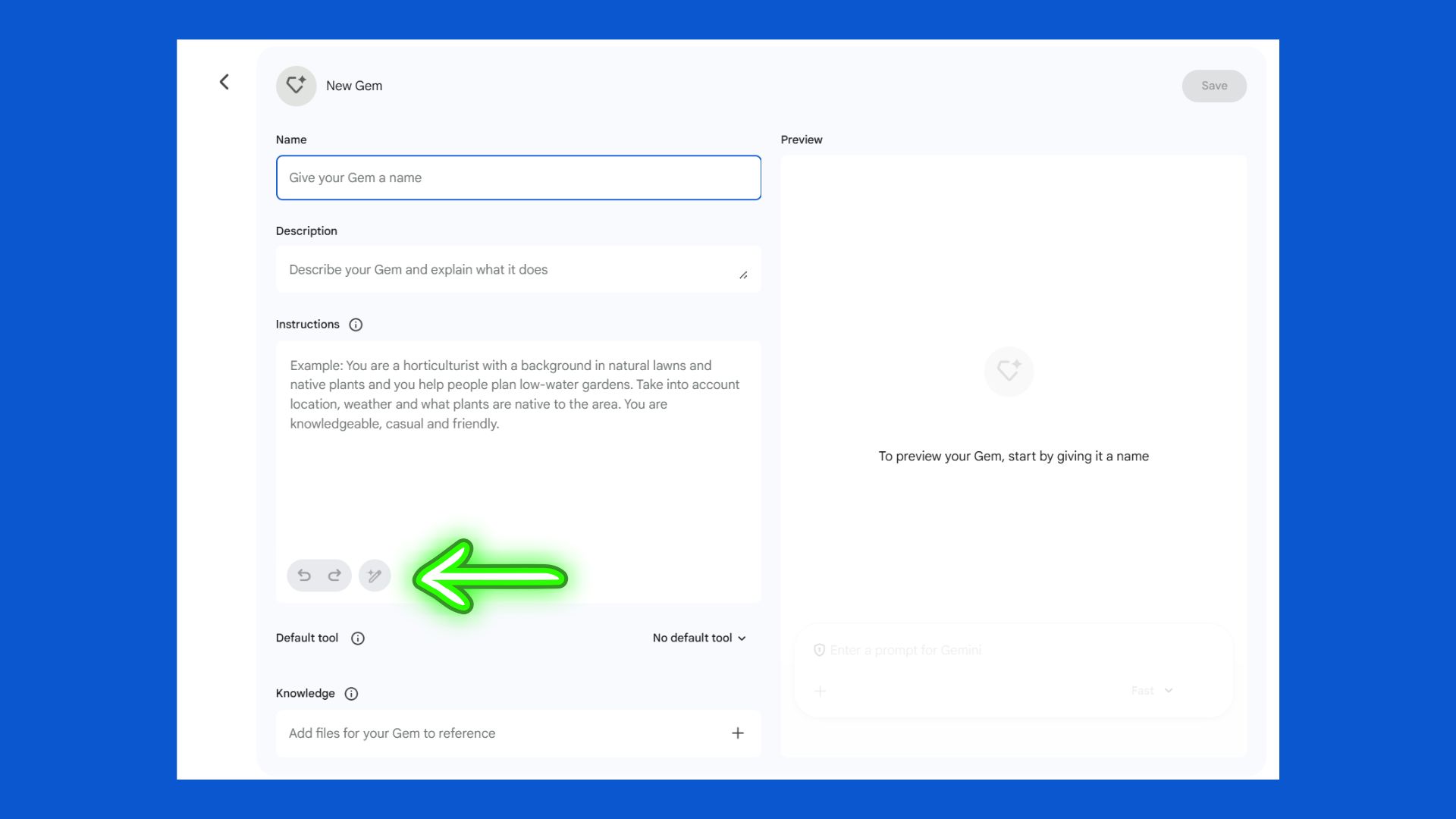
Setting up a Gem is surprisingly simple. Inside Gemini, you open the Gem manager from the sidebar and create a one from scratch.
I created one to act as my "Skeptical Editor." Its only job is to be concise, critical and obsessed with clarity and fact-checking.
If you aren’t sure how to describe a persona, just type a rough sentence like "Be a punchy editor" and click the "Magic Wand" icon. Gemini will automatically expand that into a detailed, professional set of instructions for you.
Once I hit "Create," the difference was immediate. I didn't have to explain the "vibe" anymore. I just pasted my draft and said, "Fix this." The Gem already knew my rules.
The 3-step blueprint for a useful Gem
After testing a dozen versions, I realized the best Gems all share the same core DNA. If you want to build one that actually works, follow this structure:
- A clear persona: Don't just say "helpful assistant." Give it a job title, like "Strict Copy Editor" or "Strategic Marketing Coach."
- A defined mission (and constraints): What is the primary goal? (e.g., "Take raw interview notes and turn them into a 5-bullet summary.") Also, be sure to tell the AI what not to do. For mine, I forbade words like "delve," "tapestry," or "embark."
- Fixed output format: Tell it exactly how to present information (e.g., "Always start with a bolded TL;DR followed by a numbered list").
The 'secret sauce': Connecting your data

What surprised me most is how much more powerful Gems become when you link them to your actual life.
You can now attach files directly to a Gem. For example, you can uploaded your company’s internal style guide to ensure your tone stays the same across communications. In my case, I uploaded my young adult manuscripts, so my Gem could edit and understand my voice.
As Gemini connects with Google Workspace, it can even pull context from your Google Docs or Gmail when you need it to verify a date or a project detail.
The takeaway
There’s a lot of talk right now about using more AI tools to get more done. But for me, this wasn’t about adding another tool — it was about removing a step and making the most of features already available within the AI tools I already use.
I expected Gems to be a helpful shortcut, but I am pleasantly surprised by how it removed the mental load. Gems take away the need to constantly re-explain yourself. And once that step is gone, you stop over prompting and start actually working.
Give it a try and let me know what you think in the comments. I suggest taking the one prompt you find yourself typing most often this week and turning it into a Gem today. I bet you’ll save an hour of "re-explaining" by this time next week.