

Splitting your screen on a Chromebook can significantly boost your productivity, allowing you to multitask without needing to constantly switch between tabs or windows. Here's a simple, step-by-step guide on how to do it.
1. Open the two apps or windows you want to use
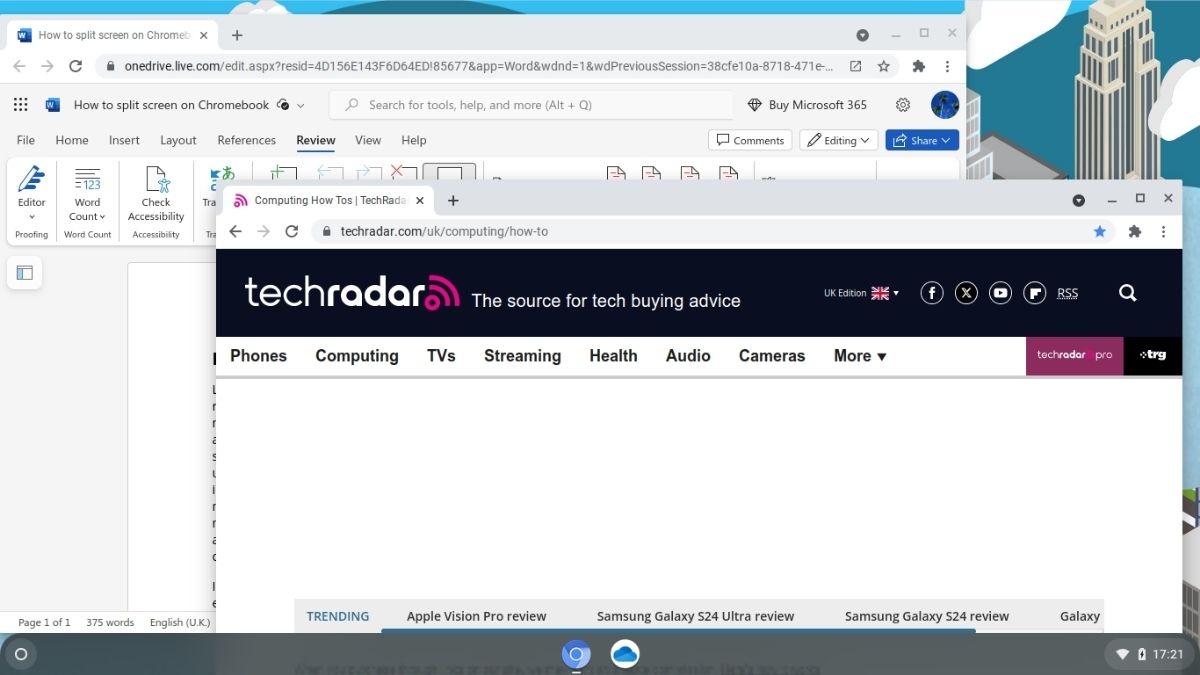
Begin by opening the applications or websites you plan to work with. This could be a Word document on one side and a web research article on the other.
2. Snap to one side
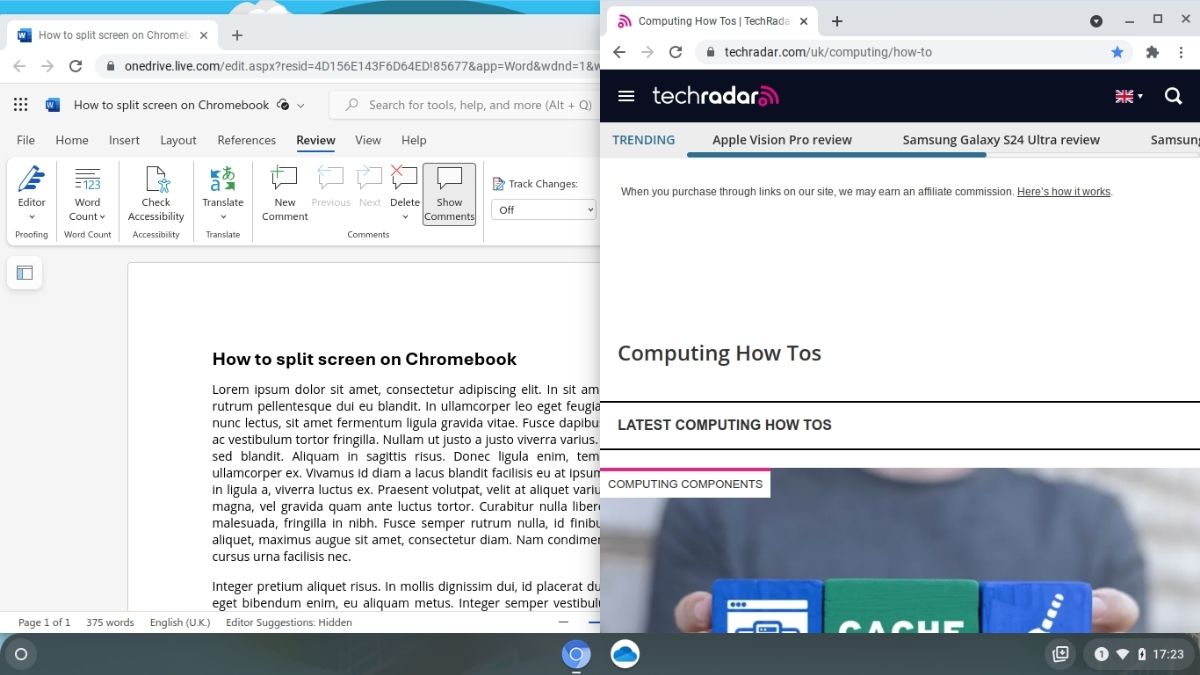
Click and hold on the window's top bar (where the minimize, maximize, and close buttons are located) of the first application you want to move into split screen.
Drag this window to either the left or right edge of your screen. As you approach the edge, you'll see an outline or a transparent overlay appear, indicating where the window will snap into place. Release the mouse or trackpad button to snap it there.
3. Adjust the second window
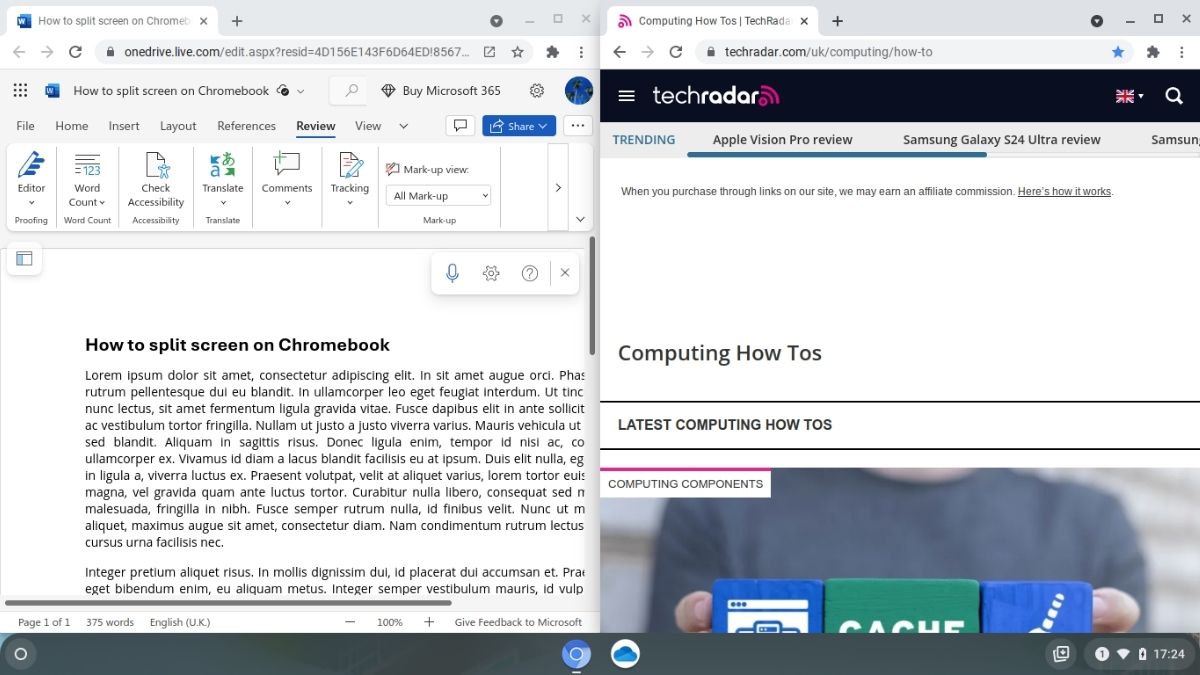
Repeat the dragging process to snap this window to the opposite side of your screen. Now, you should have two windows open side by side, each occupying half of your screen.
4. Adjust window sizes
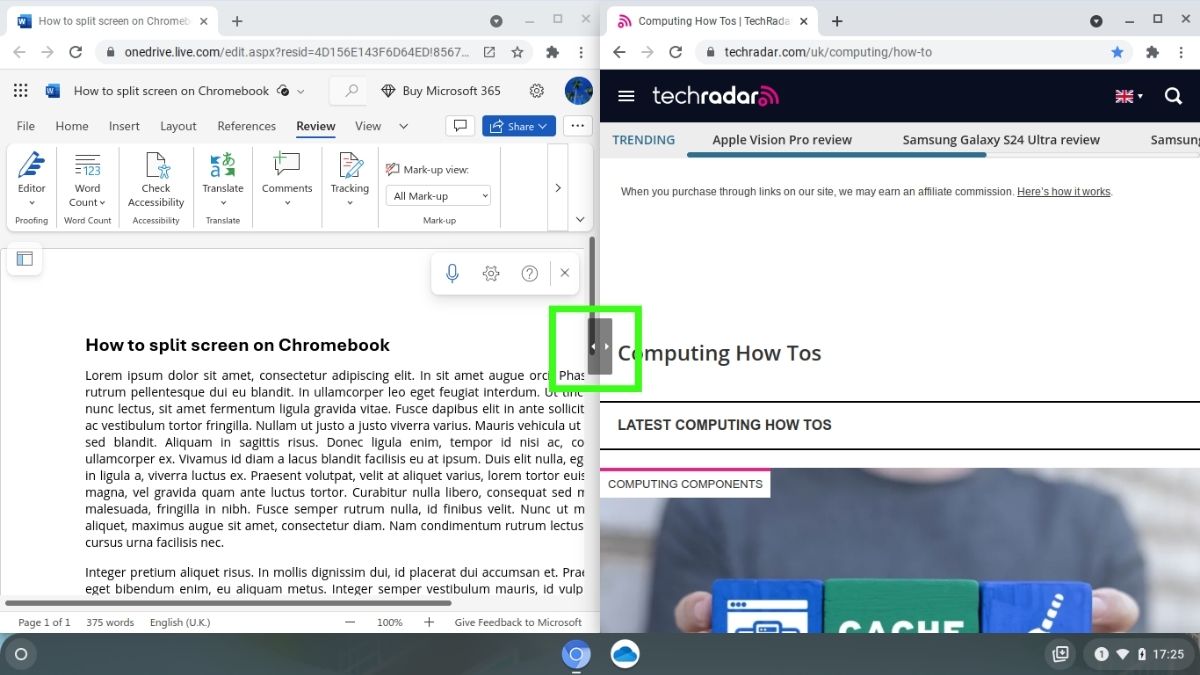
If you need more space on one side, simply hover your cursor over the dividing line between the two windows until it turns into a two-sided arrow. Click and drag to adjust the size of both windows according to your preference.
5. Using keyboard shortcuts
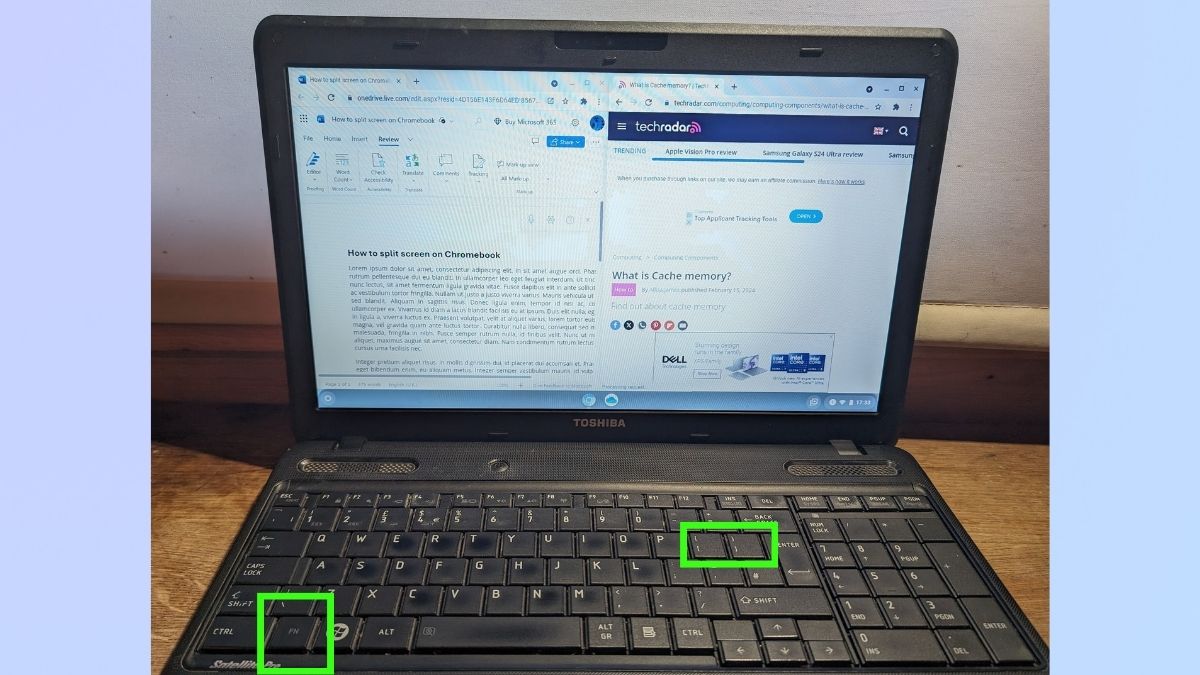
Rather than dragging the screens, you can also use the following keyboard shortcuts:
Alt + [
Snap the active window to the left side of the screen.
Alt + ]
Snap the active window to the right side of the screen.
Congratulations! You've successfully split your screen on a Chromebook, creating a more efficient and productive workspace. This feature is invaluable for comparing information, writing while researching, or simply staying organized with multiple tasks. Use this feature regularly to become a multitasking pro!