
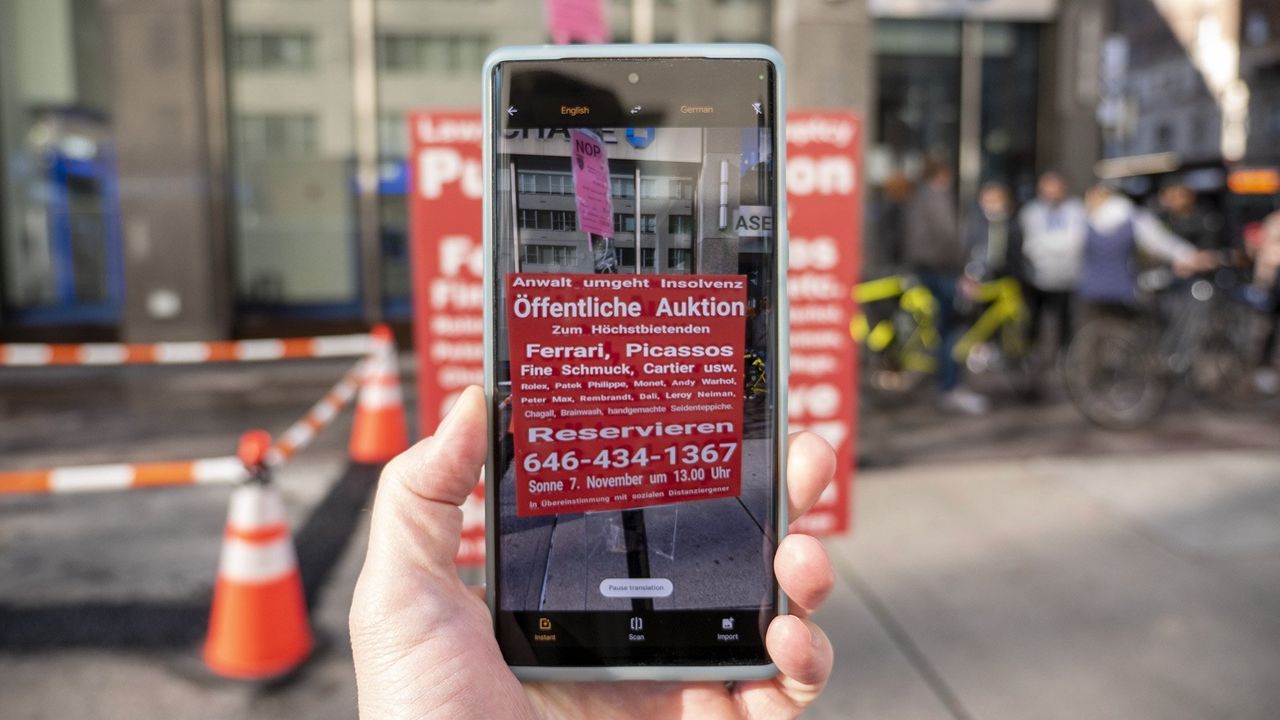
Google has been steadily improving its already impressive Live Translate feature on Pixels with additional languages and faster local processing. If you don't have a Google Pixel phone, don't fret. Google Live Translate feature in the Google Translate app still works just as well on any phone, and it just needs an active internet connection to function. That's because Google Live Translate is processed through Google's cloud Tensor processors, while Pixels have their own Tensor processor onboard.
How to translate a single phrase on Google Translate
Sometimes you just need to translate a single phrase into another language. This can be something as simple as "where's the bathroom" or "where can I find pizza?" Whatever you need, Google Translate can help with that quick request.
1. Open the Google Translate app.
2. At the bottom of the screen, above the microphone, select your language as the first language.
3. Select the other person's language as the second option.
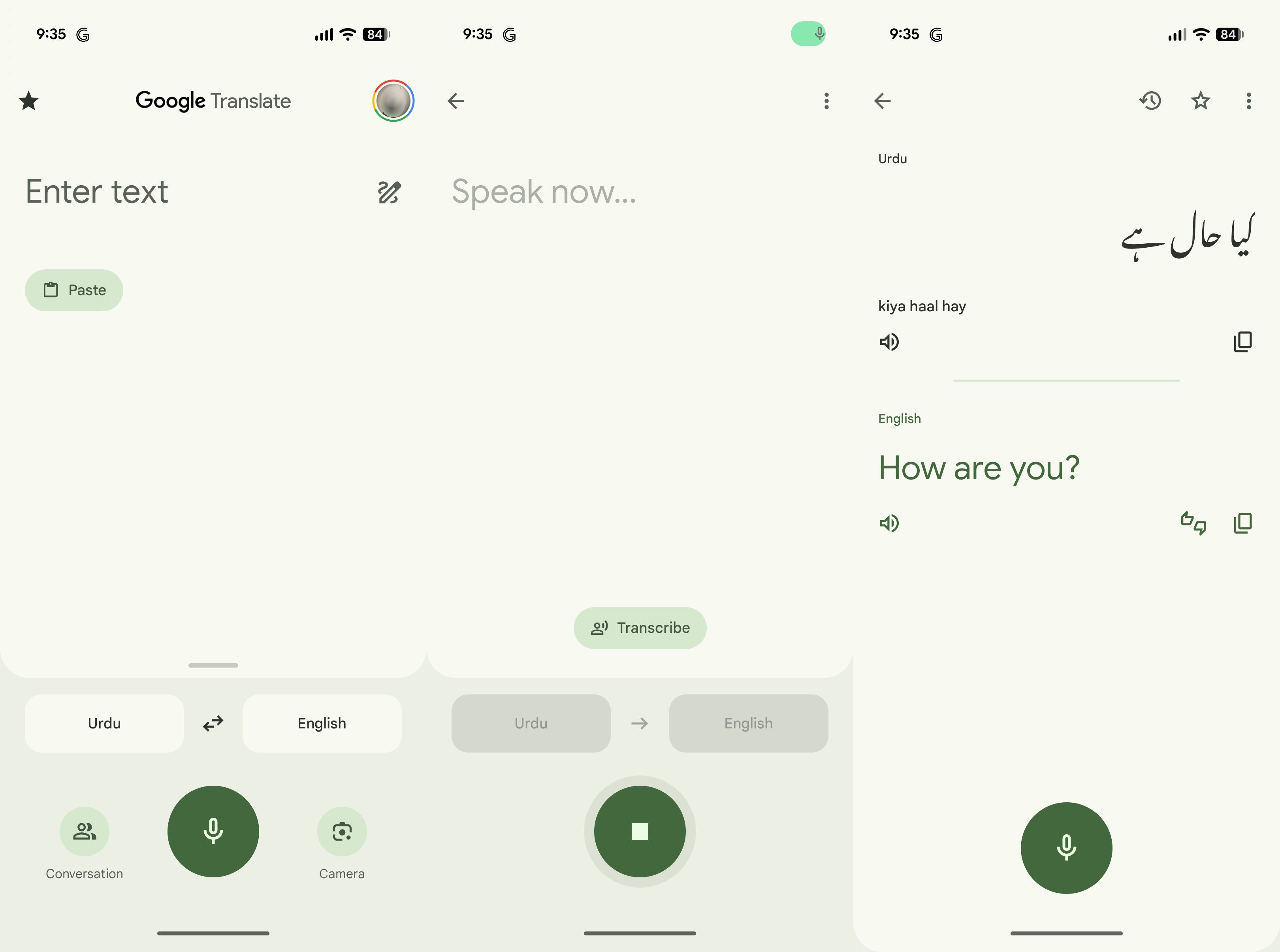
4. Press the microphone button and begin speaking.
5. When finished speaking, press the stop button to end translation.
6. You can also select the transcribe button to prepare a text of what was heard.
How to translate a live conversation on Google Translate
Sometimes, it makes more sense to translate entire conversations at once, especially if you're trying to ask more complex questions or get to know someone who doesn't speak your language.
With conversation translation, Google Translate automatically detects the languages spoken and translates them at near-real-time speed, with Google Assistant reading translated speech aloud as it is processed. Here's how you can use this feature.
1. Open the Google Translate app.
2. At the bottom of the screen, above the microphone, select your language as the first language.
3. Select the other person's language as the second option.
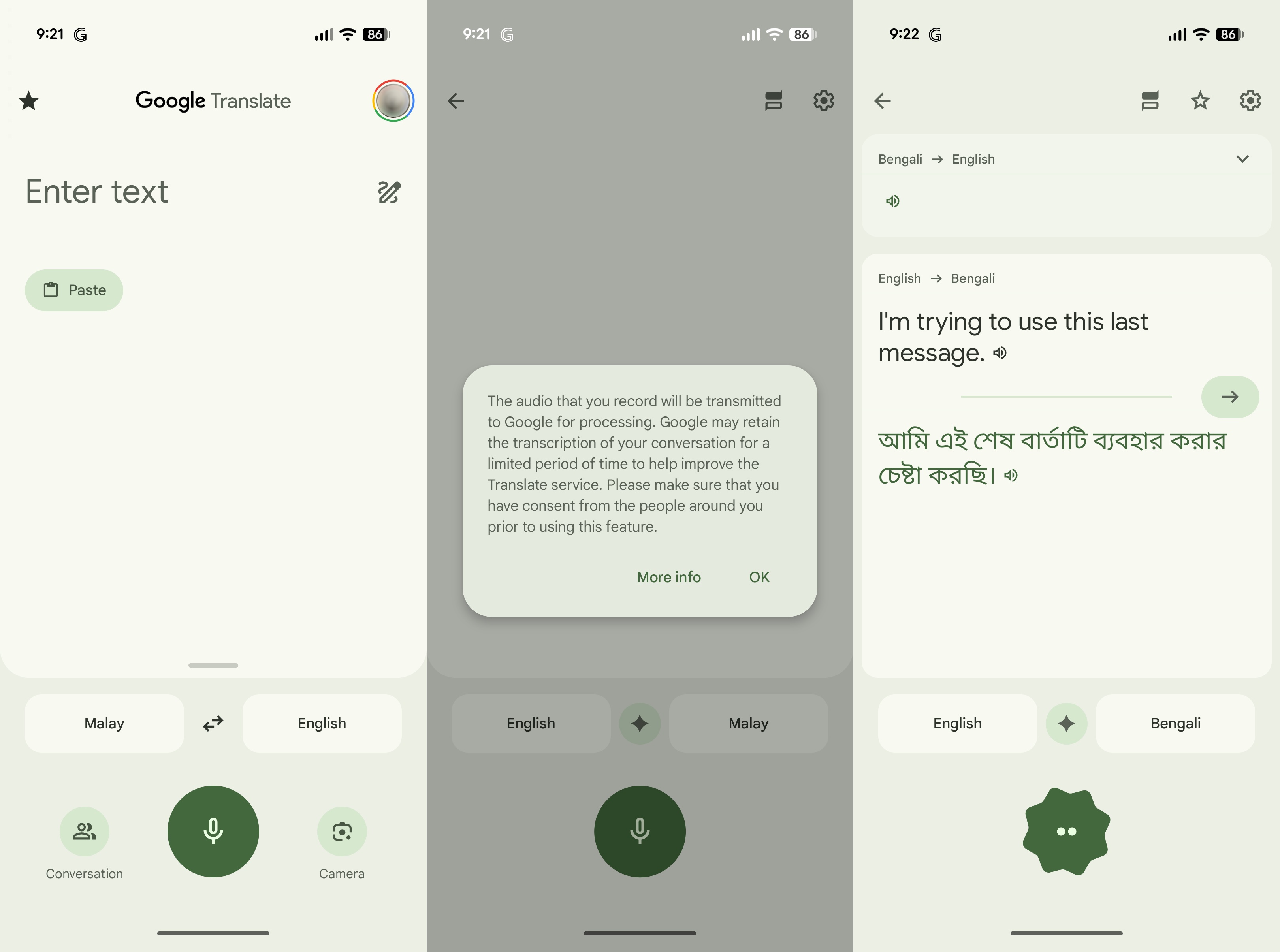
4. Select the conversation button to initiate automatic conversation translation.
5. In conversation, tap the microphone button and the app will do the rest, automatically detecting the language being spoken and translating it.
It's worth noting that Google Live Translation is only intended for a conversation between two people. While it's possible to initiate a three-way conversation, it's not as smooth as a two-way conversation.
How to translate an image or sign on Google Translate
If you find yourself looking for directions or just trying to read a menu in a foreign country, Google Translate can help translate any image your phone's camera can see. Here's how to get started:
1. Open the Google Translate app.
2. At the bottom of the screen, select the camera button.
3. Either choose the language to be translated or detect it automatically.
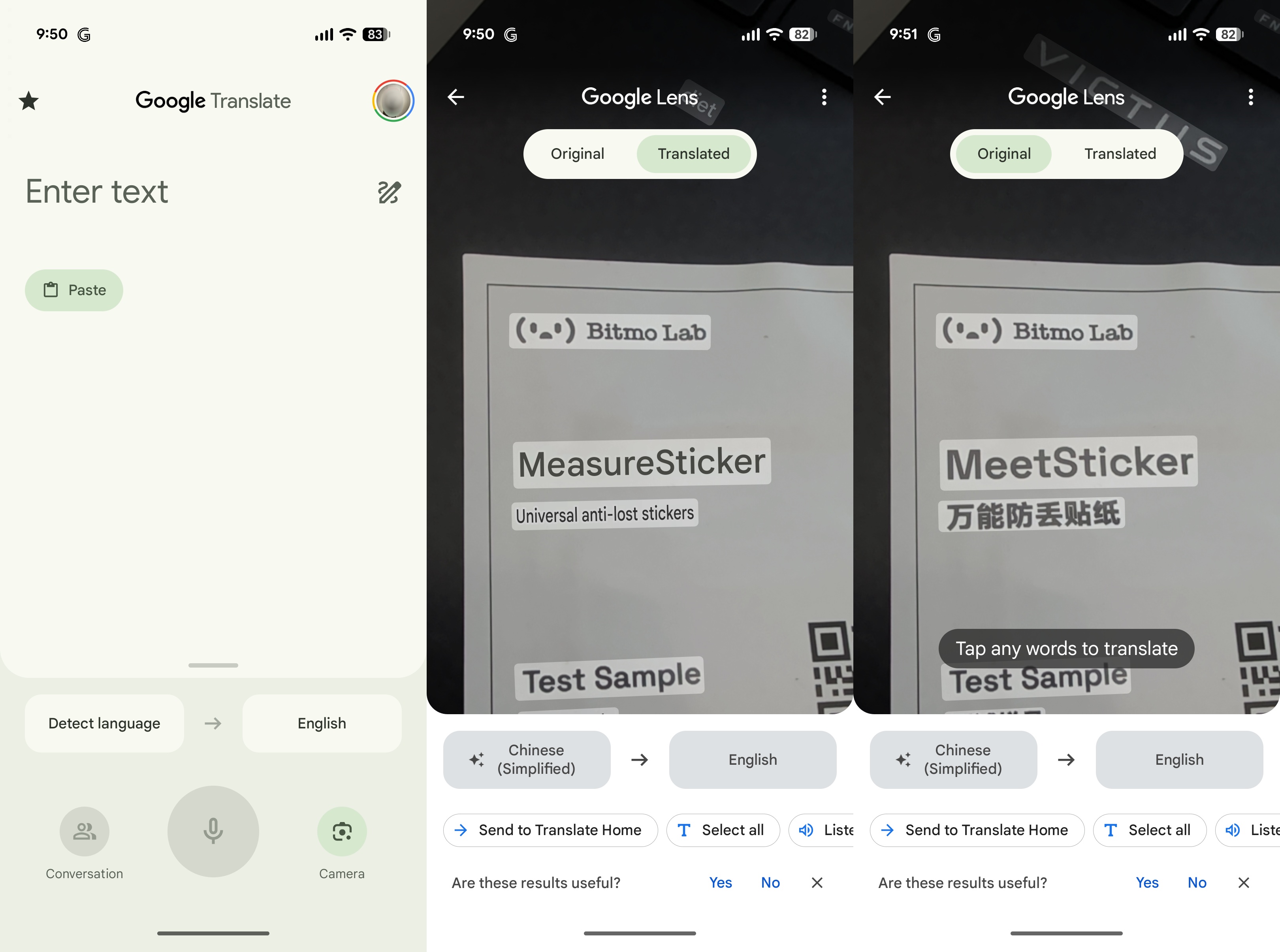
4. Select the language you're translating into as the second selection.
5. Point your phone's camera at any sign or other printed or digital text and watch as the words are automatically translated into your language of choice.
Google has earbuds that translate conversations too
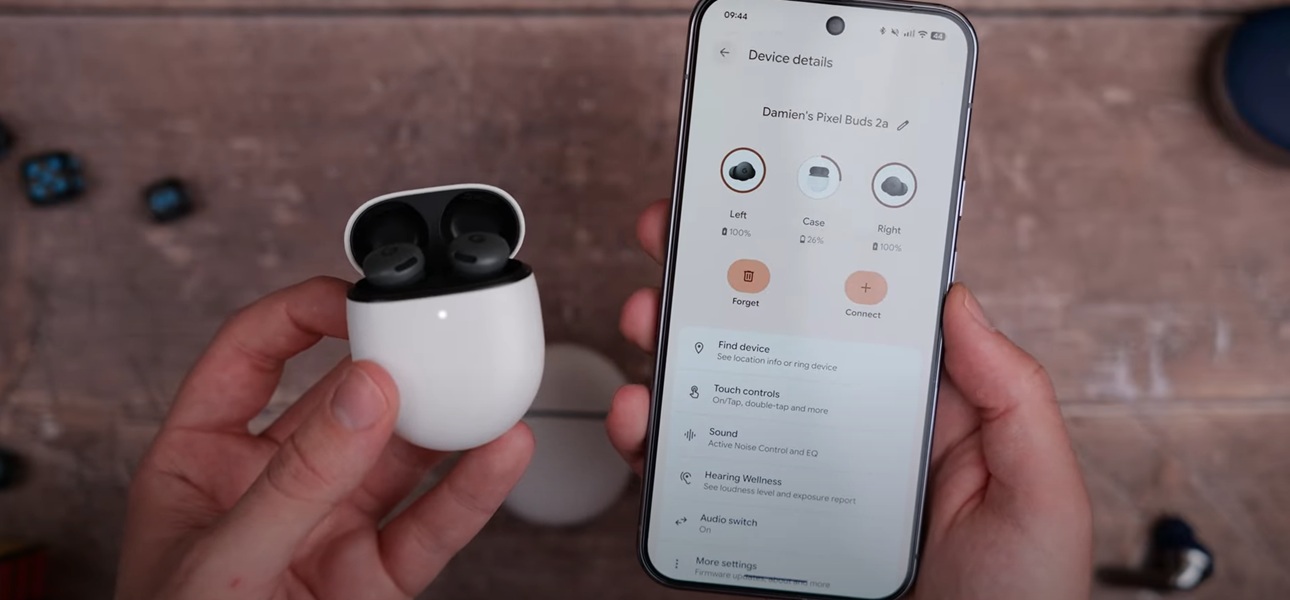
Google Live Translate works on any Android-powered phone, but only Google Pixel makes it possible to translate live in dozens of languages without an internet connection, all thanks to the Google Tensor processor inside.
If you want to take things even further, the Google Pixel Buds Pro 2 facilitate live translation on another level. Powered by the Google Tensor A1 chipset, you get smart Gemini integration that levels up your in-ear smart assistant game.
Tensor-powered earbuds
The Google Pixel Buds Pro 2 are light, comfortable, and feature-packed. Support for Google Gemini Live make these earbuds incredibly innovative, almost to a futuristic extent.