
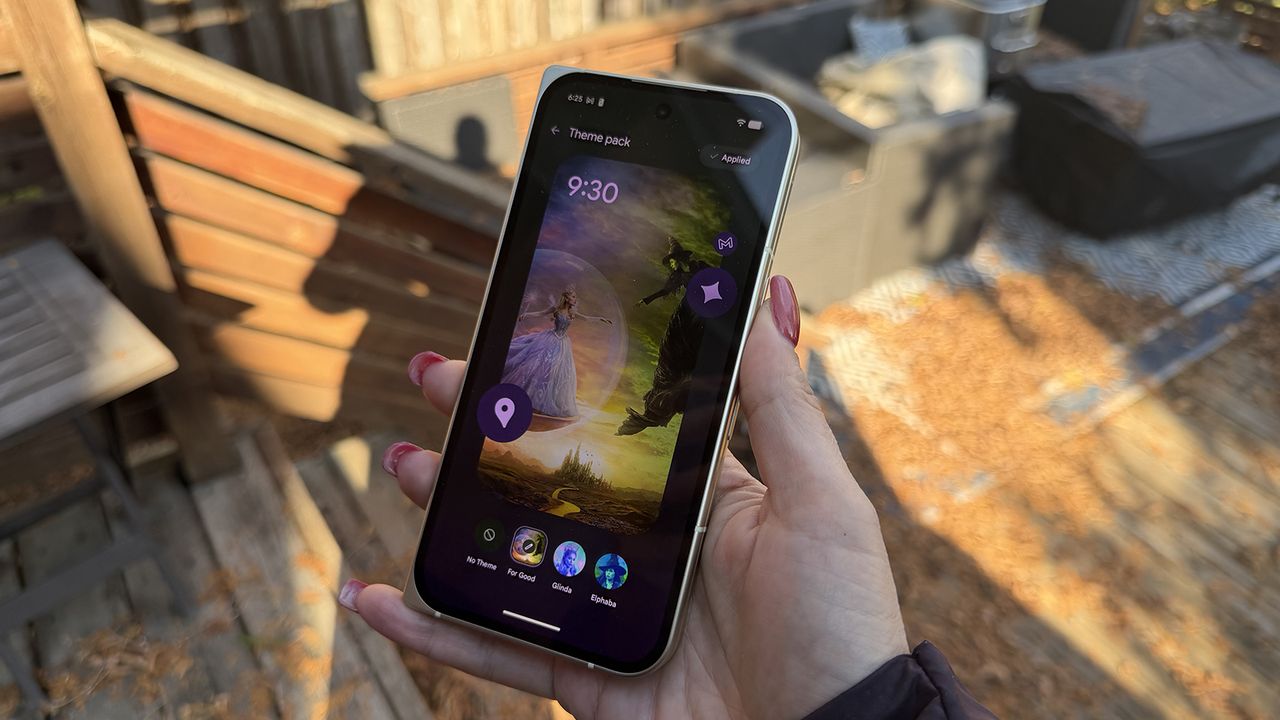
Google is always adding fun and exciting new features to its Pixel phones, and with the latest November 2025 Pixel Drop comes new customisable Pixel theme packs. The Theme Packs, available on the Play Store, finally bring Pixel phones up to speed with other flagship phones that have had theming options for some time.
Prior to this, Pixel devices have relied on Material 3 Expressive, which uses colors from the chosen wallpaper to create a unified look. Now, you can tweak things to your liking, including wallpaper, icon, sound, and GIF updates, so you get a truly customized experience. And it's easy to do.
How to use and customize Pixel theme packs
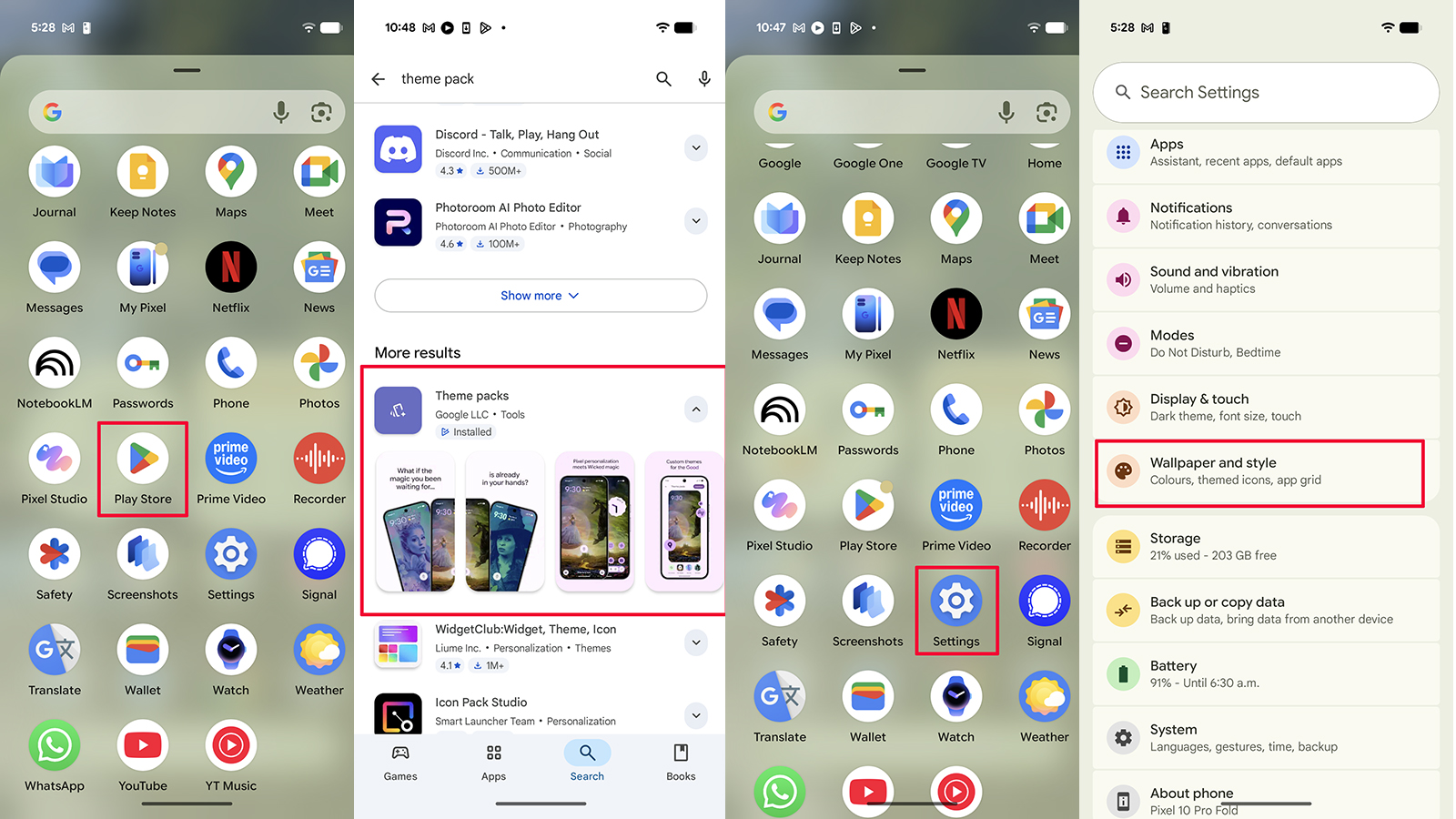
1. Go to the Play Store from your Pixel device.
2. Search for "theme packs" and find the app with the matching icon. Install.
3. Once installed, the theme packs are available from the Wallpaper and style menu. Go to Settings.
4. Select Wallpaper and style.
5. Scroll up to see Theme packs and select.
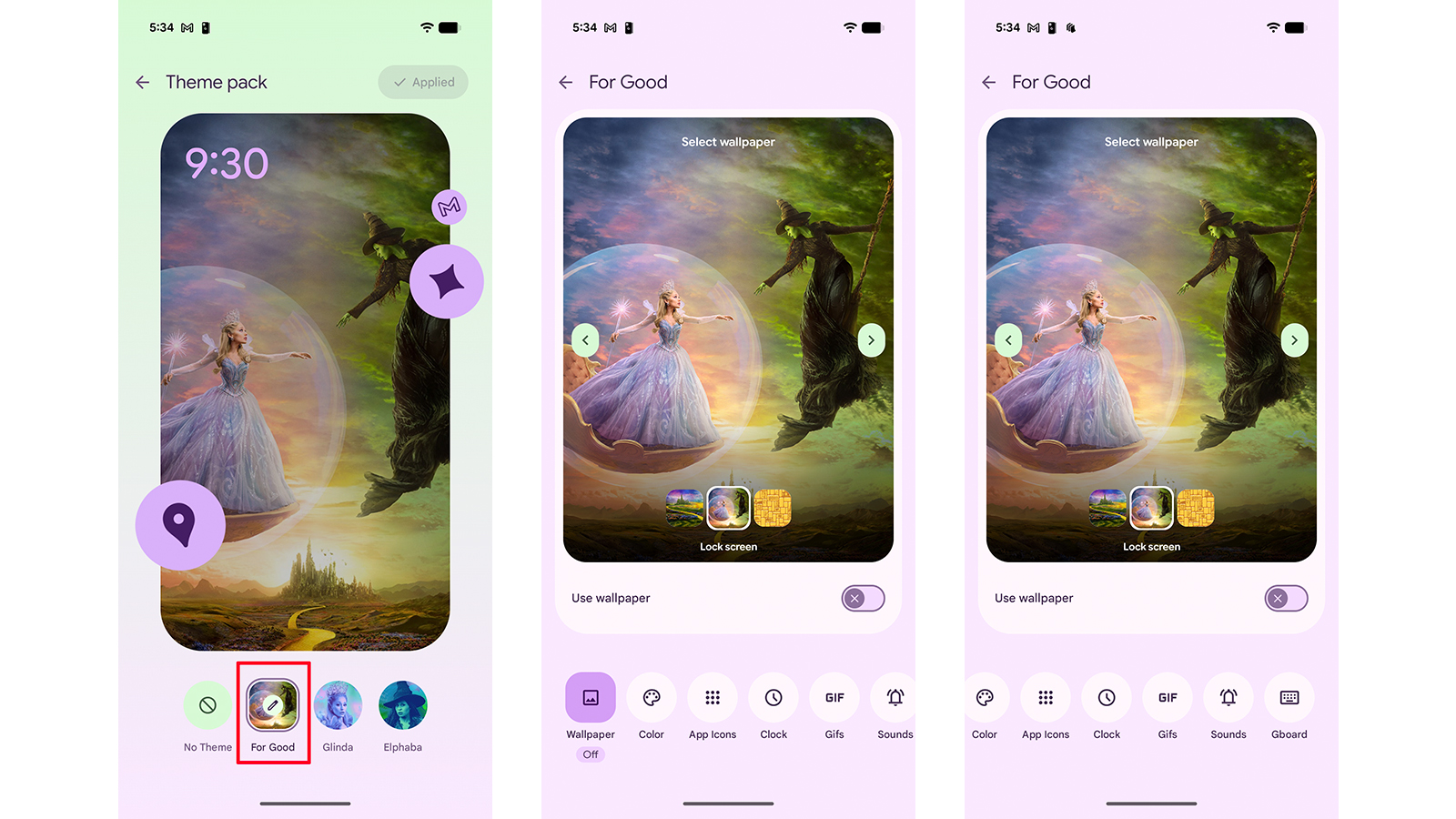
6. Currently, you'll find Wicked: For Good Theme packs. Select Download in the top, right corner of the screen after choosing the one you want.
7. Once downloaded, select Apply if you want to apply it right away. You can apply it to both the Lock screen and Home screen.
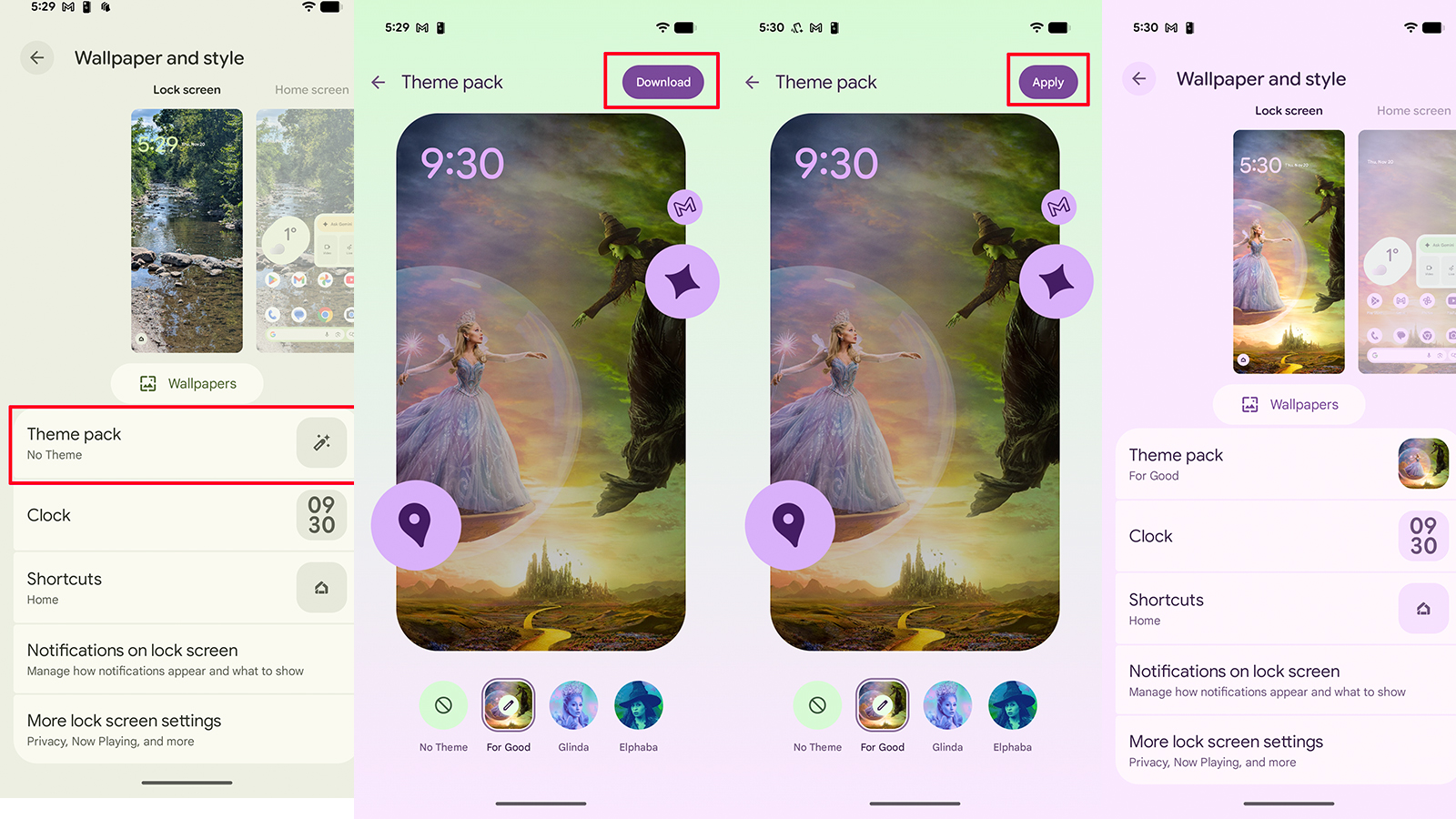
8. Select the Pencil icon over the Theme pack to turn features on or off for the Lock screen, like App Icons, the Clock, pinned GIFs in Gboard, Sounds, and to use the theme pack in Gboard.
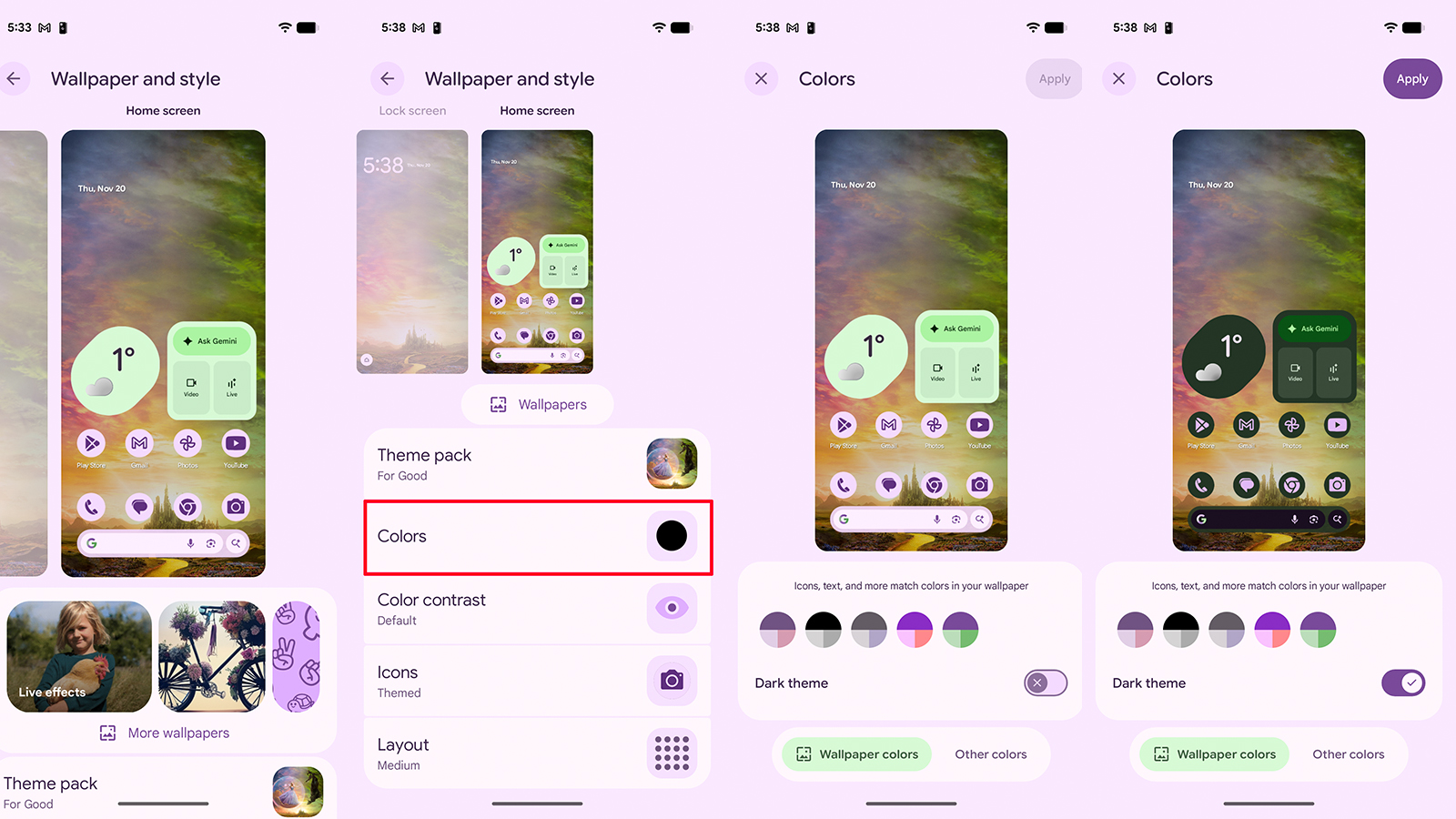
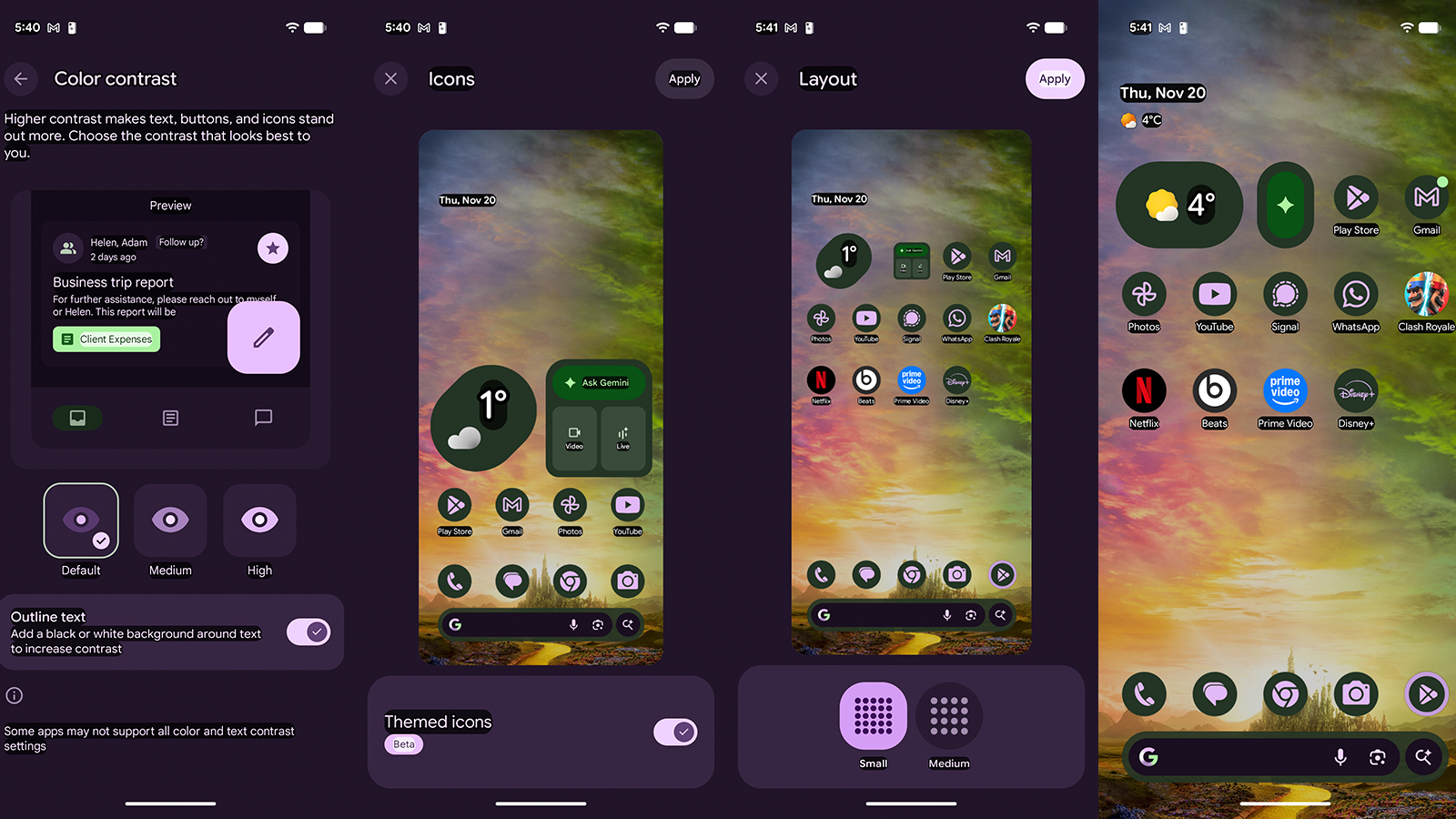
9. Return to the main Home screen menu to make further adjustments to that view. Under Color, for example, you can select the color scheme you want and turn on Dark theme if desired. Tap Apply at the top, right when done.
10. For Color contrast, choose from Default, Medium, or High and preview before confirming the selection. You can also choose to add black or white Outline text to increase contrast.
11. Next is Icons, which is currently in Beta. Turn these on or off.
12. Finally, choose Layout and pick between Small or Medium.
13. Once done, return to the home screen to see your new theme.
More theme packs are presumably coming
It appears right now that Google only offers the three Wicked: For Good theme packs, which are set to be available through January 31, 2026. The presumption is that Google will continue to roll out new Theme packs regularly, so you can keep checking back to find one that suits your mood and seasonal time of year. At any point, go back to the menu, select Theme packs, and No Theme to revert to the phone's previous visual state.
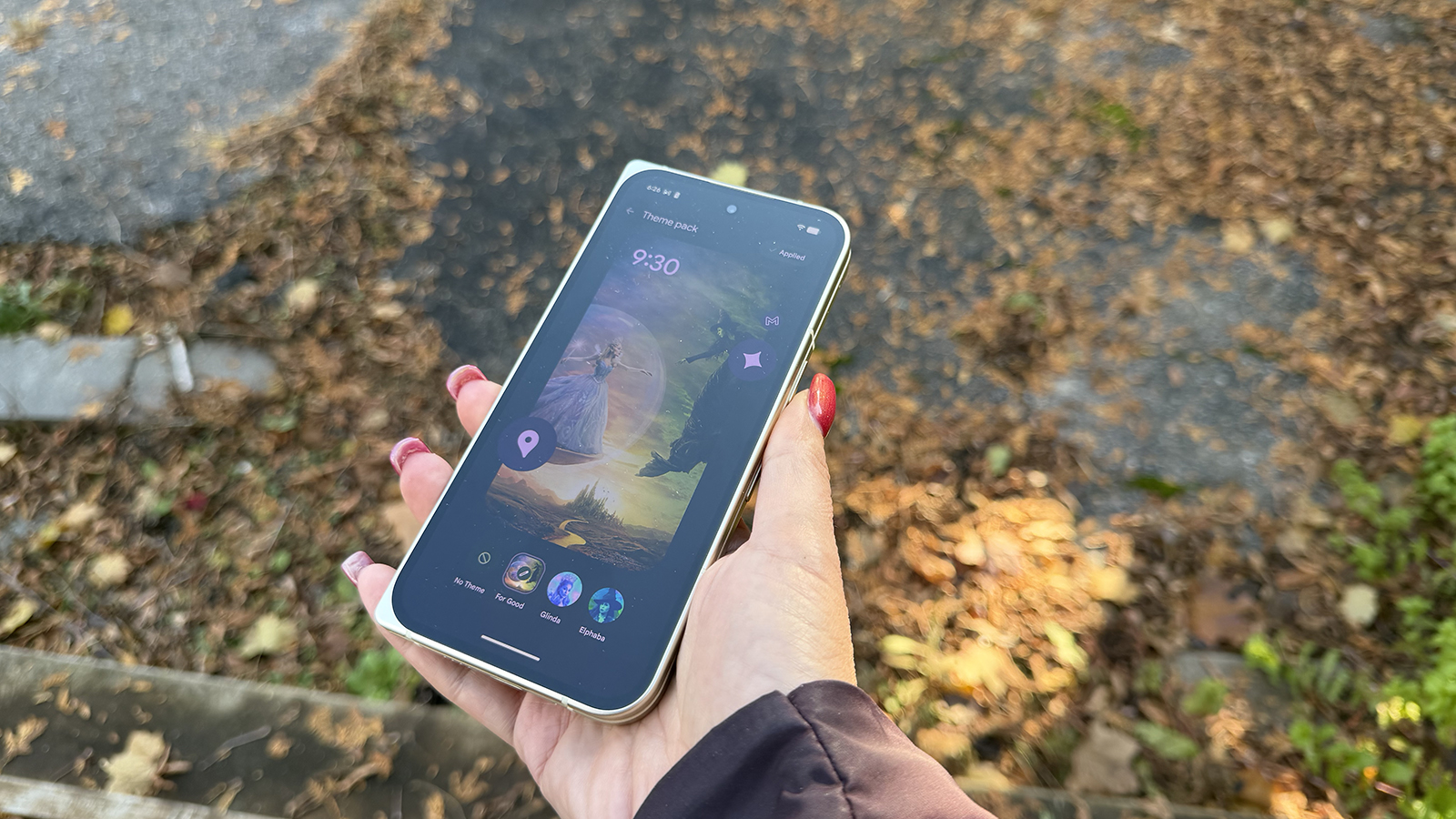
Google Pixel Theme packs are compatible with all the best Pixel phones from Pixel 6 and up. Make sure your device is updated to the latest OS to be able to see them once downloaded from the Google Play Store. Then, have fun adding some personal flavor to your device's look and even sounds!
Theme it up
The new Google Pixel Theme packs look especially good on the Google Pixel 10 Pro Fold, opened up to display them on a larger screen. Right now, you can choose from three Wicked: For Good options, but there are more to come.