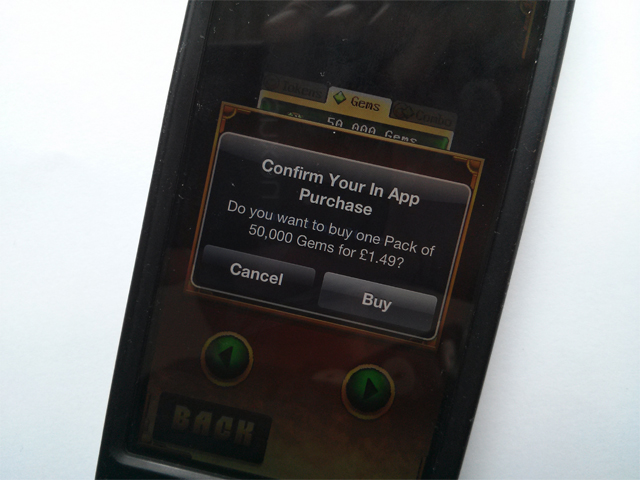
How to stop children buying in-app purchases on iPhone and iPad
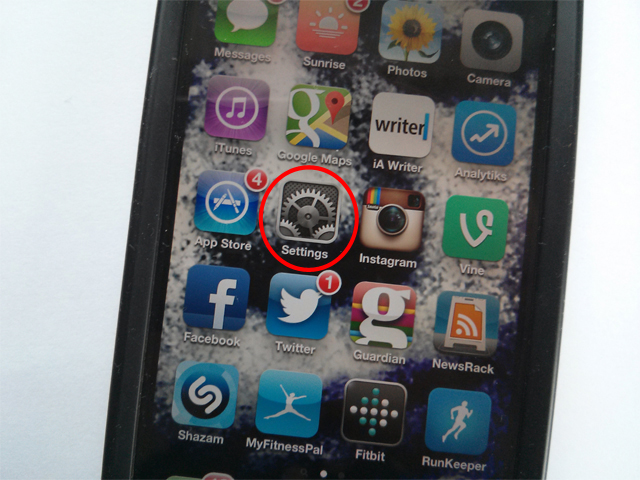
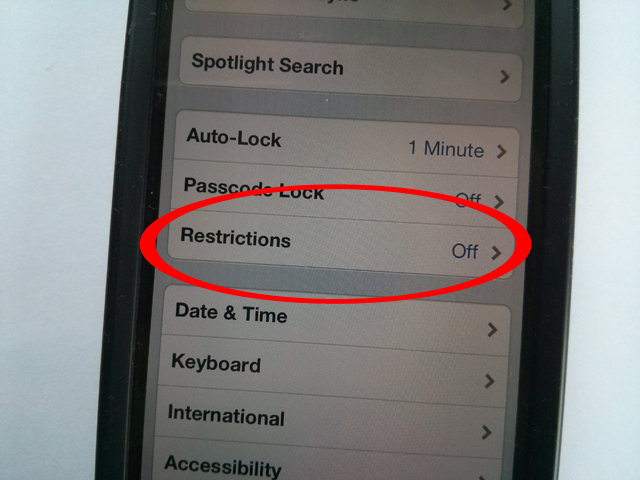
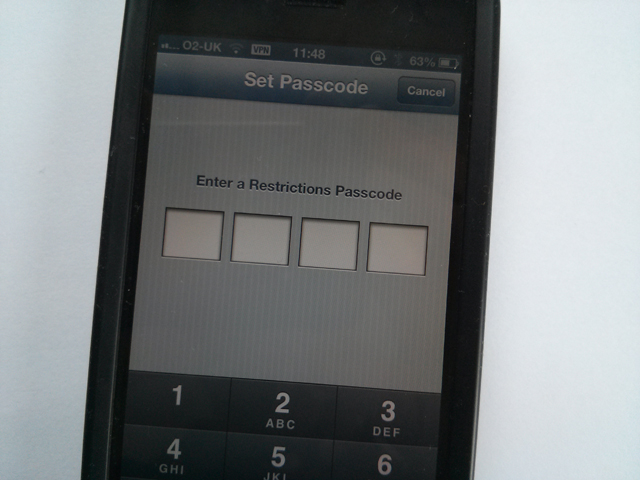
Tap on the Settings icon on your homescreen, then tap on the General option.Photograph: GuardianScroll down and tap on the Restrictions option, which is likely to be Off at this point.Photograph: GuardianType in a Restrictions Passcode here – a four-digit PIN. It's best to make it different from any PIN you're using to unlock the device. This new PIN will be required whenever anyone (for example, your child) tries to change the Restrictions settings.Photograph: Guardian
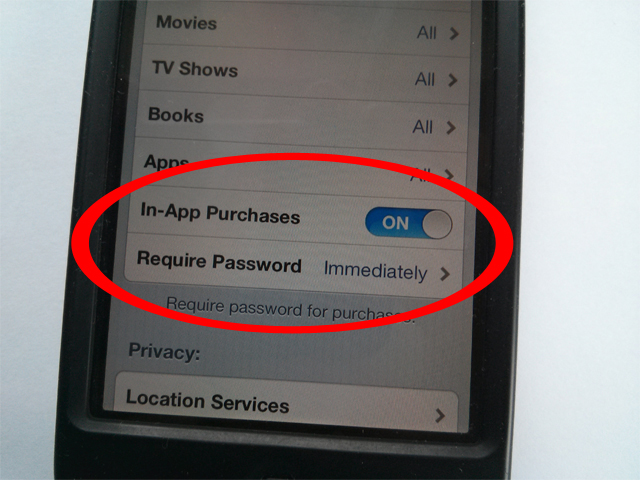
Scroll down to the Allowed Content section of the Restrictions screen, where you'll find two useful options. To turn IAP off altogether, flick the In-App Purchases switch to Off. Alternatively, tap on the Require Password option and change it from 15 Minutes to Immediately. This means that even if you've just typed in your iTunes password to download an app, every single in-app purchase will need it to be typed in again.Photograph: GuardianIf you've changed that 15-minute window to Immediately, whenever someone tries to buy an in-app purchase on your device, they'll be prompted for your iTunes password (rather than the default, which only covers the first in-app purchase in that first 15-minute window). Which – and this might sound obvious, but a lot of parents forget – should not be shared with your children.Photograph: Guardian
Sign up to read this article
Read news from 100’s of titles, curated specifically for you.