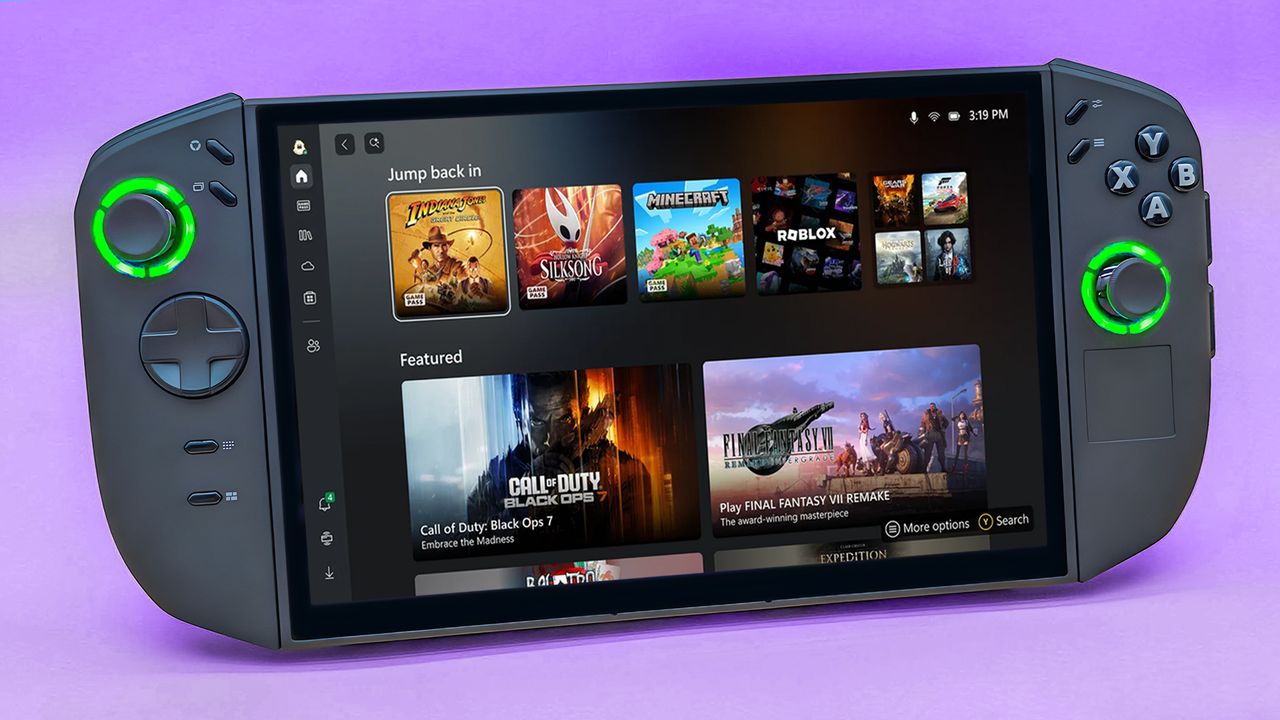
Now that Xbox Full Screen Experience (Xbox FSE) has started rolling out to all Windows handhelds (and not just Xbox Ally or Xbox Ally X), I was curious to see what the Xbox FSE set up process and user experience would be like on my Legion Go 2.
Unfortunately, I discovered that Xbox FSE hasn't rolled out to my Legion Go 2 yet, but I was able to set it up on my original ROG Ally and ROG Ally X. Still, there is an alternative if you want to check out Xbox FSE on your Legion Go device or any others it hasn't rolled out to yet.
In this guide, I'll start by going over the steps to getting Xbox FSE set up on devices that it has already rolled out to, and then I'll explain an alternative for Windows handhelds that haven't gotten the update yet, like my Legion Go 2.
How to set up Xbox Full Screen Experience on your Windows handheld
NOTE: XFSE is slowly rolling out to all Windows handhelds, so it's possible that the method listed below might not work for you just yet. If it doesn't, try again in a day or two.
- On your handheld, use your finger to swipe up from the bottom of the screen.
- Select Settings.
- Tap Windows Update.
- Check for updates and install updates. You specifically need to select Download & Install on "Windows 11, version 25H2."
- Restart your device once the update is done installing. This might take a while.
- When your handheld boots up, log in if necessary, and then swipe up from the bottom of the screen.
- Select Settings.
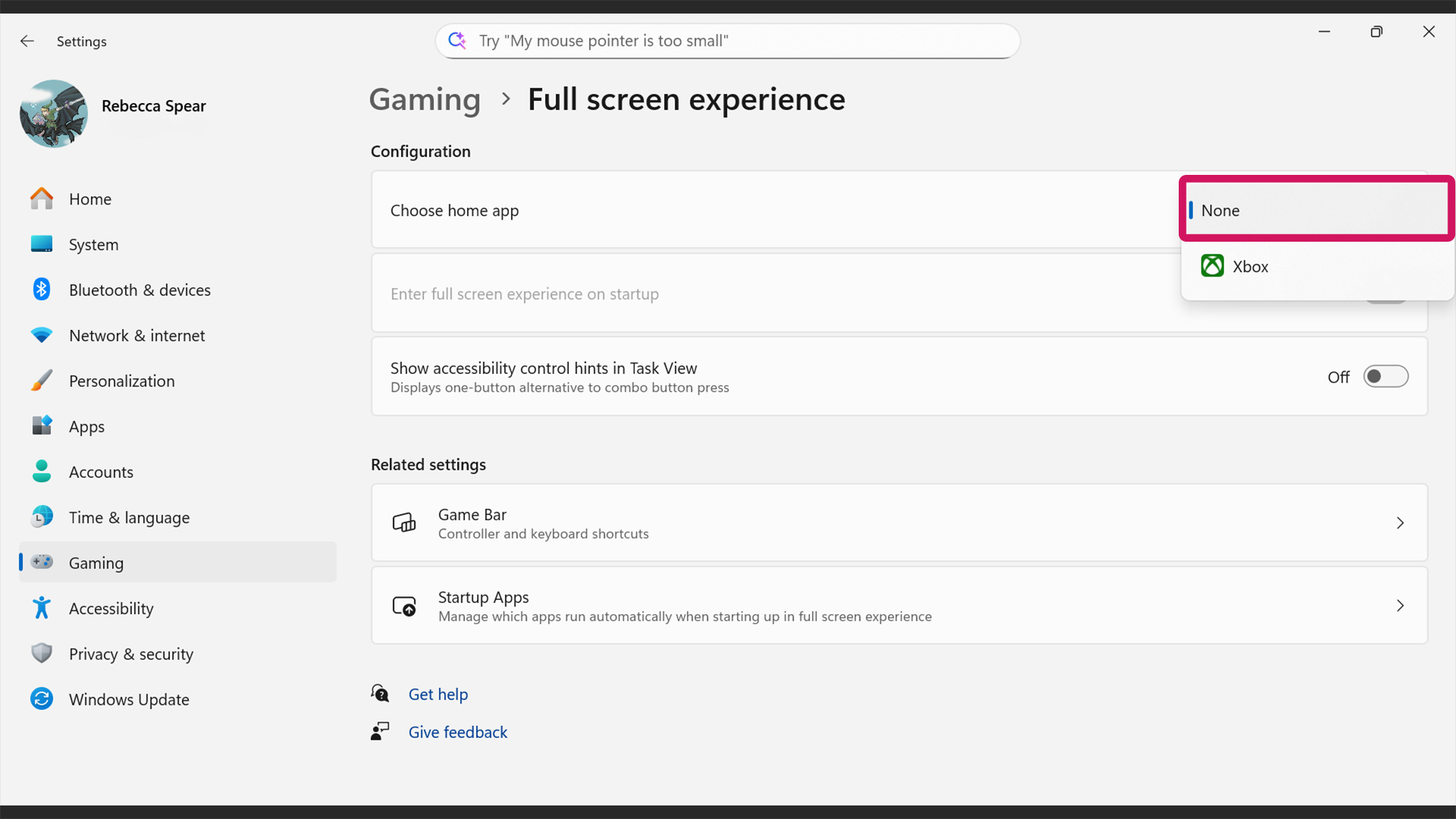
- Tap Gaming.
- Select Full Screen Experience.
- Tap the drop-down menu to the right and change it to Xbox.
- If you want your handheld to enter Xbox Full Screen Experience on startup, toggle the button next to "Enter full screen experience on startup."
- Now restart your handheld, and it should automatically boot up into the Xbox Full Screen Experience.
With all of these steps taken, you'll be able to check out Xbox Full Screen Experience on your Windows handheld.
How can I get FSE on my Windows handheld if it hasn't rolled out to me yet?
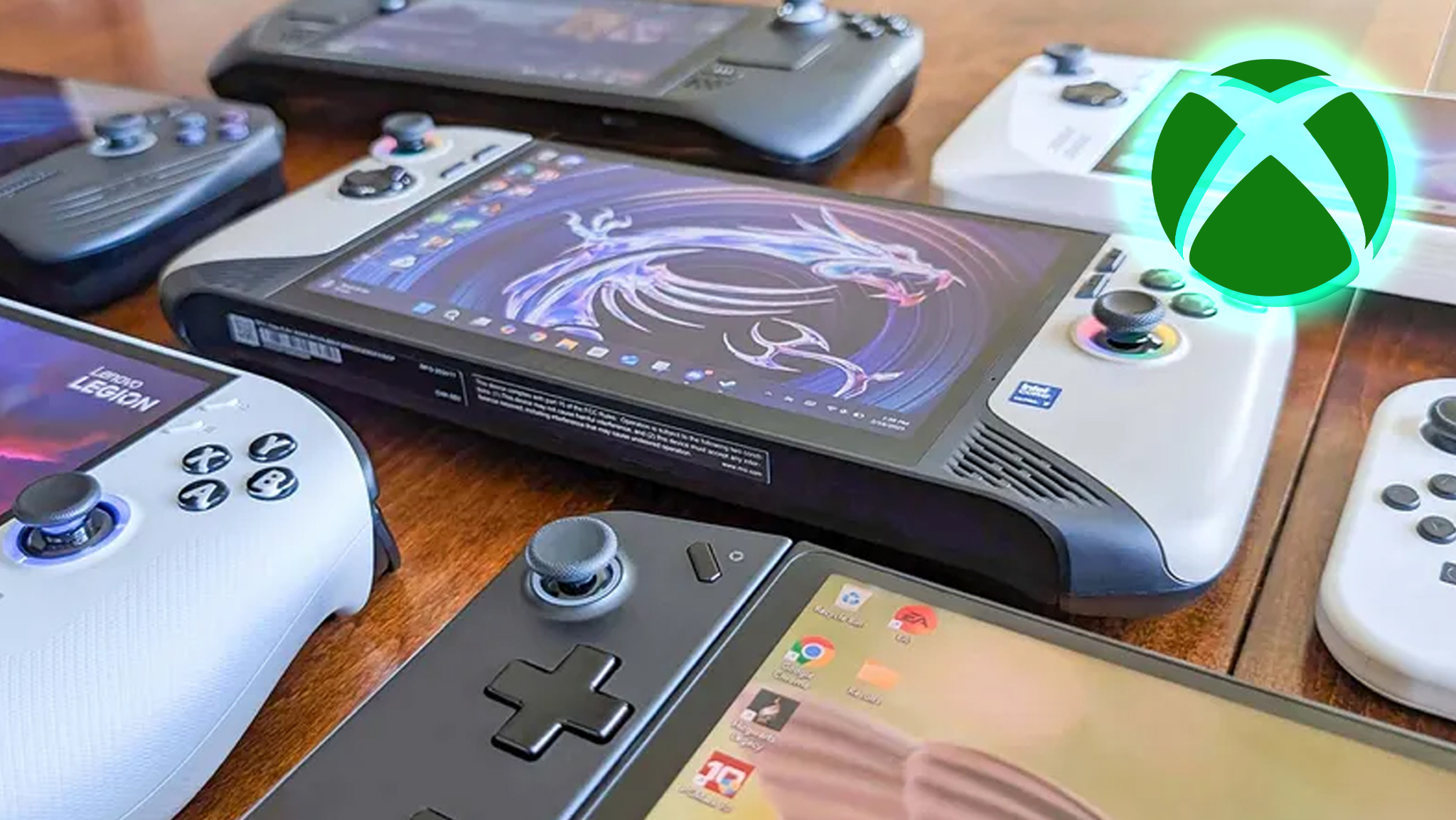
If you aren't willing to wait for Xbox FSE to roll out onto your handheld, then there is another option available to you that utilizes a free open-source program.
For those interested, check out my colleague's guide on how to use a free tool to mimic Xbox full-screen experience on your handheld or other Windows PC.
How to make a different game launcher boot into Full Screen Experience on Windows handhelds
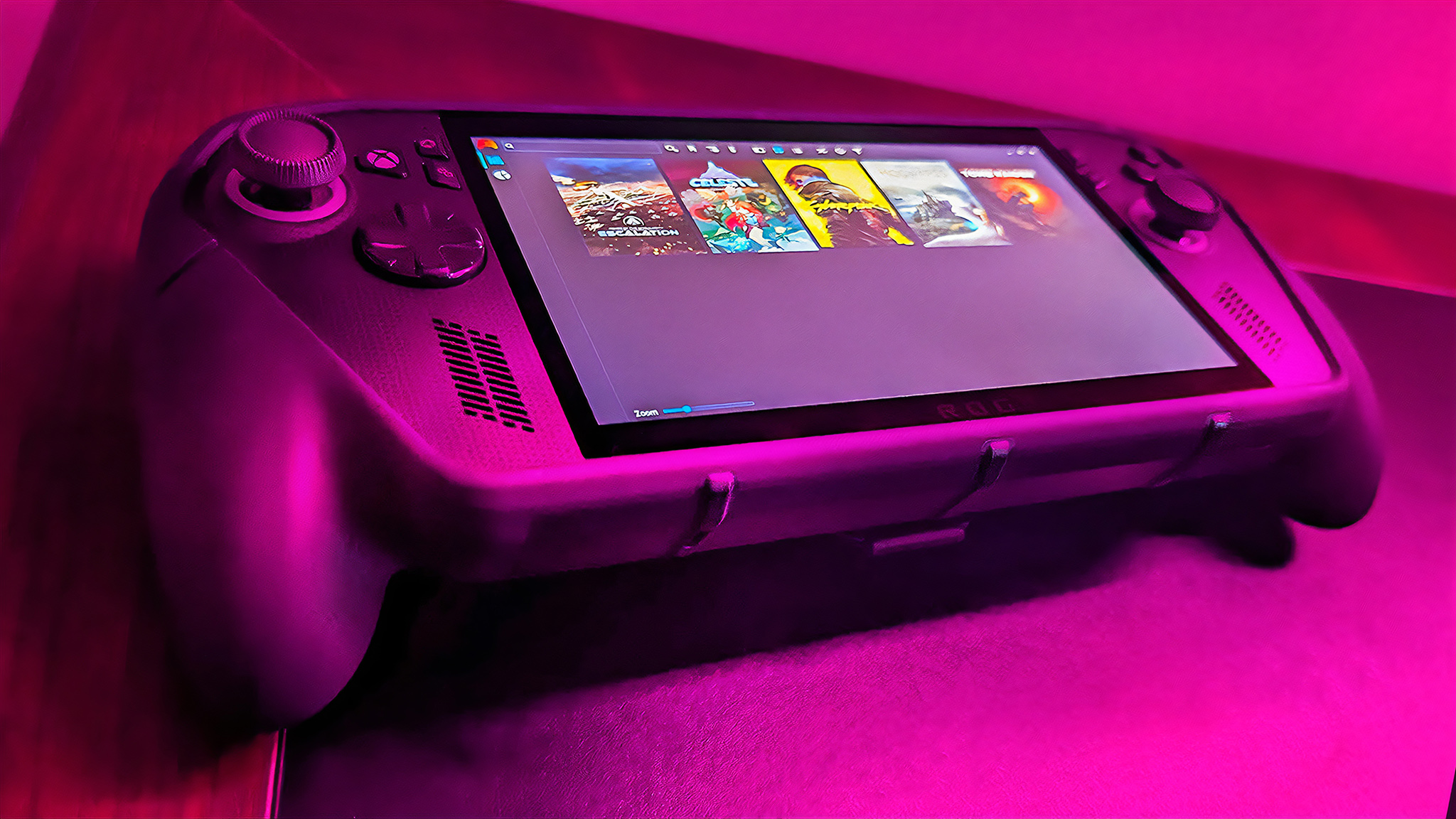
By the way, I've also written a guide on how to replace Xbox Full Screen Experience with your game launcher of choice. For instance, I made it so my Xbox Ally X booted into a Playnite full-screen mode on startup.
Check that guide out if you want to see more customization options for your handheld.
How to exit Full Screen Experience and go to Windows desktop
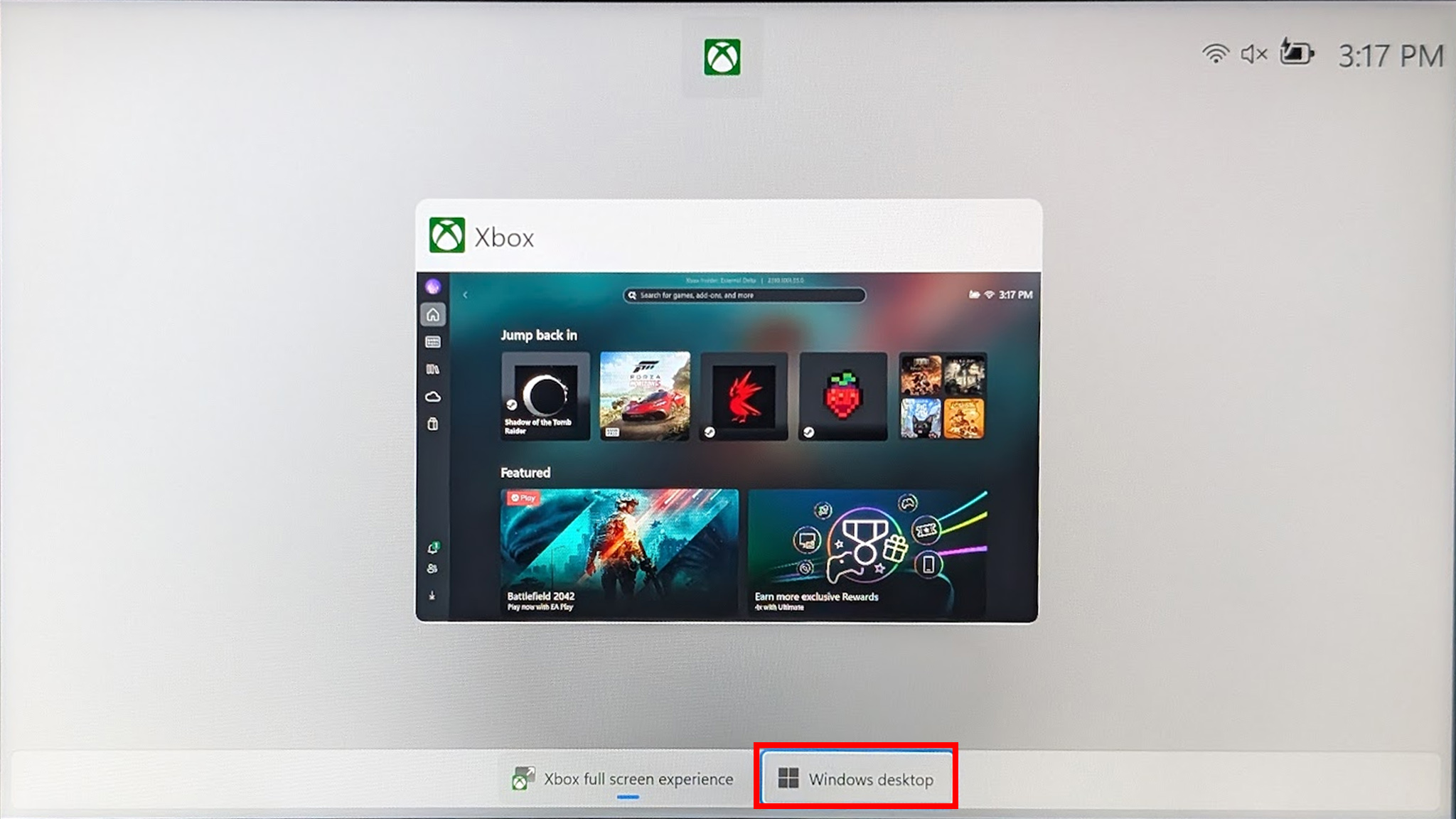
The nice thing about Windows' Full Screen Experience is that you can exit it at any time and go back to the normal Windows desktop if you want. Here's how.
- While displaying Full Screen Experience, use your finger to swipe up from the bottom of the screen.
- Tap on Windows desktop.
- Select Continue.
Once you've done this, you'll be taken to the usual Windows desktop and can use your handheld like a normal Windows PC.
See if Xbox Full Screen Experience is the right UI for you
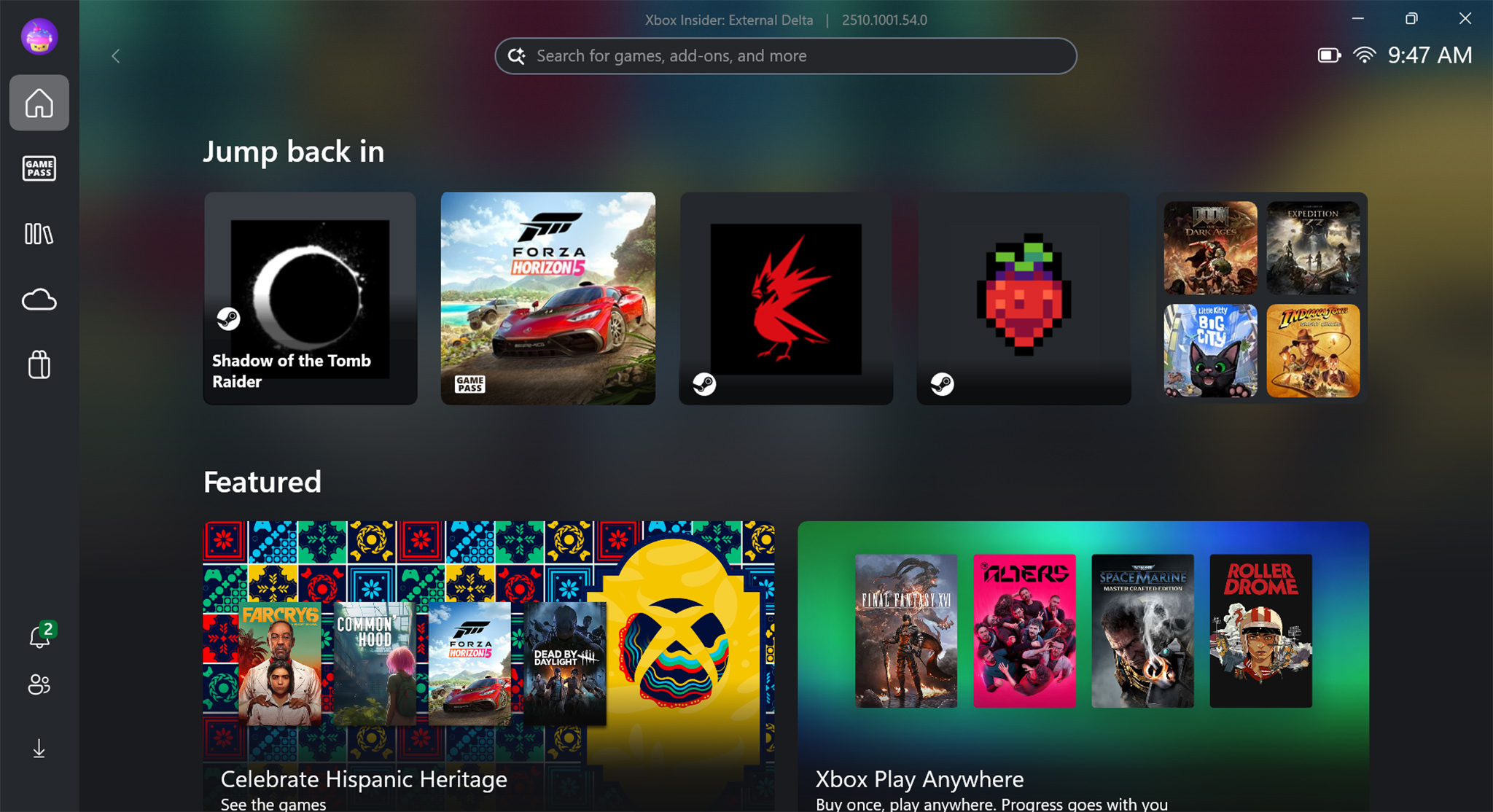
Xbox Full Screen Experience isn't just a different user interface option, it actually optimizes gaming for Windows handhelds by reduces background programs.
With it setup on your handheld, you'll be able to easily launch your various games, interact with Xbox Game Pass, check the store for new games, and adjust settings.
Have fun exploring and seeing what it has to offer.
Xbox Full Screen Experience FAQ
What does Xbox Full Screen Experience do?
Xbox Full Screen Experience provides a console-like interface and reduces background functions so your device can run more efficiently.
Here's what Xbox says players can expect from Xbox Full Screen Experience:
A distraction-free, console-style UI of the Xbox PC app optimized for Windows 11 handhelds like the MSI Claw models, and the ASUS ROG Ally and ROG Ally X, with additional OEMs to adopt the Xbox full screen experience in the coming months.
Seamless access to Xbox, Game Pass, Xbox Play Anywhere, and games from other storefronts.
Easier to navigate with a gamepad and seamless task switching with a long-press of the Xbox controller button.
Easy toggling with Win + F11, Game Bar Settings, or Task View.
Is Xbox Full Screen Experience available on all Windows handhelds?
Yes, as of November 21, 2025, Xbox Full Screen Experience has started rolling out on all Windows handhelds. So, you should be able to access it on your Windows handheld soon.
Can I remove Xbox Full Screen Experience from my handheld if I don't like it?
Yep! You can easily stop Xbox Full Screen Experience from automatically booting up on startup if you don't like it.
To help, here's a guide on how to stop XFSE and how to make a different game launcher boot up.

Follow Windows Central on Google News to keep our latest news, insights, and features at the top of your feeds!