
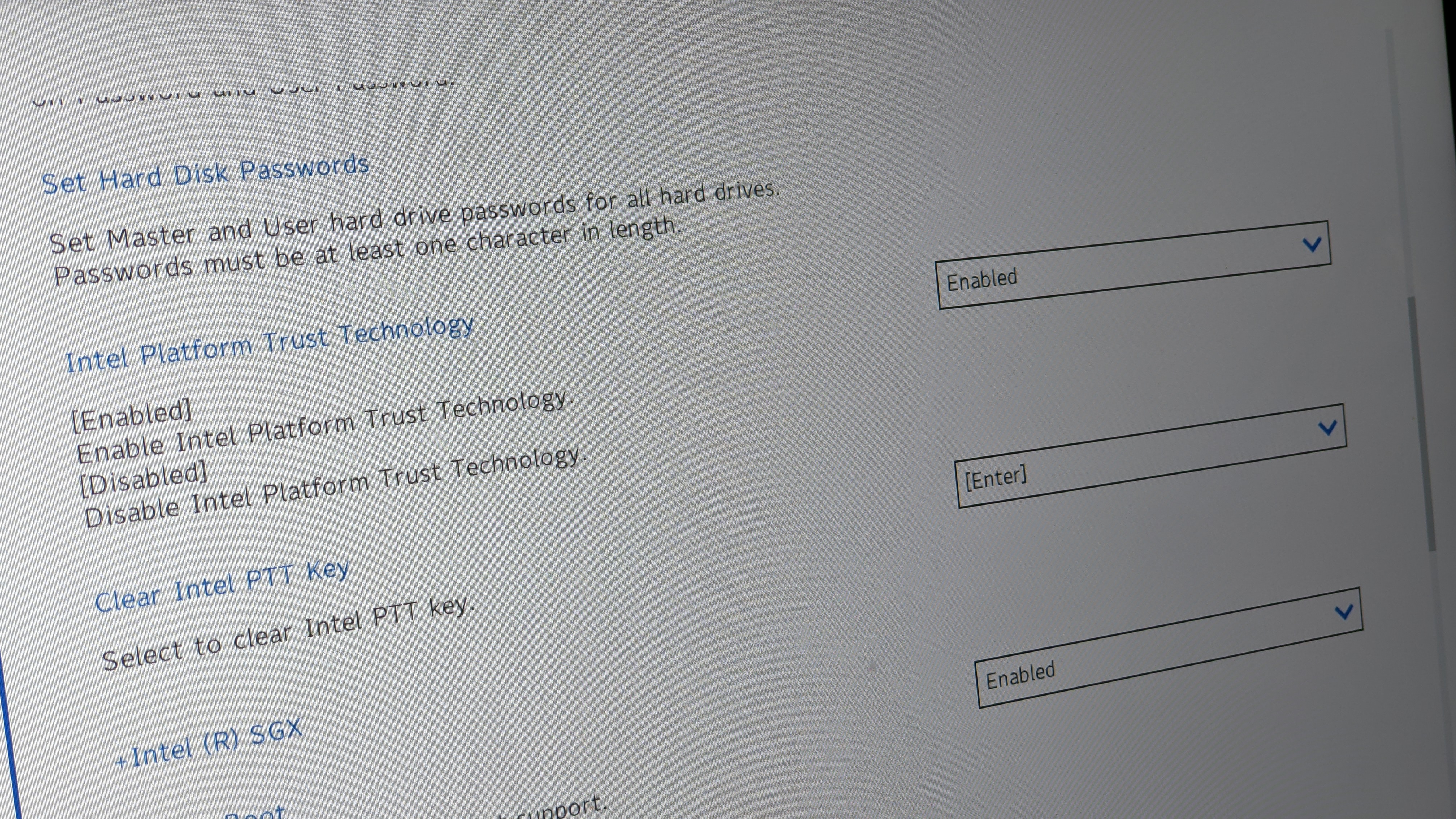
There are plenty of customizable settings within Windows 10, but some settings can only be changed in the BIOS, or the Basic Input-Output System. Within the BIOS, you can overclock your RAM, add a password for the BIOS, adjust fan settings, and so much more. But how do you enter the BIOS on Windows 10?
The BIOS is a pre-boot environment, as it's firmware built directly into your computer's motherboard. This means once you're seeing Windows 10, you've gone too far. You need to access the BIOS before actually booting into Windows 10.
If you're using an older computer (or one deliberately set to boot slowly), you can press the F1 or F2 key when powering on the computer to enter the BIOS. However, if you're using a computer made within the past few years, it'll likely boot too fast to register an F1/F2 keypress at startup. Instead, follow these easy steps to access the BIOS on your Windows 10 computer.
How to enter the BIOS on a Windows 10 PC
The simplest method of entering the BIOS on a Windows 10 PC is to simply hold down the Shift key while restarting your computer, which can be done by heading to the Start menu, clicking the power button, and selecting Restart.
When your computer restarts, you should see a blue screen with multiple options. If that's the case, head to step 5. If you don't see this blue screen and you've tried to access it multiple times with the above method, follow steps 1 through 4 instead.
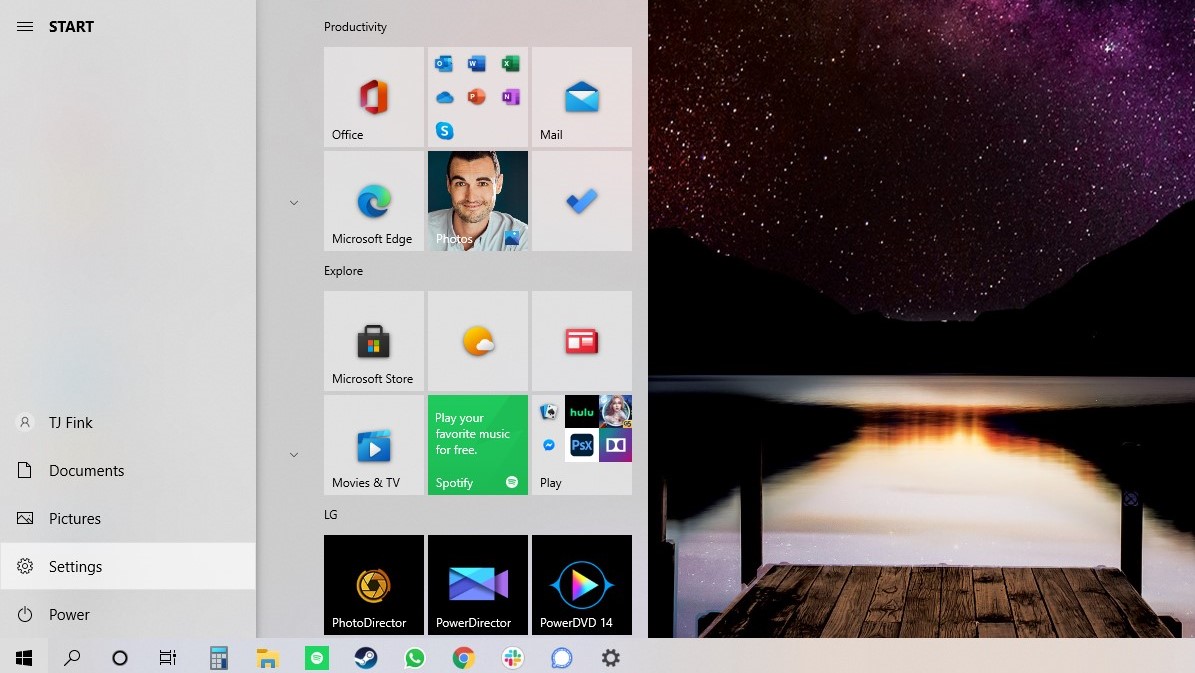
1. Navigate to Settings. You can get there by clicking the gear icon in the Start menu.
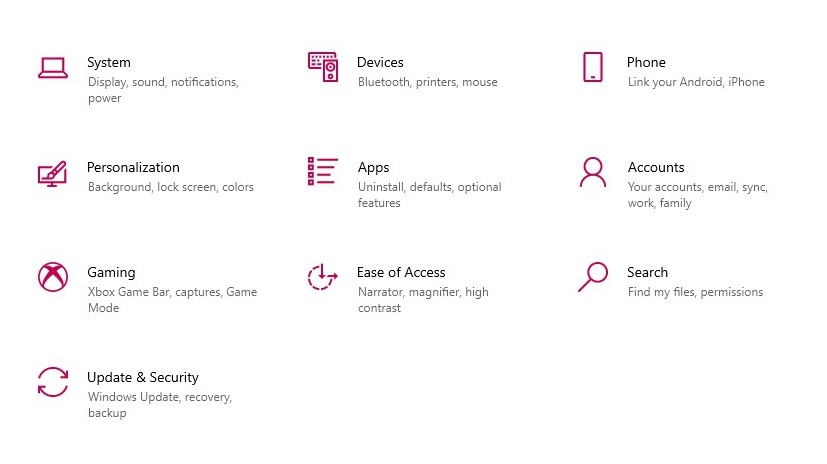
2. Select Update & Security.
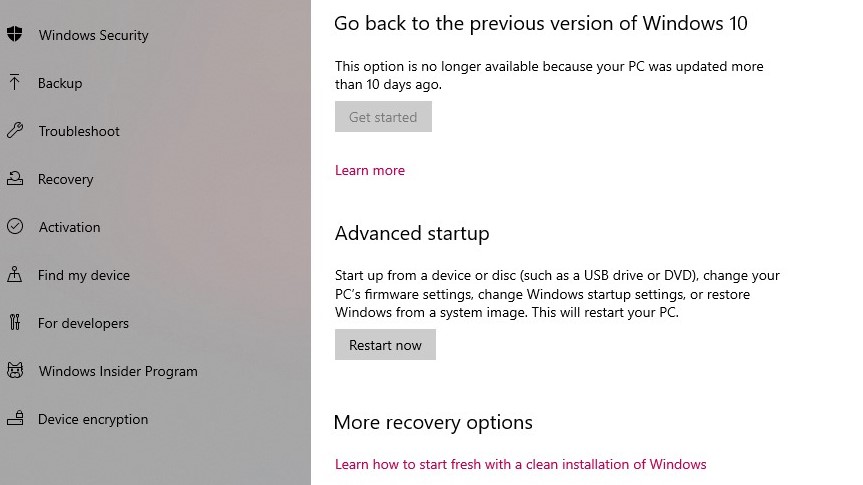
3. Select Recovery from the left menu.
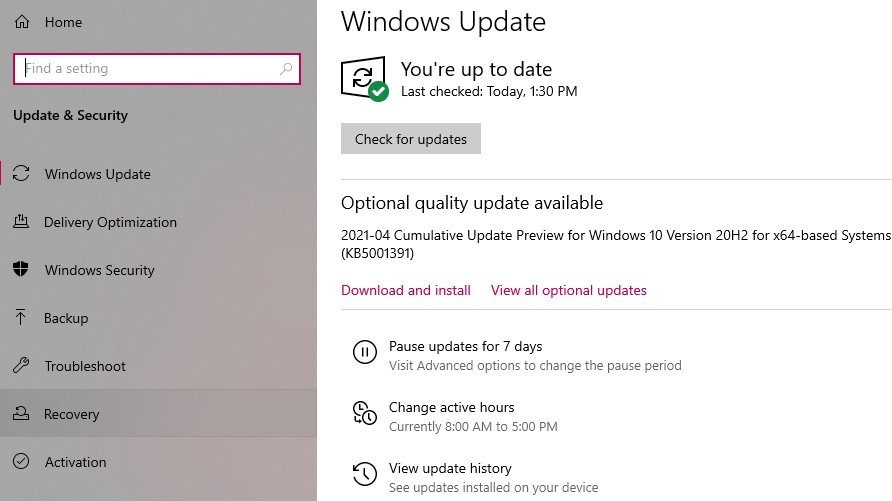
4. Click Restart Now under Advanced startup. The computer will reboot to a special menu.
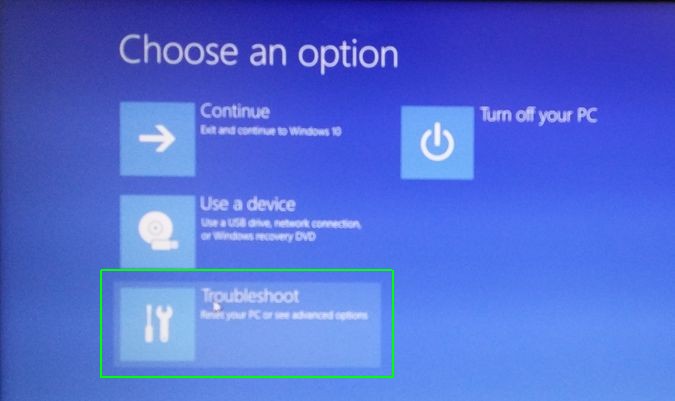
5. Click Troubleshoot.
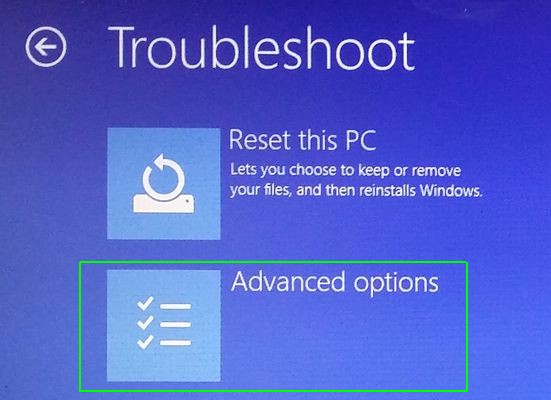
6. Click Advanced options.
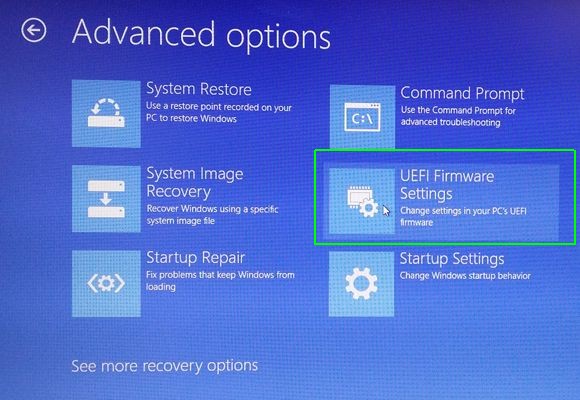
7. Select UEFI Firmware Settings. If you don't see this icon, then press Startup Settings instead. When your PC is restarting, tap F1 (or F2) to access the BIOS.
8. Click Restart.
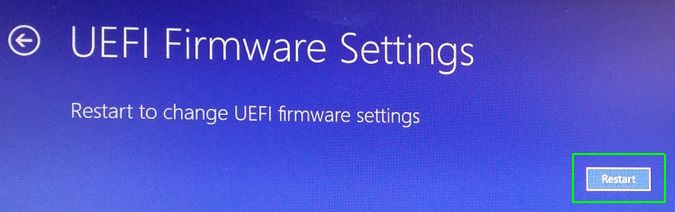
Your system will restart and immediately take you to the BIOS. Accessing the BIOS requires intentional steps because it's possible to change settings that'll negatively affect your computer going forward. So before changing any settings, thoroughly research its possible effects and make sure it's a change you definitely want to make.