
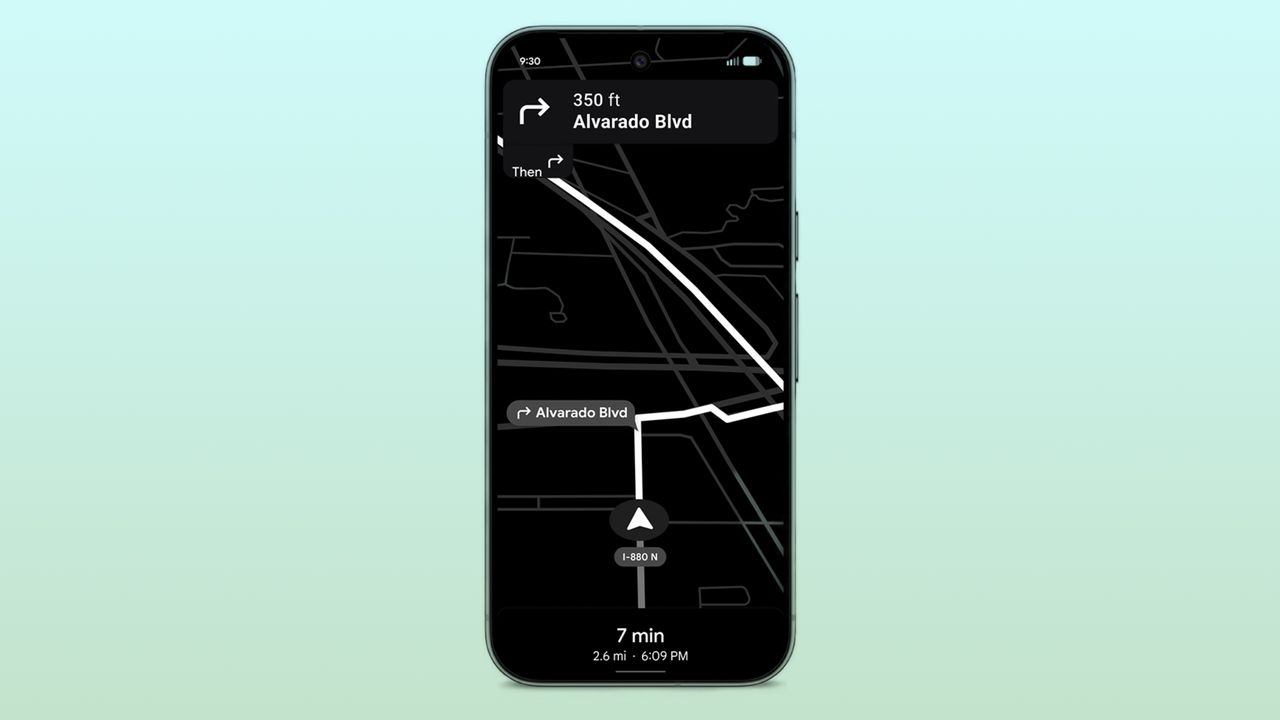
Smartphone users often drain their battery by listening to music, streaming video, or playing mobile games. These are great ways to kill time, but it's important to save battery life for crucial tasks, like making calls or using Google Maps for navigation. In a Pixel Drop, Google made it easier for users to get to their destination on low battery with the new Google Maps power saving mode.
Power saving mode in Google Maps is quite limited. It's not just restricted to Pixel phones. Instead, it's only available for the four Google Pixel 10 models. If you happen to have one of the newest Pixel phones, you can extend your device's battery life with this feature. Here's everything you need to know about Google Maps power saving mode, and how to use it.
What you need to use Google Maps power saving mode
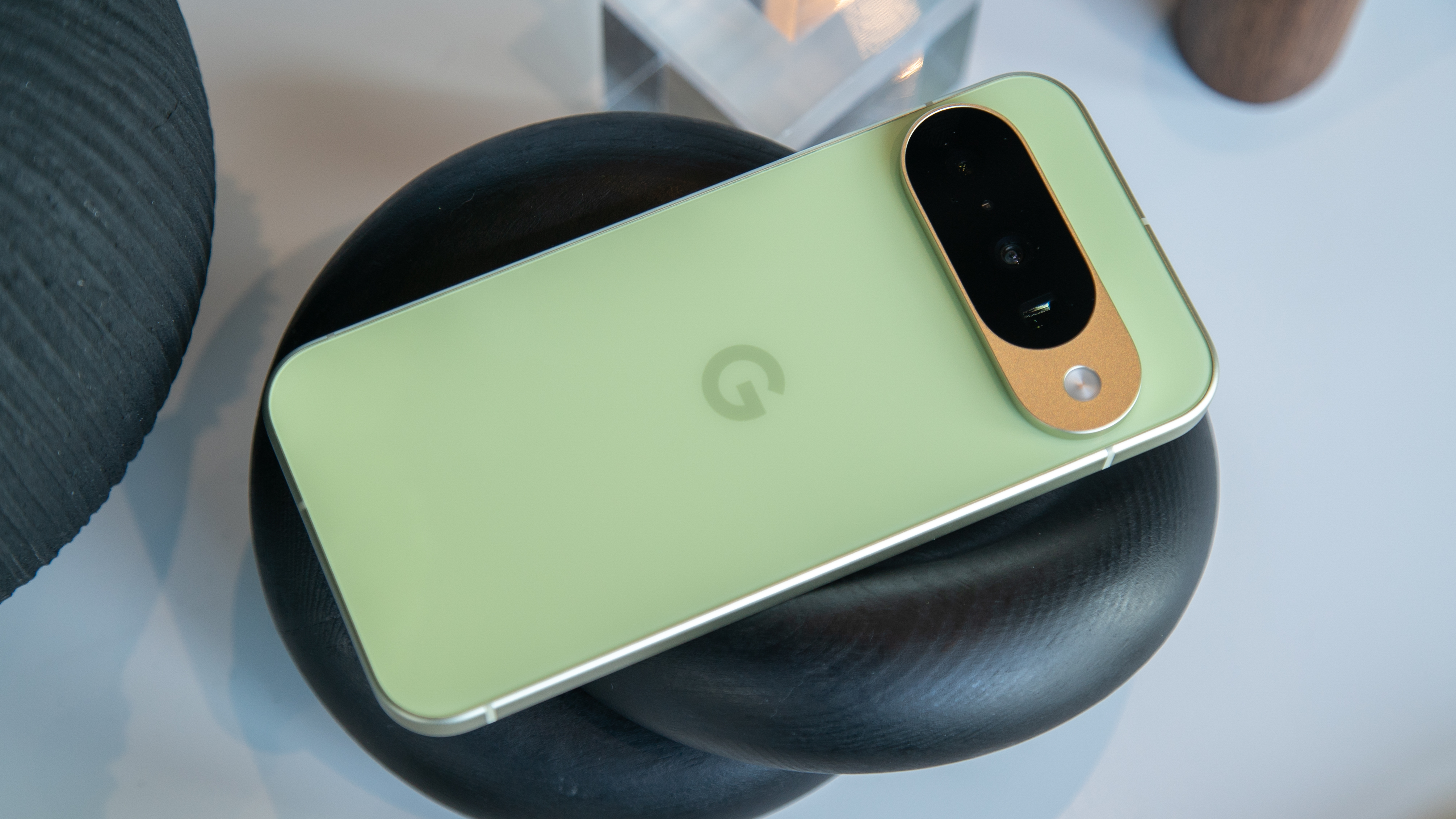
With the November 2025 Pixel Drop, Google added a power saving mode to Maps. It's exclusive to the four Pixel 10 models, namely the Google Pixel 10, Google Pixel 10 Pro, Google Pixel 10 Pro XL, and the Google Pixel 10 Pro Fold.
Google describes power saving mode as offering a "simple, low-power map" on your lock screen. It keeps necessary navigation information, like your next turn, easily visible on the screen. However, it cuts out a lot of the unnecessary visual elements, switching to a black-and-white UI to save power. Google says this can "significantly" extend your phone's battery life.
There are a few limitations in addition to the feature being a Pixel 10 exclusive. It'll only work while driving, and you can only use power saving mode in portrait orientation.
How to enable and use Google Maps power saving mode
To use Google Maps power saving mode, you'll need to enable the feature in the app's settings menu once. After that, the low-power battery view will be one button away for future navigation sessions. Here's how to enable, use, and disable Google Maps power saving mode:
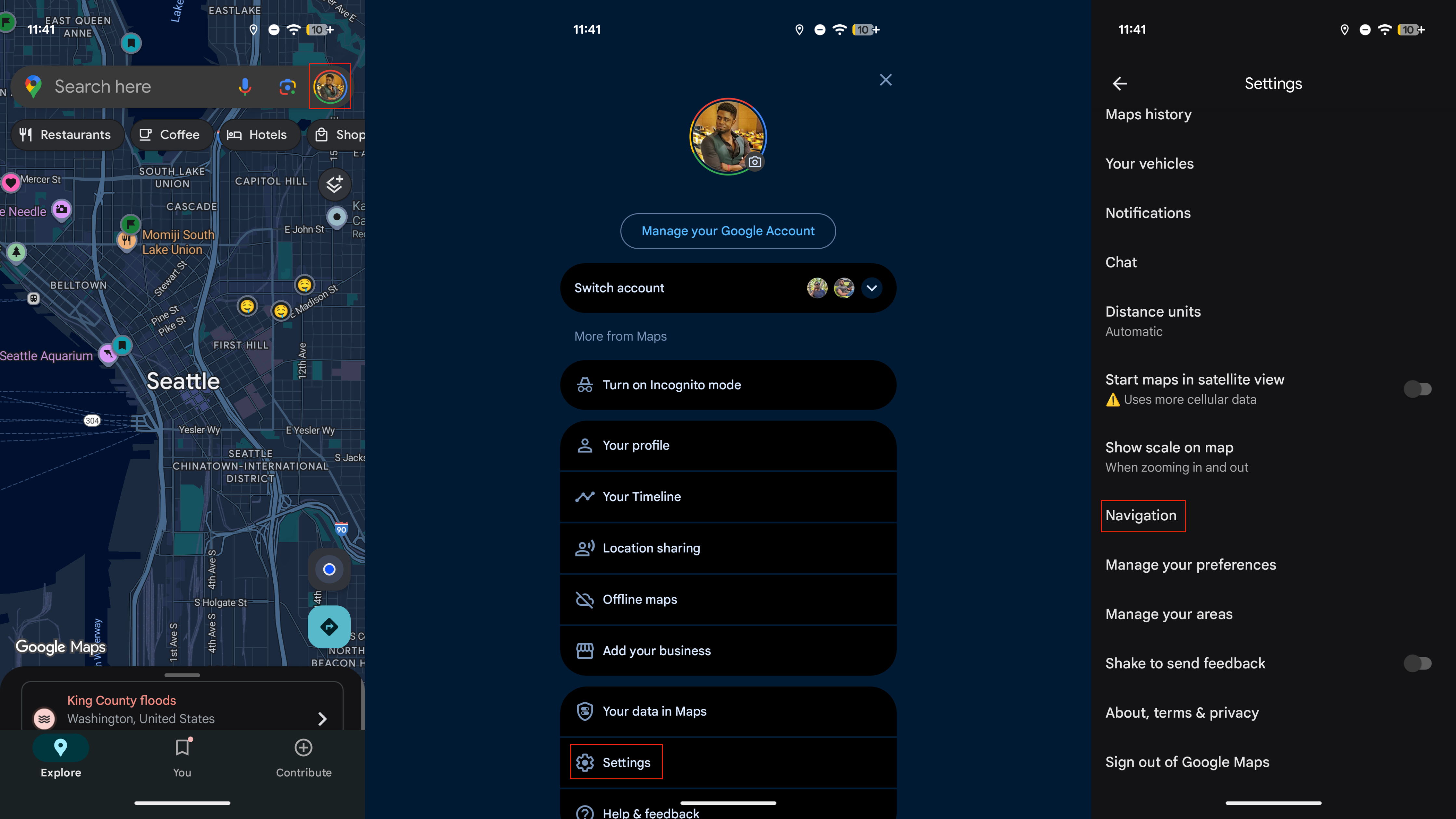
1. Open the Google Maps app.
2. Tap your Google Account picture.
3. Press Settings and Navigation.
4. Flip the toggle beside Power saving mode to enable it.
5. Press your phone's power button while navigation to activate power saving mode.
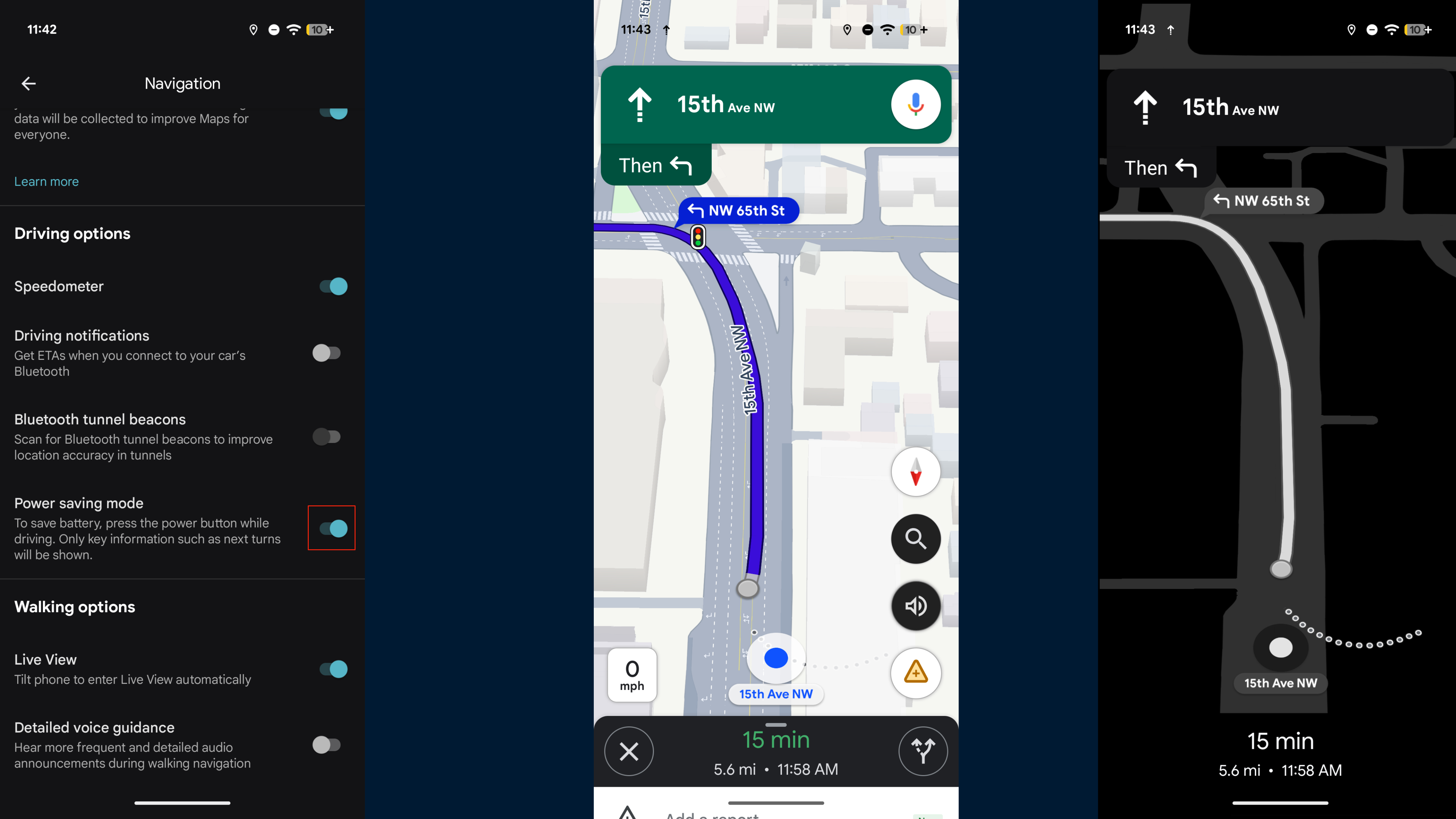
After the toggle is flipped, you can easily enable or disable power saving mode during navigation sessions with a single press of your Pixel's power button. Since the feature only supports driving mode, a press of the power button will not activate power saving mode for walking, biking, or transit navigation sessions.
When to use Google Maps power saving mode

Google Maps has a lot of functionality, but its expansive feature set can drain your phone's battery life if you aren't careful. Now, you can turn off the unnecessary visual cues and features with one button thanks to Google Maps power saving mode. It's a toll every Google Pixel 10 owner should know about, as it might just help them get to their destination safely when their phone's battery is running on fumes.
Eventually, we're holding out hope Google Maps power saving mode might make its way to more Pixel models, and even other Android phones in the future. For now, it's yet another Google-exclusive perk for Pixel 10 users.
Fully featured
While we hope to see Google Maps power saving mode come to more devices in the future, for now, it's a Google Pixel 10 exclusive. This phone also gives you the Tensor G5, a premium design, and a triple-camera system on the back.