
You copied photos from your iPhone to your Windows PC. Half of them won't open. A colleague sends photos that show up as blank icons. Every time you attempt to insert a photo into a Word file, a system error blocks you. The file says HEIC. leaving Windows completely unable to open or display the image.
Your PC is fine. Windows just wasn't built for HEIC. Apple launched the format in 2017. Microsoft added limited support later. Millions of Windows users run into this exact compatibility barrier every day.
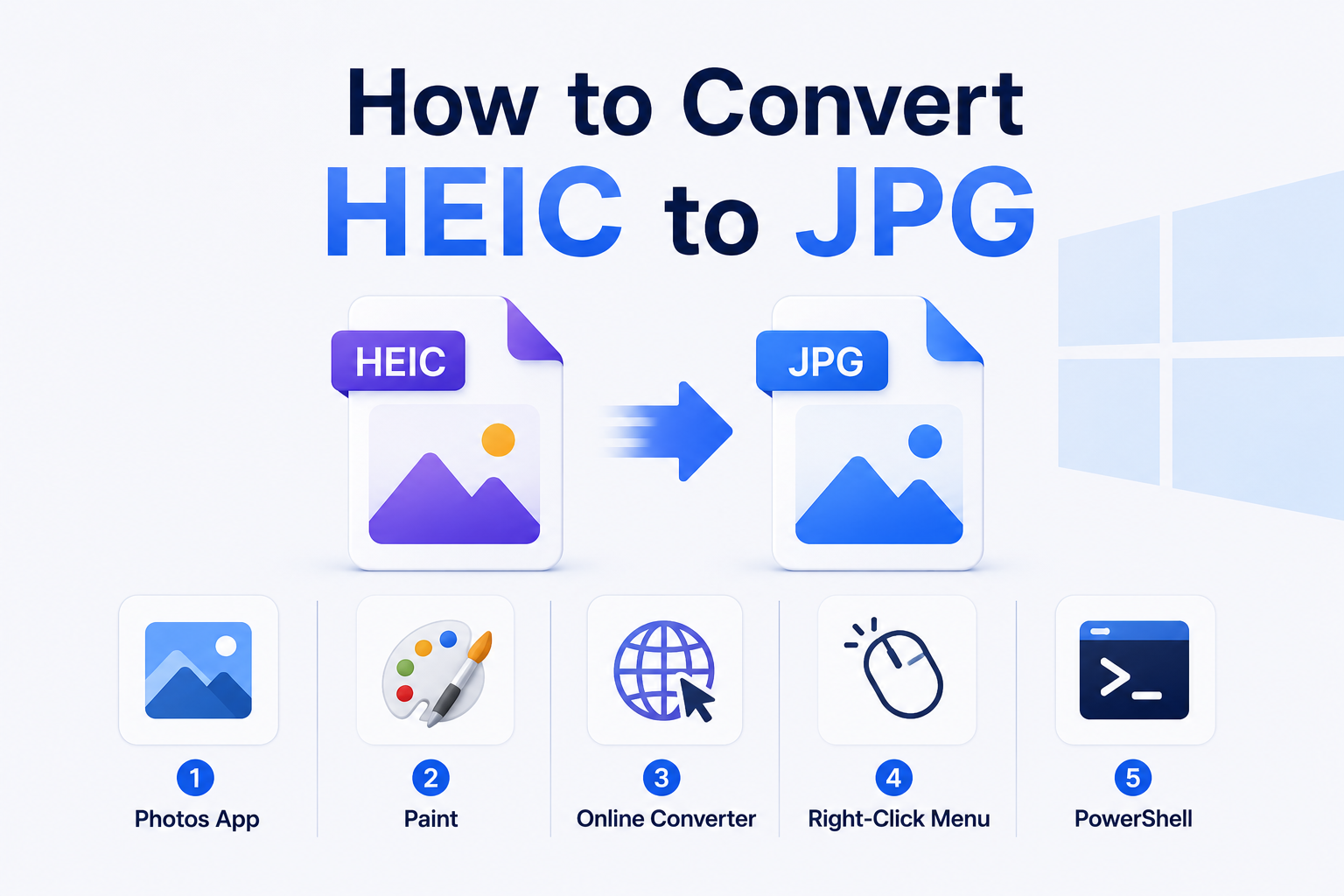
Here are five methods that work. The best approach for you depends entirely on your total file count and how frequently you run into this compatibility roadblock.
Why Windows Struggles to Open HEIC Files
HEIC is Apple's image format. It is built on the same codec as high-resolution video. Windows was designed for older formats like JPG, PNG, and BMP. HEIC was never part of that picture.
Microsoft added limited HEIC support through optional extensions. Without them, Windows treats HEIC like an unknown file. Generic icon in File Explorer. Photos won't open them. Paint throws an error.
Installing the extension lets built-in apps open HEIC. It does not convert anything. For that, you can use one of the methods below.
How to Convert HEIC to JPG on Windows: 5 Methods explained
Method 1—Photos App
If you prefer built-in tools, start here.
- Step 1: Open the Microsoft Store. Search for HEIF Image Extensions. Install it. It's free.
- Step 2: Right-click your HEIC file. Choose Open with. Select Photos.
- Step 3: Select the three-dot options menu at the top of the Photos window. Select Save as. Pick JPEG. Choose where to save.Click Save.
The output JPG matches the original dimensions. Quality is fixed at whatever Microsoft's encoder defaults to—adequate for most uses, but not adjustable.
Best for: Occasional conversions of single files when you already have the extension installed.
Method 2 — Paint
Same process as Photos. The interface looks a little different; that is all.
- Step 1: Right-click the HEIC file. Hit Open with. Pick Paint.
- Step 2: Select “File” from the top-left menu bar. Hit Save as. From the dropdown, pick a JPEG picture.
- Step 3: Give it a name. Click Save.
No quality controls here. For everyday use where perfect quality isn't the priority, it works well enough.
Best for: Quick jobs when Paint is already open.
Method 3 — Online Converter
No extensions needed. No software to install. Works on any Windows version, including older ones.
- Step 1: Open a browser. Go to the HEIC to JPG converter from WPS.
- Step 2: Upload the file. Hit Convert.
- Step 3: Download your JPG.
Takes under a minute. Selecting multiple files at once lets you download them all in one ZIP.
WPS keeps your original resolution. Color profiles are handled correctly. EXIF metadata preserved. Photos and Paint don't offer any of that.
Best for: Anyone needing clean output, multiple files, or running an older Windows version.
Method 4 — File Explorer Right-Click
Many Windows 11 users never realize this built-in option even exists. Install the HEIF extension and a conversion option shows up right in the right-click menu.
- Step 1: Right-click any HEIC file in File Explorer.
- Step 2: Look for Convert to JPEG in the menu. Some builds show it right away. Others need you to click Show more options first.
- Step 3: Click Convert to JPEG. Done. JPG appears in the same folder.
No apps open. No extra steps. Just right-click and convert. Same limitation as Photos and Paint. No quality control. No batch processing.
Best for: Windows 11 users who want a fast conversion without downloading any app.
Method 5 — Windows PowerShell
For users comfortable with the command line, PowerShell converts entire folders at once.
Open PowerShell as administrator. Drop in this command to convert a full folder of HEIC files:
|
Add-Type -AssemblyName System. Drawing |
Note: Make sure to replace C:\YourFolder with the actual path to your photos.
You need the HEIF extension installed before this works. Windows 11 handles it best. Older builds can be hit or miss depending on which codecs are present.
Best for: Power users who have large folders to process and are comfortable with the command line.
Comparison of the 5 Methods to Convert HEIC to JPG on Windows
|
Conversion Method |
Speed |
Maximum Quality |
Batch Processing |
Zero Installation |
OS Compatibility |
|
Photos App |
Medium |
No |
No |
No |
Windows 10 / 11 |
|
Paint |
Medium |
No |
No |
No |
Windows 10 / 11 |
|
Online Converter |
Fast |
Yes |
Yes |
Yes |
All Windows Versions |
|
Right-Click Menu |
Fastest |
No |
No |
No |
Windows 11 Only |
|
PowerShell |
Medium |
No |
Yes |
Yes |
Windows |
The online converter is the only method that gives you quality control and works without installing. For most Windows users, it's the most practical option for both single files and small batches.
Which Method Should You Use?
For one or two photos, right-click is the fastest on Windows 11. On Windows 10, Photos or Paint handles it fine
For quality-sensitive work, you can use the onlineconvert HEIC to JPG converter. It's the only method that handles color profiles and preserves metadata correctly.
For older Windows versions, the online converter is your best option. No extensions needed. Works on Windows 7, 8, and 10 without any setup.
For large batches, PowerShell handles folders. Setup is complex, though. Most users are better off with an online converter that supports multiple uploads.
The Permanent Preventive Fix
Ask the iPhone user to change one setting. Settings, Camera, Formats, Most Compatible. Every photo they take after that comes out as a JPG. Problem solved permanently.
FAQ
Why can't Windows open HEIC files without extra software?
HEIC runs on Apple's HEVC codec. Windows wasn't built for it. Microsoft added some support later through optional extensions, but they don't come installed. Grab the free HEIF Image Extensions from the Microsoft Store and Photos and Paint can handle it.
Does converting HEIC to JPG on Windows reduce image quality?
Depends on the method. Built-in tools use Microsoft's default encoder. No quality controls. Fine for everyday photos. For professional or print work, an online converter with quality settings produces better results.
Can I convert multiple HEIC files to JPG at once on Windows?
Built-in tools do one file at a time. PowerShell handles folders, but the setup puts most people off. For free batch conversion, pick an online converter that accepts multiple files. Simpler and faster than any command-line setup.
Do I need to pay for software to convert HEIC to JPG on Windows?
No. All five methods are free. HEIF extensions are free from the Microsoft Store. The online converter needs no sign-up. PowerShell is already in Windows.
What is the best way to convert HEIC to JPG on Windows 11 specifically?
Windows 11 has the built-in right-click Convert to JPEG option. Fastest for single files. For quality work or multiple files, the online converter wins on any Windows version. Better color accuracy. Better metadata preservation. No built-in tool comes close.