
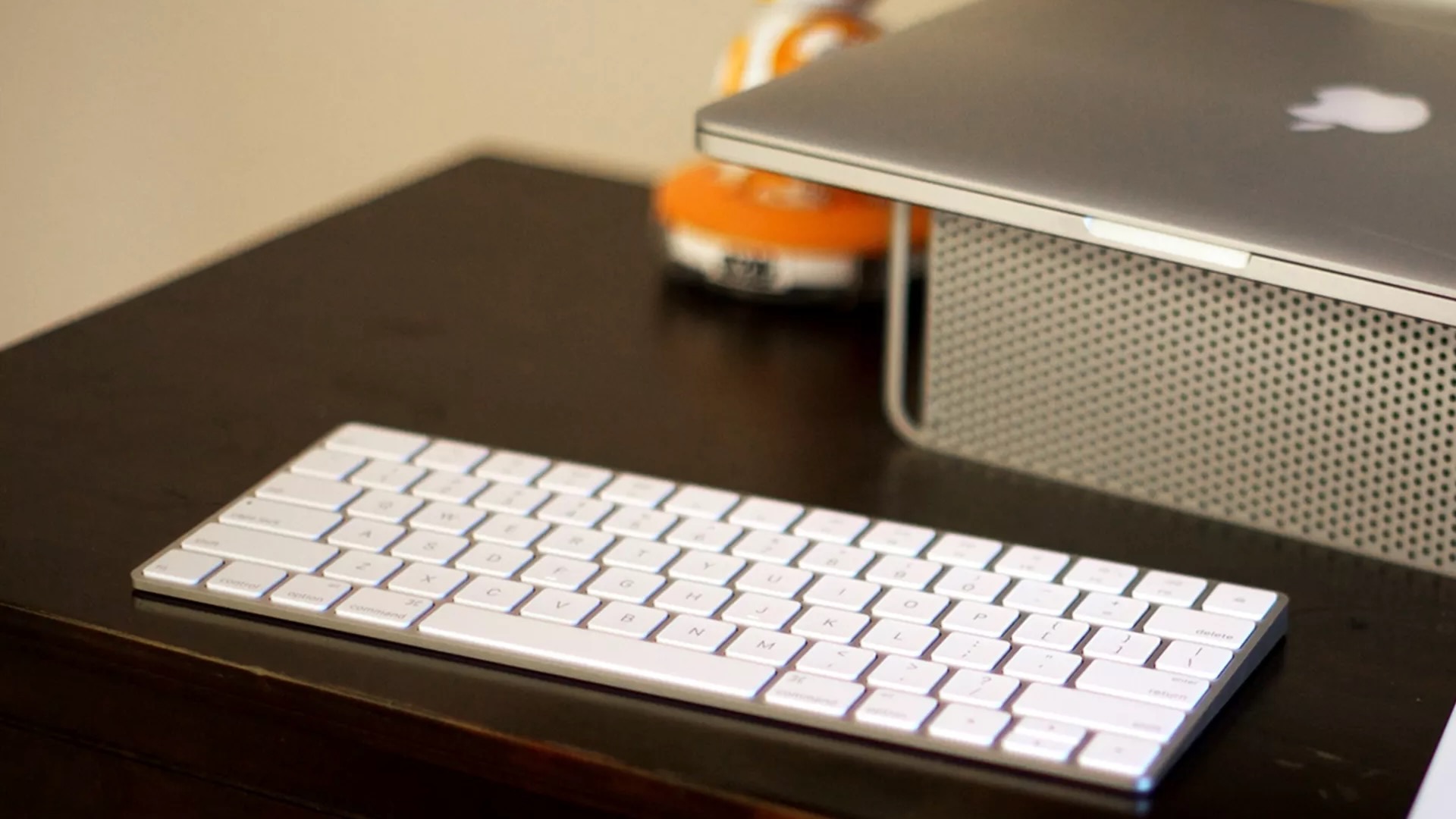
Looking to connect a Bluetooth keyboard to iPad or iPhone? Well, you've found the right place and we're going to show you how.
iPads and iPhones work great with Bluetooth keyboards and it's very easy to connect them to start typing right away.
In this guide, we're going to teach you how to connect a Bluetooth keyboard to your iPad or iPhone as well as some extra tips like unpairing and app switching.
How to connect a Bluetooth keyboard to your iPad or iPhone
To set up a Bluetooth keyboard on iPad or iPhone, you have to go through the Bluetooth settings.
- Turn the Bluetooth keyboard on if it isn't already. Otherwise, switch it off and then on to make it discoverable. (Some keyboards might have other procedures for putting them in pairing mode — check with the manufacturer for details.)

- Launch the Settings app on your iPhone or iPad
- Tap on Bluetooth
- Make sure Bluetooth is set to On, then let it search for devices
- Tap on a Bluetooth keyboard, when it appears, to pair
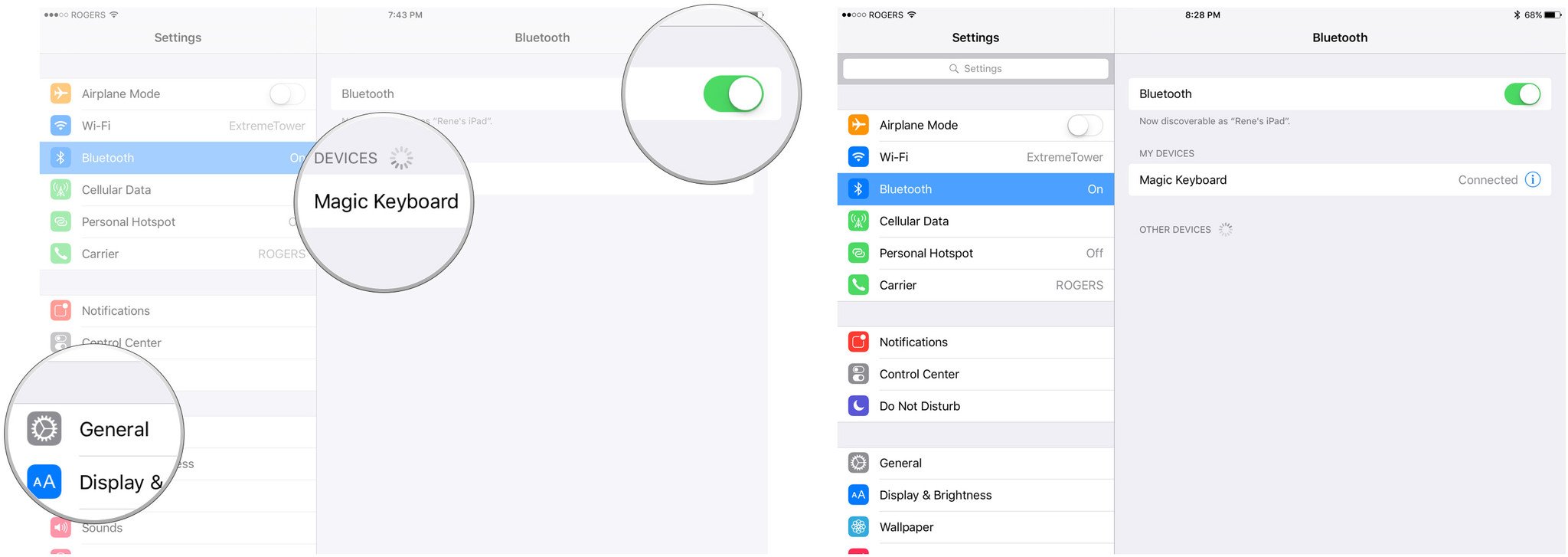
Depending on the keyboard, you might have to enter an authorization code. Otherwise, you'll be good to go.
How to check the battery of the Magic Keyboard on your iPhone or iPad
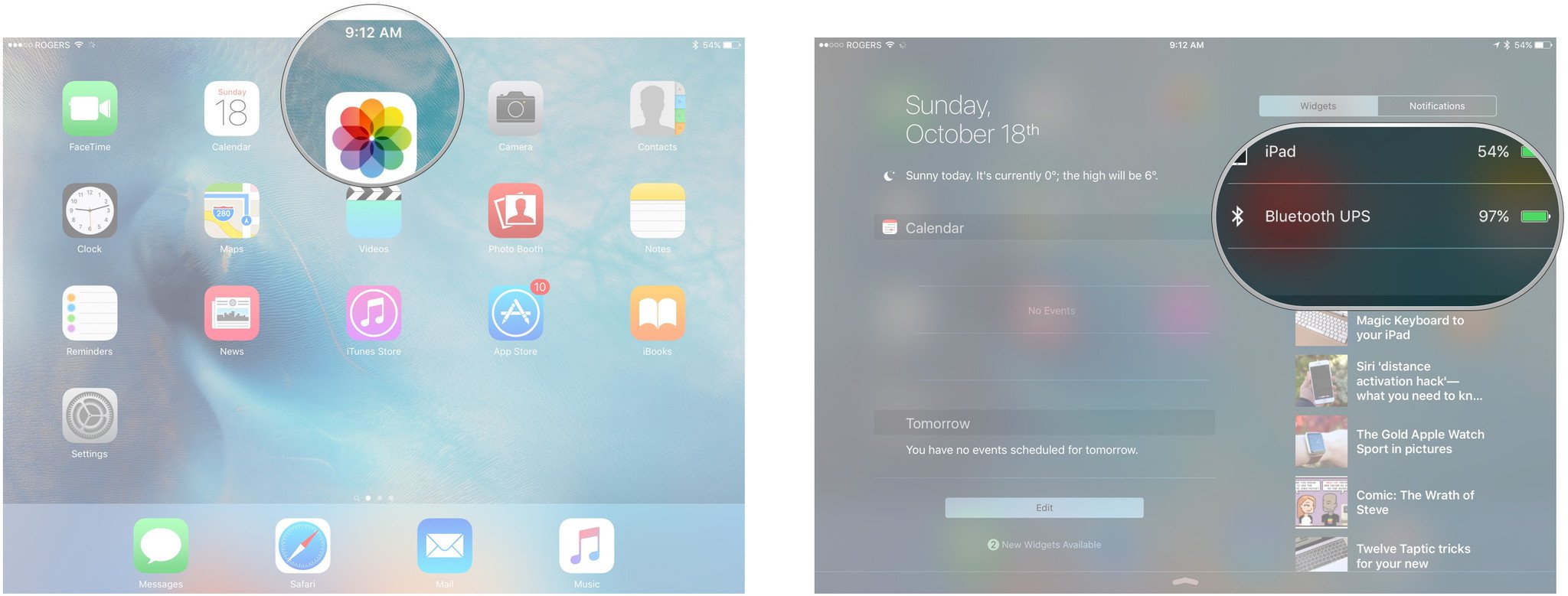
If you're using Apple's Magic Keyboard, you can check the power level at any time using Notification Center.
- Swipe down from the top of the screen to bring down Notification Center
- Scroll down to the Batteries sections
- Read the charge level for Bluetooth UPS
How to unpair a Bluetooth keyboard from your iPhone or iPad
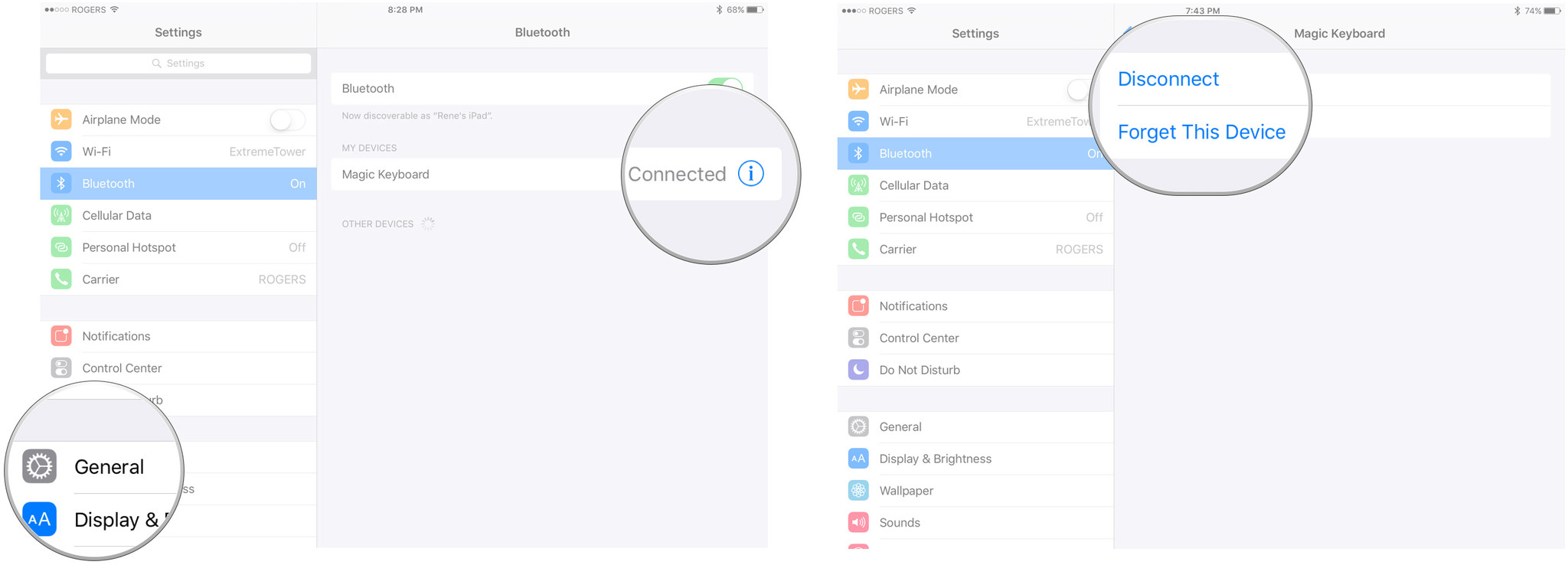
If you want to revert back to the virtual keyboard, you can simply turn your Bluetooth keyboard off. If you want to disconnect it, or have your iPhone or iPad forget about it entirely, you can do that in Settings.
- Launch the Settings app on your iPhone or iPad
- Tap on Bluetooth
- Tap on the Info button to the right of the Bluetooth keyboard entry.
- Tap on Disconnect to temporarily stop your iPhone or iPad from detecting a Bluetooth keyboard. (You have to reconnect later to use it again.)
- Tap on Forget This Device to sever the pairing between your iPhone or iPad and a Bluetooth keyboard. (You'll have to re-pair later to use it again.)
How to quickly switch apps using the keyboard on iPad
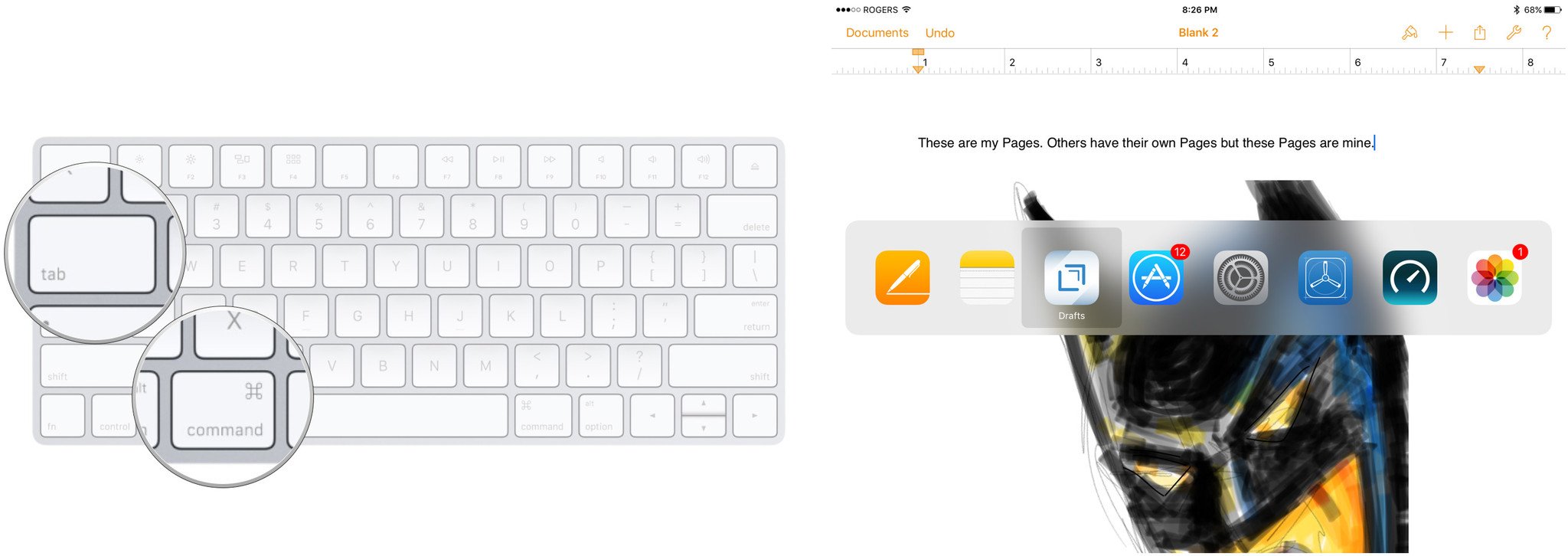
When using your iPad by itself, swiping up from the bottom of the screen brings up the App Switcher. Once you're connected to a keyboard, however, you can switch apps without your fingers ever leaving the keys.
- Hold down the command key and hit the tab key
- Keep hitting the tab key until you get to the app you want to switch to
- Let go of the command key
Using Bluetooth keyboards with iOS 18 or iPadOS 18
The next generation of software for the best iPads and best iPhones is set to be released later this year alongside Apple Intelligence. With new AI-powered features making your Apple devices even better for doing large work tasks, it's the perfect time to connect a Bluetooth keyboard to your iPhone or iPad.
iOS 18 and iPadOS 18 release this Fall, so stay tuned to iMore for all the info on the new operating systems.