
Searching for a messaging platform's website sounds simple, but the result may lead to a product homepage, an app-store listing, a desktop installer, a browser login, a help article, or an unrelated third-party page.
The correct destination depends on what the user is trying to do. Someone who wants to learn about supported devices needs a different page from someone installing a mobile application. A user opening a temporary browser session should not follow the same process as someone downloading a permanent desktop client.
The distinction becomes especially important for English and Traditional Chinese users in Hong Kong, Taiwan, and overseas communities. Search results may contain translated tutorialas, download directories, advertisements, web clients, and pages using words such as “official” without proving ownership.
A safer approach begins by defining the task, identifying the page type, checking the full domain, and verifying the requested action before logging in or installing software.
Start With the Task, Not the Search Result
The first search result is not necessarily the correct page for every purpose.
Before clicking, users should decide what they are trying to accomplish.
|
User goal |
Appropriate page type |
|---|---|
|
Learn about the product and supported devices |
Main product website |
|
Install the mobile application |
App Store or Google Play listing |
|
Install a computer application |
Desktop download page |
|
Use the service temporarily in a browser |
Web client |
|
Resolve an account or technical problem |
Help center or FAQ |
|
Join a group or channel |
Public username or invitation link |
A homepage may explain the service but not provide a browser login. A download page may list several operating systems but not offer troubleshooting instructions. An app-store listing may be appropriate for a phone but irrelevant to a Windows computer.
Users should therefore ask:
- Do I need information, installation, login, or technical support?
- Am I using a phone, personal computer, or shared device?
- Do I want a permanent application or temporary browser access?
- Is the result a product page, installer page, store listing, or login form?
The correct page depends on the task the user is trying to complete.
Understand the Difference Between a Website and a Web Client
A normal product website and a web client may look related, but they perform different functions.
A product website commonly provides:
- feature descriptions;
- supported-platform information;
- news and updates;
- privacy or security information;
- links to downloads;
- links to support resources.
A web client is an interactive application used through a browser. It may ask the user to:
- enter a phone number;
- scan a login QR code;
- provide a verification code;
- open conversations;
- create a browser session.
The security expectations are different.
A normal product-information page usually has no reason to request a verification code, two-step password, email password, or payment information immediately. If a page that appears to be an article or download guide suddenly asks for sensitive credentials, users should stop and check the full domain again.
A login page should also clearly behave like a web client rather than a promotional landing page. Unexpected redirects, excessive advertising, additional download prompts, or requests to install browser extensions are warning signs.
Use a Website Guide to Understand the Available Entrances
Messaging platforms may have several related page types:
- a main homepage;
- a general download center;
- a desktop page;
- a mobile page;
- a browser-based client;
- a help center;
- an FAQ;
- tutorial articles.
These pages are not interchangeable.
The homepage is usually the best starting point when the user is still deciding what they need. A download center becomes useful after the operating system has been identified. A help page is more appropriate when installation or login has already failed.
Users who need help distinguishing product information, download pages, and related resources can review a Telegram website access guide before continuing.
The guide should be treated as a navigation resource rather than proof that every linked or similarly named page is operated by the underlying platform. Users should still inspect the destination, page purpose, and requested action.
A practical navigation sequence is:
- Begin with the general product information.
- Identify the required device or browser task.
- Move to the relevant download, web, or help page.
- Check the full destination before entering credentials.
- Return to the verified starting point if the page behaves unexpectedly.
Choose Mobile Downloads Through the Correct App Store
Mobile users should normally install applications through a trusted store or another verified distribution source.
iPhone and iPad
Before installing an iOS application, check:
- whether the page opens in the App Store;
- the application name;
- the listed developer;
- the icon and screenshots;
- compatibility information;
- the Apple ID region;
- the update history.
A page that only imitates the appearance of the App Store should not be trusted. The browser address and the actual store application should match the expected destination.
Android
Android users may encounter several installation options:
- Google Play;
- a developer-provided package;
- a third-party APK directory;
- a modified or repackaged installer.
For most users, a trusted app-store listing or a verified developer source is safer than a random software directory.
Extra caution is required when a page promotes terms such as:
- modified version;
- premium unlocked;
- no-verification edition;
- unrestricted APK;
- special Chinese version;
- enhanced regional edition.
These labels may indicate an altered installer, an unrelated application, or a page attempting to attract users searching in another language.
Traditional Chinese text, a familiar logo, or a professional design does not prove that the mobile application is genuine.
Select a Desktop Client That Matches the Computer
Desktop software must match the computer's operating system and architecture.
Windows
Windows users may need to check:
- the Windows version;
- 32-bit or 64-bit architecture;
- installation package or portable version;
- administrator permissions;
- expected file extension;
- publisher information shown by the operating system.
An executable file should not be opened merely because its name contains the product brand.
macOS
Mac users should check:
- the supported macOS version;
- Intel or Apple silicon compatibility;
- the source of the installation file;
- system-security warnings;
- whether the application must be moved to the Applications folder.
Unexpected prompts asking users to disable security controls should be treated carefully.
Linux
Linux users may need to identify:
- the distribution;
- package format;
- processor architecture;
- repository source;
- whether the installer is maintained and current.
The same application name may be distributed through several Linux package systems. The correct option depends on the operating environment.
Compare Download Options by Device
After identifying the device, users can select the appropriate access method.
|
Device |
Recommended entrance |
|---|---|
|
iPhone or iPad |
App Store |
|
Android phone or tablet |
Google Play or a verified direct source |
|
Windows computer |
Desktop download page |
|
macOS computer |
Mac download page or supported app store |
|
Shared computer |
Web client with careful logout |
|
Personal computer |
Desktop client or verified web client |
Users who have already identified their operating system can compare Telegram download options by device before opening an installer or visiting an app-store listing.
A multi-platform page can help users separate Windows, macOS, iOS, and Android choices. However, users should avoid relying on old screenshots or fixed minimum-version claims because software and operating-system requirements change over time.
Before proceeding, confirm:
- the device type;
- the operating system;
- the file format;
- the destination domain;
- whether the page opens an app store or downloads a file;
- whether the installer matches the intended device.
A mobile application package cannot be installed as a normal Windows desktop application, and a Windows executable is not appropriate for Android or macOS.
Do Not Treat Page Language as Proof of Ownership
A Traditional Chinese page may be useful, but language alone does not establish ownership.
Chinese-language search results can include:
- translated product pages;
- independent tutorials;
- software directories;
- download aggregators;
- imitation login pages;
- search-optimized information sites;
- advertising landing pages.
Likewise, an English page is not automatically more trustworthy.
Users should remember:
- the word “official” can be placed in any page title;
- a logo can be copied;
- HTTPS only encrypts the connection to the current domain;
- translated menus can be reproduced;
- store badges can be imitated;
- screenshots may not represent the file being downloaded.
The domain, publisher identity, page behavior, download destination, and requested credentials must be considered together.
A page that claims to be a “Chinese official website” should not be trusted solely because it uses Traditional Chinese and familiar branding.
Recognize the Difference Between a Download Page and an Installer
Clicking a download button is not the end of the verification process.
The download page is the webpage presenting the available files. The installer is the actual file saved to the device.
After clicking, users should check:
- the downloaded filename;
- the file extension;
- the domain that delivered the file;
- whether another download manager appears;
- whether a browser extension is requested;
- whether unrelated software is bundled;
- whether the system displays a recognizable publisher;
- whether the file size appears reasonable.
A button labelled “Download” does not prove that the resulting file is correct.
Some pages place multiple advertising buttons around the real download control. Others redirect users through several unrelated websites before the file begins downloading.
If the saved filename or format does not match the intended operating system, the file should not be opened.
Use Web Login Carefully on Shared Computers
A web client can be useful on a temporary or shared computer, but it creates additional account-security responsibilities.
Users should:
- verify the full web-client domain;
- avoid saving browser passwords;
- avoid enabling long-term login;
- sign out actively when finished;
- remove downloaded files;
- close private documents;
- check active sessions from a trusted device;
- remove the browser session after use.
Simply closing the browser window may not terminate the login session.
Treat Login QR Codes as Credentials
A login QR code can authorize a new device or browser session. It should be treated like a verification code or password.
Users should not:
- scan a QR code sent by an unknown group member;
- scan a code displayed in an advertisement;
- share a screenshot of a login QR code;
- accept a code described as a membership-verification tool;
- scan before checking the browser domain.
After any suspicious scan or login attempt, the account's active-device list should be reviewed immediately.
Use Help Pages for Problems, Not Random Download Mirrors
When an expected page or installer fails, users may search for alternative entrances. This is often when they encounter the highest-risk results.
Common problems include:
- the webpage not opening;
- a download showing zero bytes;
- the installer failing to launch;
- a verification code not arriving;
- the application not updating;
- an old device remaining signed in;
- a language option being difficult to locate.
The next step should be a relevant help resource, operating-system support page, application-store help page, or an already trusted device.
Users should avoid searches such as:
- backup official website;
- no-verification entrance;
- special Chinese login;
- unrestricted version;
- emergency mirror download.
A temporary technical problem does not justify entering account credentials on an unfamiliar page or installing an unverified file.
A Five-Step Website Navigation Process
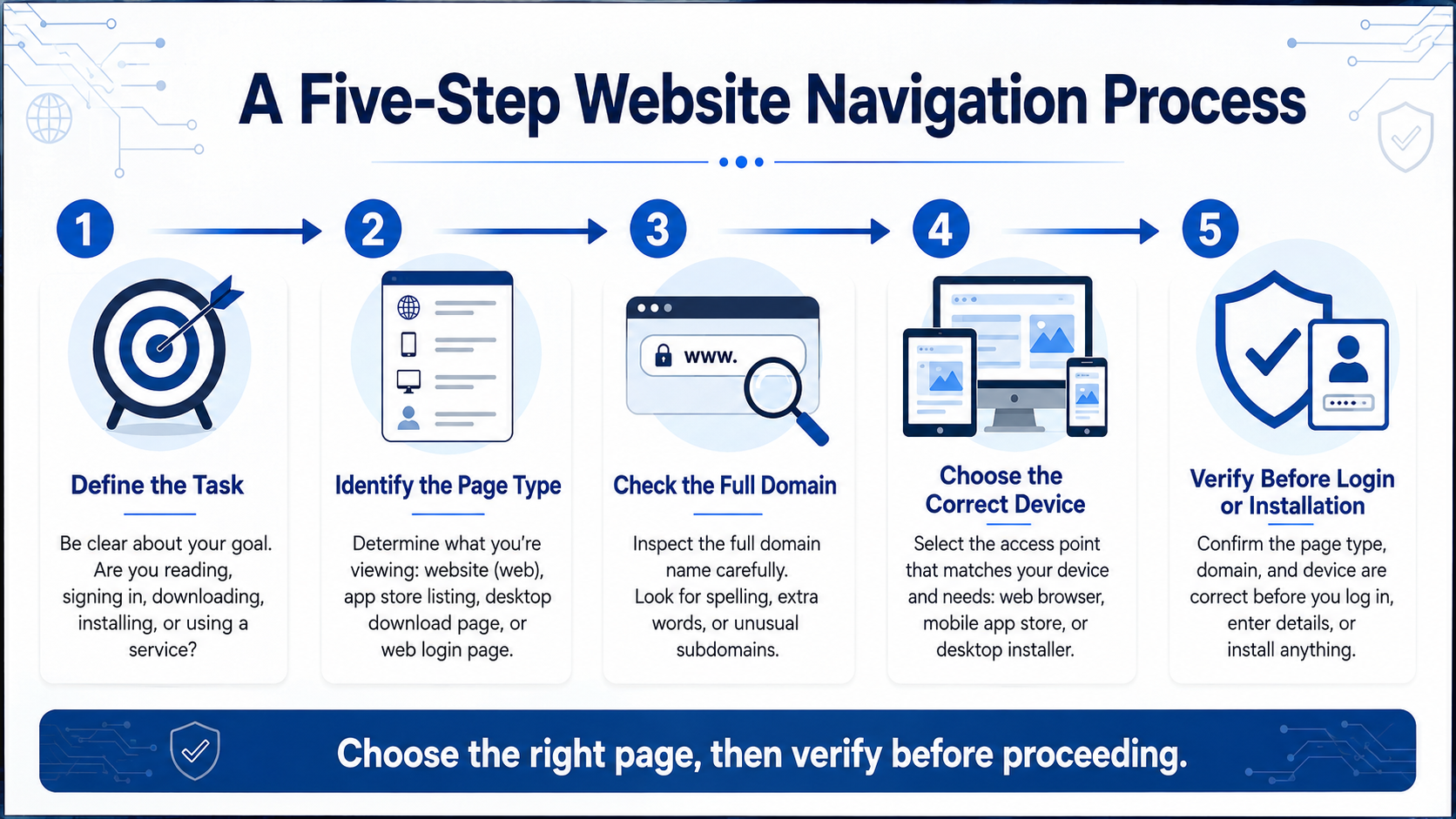
A structured process can reduce confusion:
Step 1: Define the Task
Determine whether the goal is to read product information, install software, log in through a browser, join a community, or solve a technical problem.
Step 2: Identify the Page Type
Confirm whether the result is a homepage, download center, app-store listing, desktop page, web client, or help article.
Step 3: Check the Full Domain
Inspect the complete address rather than relying on the title, logo, or search snippet.
Step 4: Choose the Correct Device
Select the operating system and installation method that match the phone, tablet, or computer.
Step 5: Verify Before Login or Installation
Review the installer, publisher, login prompt, redirect destination, or QR-code page before continuing.
The process can be summarized as:
Define the Task → Identify the Page Type → Check the Full Domain → Choose the Correct Device → Verify Before Login or Installation
Final Website and Download Checklist
Before proceeding, users can complete the following review:
|
Check |
Status |
|---|---|
|
User goal is clearly defined |
□ |
|
Page type has been identified |
□ |
|
Full domain has been checked |
□ |
|
Redirect destination has been reviewed |
□ |
|
Correct operating system is selected |
□ |
|
App-store developer information is checked |
□ |
|
Installer file type is correct |
□ |
|
No unnecessary login details are requested |
□ |
|
QR-code page has been verified |
□ |
|
Shared-device session will be removed |
□ |
If one of these checks cannot be completed, the safer option is to stop and return to a previously verified page or device.
Conclusion
A messaging platform's “website” is not always a single page. Depending on the user's goal, the correct entrance may be a product homepage, mobile app store, desktop download center, web client, or help resource.
Users should define the task before selecting a search result. Page language, copied branding, HTTPS, and the word “official” do not prove ownership. Mobile, desktop, and browser access also require different verification steps.
Login codes and QR codes should be treated as account credentials, particularly on shared computers. After clicking a download button, the installer itself must still be checked.
Choosing the right page is the first decision. Verifying the domain, device, file, and login request is what makes that decision safer.