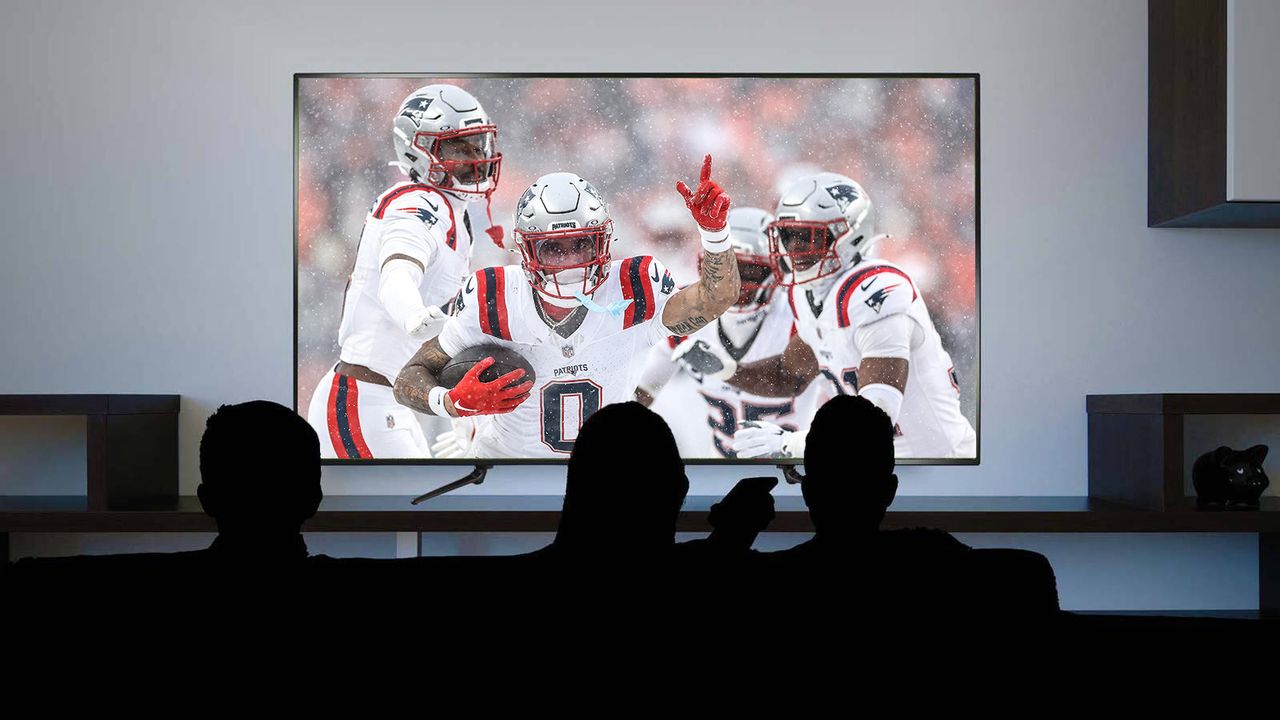
If you're watching Super Bowl 2026, you might want to know how to change the YouTube TV broadcast delay setting. YouTube TV is the best live TV streaming service we've tested, and it's incredibly popular. I even use it all the time for watching sports, including the NFL. So chances are, you're either planning or debating about using it to watch the Big Game this year.
However, if you're a sports fan, you probably know that one downside to watching sports on YouTube TV is that it can suffer from serious lag. I know I'm probably not the only one who's called their parents only to find out they're watching the same game as me ... and they're a minute ahead. According to Phenix, the average lag time while watching Super Bowl 2025 on YouTube TV was 67 seconds. That's over a minute behind the live action on the field.
The good news is that there is a way to reduce some of that lag time without ditching YouTube TV and opting to watch the Super Bowl 2026 with an antenna. In its user interface, YouTube TV has a broadcast delay setting that allows you to reduce your lag time while watching live sports.
There are two caveats: The setting is only adjustable while watching on a TV (no smartphones or tablets), and if you decrease your broadcast delay time, you increase your risk of playback issues. That said, with a strong internet connection, you should be fine. At least, based on my own personal testing, where I've had no issues.
So, without any further delay (because I hate delay), here's how to change your YouTube TV broadcast delay setting so you can watch Super Bowl 2026 with less lag.
1. Open a live sports broadcast
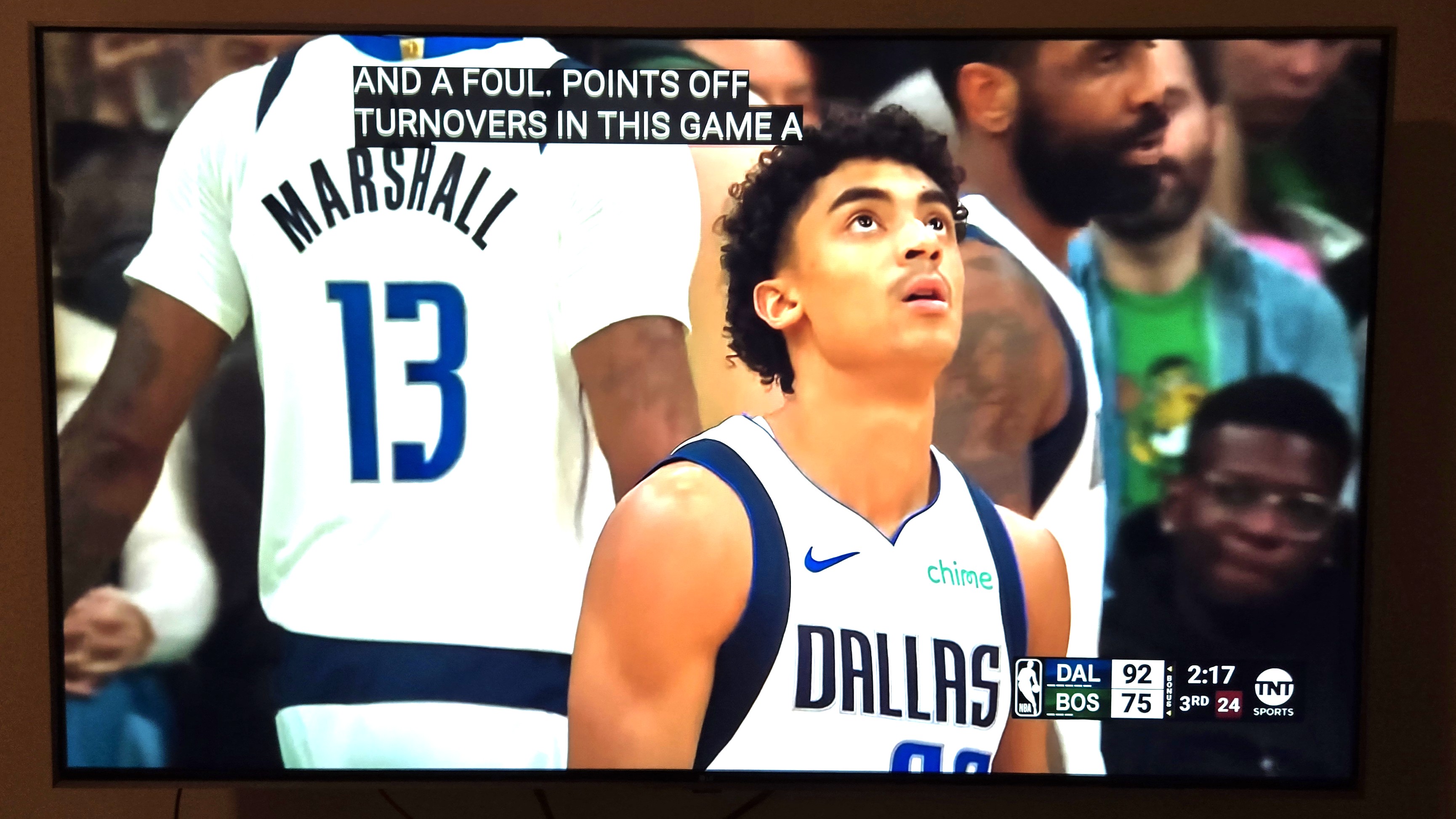
The first thing you'll need to do is open up a live sports game. You can just open up the Super Bowl broadcast on your local Fox affiliate on Sunday, but for this tutorial, I found an NBA game. The process is the same.
2. Open up your user interface
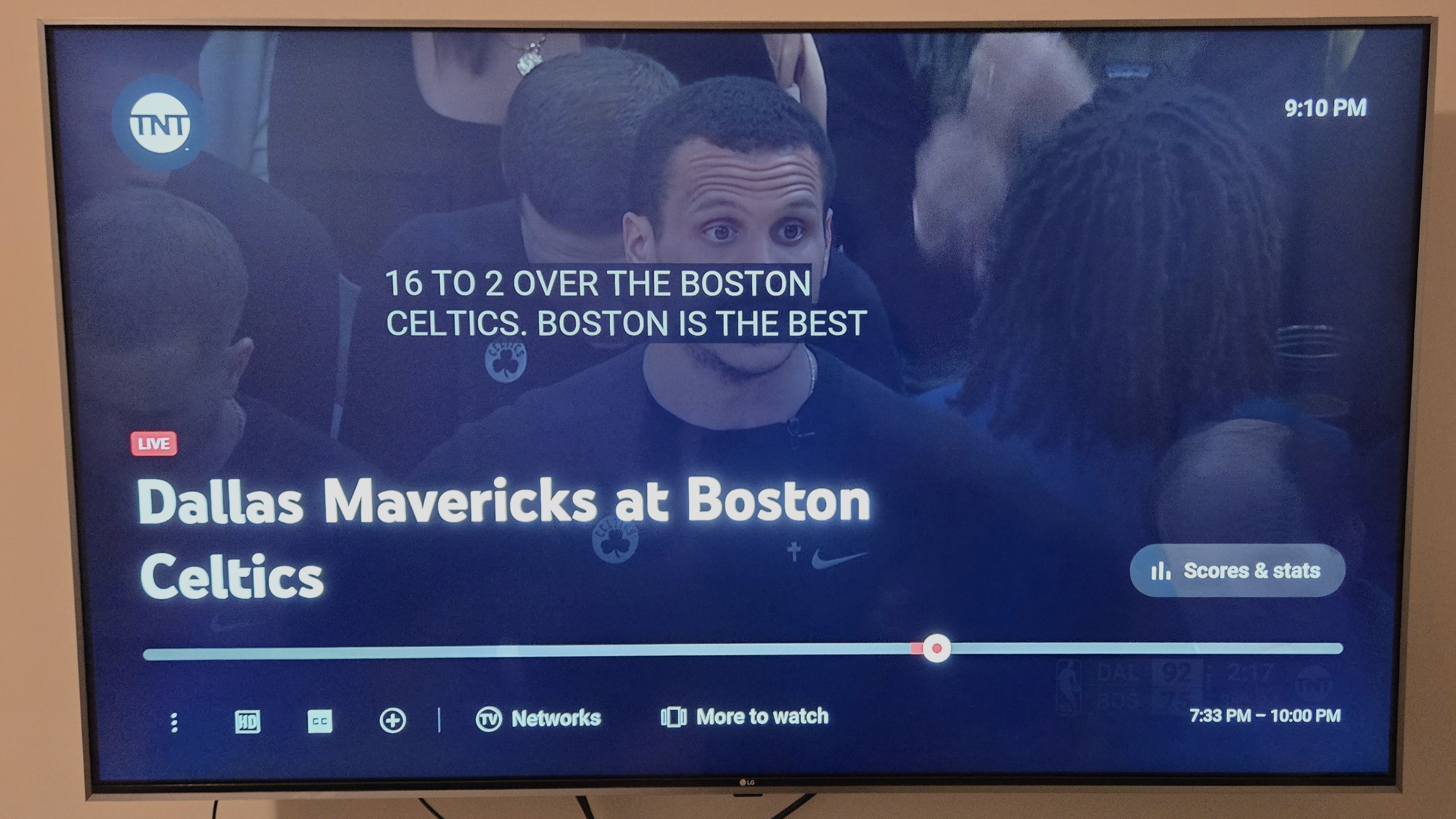
To change the broadcast delay setting, you need to open up the three dot more menu. To do that, you need to bring up YouTube TV's user interface. Hit down on your remote to bring up the YouTube TV interface.
3. Select the three dot more menu
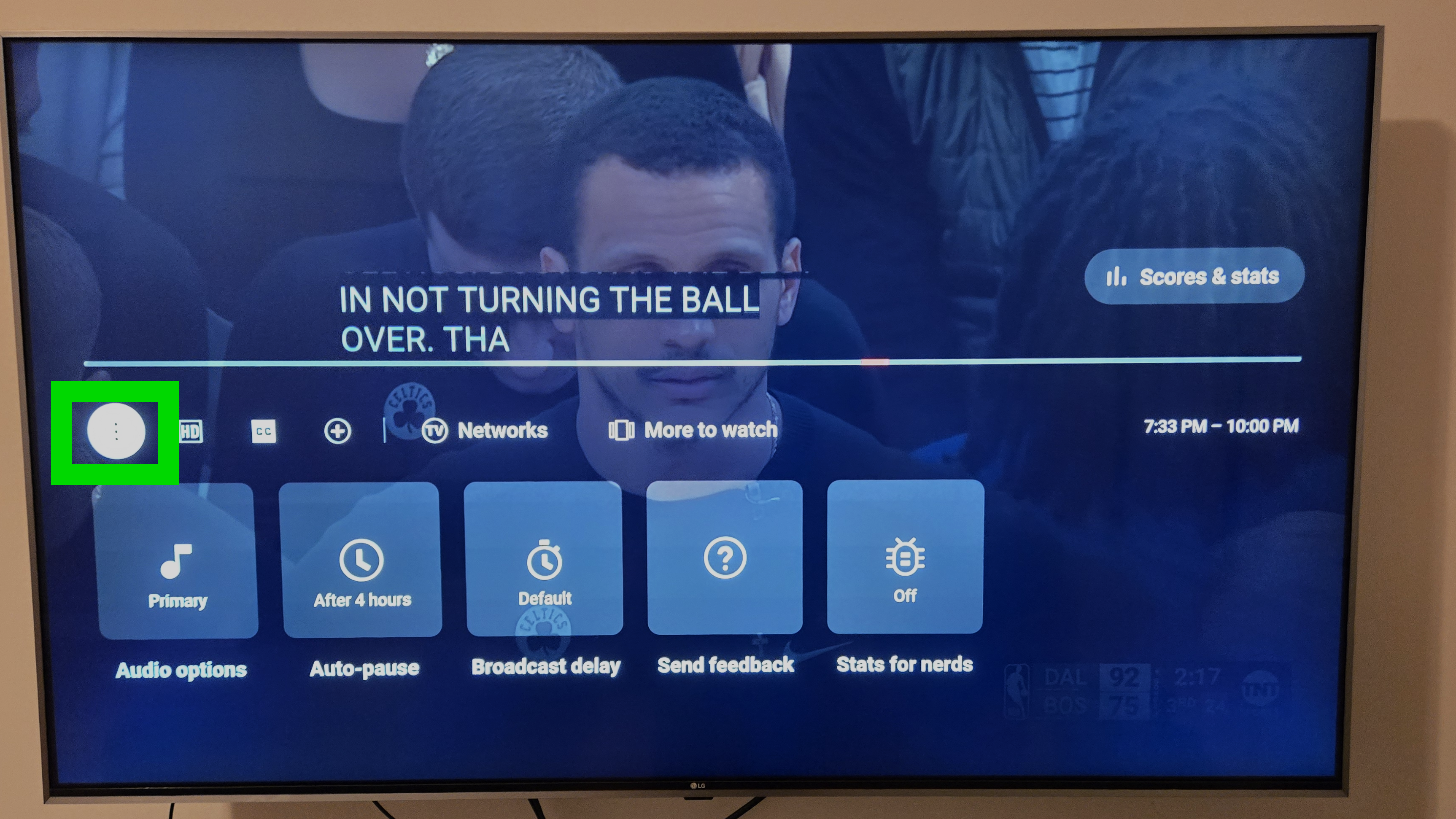
Now that your user interface is visible, hit down on your remote and select the three dot more menu.
4. Select broadcast delay
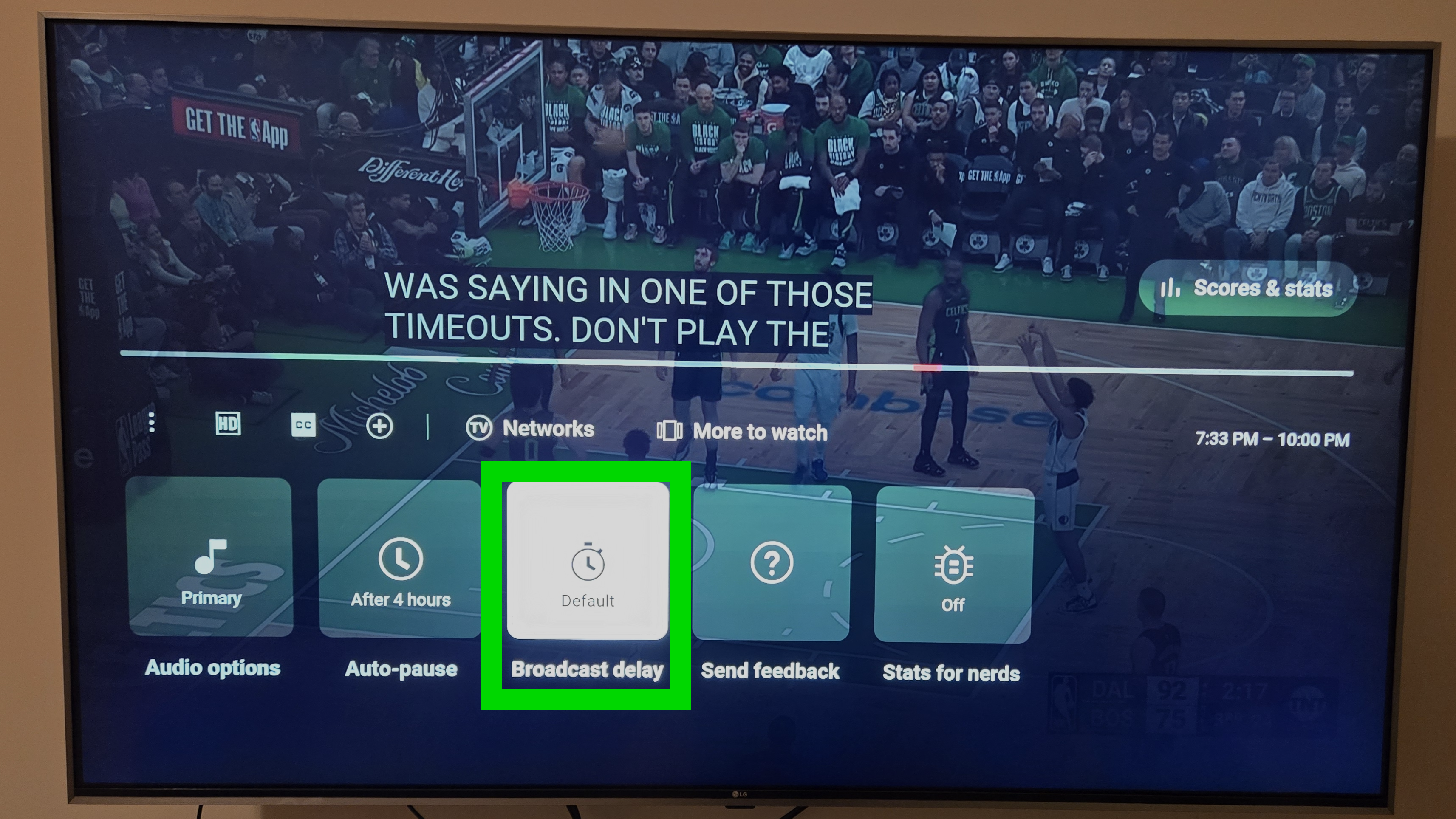
Once you hit the three dot more menu, you'll see a few settings you can change. Select broadcast delay.
5. Select decrease or default
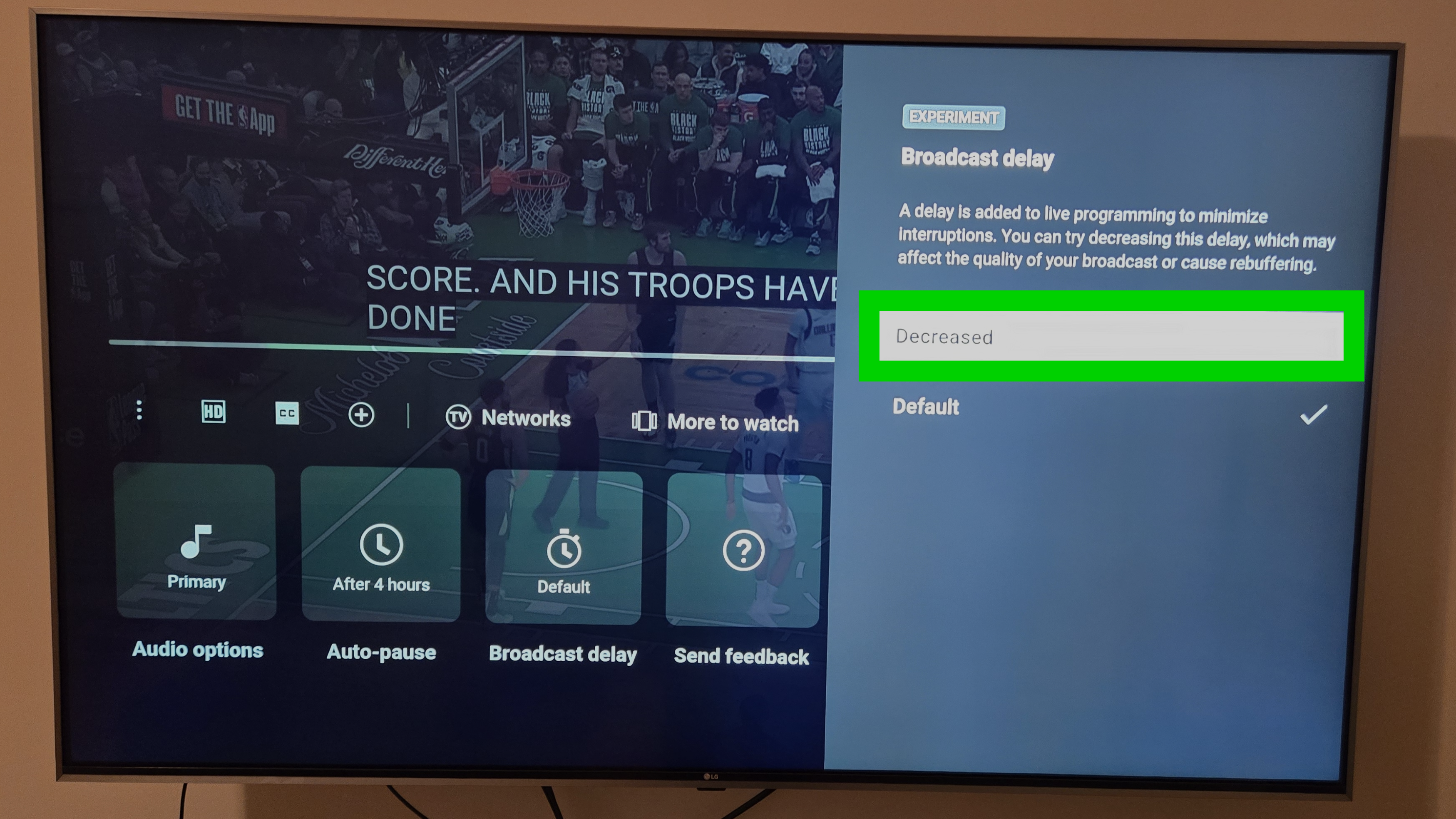
Now that the broadcast delay setting submenu is open you can change your broadcast delay setting. Select decrease or delay. Since we want to reduce lag, we're selecting decrease.
6. Confirm your broadcast delay setting has changed
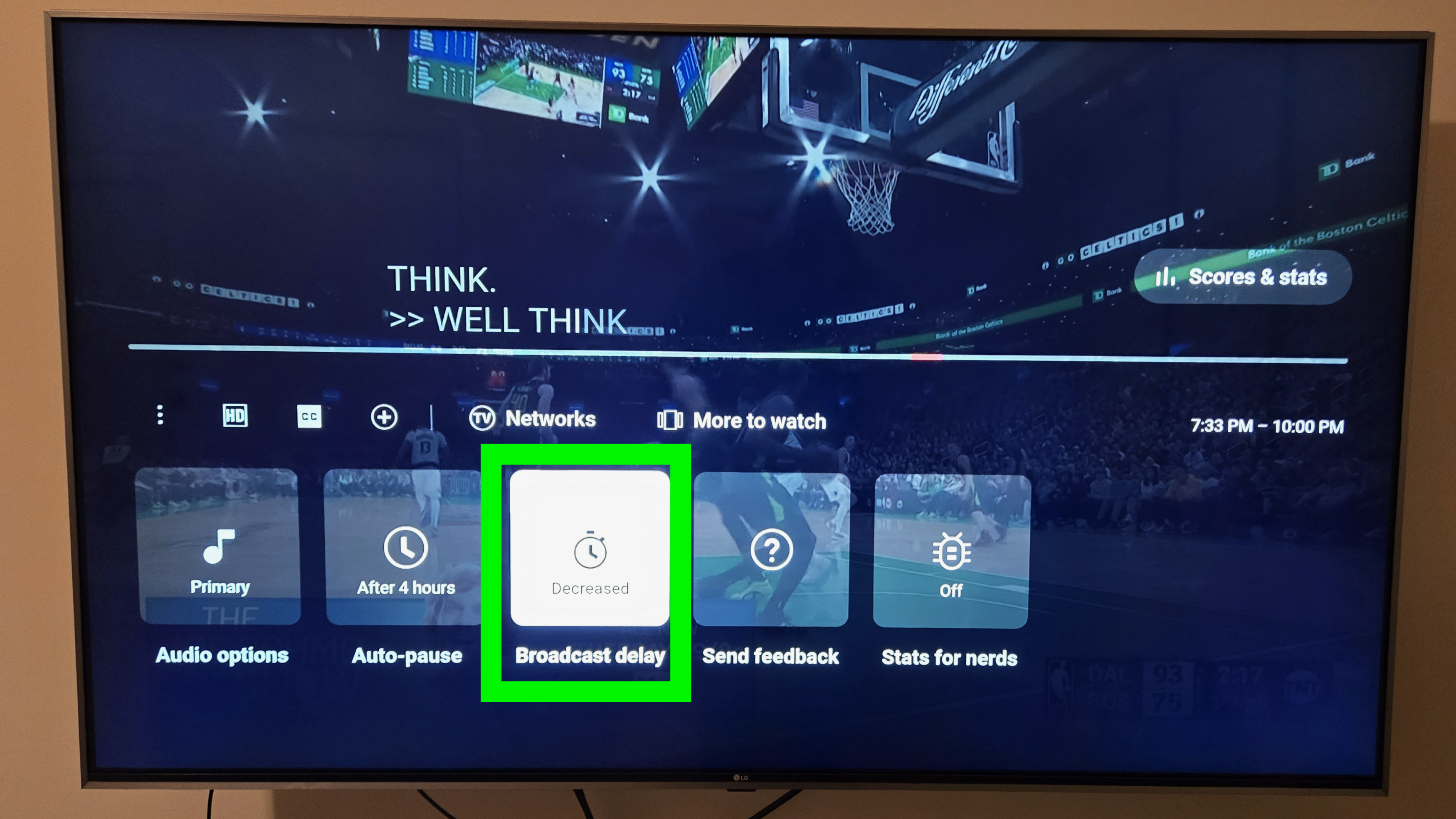
Now that you've changed your broadcast delay setting you can confirm it changed. Hit down on your remote to open the user inteface and select the the dot more menu to confirm that your broadcast delay setting changed.
Now that you've learned how to change your broadcast delay setting on YouTube TV, you might want to know more about how to watch Super Bowl LX.
Lucky for you, we've got you covered. Check out guides on how to watch Super Bowl 2026 on Roku, how to watch this year's Super Bowl on Fire TV, how to stream Super Bowl 2026 in 4K and how to use a sneaky trick to stream the Winter Olympics, Super Bowl and T20 World Cup for free this February.